
Free English SPRINT SAMSUNG GALAXY S6 EDGE (01) PDF document. Download the PDF, use the online viewer, or browse the FAQs for easy troubleshooting.
CLICK HERE TO DOWNLOAD SPRINT SAMSUNG GALAXY S6 EDGE (01) PDF DOCUMENT
If this is not the document you want for this product, click here to see if we have any other documents for this product.
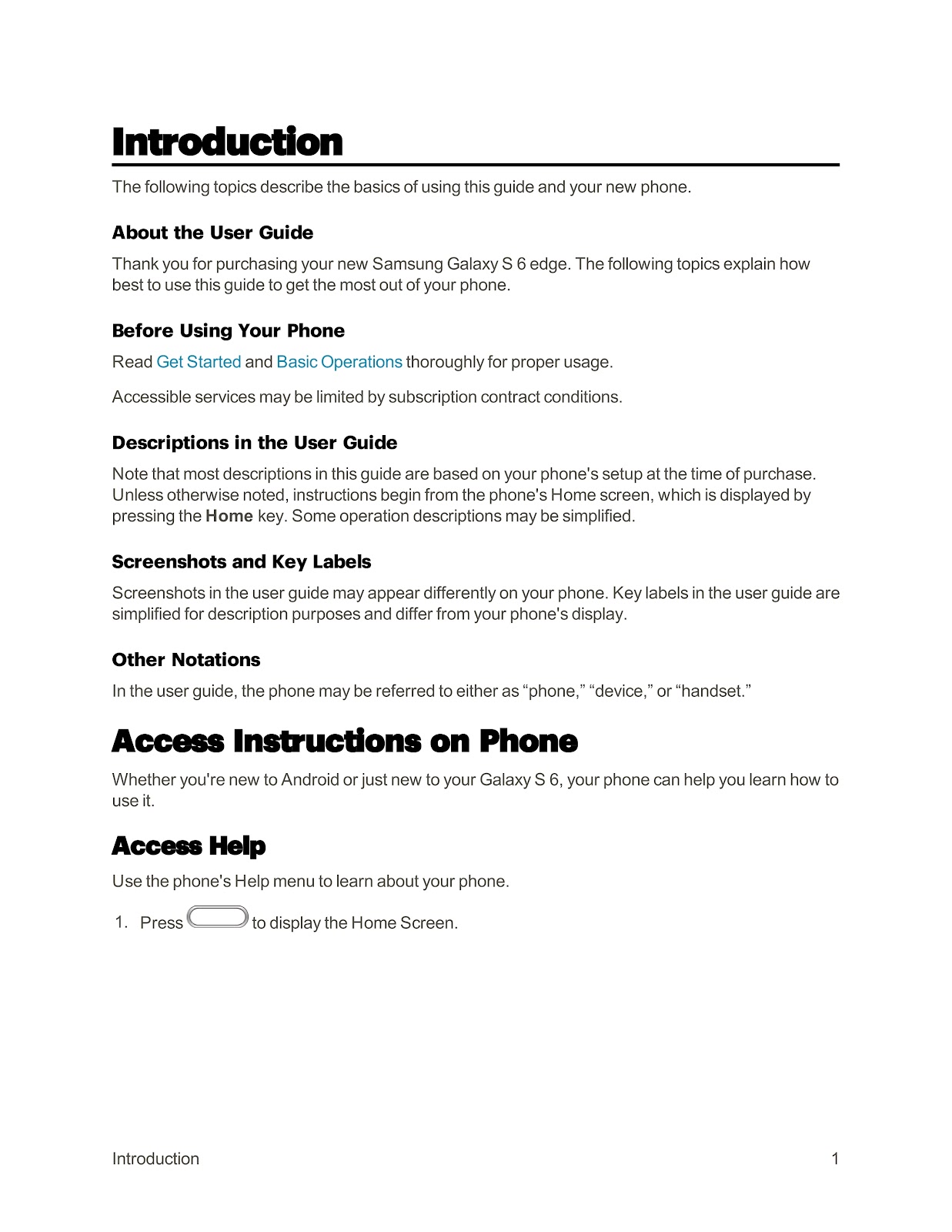
How can I access the built-in Help menu on my SPRINT SAMSUNG GALAXY S6 EDGE?
You can use the built-in Help menu on your SPRINT SAMSUNG GALAXY S6 EDGE to learn more about its features.
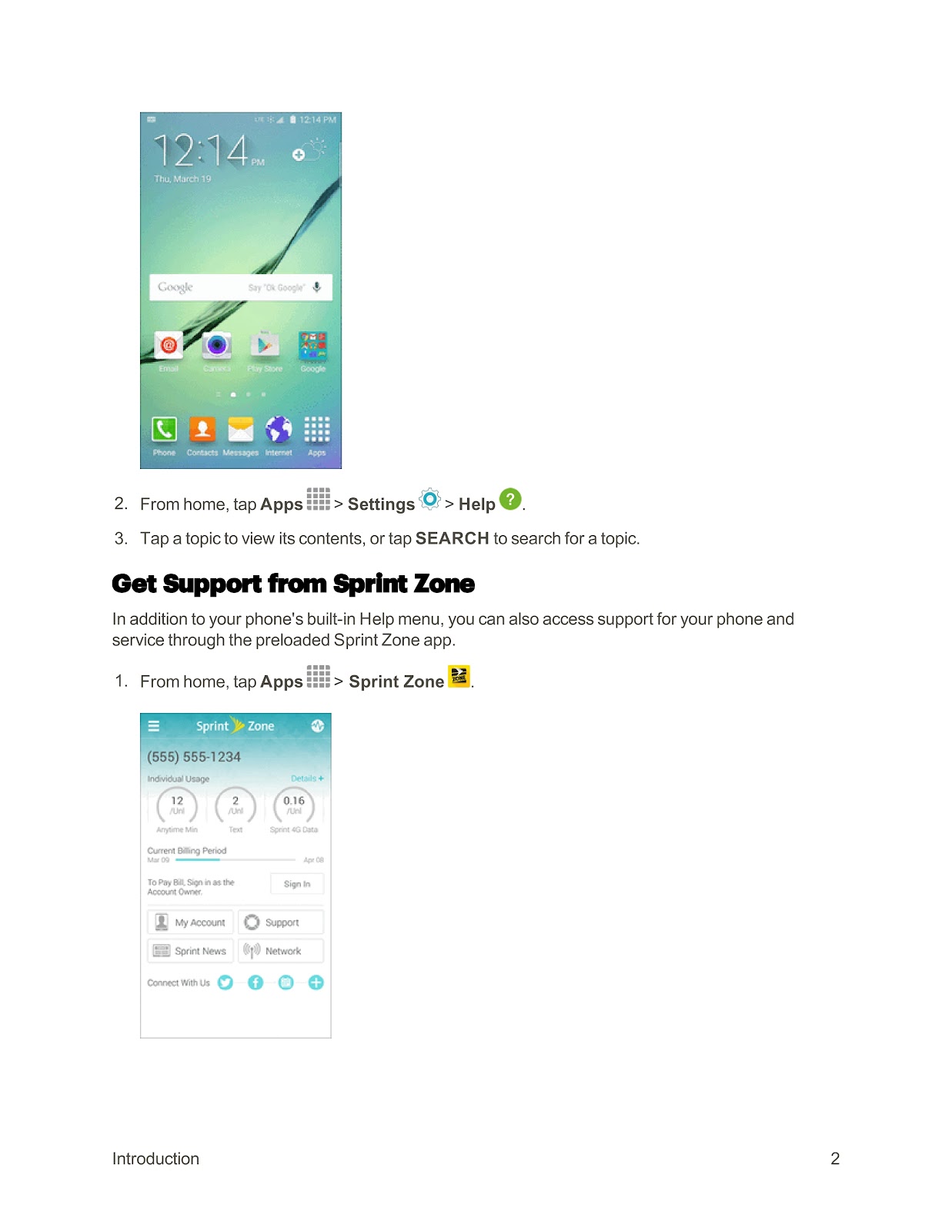
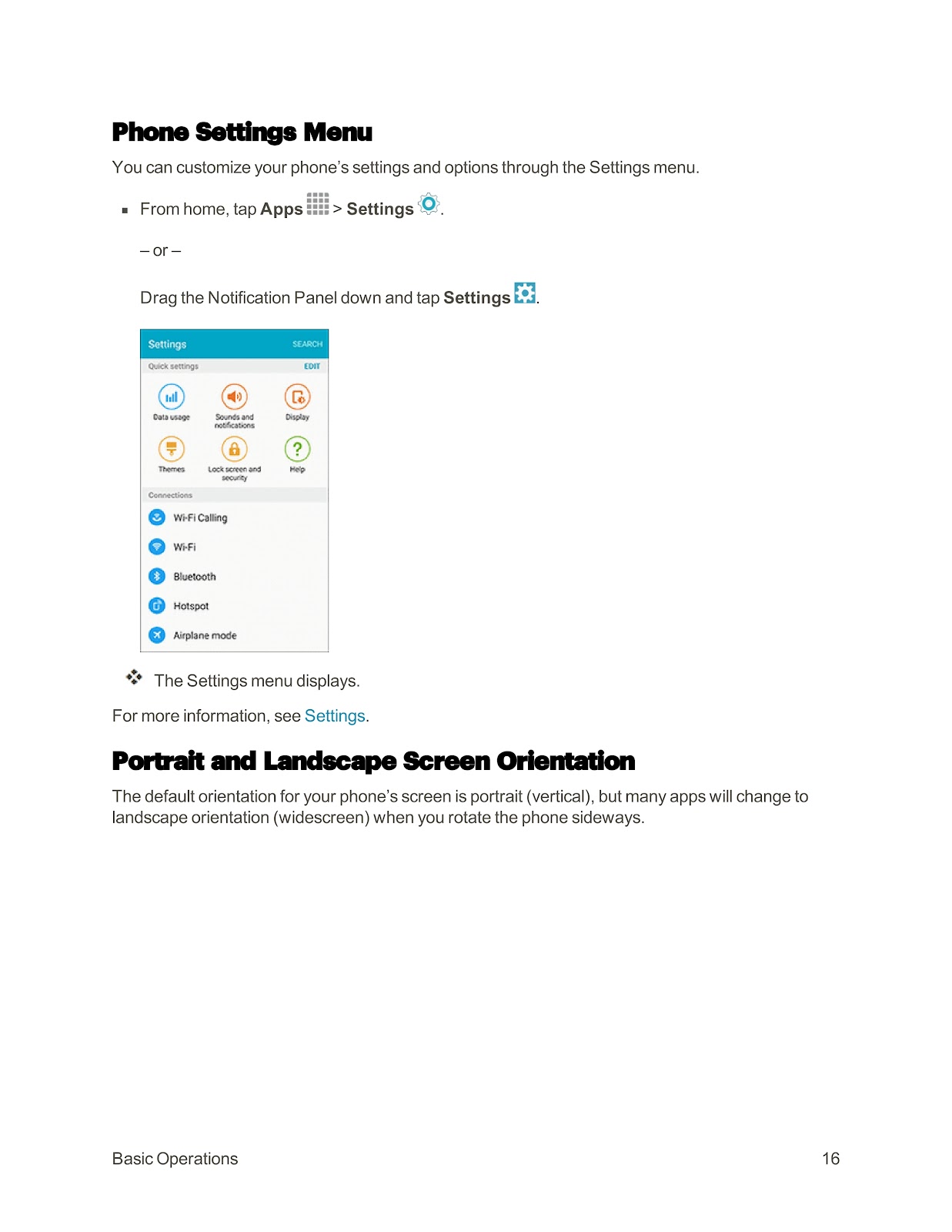
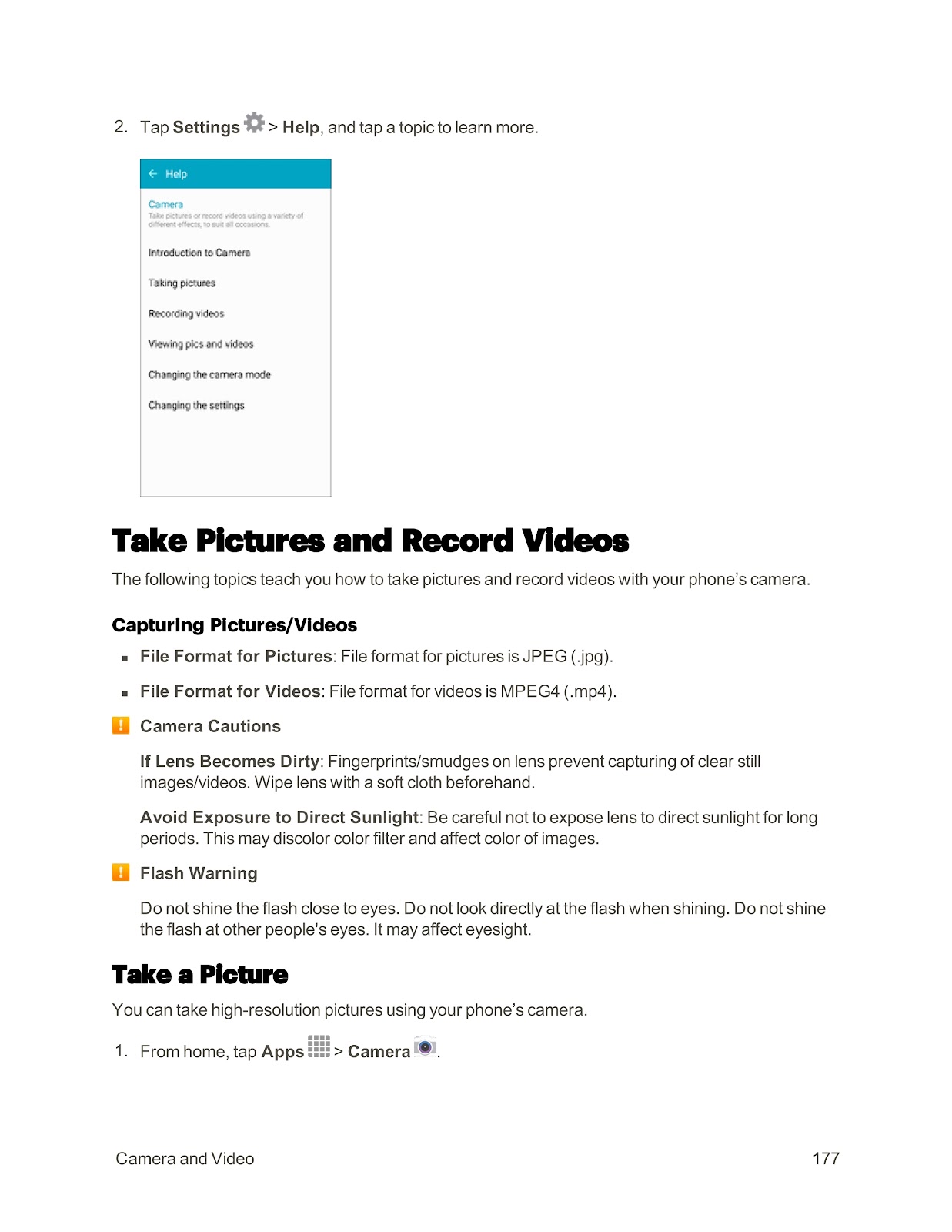
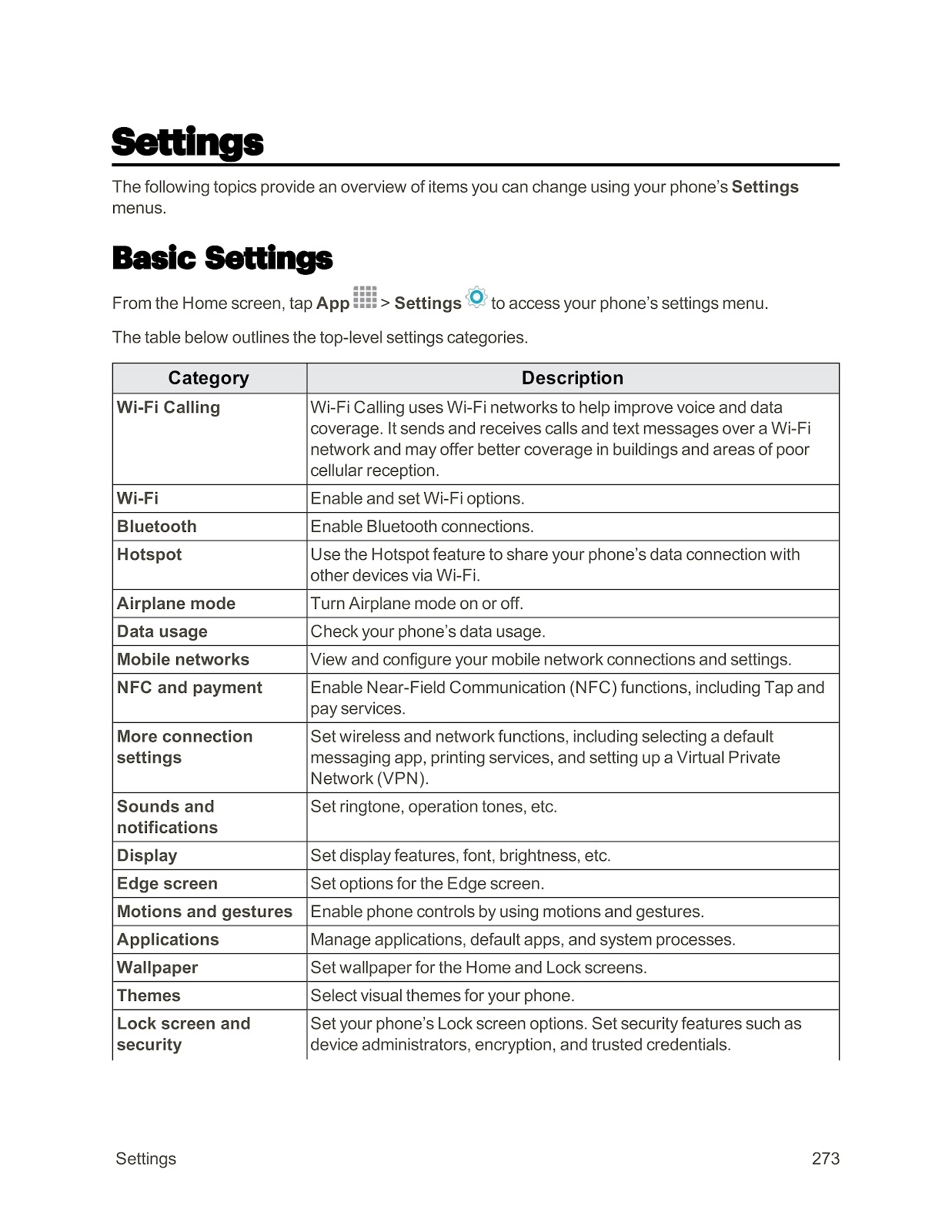
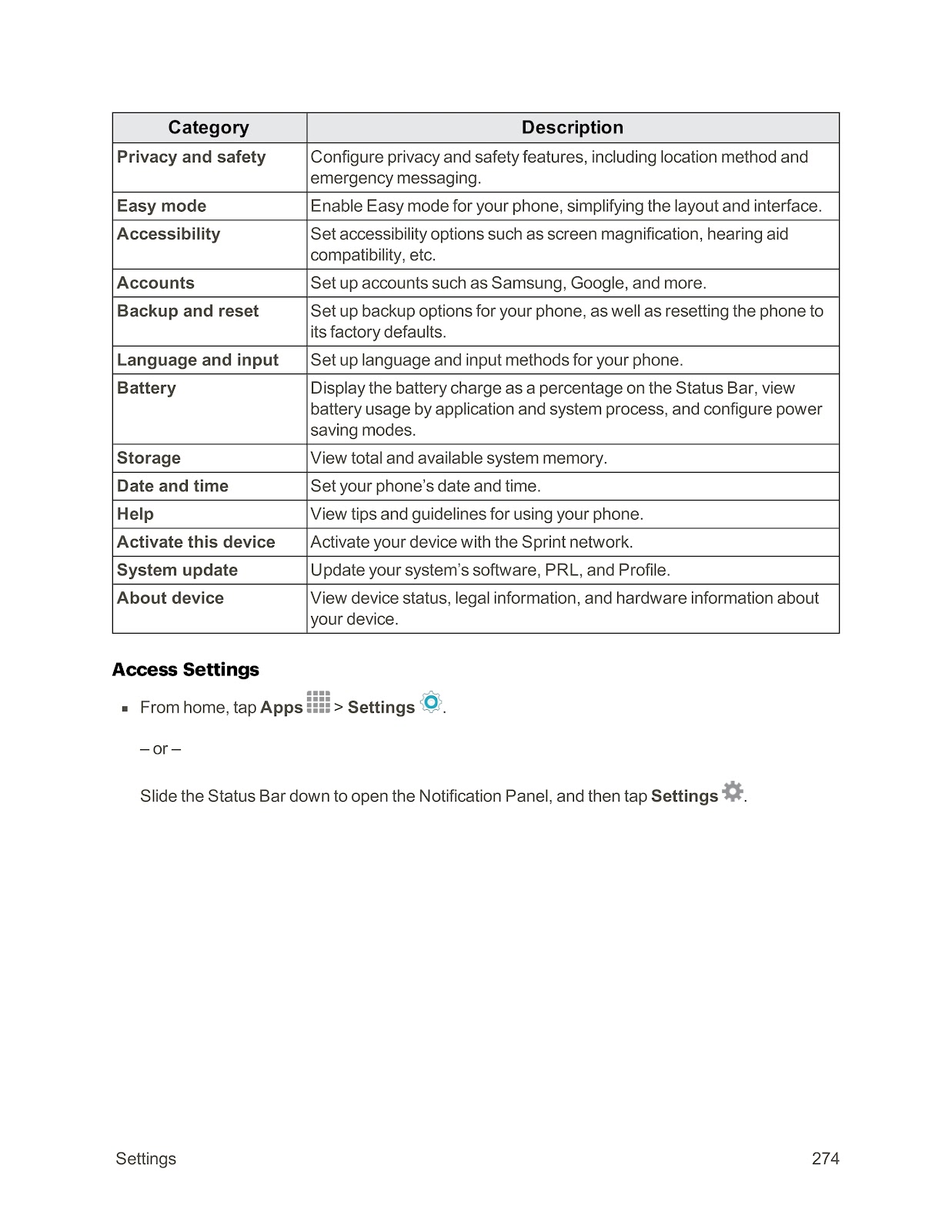
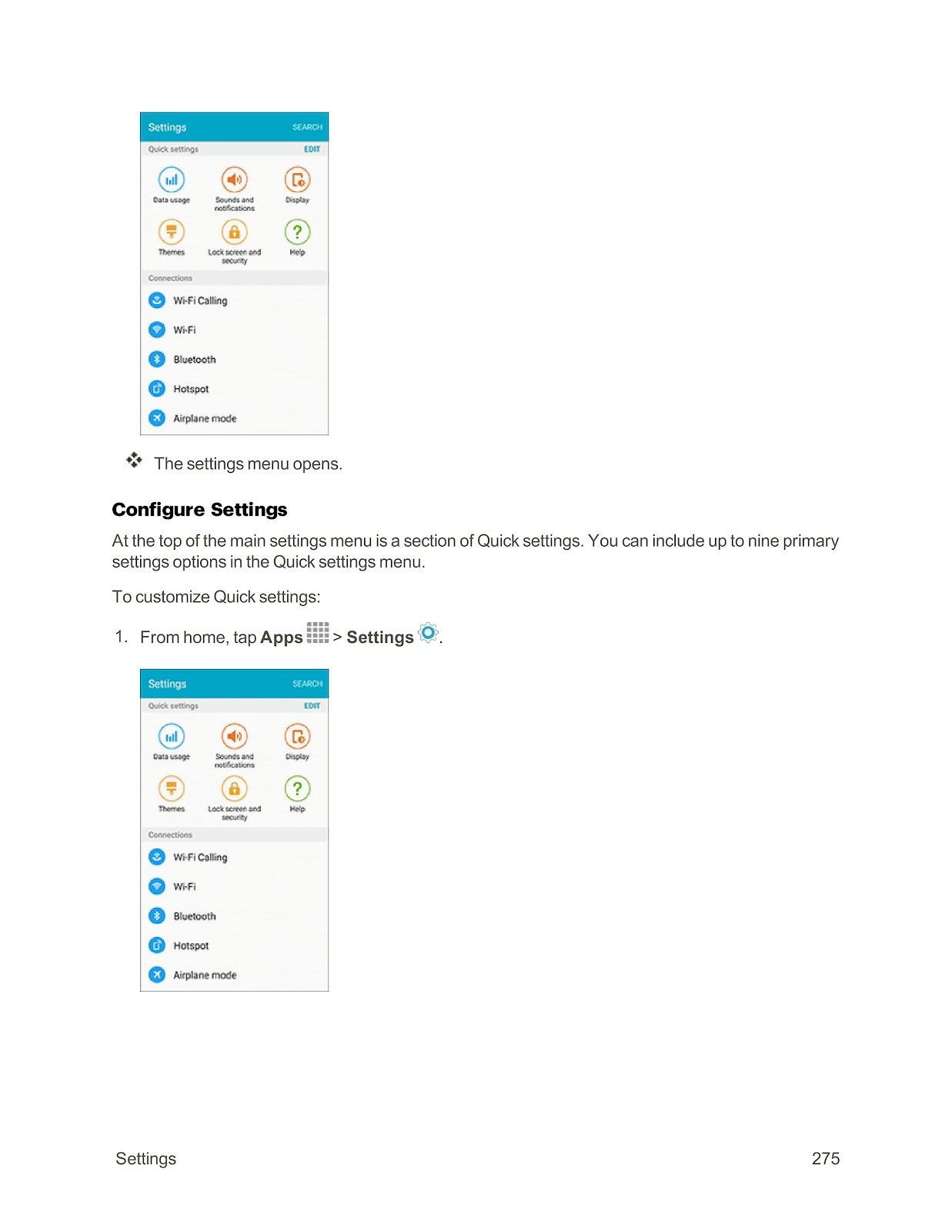
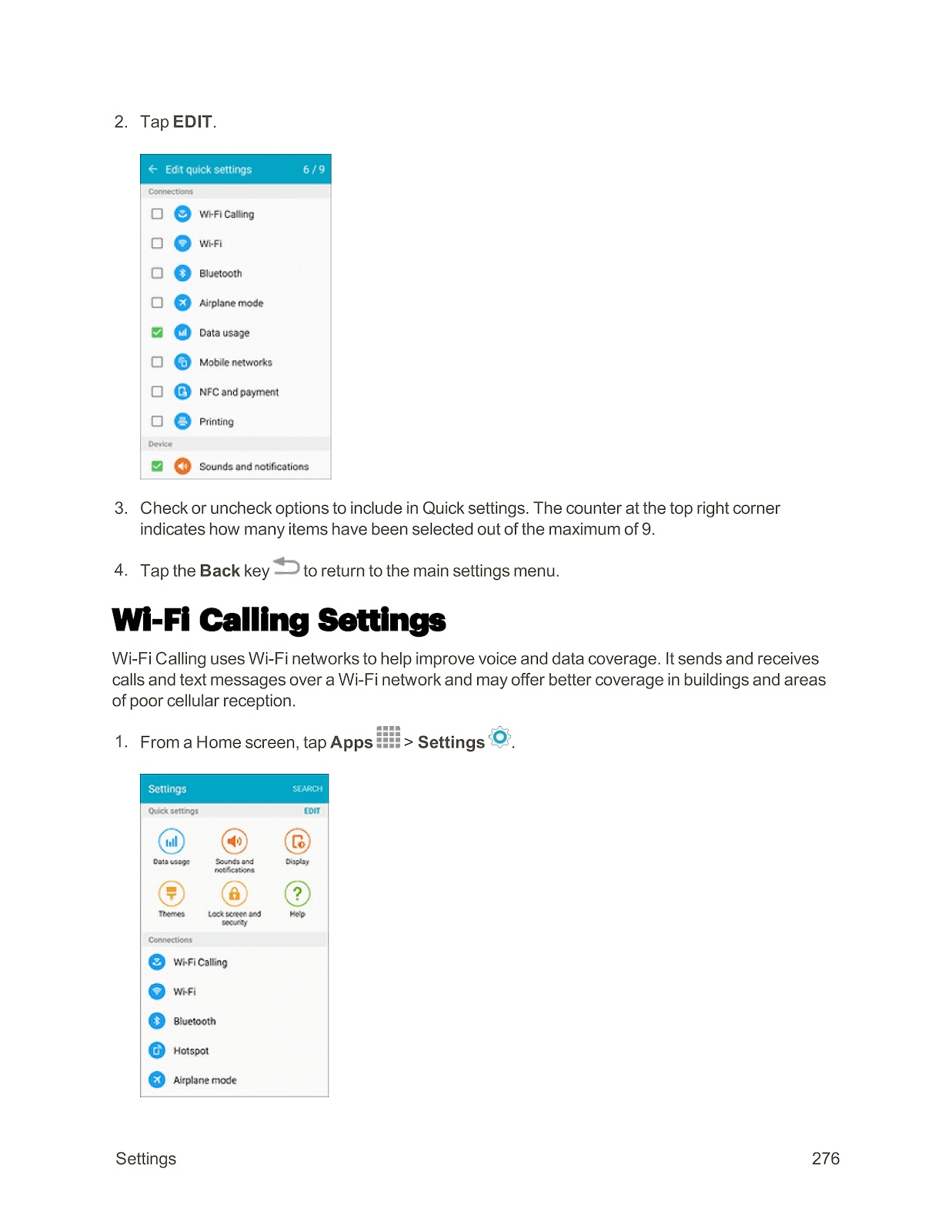
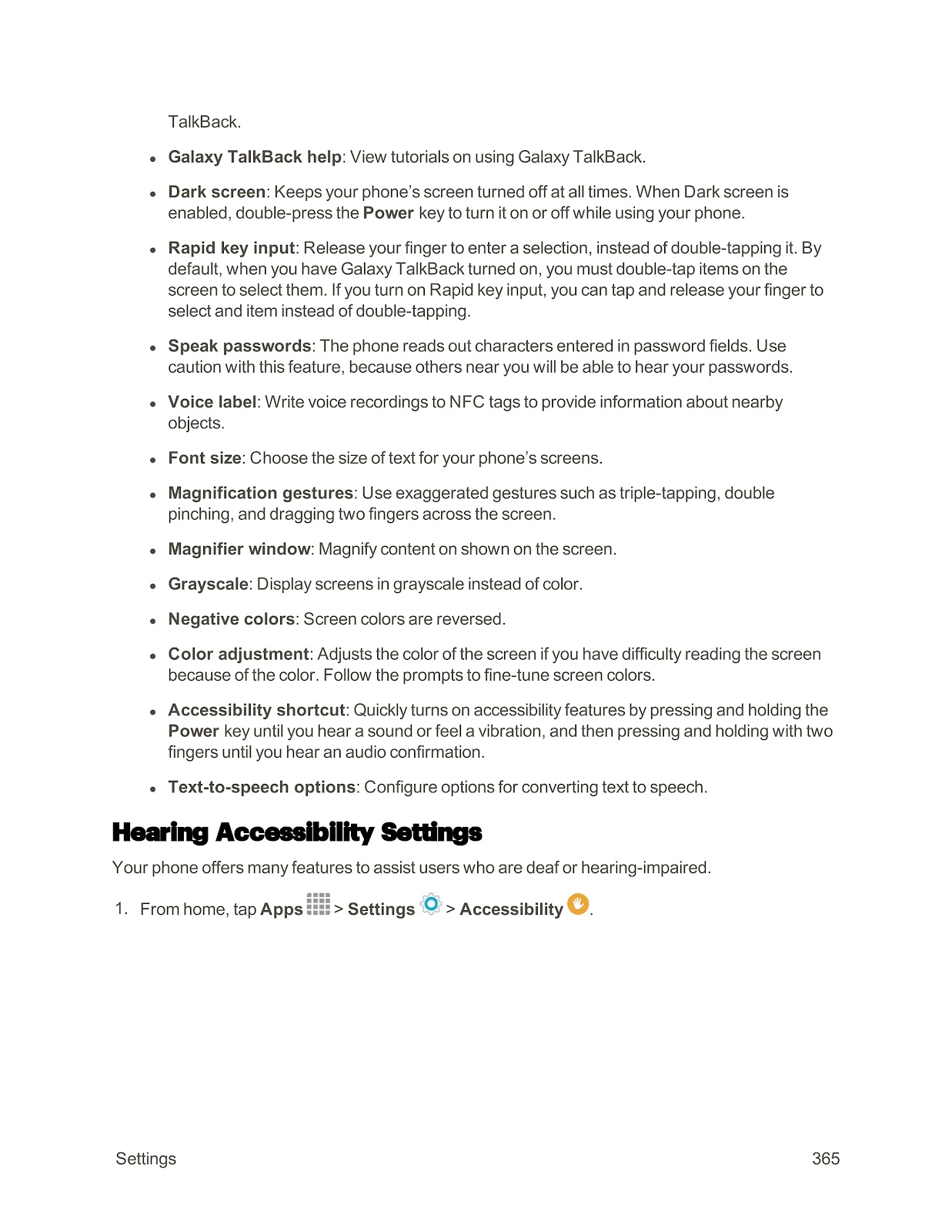
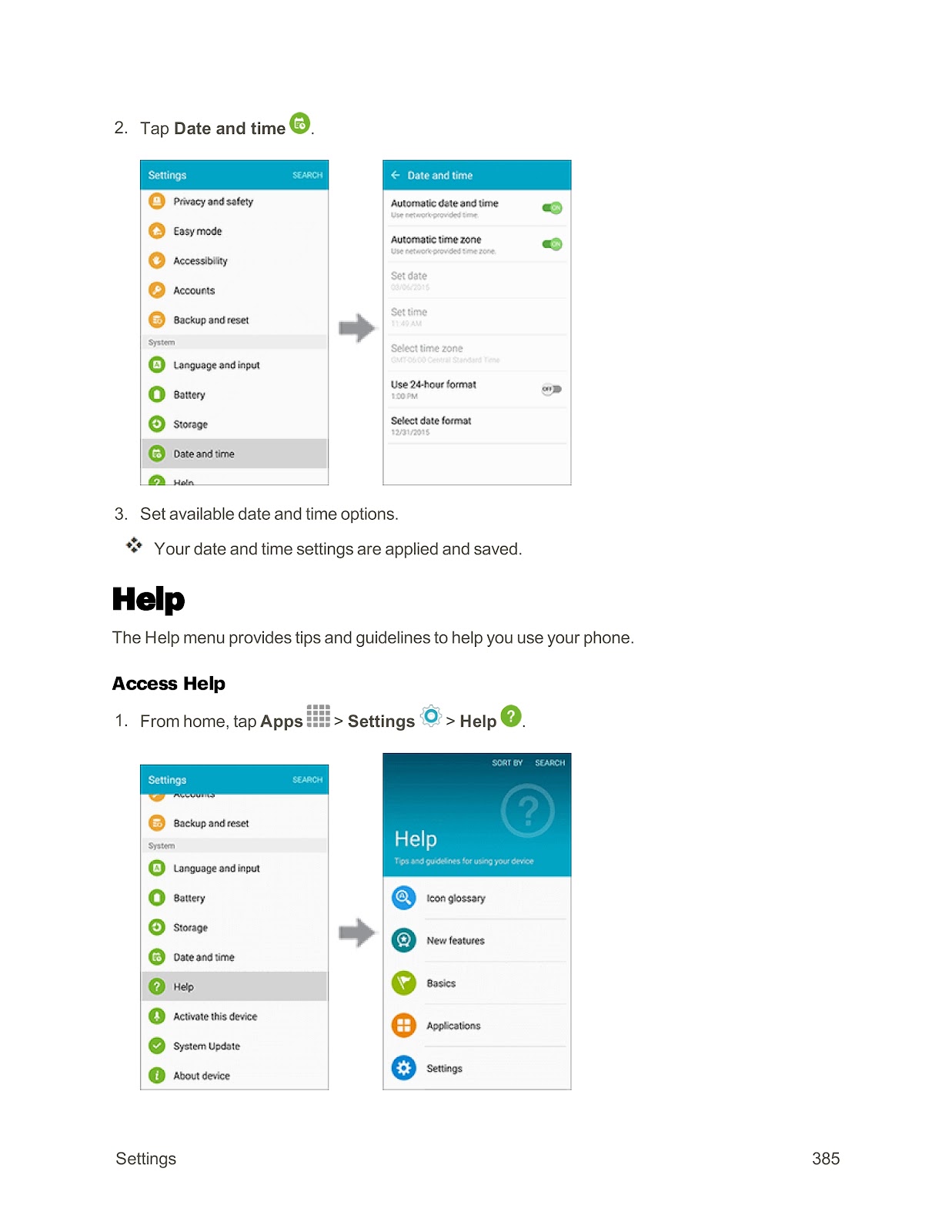
1. From the home screen, tap Apps > Settings > Help.
2. Tap a topic to view its contents, or tap SEARCH to search for a specific topic.
How do I get support from the Sprint Zone app on my SPRINT SAMSUNG GALAXY S6 EDGE?
To access support for your phone and service through the preloaded Sprint Zone app:
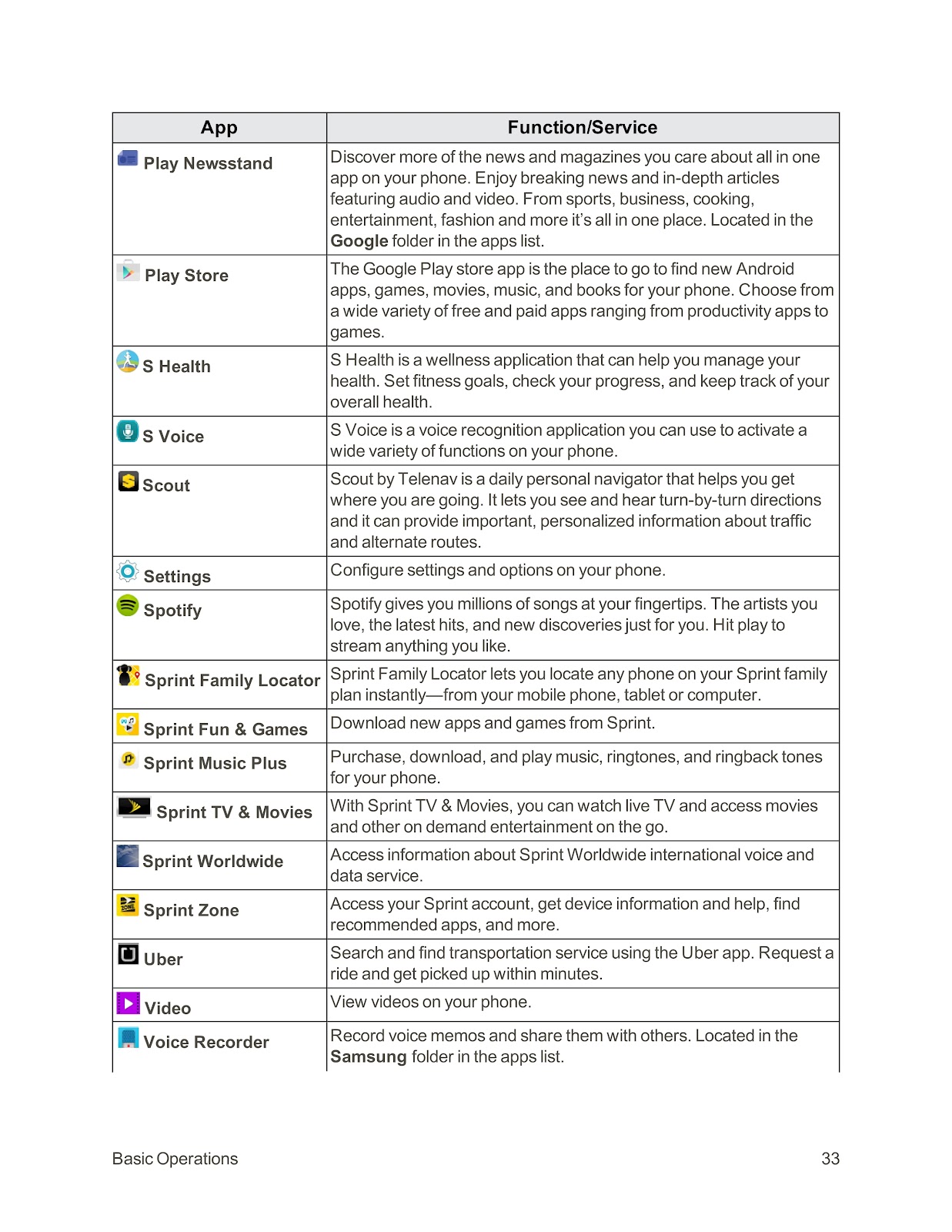
1. From your home screen, tap Apps > Sprint Zone.
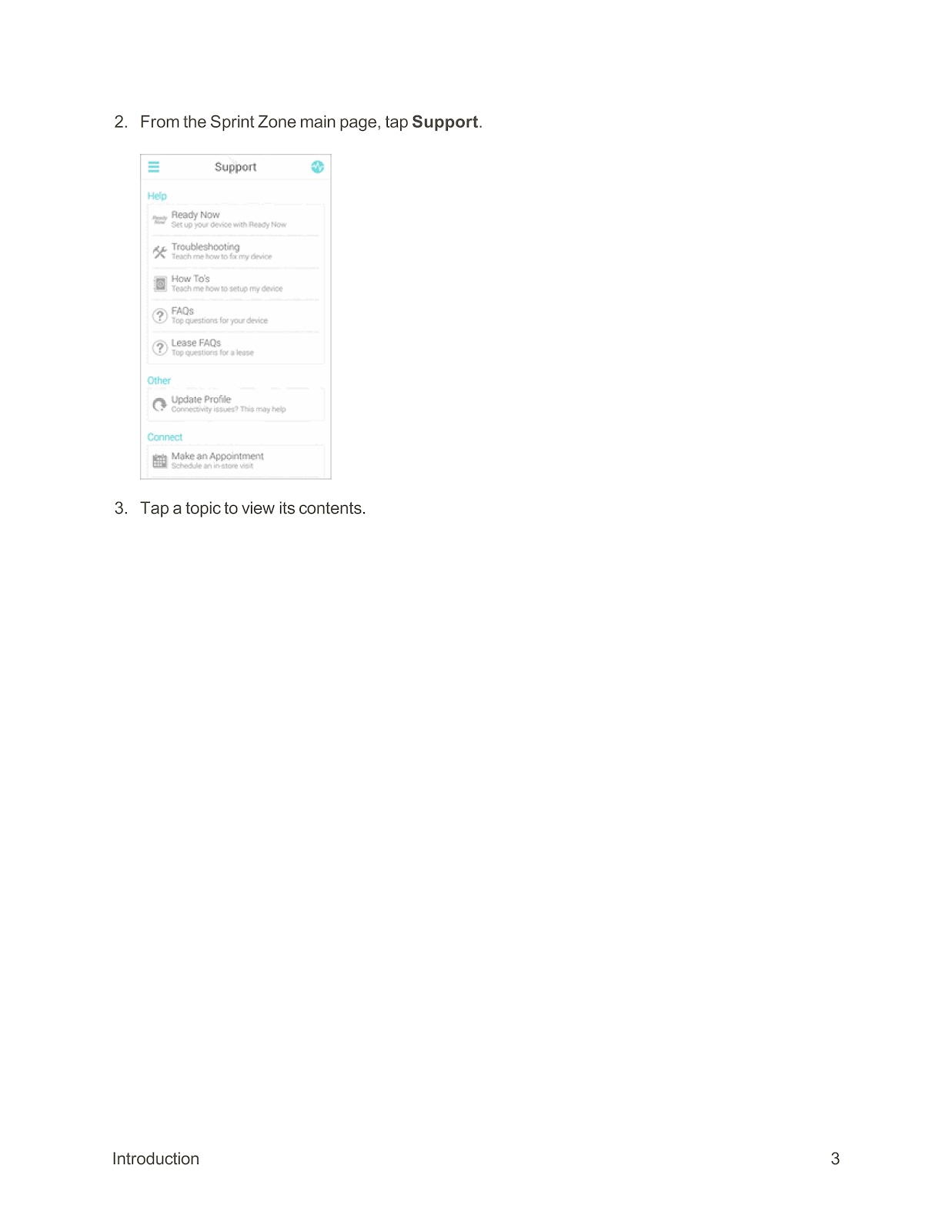
2. From the Sprint Zone main page, tap Support.
3. Tap a topic to view its contents.
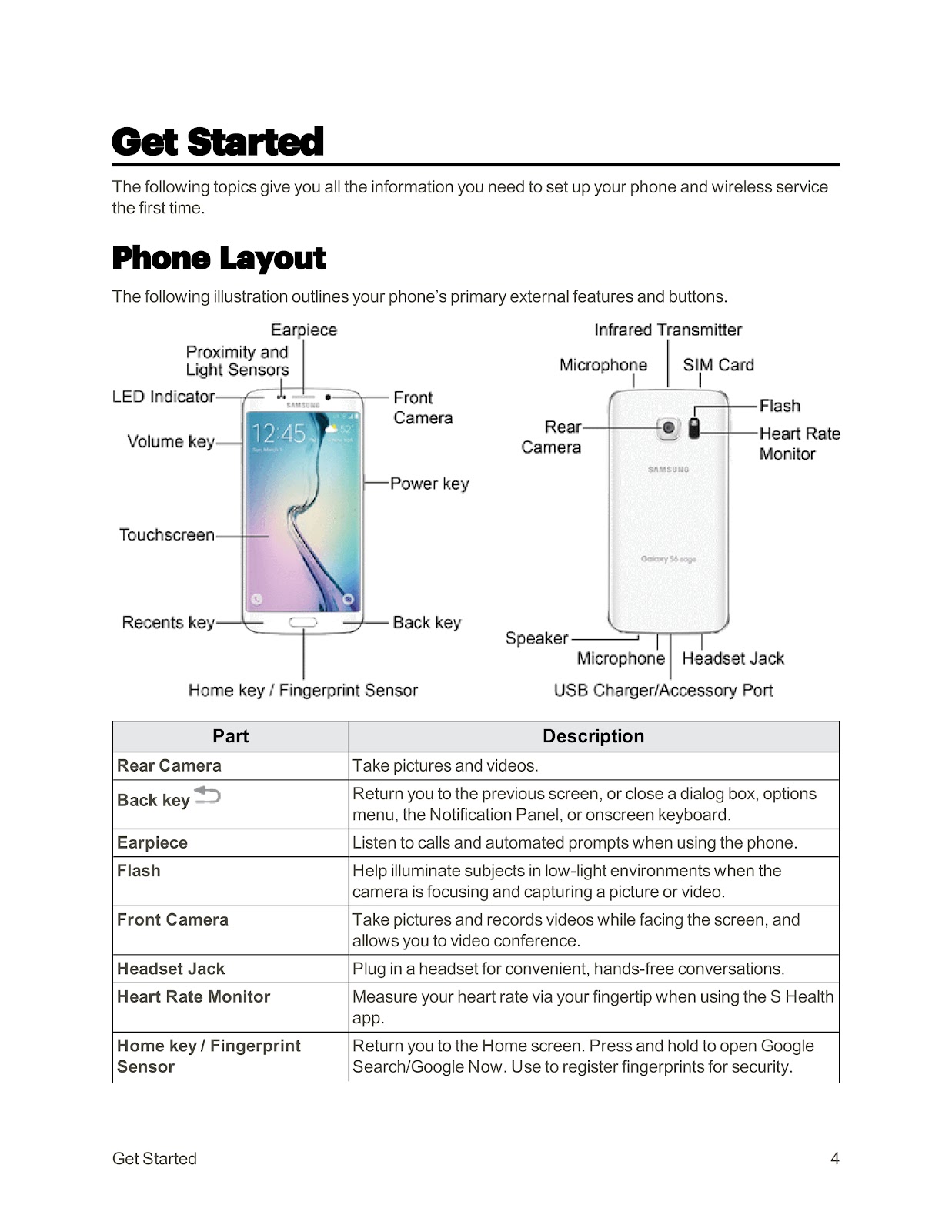
What are the primary external features and buttons of the SPRINT SAMSUNG GALAXY S6 EDGE?
| Part | Description |
| Rear Camera | Take pictures and videos. |
| Back key | Return you to the previous screen, or close a dialog box, options menu, the Notification Panel, or onscreen keyboard. |
| Earpiece | Listen to calls and automated prompts when using the phone. |
| Flash | Help illuminate subjects in low-light environments when the camera is focusing and capturing a picture or video. |
| Front Camera | Take pictures and records videos while facing the screen, and allows you to video conference. |
| Headset Jack | Plug in a headset for convenient, hands-free conversations. |
| Heart Rate Monitor | Measure your heart rate via your fingertip when using the S Health app. |
| Home key / Fingerprint Sensor | Return you to the Home screen. Press and hold to open Google Search/Google Now. Use to register fingerprints for security. |
| Infrared Transmitter | Control other devices using infrared light. |
| LED Indicator | The LED indicator blinks or glows when charging, to indicate low battery, to announce new notifications, and when voice recording. |
| Microphone | Transmit your voice for phone calls or record your voice or ambient sounds for voice recordings and videos. There are two microphones, one on the top and one on the bottom. |
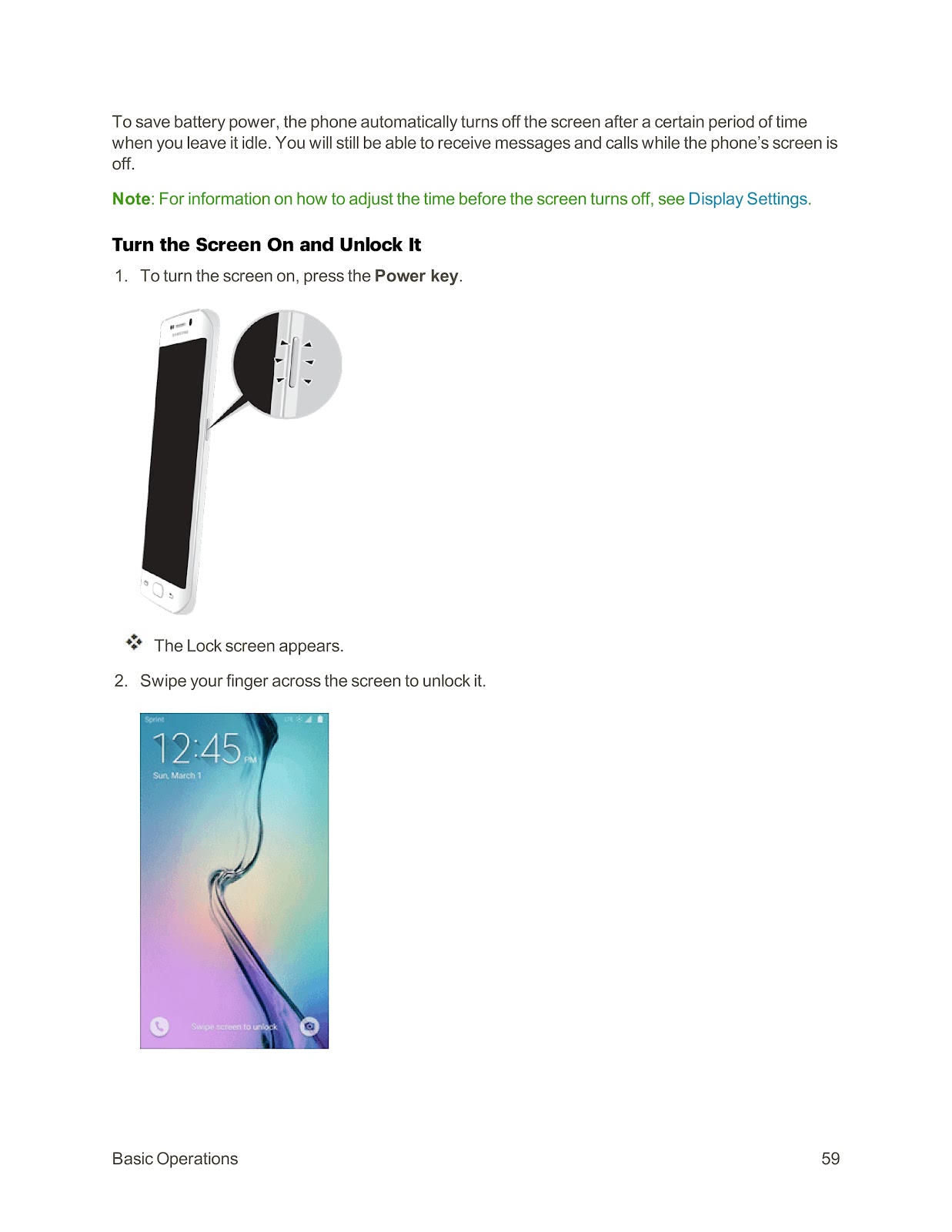
| Power key | Turn the phone or screen on or off, or switch your phone to silent mode, vibration mode, or airplane mode. |
| Proximity and Light Sensor | Detect when objects are close to the screen. For example, when you hold the phone to your ear while on a phone call, the sensor temporarily locks the screen to prevent accidental screen touches. |
| Recents key | Access recently used apps. |
| SIM Card | Location of the SIM card. |
| Speaker | Play ringtones and sounds. The speaker also lets you hear the caller’s voice in speakerphone mode. |
| Touchscreen | Display information needed to operate your phone, such as the call status, the Contacts list, and the date and time. Also provides one-tap access to all of your features and applications. |
| USB Charger/Accessory Port | Connect the phone to the charger via a USB cable. |
| Volume key | Adjust the ringtone or media volume or adjust the voice volume during a call. |
How do I charge the battery on my SPRINT SAMSUNG GALAXY S6 EDGE?
You can charge your SPRINT SAMSUNG GALAXY S6 EDGE using the included AC adapter or by connecting it to a computer. Note that this phone has an integrated battery that cannot be removed.
Charge Using the AC Adapter (Fastest Method):
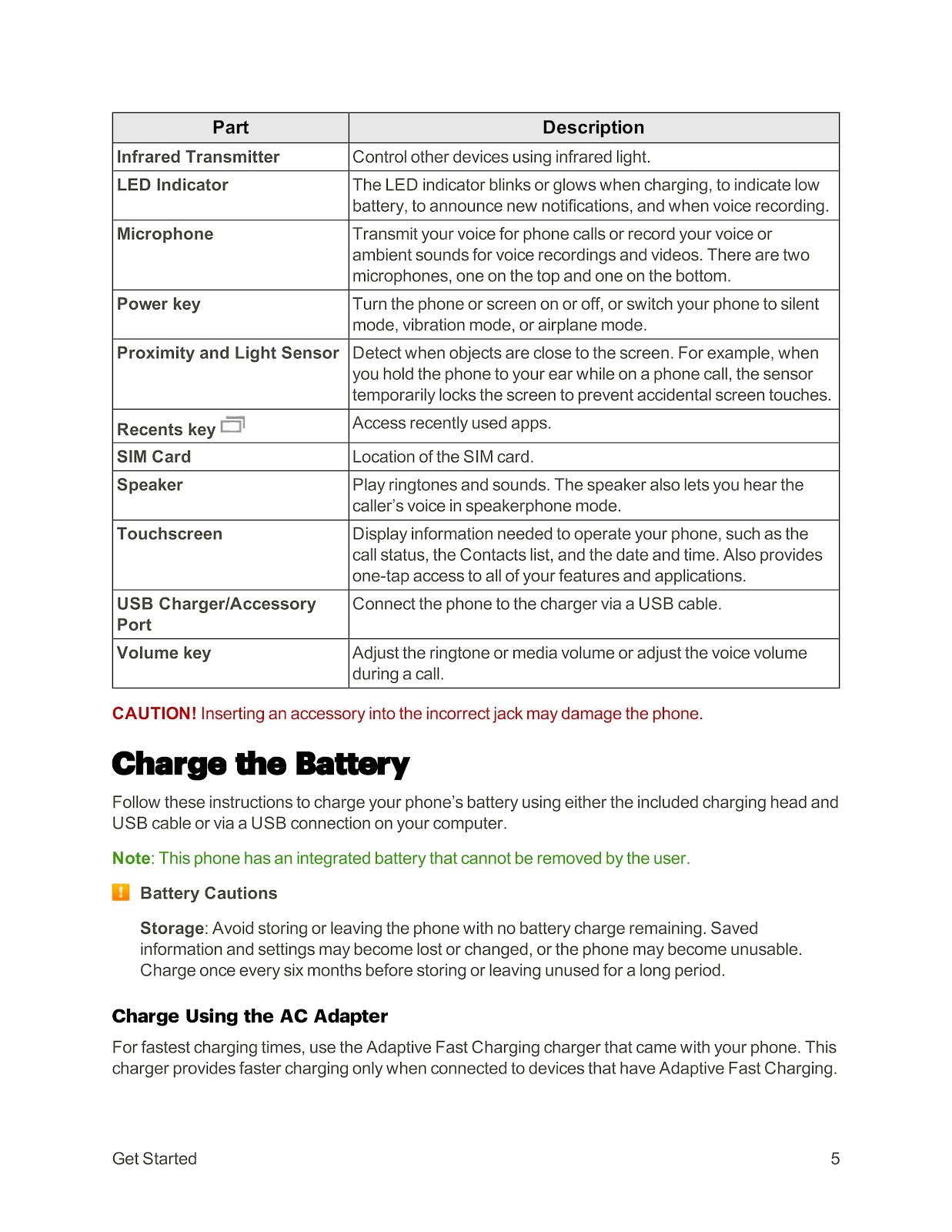
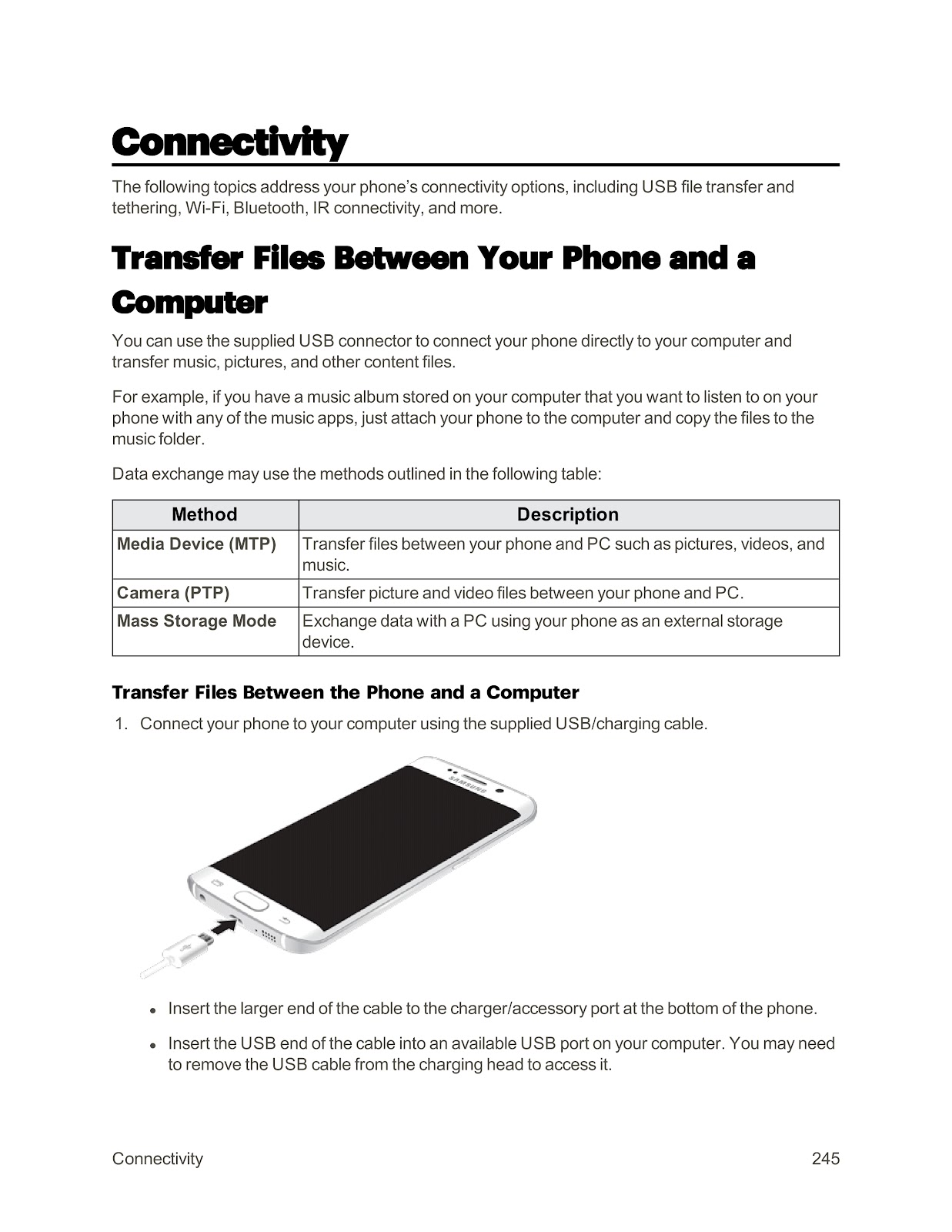
1. Plug the USB cable into the USB charger/accessory port on the bottom of your phone.
2. Plug the other end of the USB cable into the charging head.
3. Plug the charging head into an electrical outlet.
4. After charging, disconnect the phone from the charger.
Charge Using a PC Connection:
1. Ensure the computer is turned on.
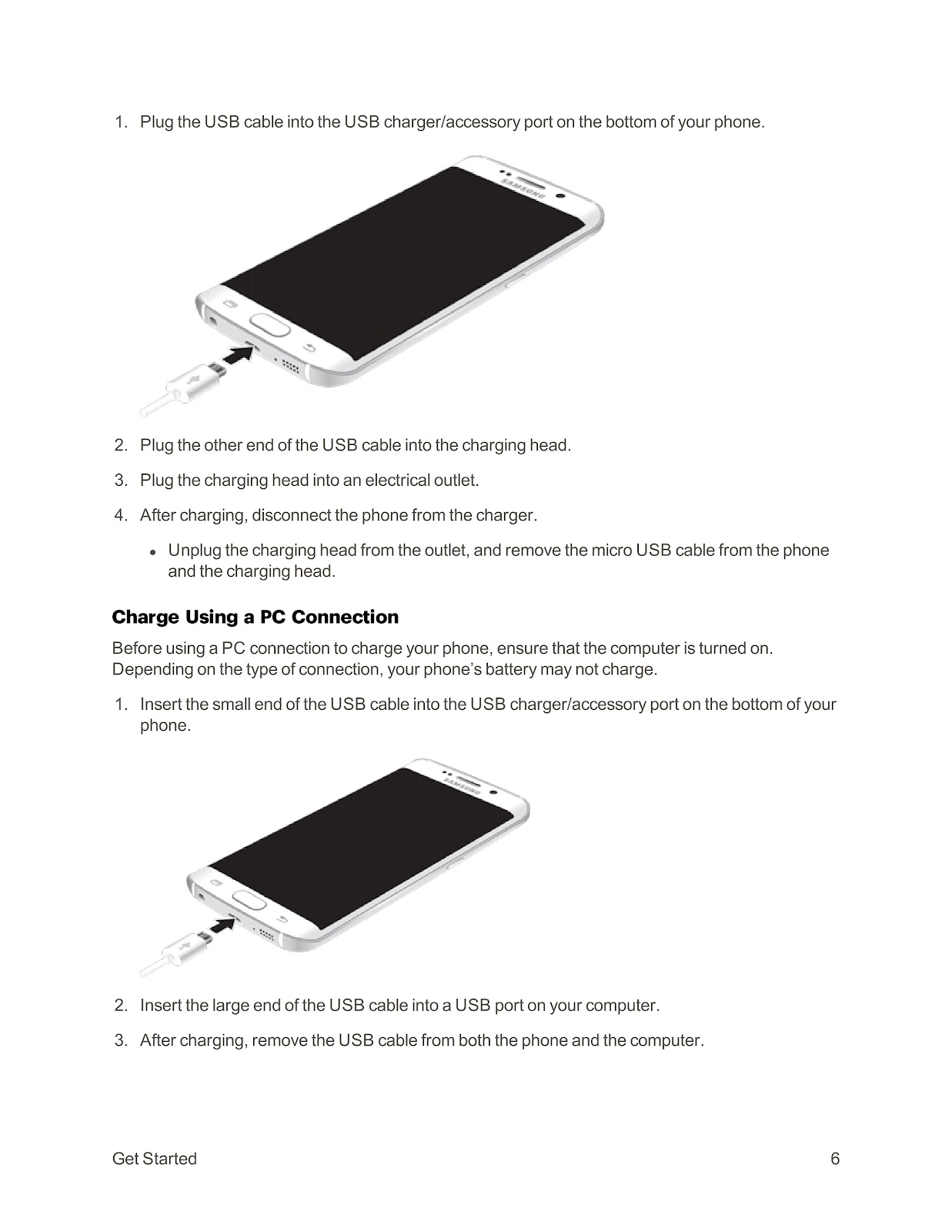
2. Insert the small end of the USB cable into the USB charger/accessory port on the bottom of your phone.
3. Insert the large end of the USB cable into a USB port on your computer.
4. After charging, remove the USB cable from both the phone and the computer.
How do I turn my SPRINT SAMSUNG GALAXY S6 EDGE on and off?
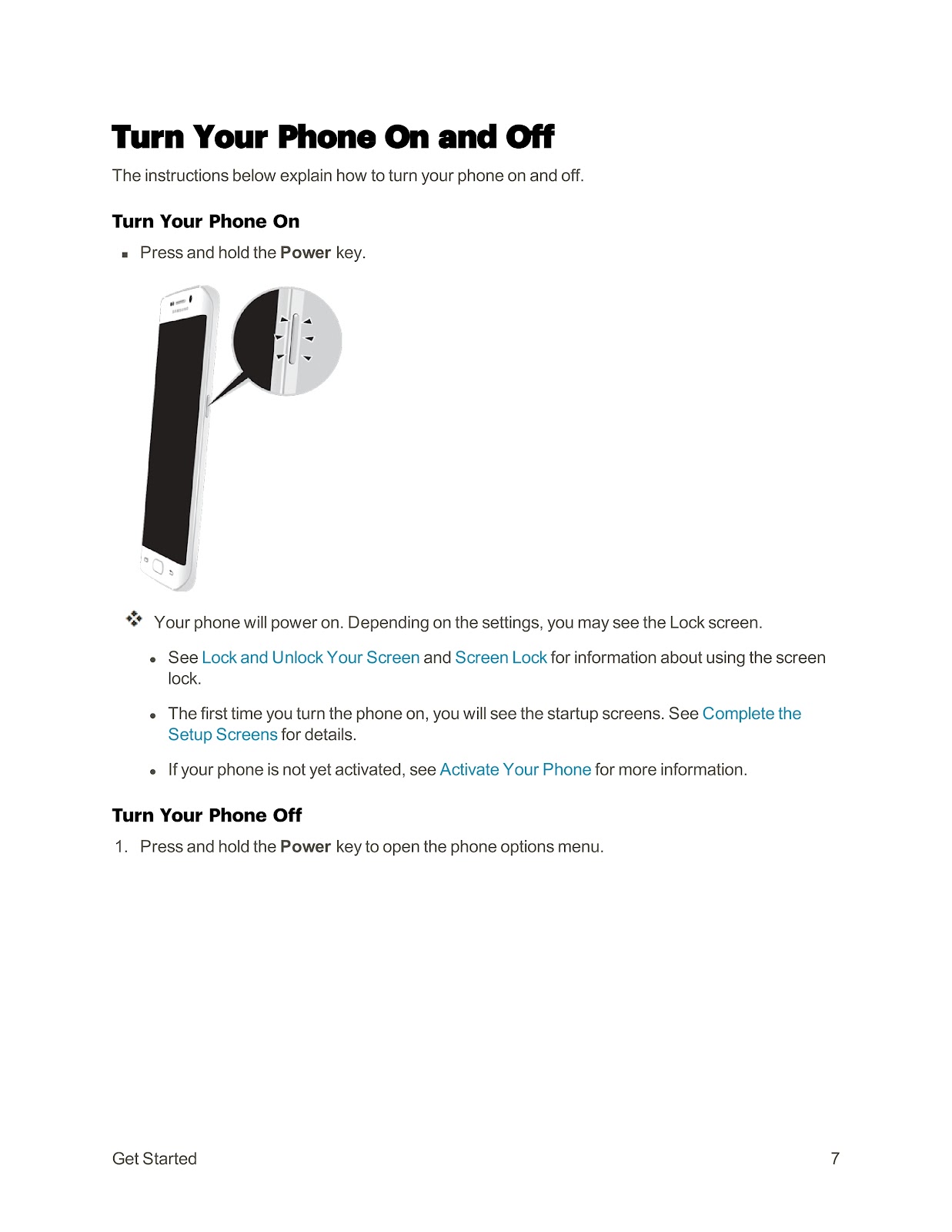
Turn Your Phone On:
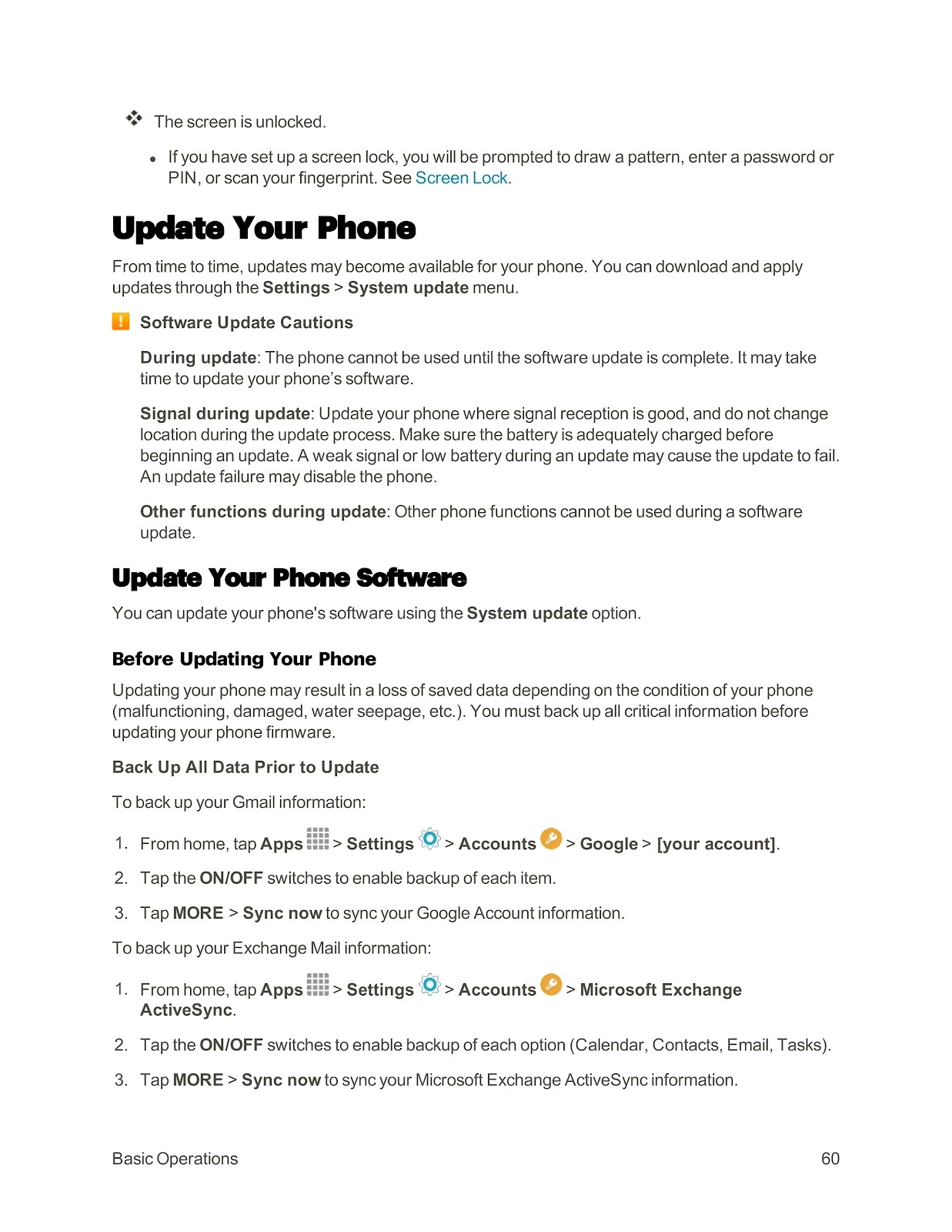
Press and hold the Power key. Your phone will power on. Depending on your settings, you may see the Lock screen.
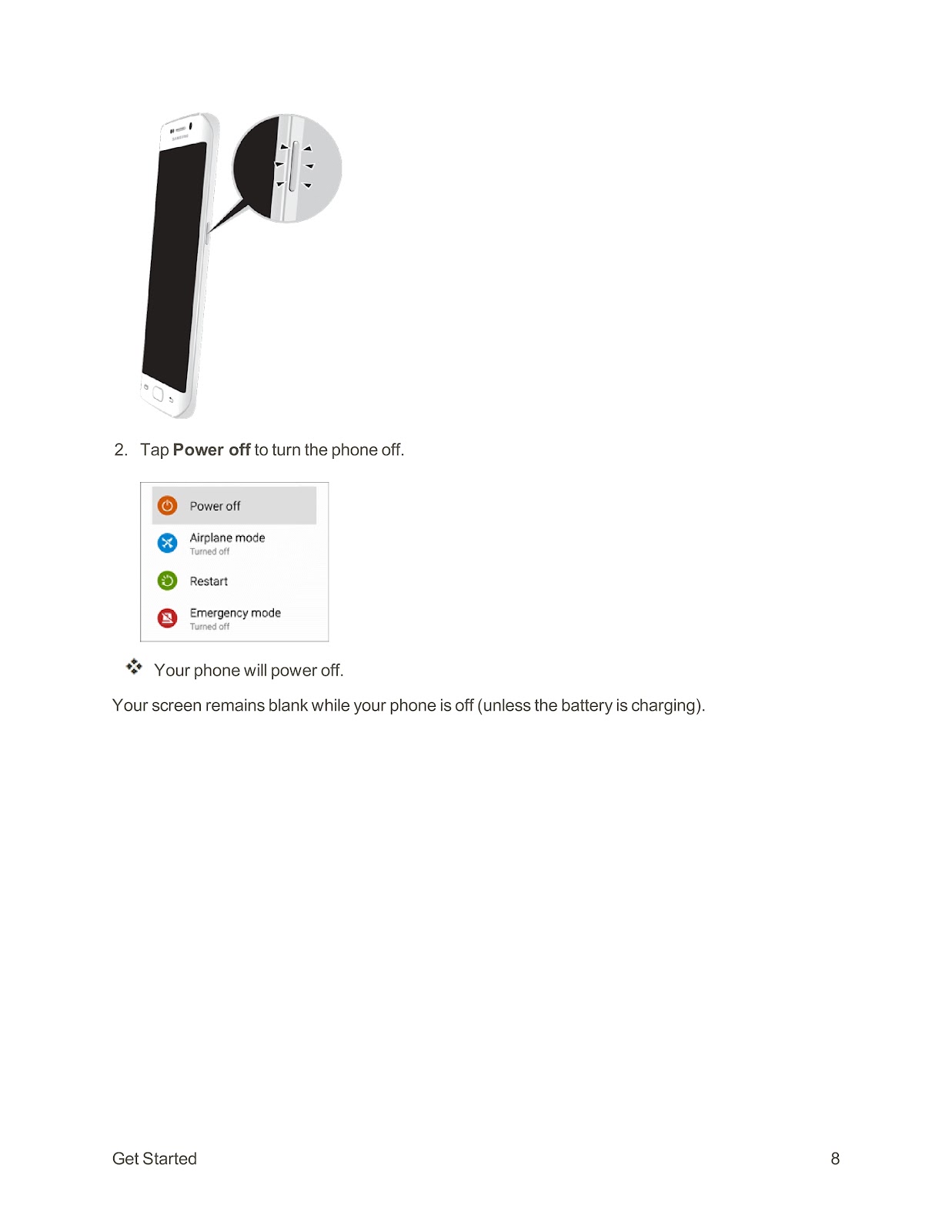
Turn Your Phone Off:
1. Press and hold the Power key to open the phone options menu.
2. Tap Power off to turn the phone off.
What are the basic touchscreen gestures for the SPRINT SAMSUNG GALAXY S6 EDGE?
Your SPRINT SAMSUNG GALAXY S6 EDGE touchscreen uses various gestures:
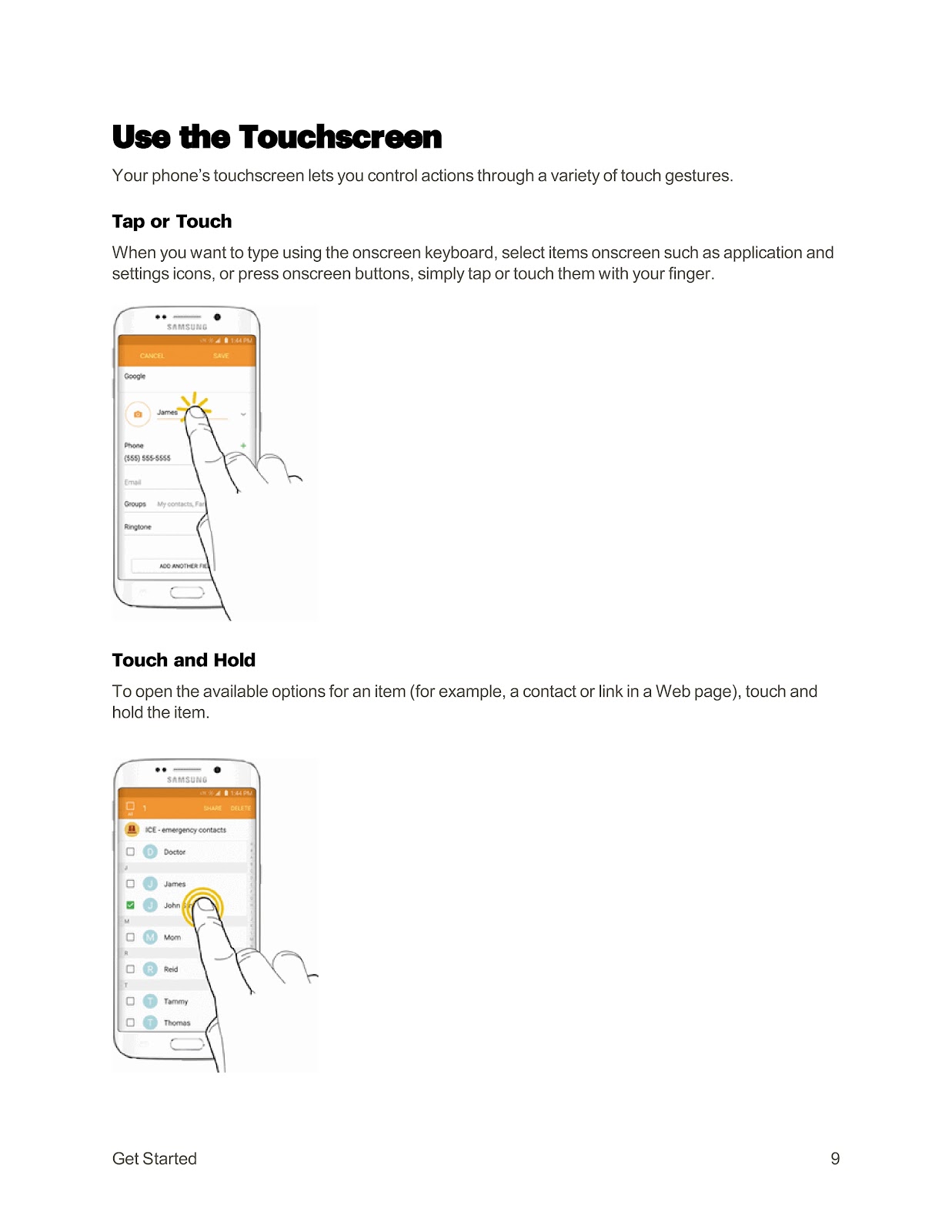
Tap or Touch: Simply tap items on the screen with your finger to select them, such as application icons or onscreen buttons.
Touch and Hold: To open available options for an item (like a contact or a web link), touch and hold the item.
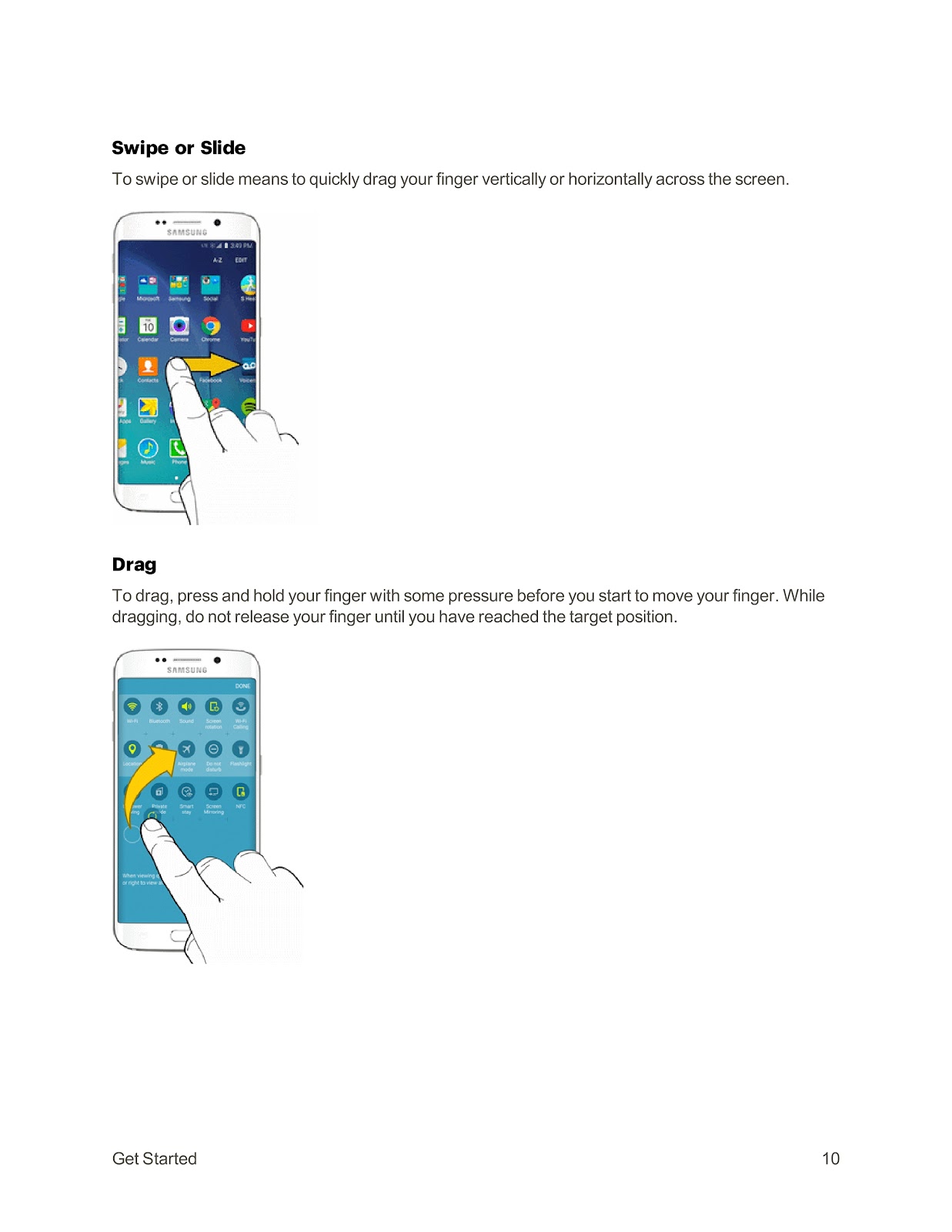
Swipe or Slide: Quickly drag your finger vertically or horizontally across the screen.
Drag: Press and hold your finger with some pressure, then move your finger to a target position without releasing it.
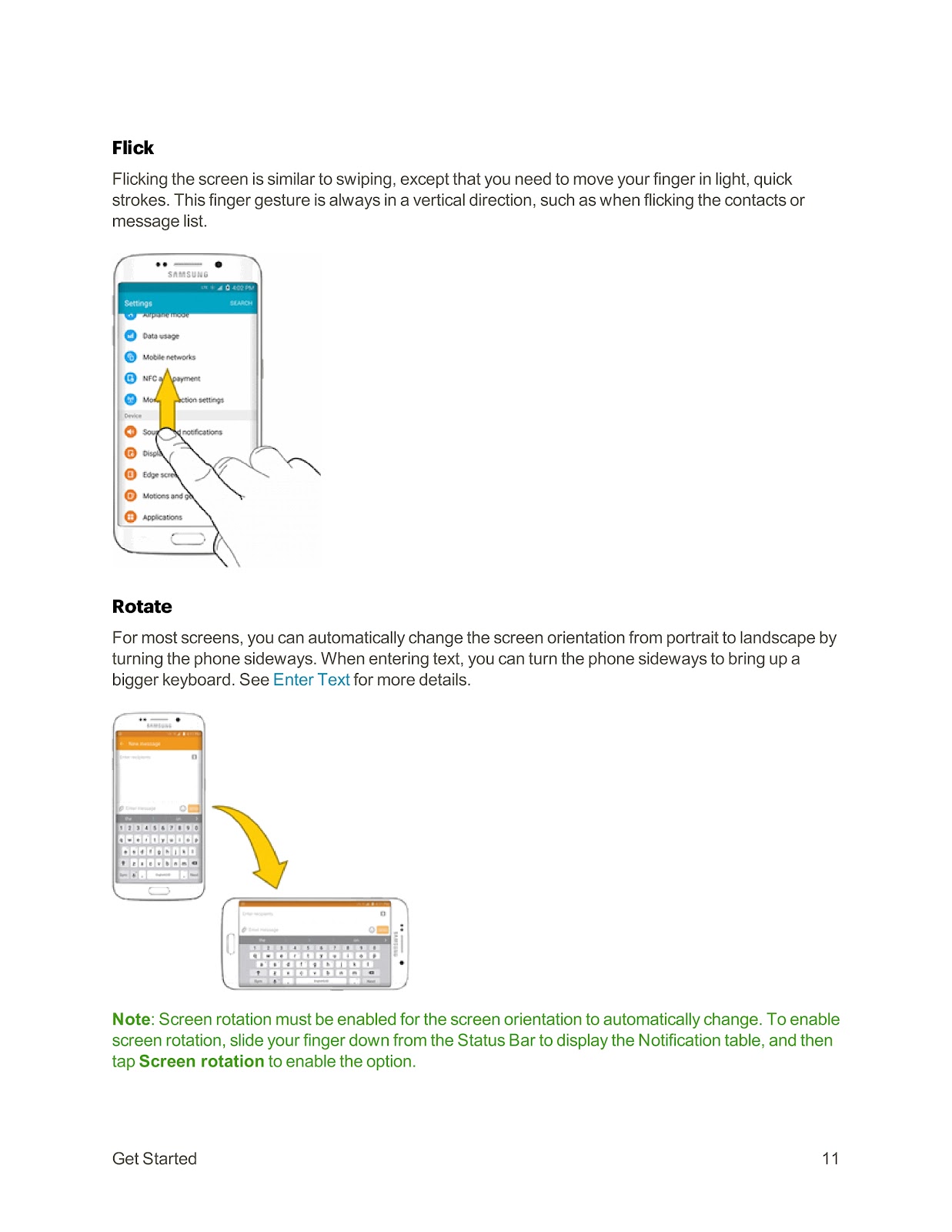
Flick: Similar to swiping, but with light, quick strokes in a vertical direction, such as when scrolling through a list.
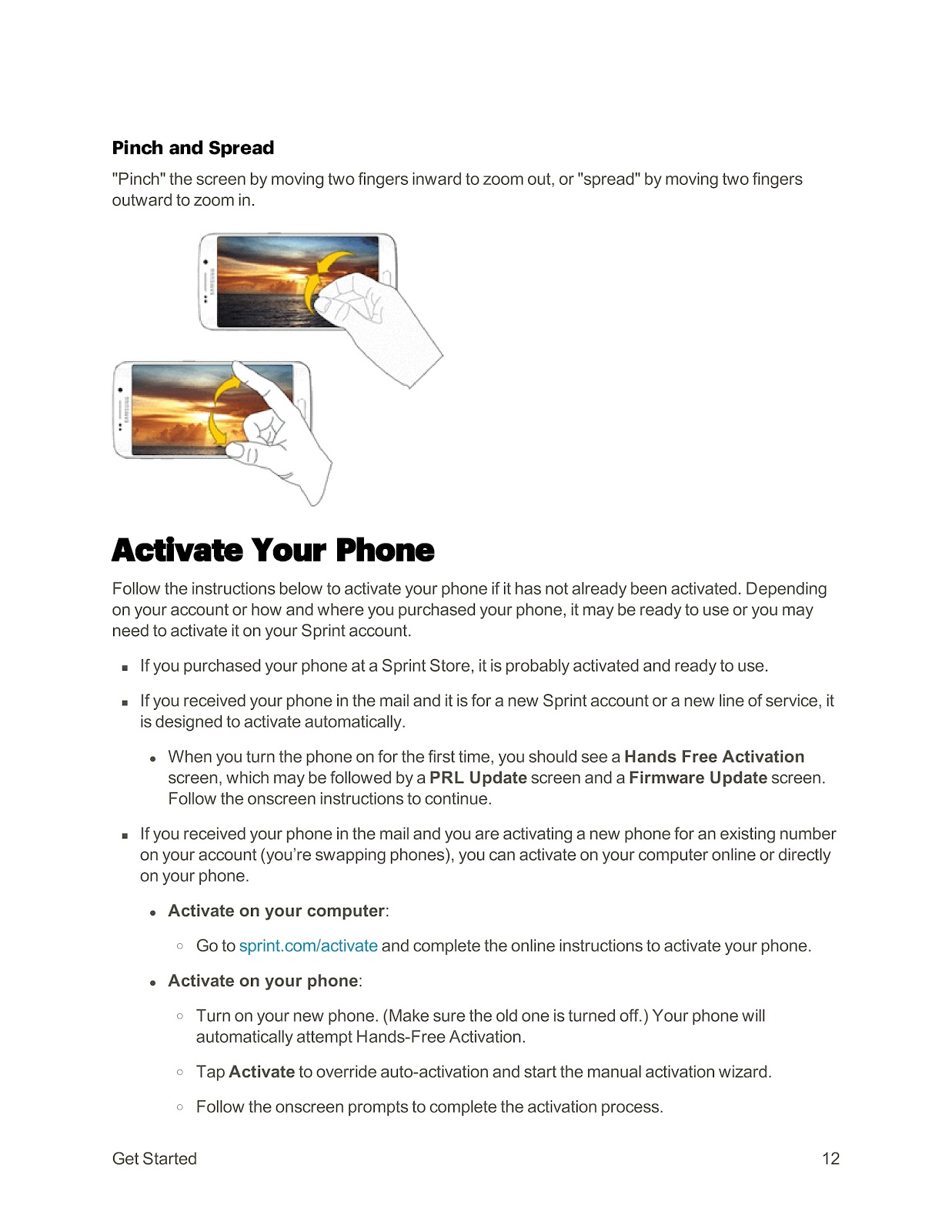
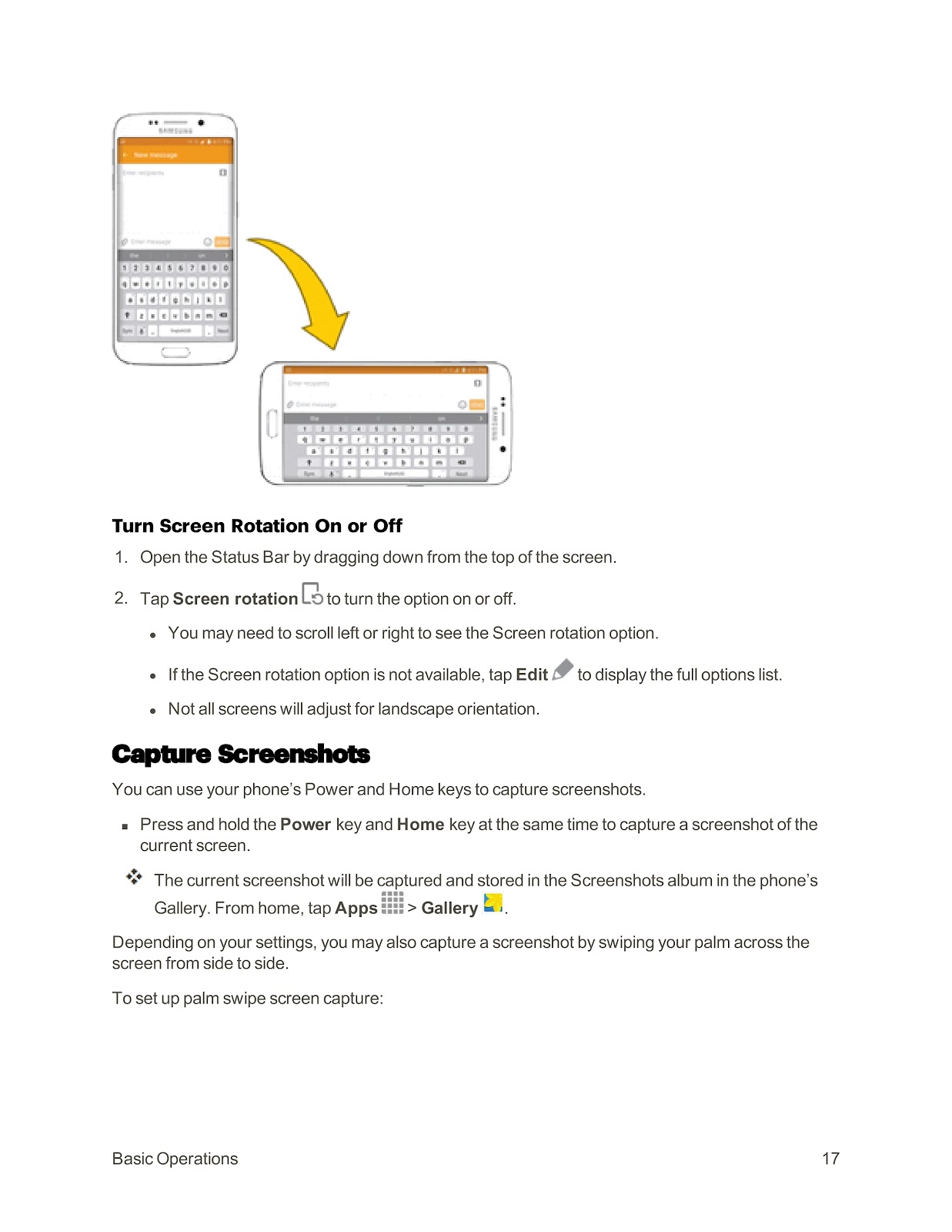
Rotate: Turn the phone sideways to change the screen orientation from portrait to landscape for many apps, which can provide a larger keyboard for text entry.
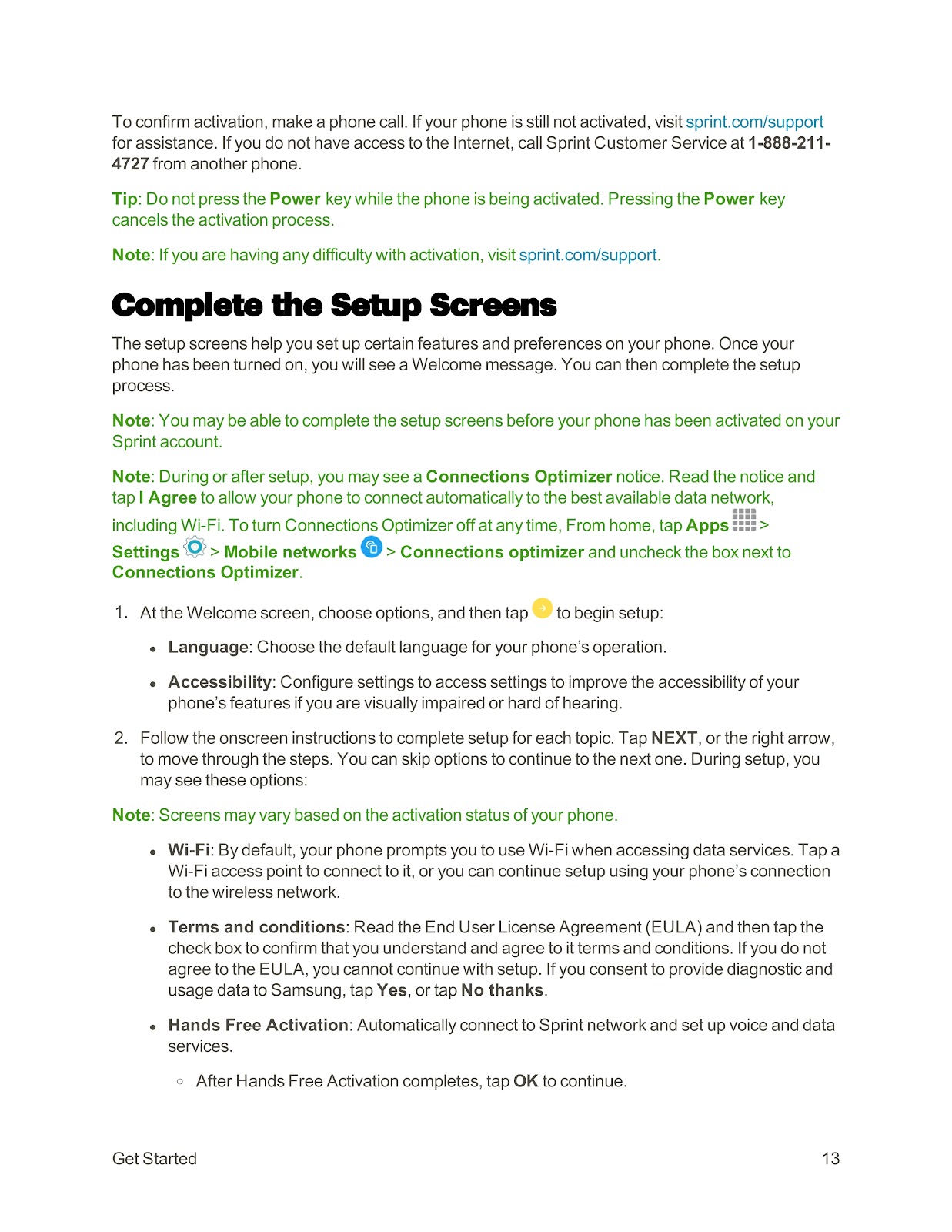
Pinch and Spread: Move two fingers inward (“pinch”) to zoom out, or move two fingers outward (“spread”) to zoom in.
How do I activate my SPRINT SAMSUNG GALAXY S6 EDGE?
If your SPRINT SAMSUNG GALAXY S6 EDGE was not already activated, follow these instructions:
If you received your phone in the mail for a new Sprint account or a new line of service, it is designed to activate automatically. When you turn the phone on for the first time, you should see a Hands Free Activation screen. Follow the onscreen instructions to continue.
If you are activating a new phone for an existing number (swapping phones), you can activate it on your phone:
1. Turn on your new phone. (Make sure the old one is turned off.) Your phone will automatically attempt Hands-Free Activation.
2. Tap Activate to override auto-activation and start the manual activation wizard.
3. Follow the onscreen prompts to complete the activation process.
How do I complete the initial setup screens on my SPRINT SAMSUNG GALAXY S6 EDGE?
When you first turn on your phone, you will see setup screens to configure certain features.
1. At the Welcome screen, choose your Language and configure Accessibility options if needed, then tap the arrow to begin.
2. Follow the onscreen instructions, tapping NEXT to move through the steps. You may see these options:
Wi-Fi: Connect to a Wi-Fi access point or continue using the wireless network.
Terms and conditions: Read and agree to the End User License Agreement (EULA).
Hands Free Activation: Automatically connect to the Sprint network to set up voice and data services.
Tap & Go: Quickly copy Google Accounts, apps, and data from an existing Android device.
Add your account (Google): Sign in to your existing Google Account or create a new one.
Name: Enter your name to personalize Google features.
Google services: Select service preferences like Backup & Restore.
Samsung account: Sign in to or create a Samsung account.
Set wake-up command: Enable S Voice to wake up your device.
Add fingerprint: Register your fingerprint to unlock your device.
Easy mode: Opt for a simpler home screen layout with larger text and icons.
3. Tap FINISH to complete the setup.
How do I capture a screenshot on my SPRINT SAMSUNG GALAXY S6 EDGE?
There are two ways to capture a screenshot on your SPRINT SAMSUNG GALAXY S6 EDGE:
Using Buttons:
Press and hold the Power key and Home key at the same time. The screenshot will be captured and stored in the Screenshots album in the Gallery.
Using Palm Swipe:
You can also capture a screenshot by swiping your palm across the screen from side to side. To enable this feature:
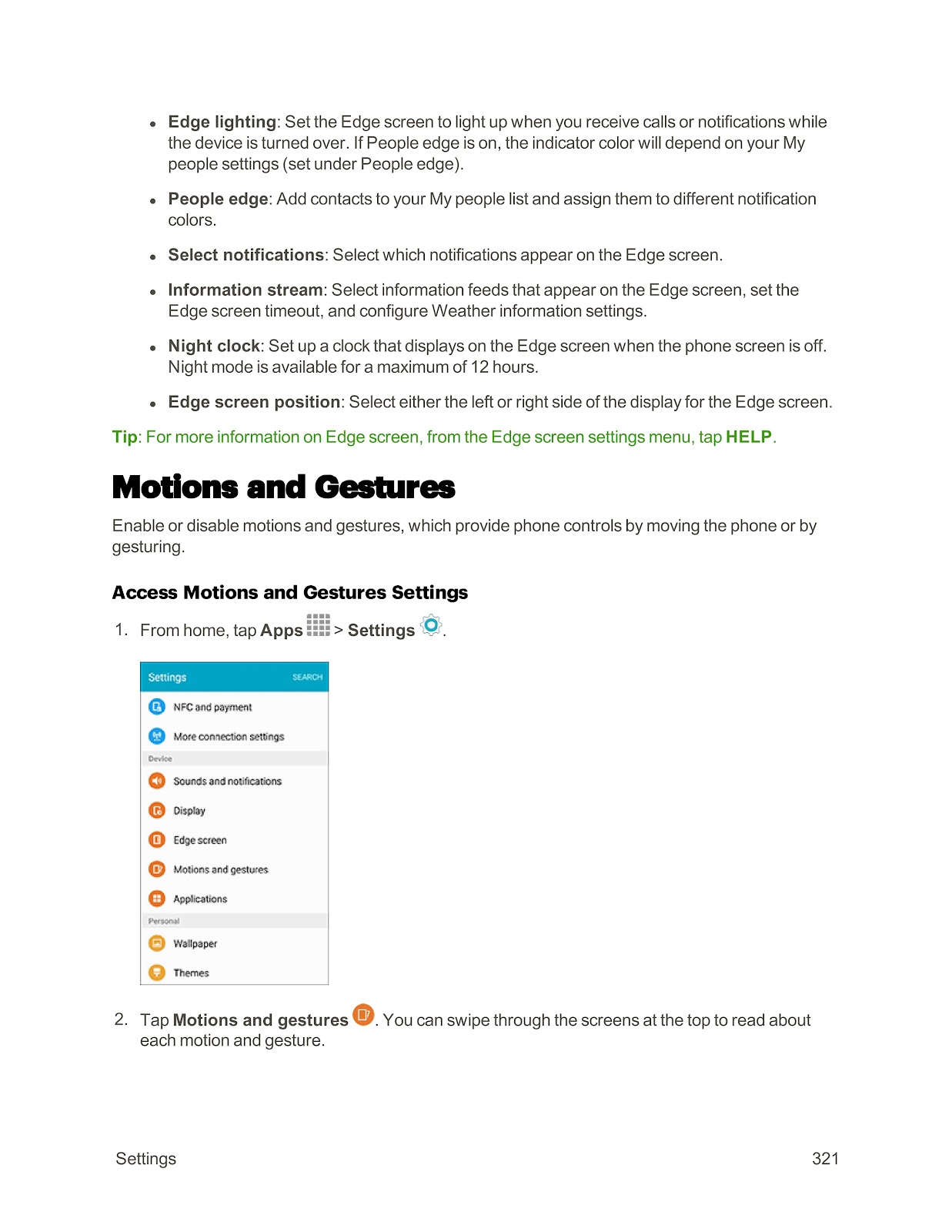
1. From home, tap Apps > Settings.
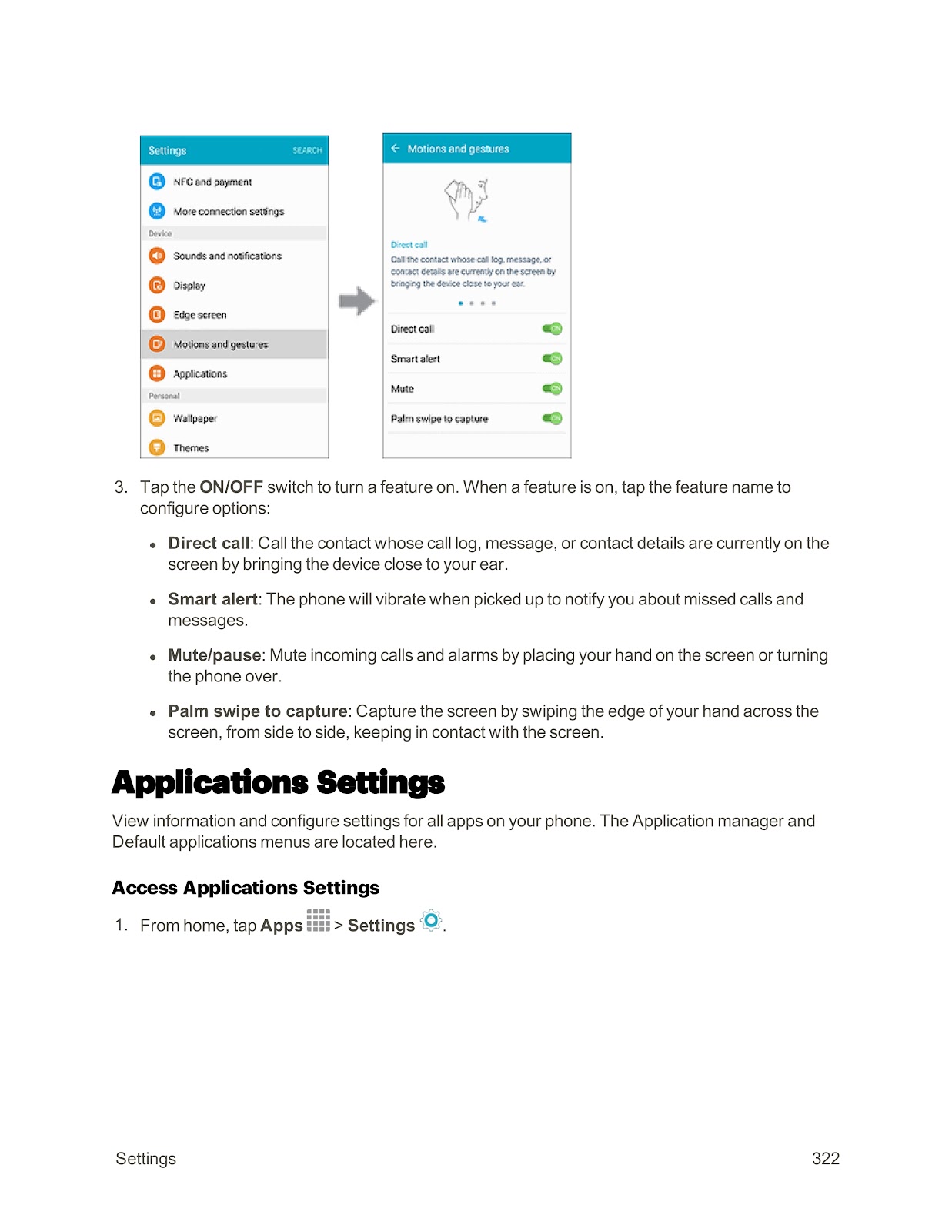
2. Tap Motions and gestures.
3. Tap the ON/OFF switch next to Palm swipe to capture.
What are the Edge screen notification features on the SPRINT SAMSUNG GALAXY S6 EDGE and how do I use them?
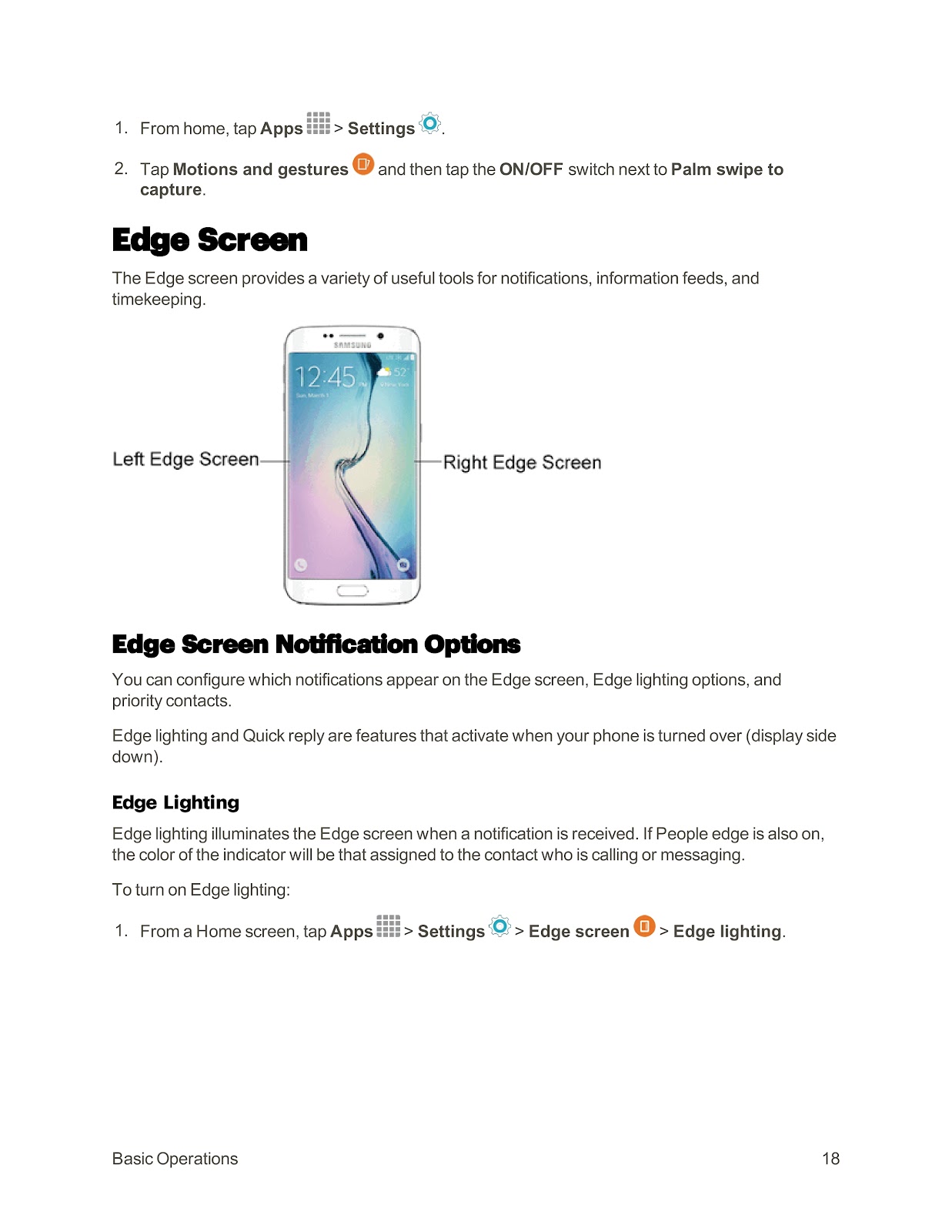
The Edge screen on your SPRINT SAMSUNG GALAXY S6 EDGE provides several notification features:
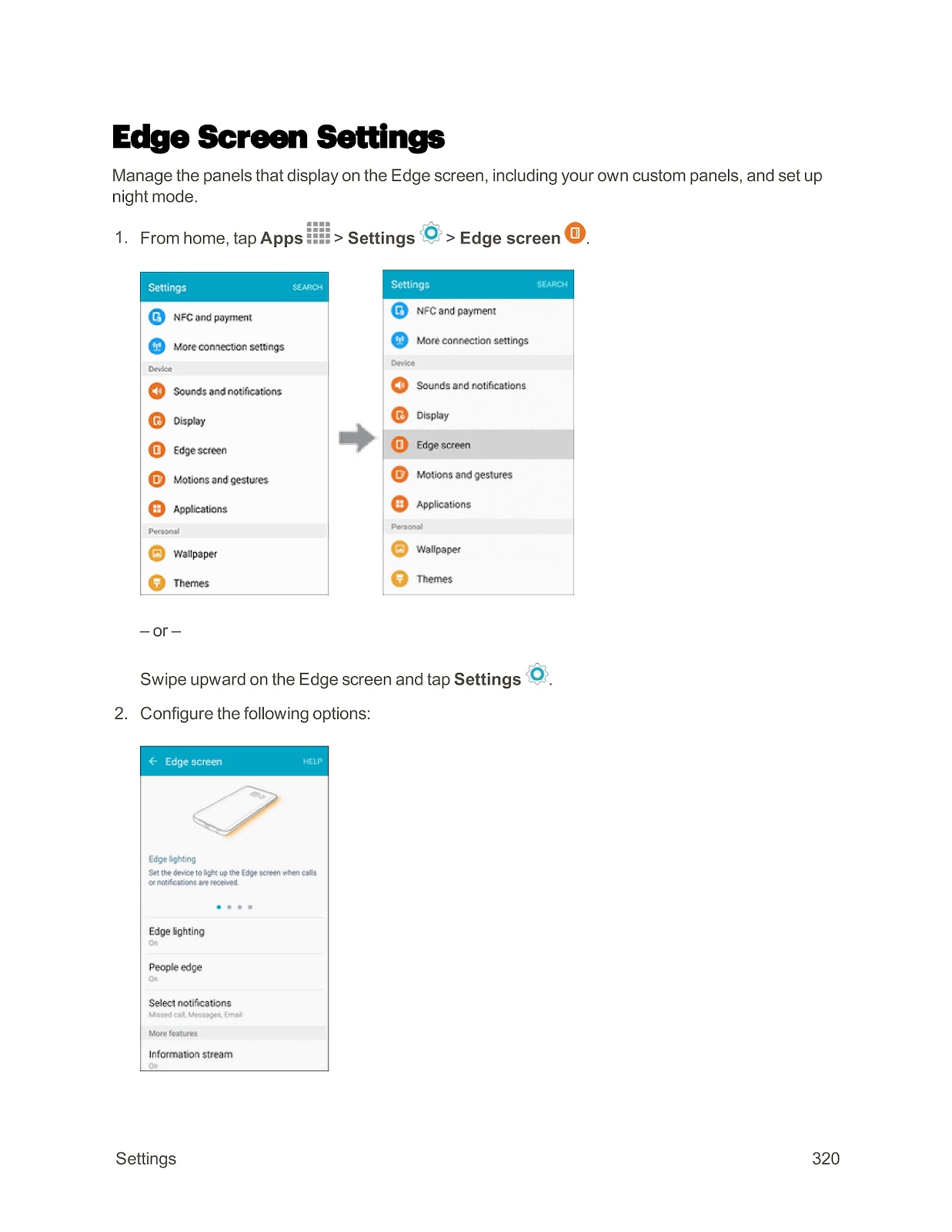
Edge Lighting: Illuminates the Edge screen when a notification is received. If People edge is also on, the color will match the assigned contact color.
To turn on Edge lighting:
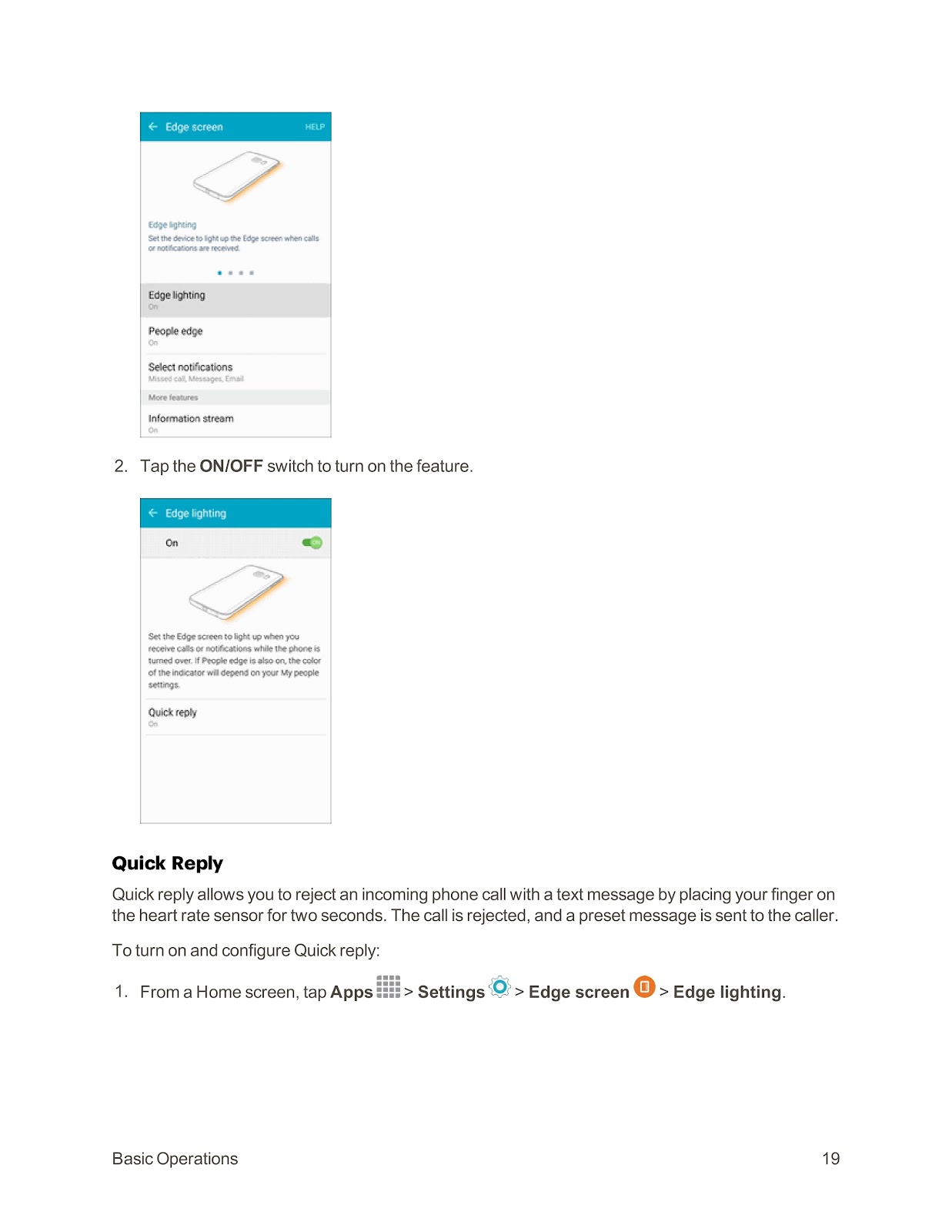
1. From a Home screen, tap Apps > Settings > Edge screen > Edge lighting.
2. Tap the ON/OFF switch to turn on the feature.
Quick Reply: Allows you to reject an incoming call with a preset text message by placing your finger on the heart rate sensor for two seconds.
To turn on and configure Quick reply:
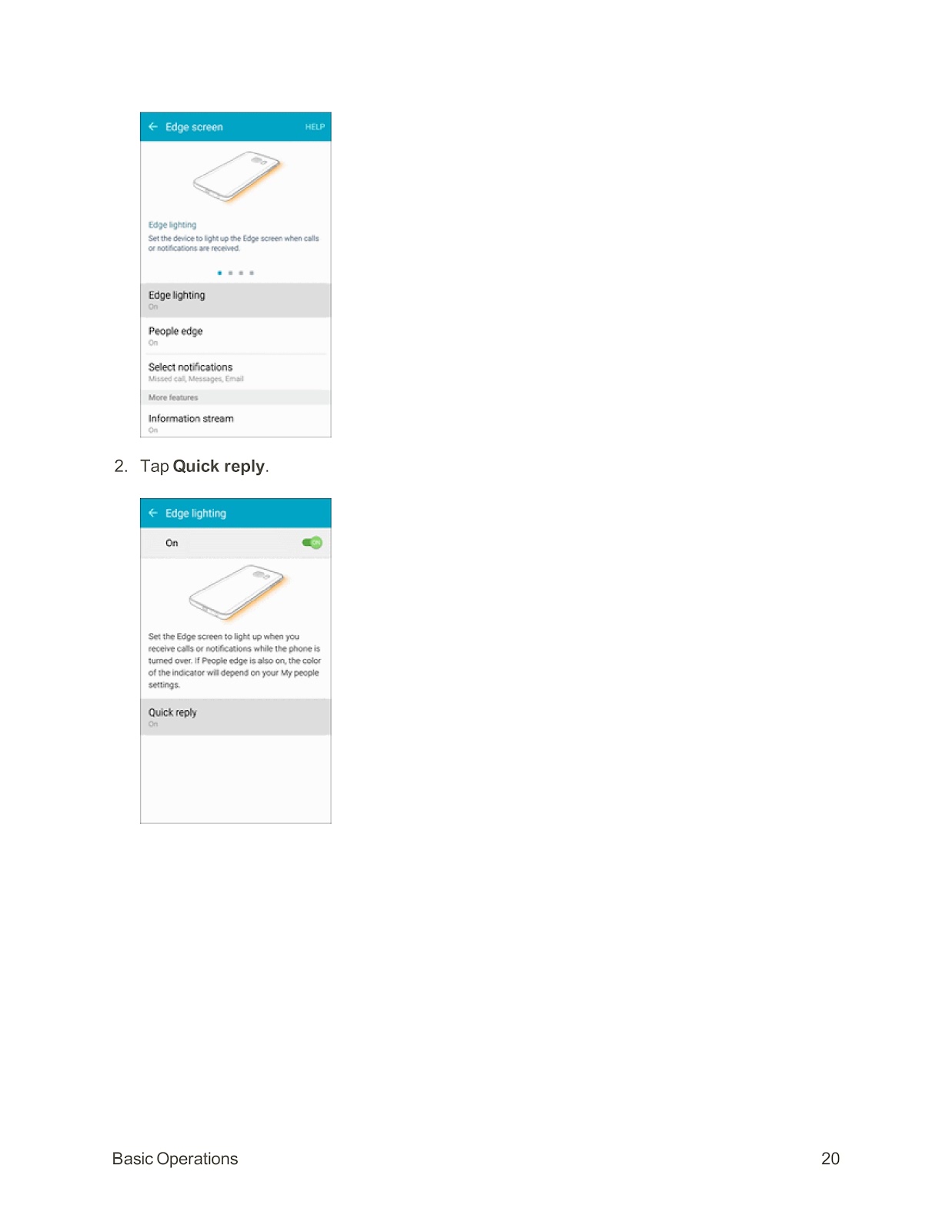
1. Navigate to Settings > Edge screen > Edge lighting.
2. Tap Quick reply.
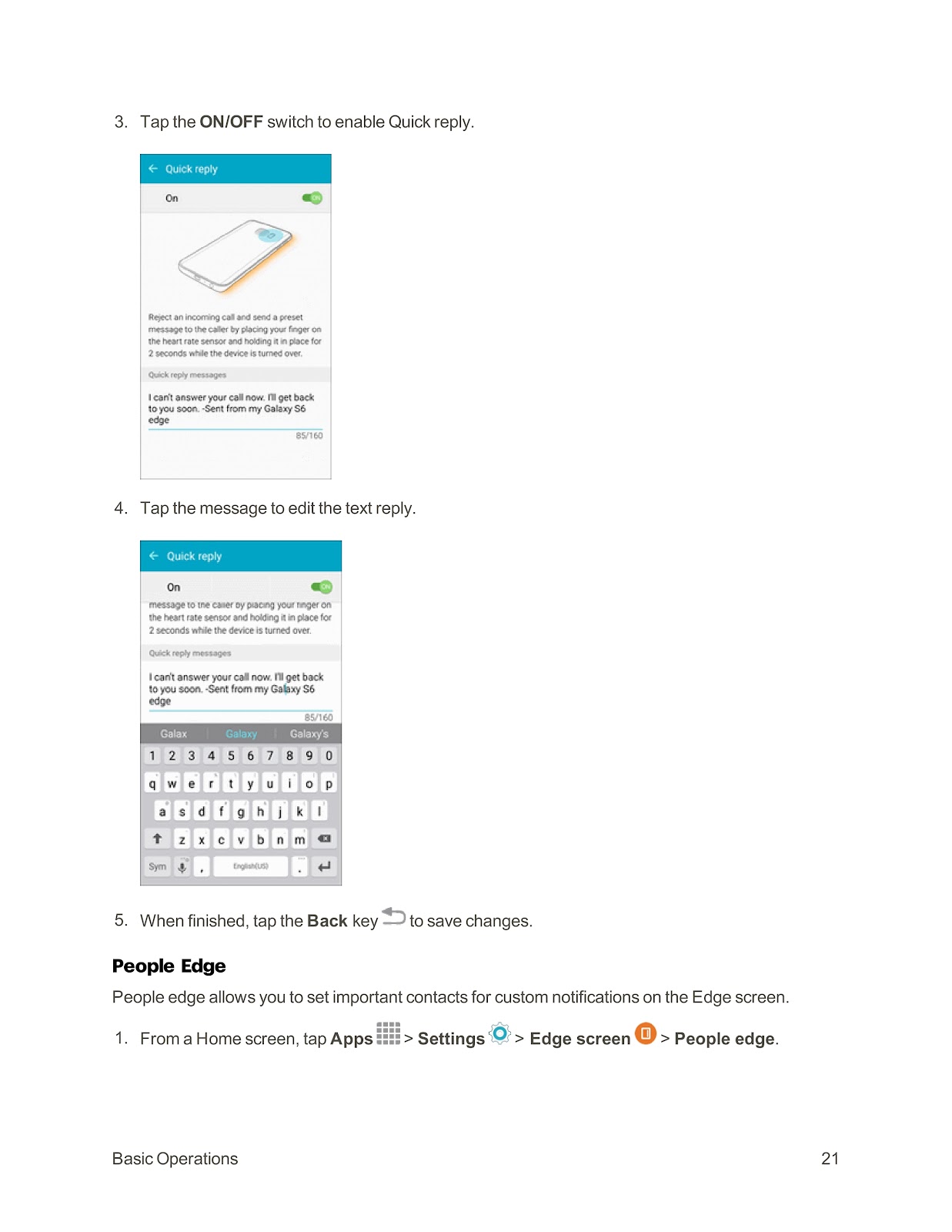
3. Tap the ON/OFF switch to enable it.
4. Tap the message to edit the text reply.
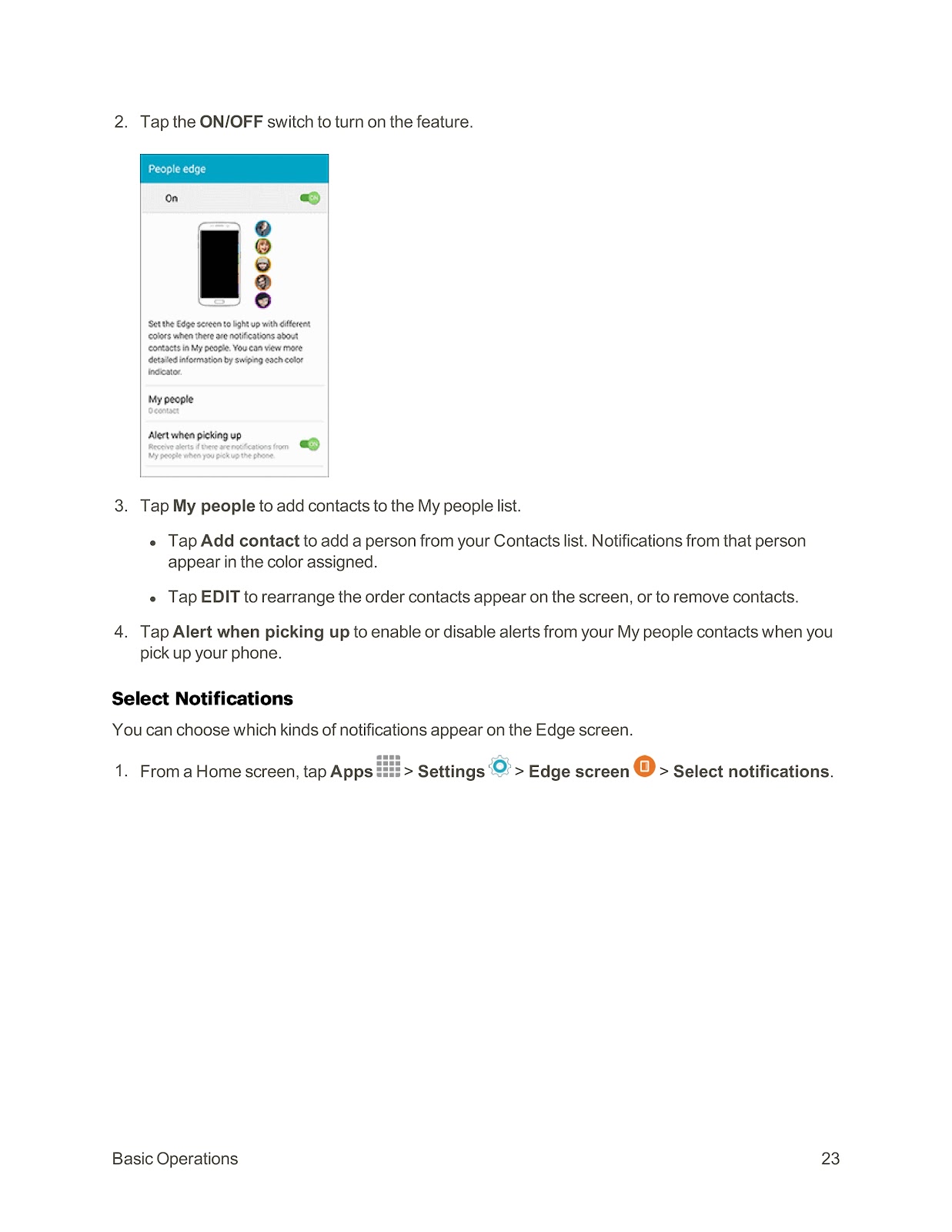
People Edge: Set important contacts for custom color-coded notifications on the Edge screen.
To set up People edge:
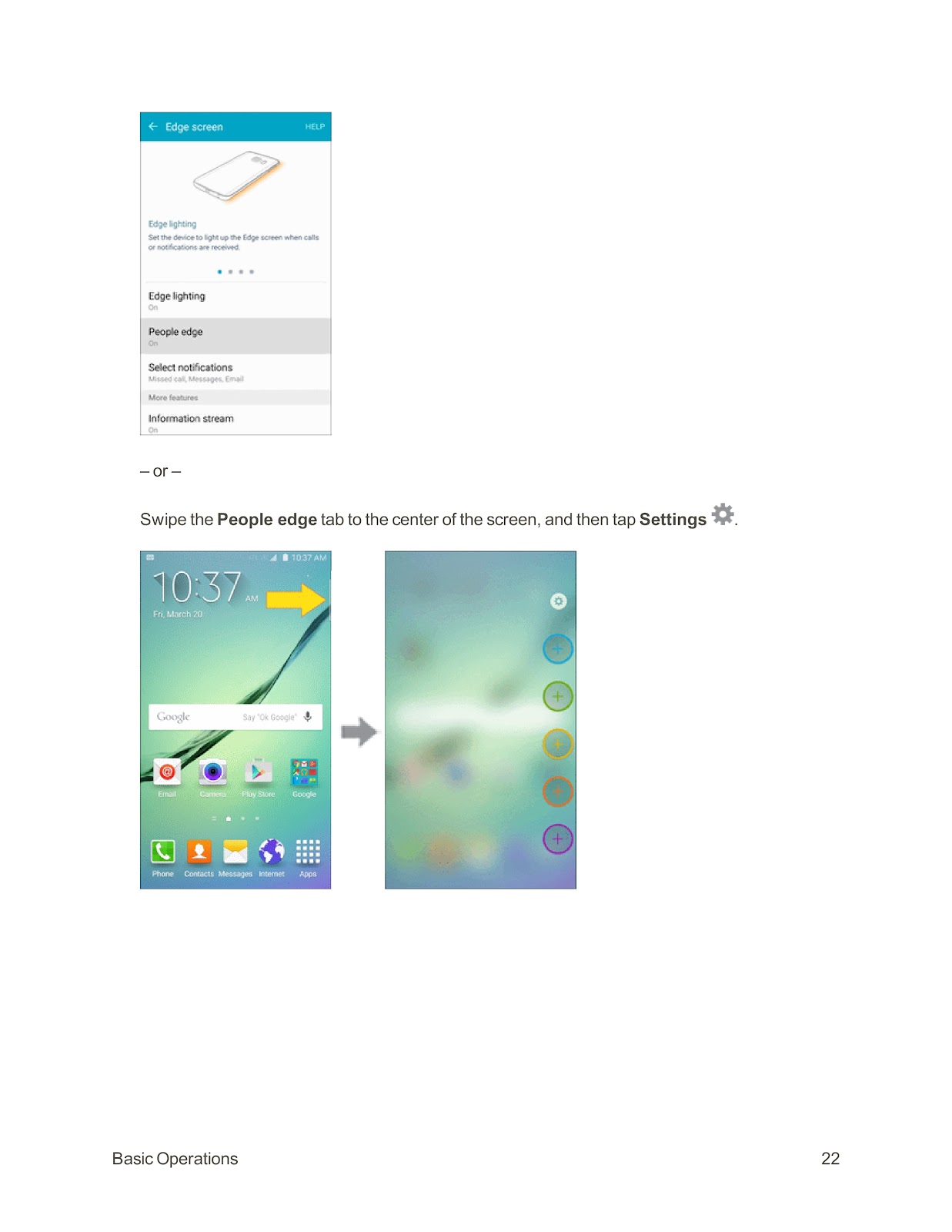
1. Go to Settings > Edge screen > People edge.
2. Tap the ON/OFF switch to turn it on.
3. Tap My people to add contacts from your Contacts list.
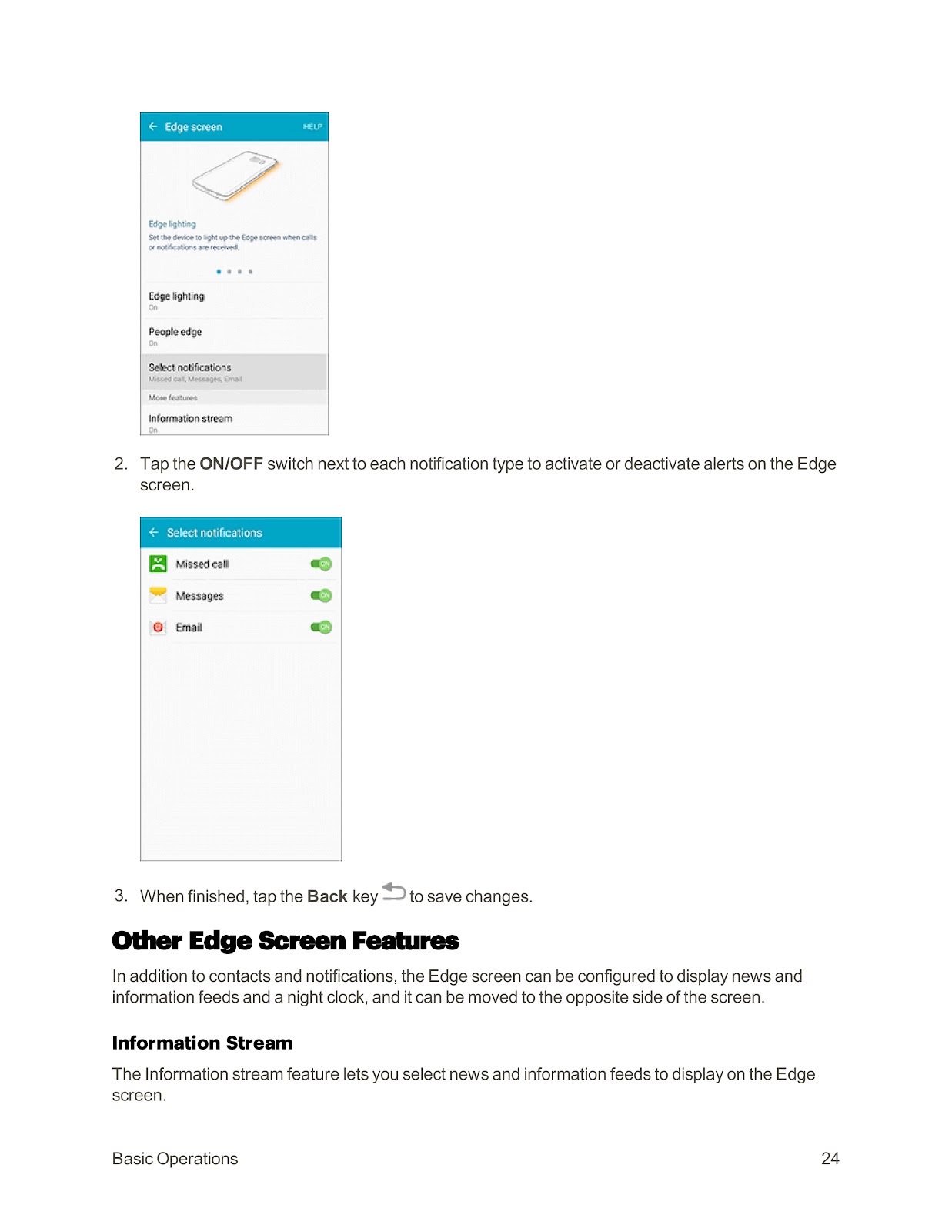
Select Notifications: Choose which types of notifications (Missed call, Messages, Email) appear on the Edge screen.
To configure:
1. Go to Settings > Edge screen > Select notifications.
2. Tap the ON/OFF switch next to each notification type to activate or deactivate alerts.
How do I use other Edge screen features like Information stream and Night clock on my SPRINT SAMSUNG GALAXY S6 EDGE?
Beyond notifications, the Edge screen offers additional features:
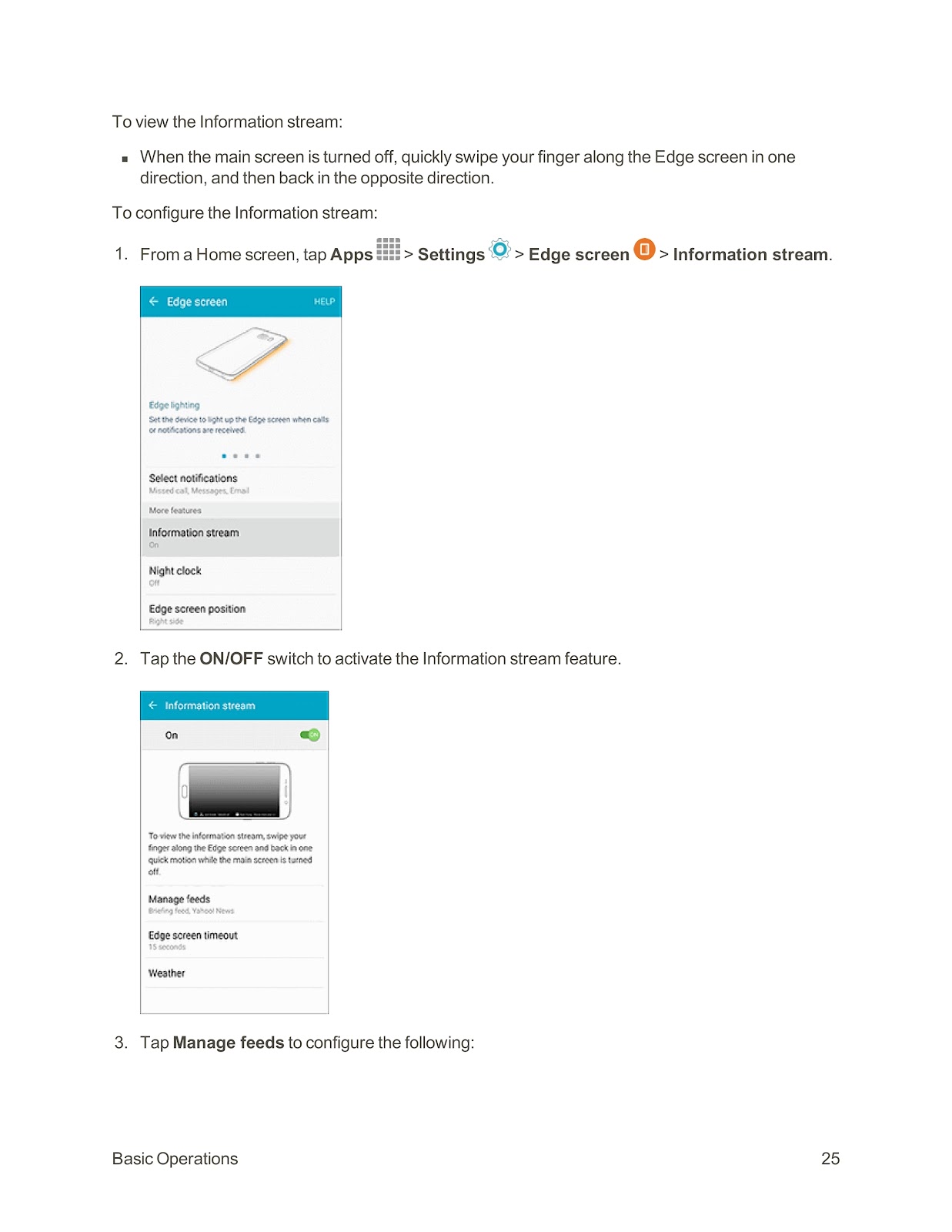
Information Stream: Displays news and information feeds on the Edge screen when the main screen is off.
To view: When the main screen is off, quickly swipe your finger along the Edge screen in one direction, and then back in the opposite direction.
To configure:
1. Go to Settings > Edge screen > Information stream.
2. Tap the ON/OFF switch to activate.
3. Tap Manage feeds to select which feeds appear, download more, reorder them, and set the screen timeout.
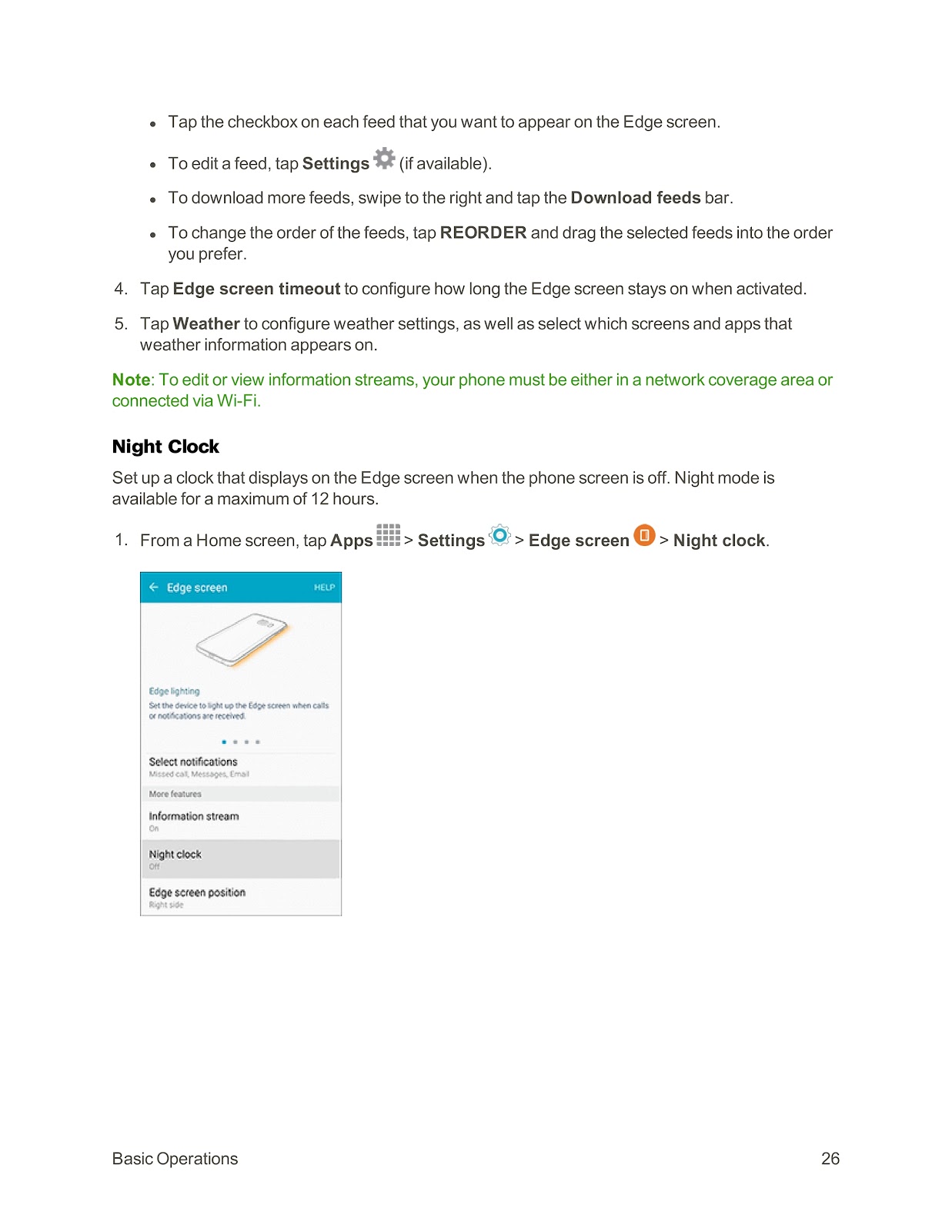
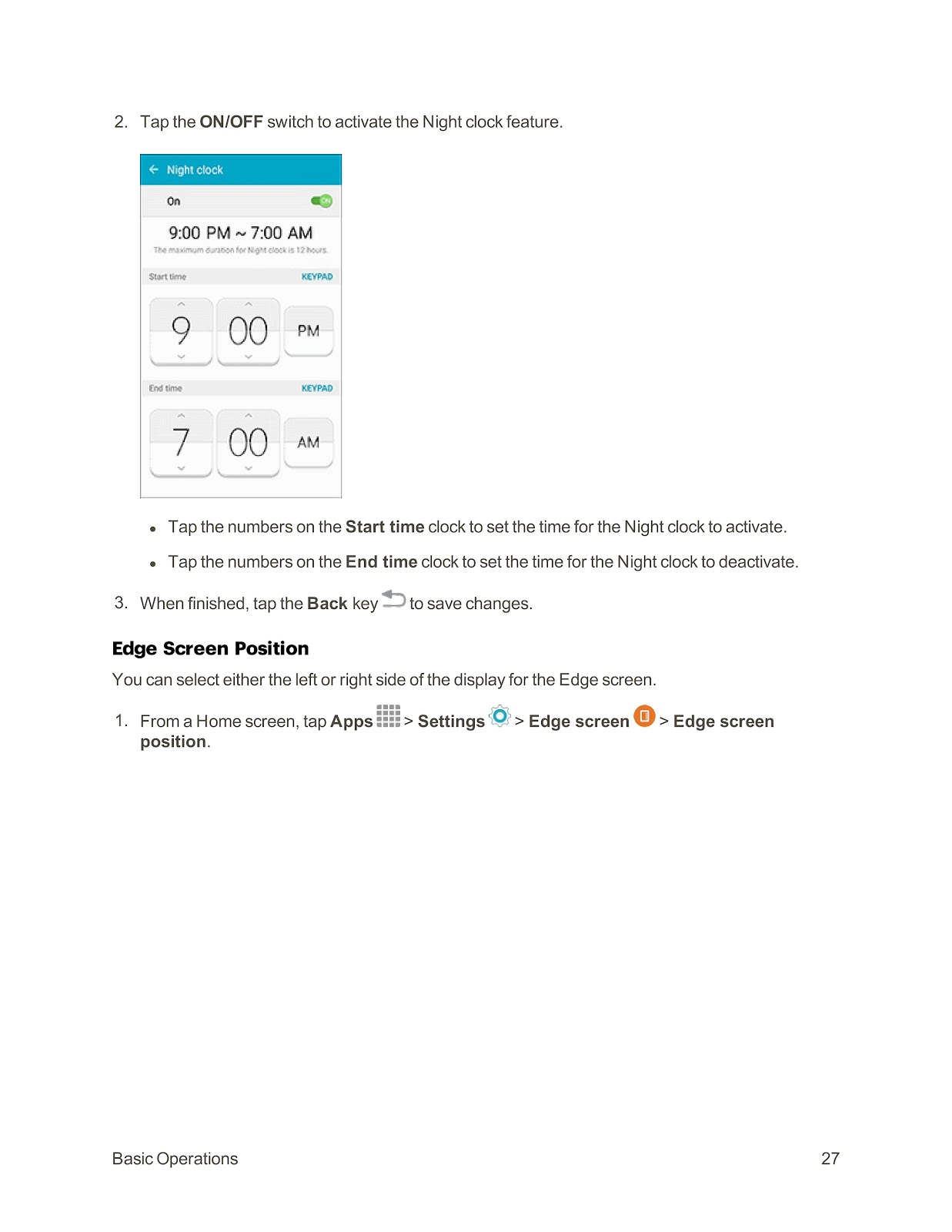
Night Clock: Displays a clock on the Edge screen when the phone screen is off for up to 12 hours.
To set up:
1. Go to Settings > Edge screen > Night clock.
2. Tap the ON/OFF switch to activate.
3. Tap the numbers on the Start time and End time clocks to set the active period.
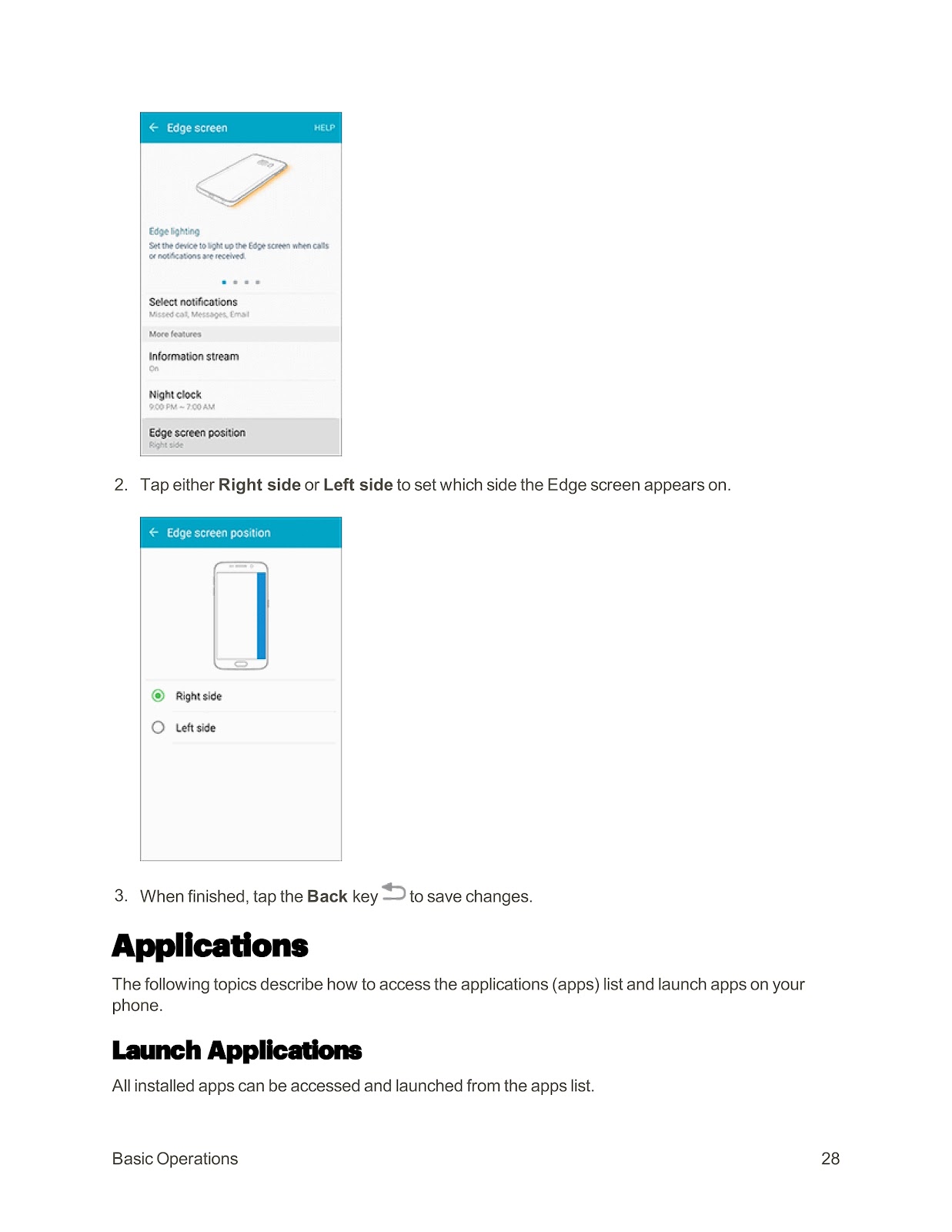
Edge Screen Position: Choose whether the Edge screen features appear on the right or left side of the display.
To set:
1. Go to Settings > Edge screen > Edge screen position.
2. Tap either Right side or Left side.
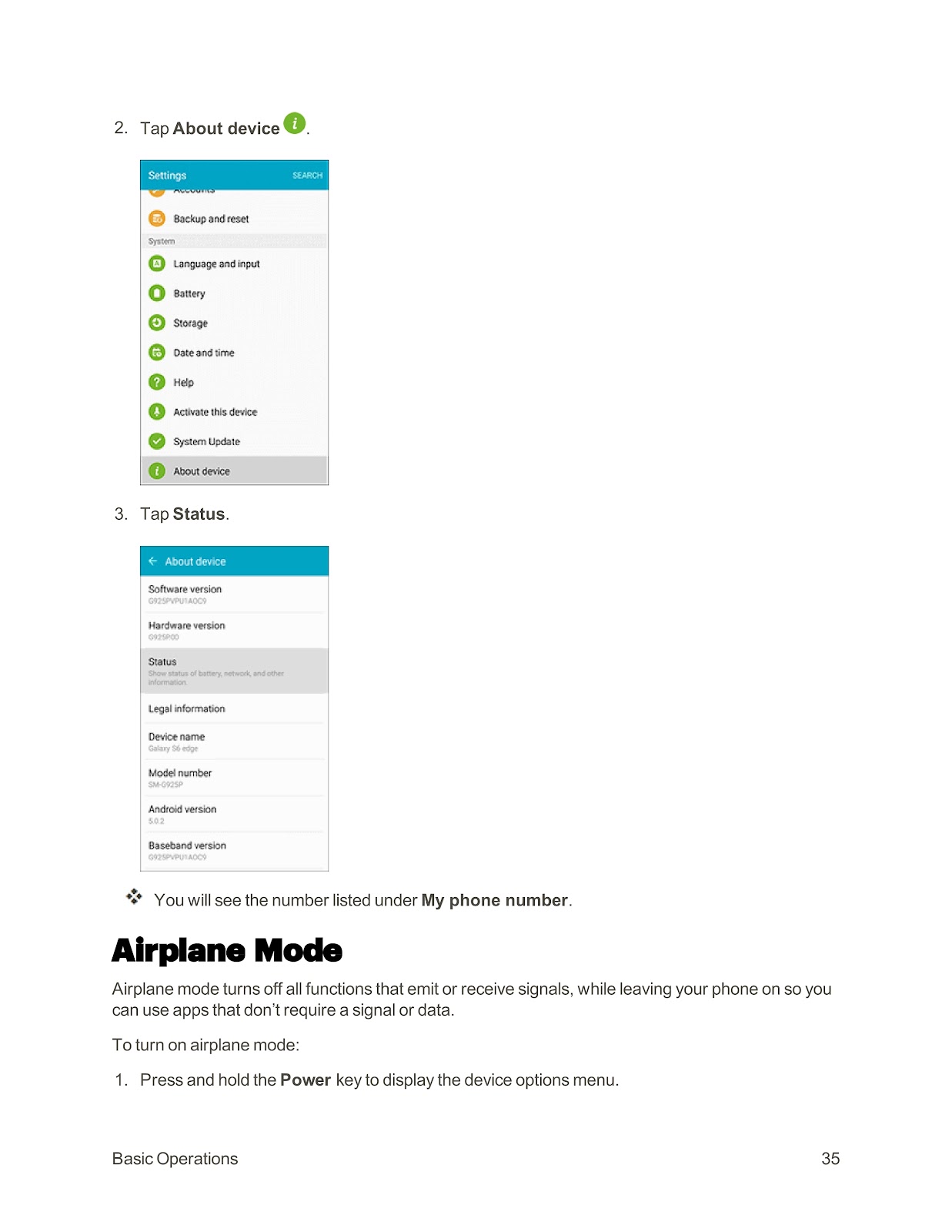
How do I find my phone number on the SPRINT SAMSUNG GALAXY S6 EDGE?
To display your phone’s wireless phone number:
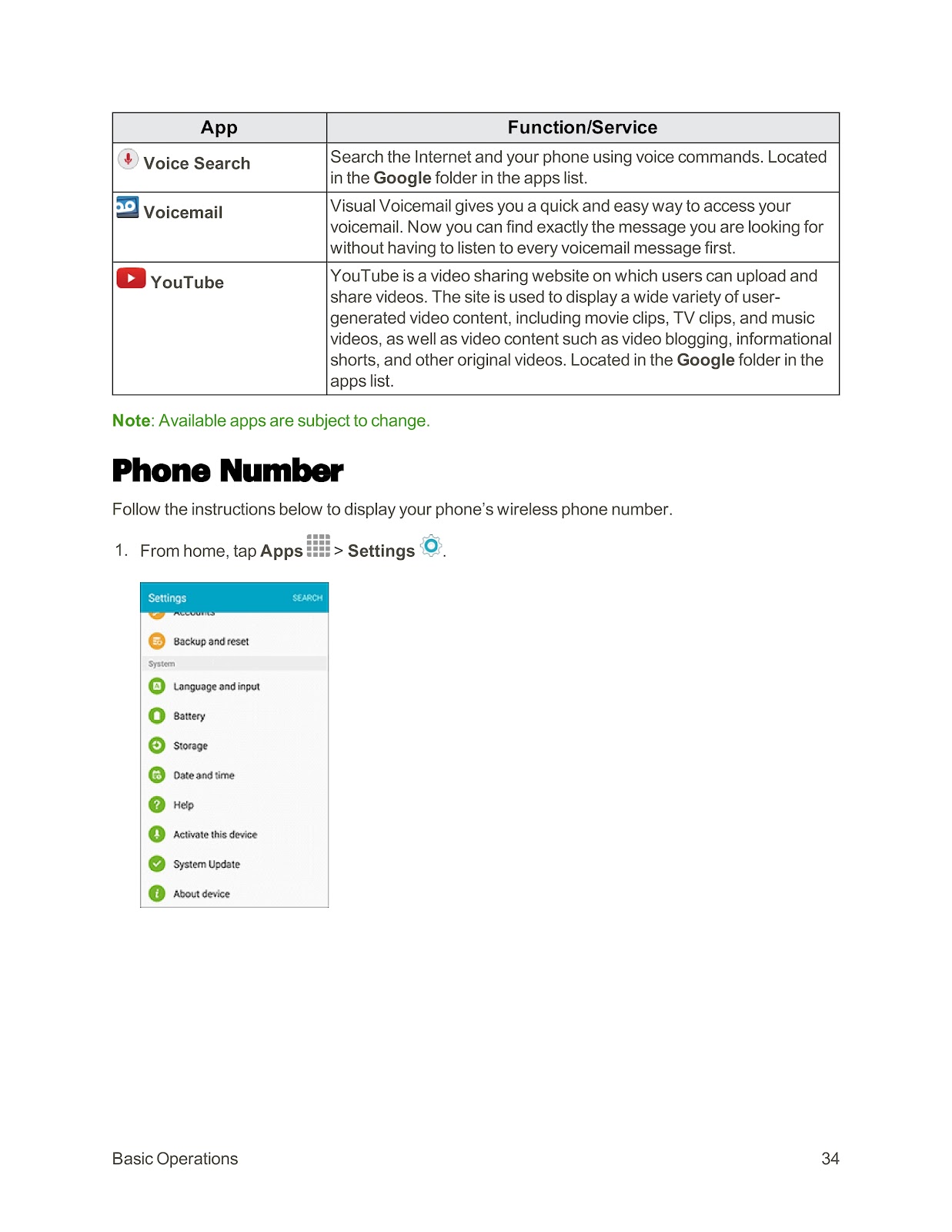
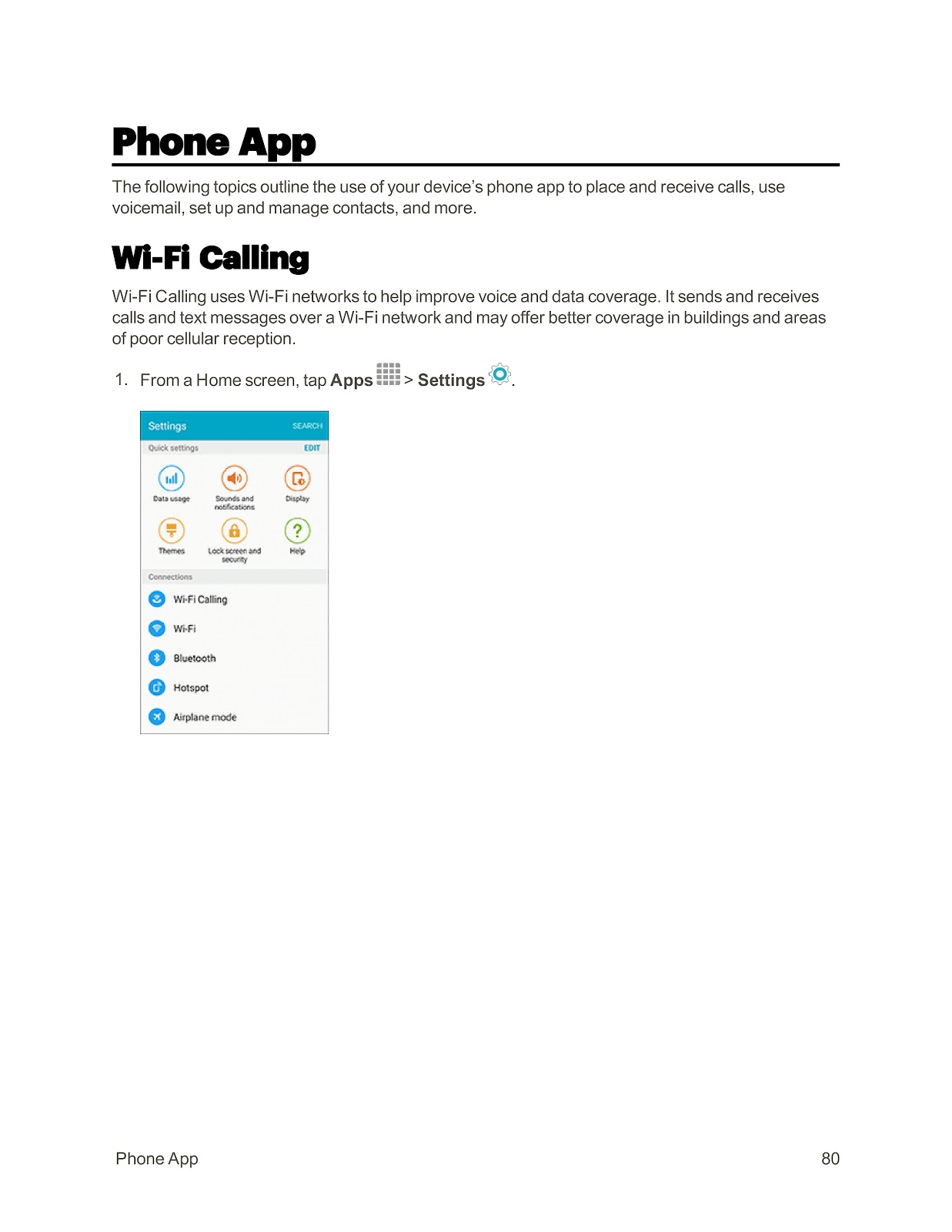
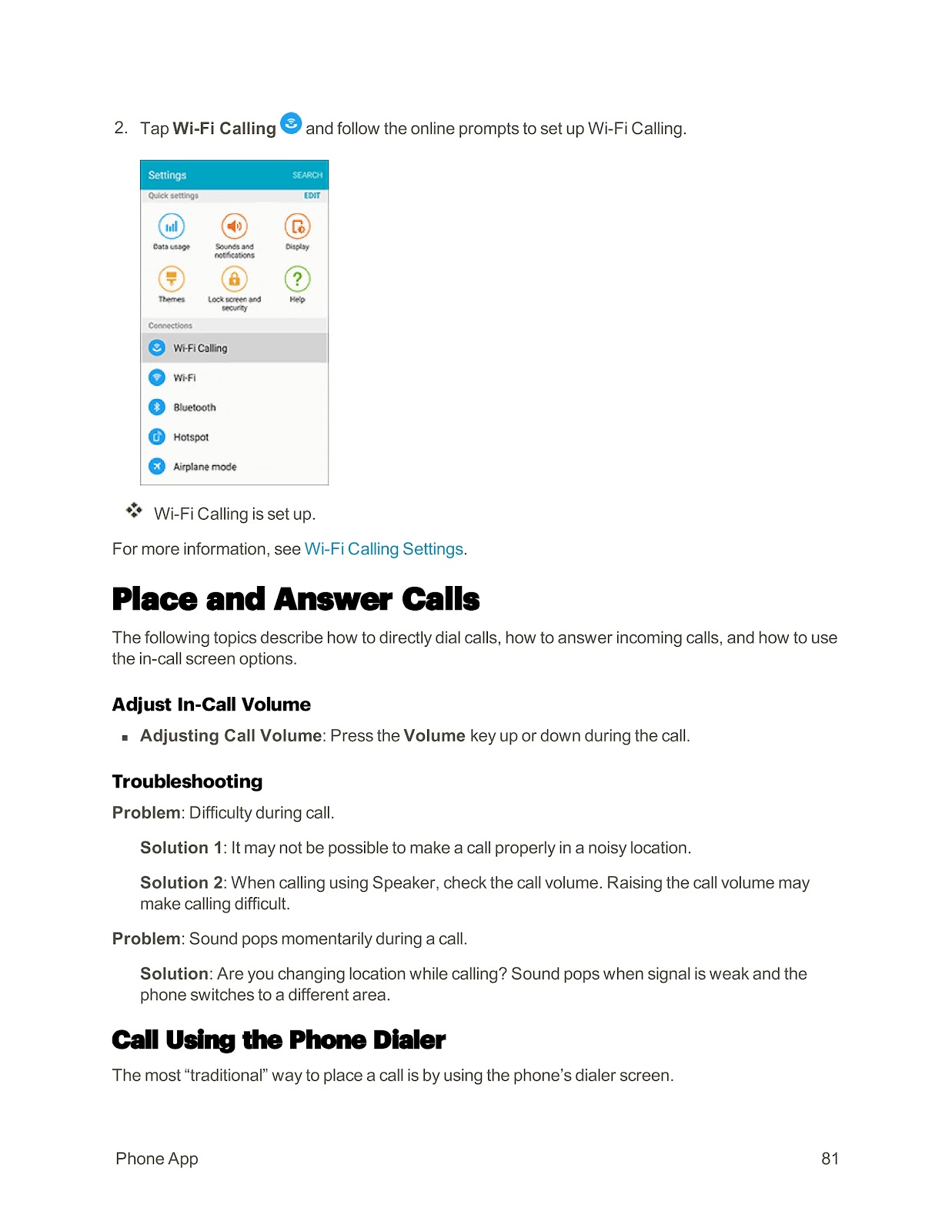
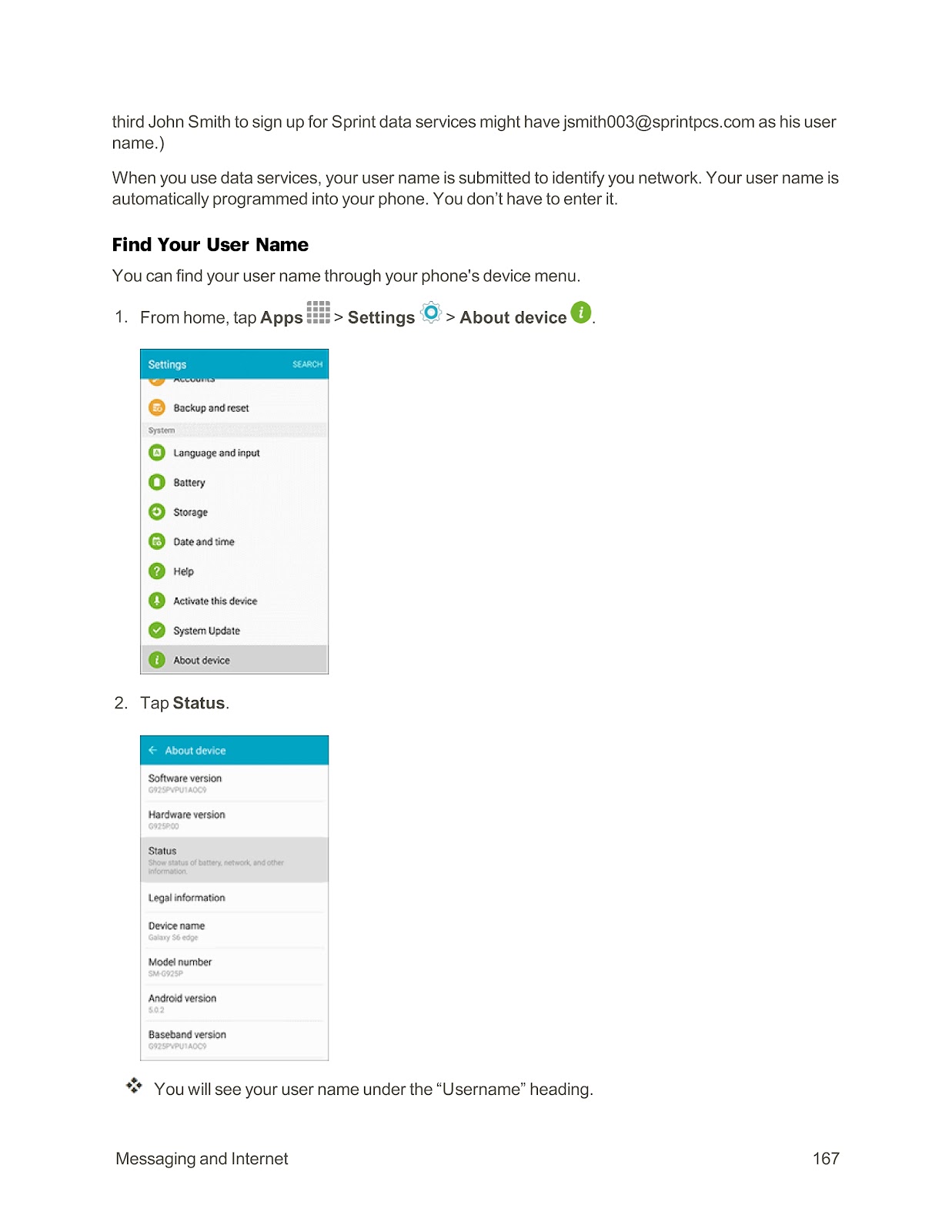
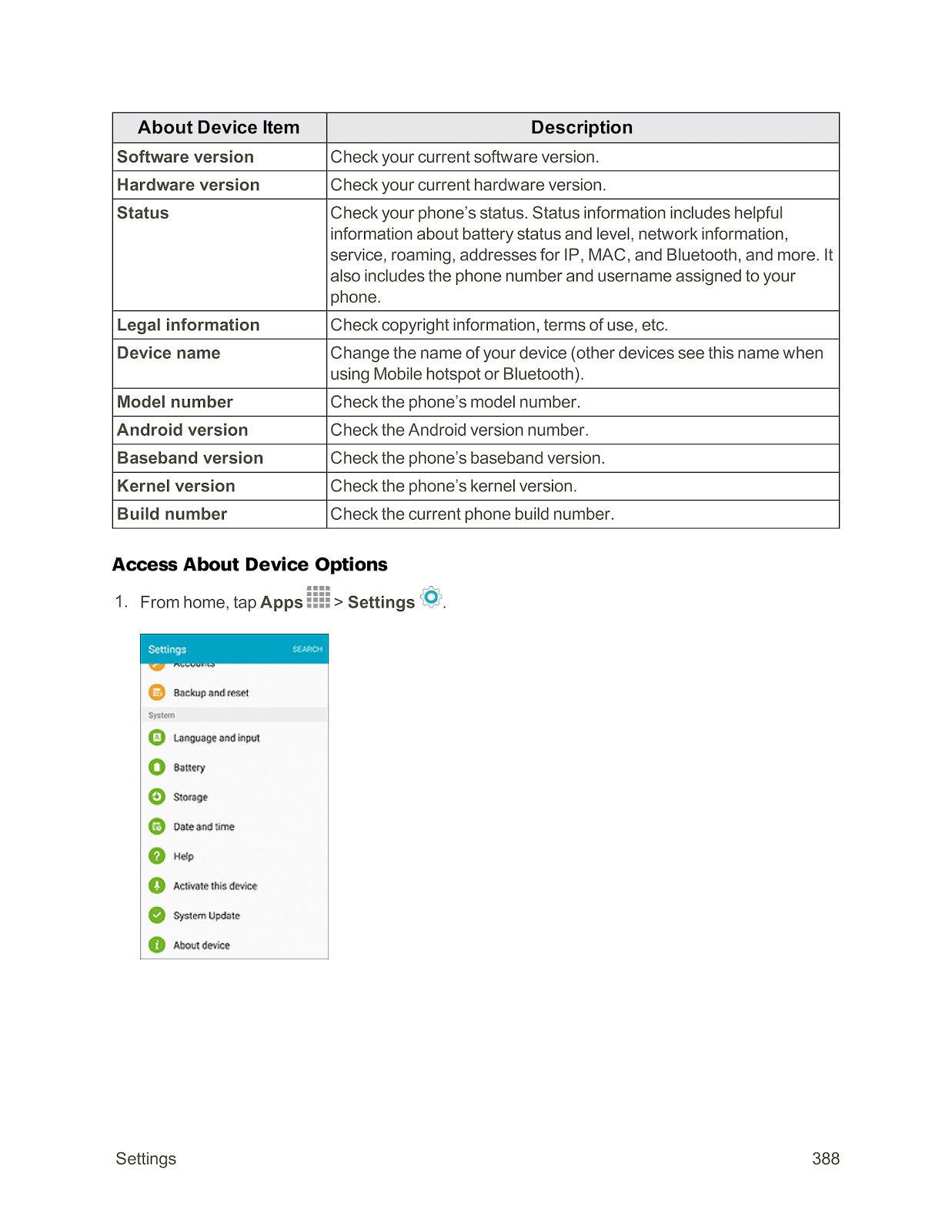
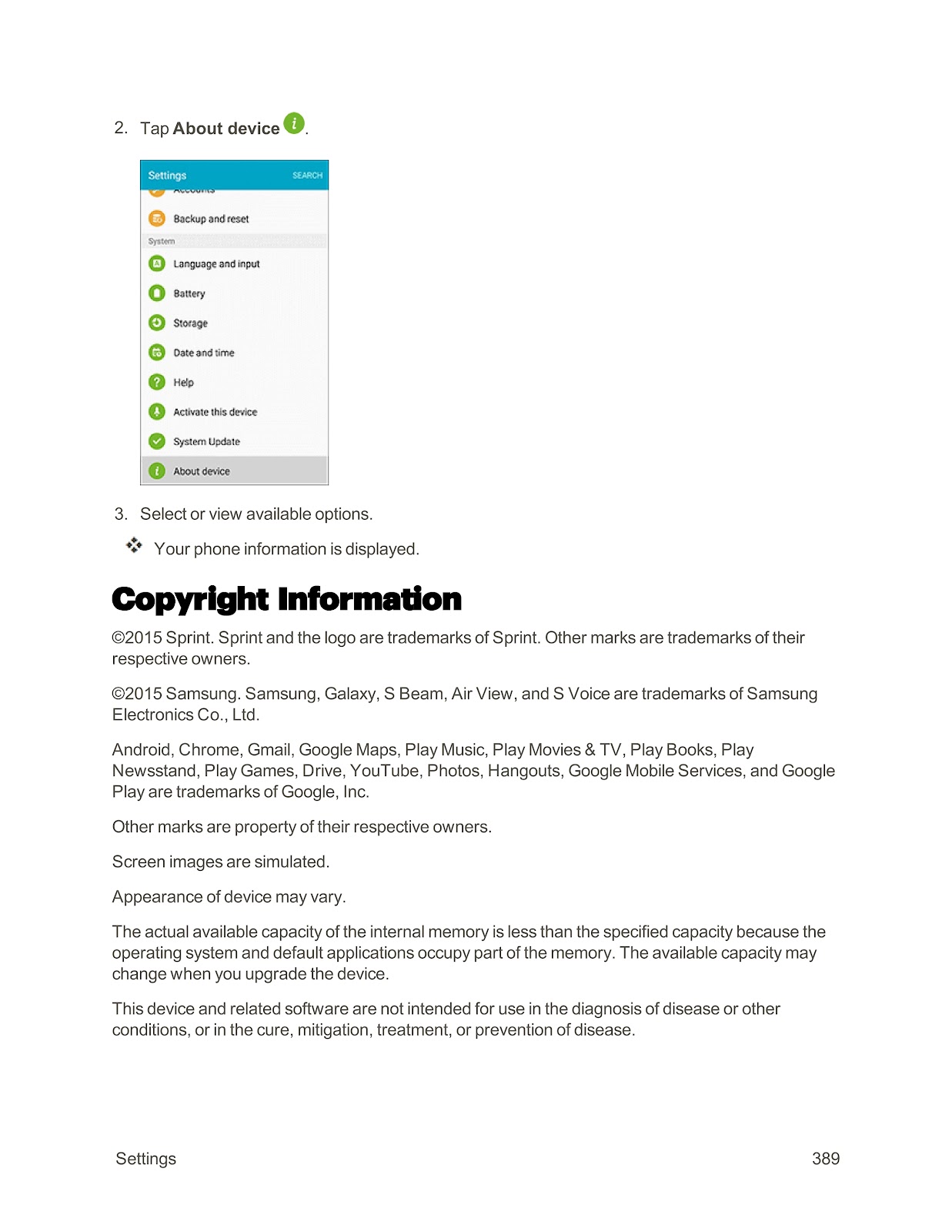
1. From the home screen, tap Apps > Settings.
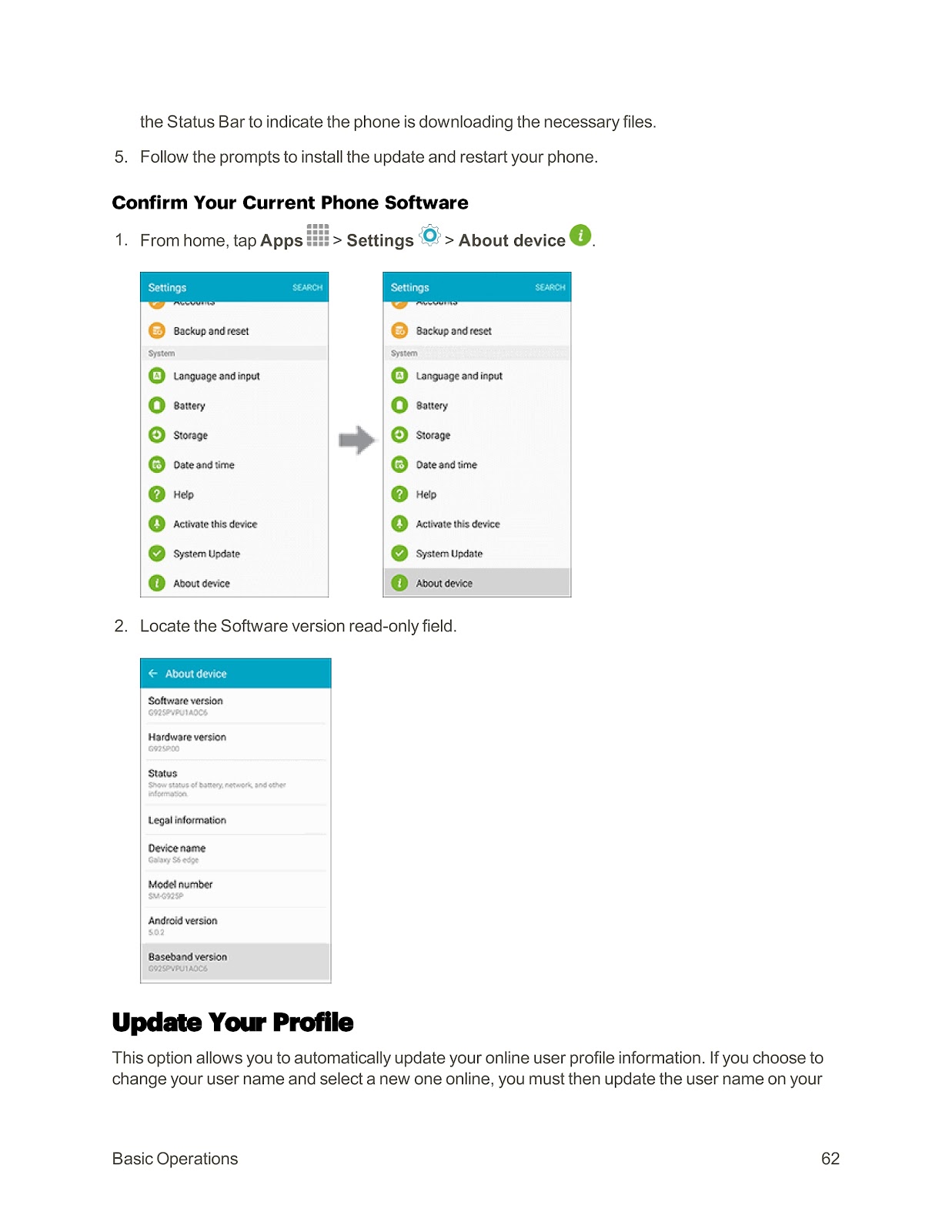
2. Tap About device.
3. Tap Status.
4. Your number will be listed under My phone number.
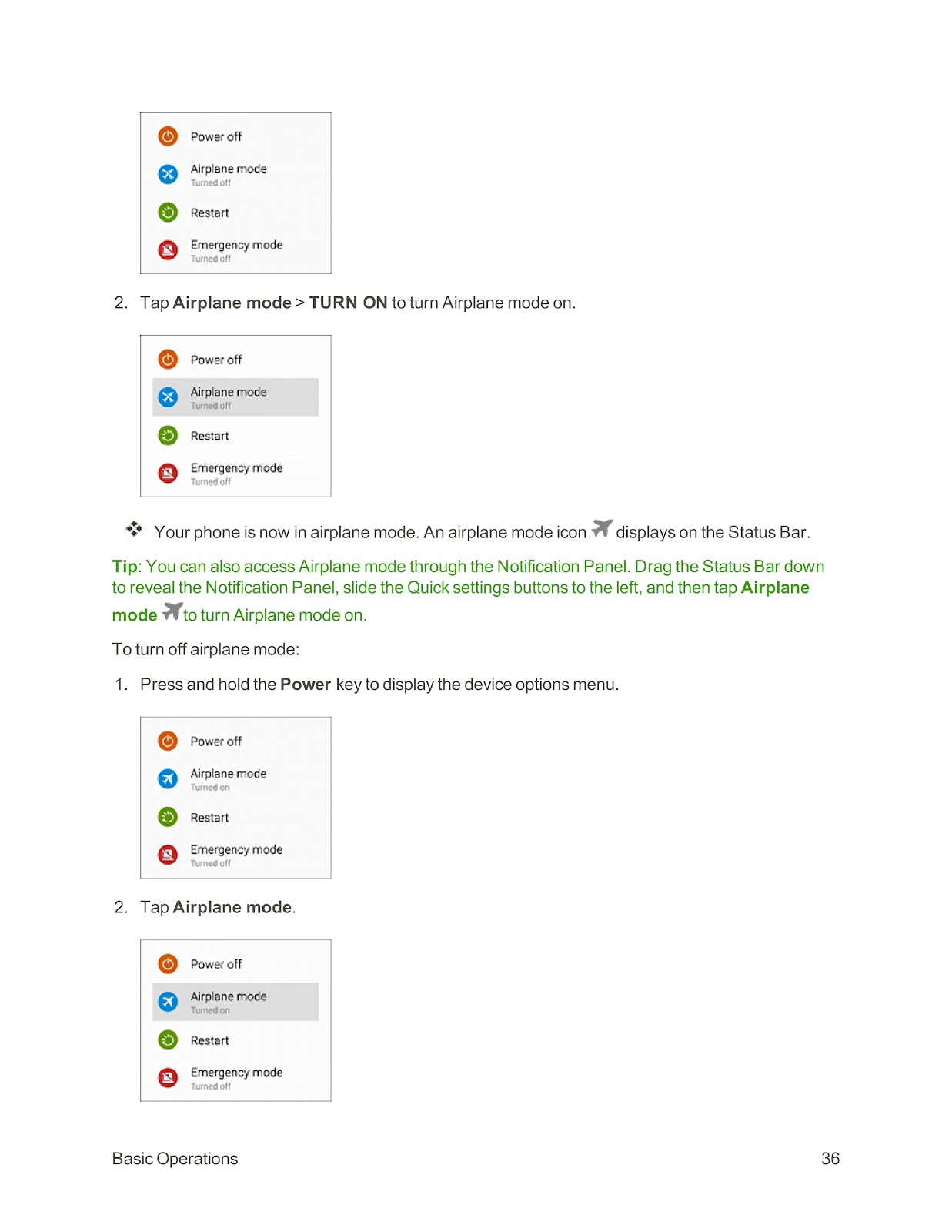
How do I enable and disable Airplane Mode on my SPRINT SAMSUNG GALAXY S6 EDGE?
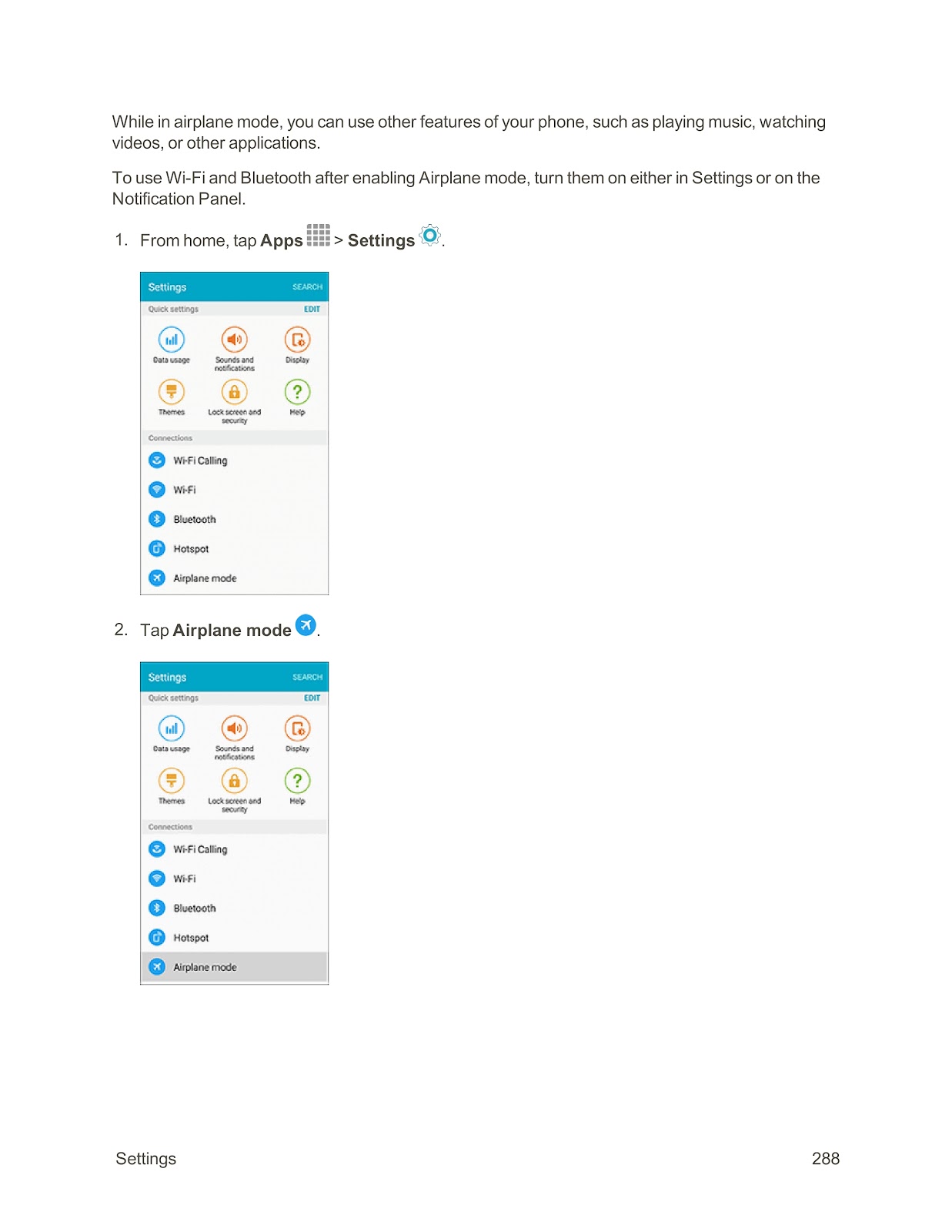
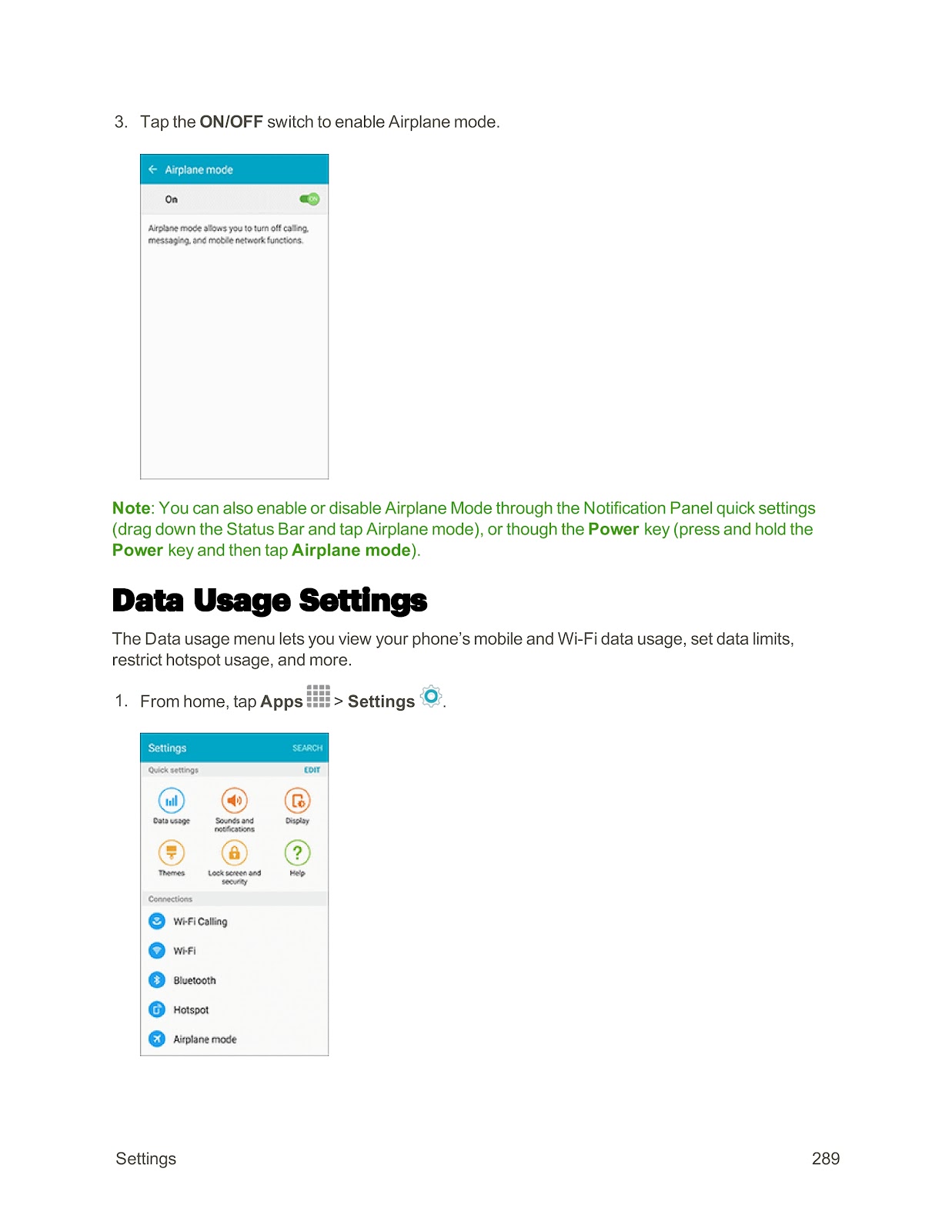
Airplane mode turns off all signal-emitting functions. You can still use apps that don’t require a signal.
To turn on Airplane Mode:
1. Press and hold the Power key.
2. Tap Airplane mode > TURN ON.
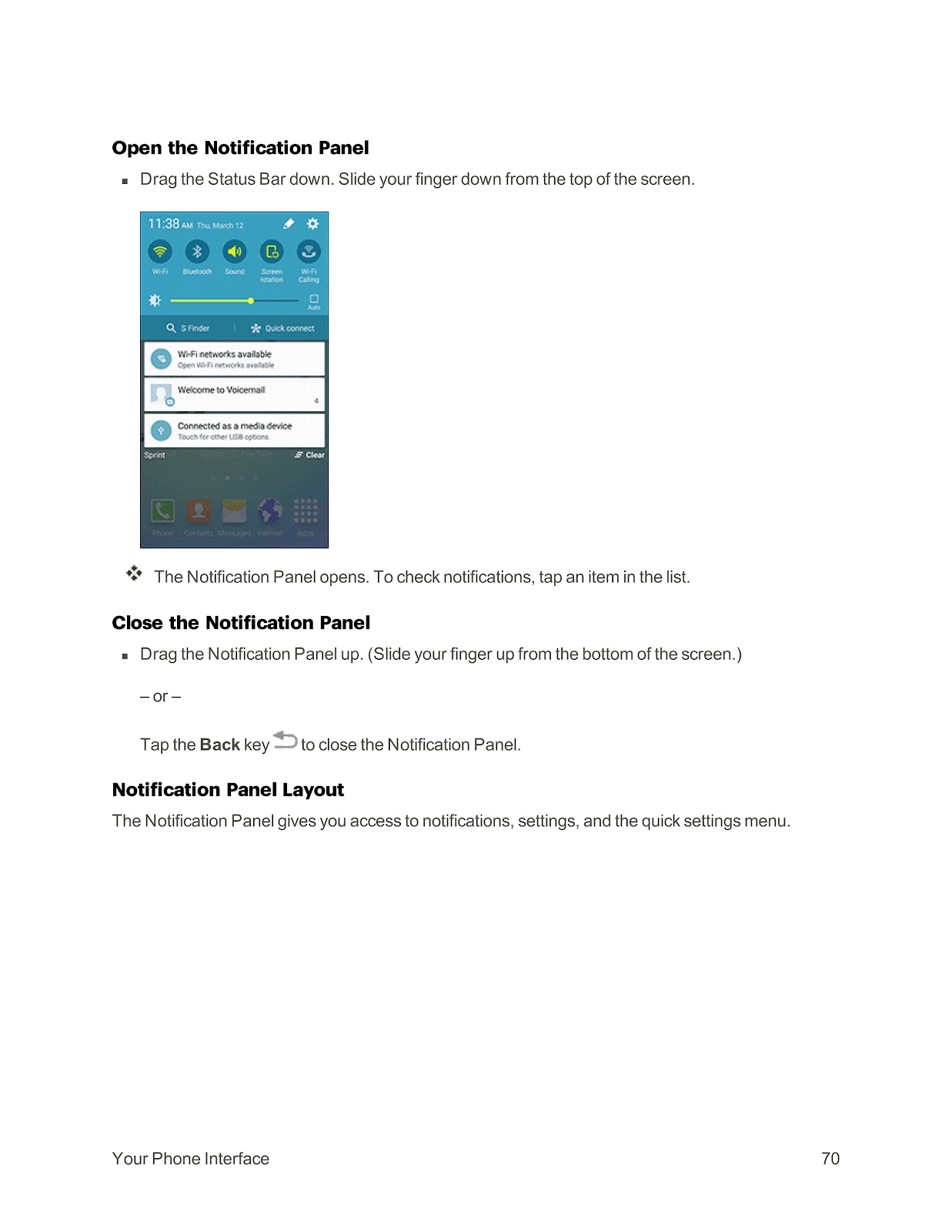
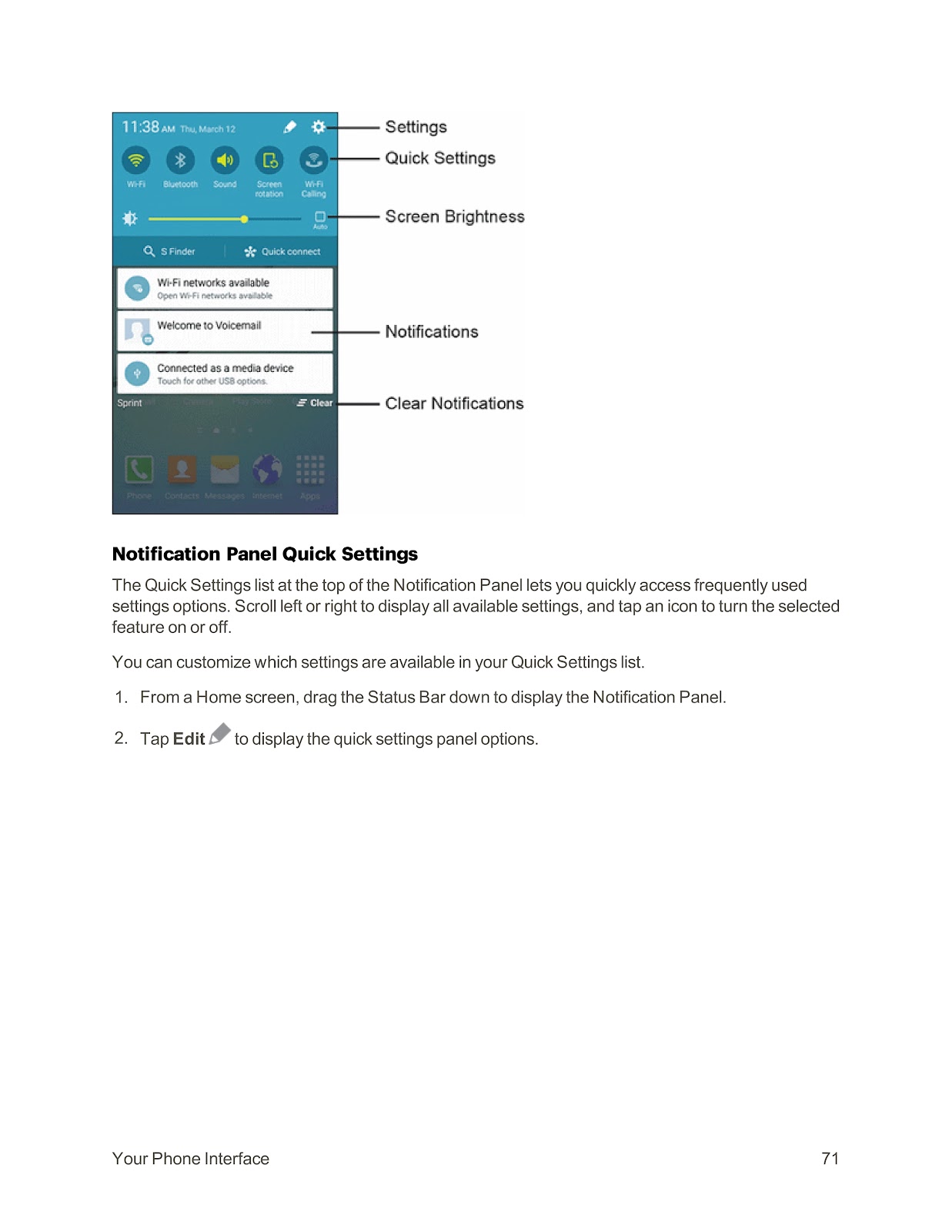
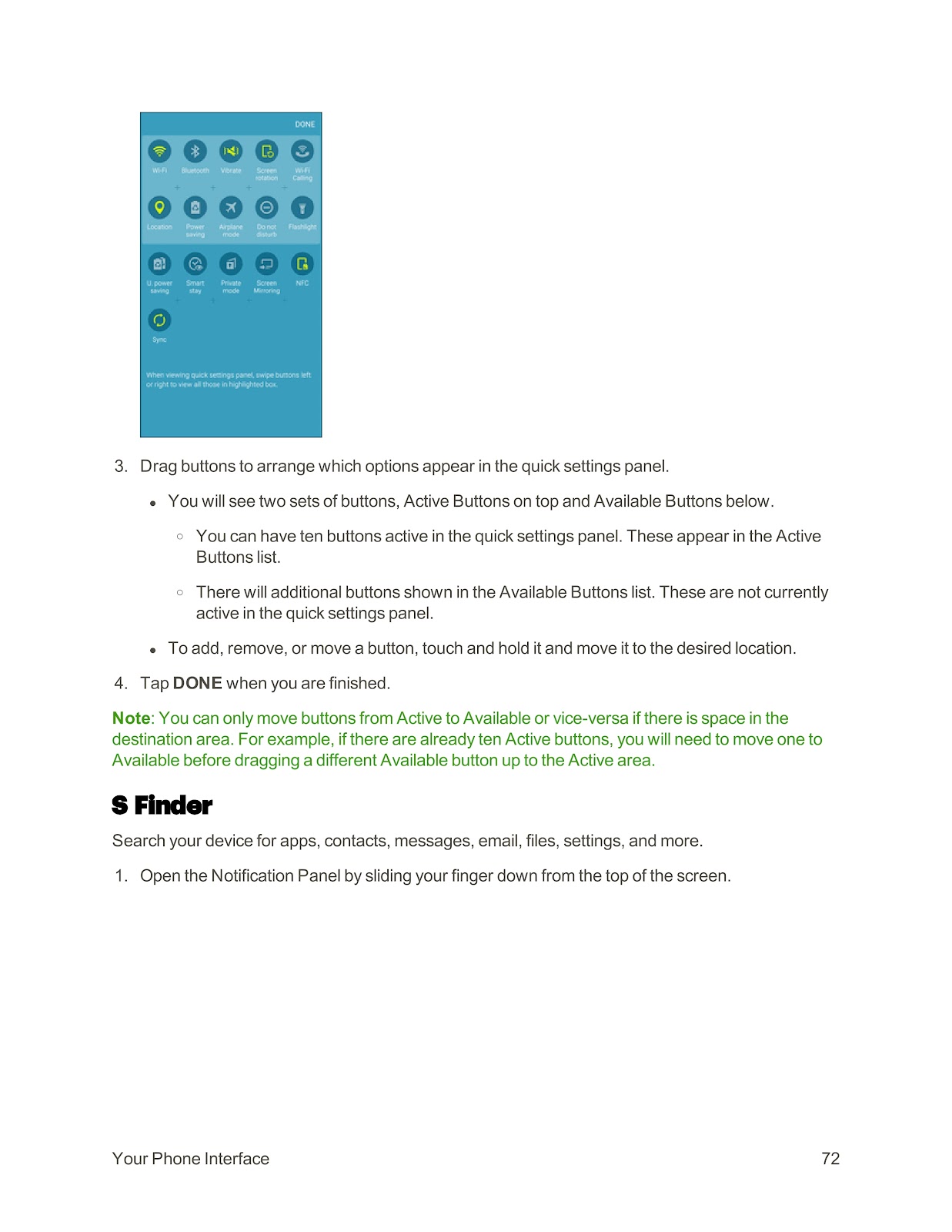
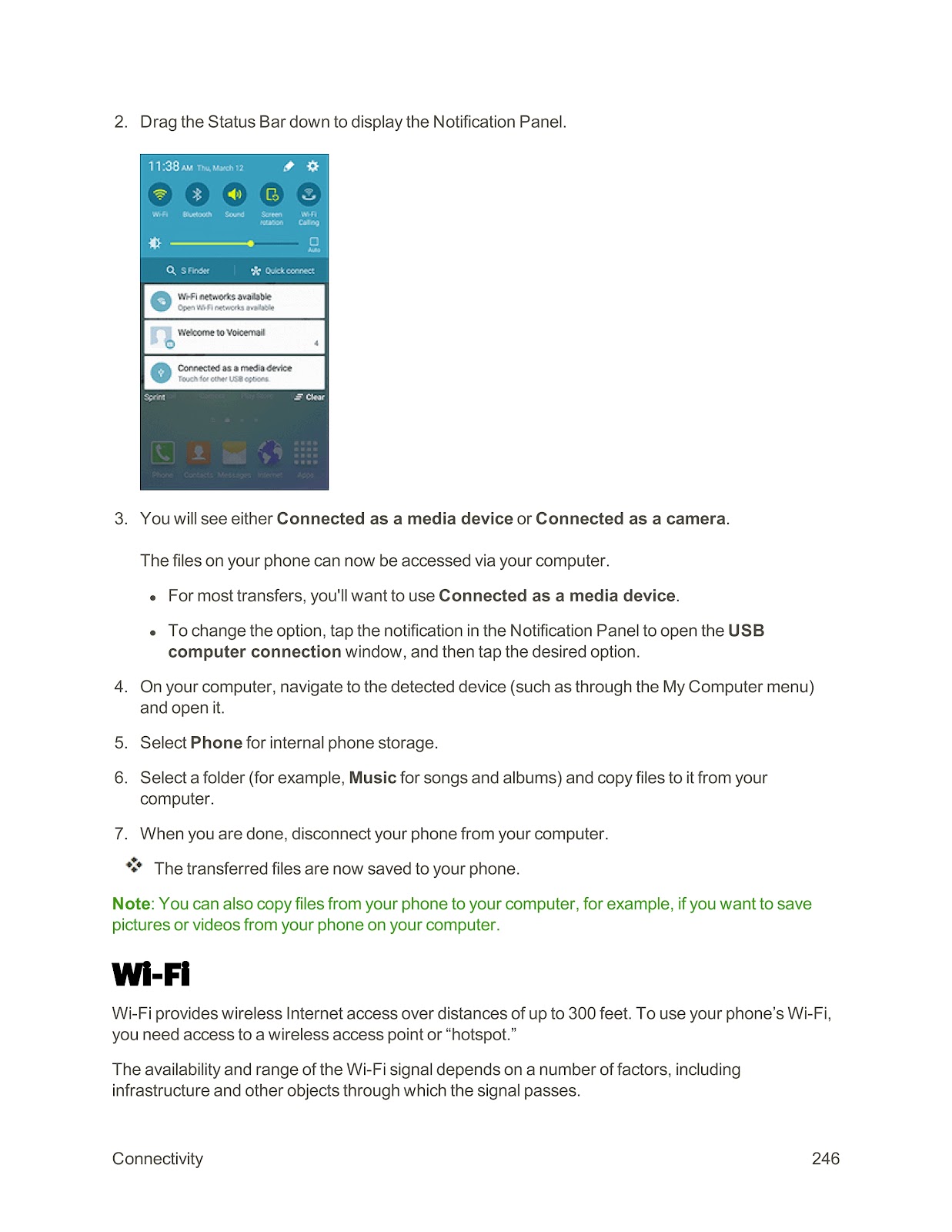
Alternatively, drag the Status Bar down, slide the Quick settings buttons to the left, and tap Airplane mode.
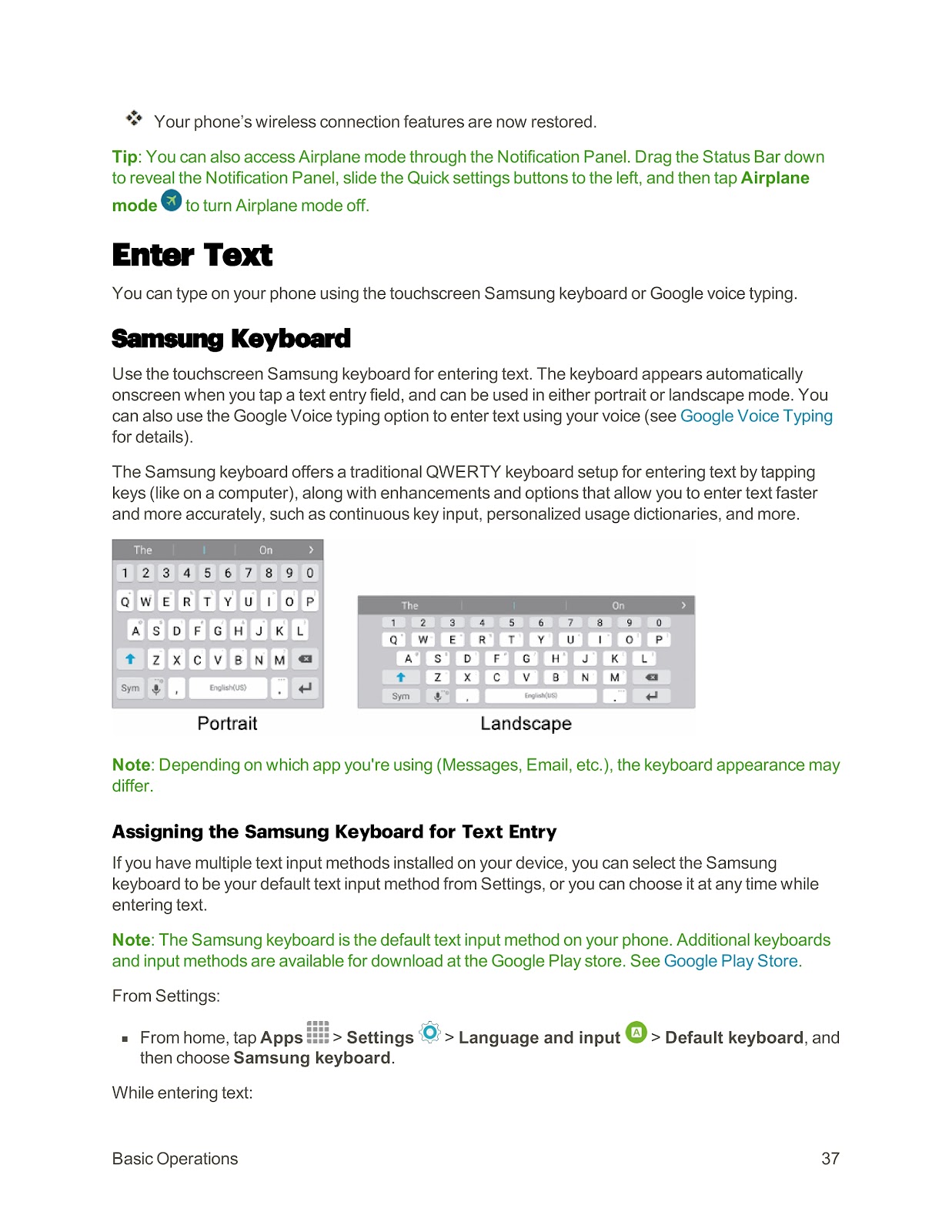
To turn off Airplane Mode:
1. Press and hold the Power key.
2. Tap Airplane mode.
How can I create a Google Account on my SPRINT SAMSUNG GALAXY S6 EDGE?
You need a Google Account to use features like the Google Play store. You can create one directly from your phone.
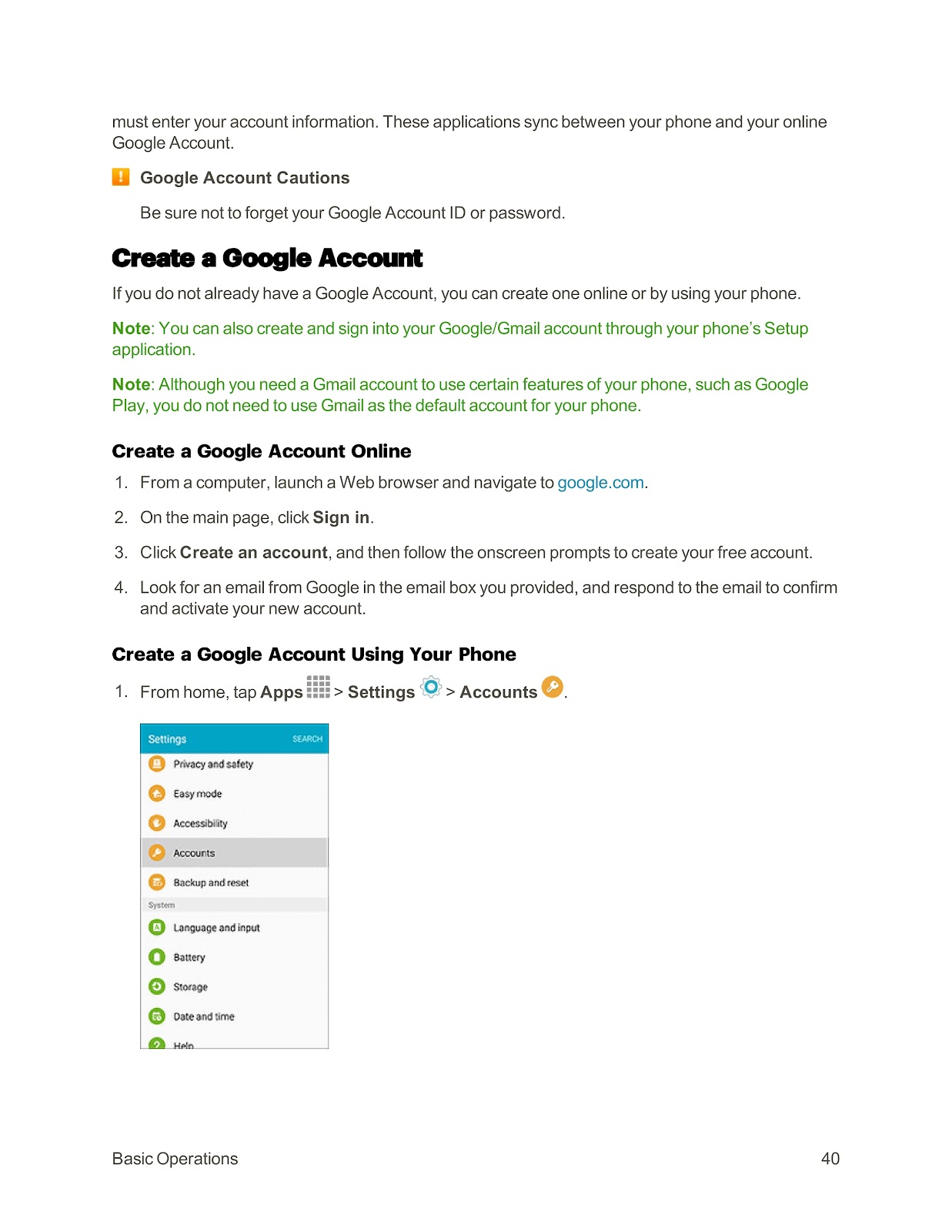
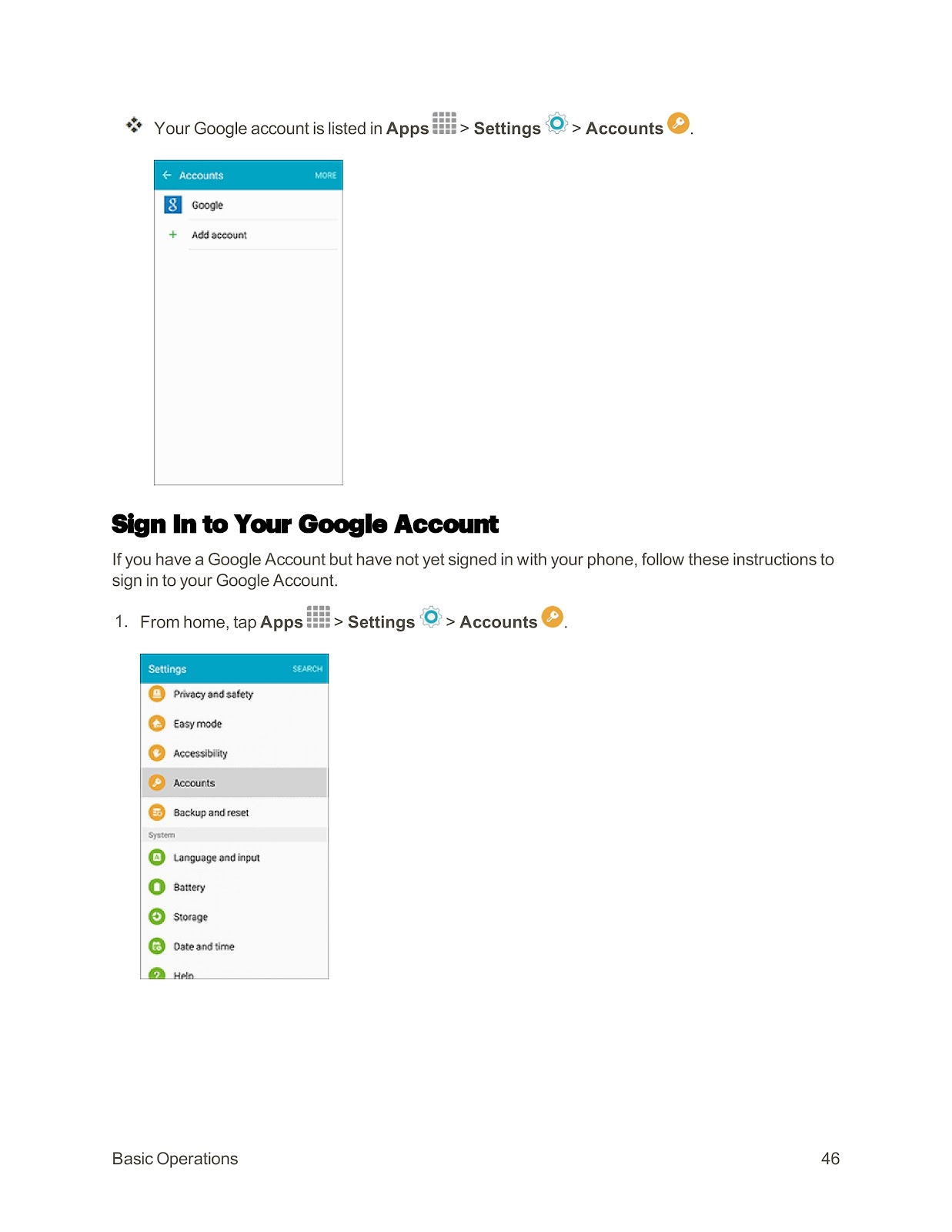
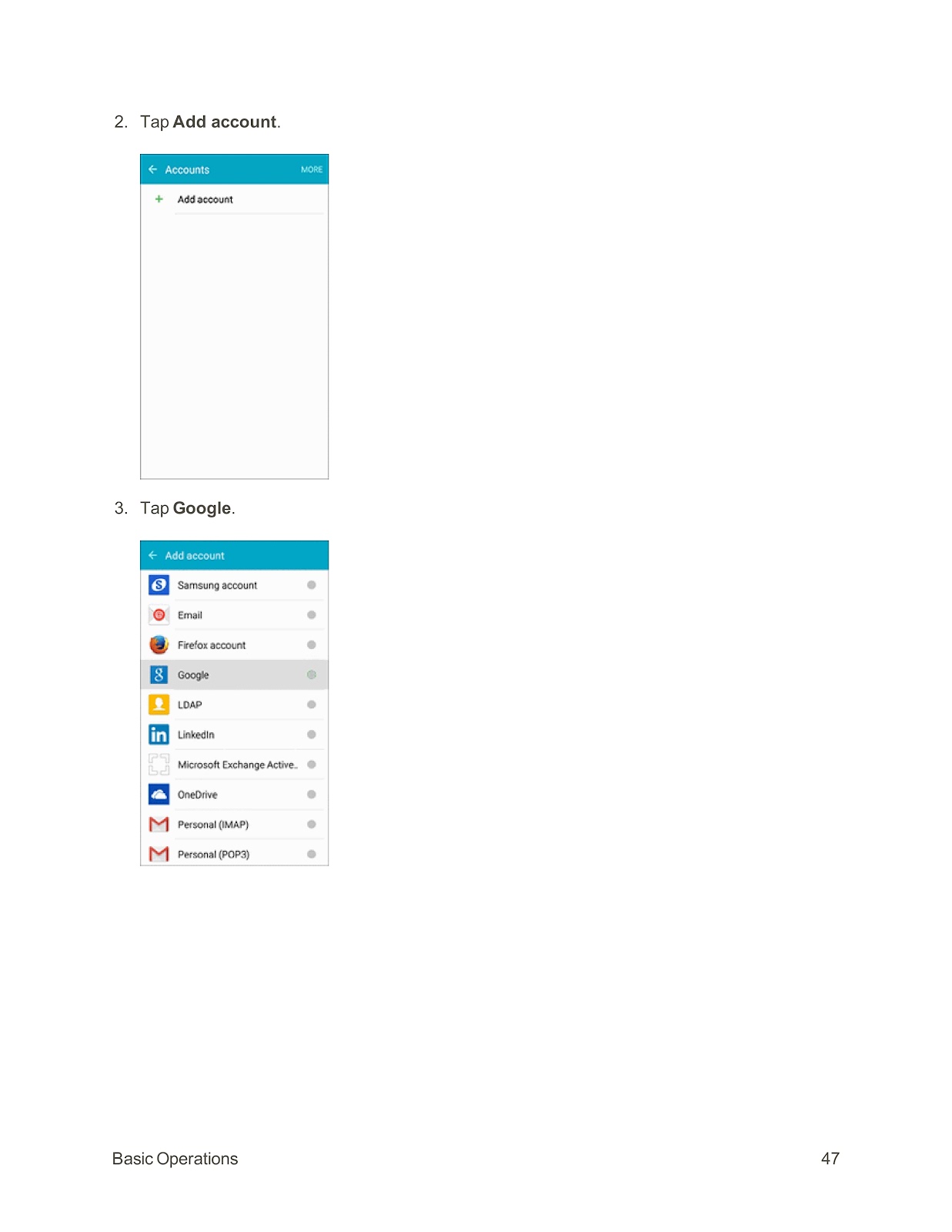
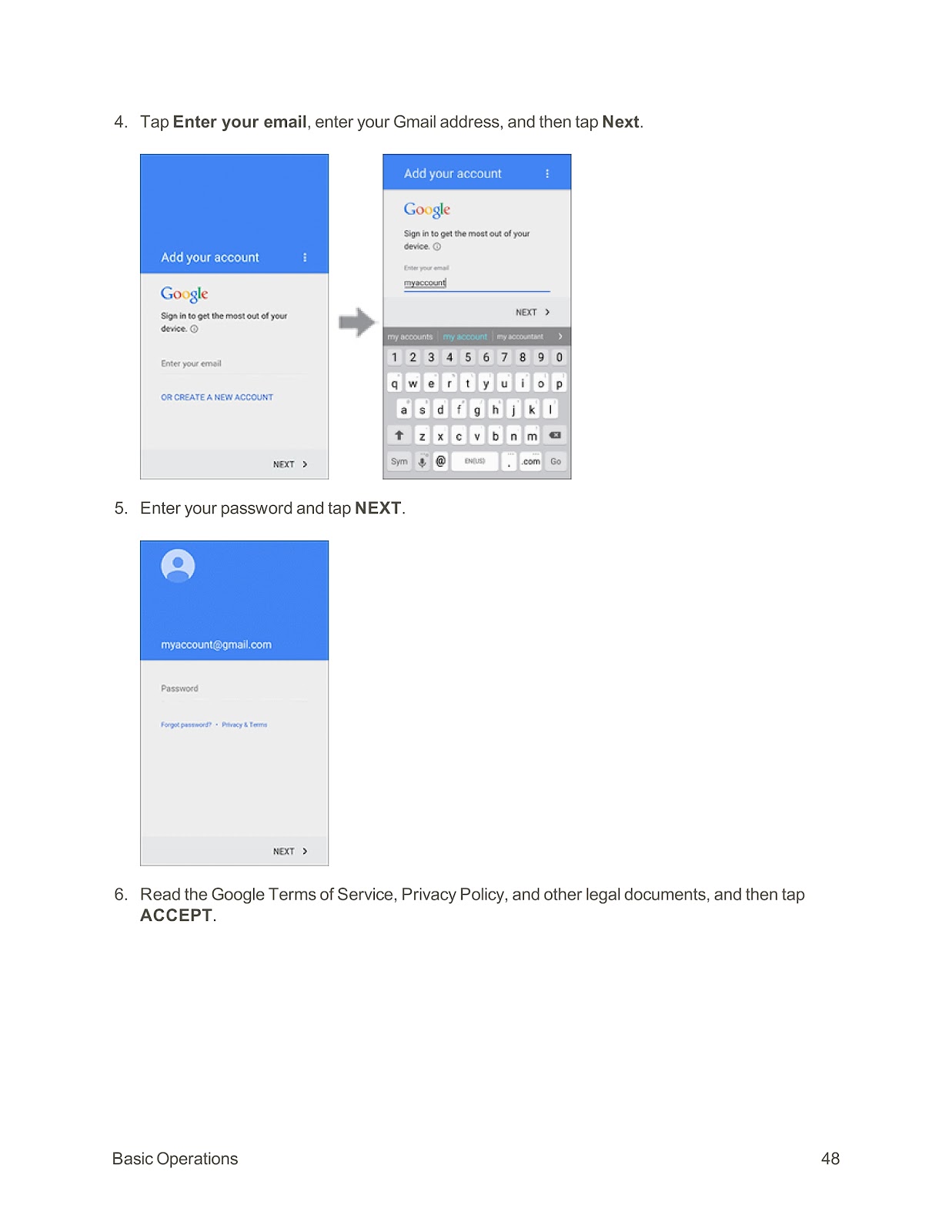
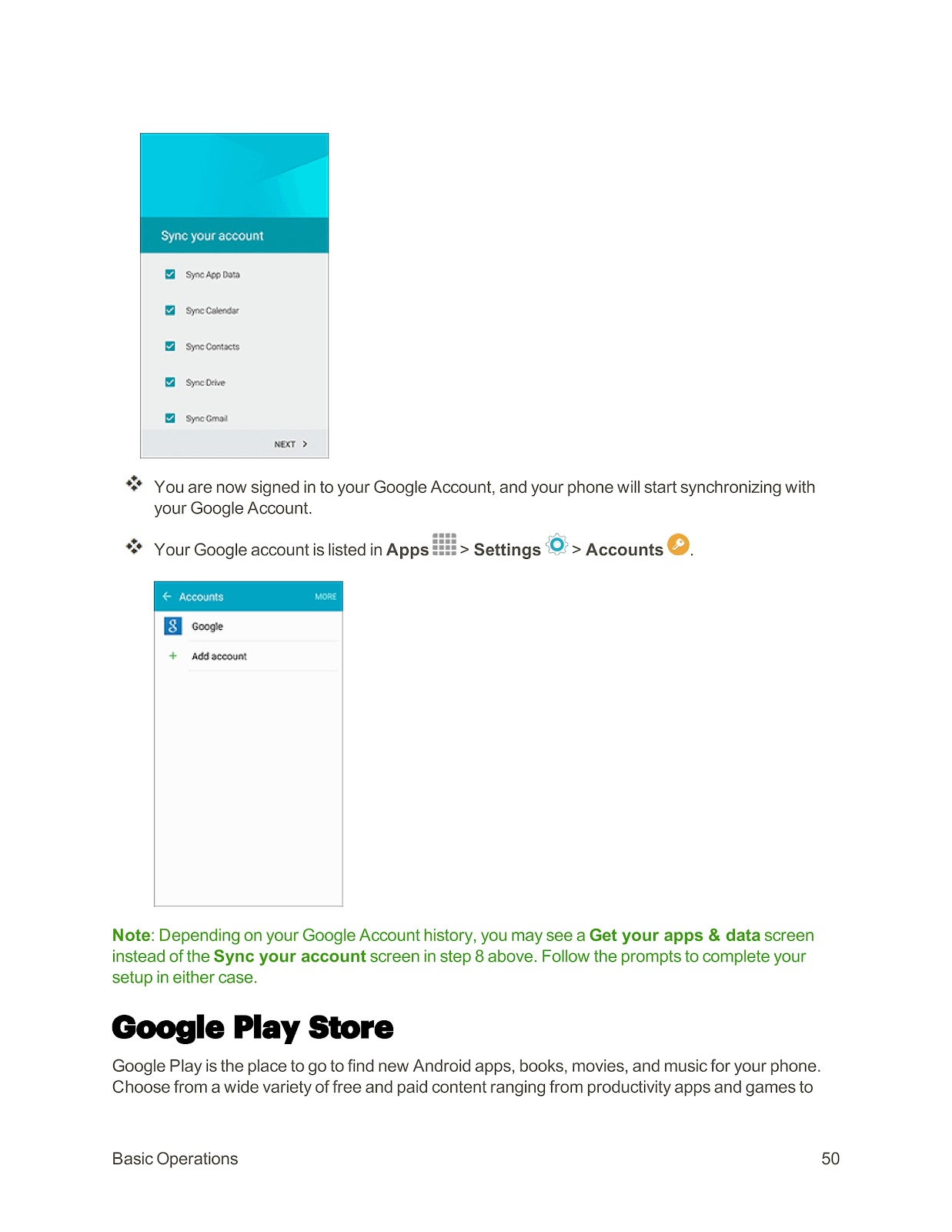
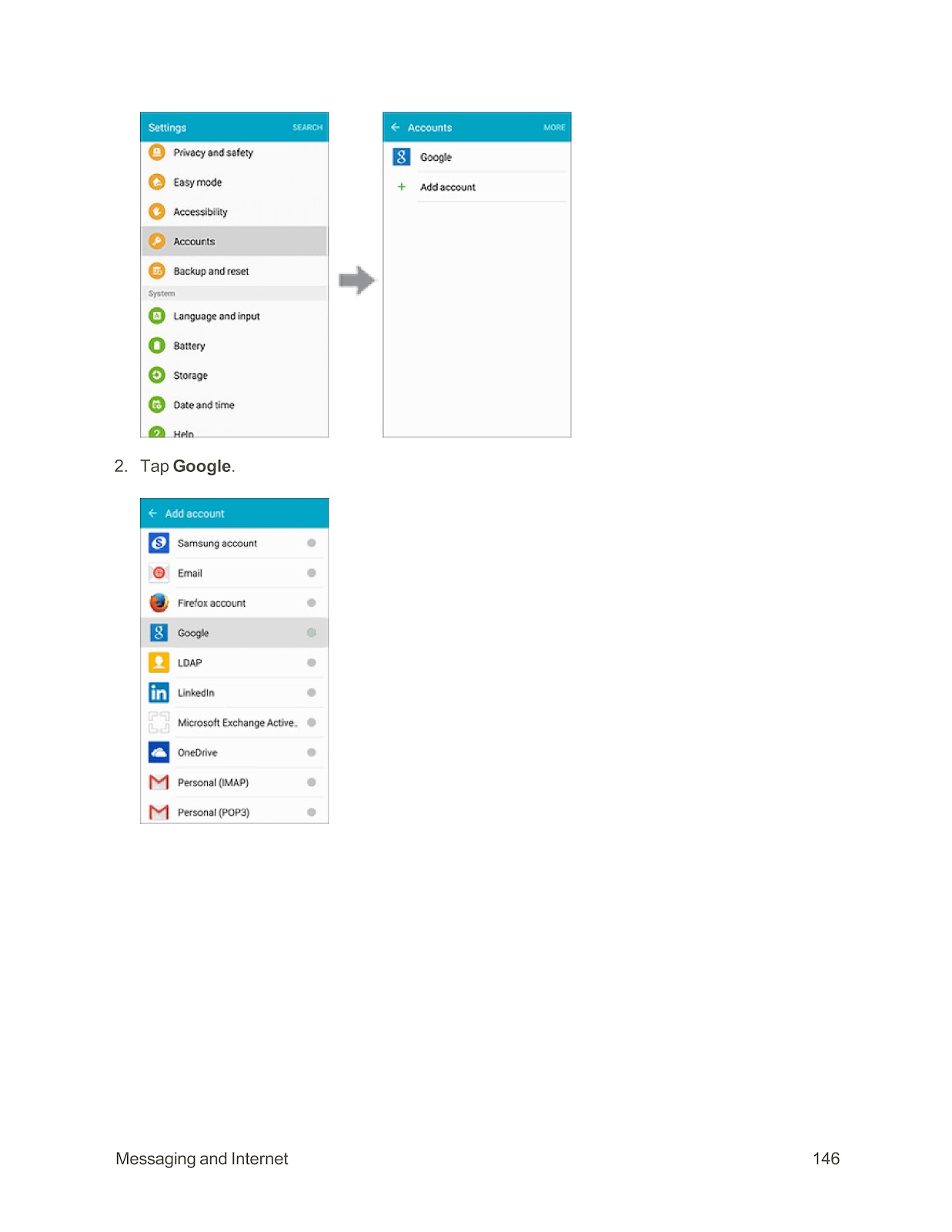
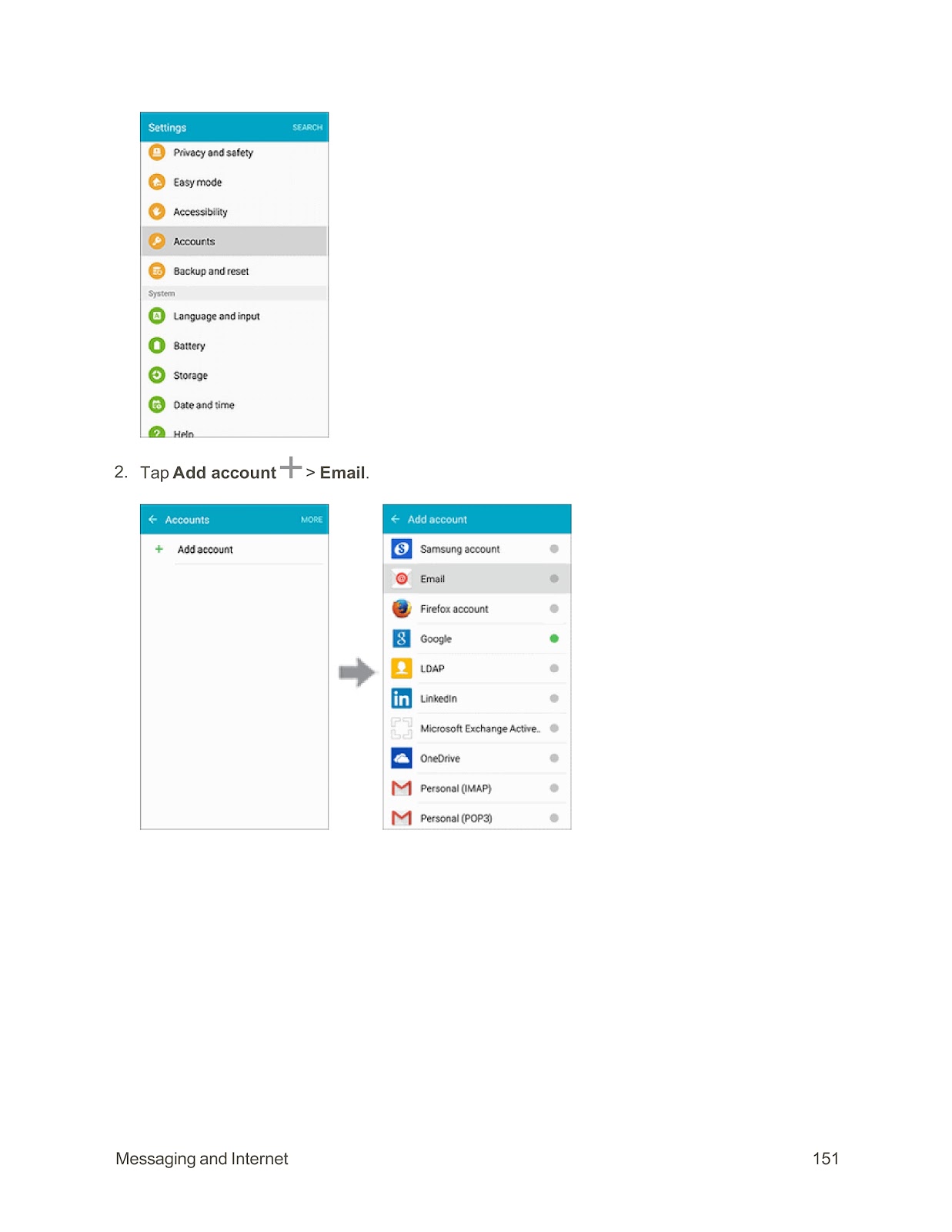
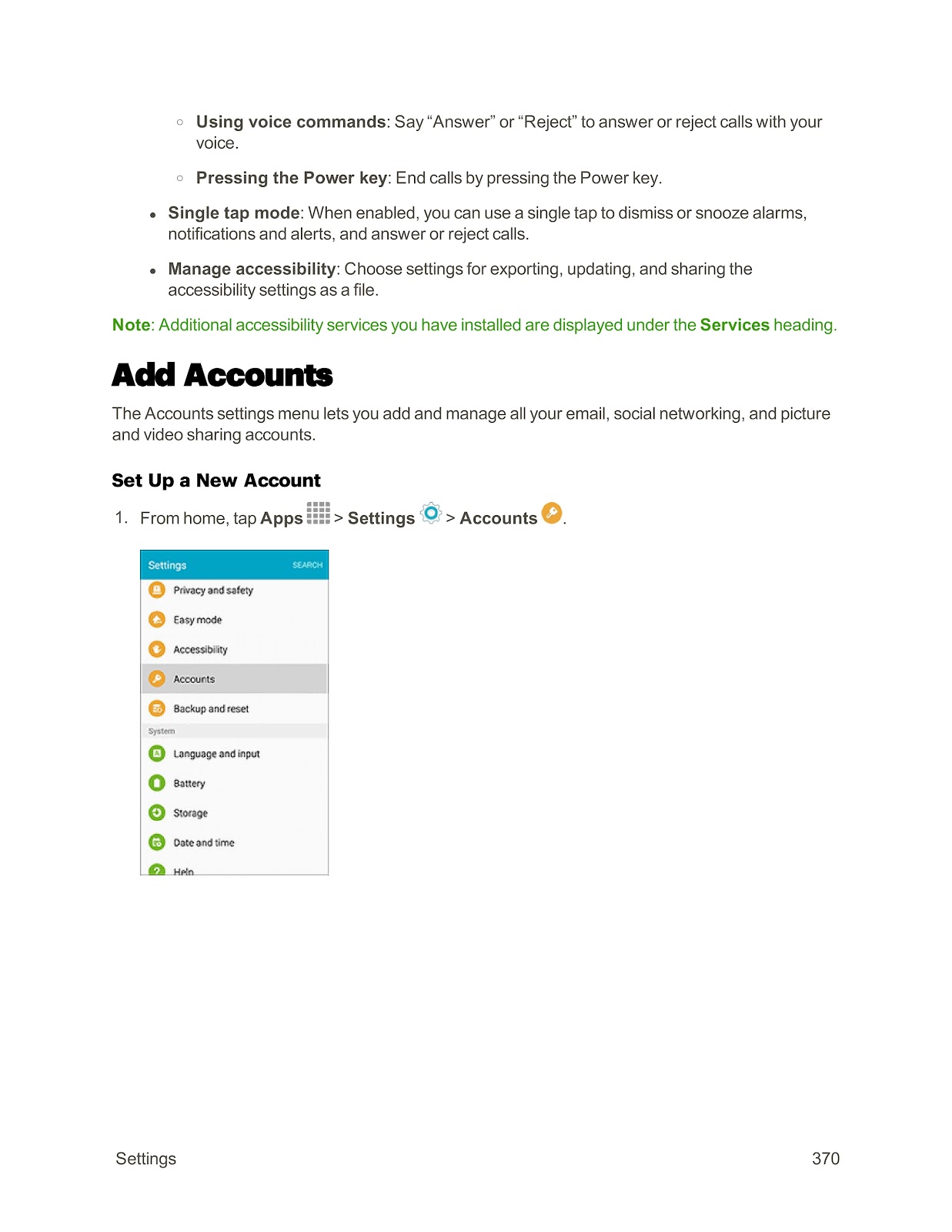
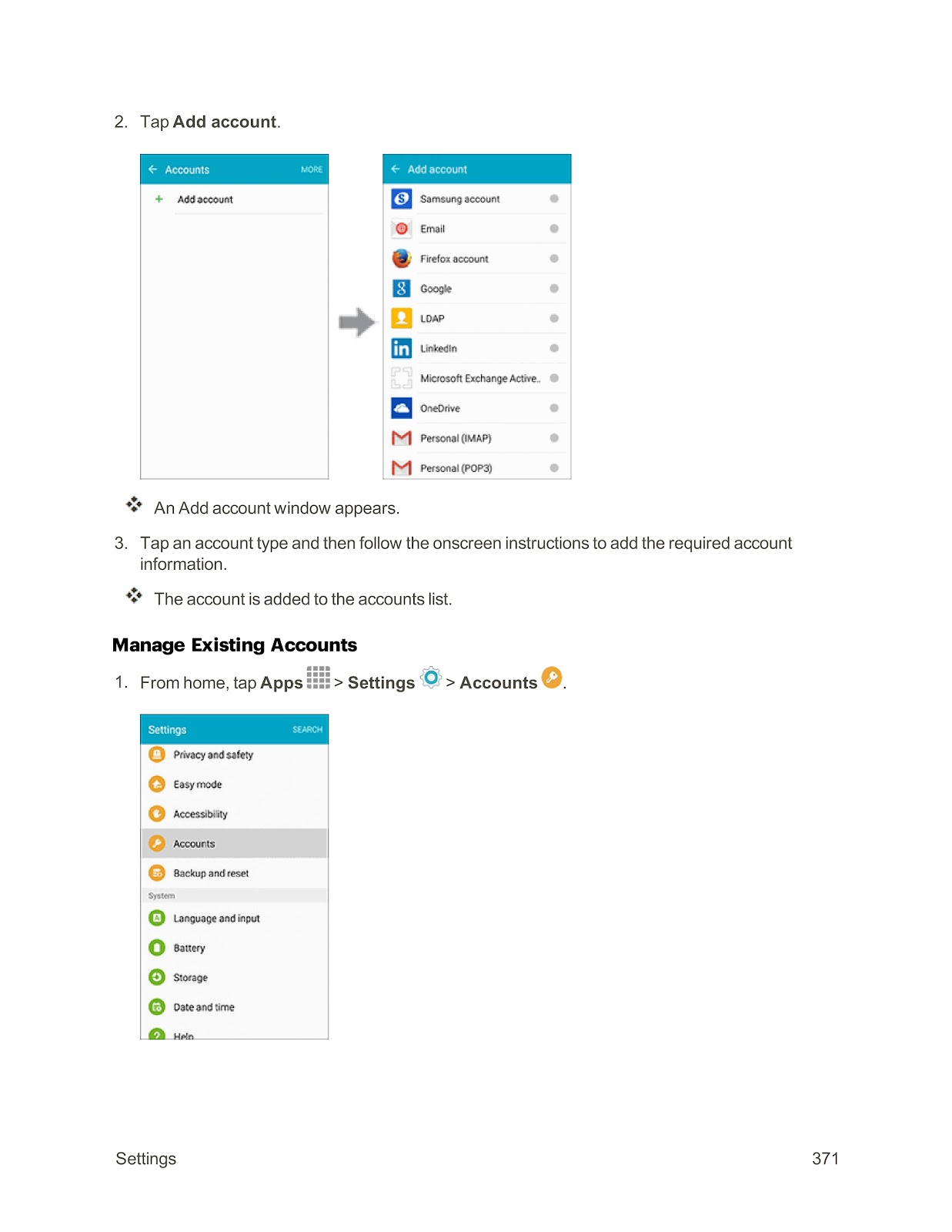
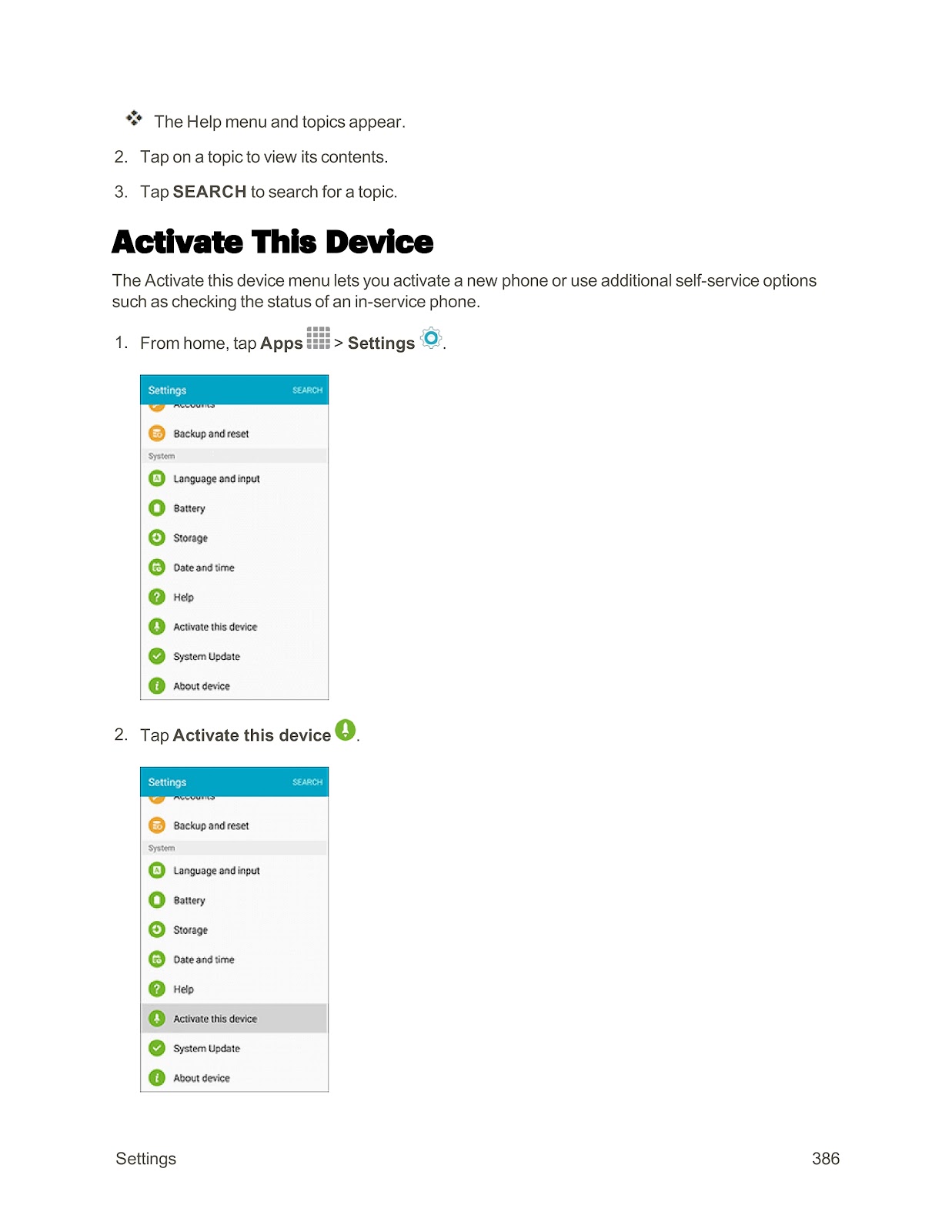
1. From home, tap Apps > Settings > Accounts.
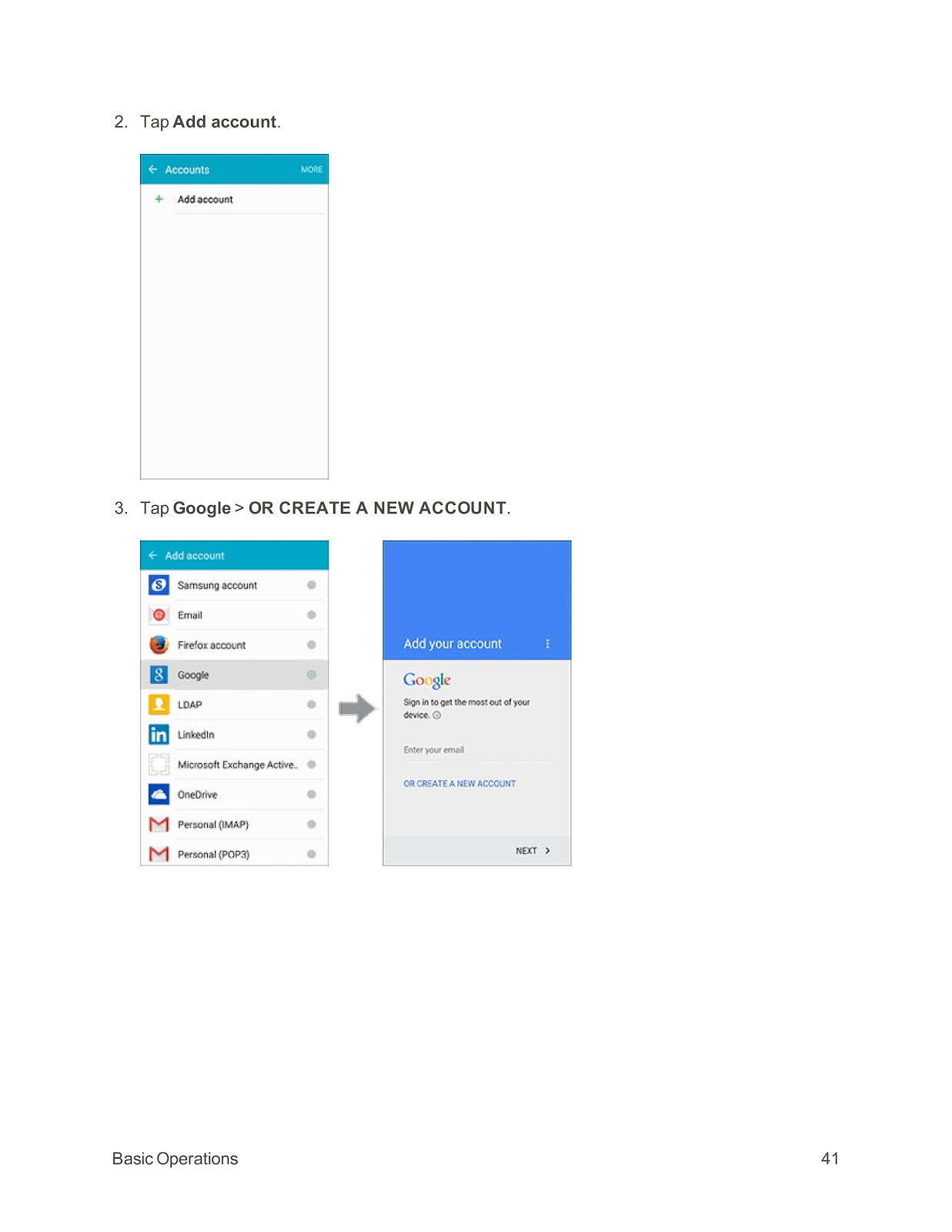
2. Tap Add account.
3. Tap Google > OR CREATE A NEW ACCOUNT.
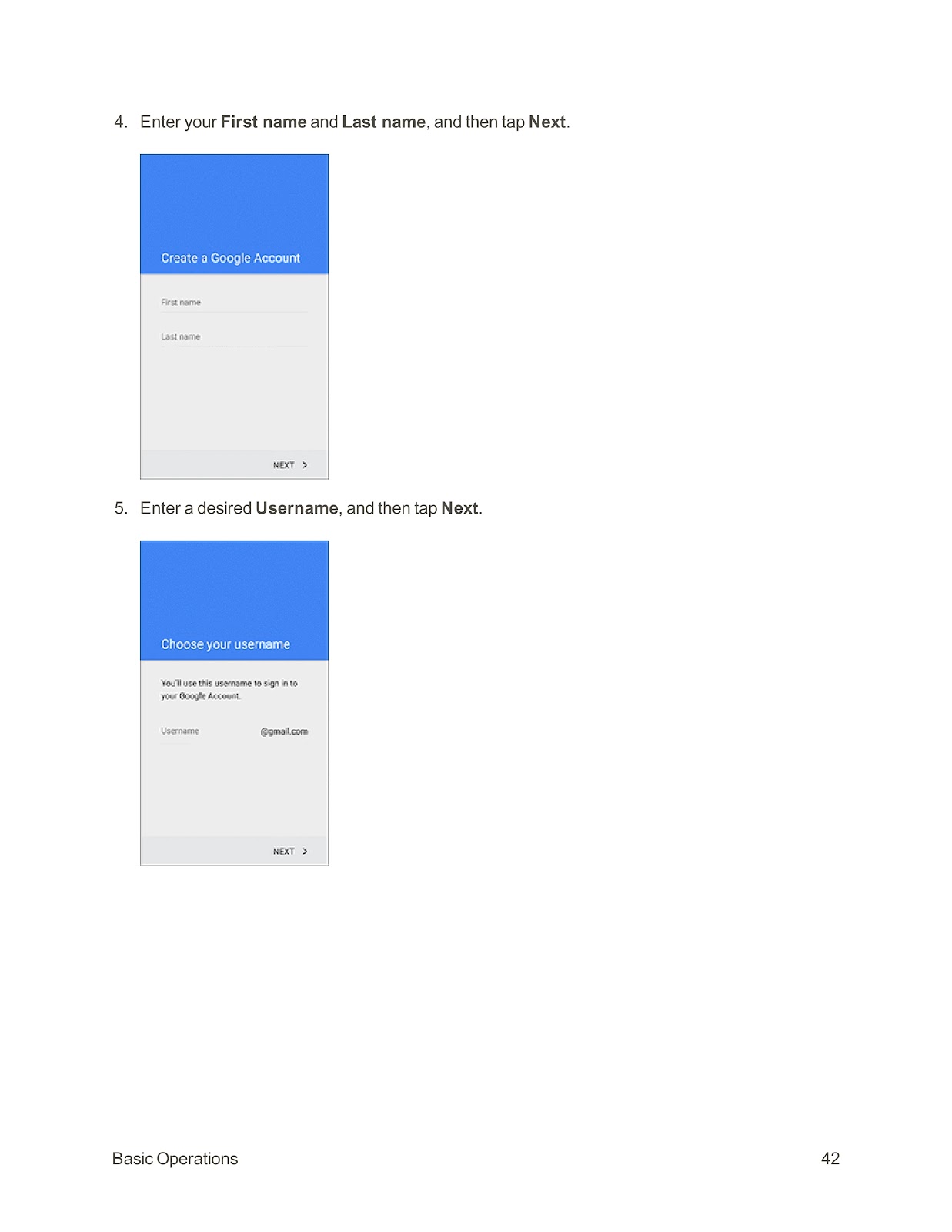
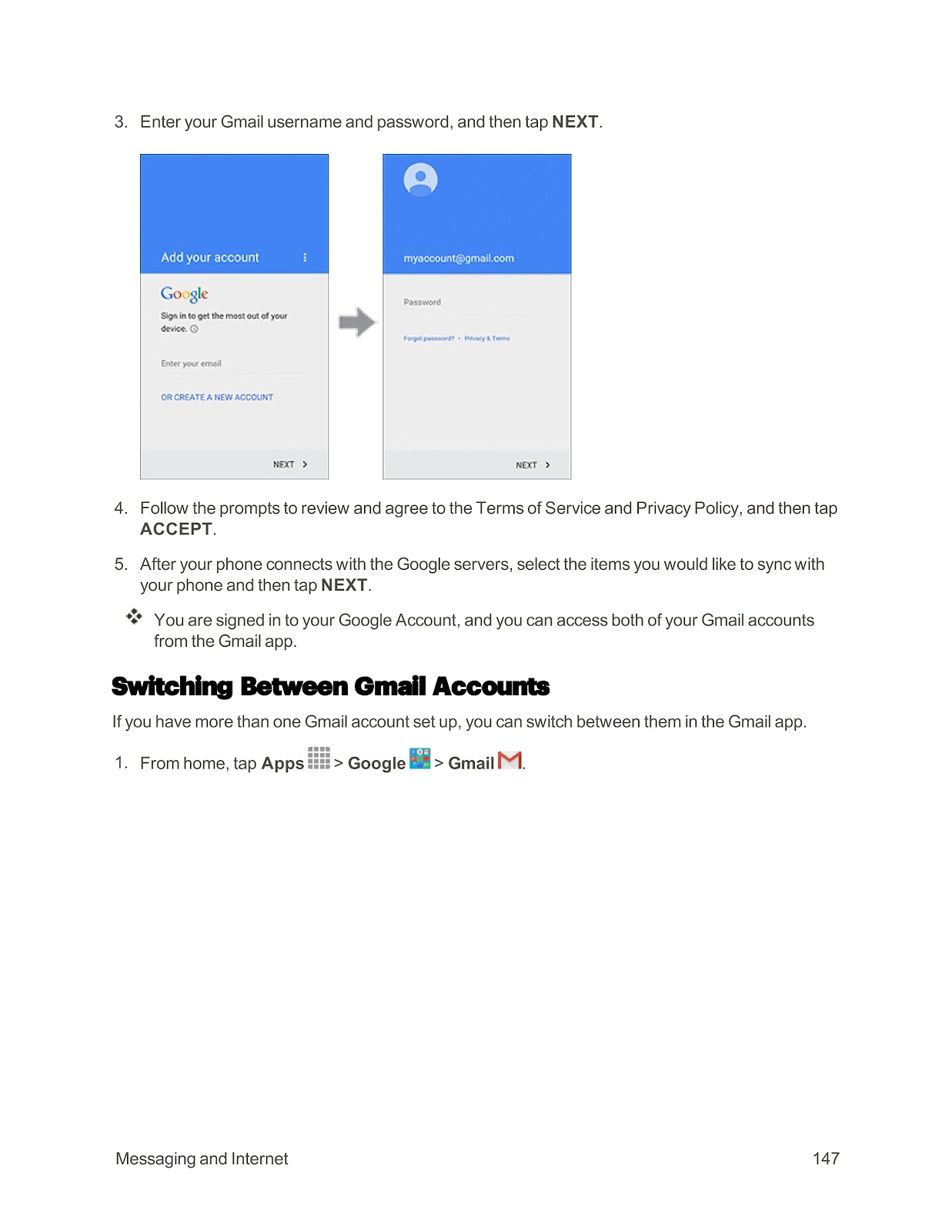
4. Enter your First name and Last name, and then tap Next.
5. Enter a desired Username, and then tap Next.
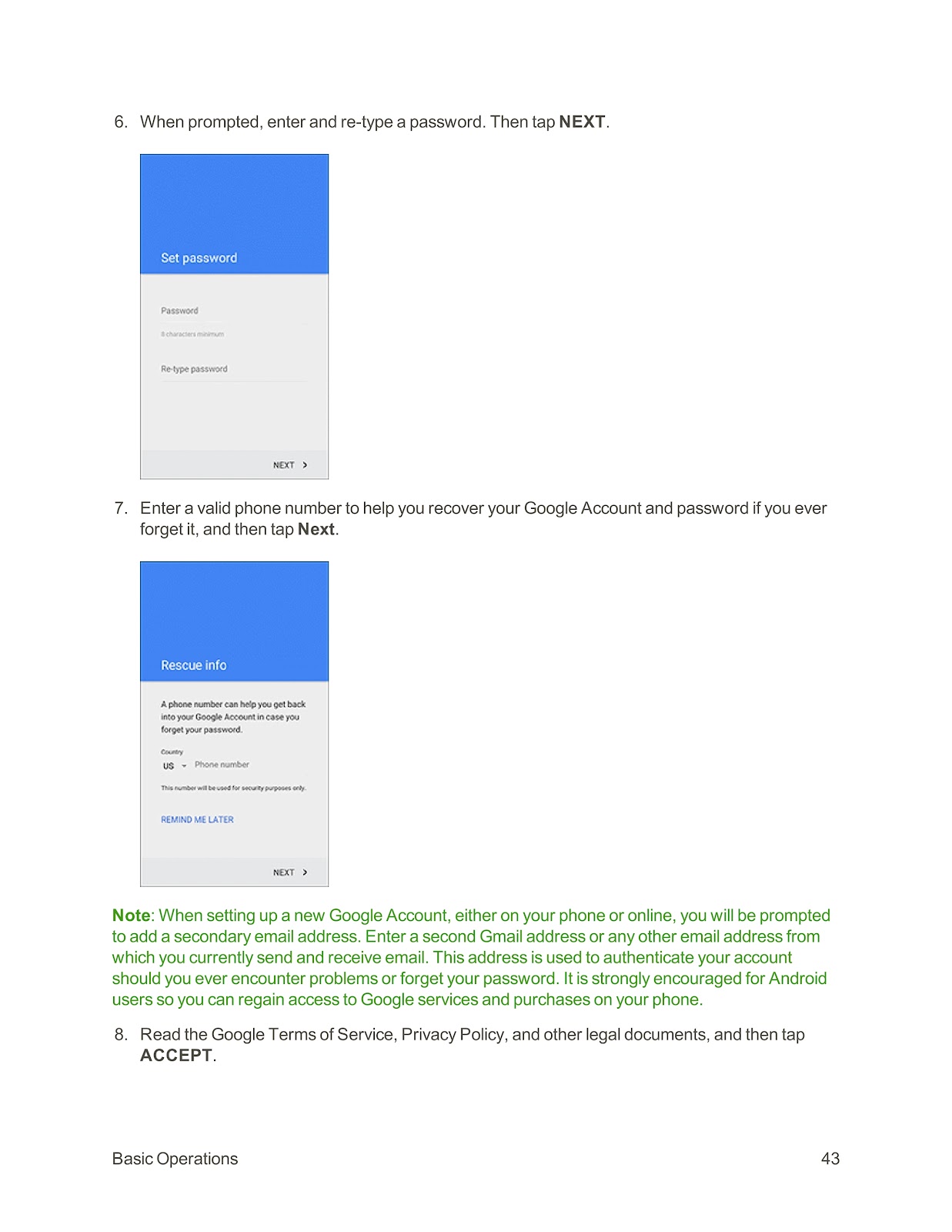
6. Enter and re-type a password, then tap NEXT.
7. Enter a valid phone number for account recovery, and then tap Next.
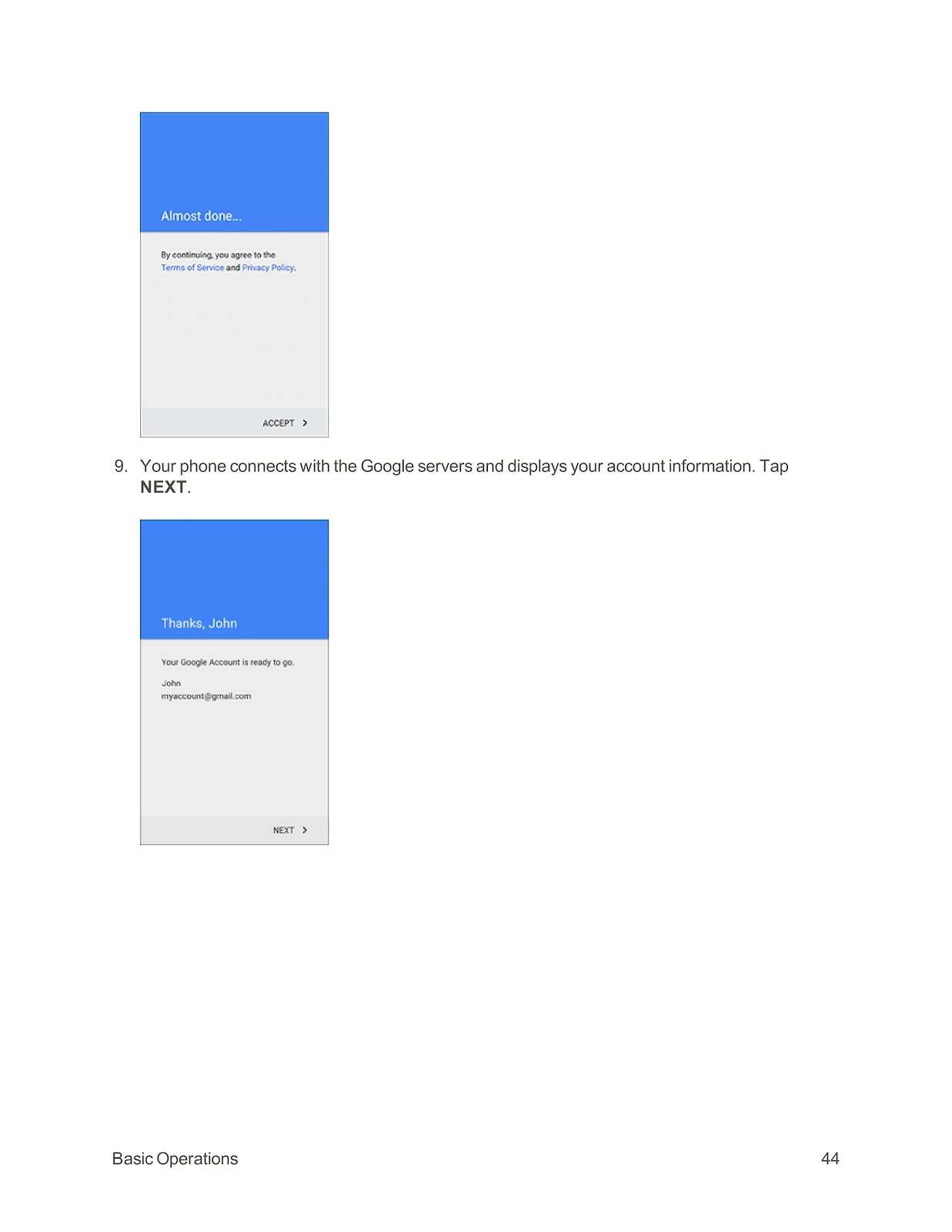
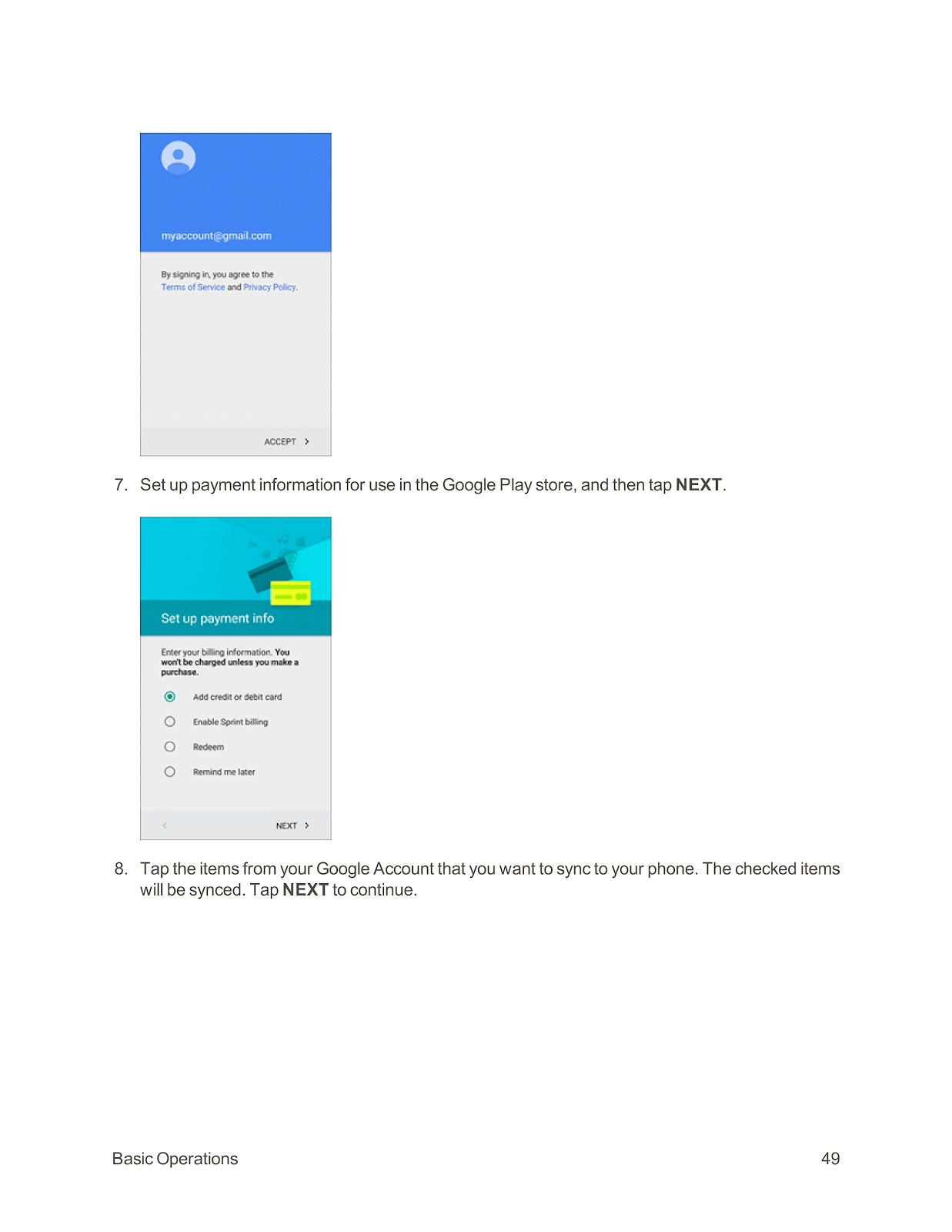
8. Read the Google Terms of Service and Privacy Policy, then tap ACCEPT.
9. Your phone will connect with Google’s servers. Tap NEXT.
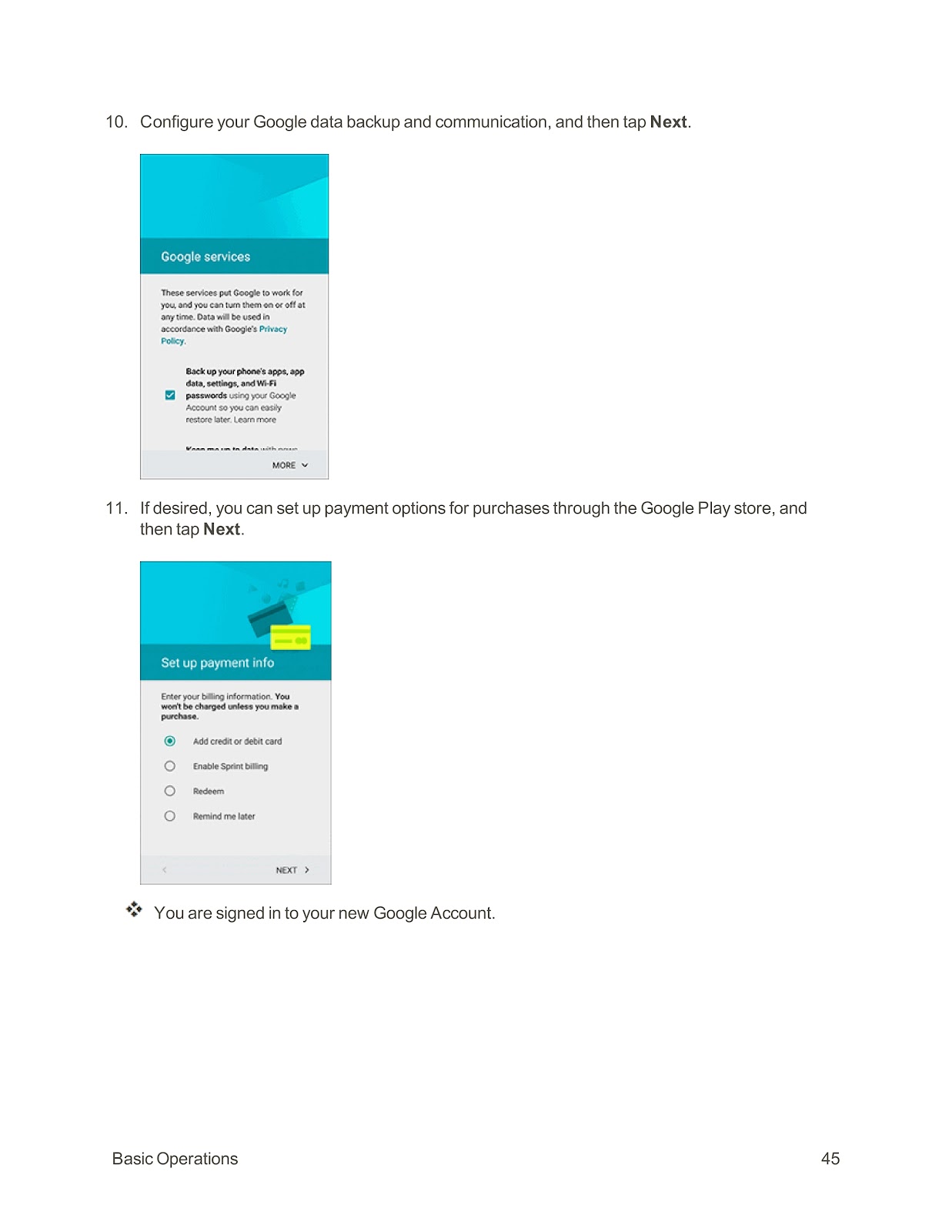
10. Configure your Google data backup and communication options, then tap Next.
11. Set up payment options for Google Play if desired, then tap Next.
How do I update the software, profile, and PRL on my SPRINT SAMSUNG GALAXY S6 EDGE?
You can download and apply updates through the Settings menu. It is recommended to back up your data before updating software.
Update Your Phone’s Software:
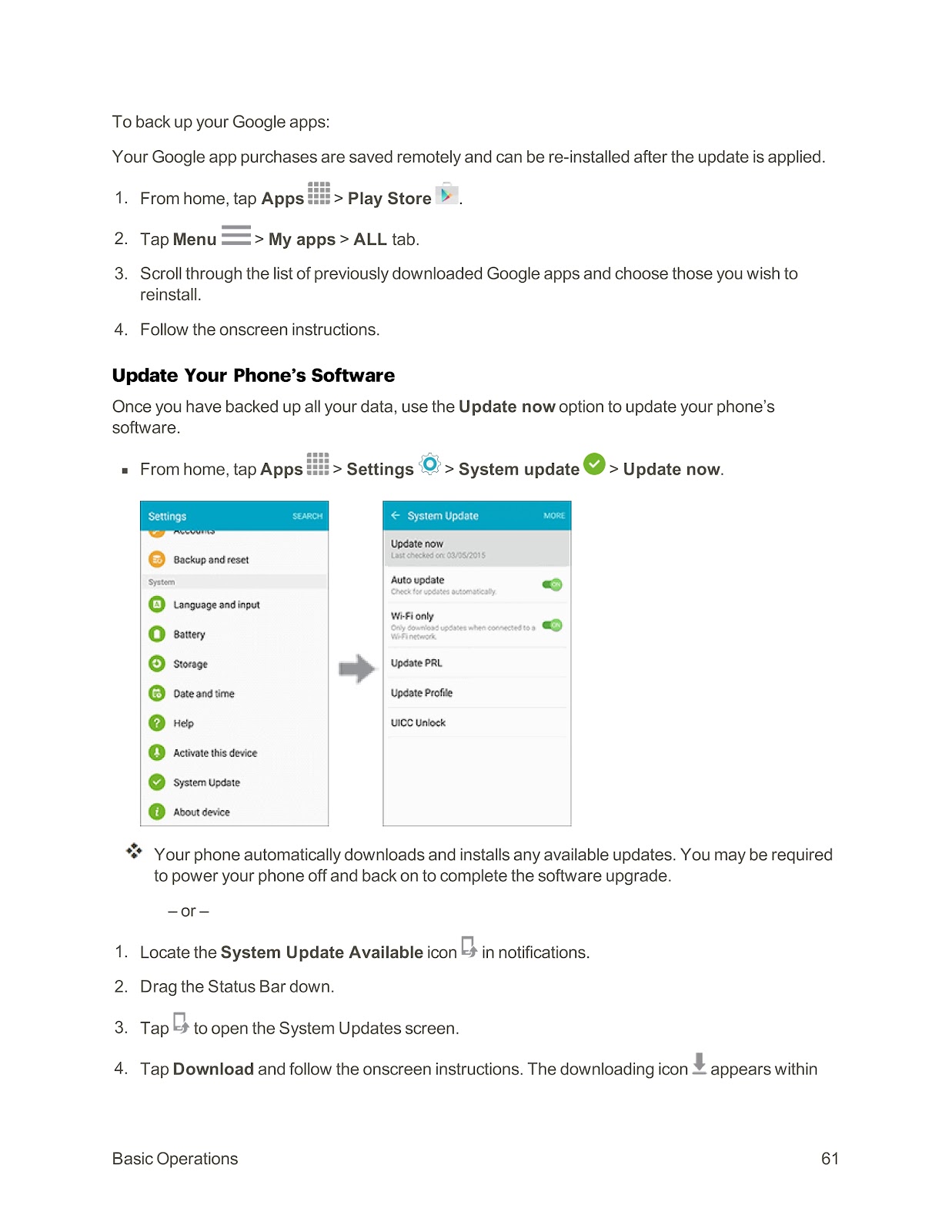
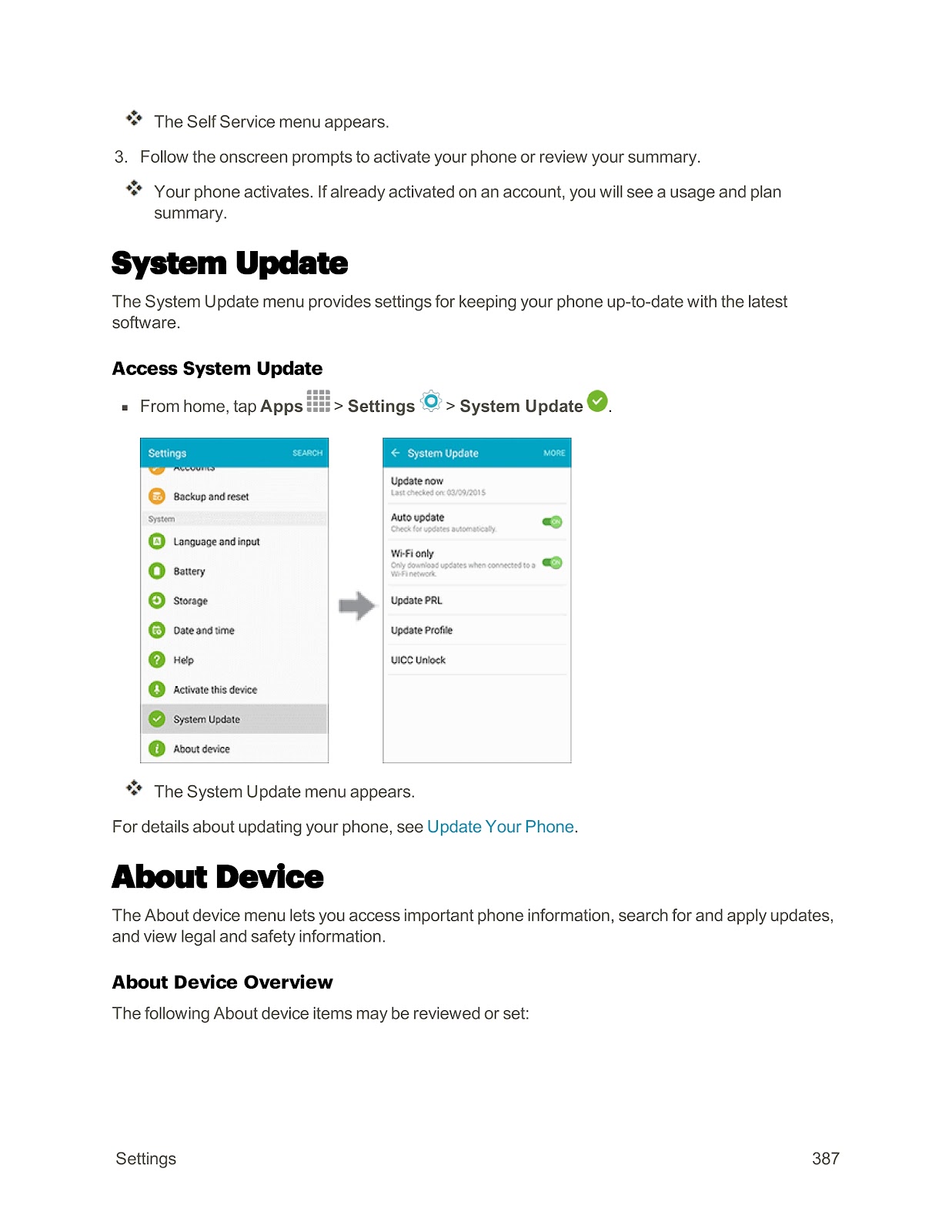
1. From home, tap Apps > Settings > System update.
2. Tap Update now.
3. Your phone will automatically download and install any available updates. You may be required to restart the phone to complete the upgrade.
Update Your Profile: This updates your online user profile information.
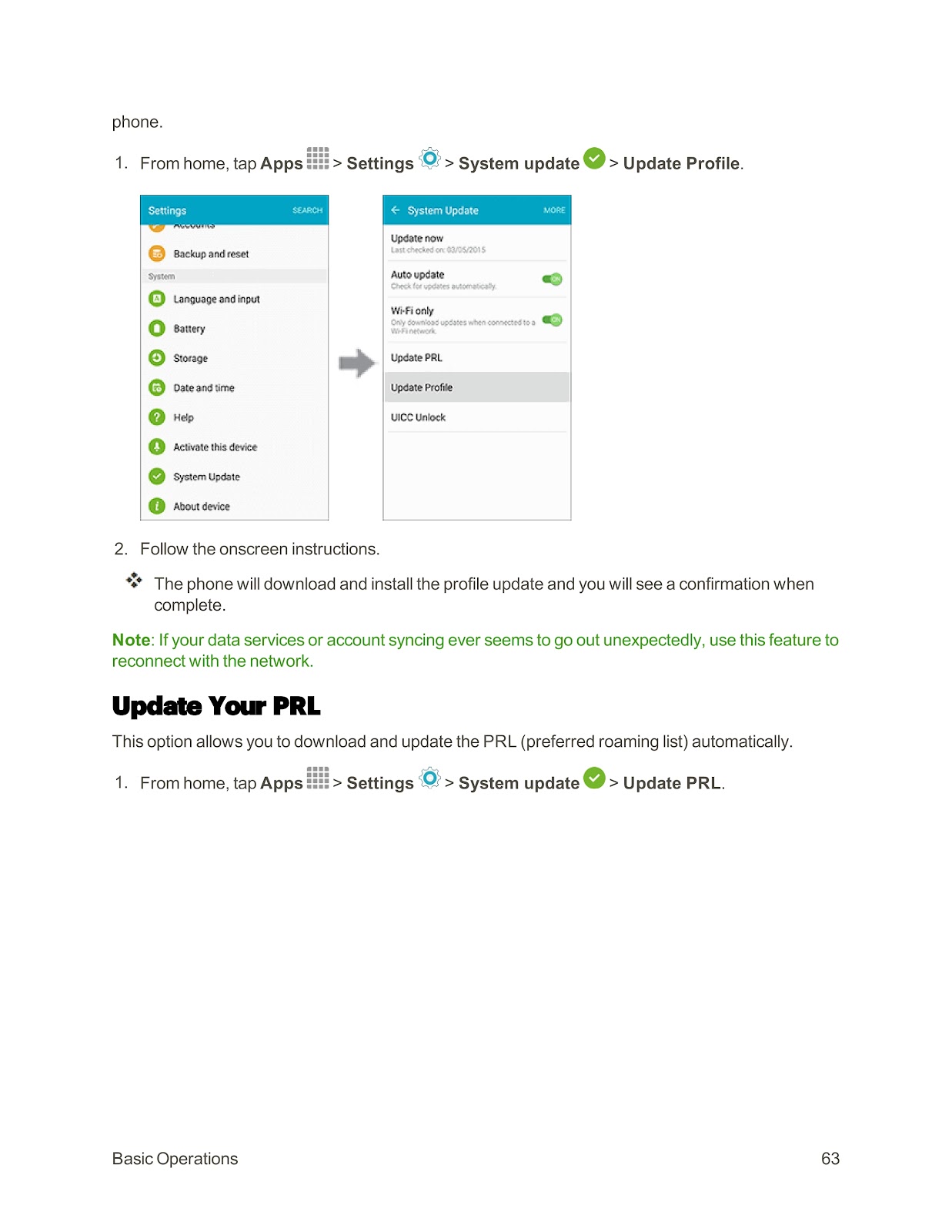
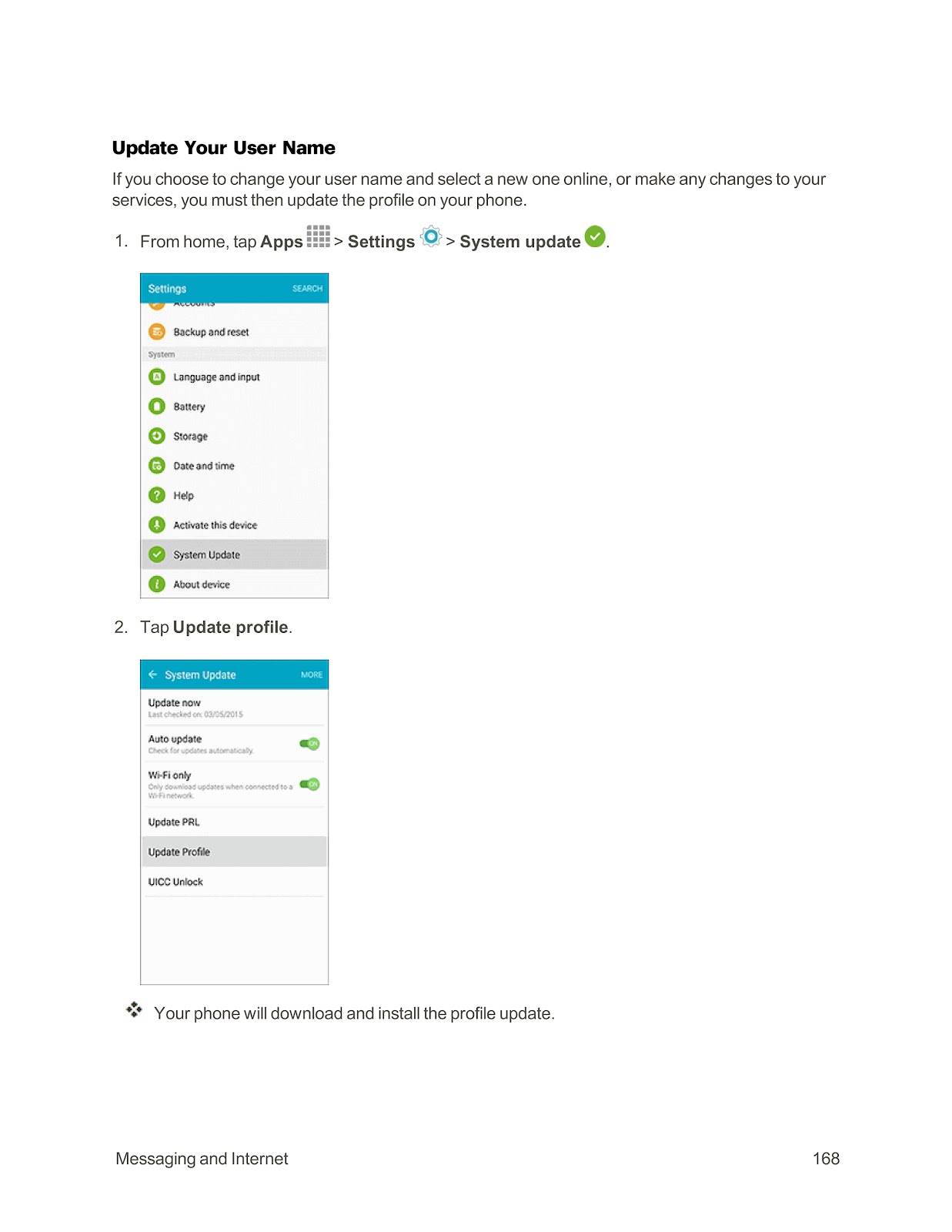
1. From home, tap Apps > Settings > System update.
2. Tap Update Profile.
3. Follow the onscreen instructions.
Update Your PRL (Preferred Roaming List):
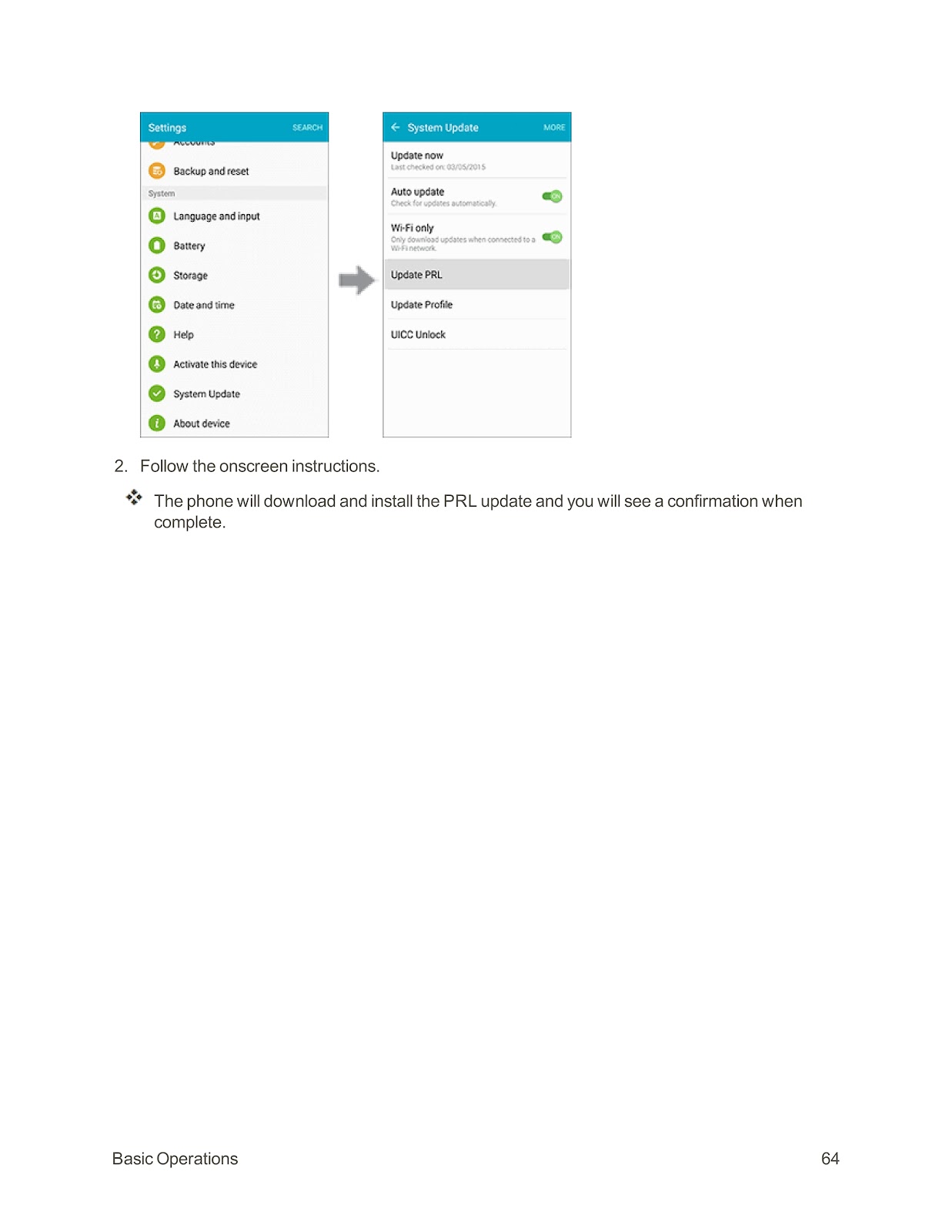
1. From home, tap Apps > Settings > System update.
2. Tap Update PRL.
3. Follow the onscreen instructions.
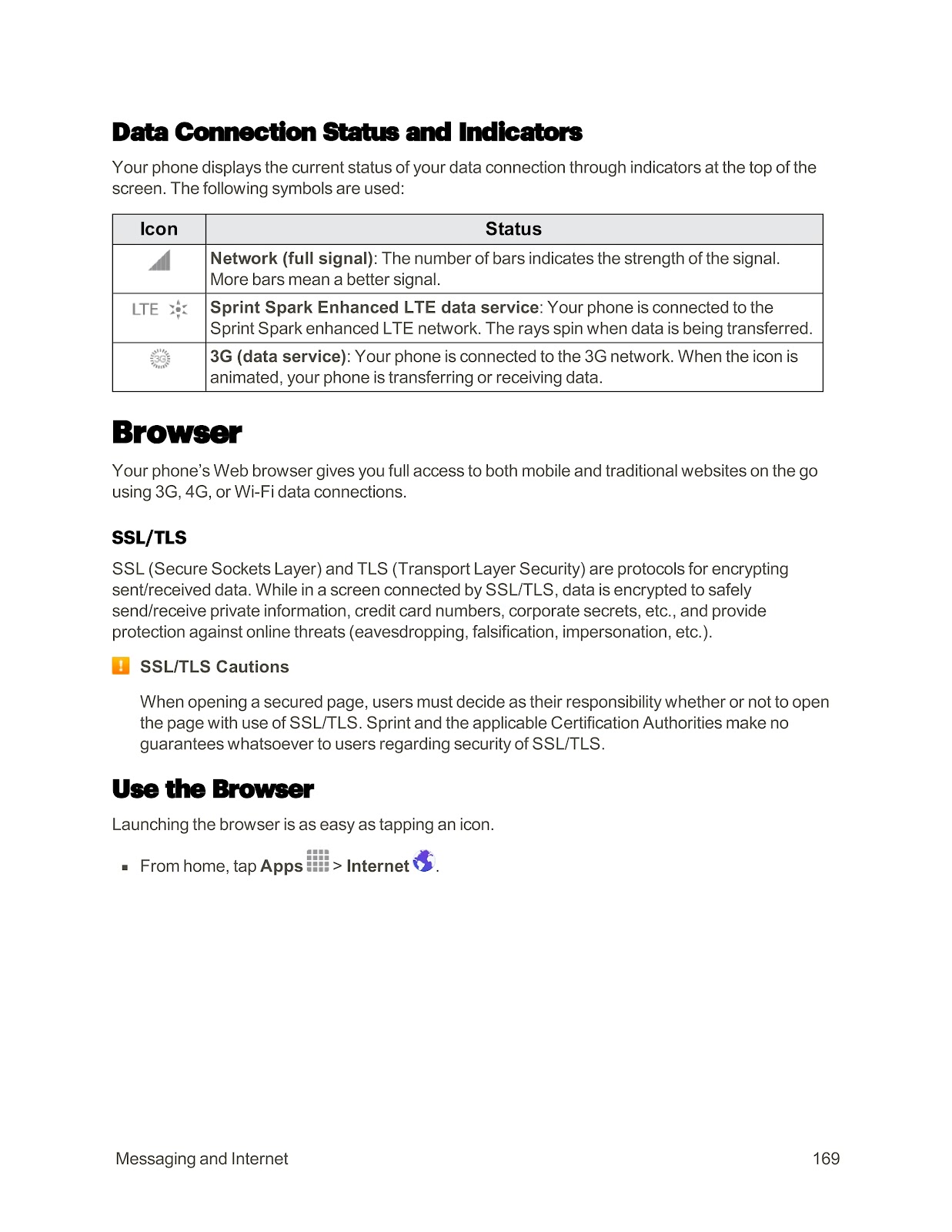
What are the main icons on the Status Bar of the SPRINT SAMSUNG GALAXY S6 EDGE?
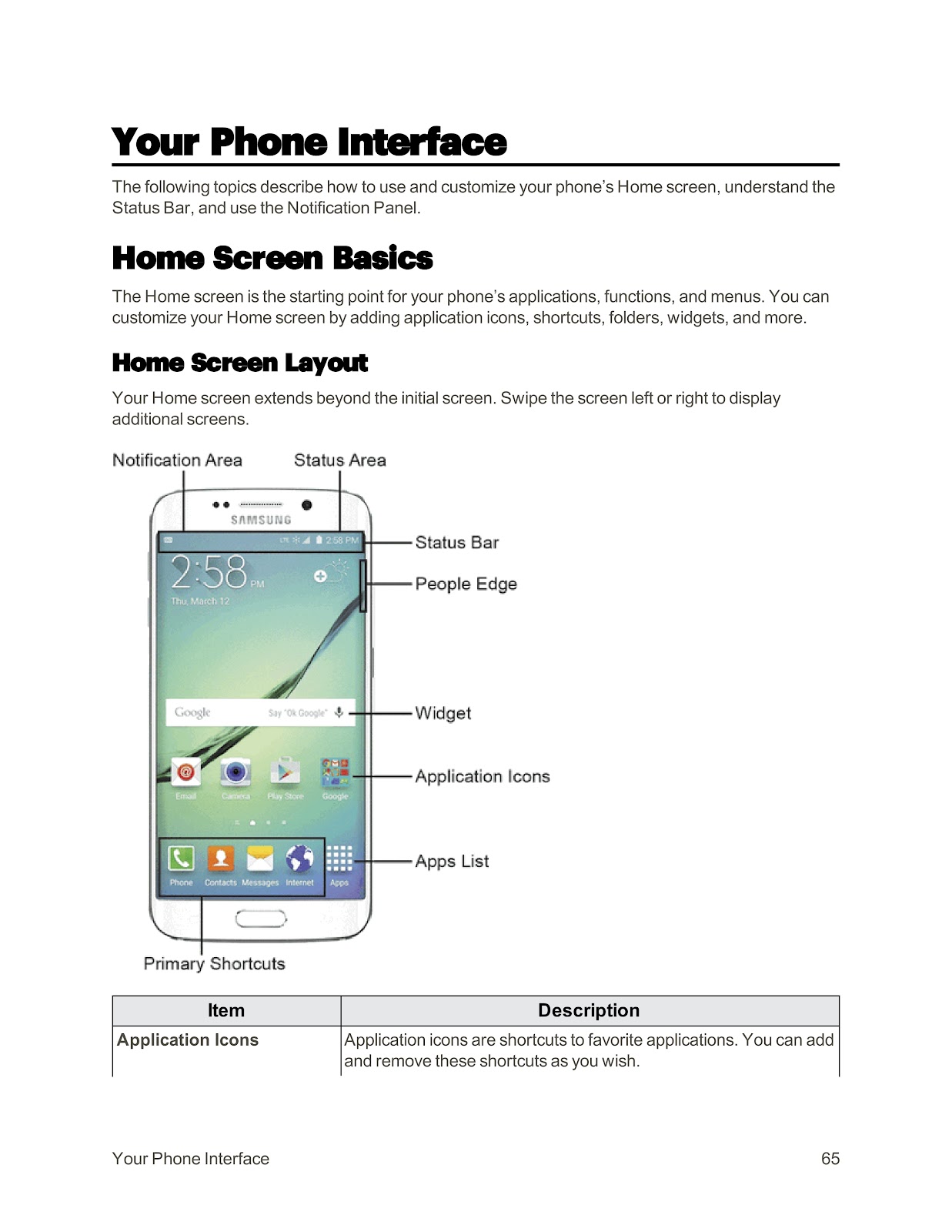
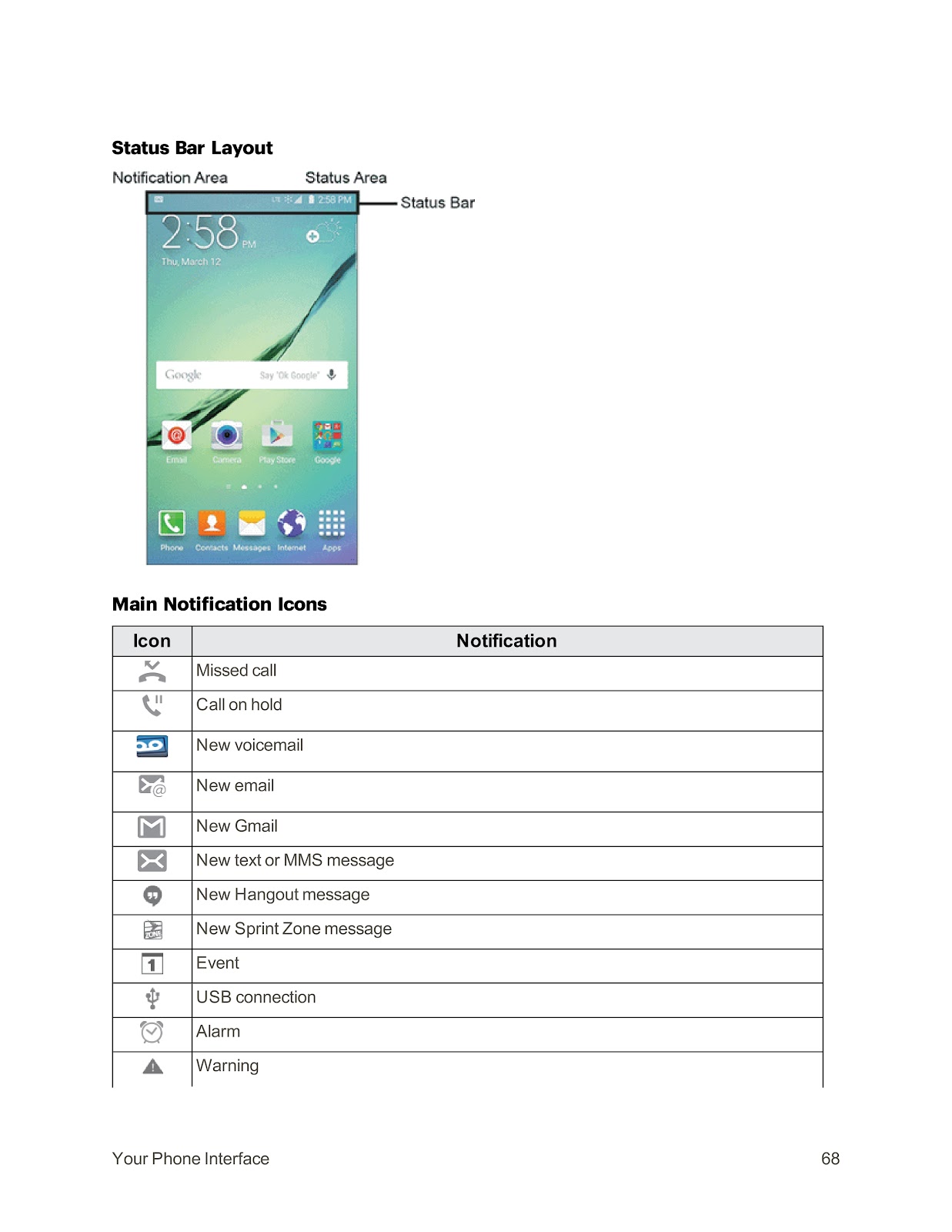
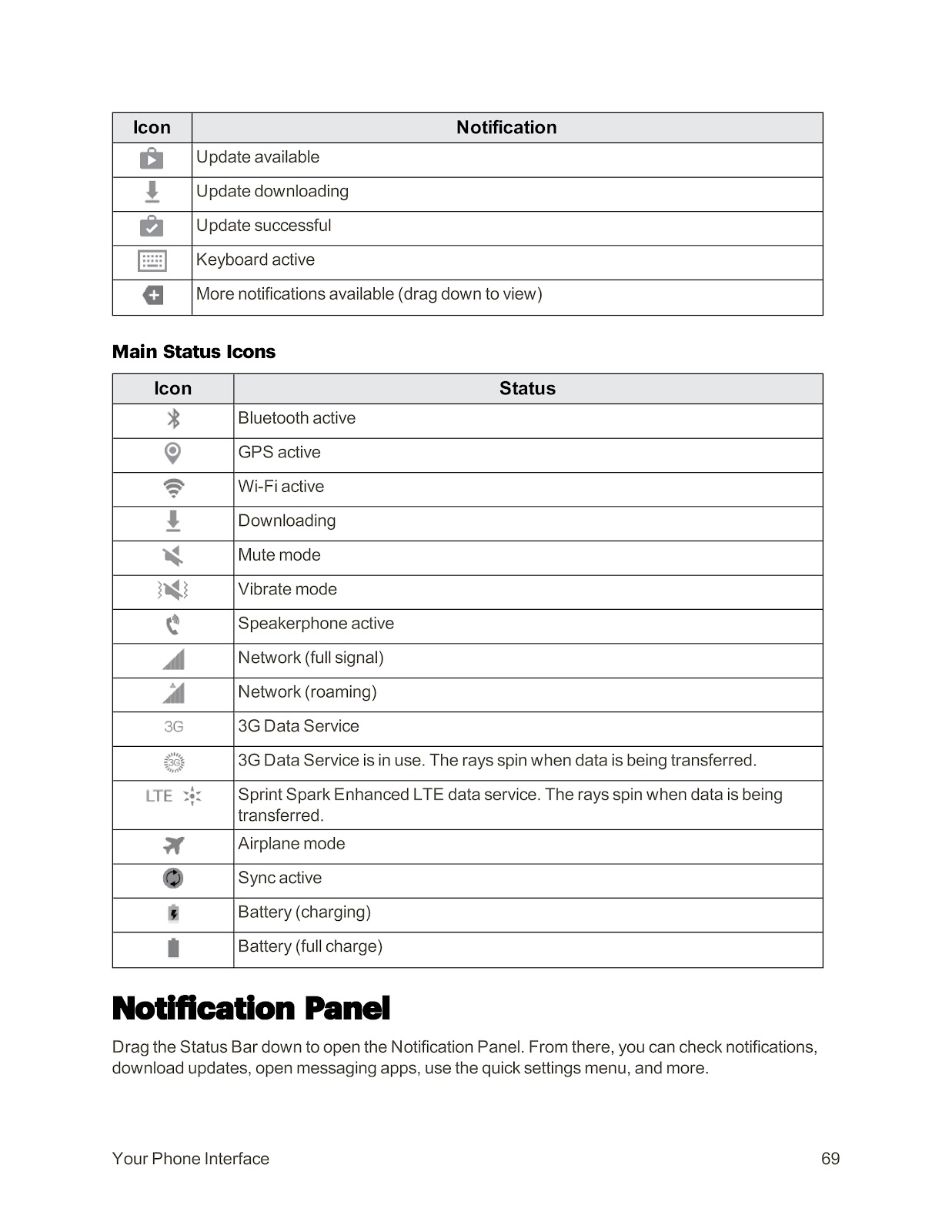
The Status Bar at the top of your screen displays notification and status icons.
Main Notification Icons:
| Icon Description | Notification |
| Missed call | You have a missed call. |
| Call on hold | A call is currently on hold. |
| New voicemail | You have new voicemail messages. |
| New email | You have a new email. |
| New Gmail | You have a new Gmail message. |
| New text or MMS message | You have a new text or multimedia message. |
| New Hangout message | You have a new Hangout message. |
| New Sprint Zone message | You have a new message from Sprint Zone. |
| Event | There is an upcoming event. |
| USB connection | The phone is connected via USB. |
| Alarm | An alarm is set. |
| Warning | There is a system warning. |
| Update available | A software update is available. |
Main Status Icons:
| Icon Description | Status |
| Bluetooth active | Bluetooth is turned on. |
| GPS active | GPS is in use. |
| Wi-Fi active | Connected to a Wi-Fi network. |
| Network (full signal) | Shows the strength of your cellular signal. |
| 3G Data Service | Connected to the 3G data network. |
| Sprint Spark Enhanced LTE | Connected to the Sprint Spark Enhanced LTE data service. |
| Airplane mode | Airplane mode is enabled. |
| Battery (charging) | The battery is currently charging. |
| Battery (full charge) | The battery is fully charged. |
How do I customize the Home screen on my SPRINT SAMSUNG GALAXY S6 EDGE?
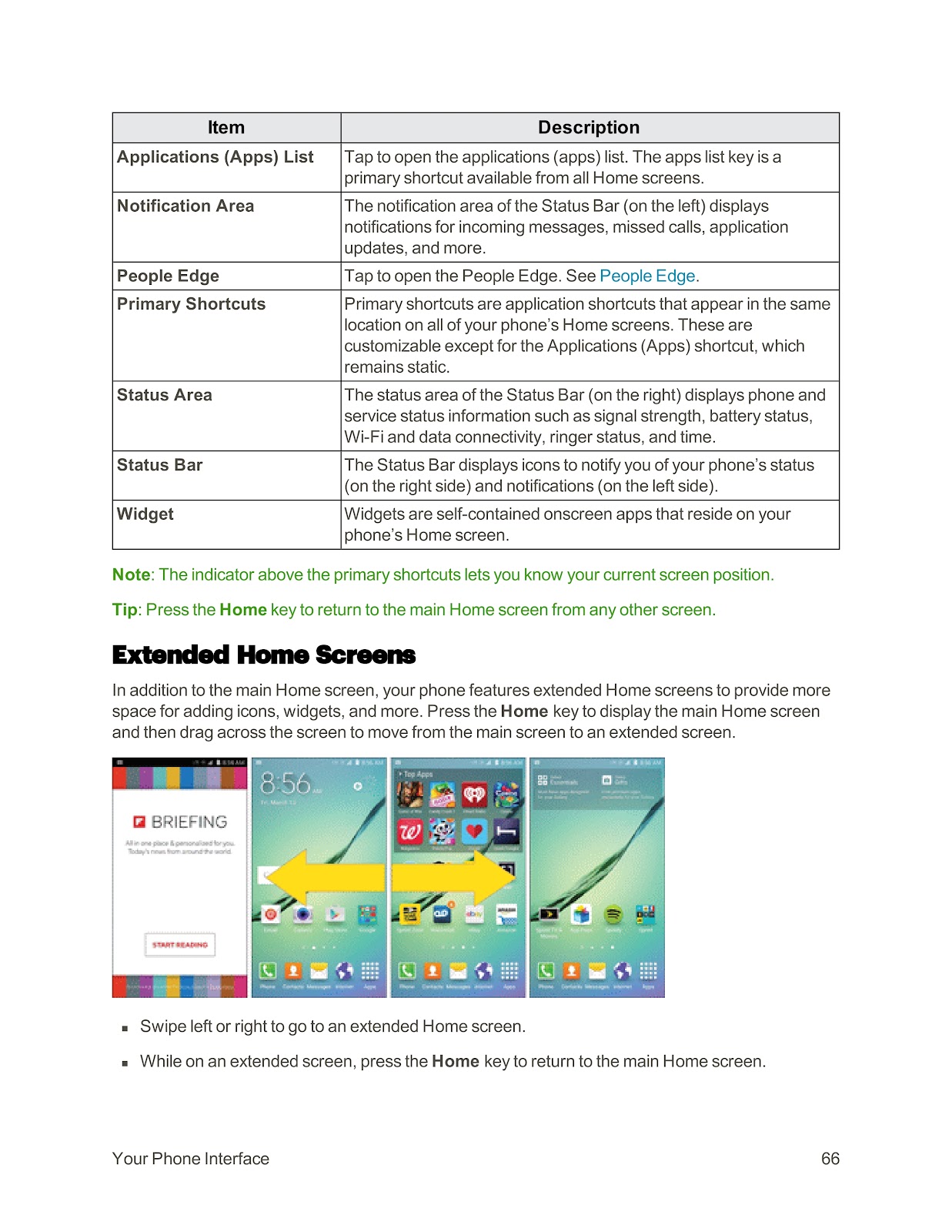
You can personalize your Home screen by changing the wallpaper and adding shortcuts, widgets, and folders.
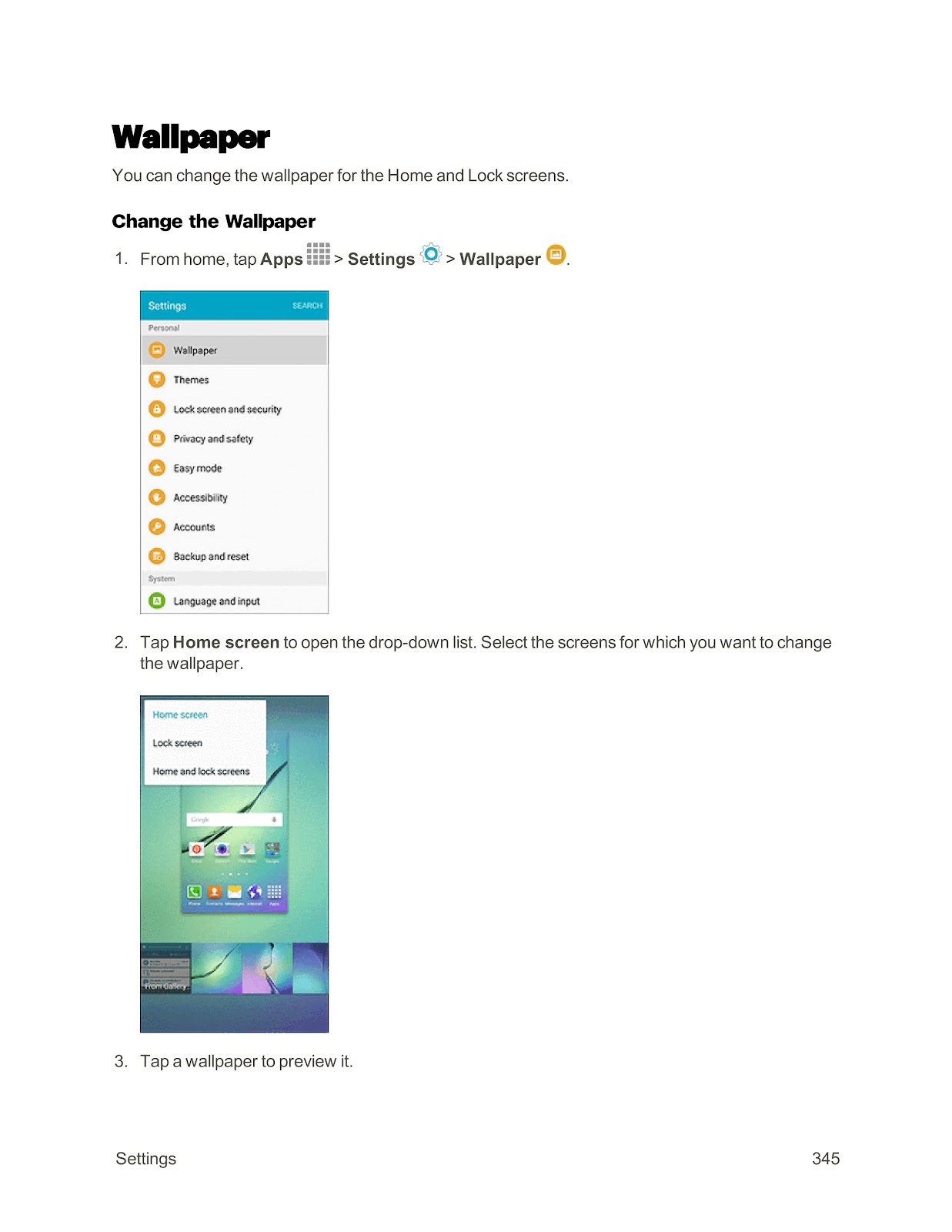
Change the Wallpaper:
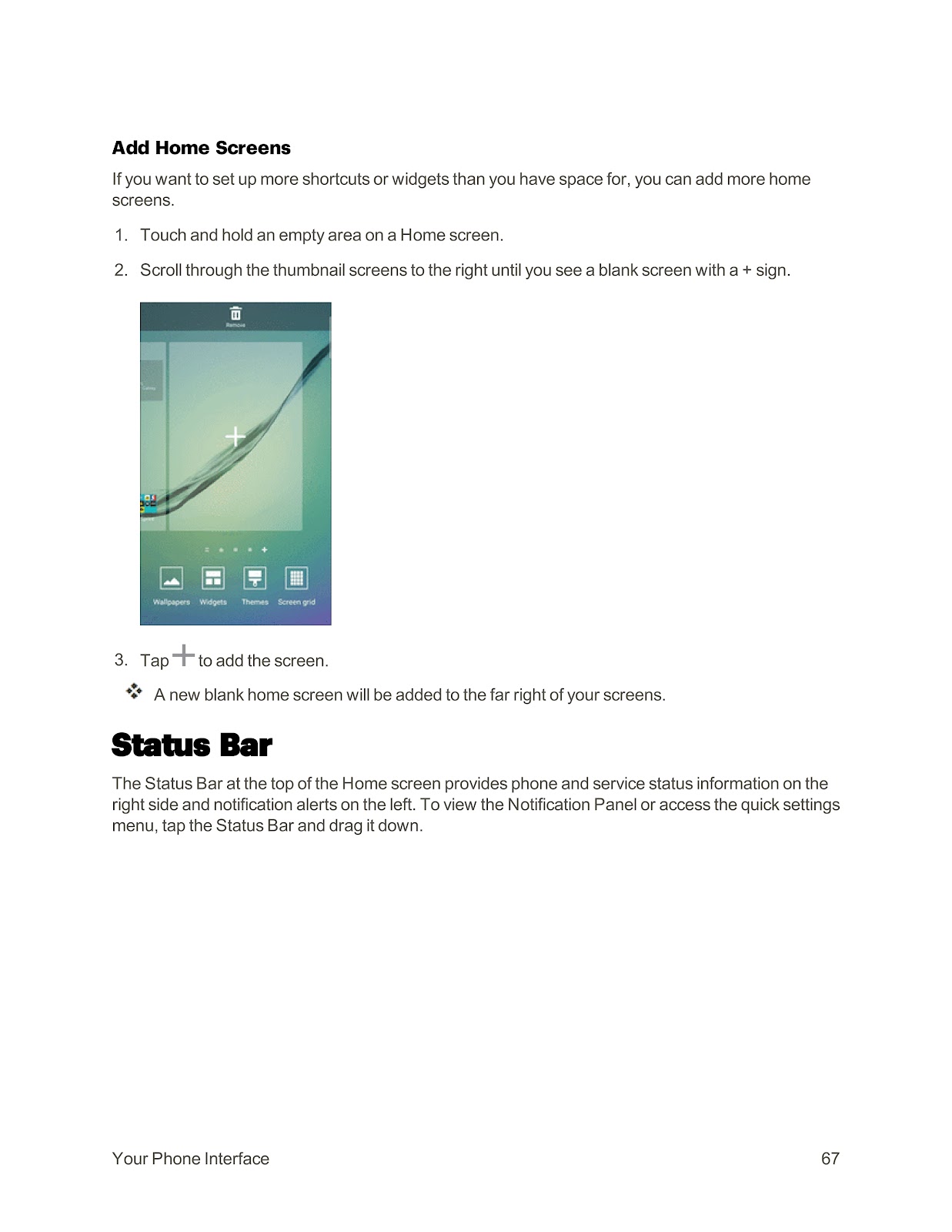
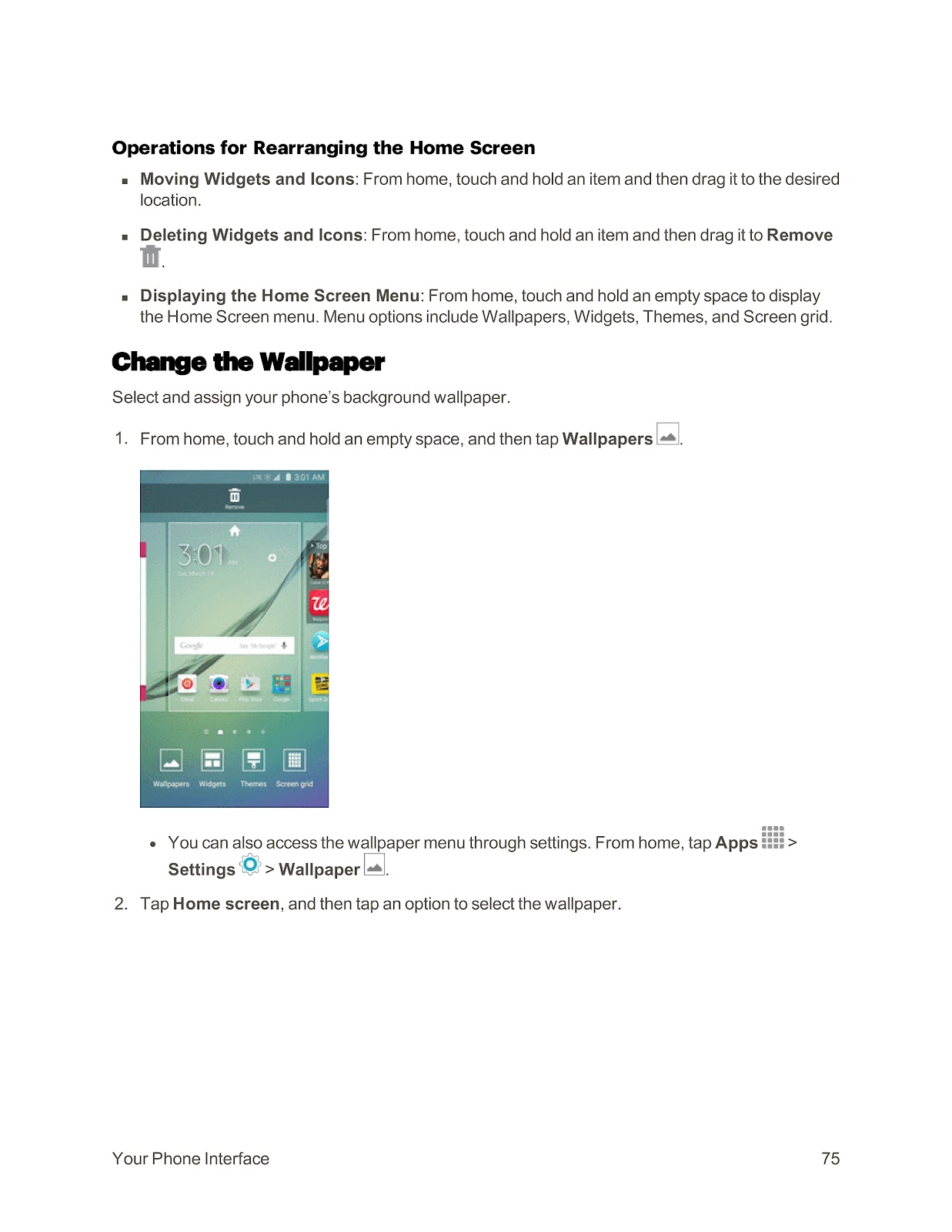
1. Touch and hold an empty space on a Home screen.
2. Tap Wallpapers.
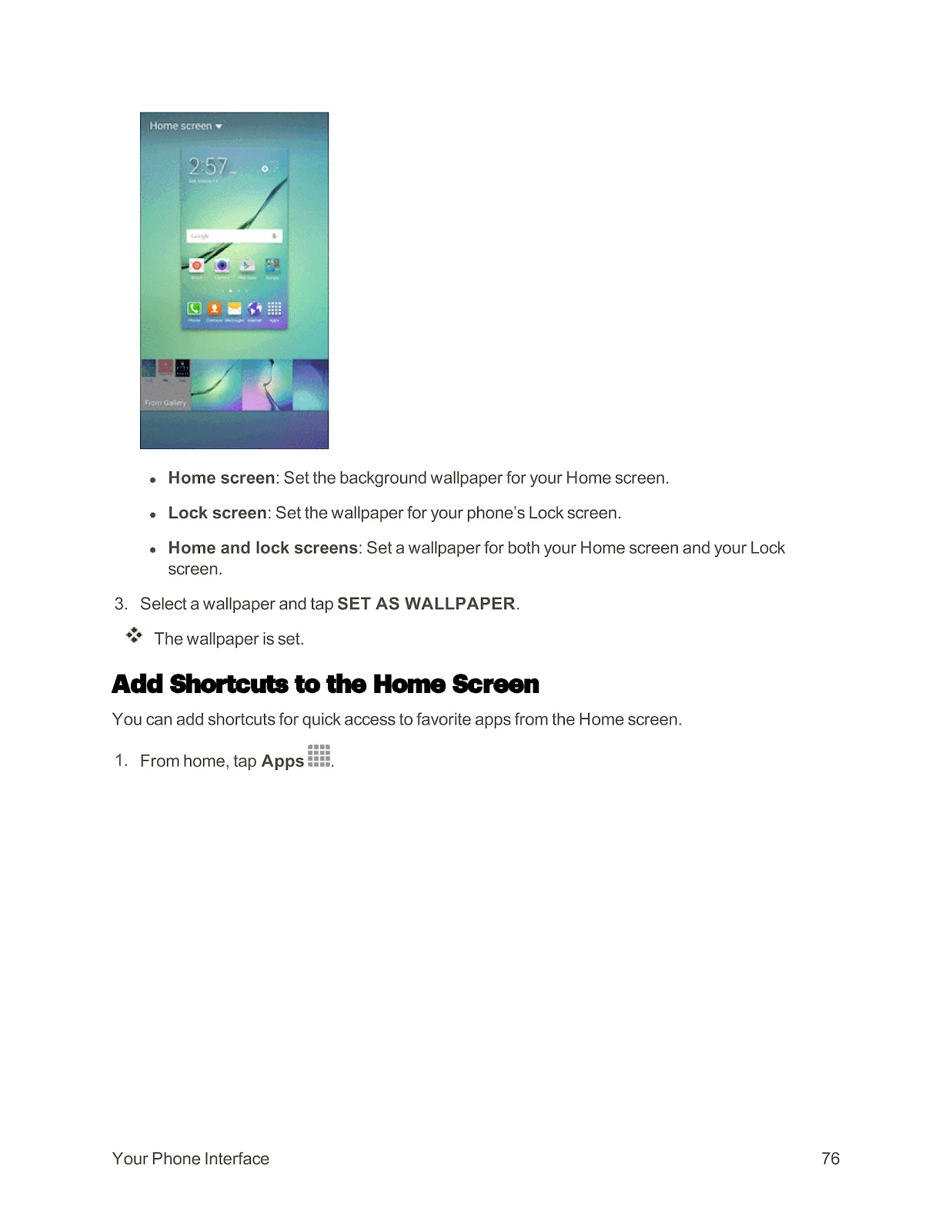
3. Tap Home screen, Lock screen, or Home and lock screens.
4. Select a wallpaper and tap SET AS WALLPAPER.
Add Shortcuts to the Home Screen:
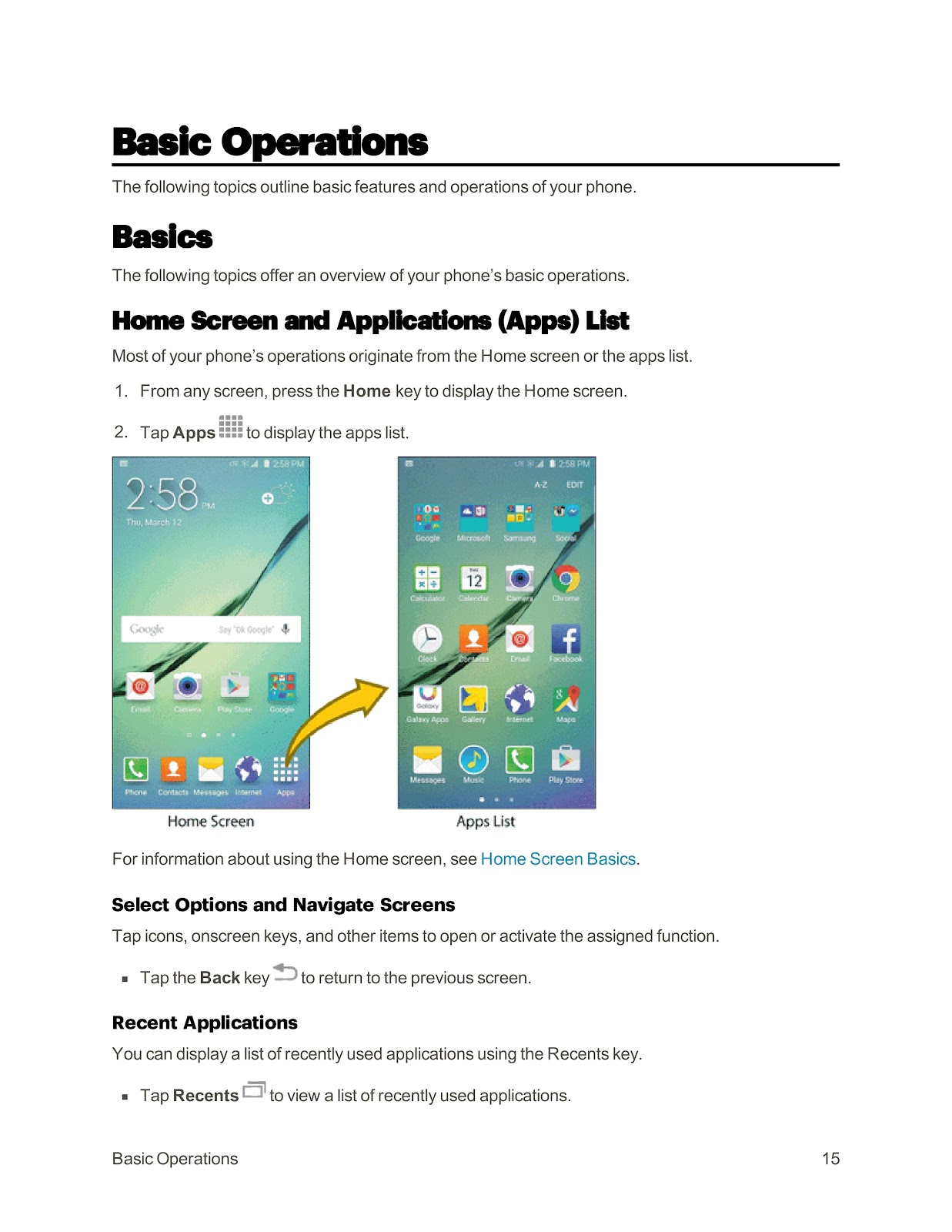
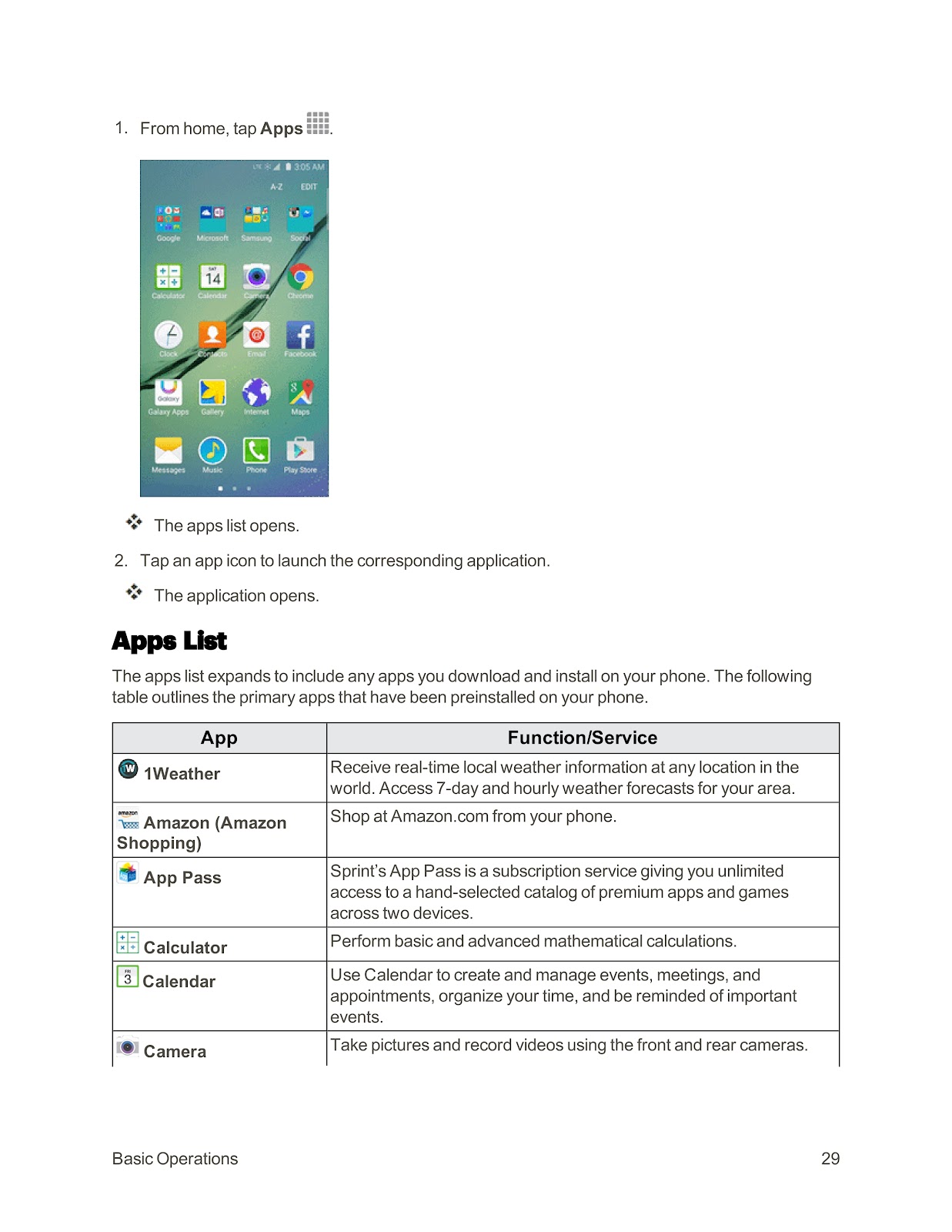
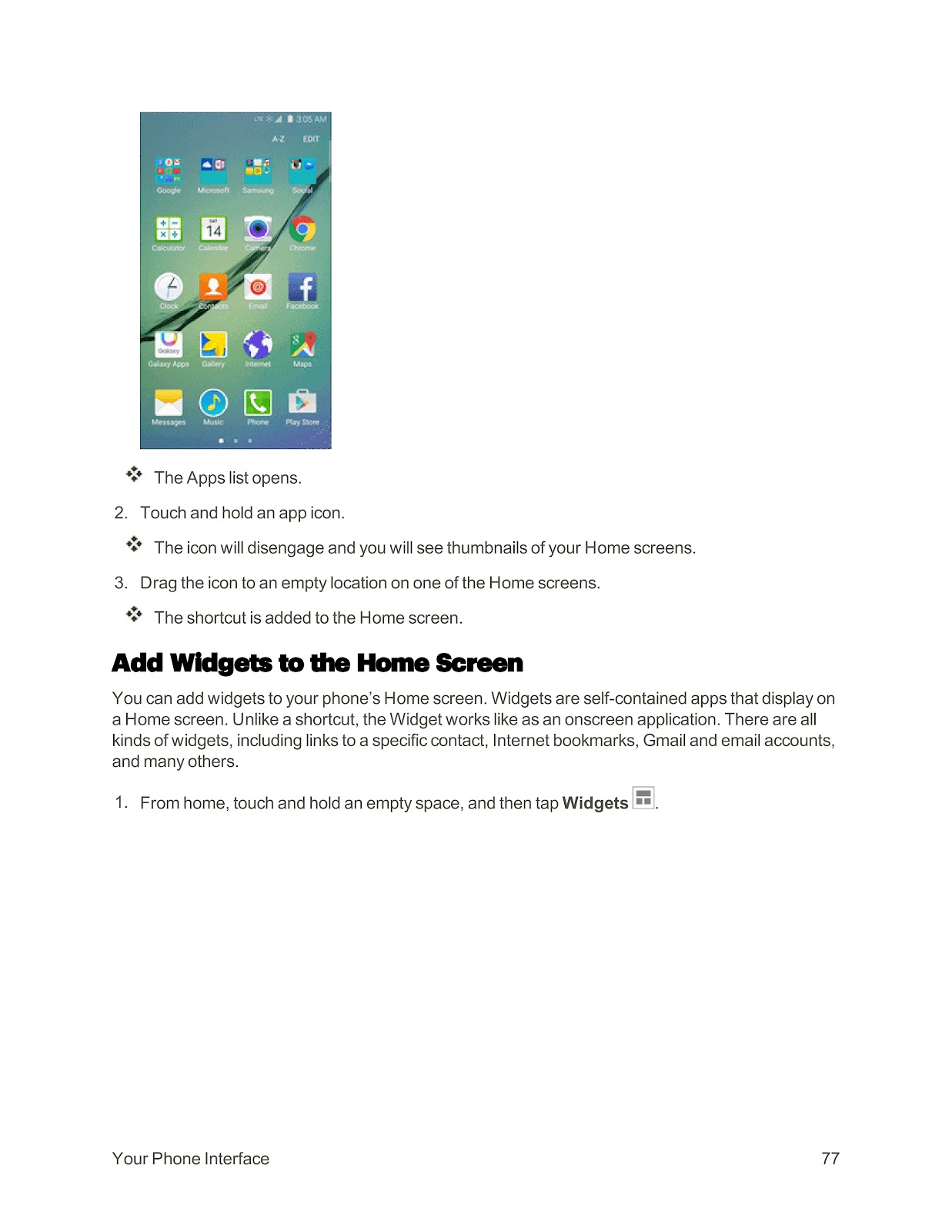
1. From home, tap Apps.
2. Touch and hold an app icon until it disengages.
3. Drag the icon to an empty location on one of the Home screens and release it.
Add Widgets to the Home Screen:
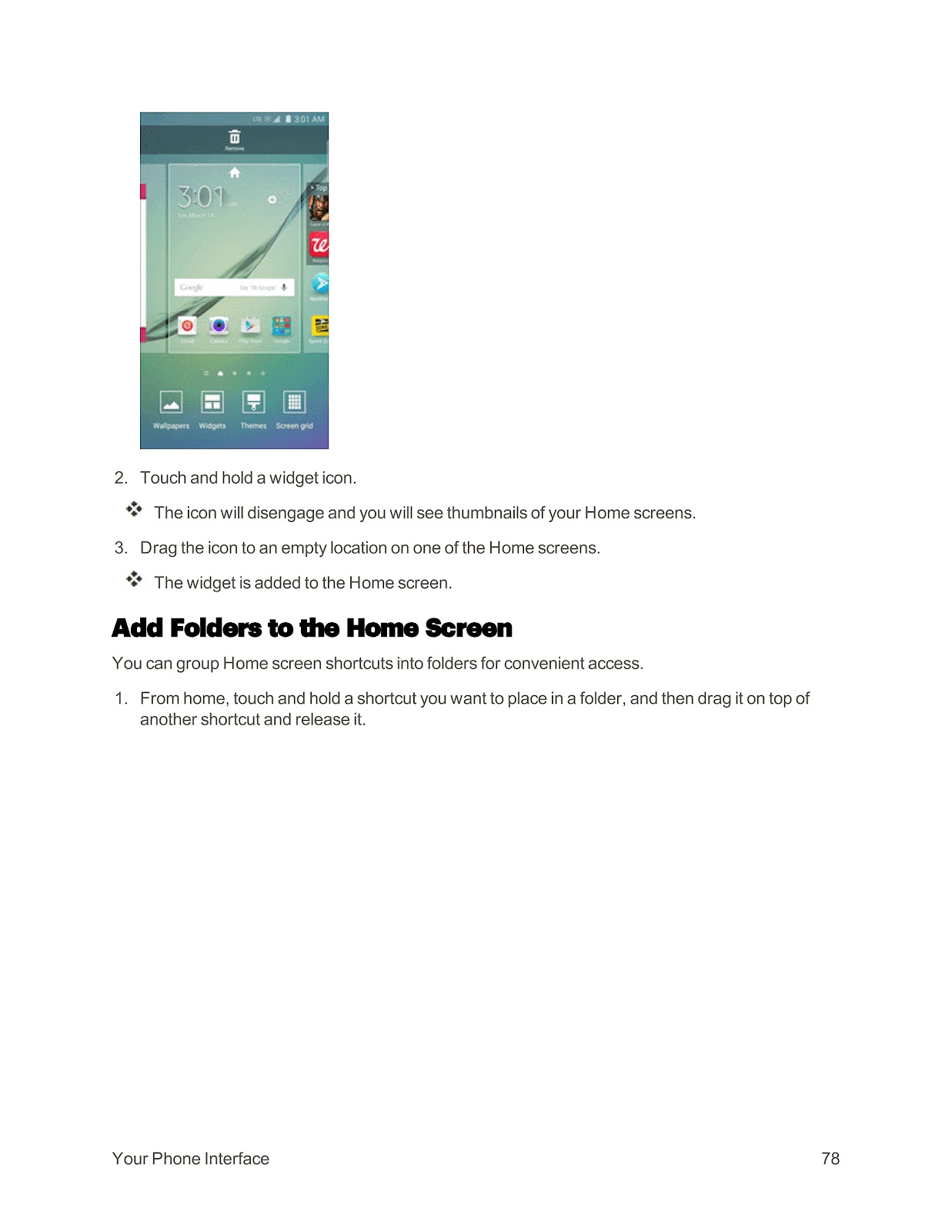
1. Touch and hold an empty area on a Home screen.
2. Tap Widgets.
3. Touch and hold a widget icon, then drag it to an empty location on a Home screen.
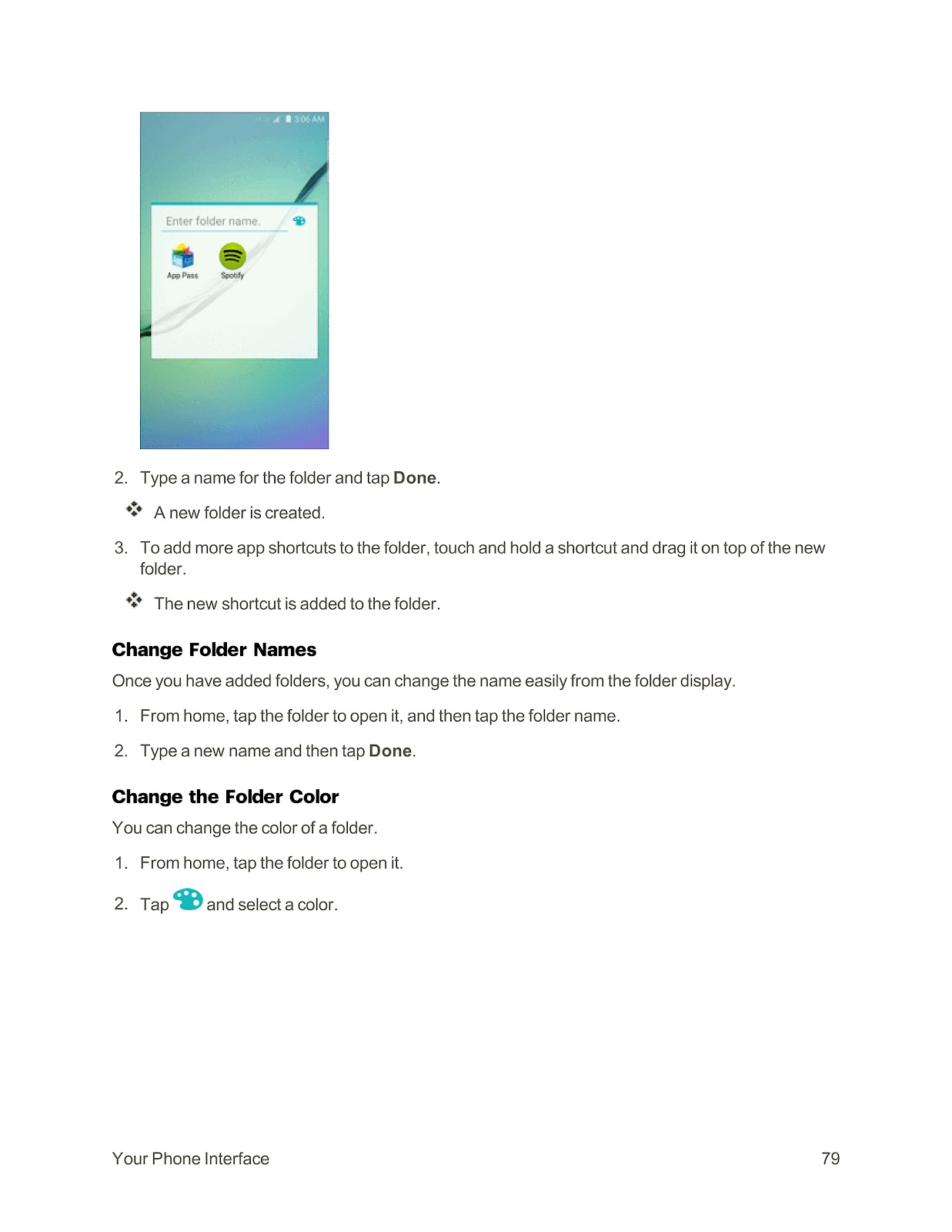
Add Folders to the Home Screen:
1. From home, touch and hold a shortcut you want to place in a folder.
2. Drag it on top of another shortcut and release it. A new folder is created.
3. To name the folder, tap the folder to open it, tap the folder name, type a new name, and tap Done.
How do I make and answer phone calls on the SPRINT SAMSUNG GALAXY S6 EDGE?
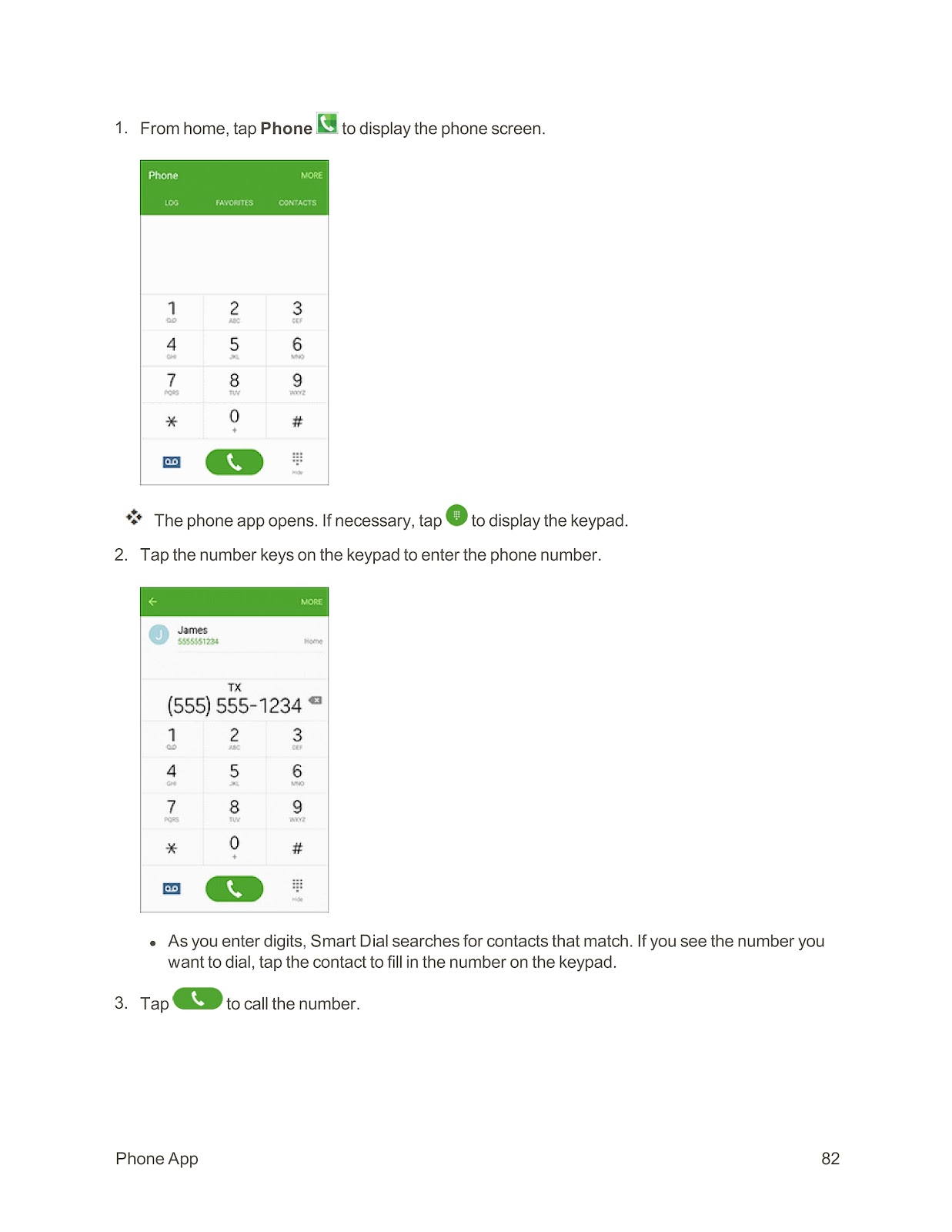
Making a Call Using the Dialer:
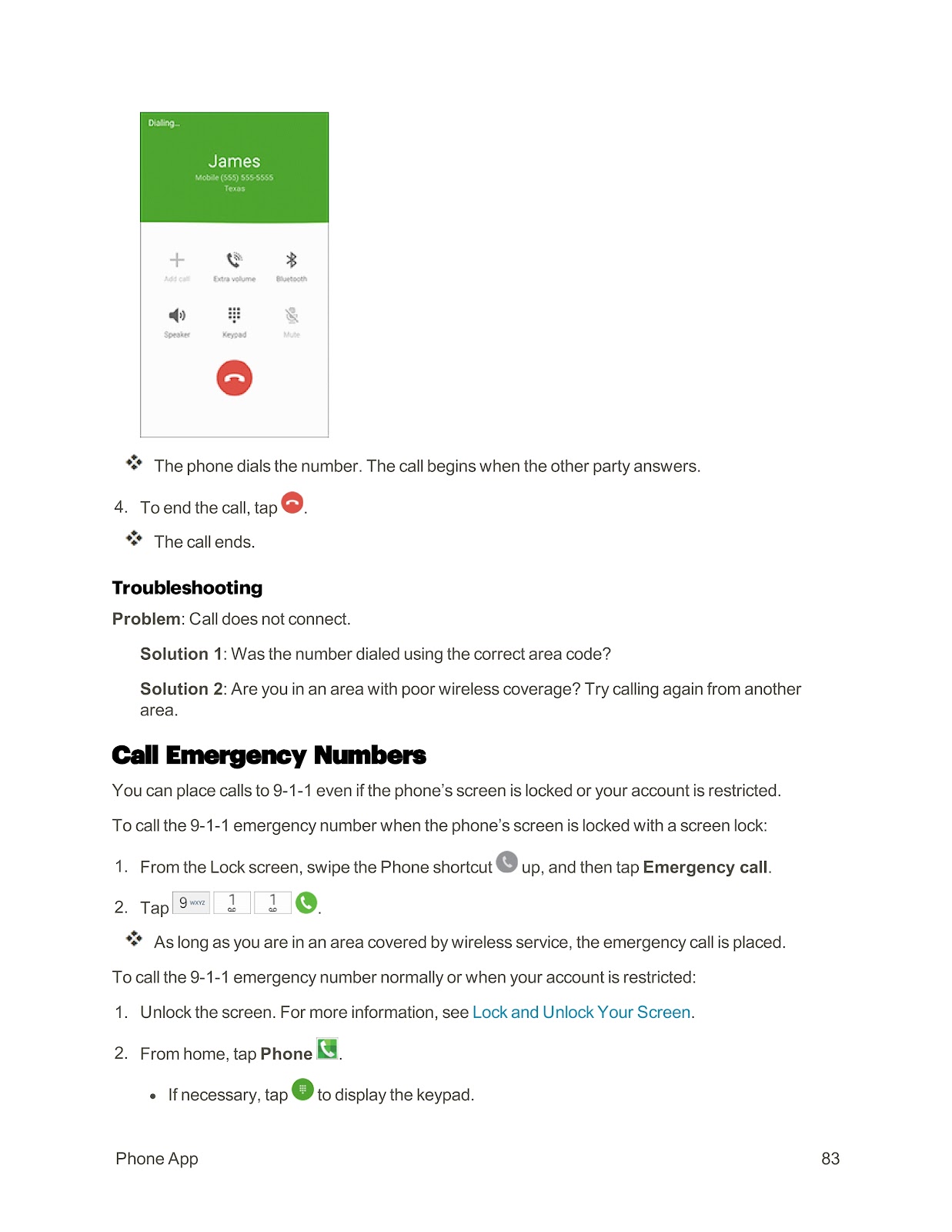
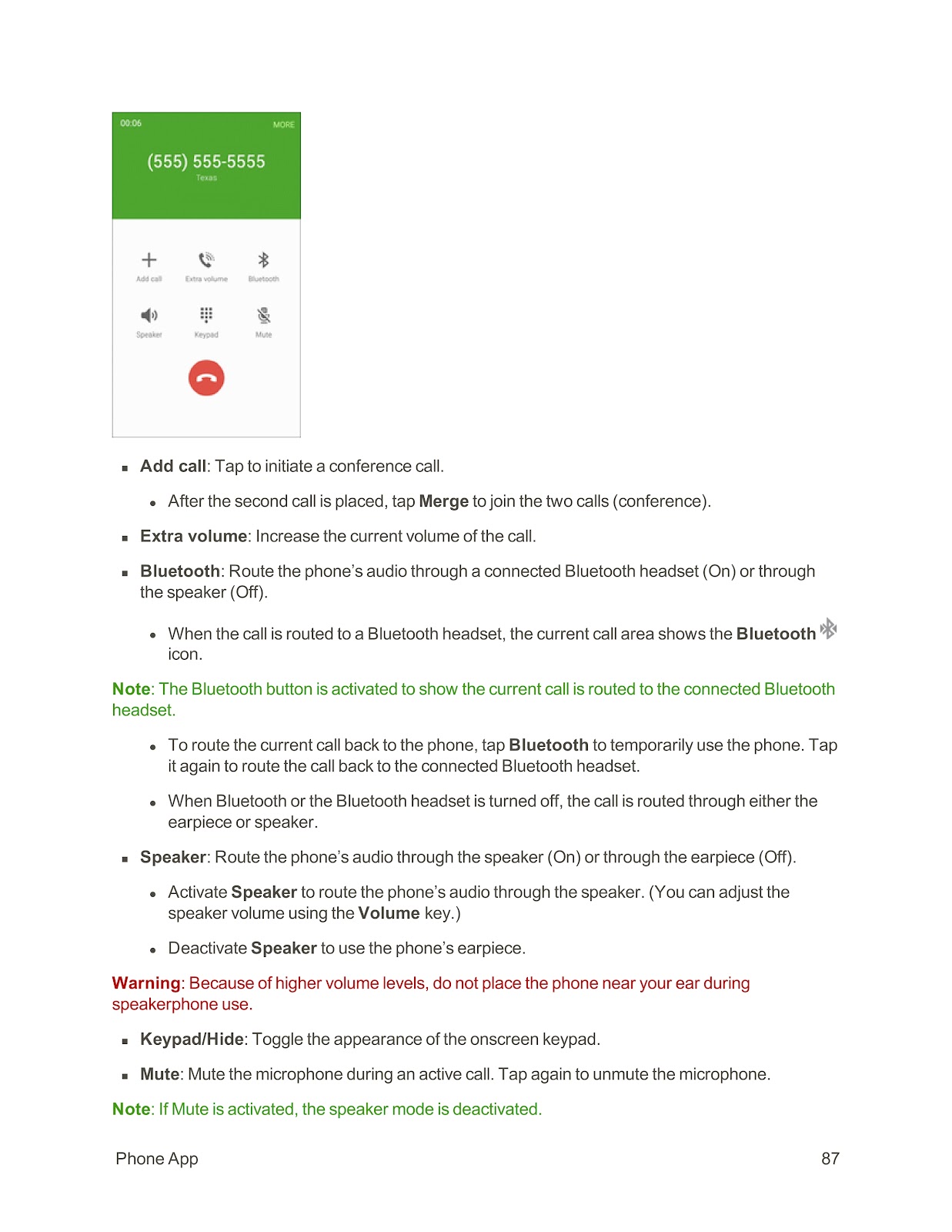
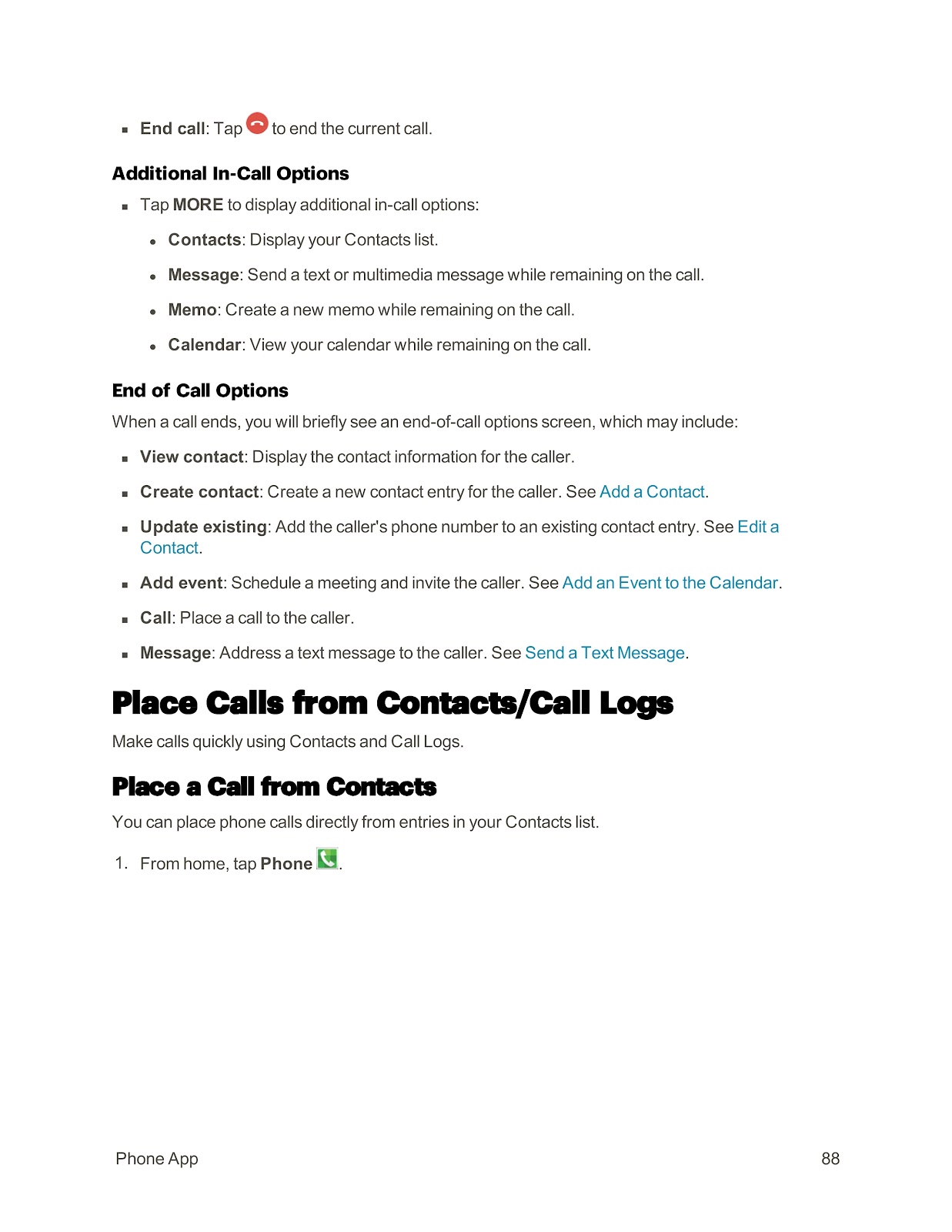
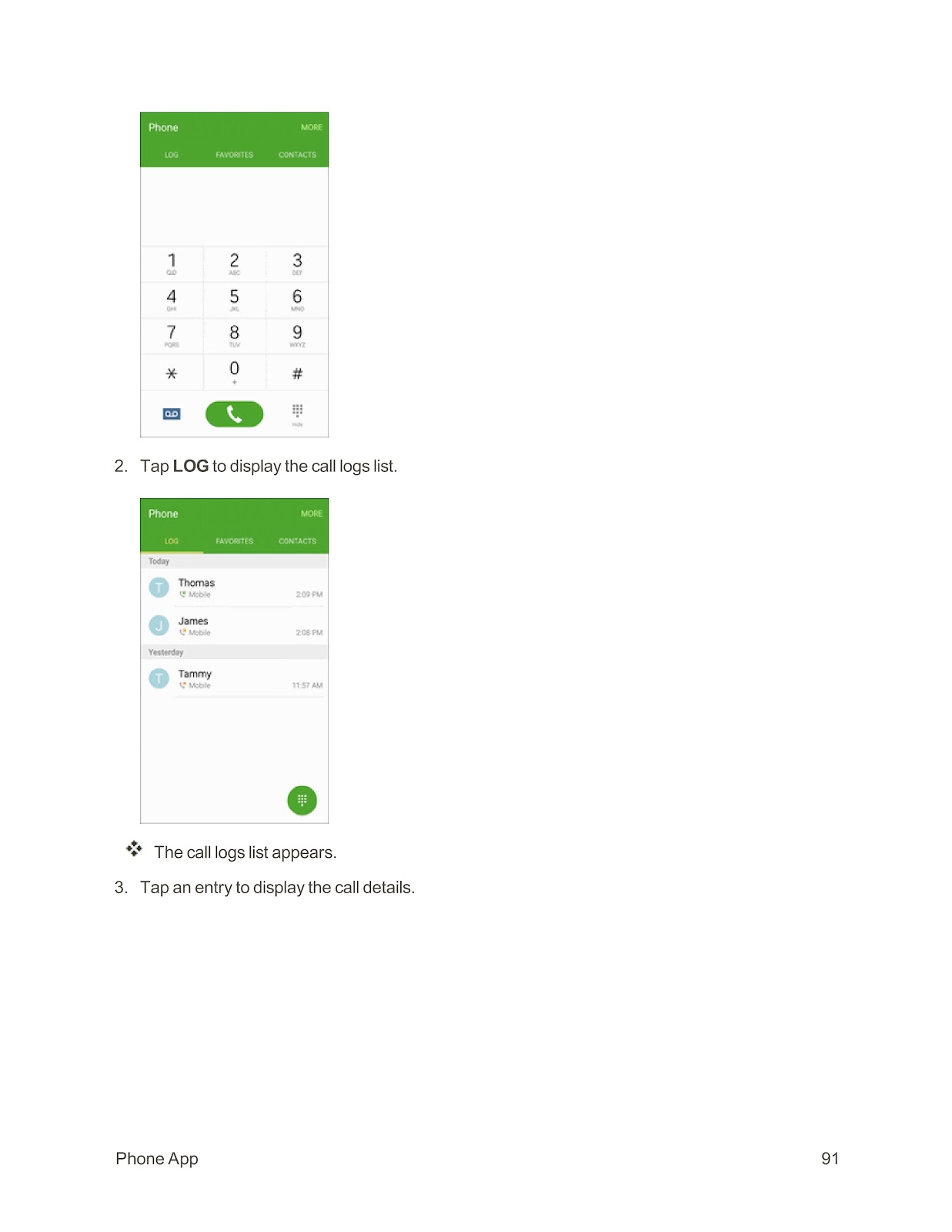
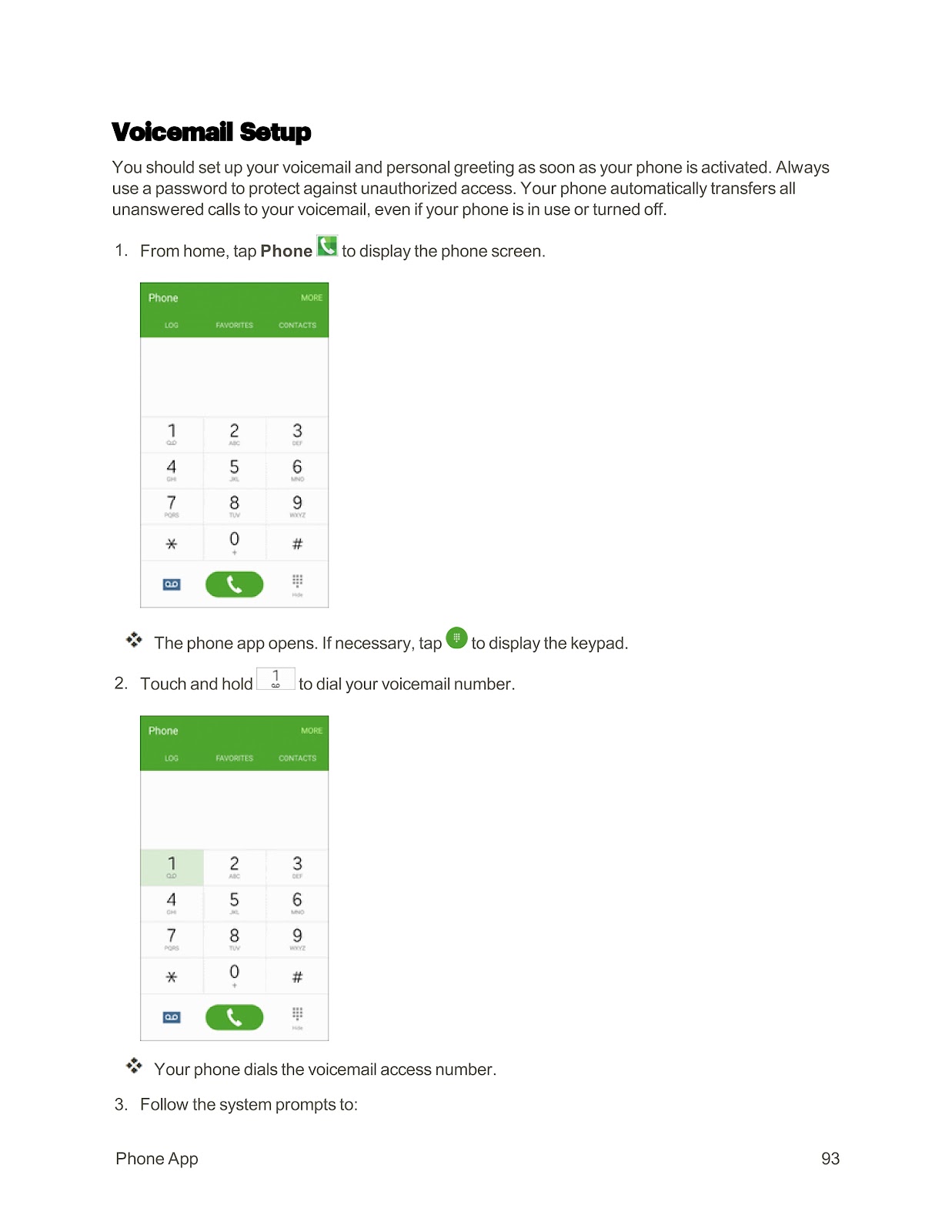
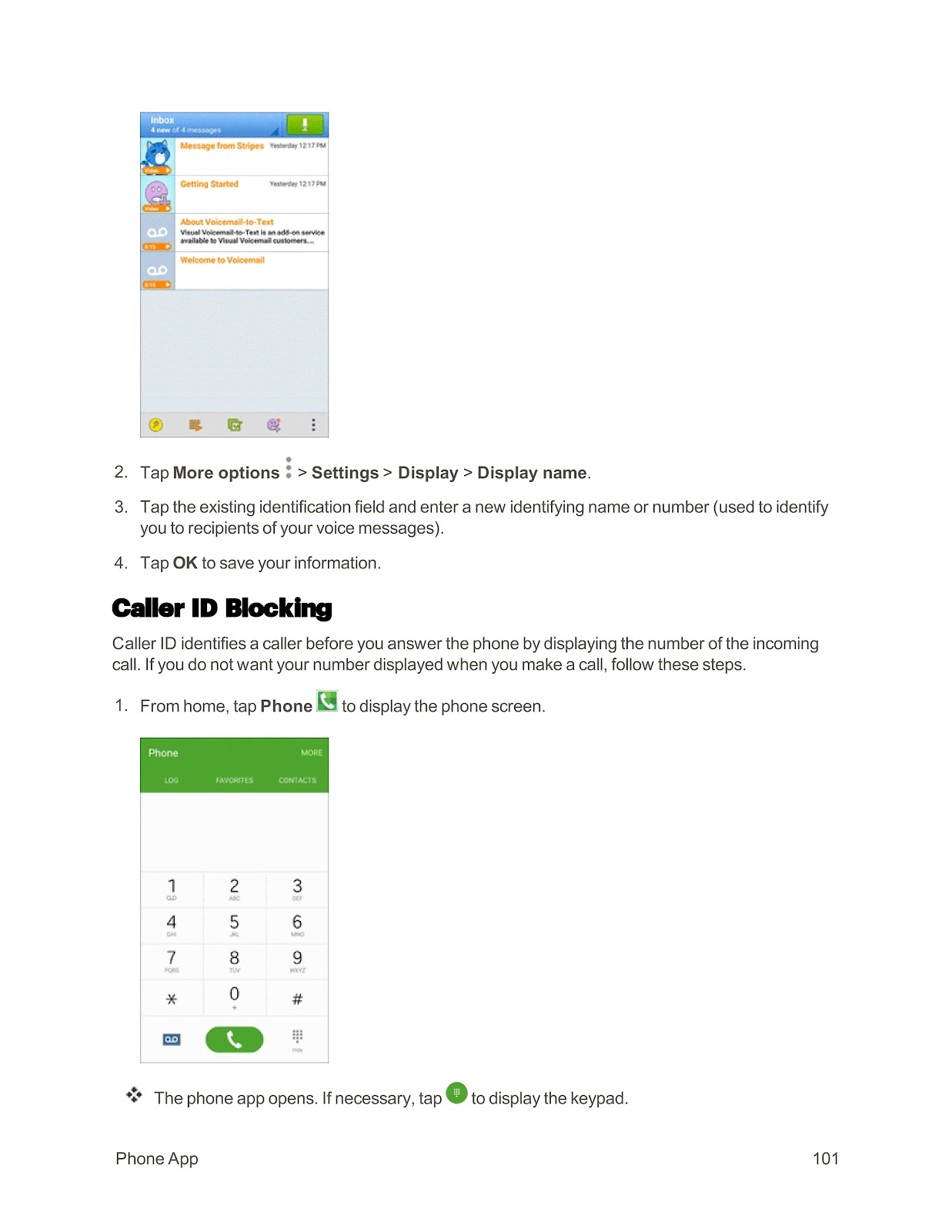
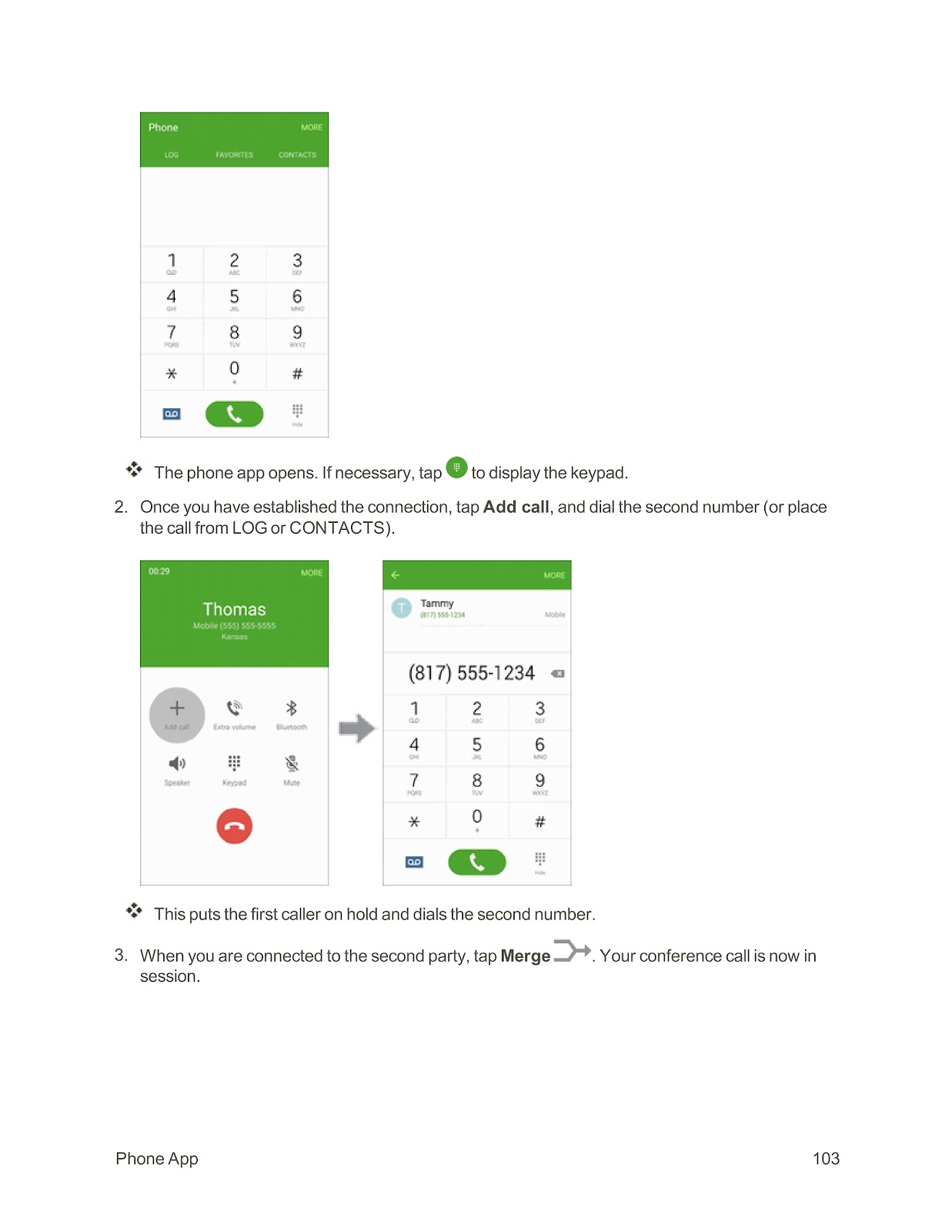
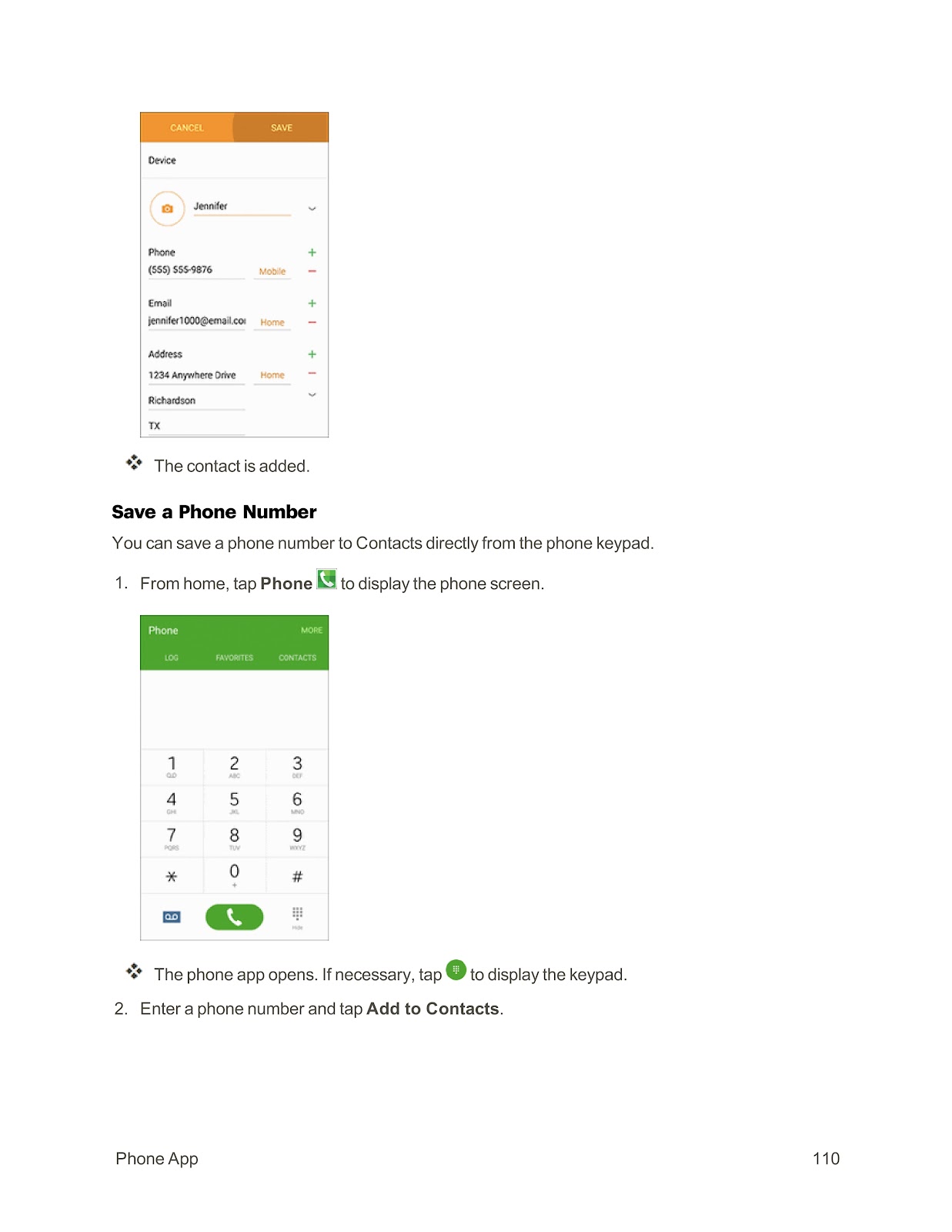
1. From home, tap Phone to display the phone screen.
2. If necessary, tap the keypad icon to display the keypad.
3. Tap the number keys to enter the phone number.
4. Tap the green phone icon to call the number.
Answering an Incoming Call:
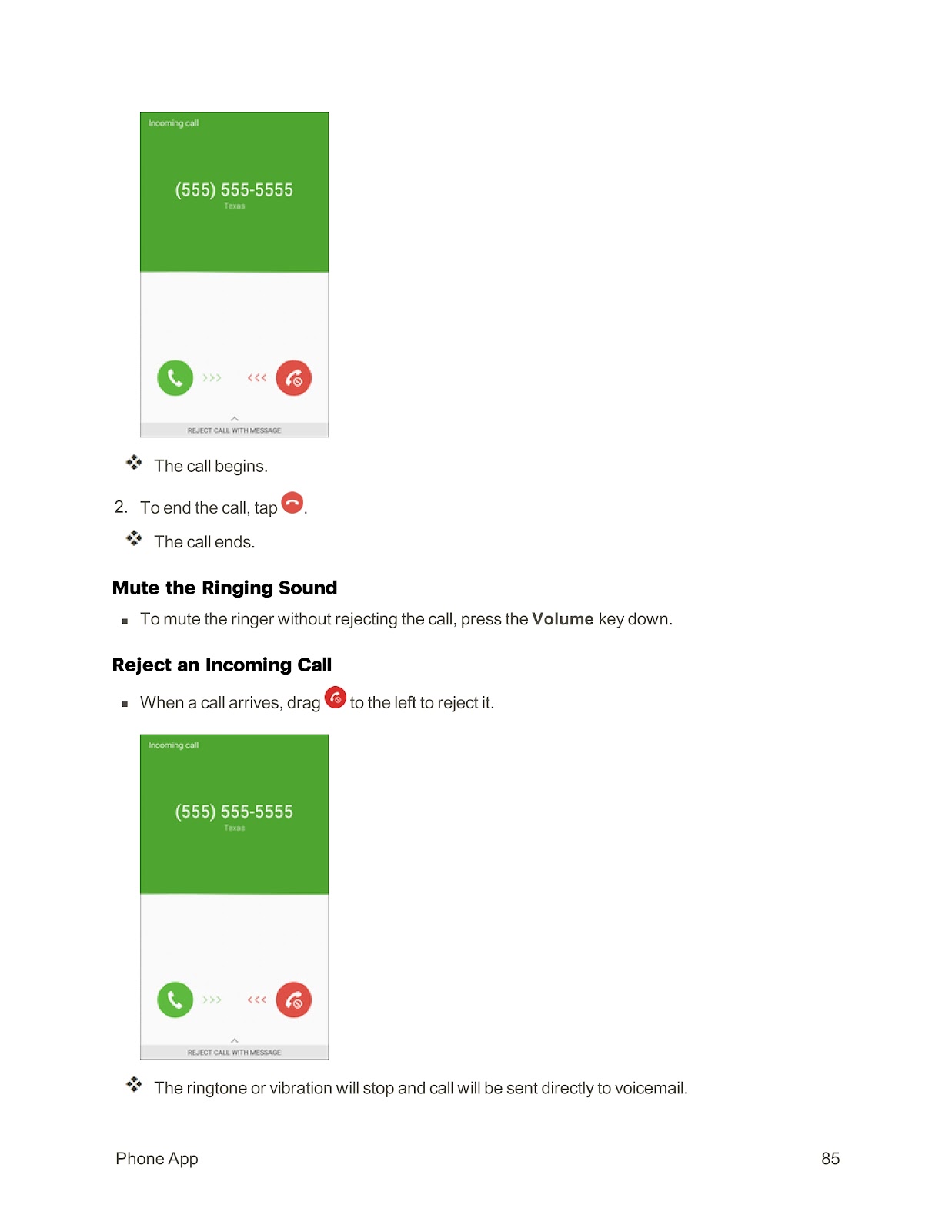
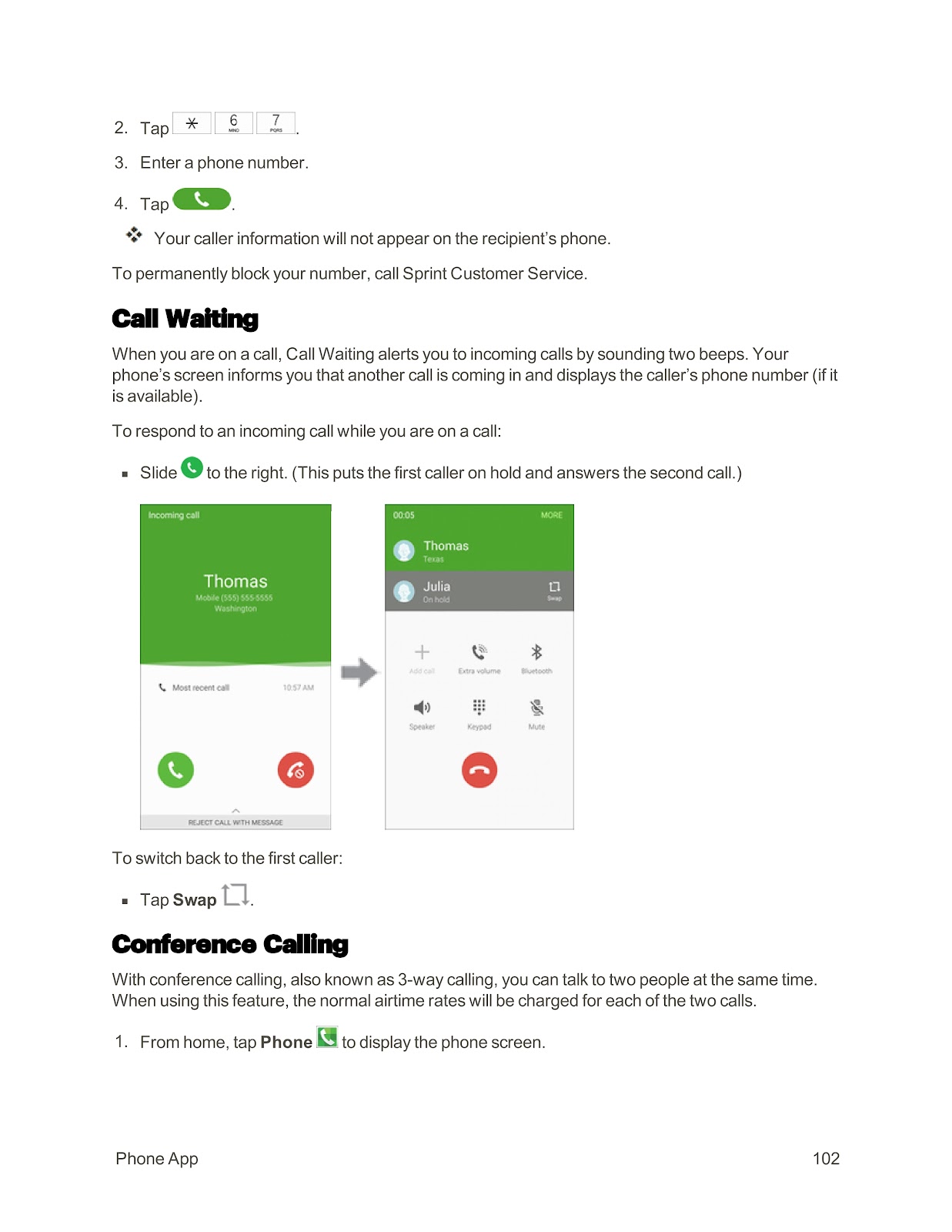
When a call arrives, drag the green phone icon to the right to answer it.
Rejecting an Incoming Call:
Drag the red phone icon to the left to reject the call and send it to voicemail.
Rejecting a Call with a Text Message:
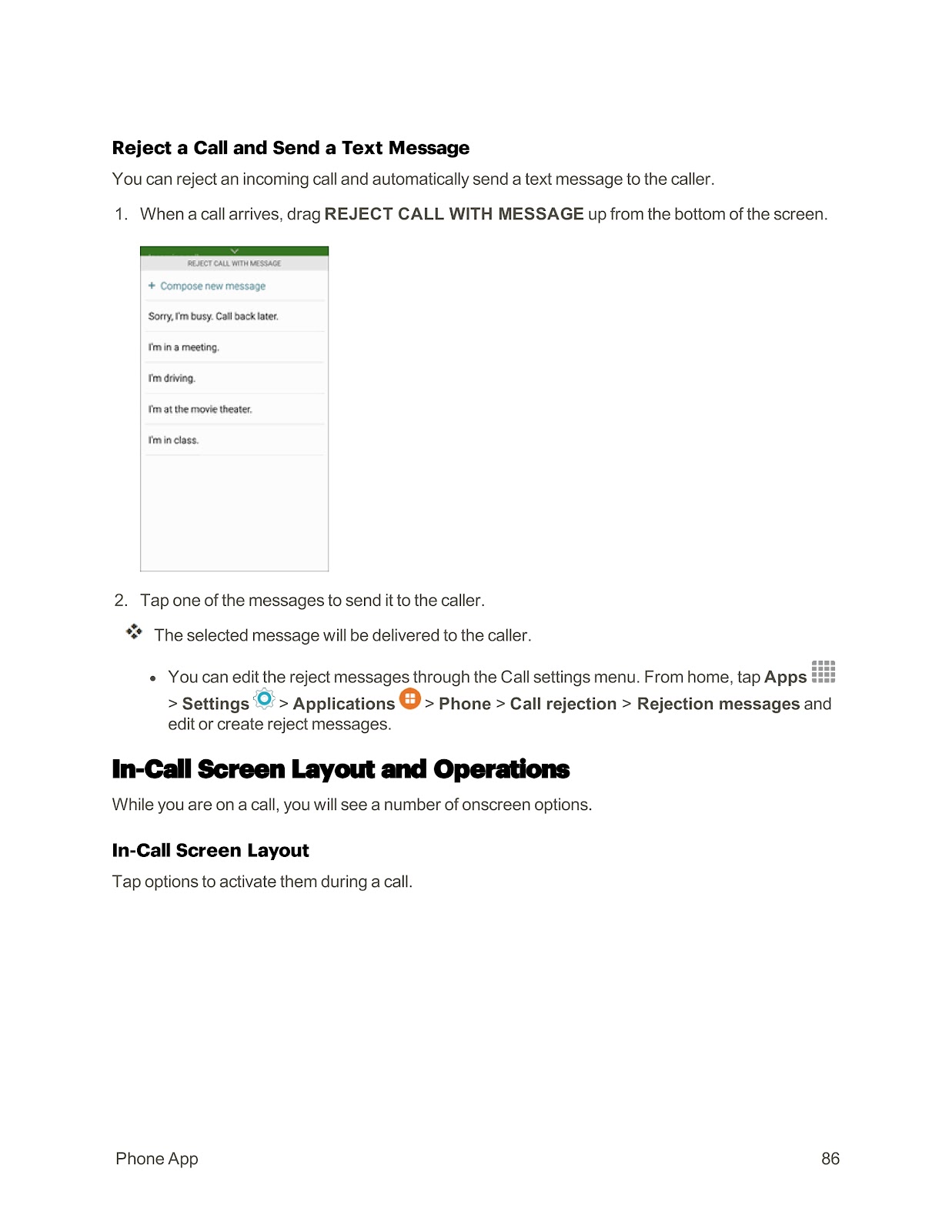
1. When a call arrives, drag REJECT CALL WITH MESSAGE up from the bottom of the screen.
2. Tap one of the preset messages to send it to the caller.
Ending a Call:
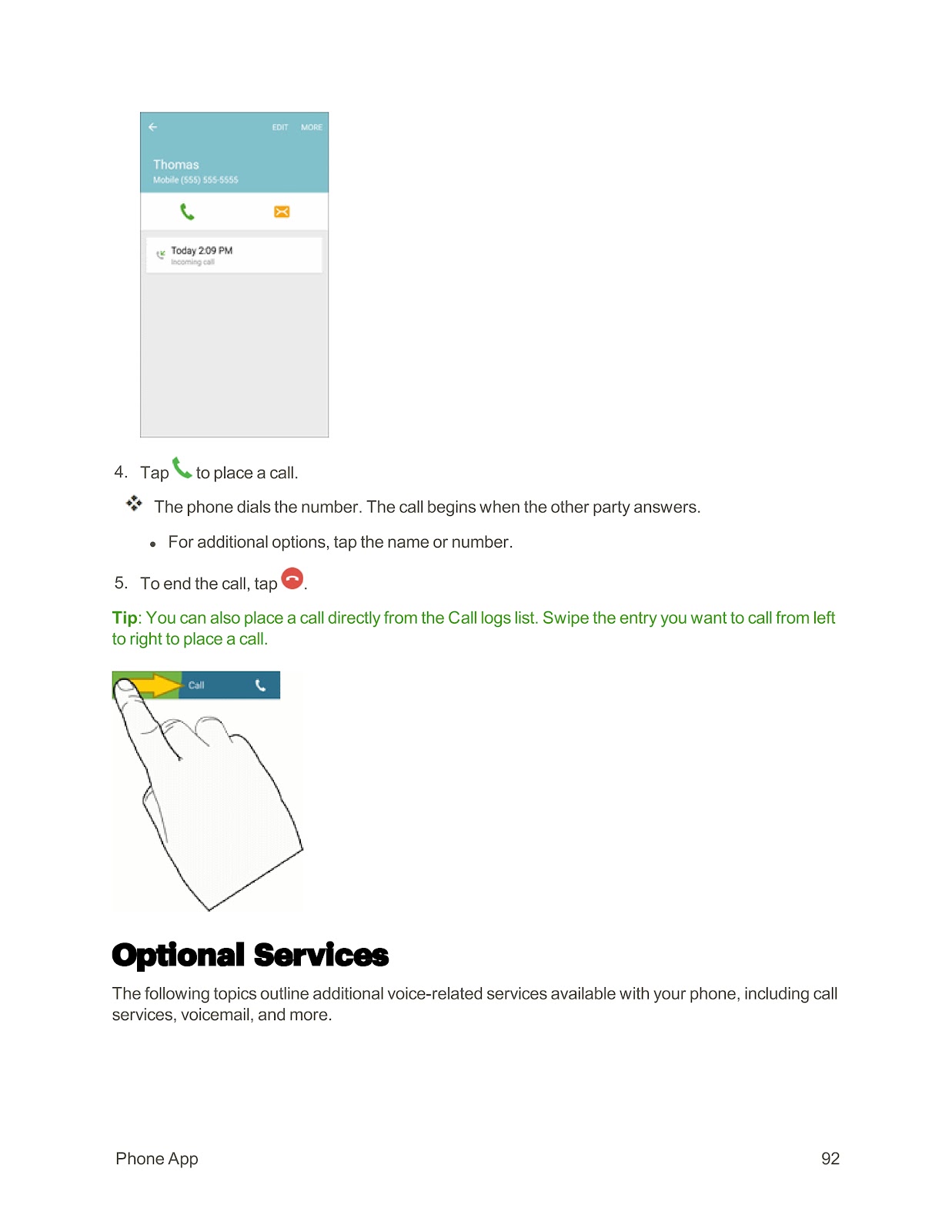
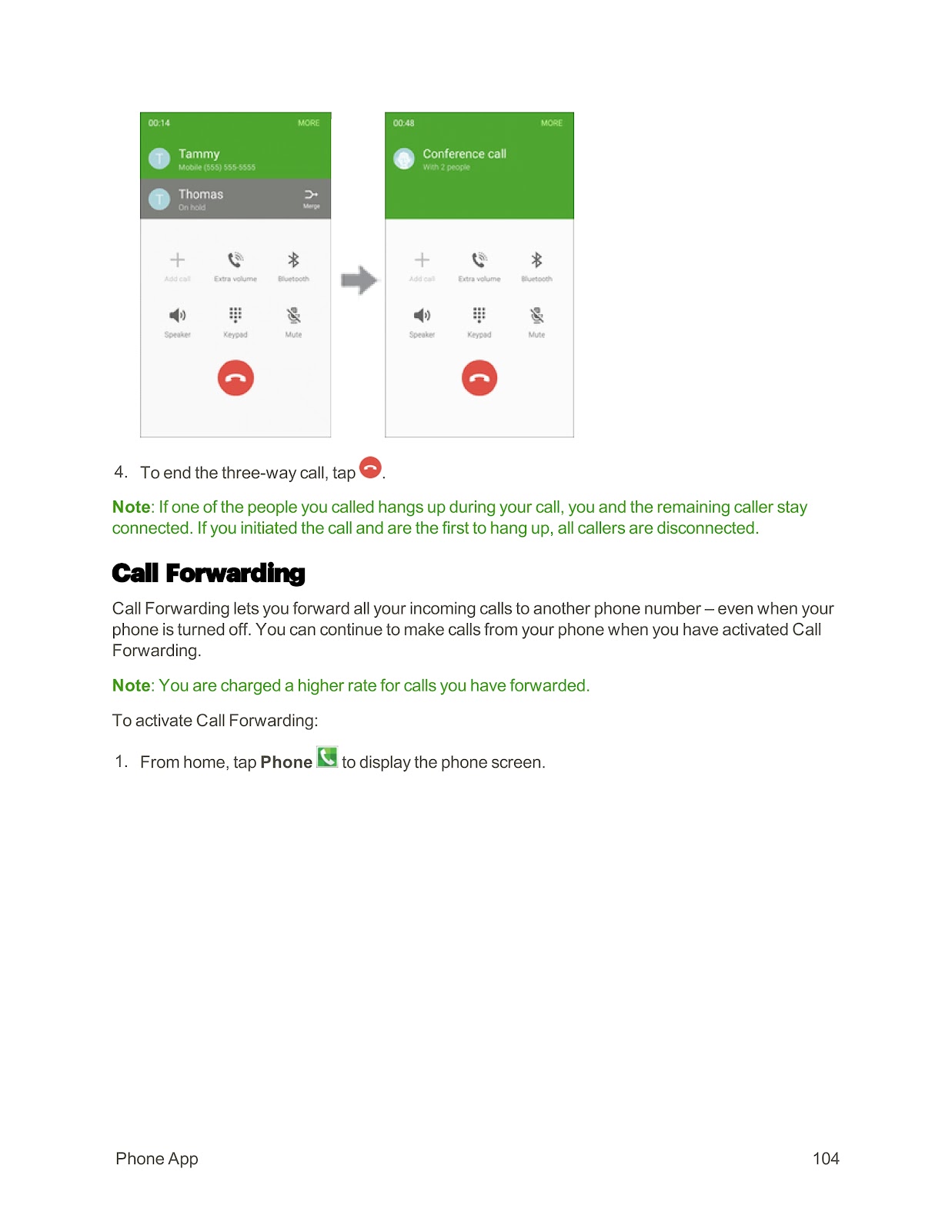
Tap the red phone icon to end the current call.
How do I manage contacts on my SPRINT SAMSUNG GALAXY S6 EDGE?
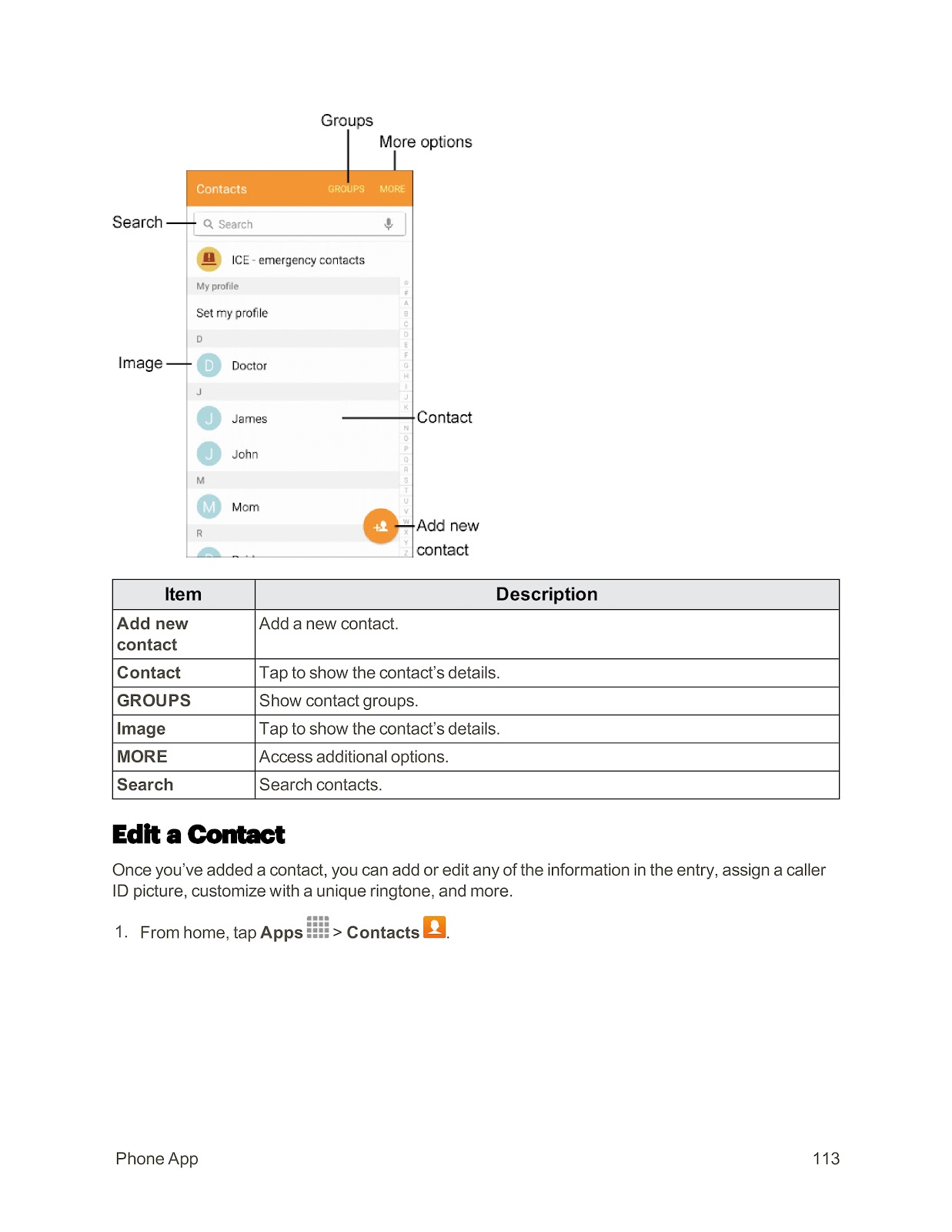
You can add, edit, delete, and share contacts using the Contacts application.
Add a Contact:
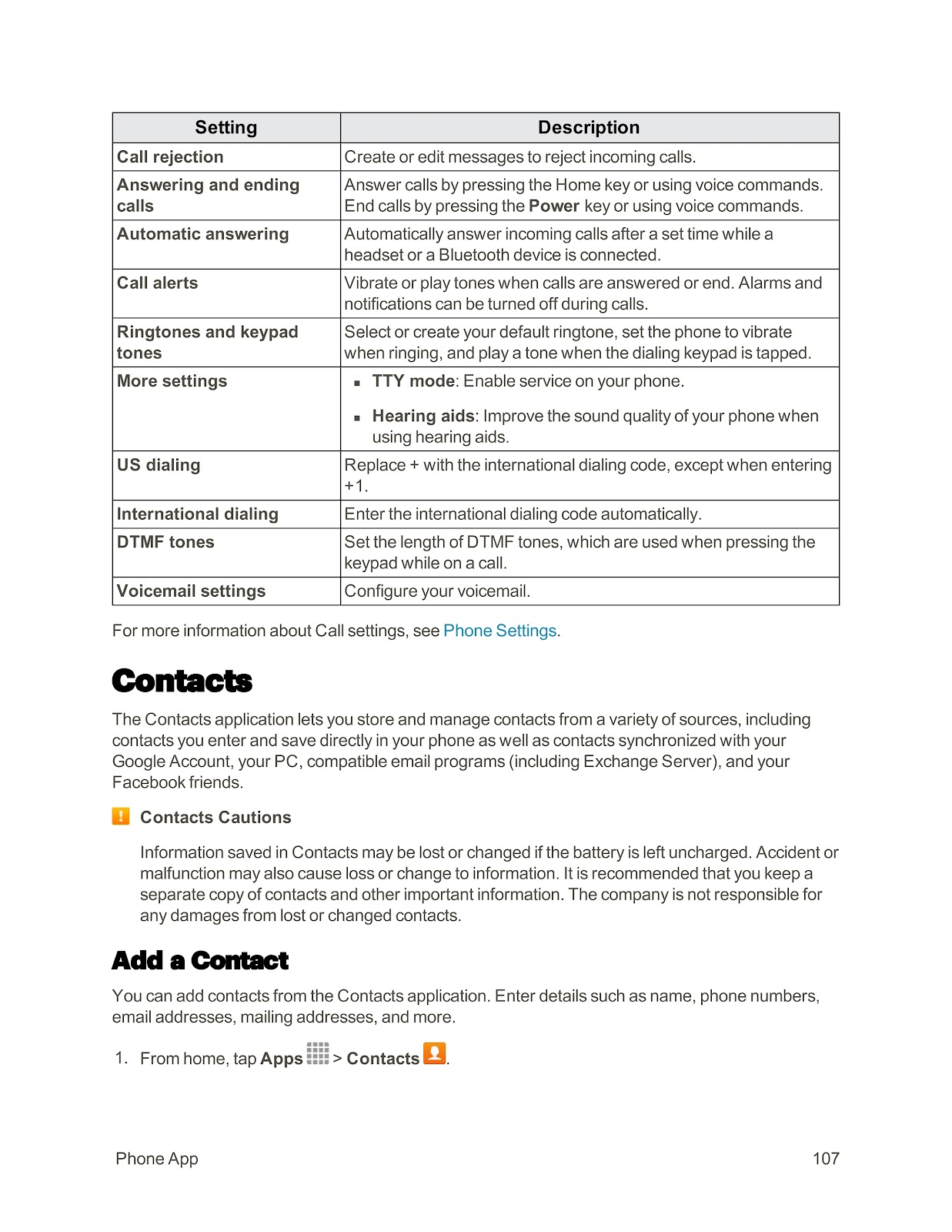
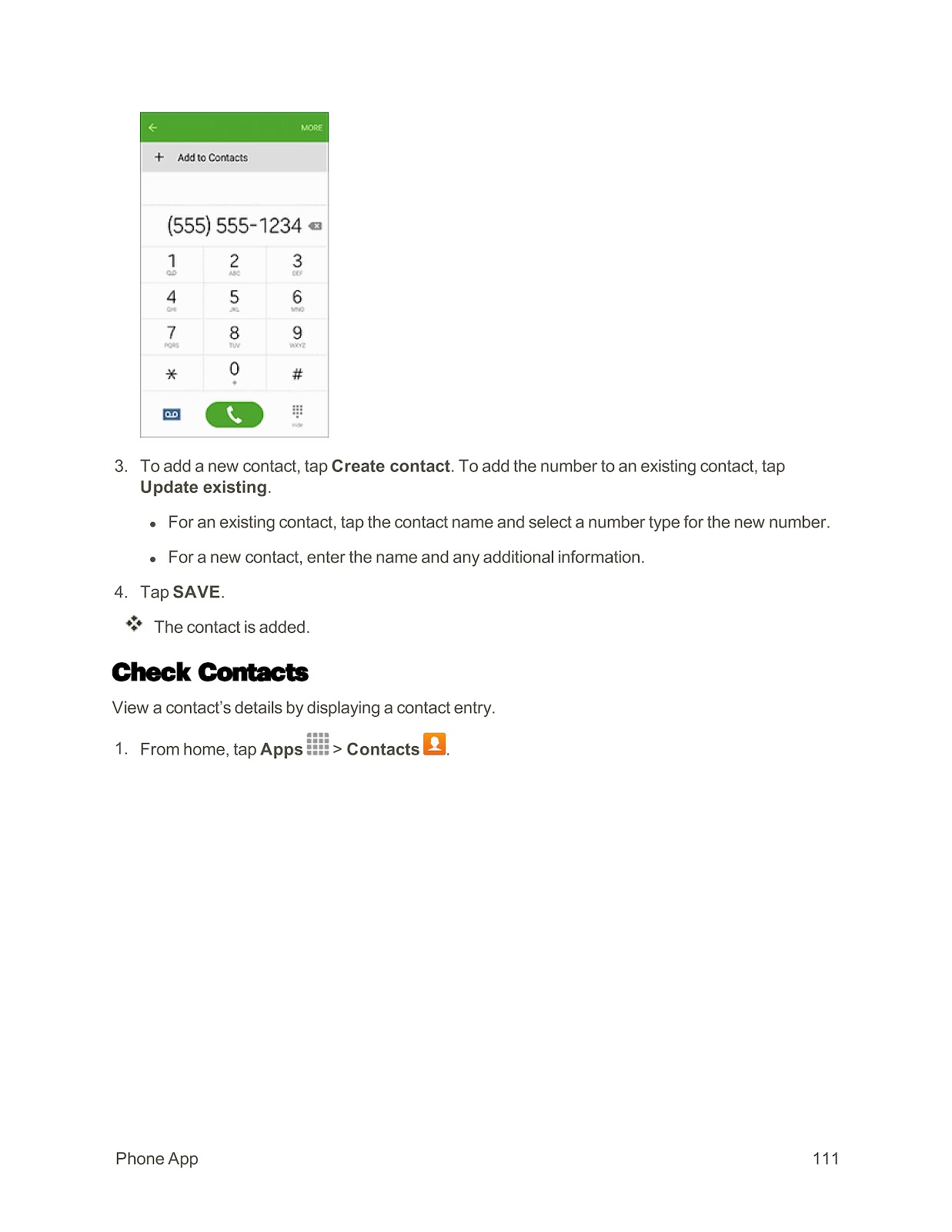
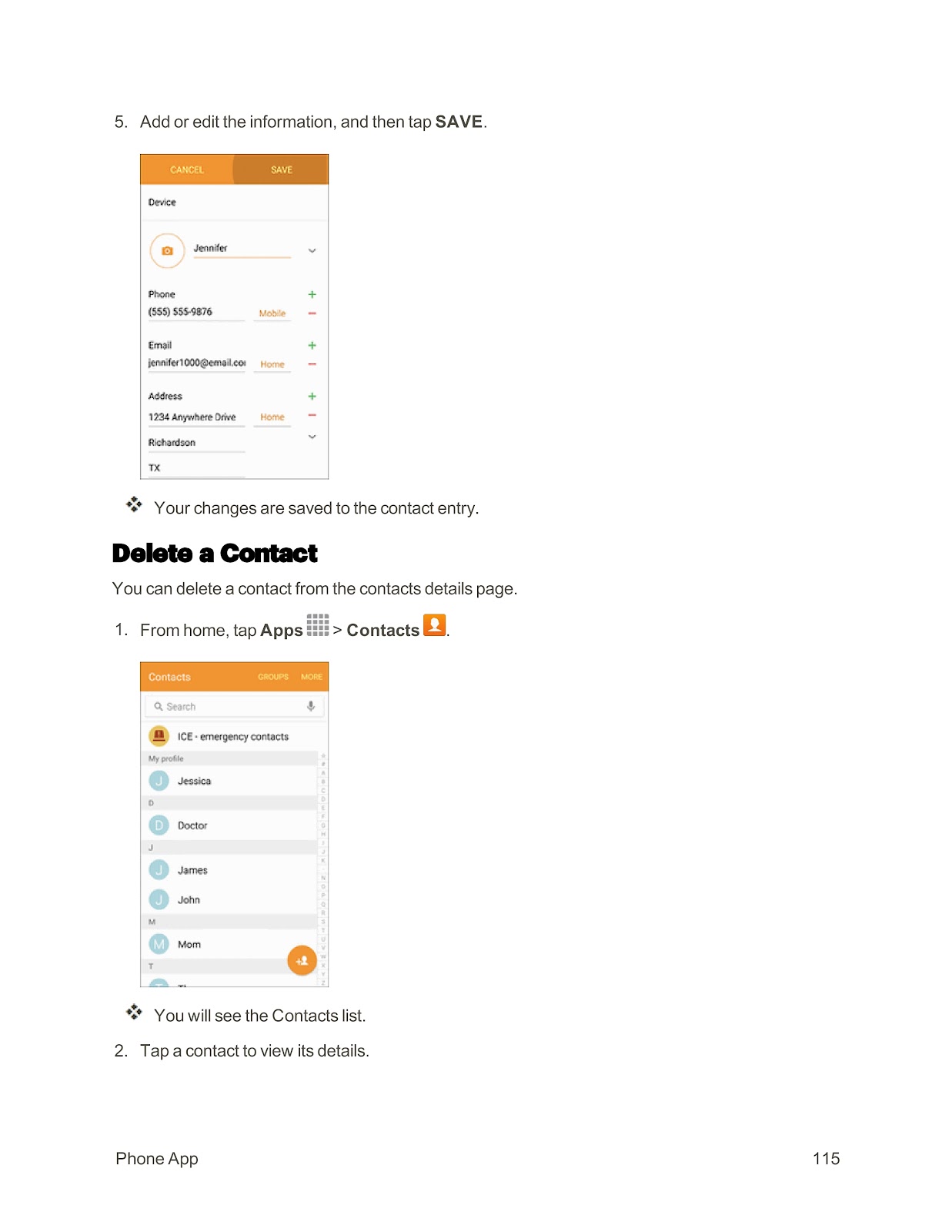
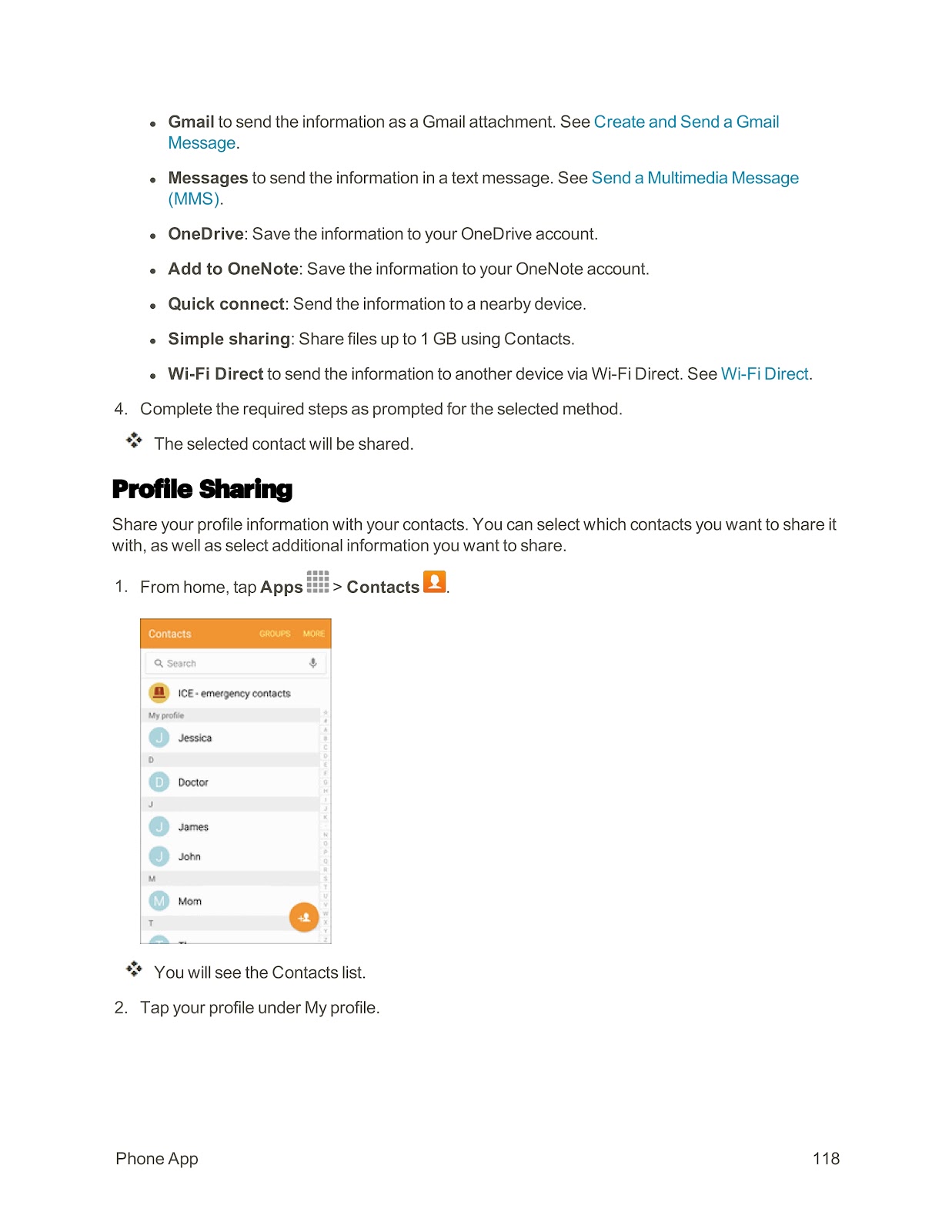
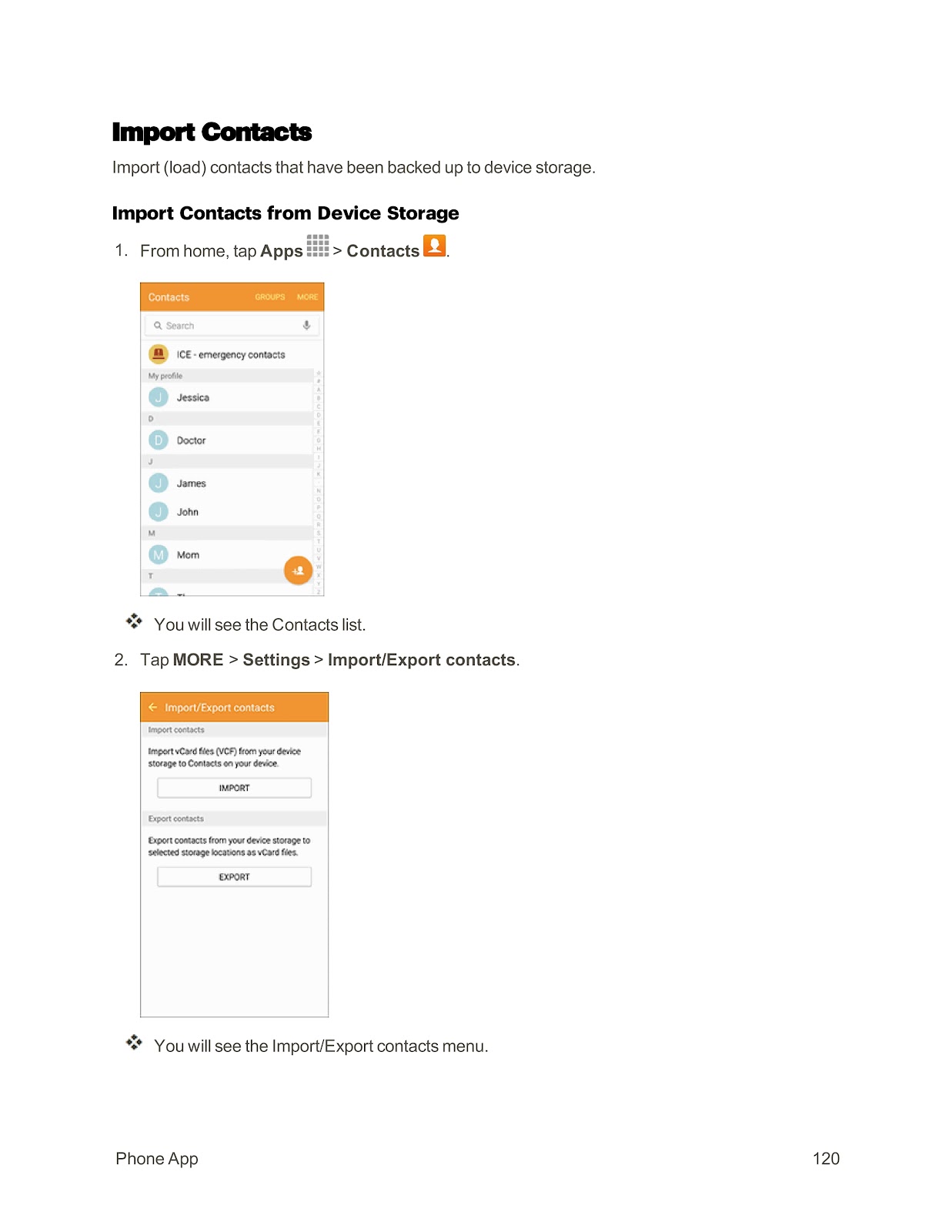
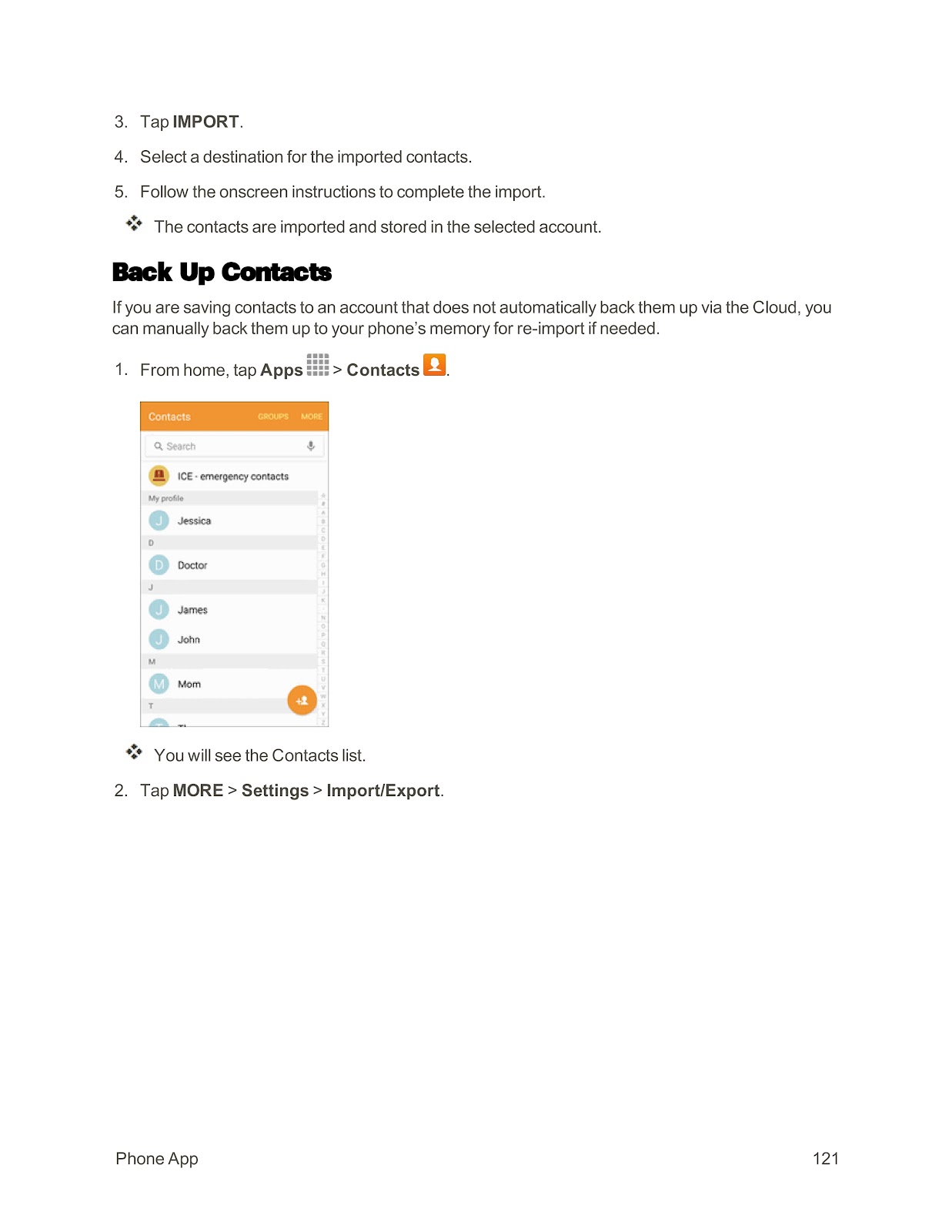
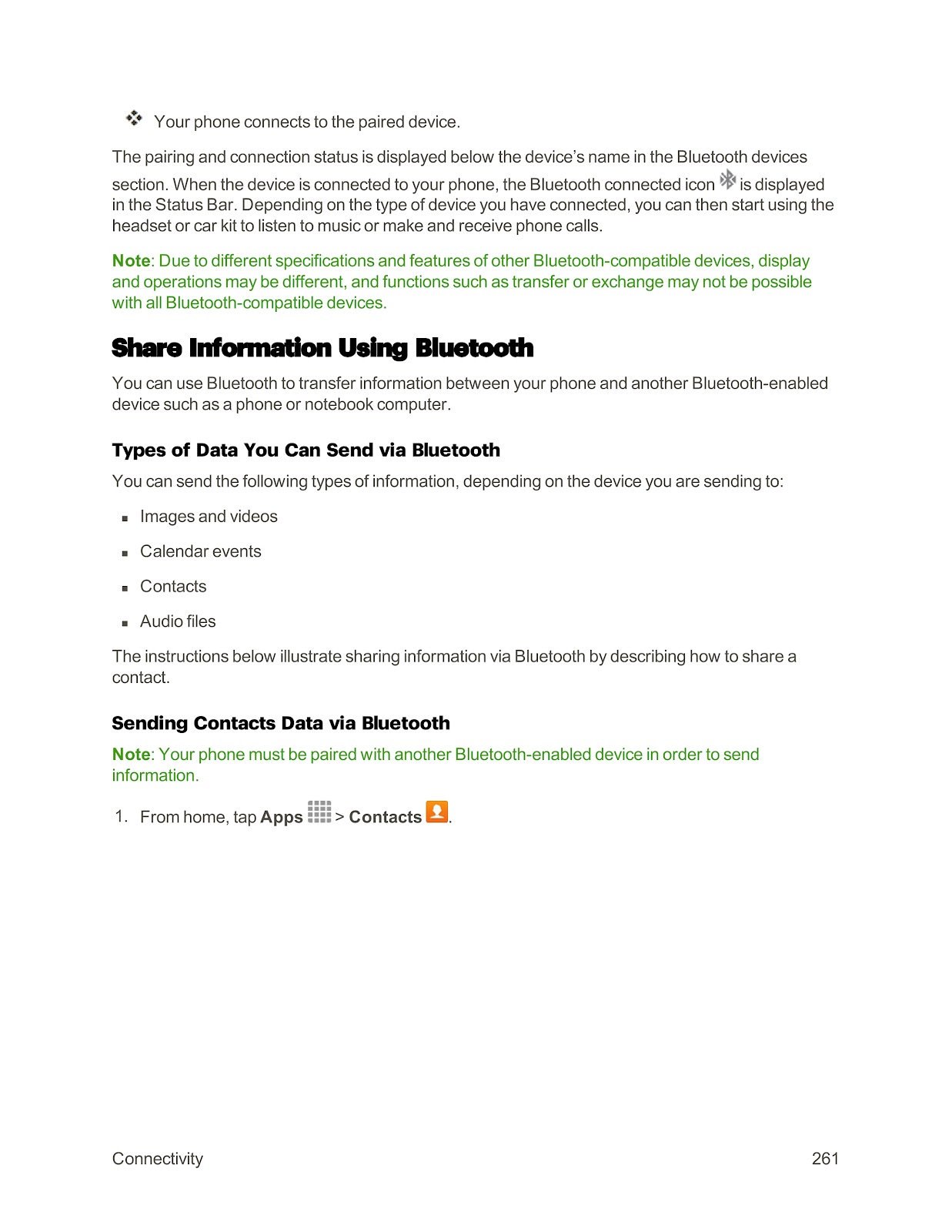
1. From home, tap Apps > Contacts.
2. Tap the plus icon to add a contact.
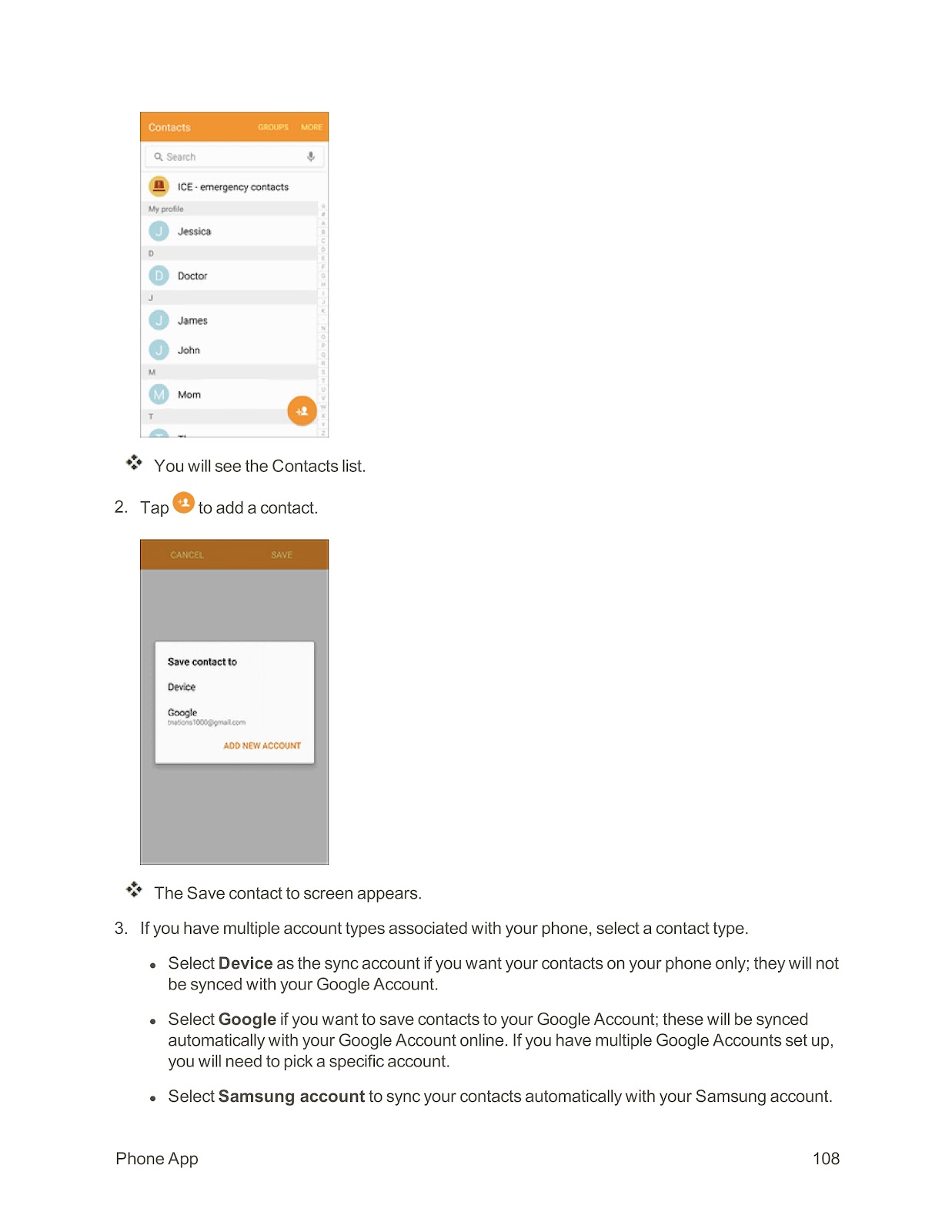
3. Select a location to save the contact (Device, Google, Samsung account).
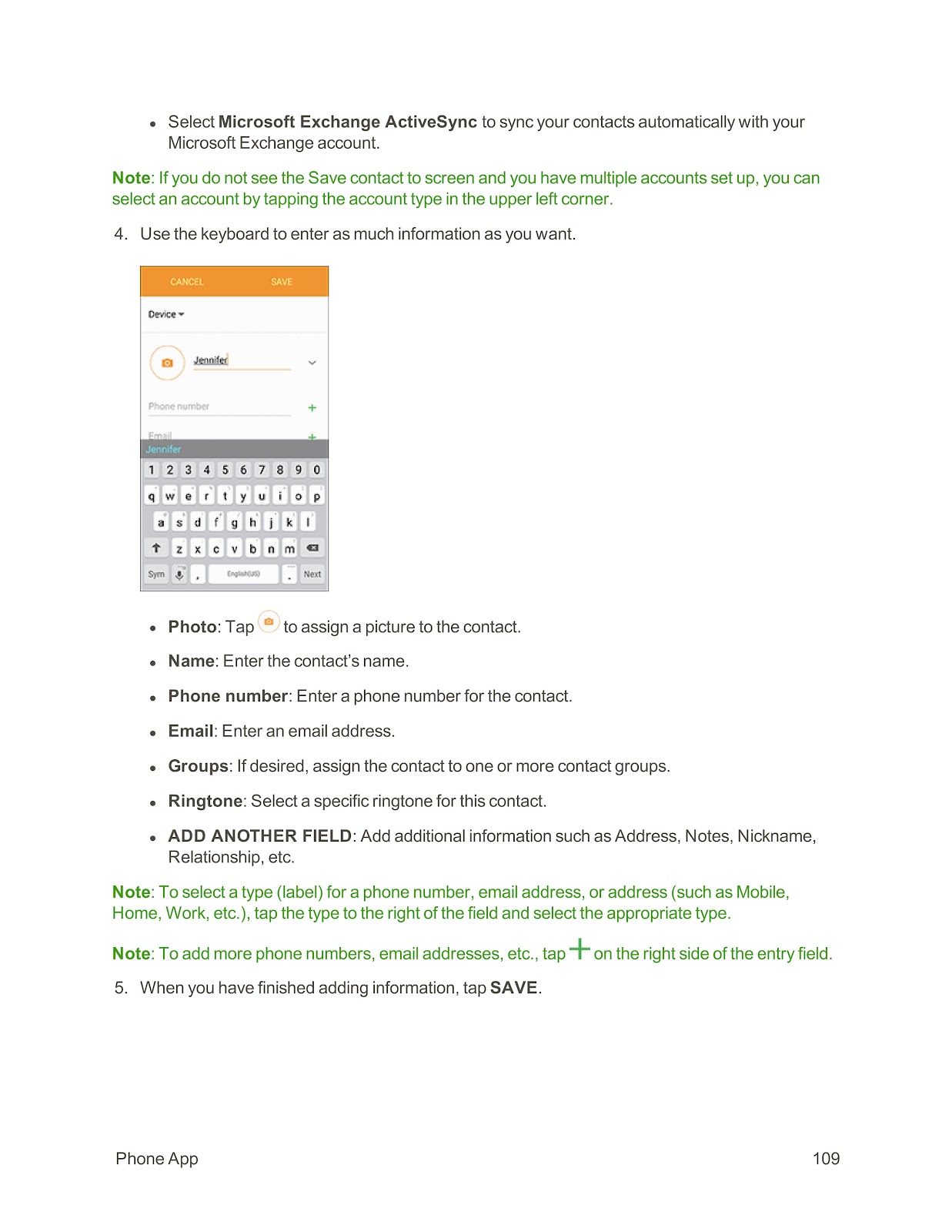
4. Enter the contact’s information (name, phone number, email, etc.).
5. Tap SAVE.
Edit a Contact:
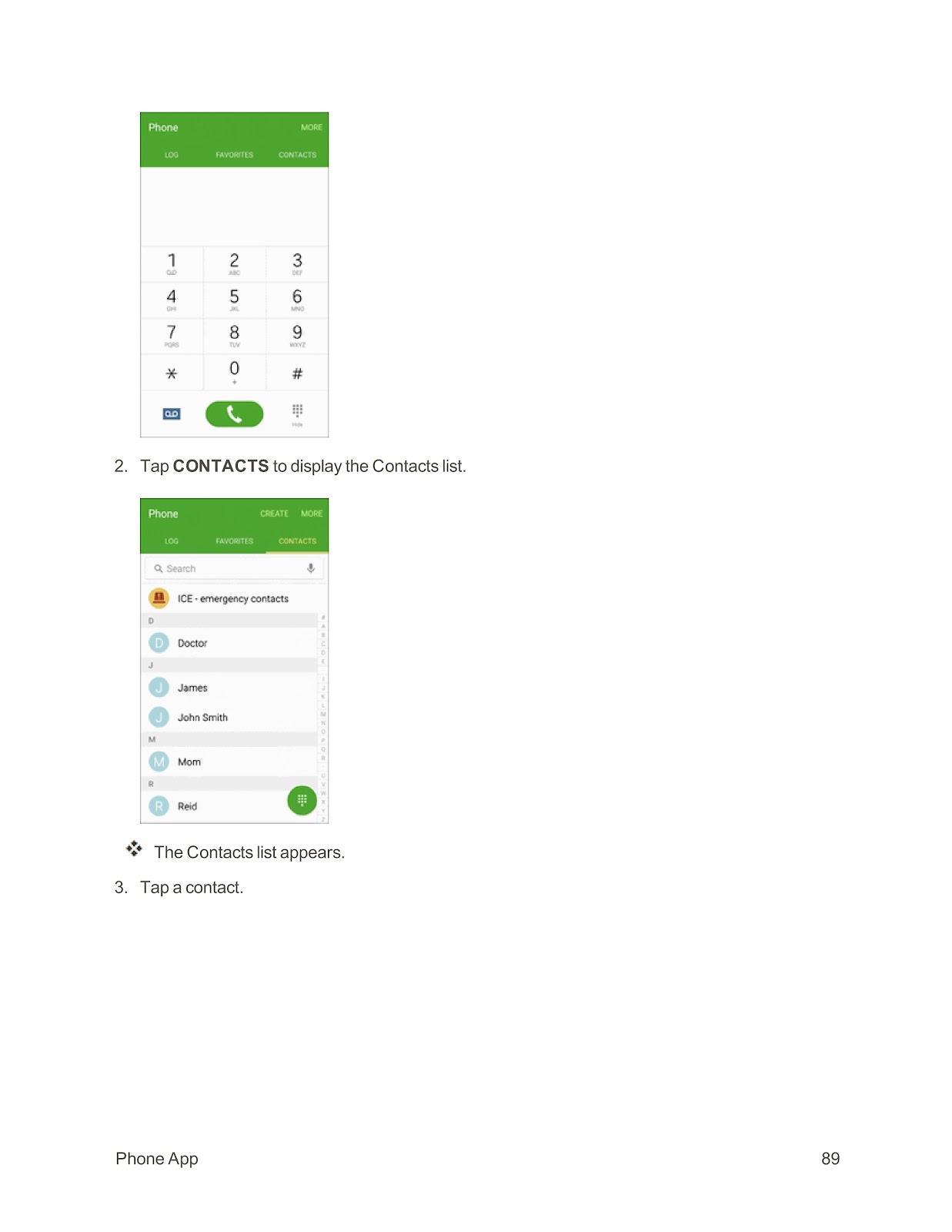
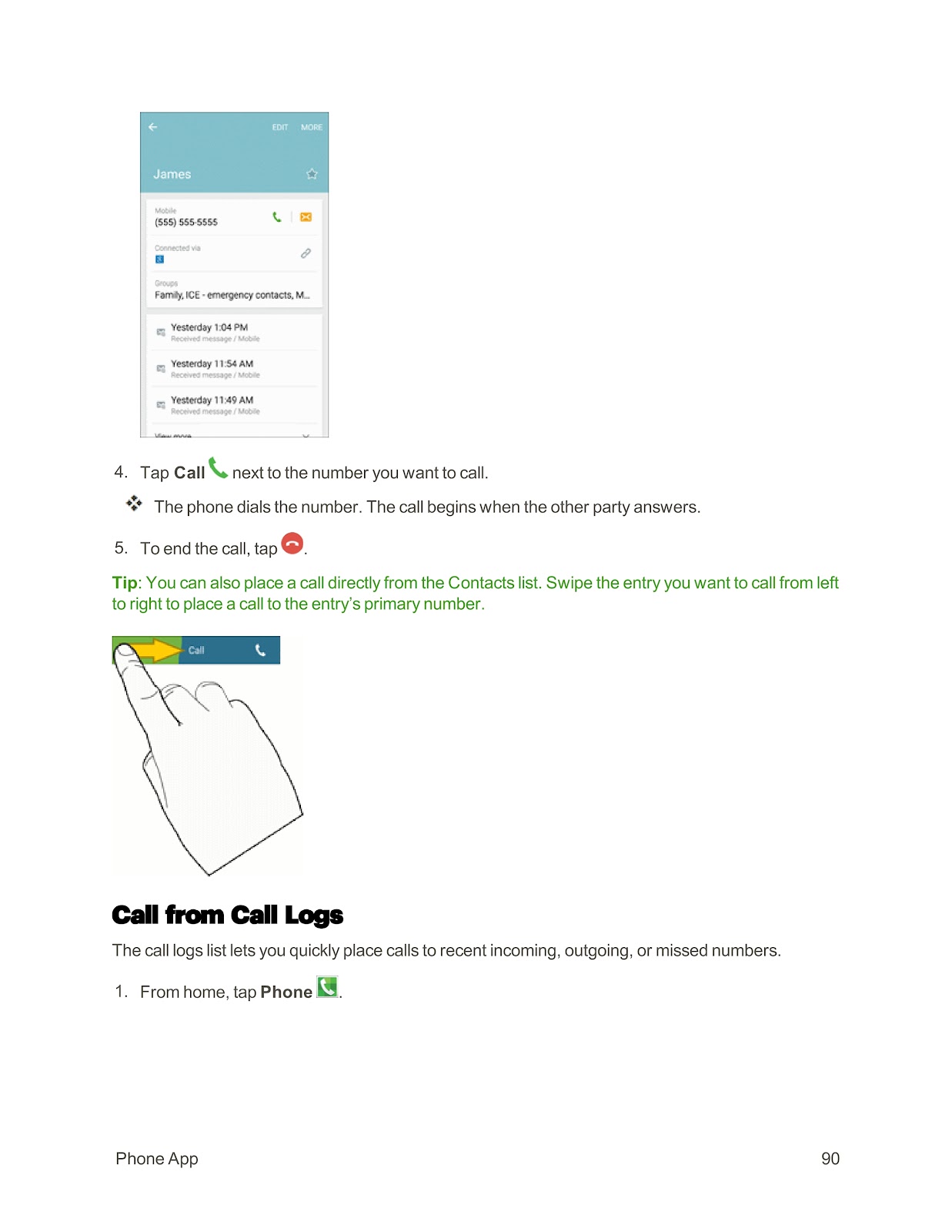
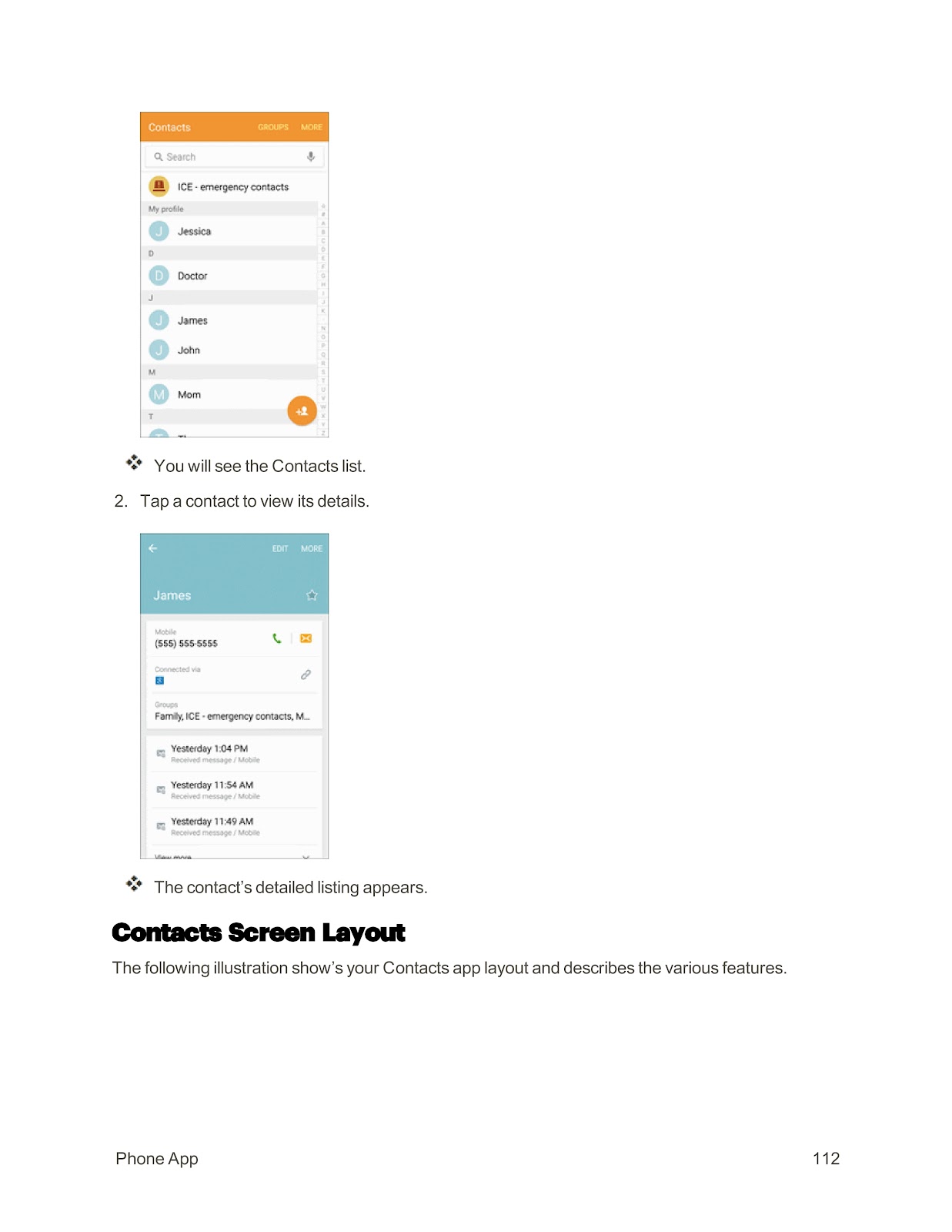
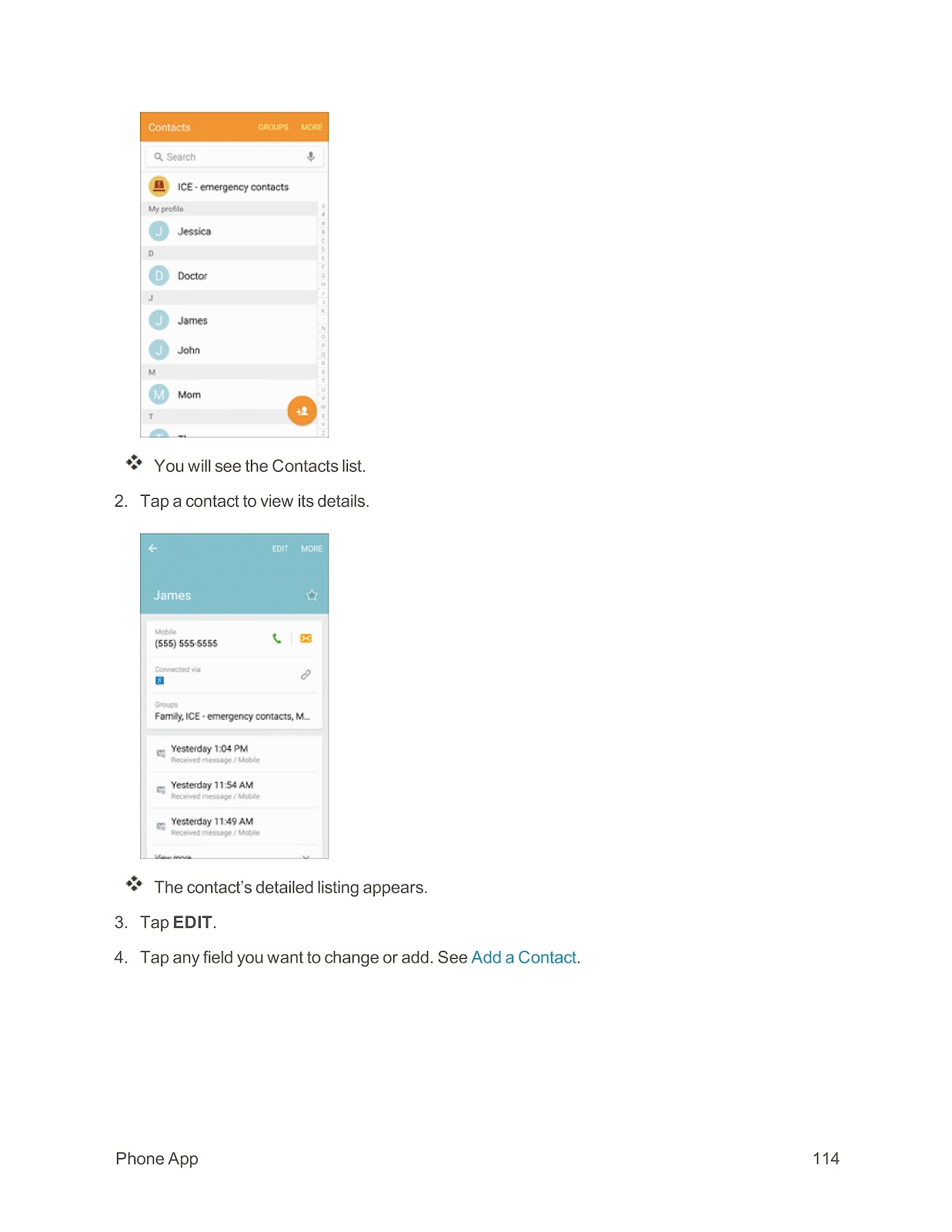
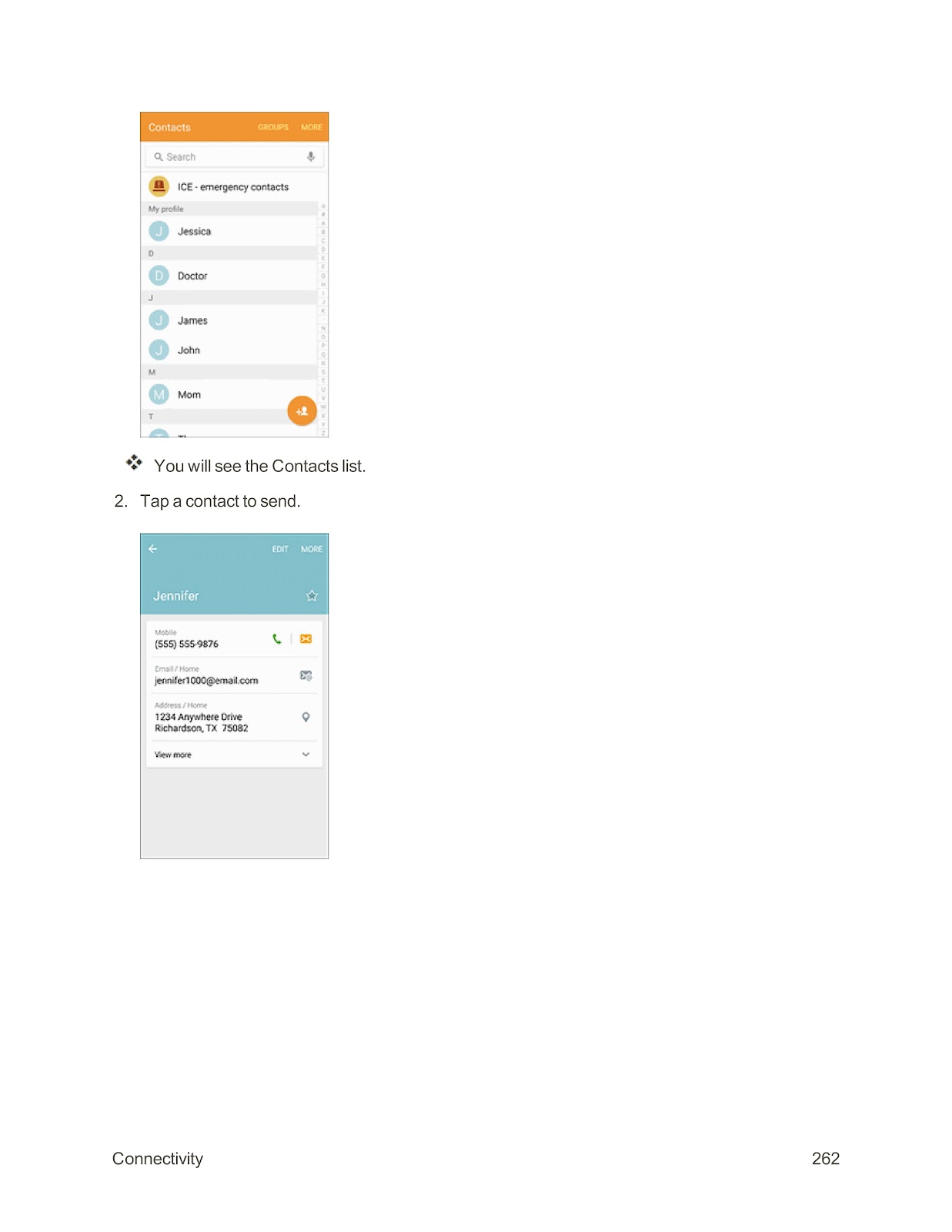
1. In the Contacts list, tap a contact to view its details.
2. Tap EDIT.
3. Change or add information as needed.
4. Tap SAVE.
Delete a Contact:
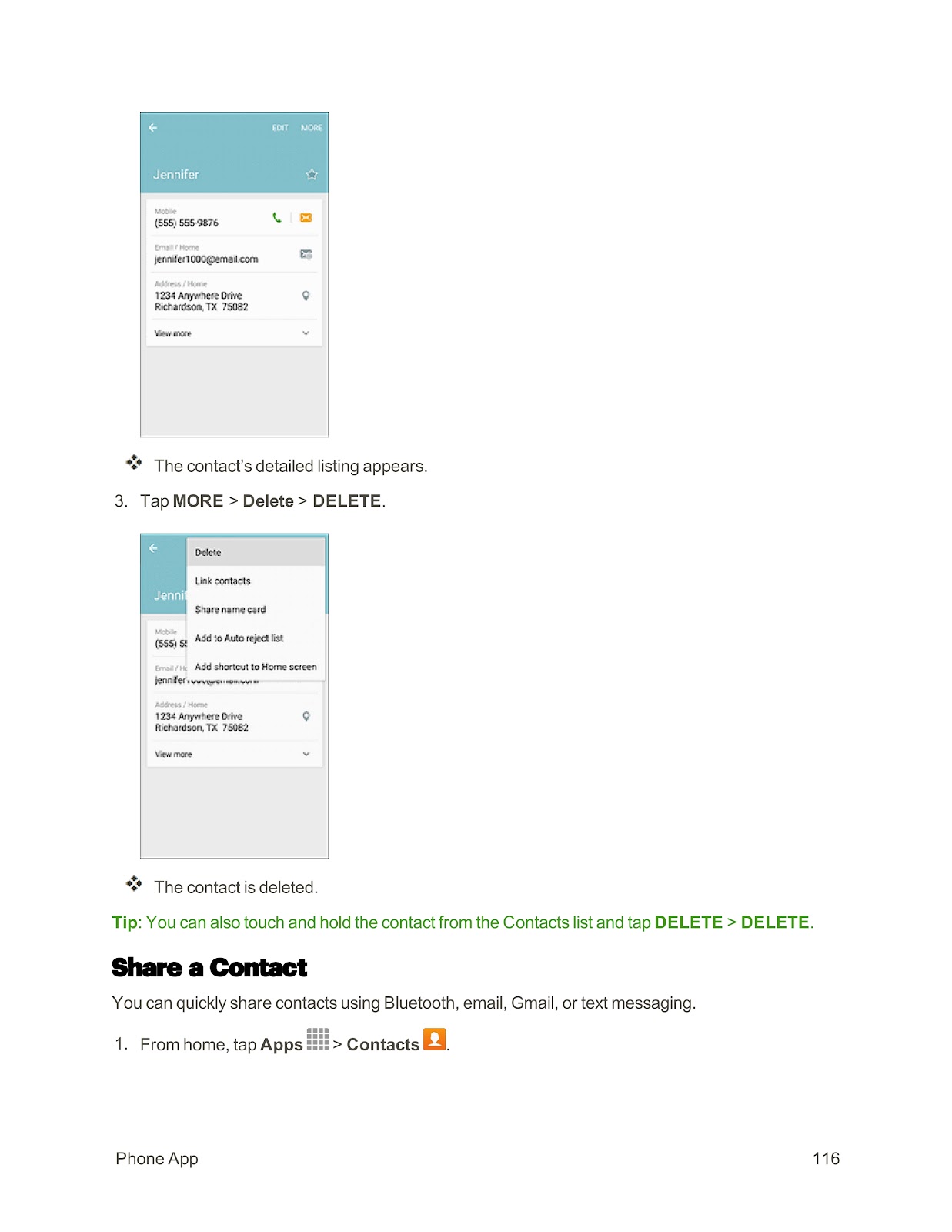
1. In the Contacts list, tap a contact to view its details.
2. Tap MORE > Delete > DELETE.
Share a Contact:
1. In the Contacts list, tap a contact.
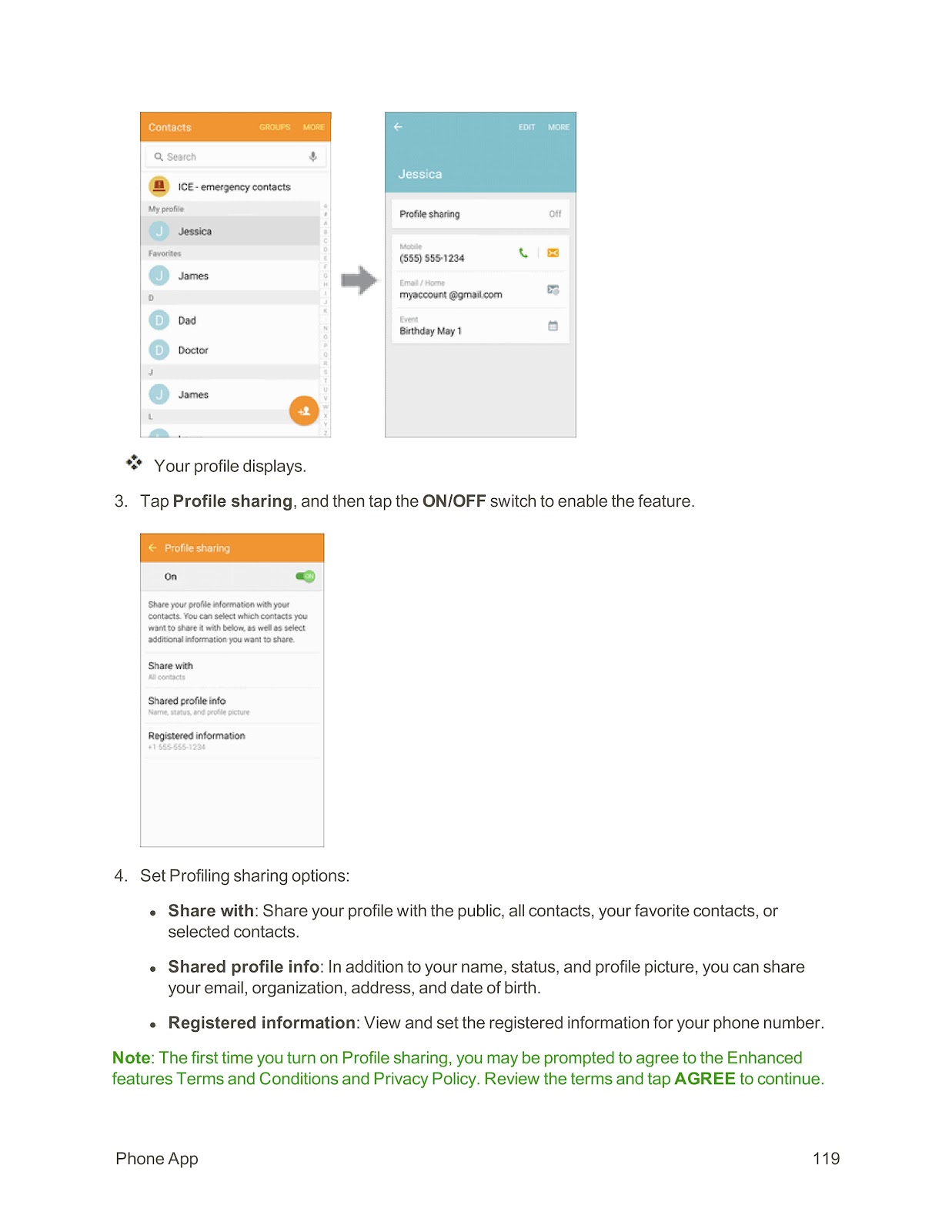
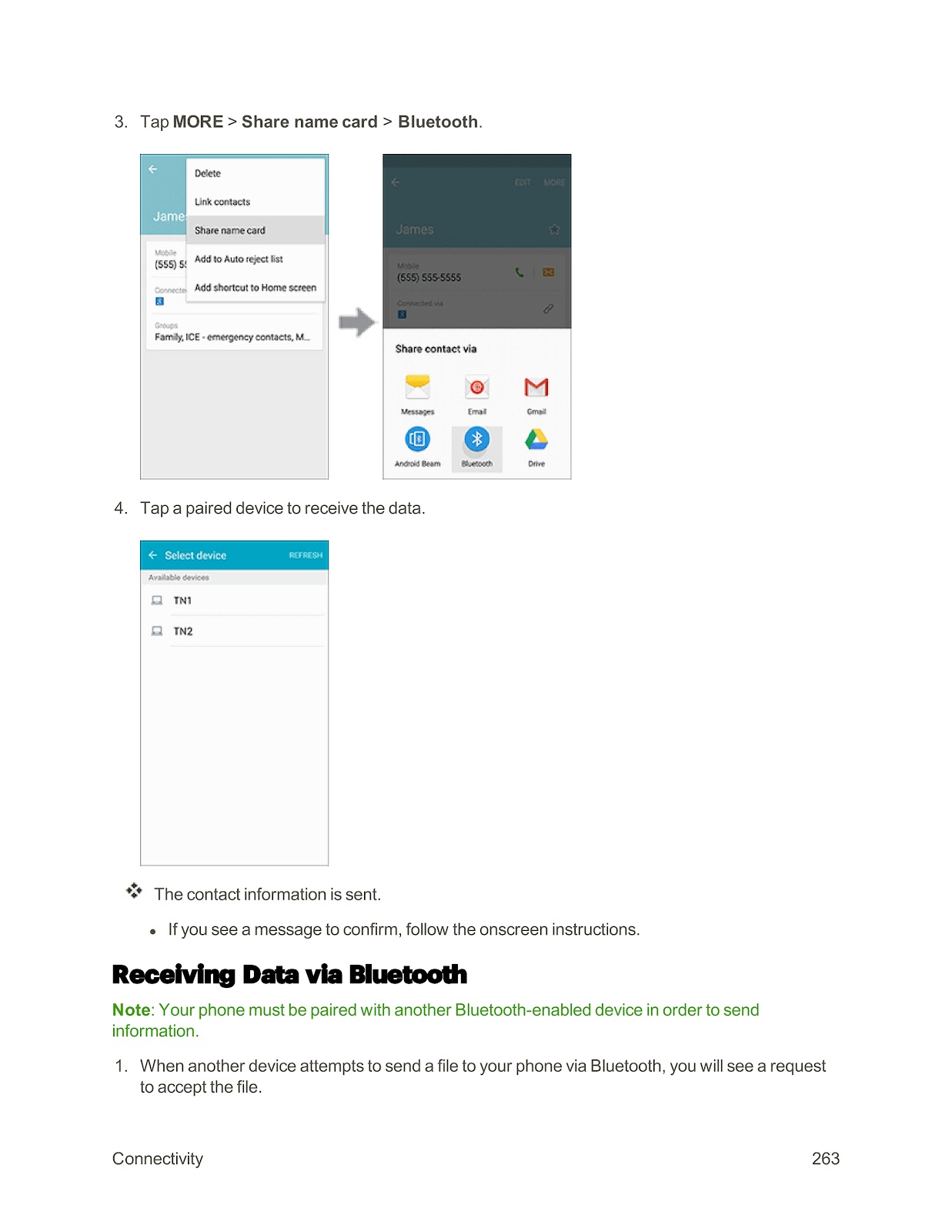
2. Tap MORE > Share name card.
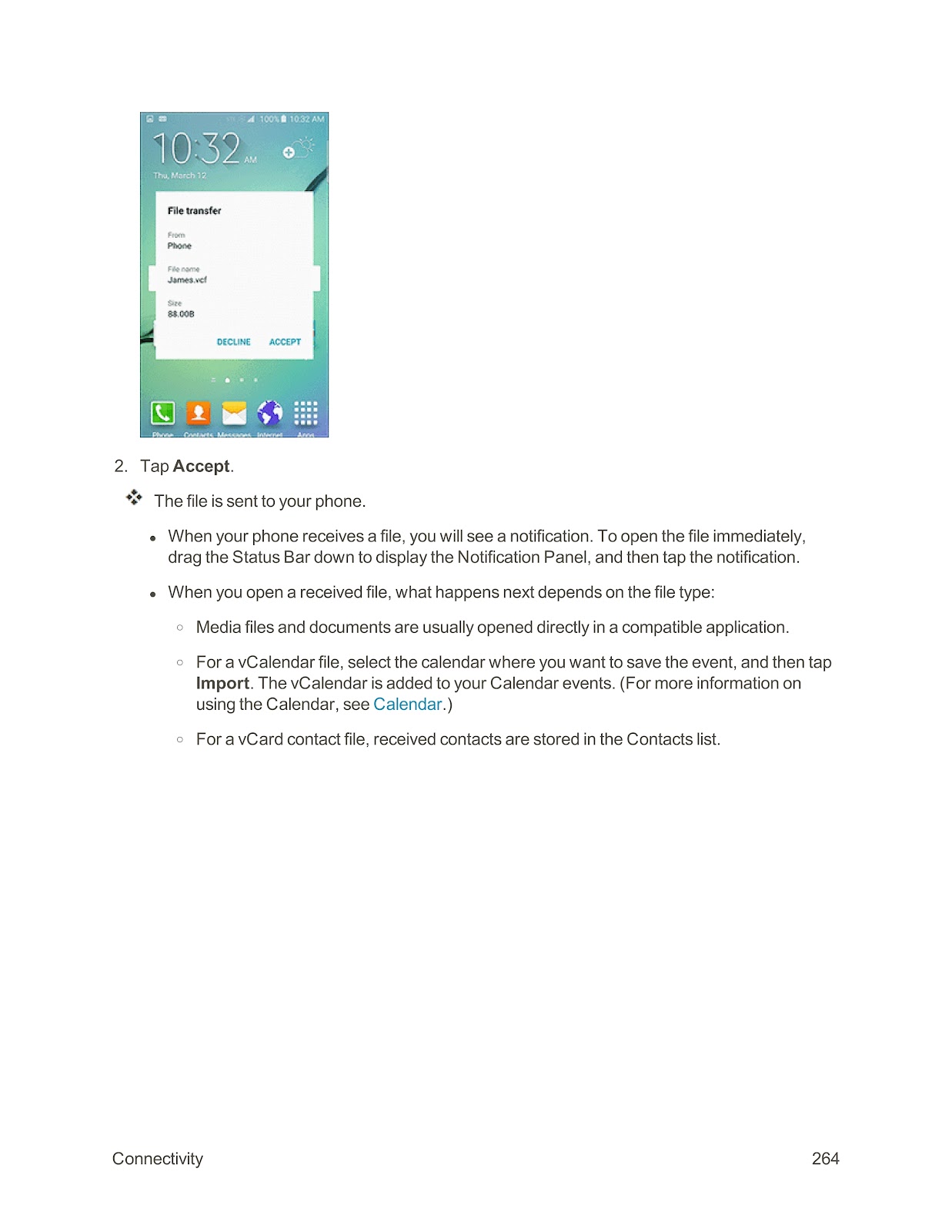
3. Select a sharing method (e.g., Bluetooth, Email, Messages) and follow the prompts.
How do I send text (SMS) and multimedia (MMS) messages on my SPRINT SAMSUNG GALAXY S6 EDGE?
Send a Text Message (SMS):
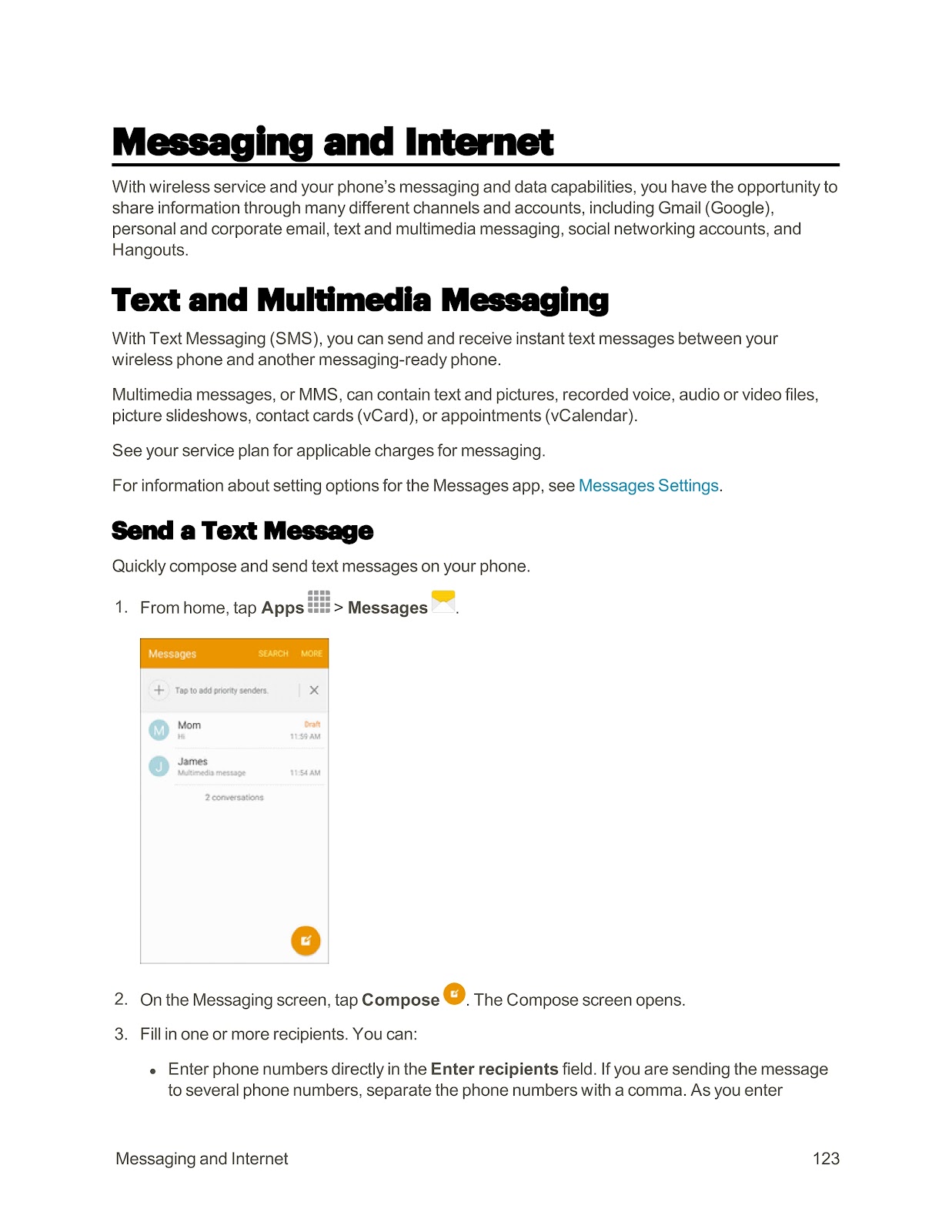
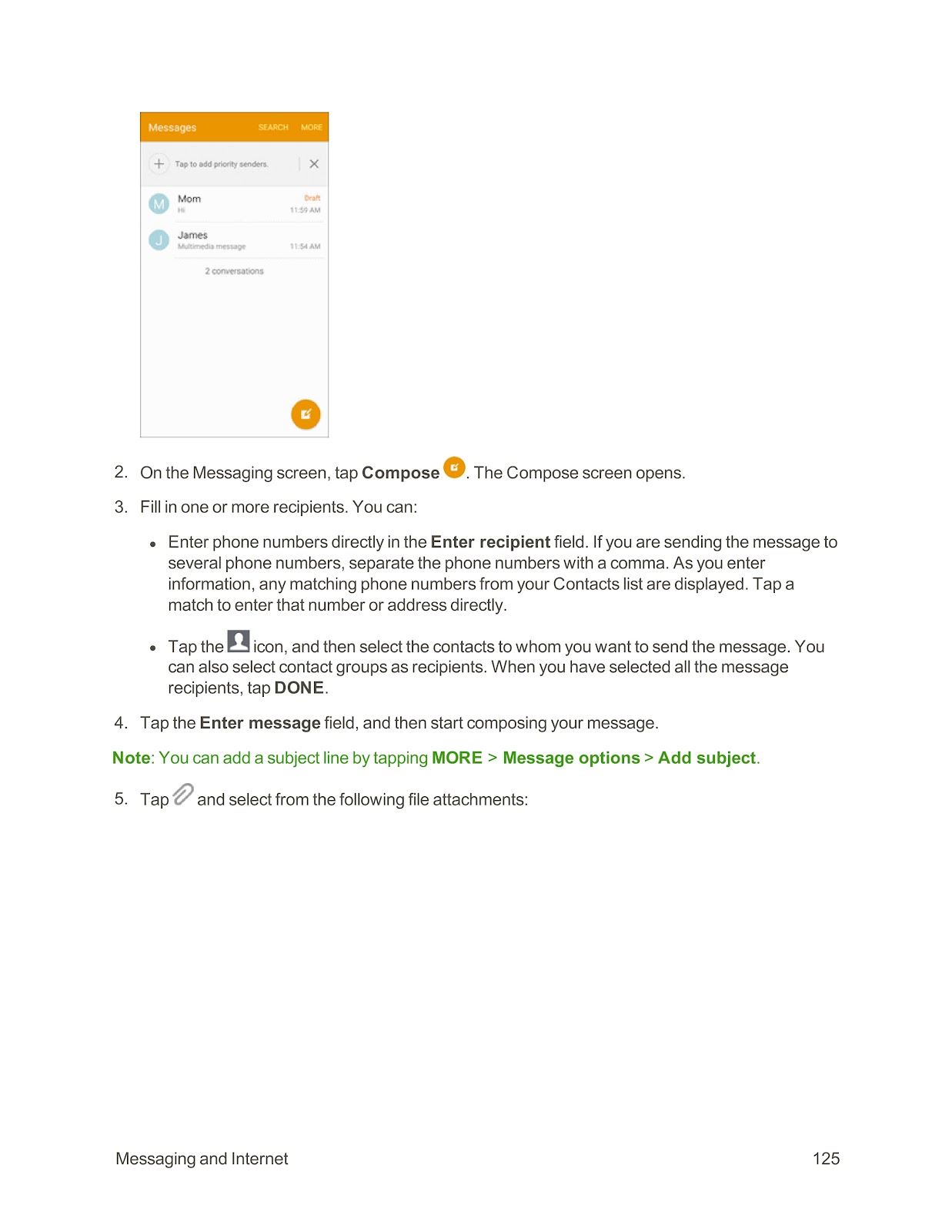
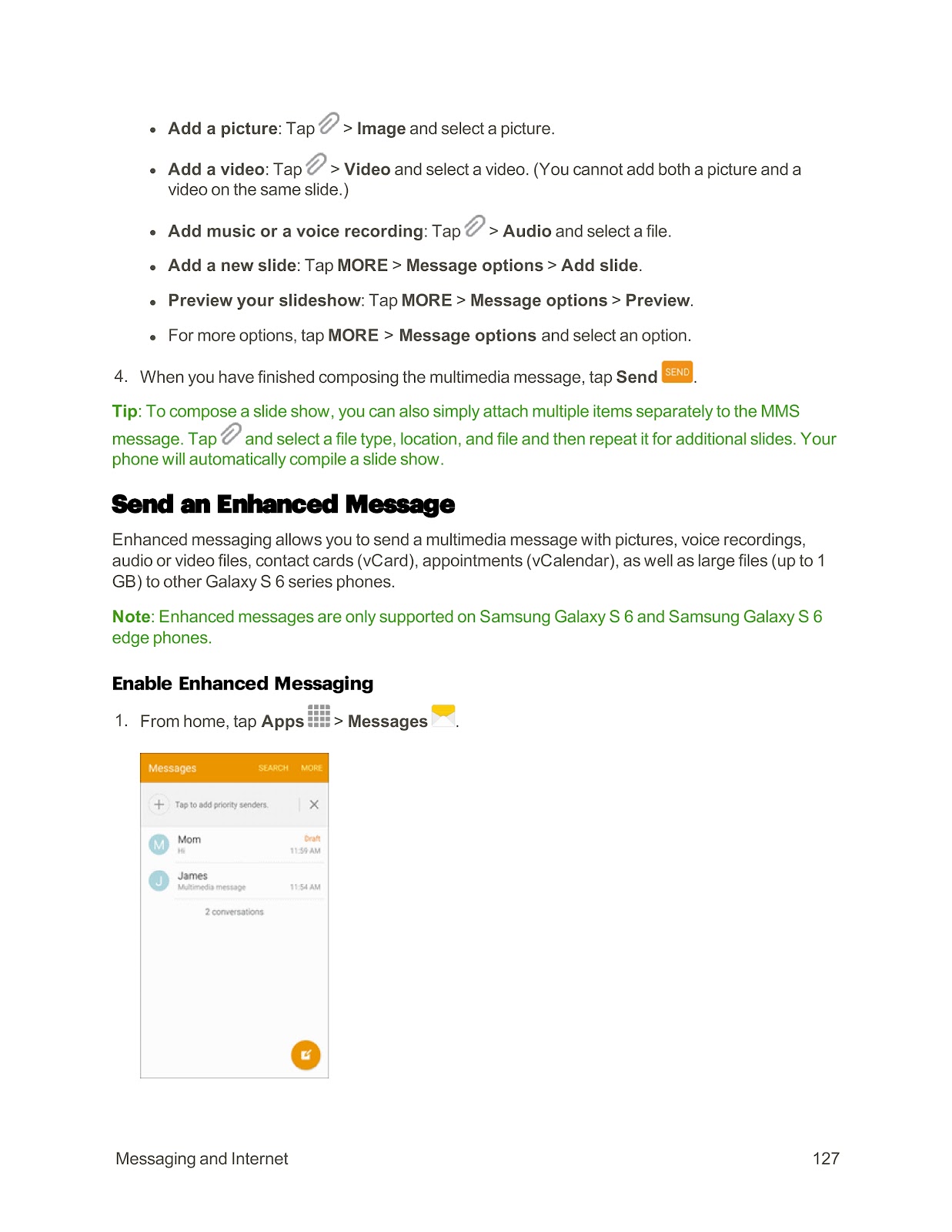
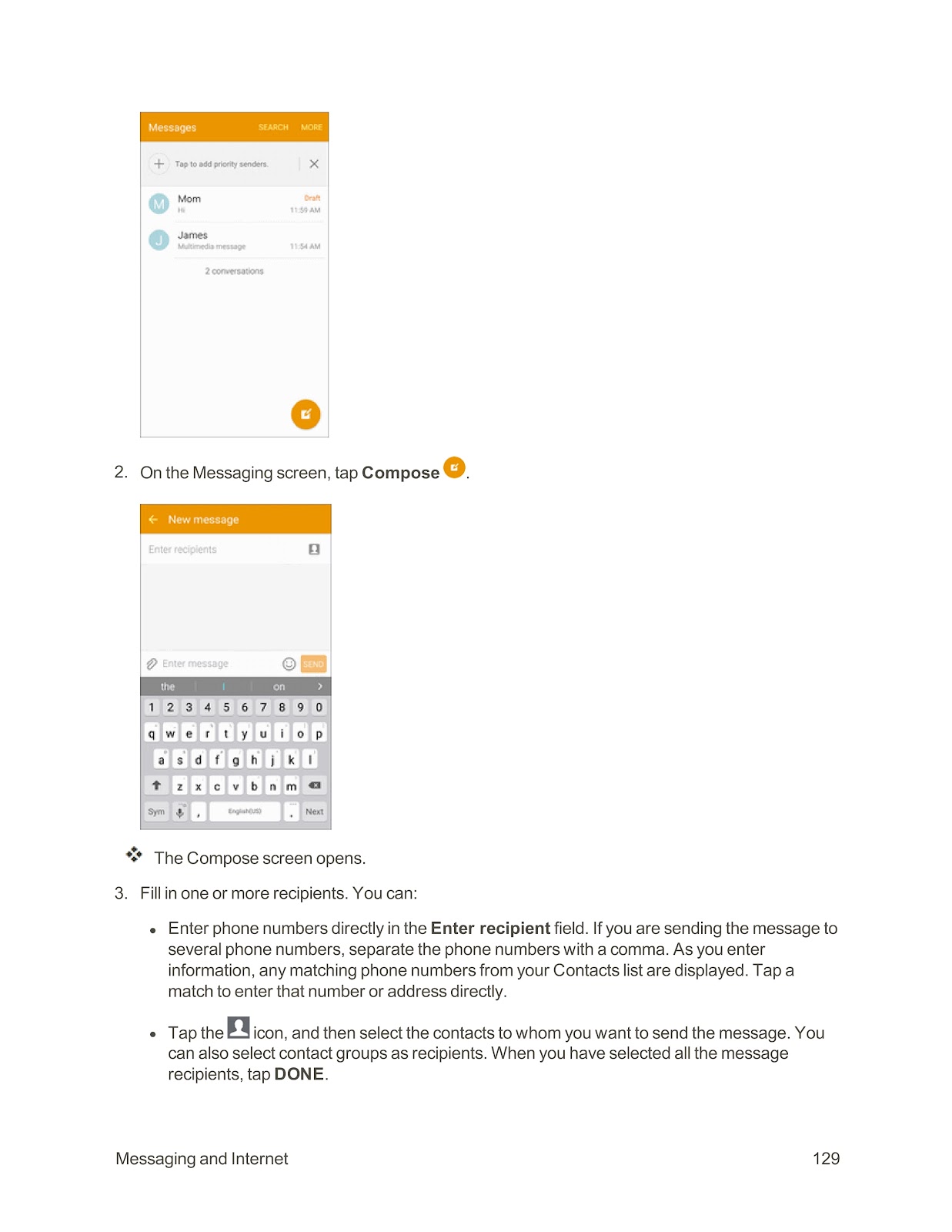
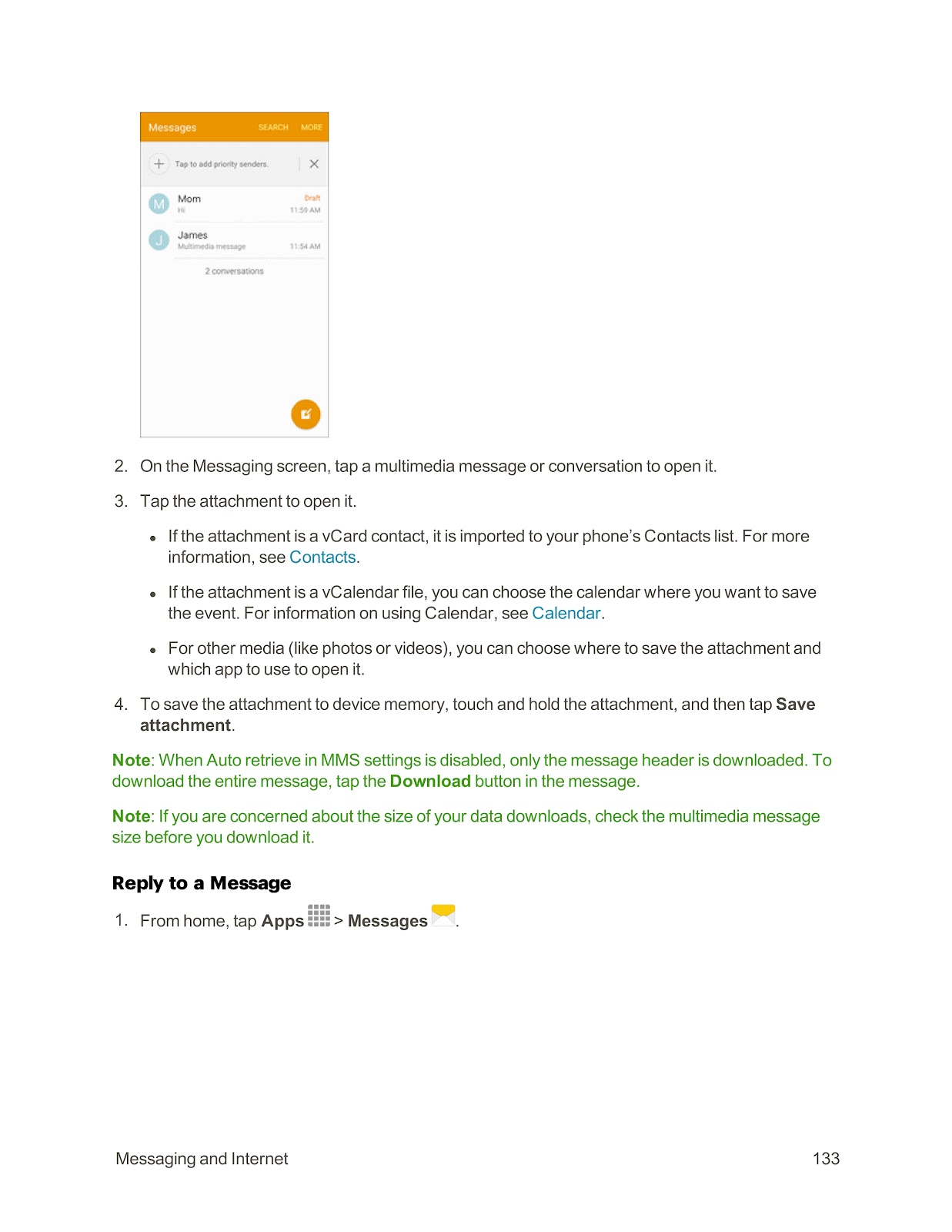
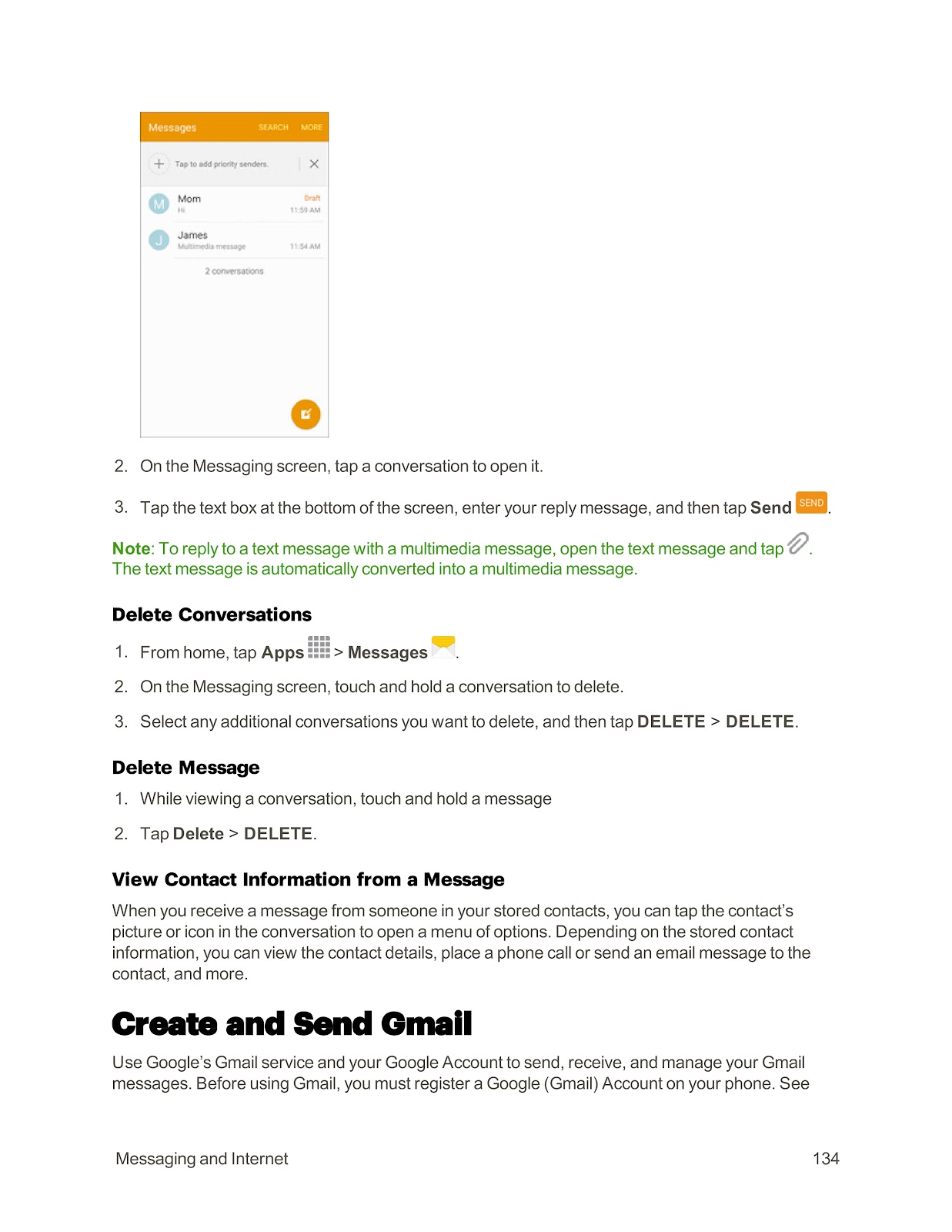
1. From home, tap Apps > Messages.
2. Tap the Compose icon.
3. Enter a phone number in the Enter recipients field, or tap the icon to select contacts.
4. Tap the Enter message field and type your message.
5. Tap SEND.
Send a Multimedia Message (MMS):
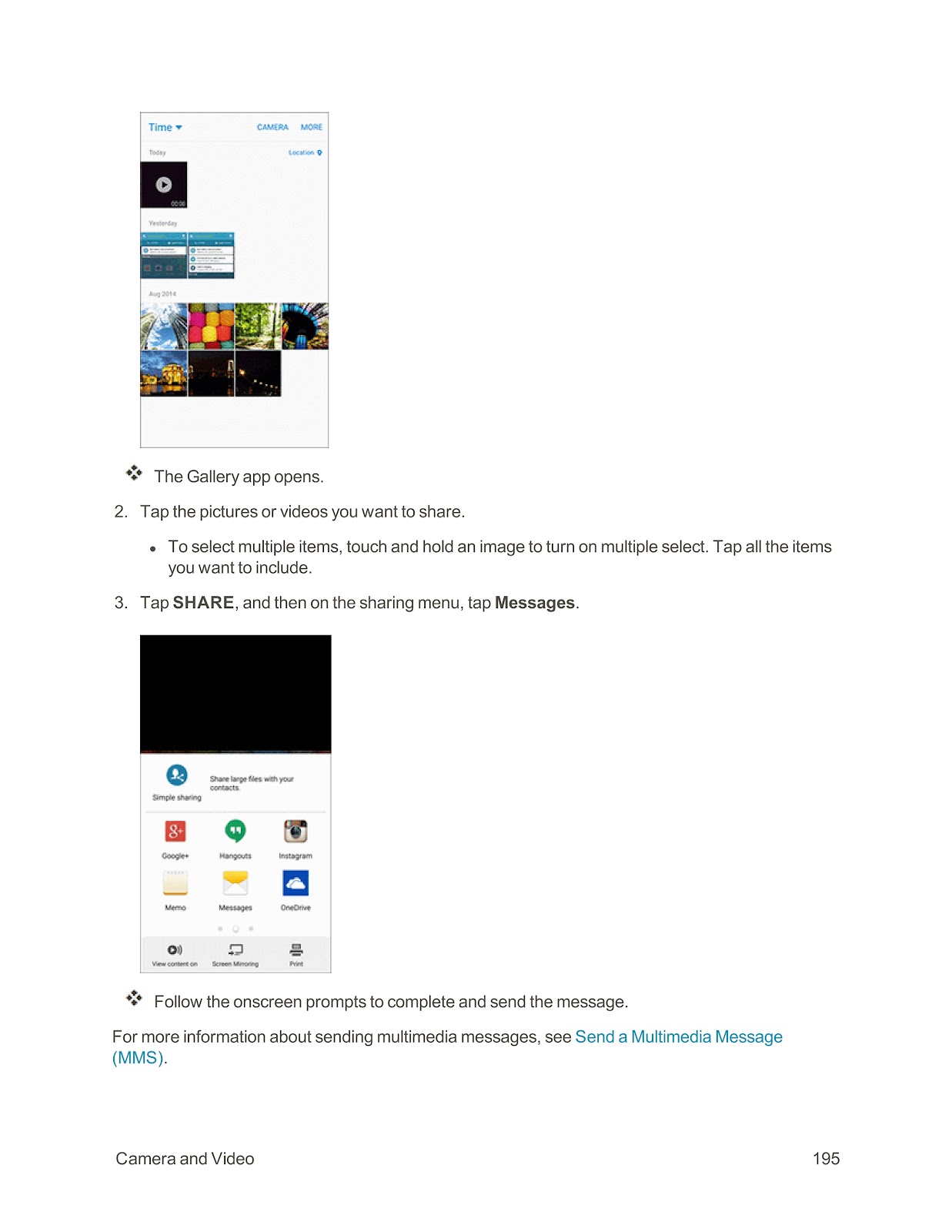
1. Follow steps 1-4 for sending a text message.
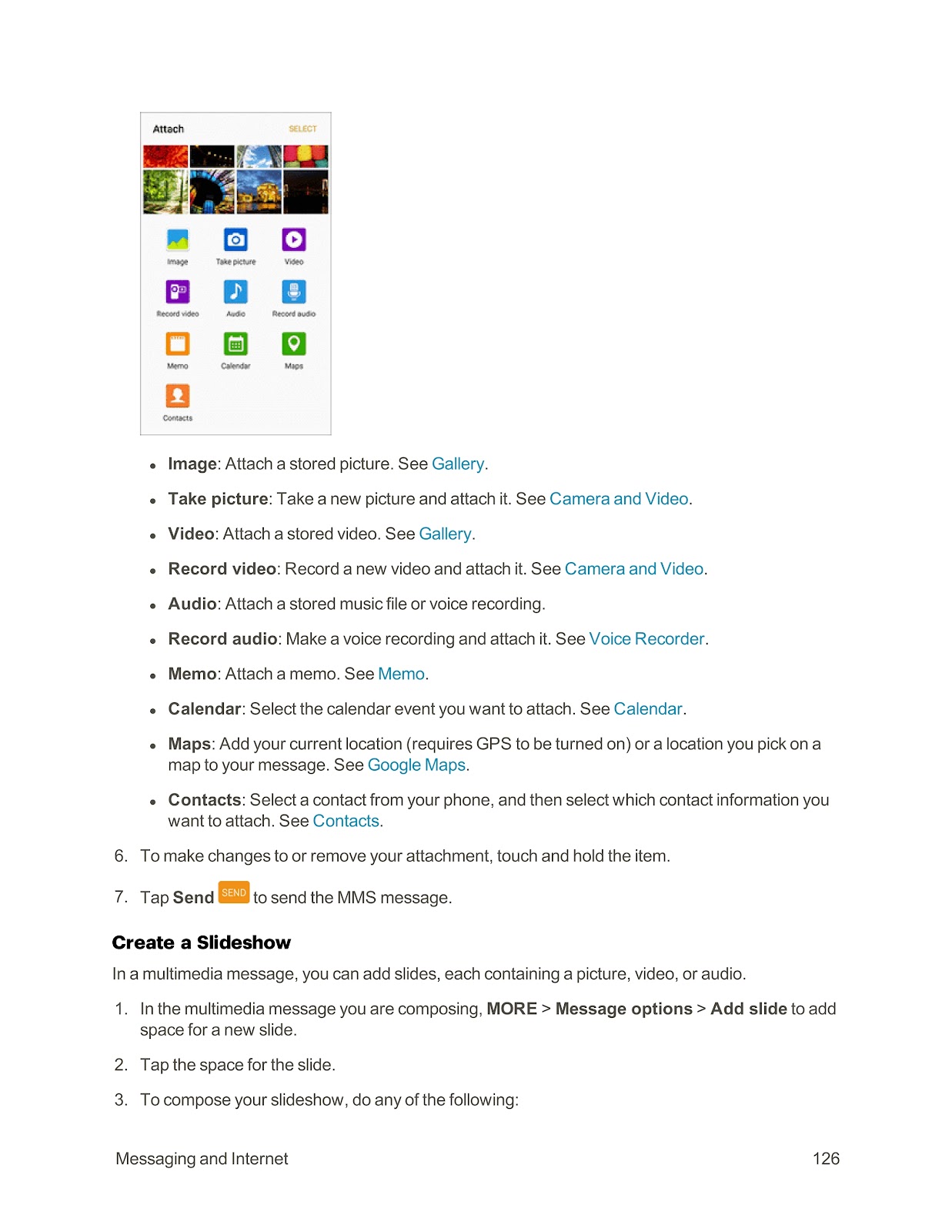
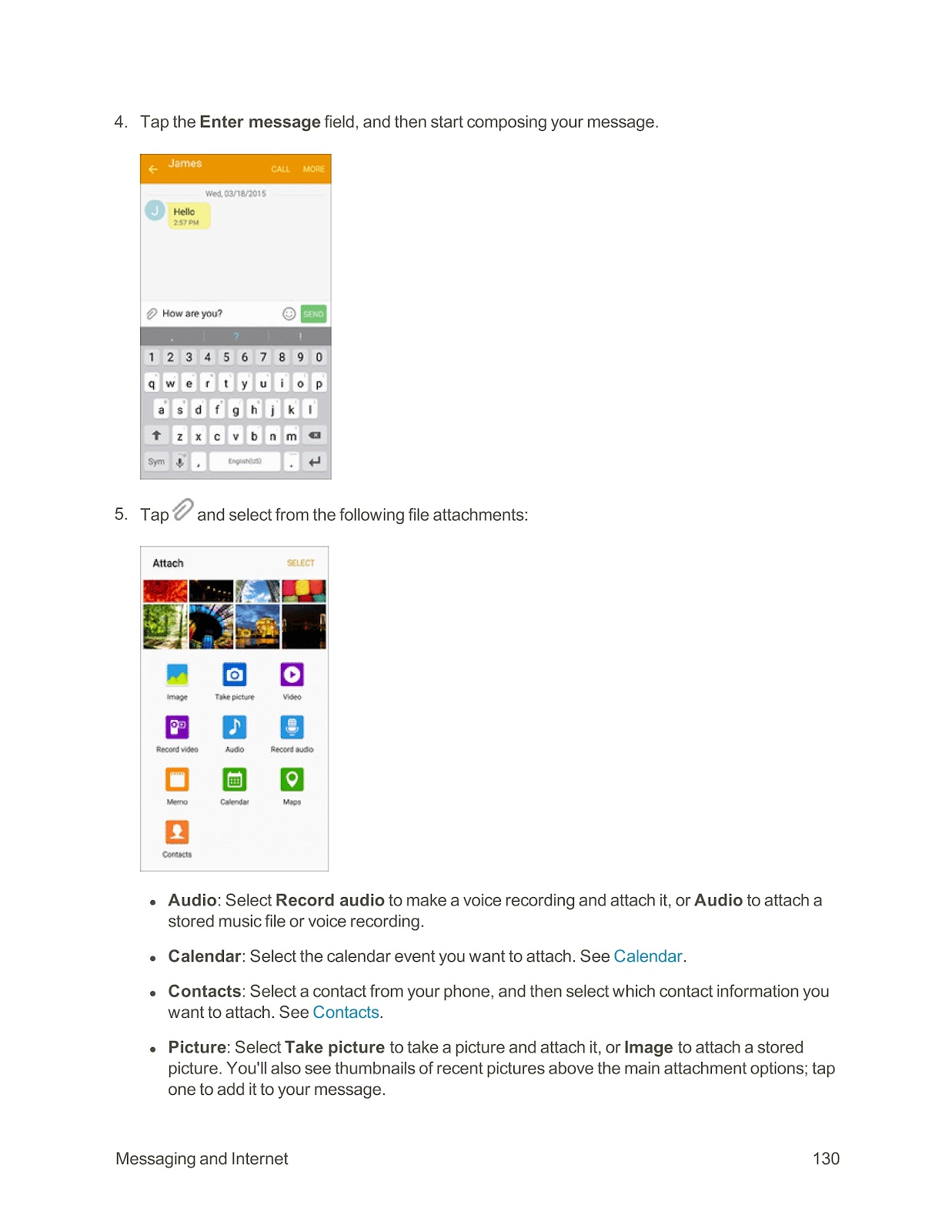
2. Tap the paperclip icon to attach a file.
3. Select the type of file to attach (e.g., Image, Video, Audio, Contacts).
4. Select the specific file to attach.
5. Tap Send to send the MMS message.
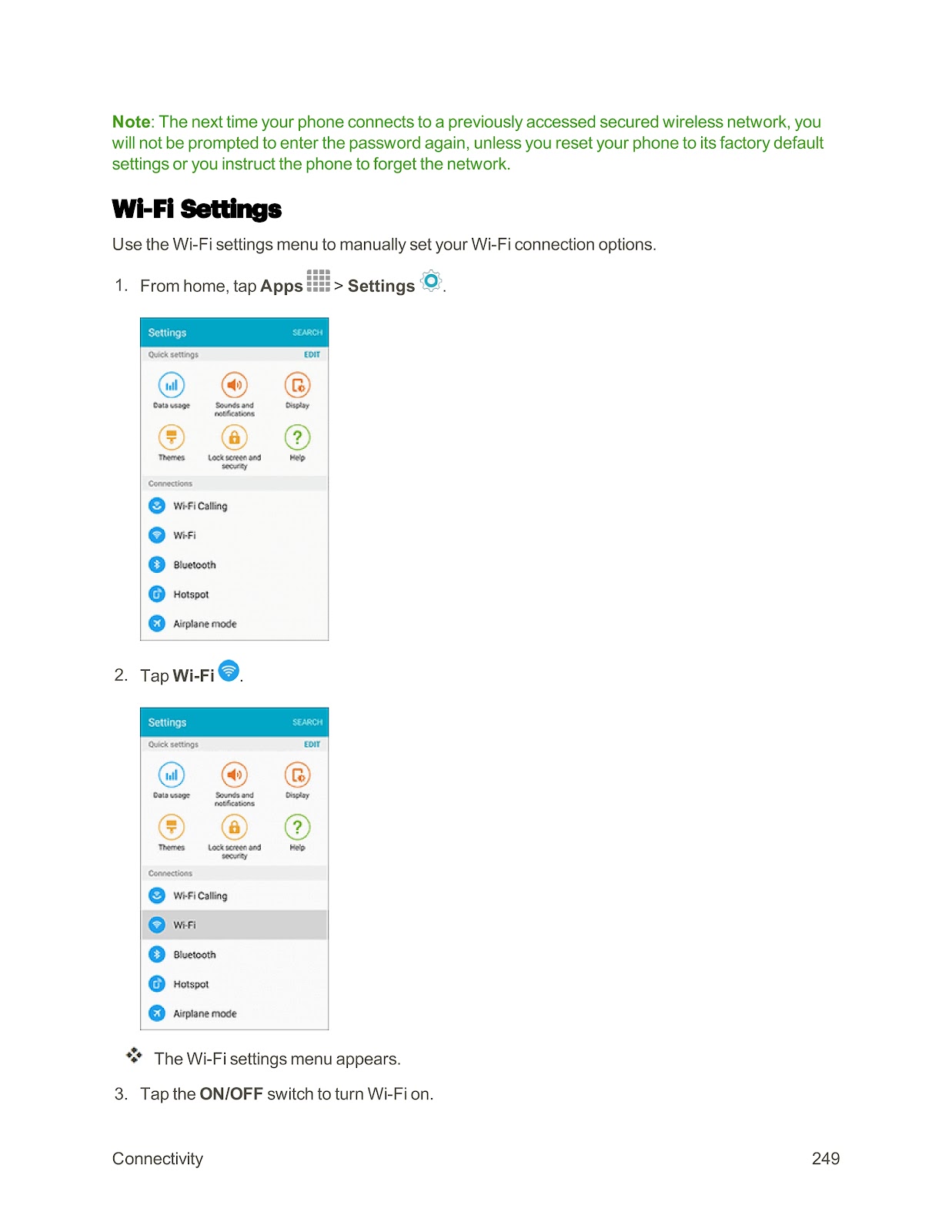
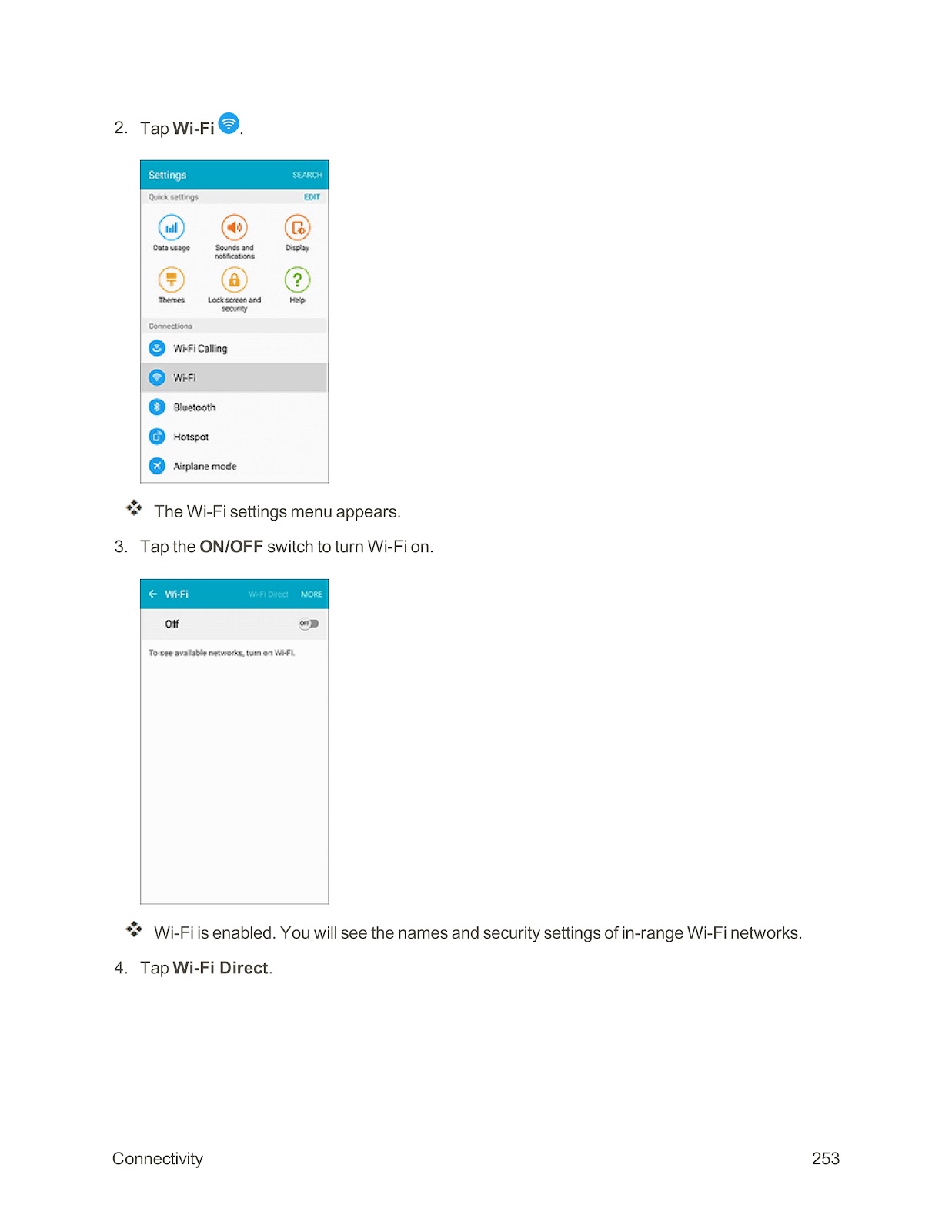
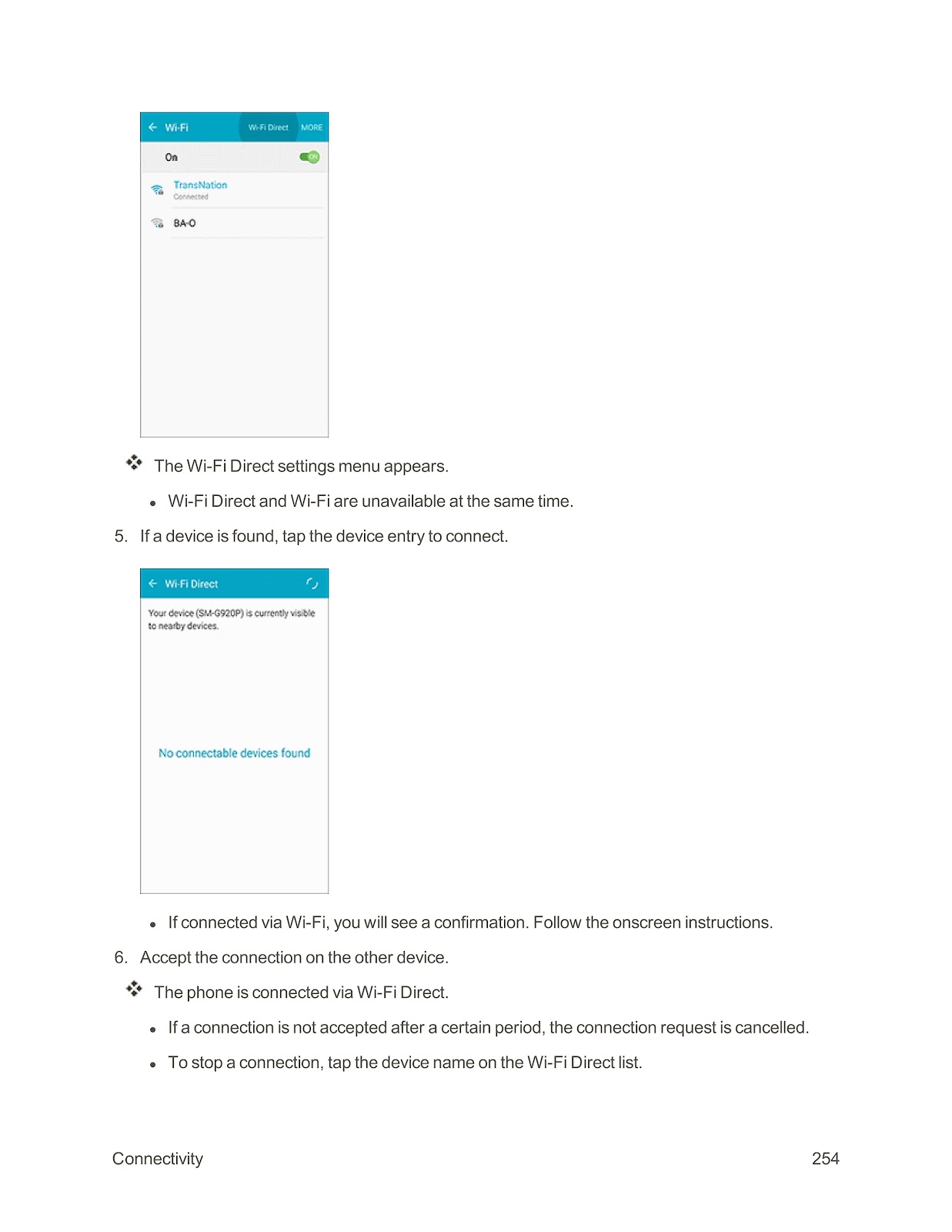
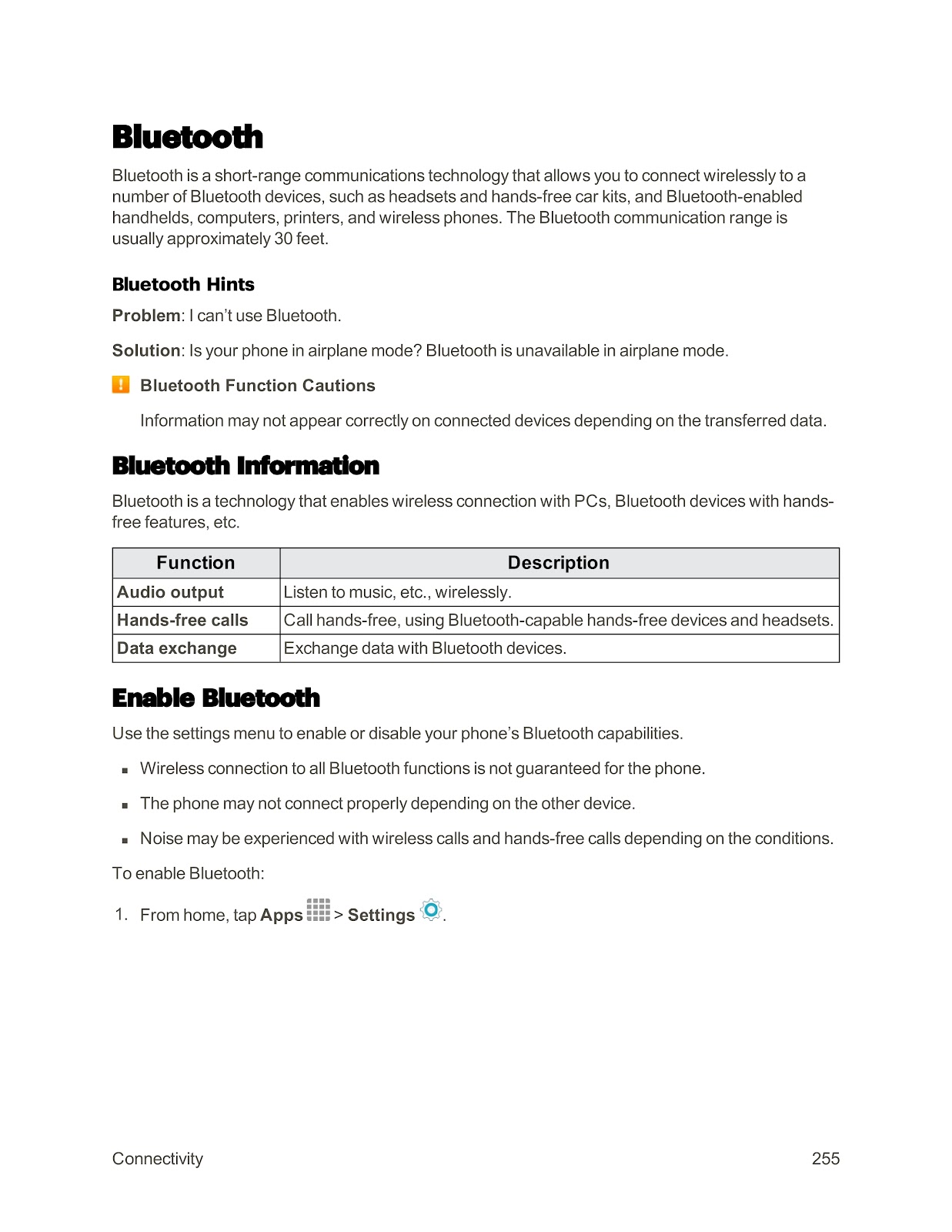
How do I set up and use Wi-Fi on my SPRINT SAMSUNG GALAXY S6 EDGE?
To use Wi-Fi, you need to enable it and connect to a wireless network.
Turn Wi-Fi On and Connect:
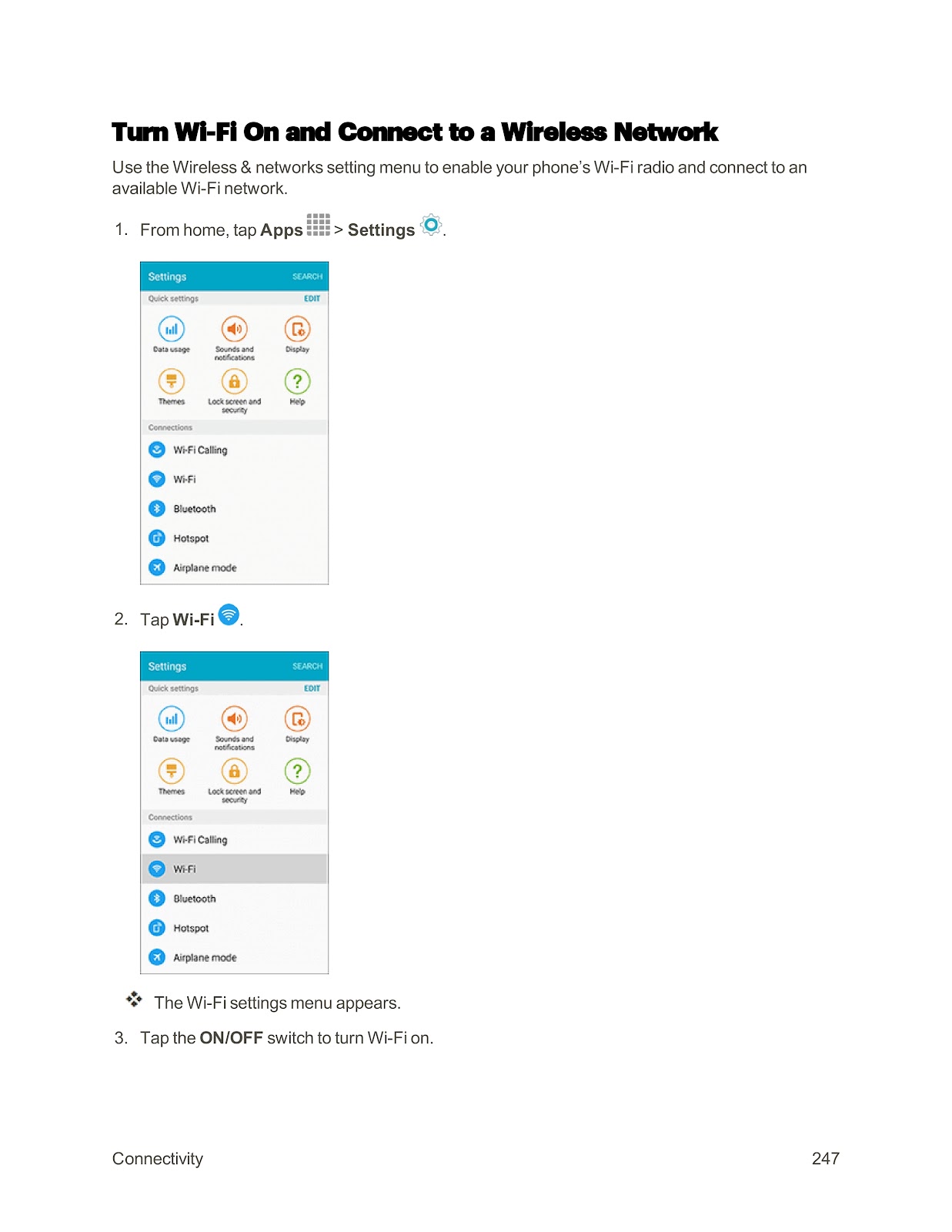
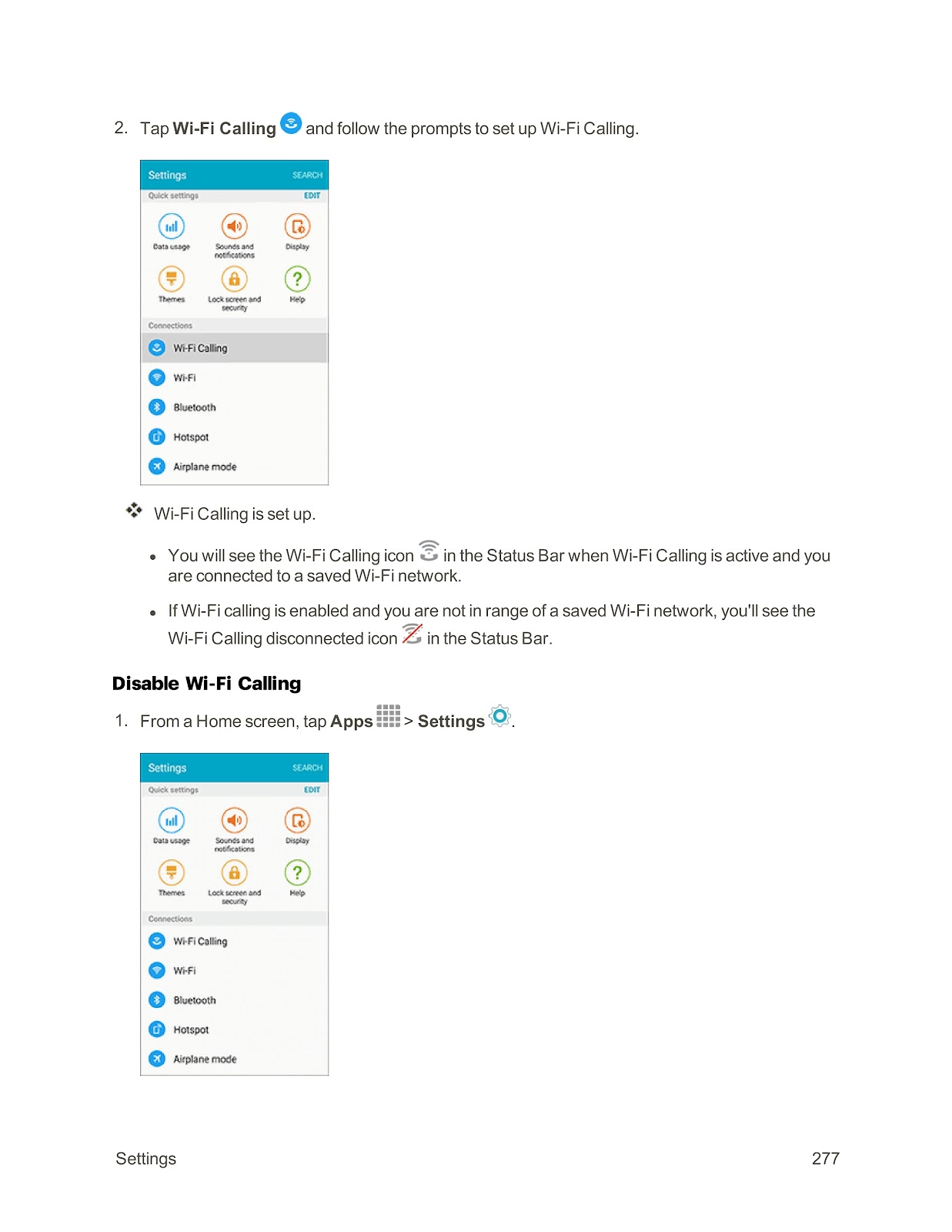
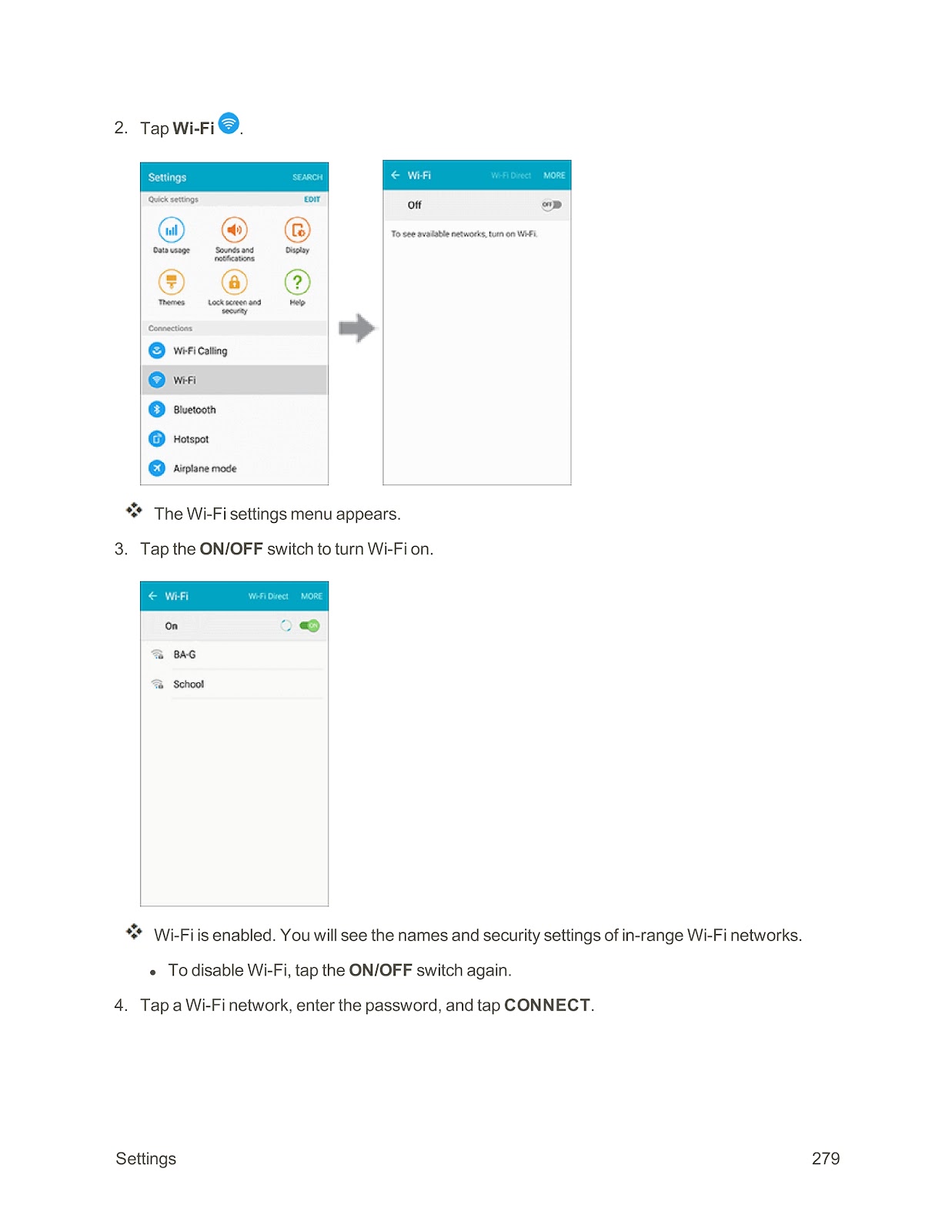
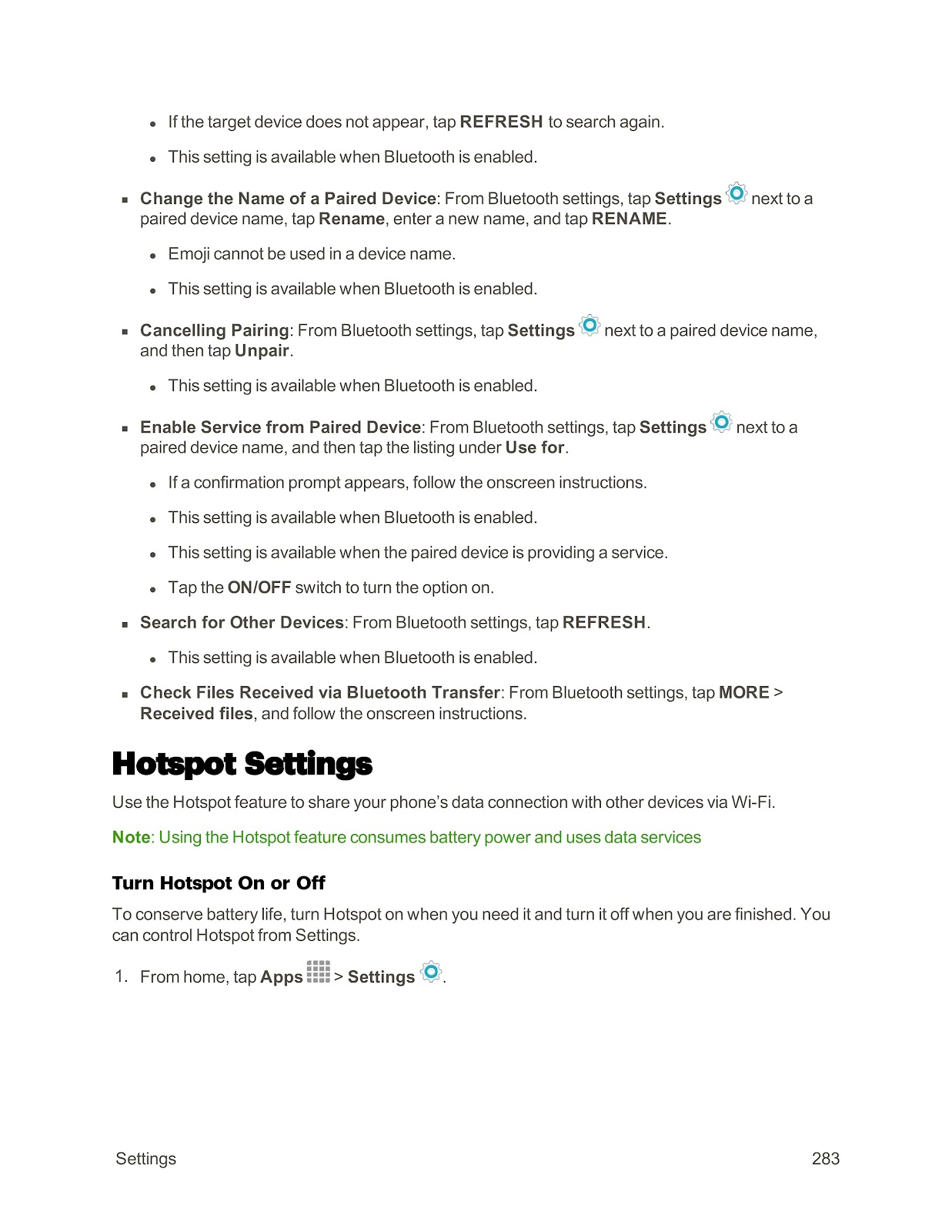
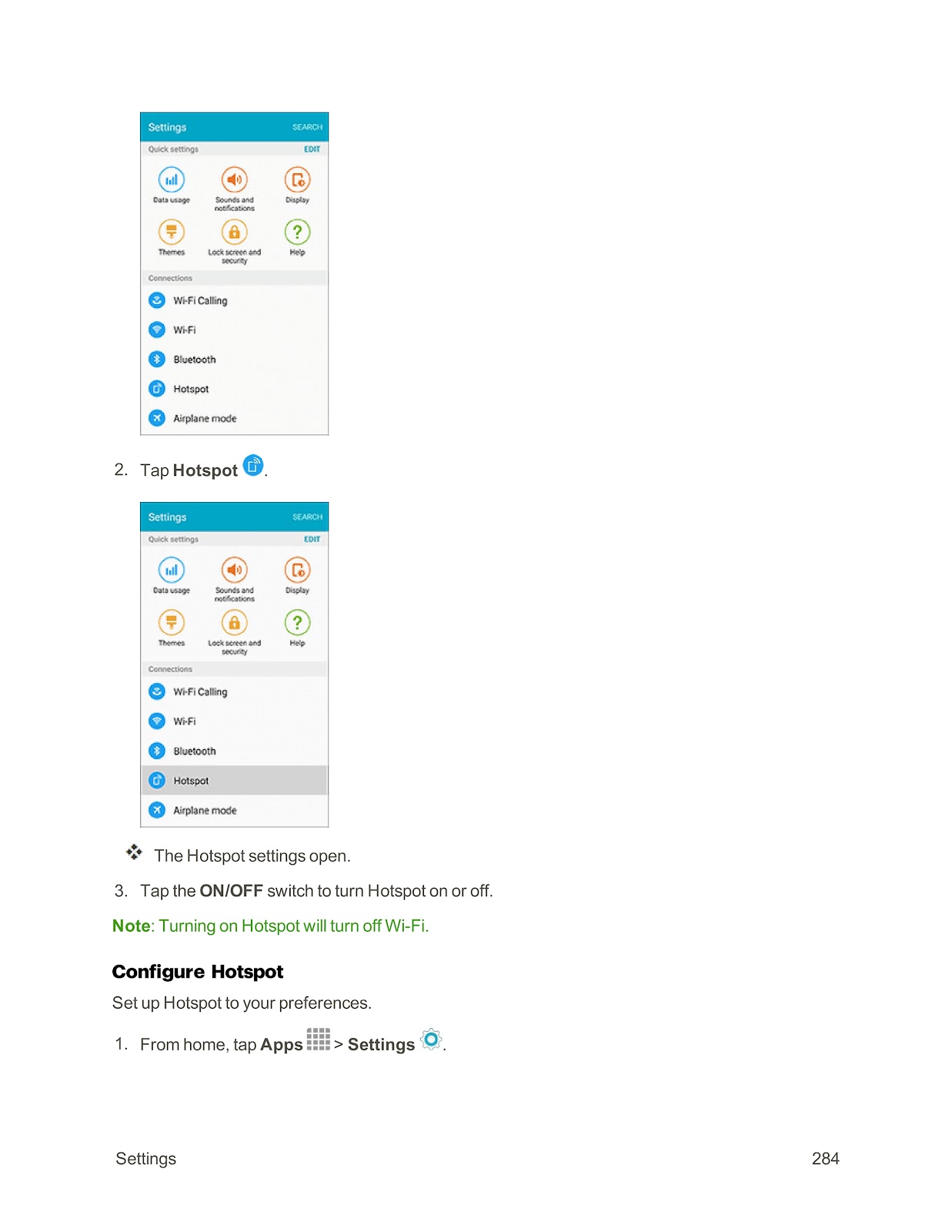
1. From home, tap Apps > Settings.
2. Tap Wi-Fi.
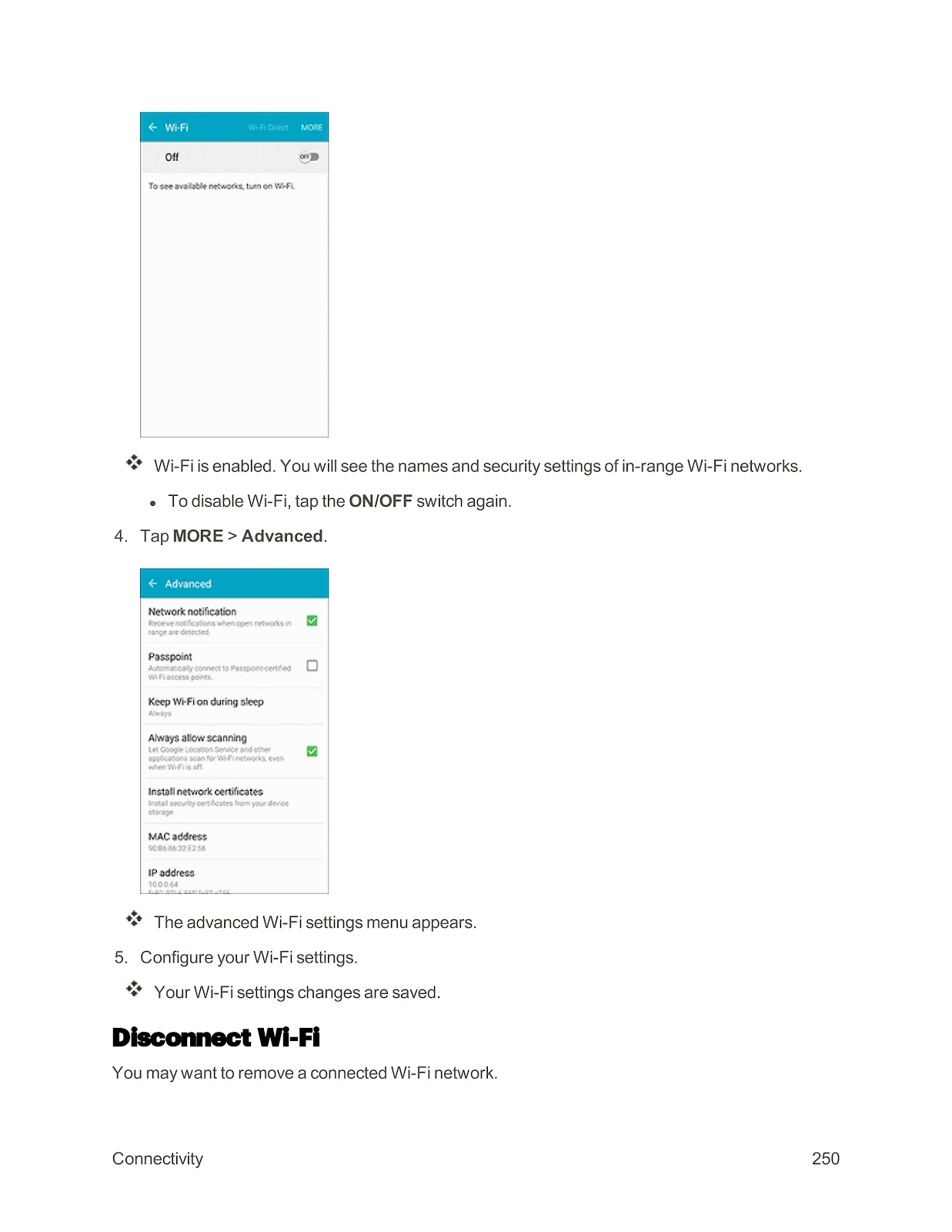
3. Tap the ON/OFF switch to turn Wi-Fi on.
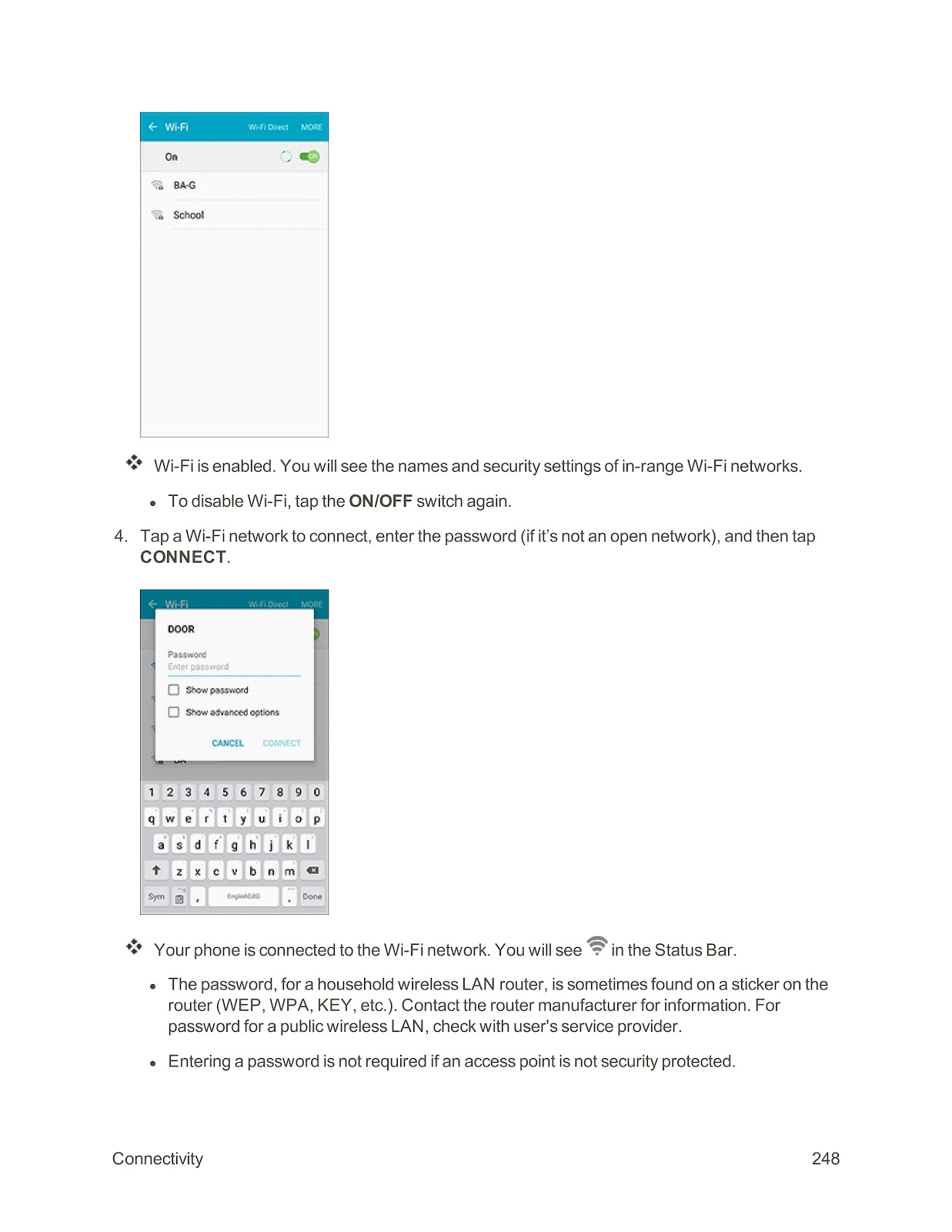
4. The phone will display a list of available Wi-Fi networks.
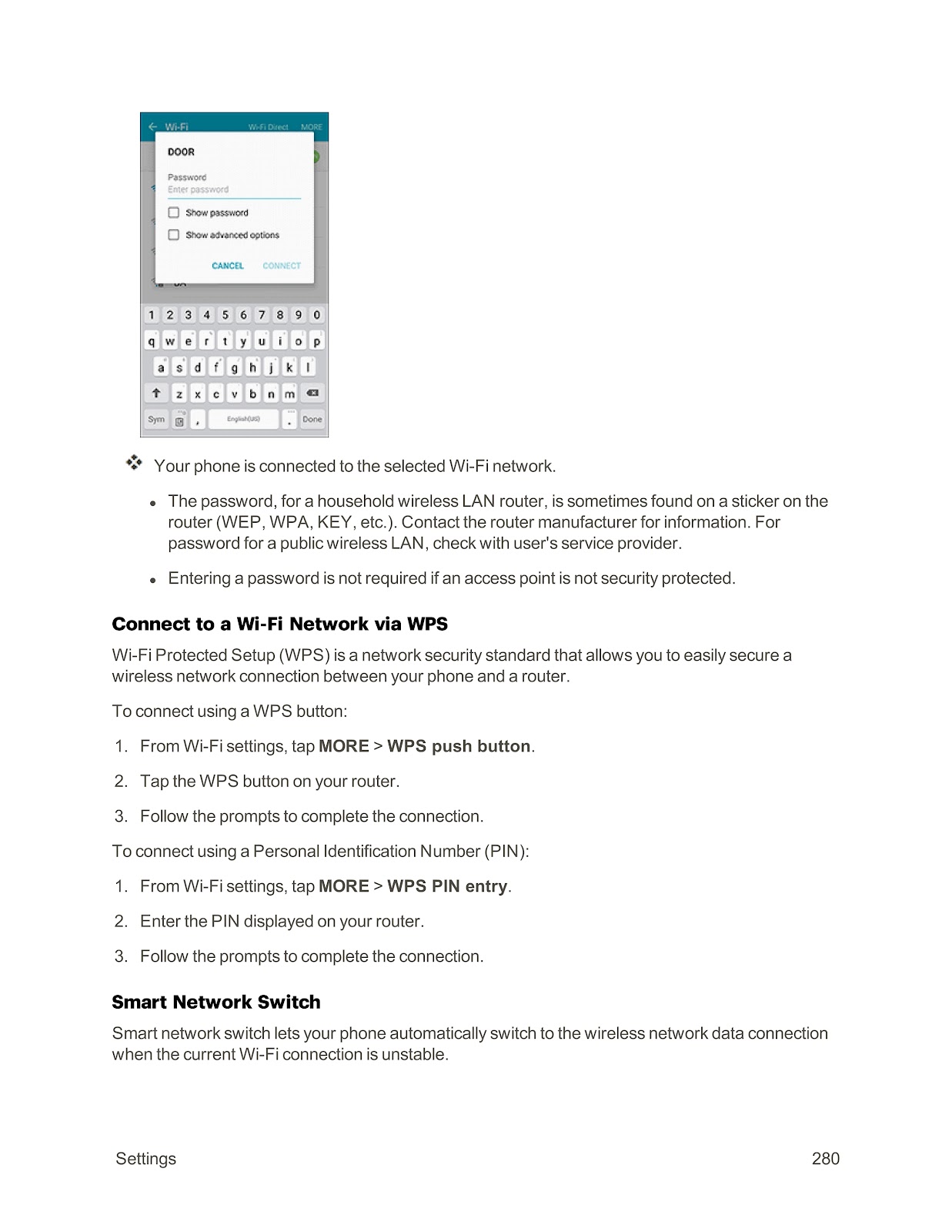
5. Tap a network to connect. If it’s a secure network, enter the password and tap CONNECT.
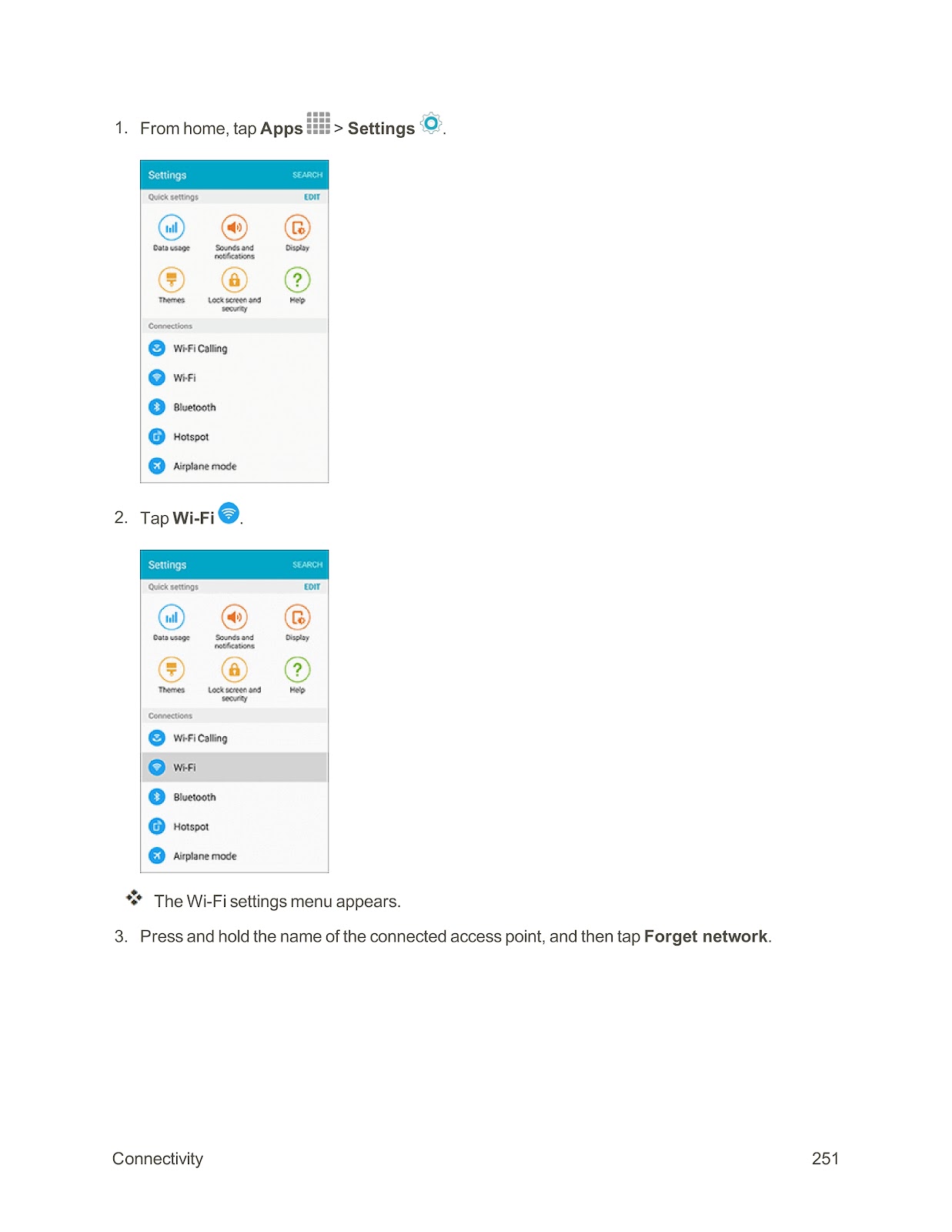
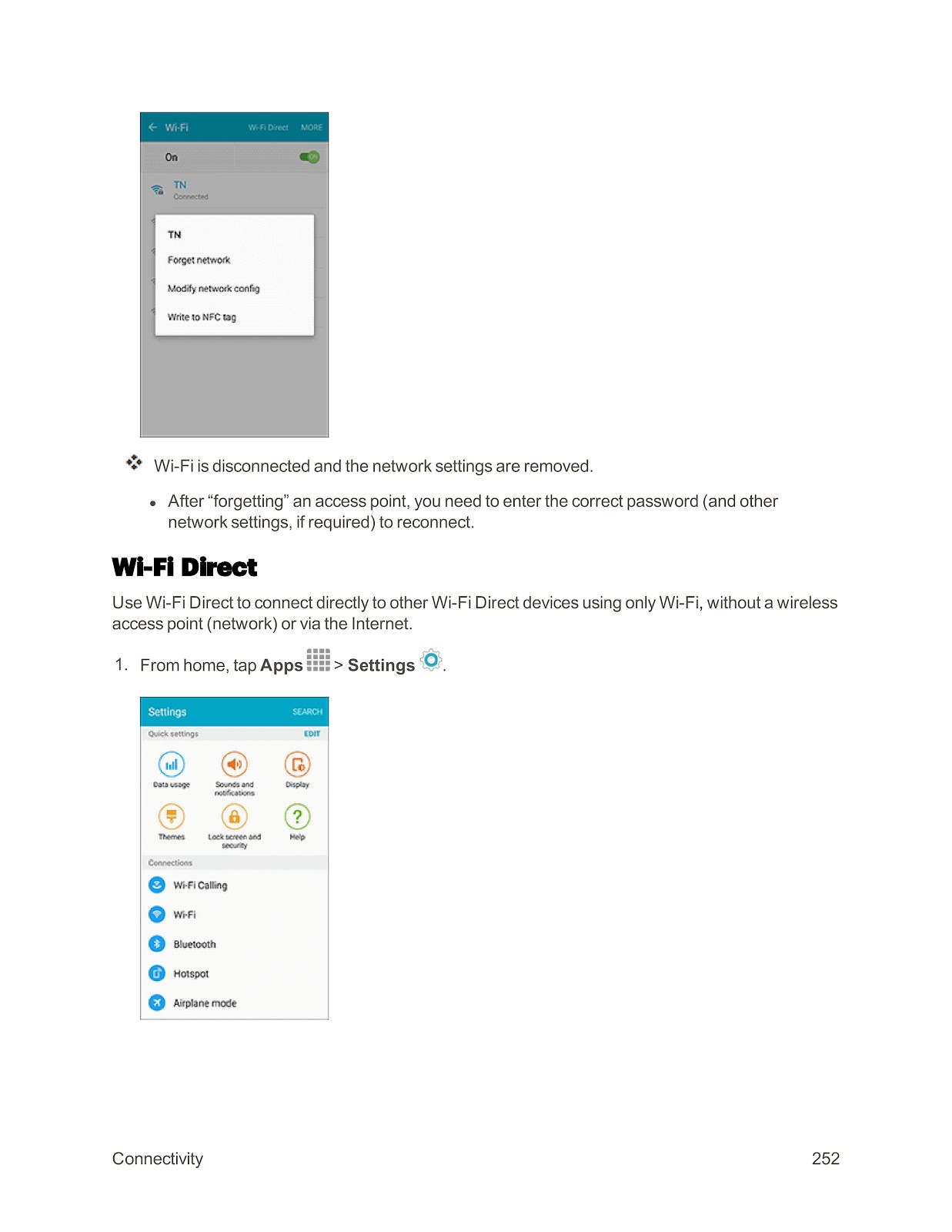
Disconnect from a Wi-Fi Network:
1. Go to the Wi-Fi settings menu.
2. Press and hold the name of the connected network.
3. Tap Forget network.
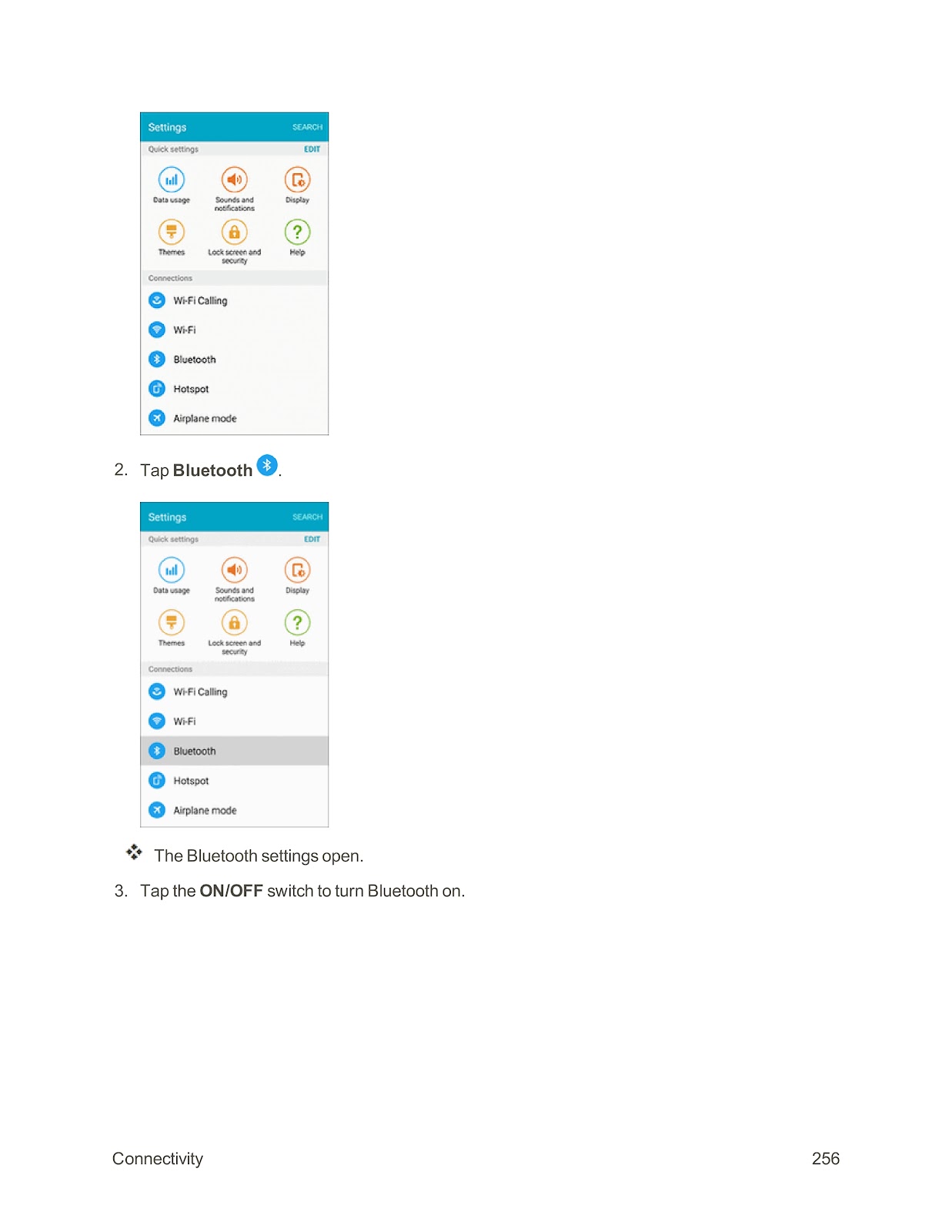
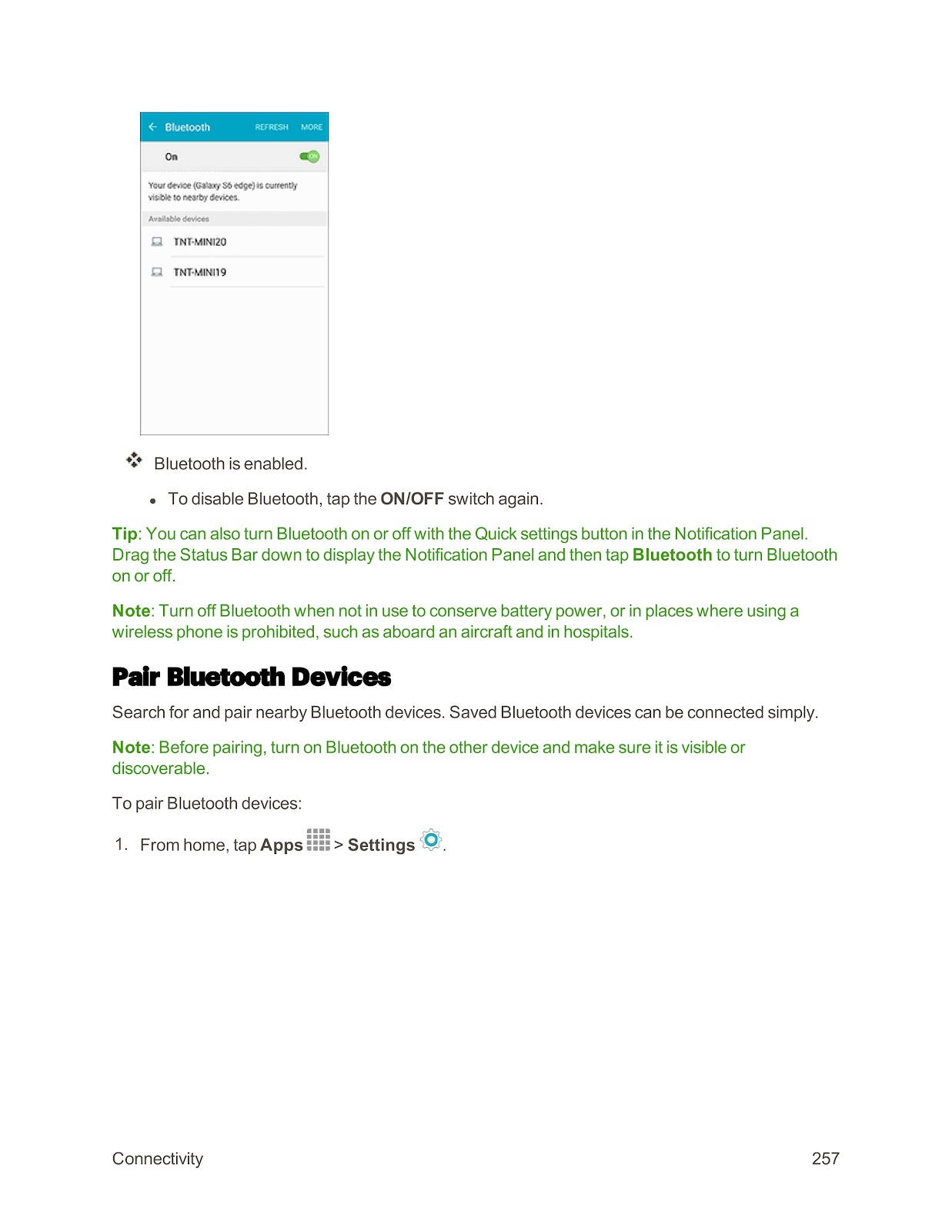
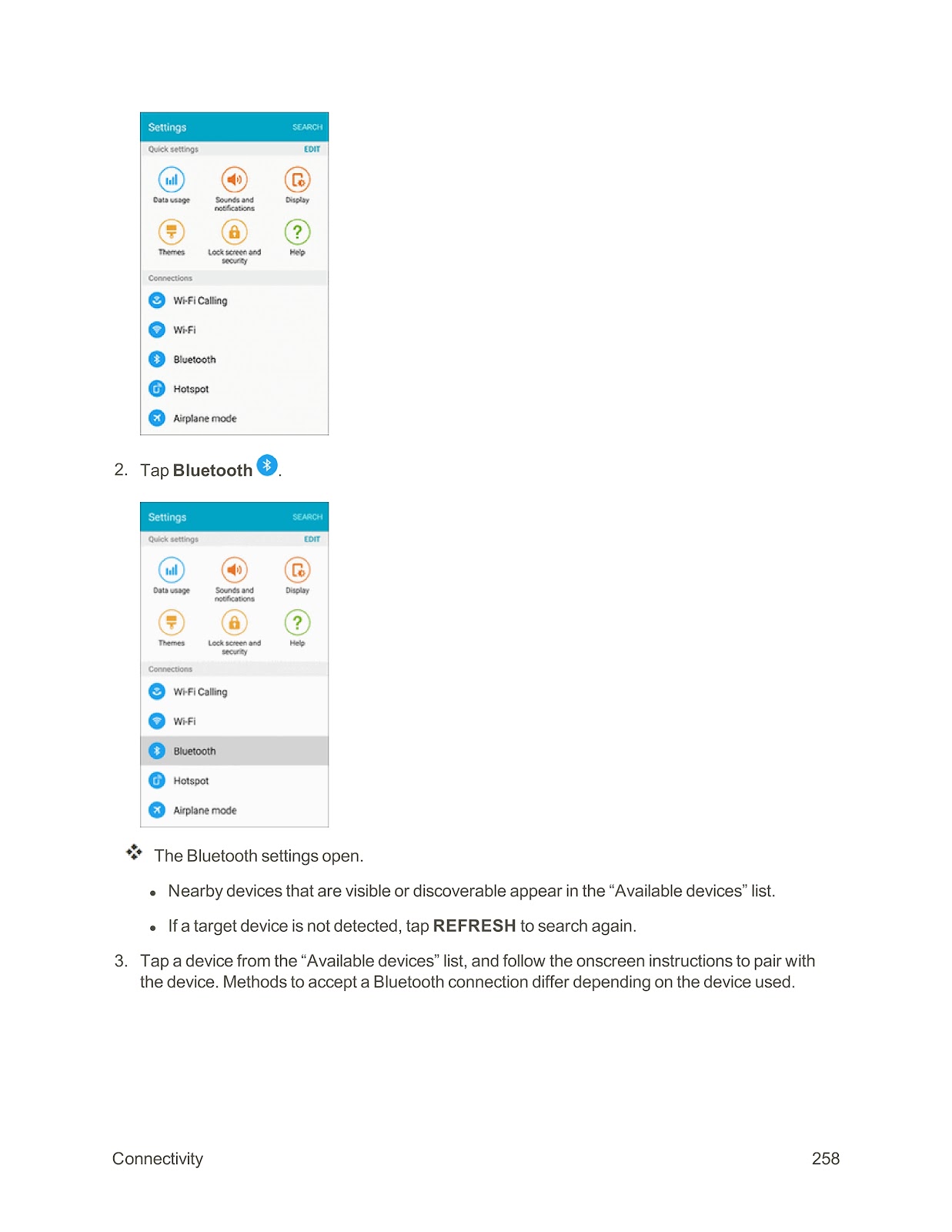
How do I enable and pair Bluetooth devices with my SPRINT SAMSUNG GALAXY S6 EDGE?
You can connect wirelessly to Bluetooth devices like headsets and car kits.
Enable Bluetooth:
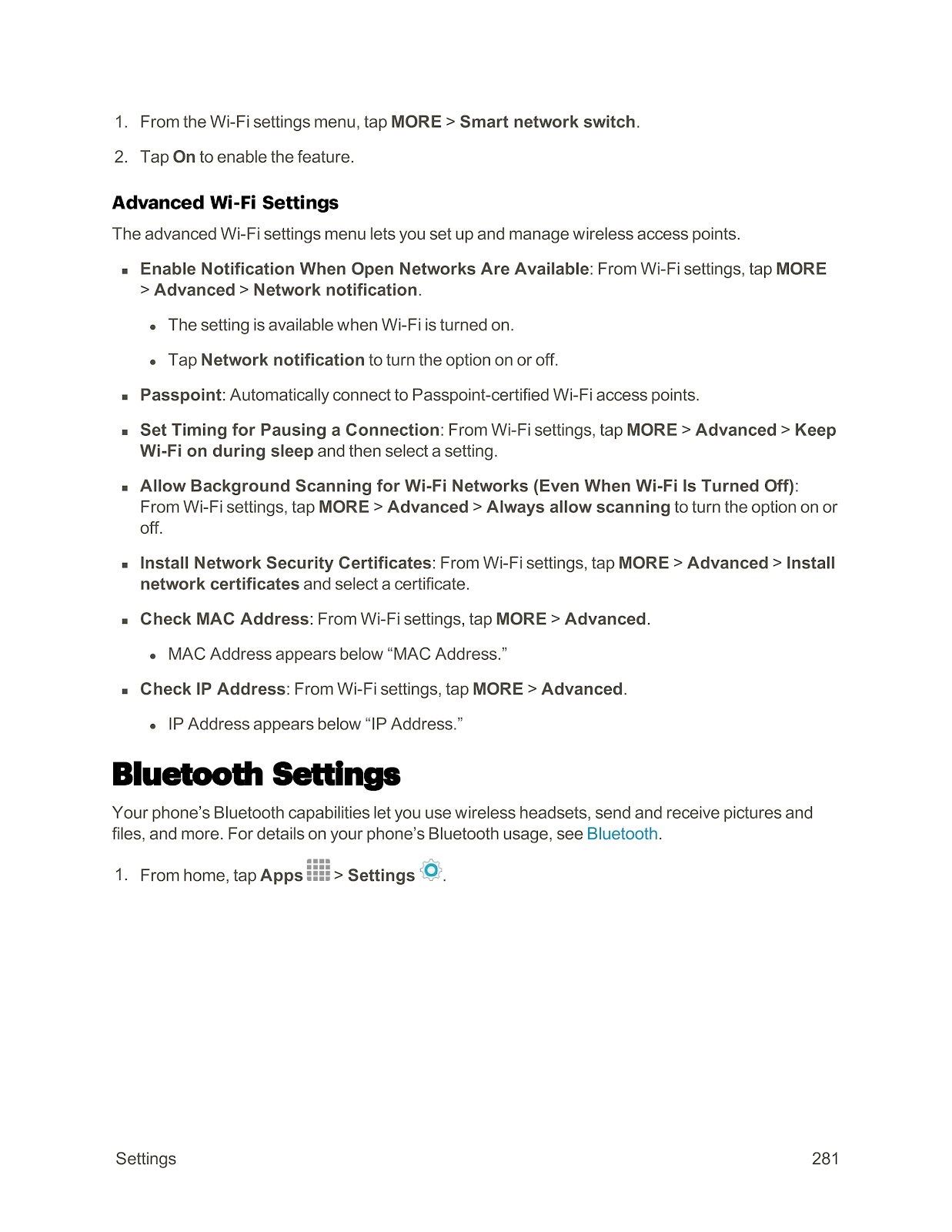
1. From home, tap Apps > Settings.
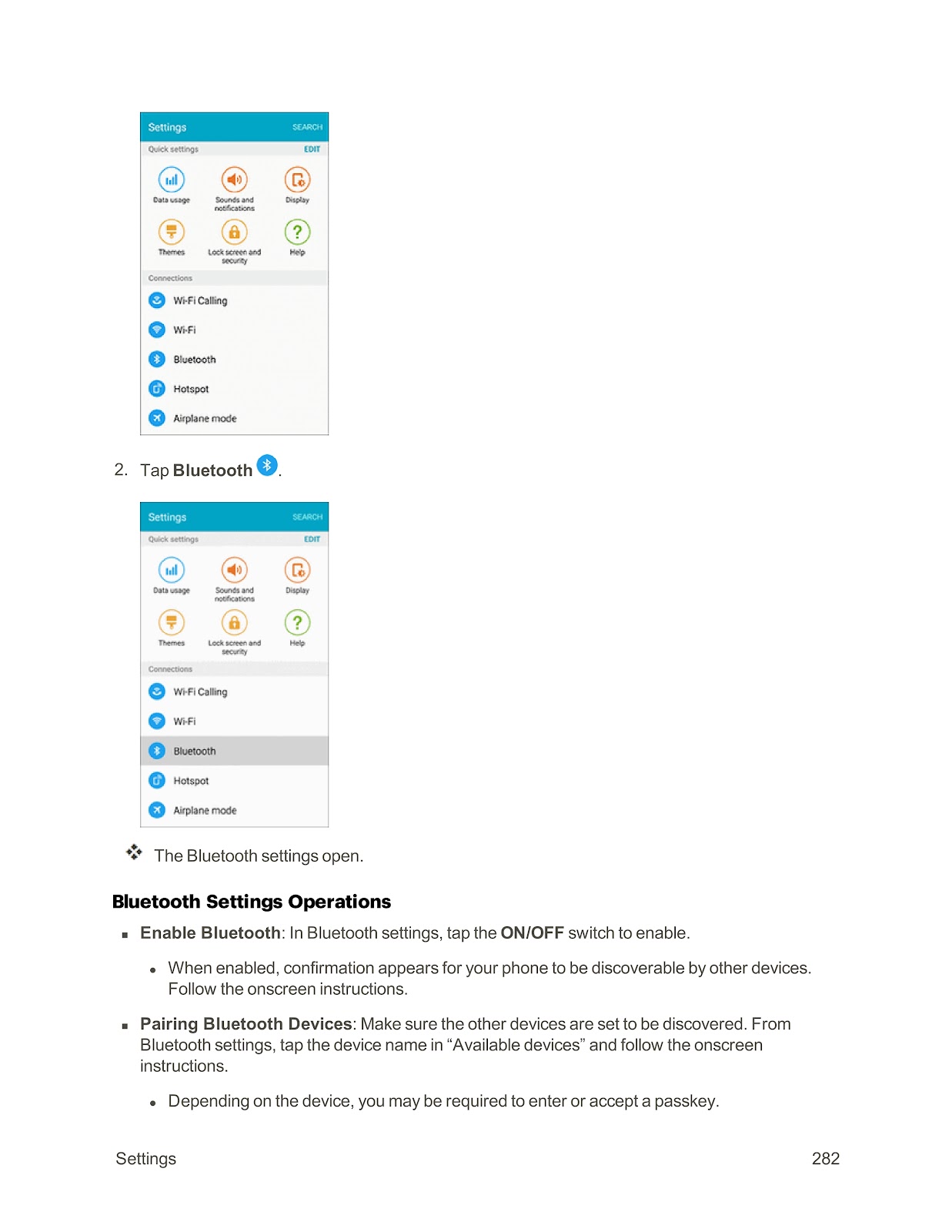
2. Tap Bluetooth.
3. Tap the ON/OFF switch to turn Bluetooth on.
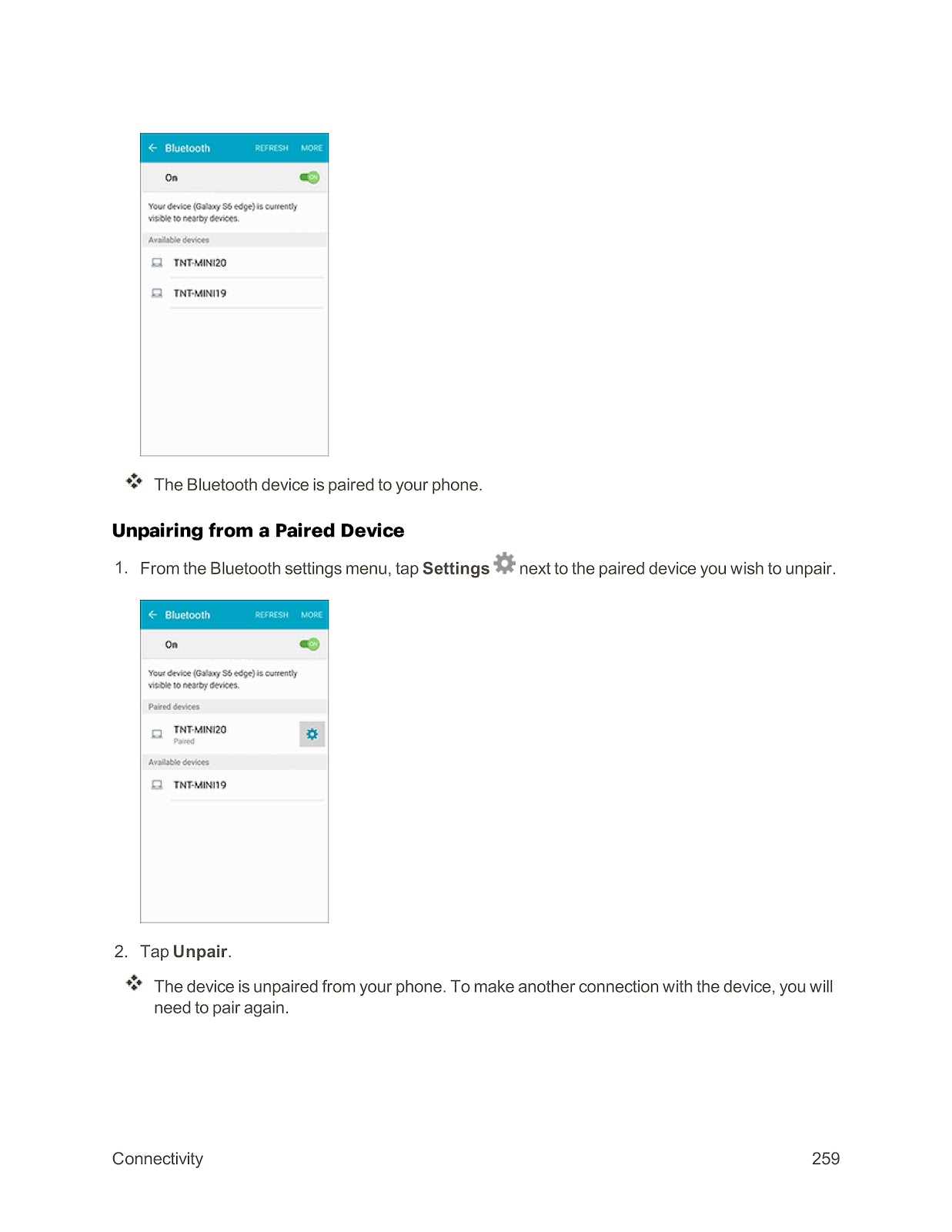
Pair Bluetooth Devices:
1. In the Bluetooth settings menu, your phone will scan for nearby devices.
2. Ensure the other device is in discoverable mode.
3. Tap a device from the “Available devices” list to begin pairing.
4. Follow the onscreen instructions. You may need to confirm a passkey on both devices.
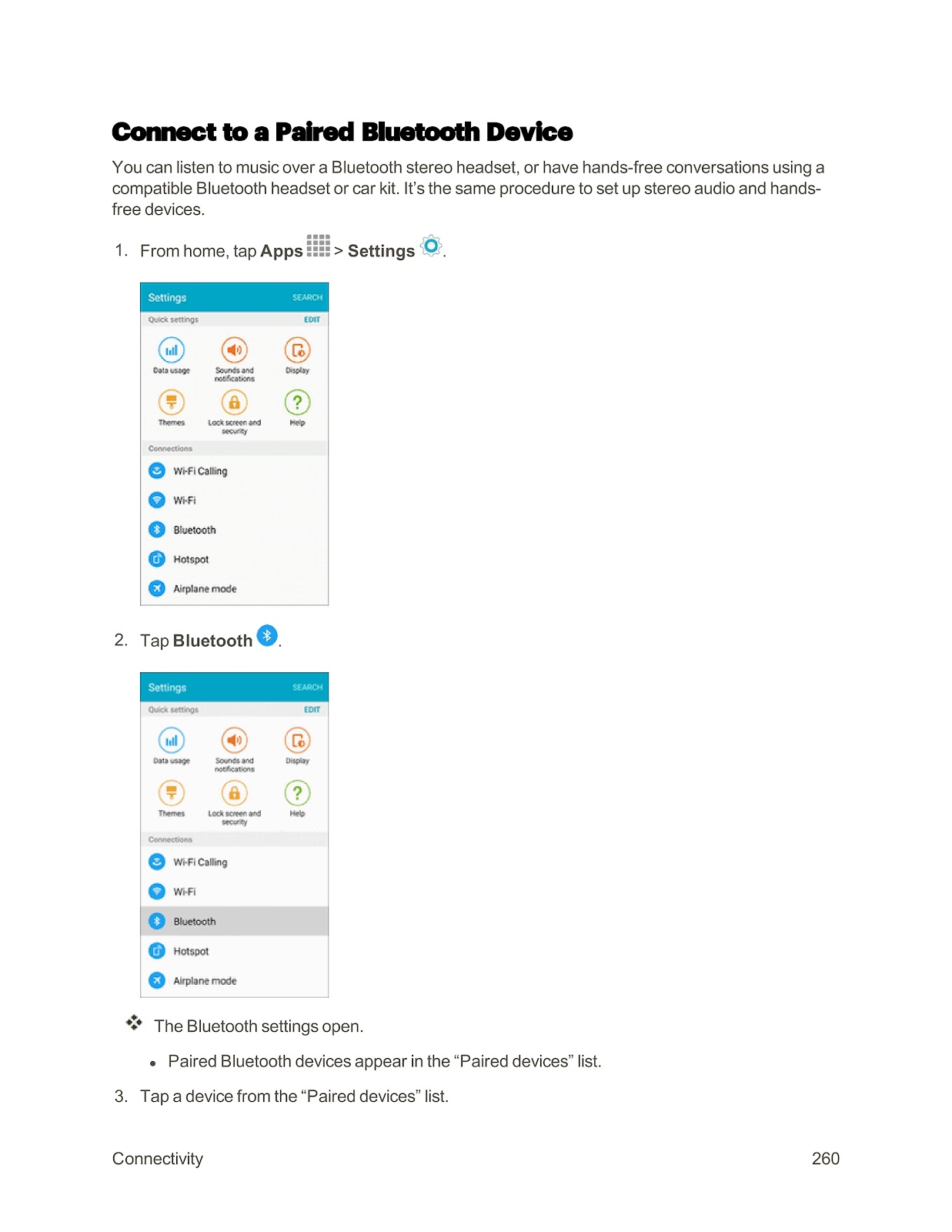
Once paired, you can tap the device name in the “Paired devices” list to connect to it.
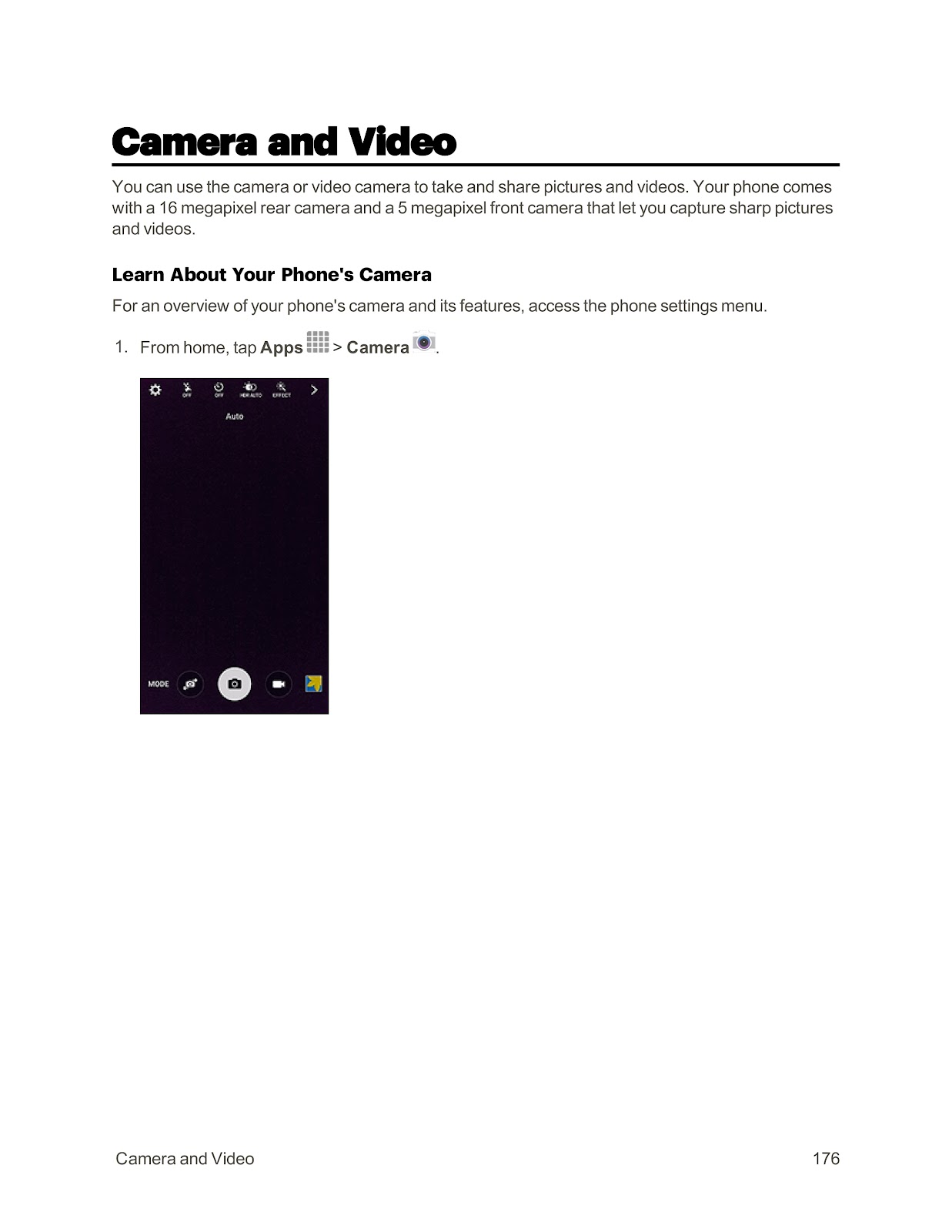
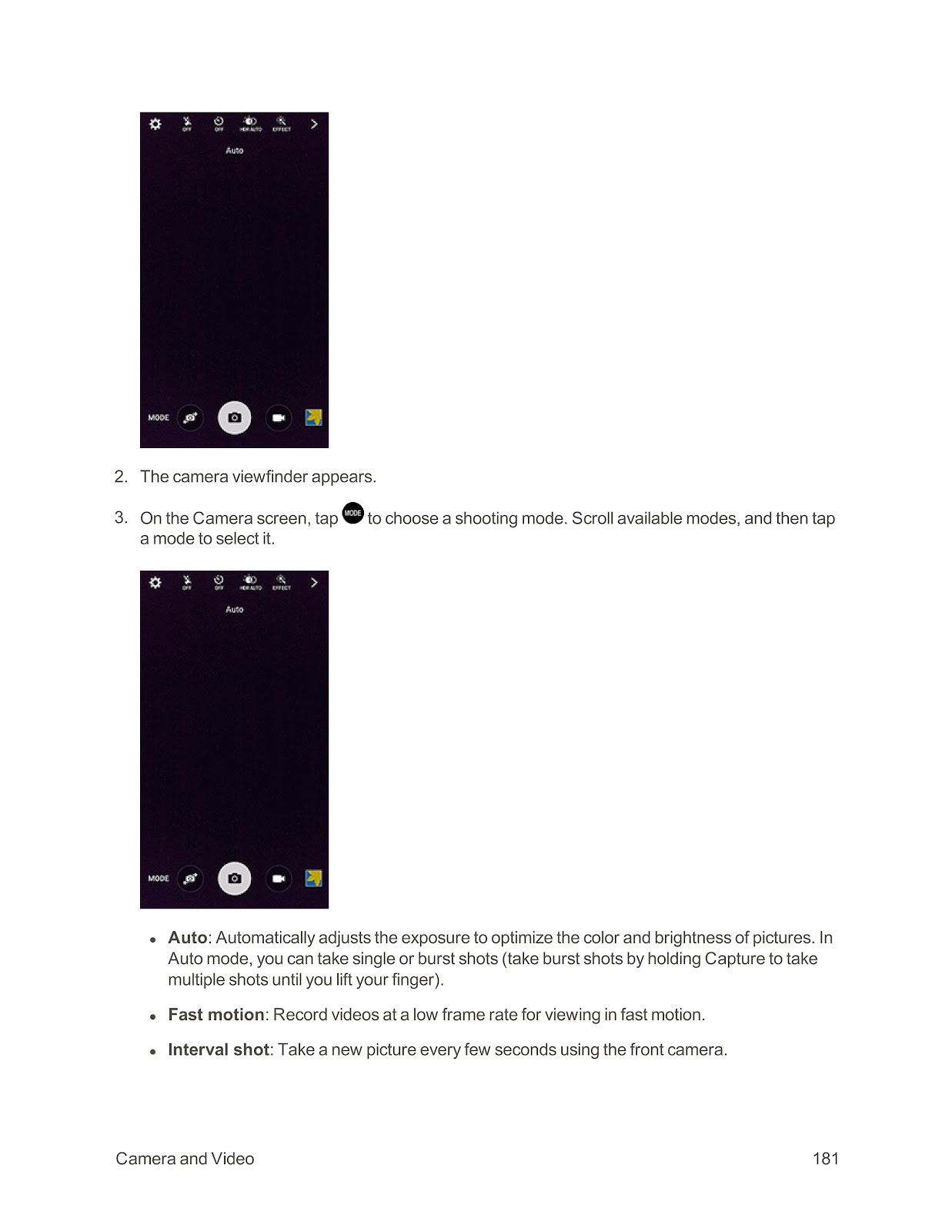
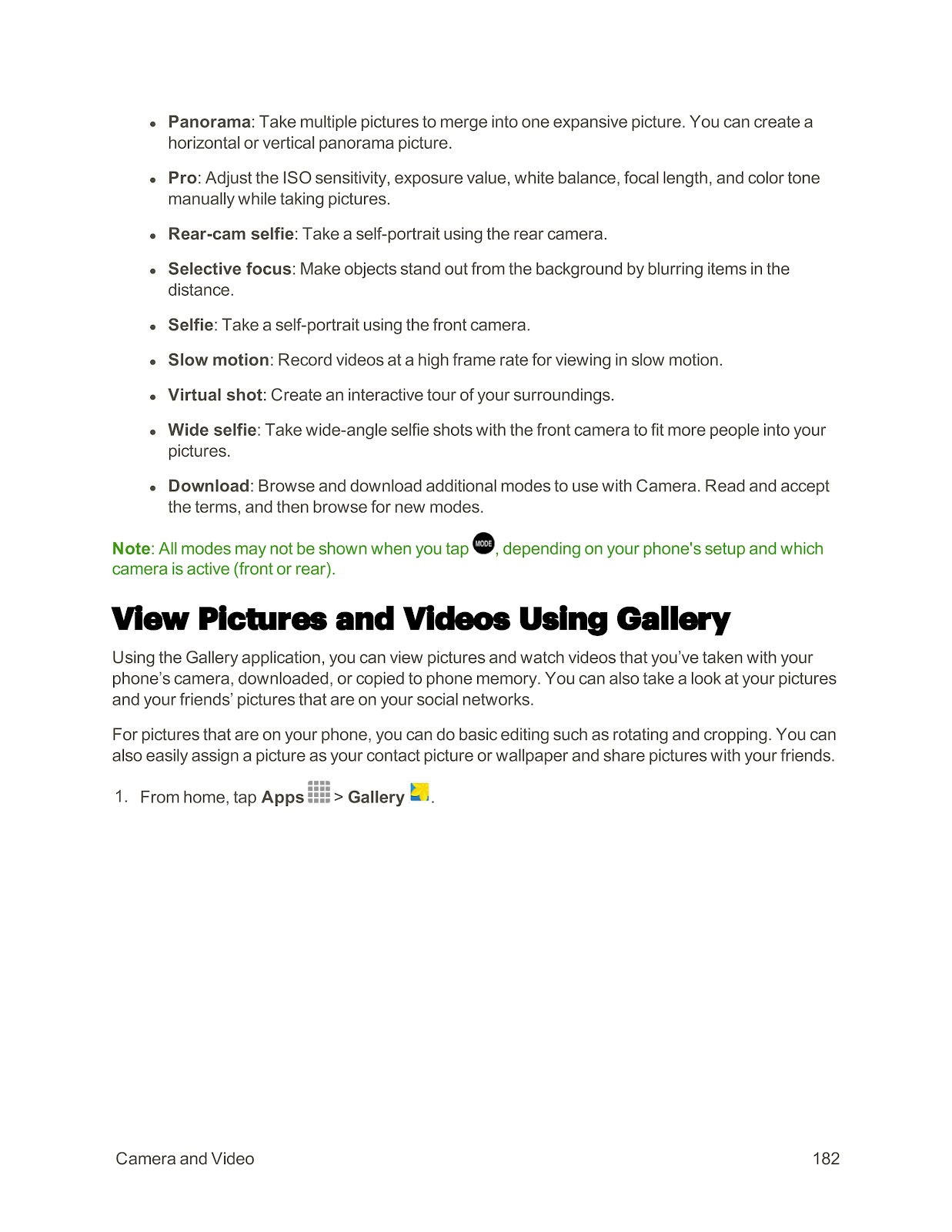
What are the different shooting modes available on the camera of the SPRINT SAMSUNG GALAXY S6 EDGE?
Your SPRINT SAMSUNG GALAXY S6 EDGE offers several shooting modes to enhance your photos and videos:
Auto: Automatically adjusts exposure to optimize color and brightness.
Pro: Manually adjust ISO sensitivity, exposure value, white balance, and more.
Selective focus: Blurs the background to make objects stand out.
Panorama: Merge multiple pictures into one wide horizontal or vertical shot.
Virtual shot: Create an interactive tour of your surroundings.
Slow motion: Record videos at a high frame rate for slow-motion playback.
Fast motion: Record videos at a low frame rate for fast-motion playback.
Rear-cam selfie: Take a self-portrait using the higher-resolution rear camera.
Selfie: Take a self-portrait using the front camera.
Wide selfie: Take wide-angle selfie shots to fit more people in the frame.
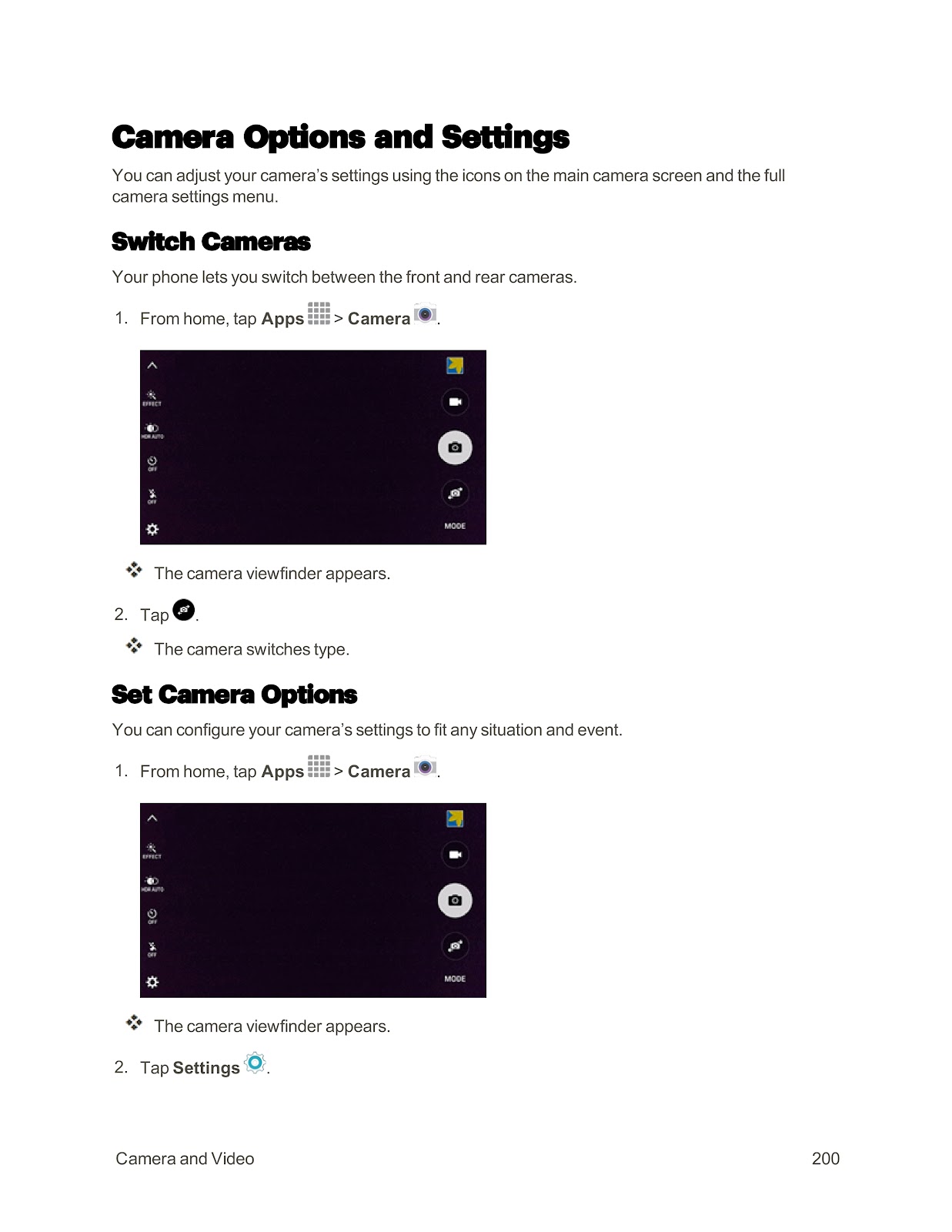
To access shooting modes, open the Camera app and tap MODE.
How do I use the Power Saving Modes on my SPRINT SAMSUNG GALAXY S6 EDGE?
Your phone has two modes to help conserve battery life.
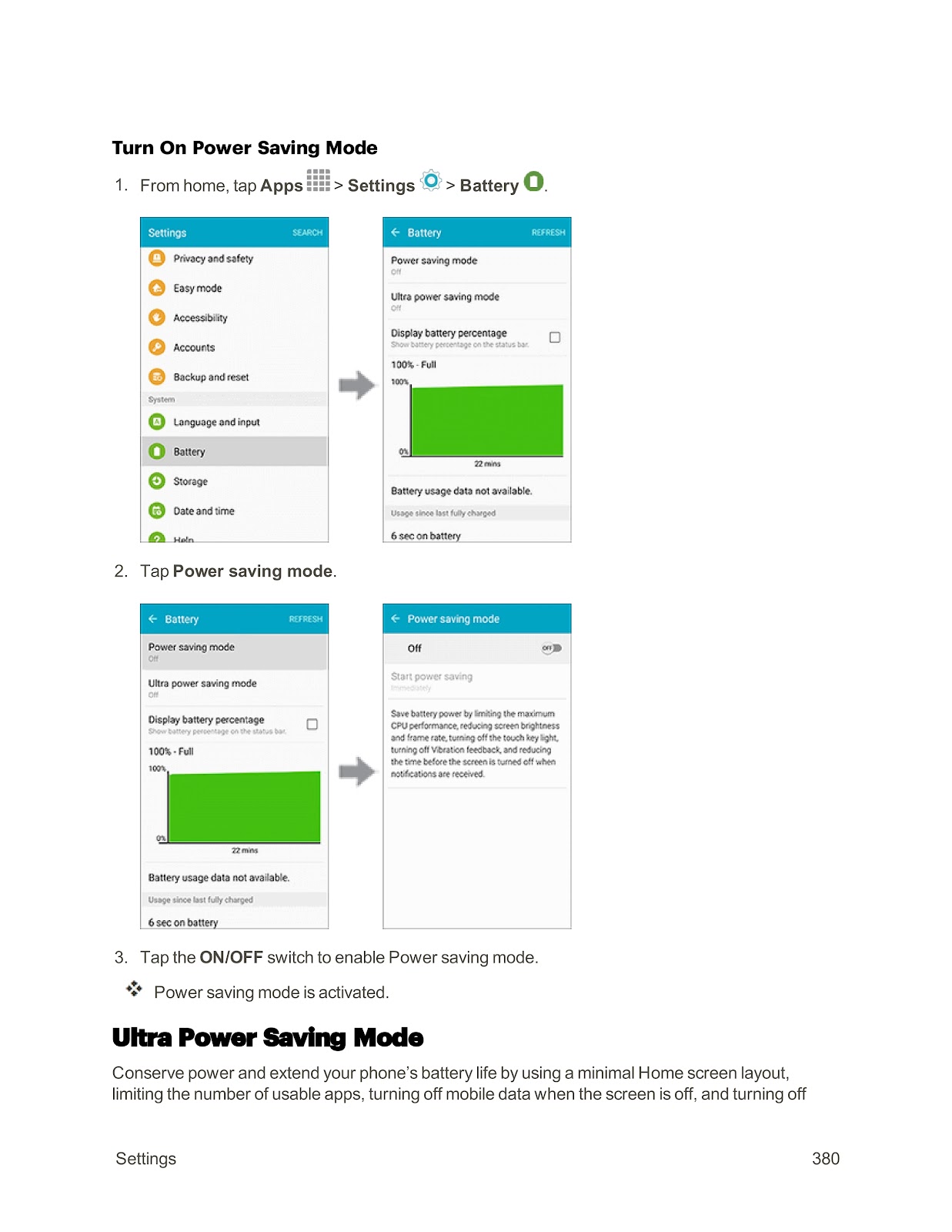
Power Saving Mode:
This mode reduces or turns off certain features to decrease battery consumption.
1. From home, tap Apps > Settings > Battery.
2. Tap Power saving mode.
3. Tap the ON/OFF switch to enable it.
Ultra Power Saving Mode:
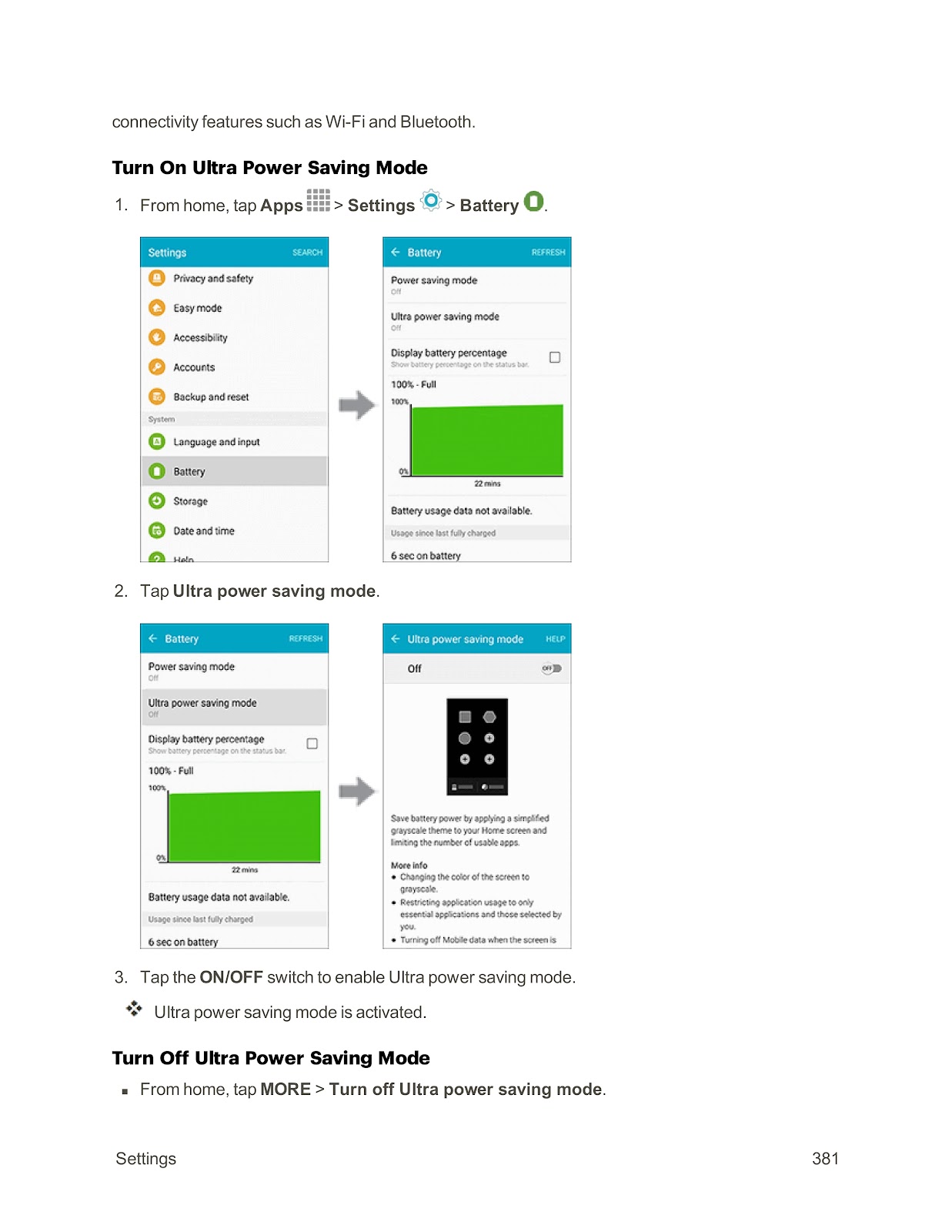
This mode significantly extends battery life by using a minimal Home screen layout, limiting usable apps, and turning off mobile data when the screen is off.
1. From home, tap Apps > Settings > Battery.
2. Tap Ultra power saving mode.
3. Tap the ON/OFF switch to enable it.
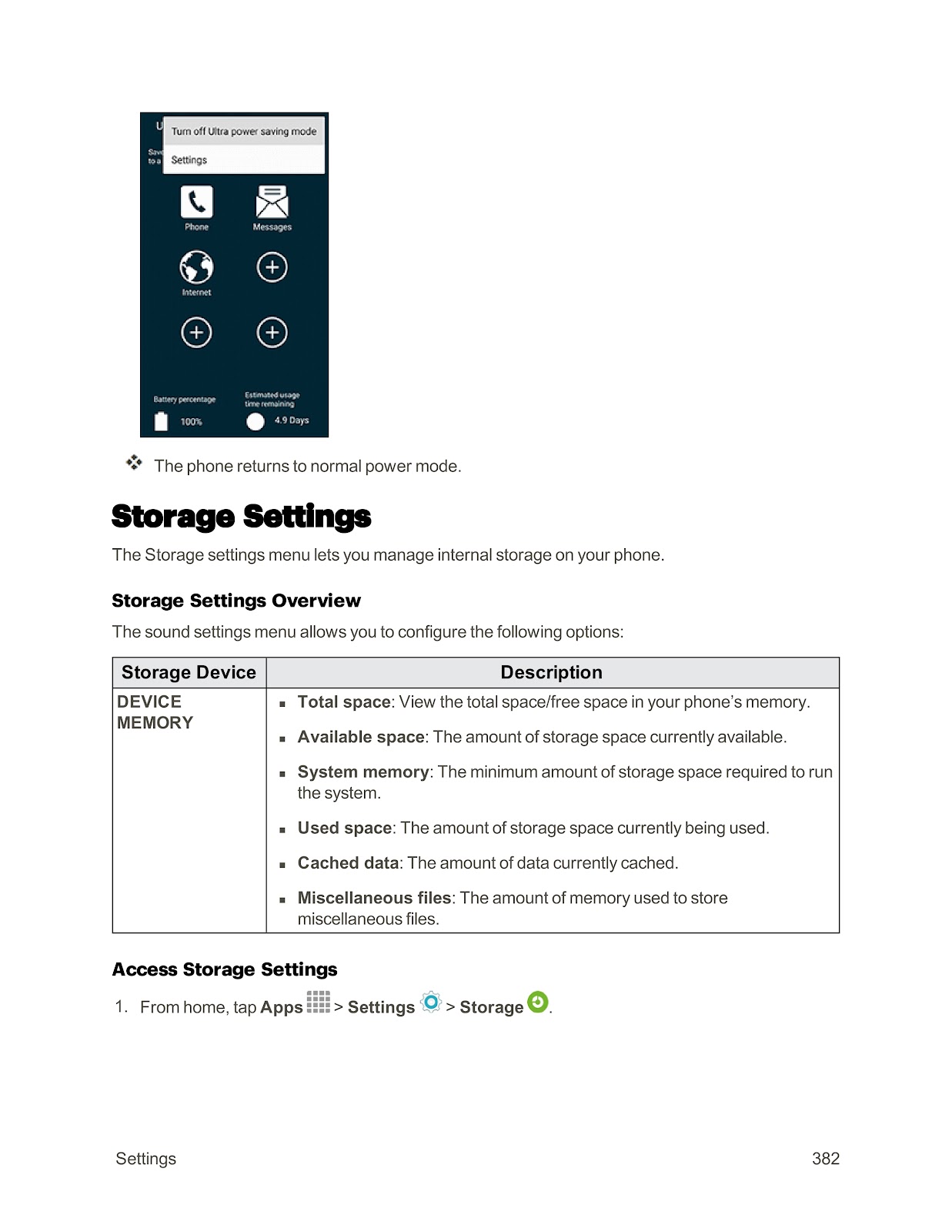
To turn it off, from the Ultra power saving mode home screen, tap MORE > Turn off Ultra power saving mode.
How do I perform a factory data reset on my SPRINT SAMSUNG GALAXY S6 EDGE?
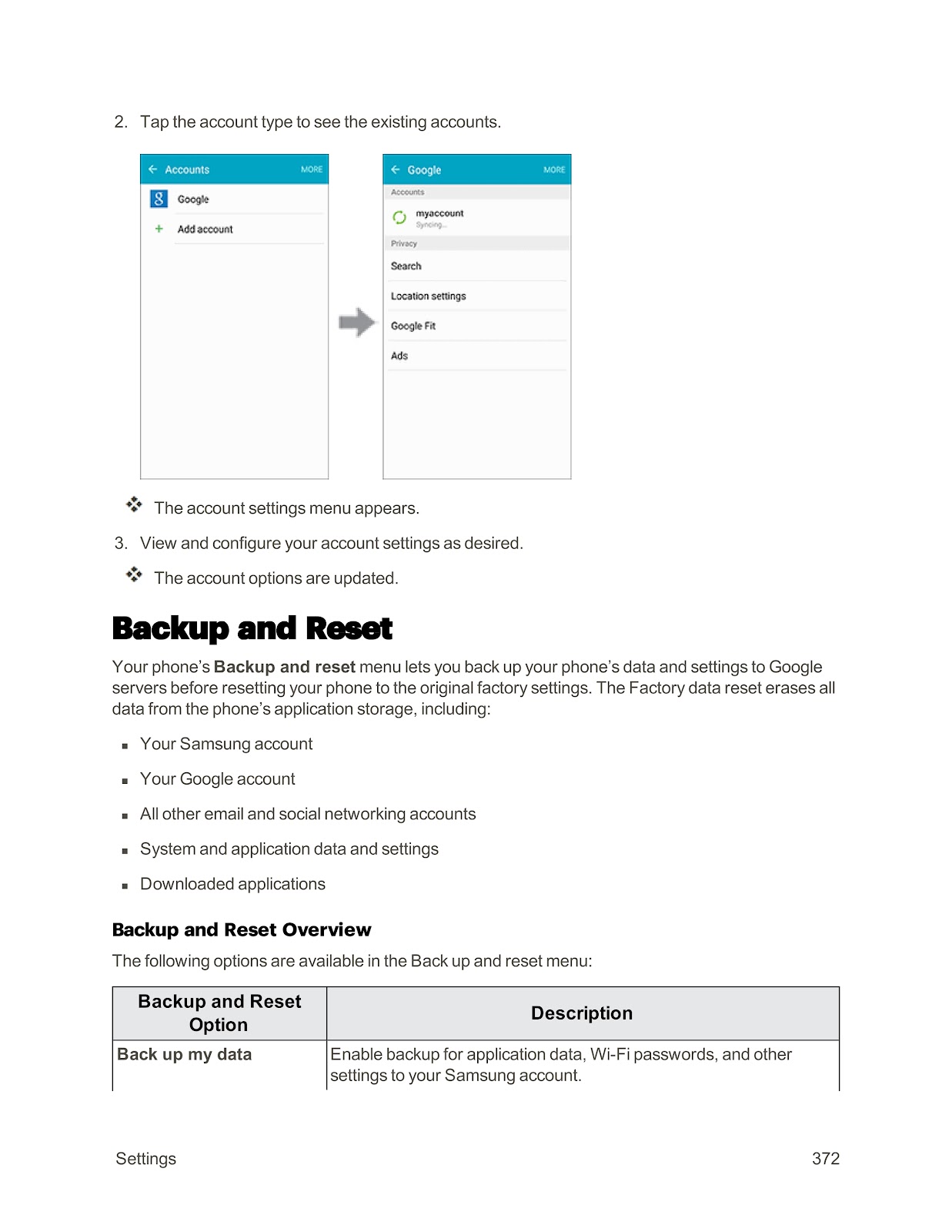
A factory data reset erases all data from your phone’s application storage and returns it to its original factory settings. It is recommended that you back up all important data before performing this action, as erased information cannot be restored.
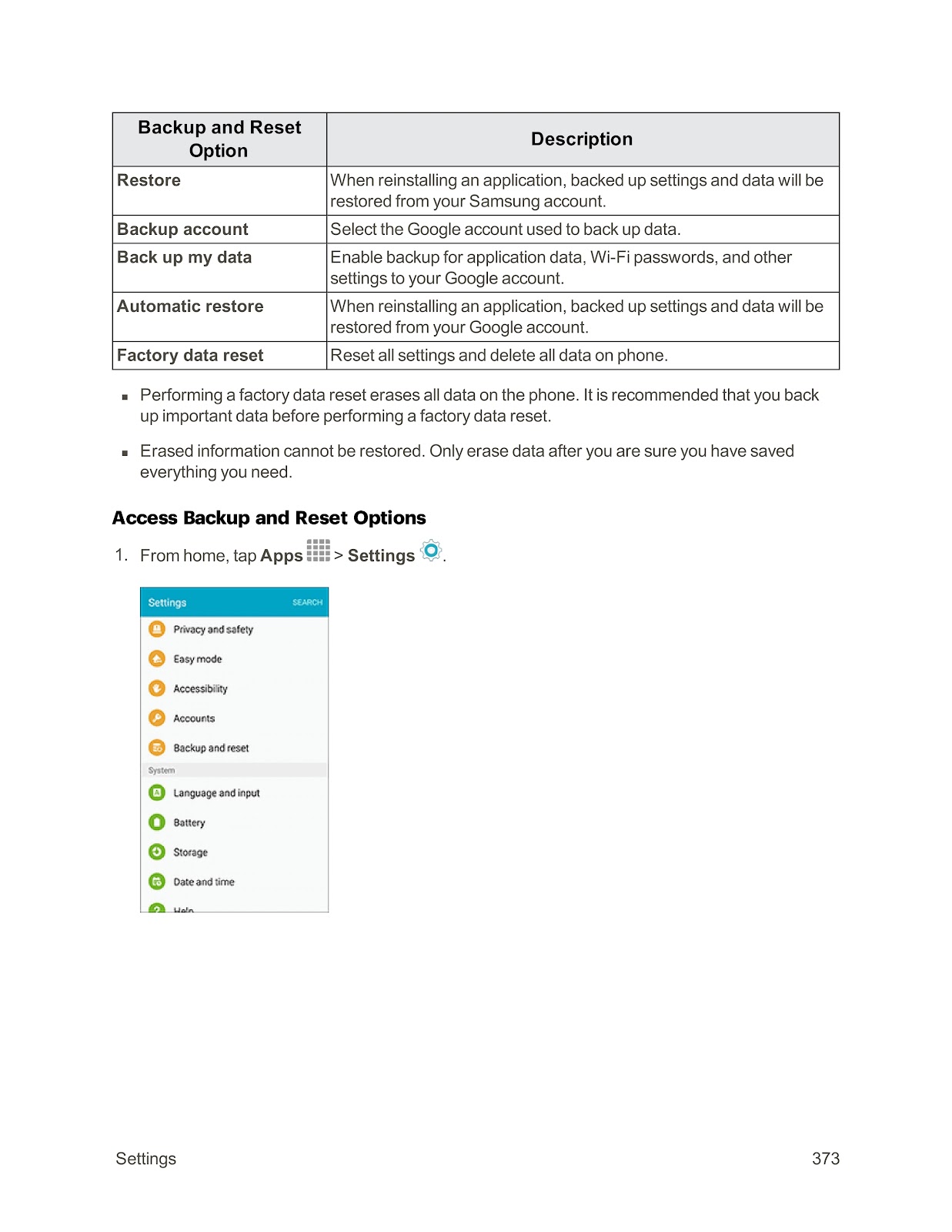
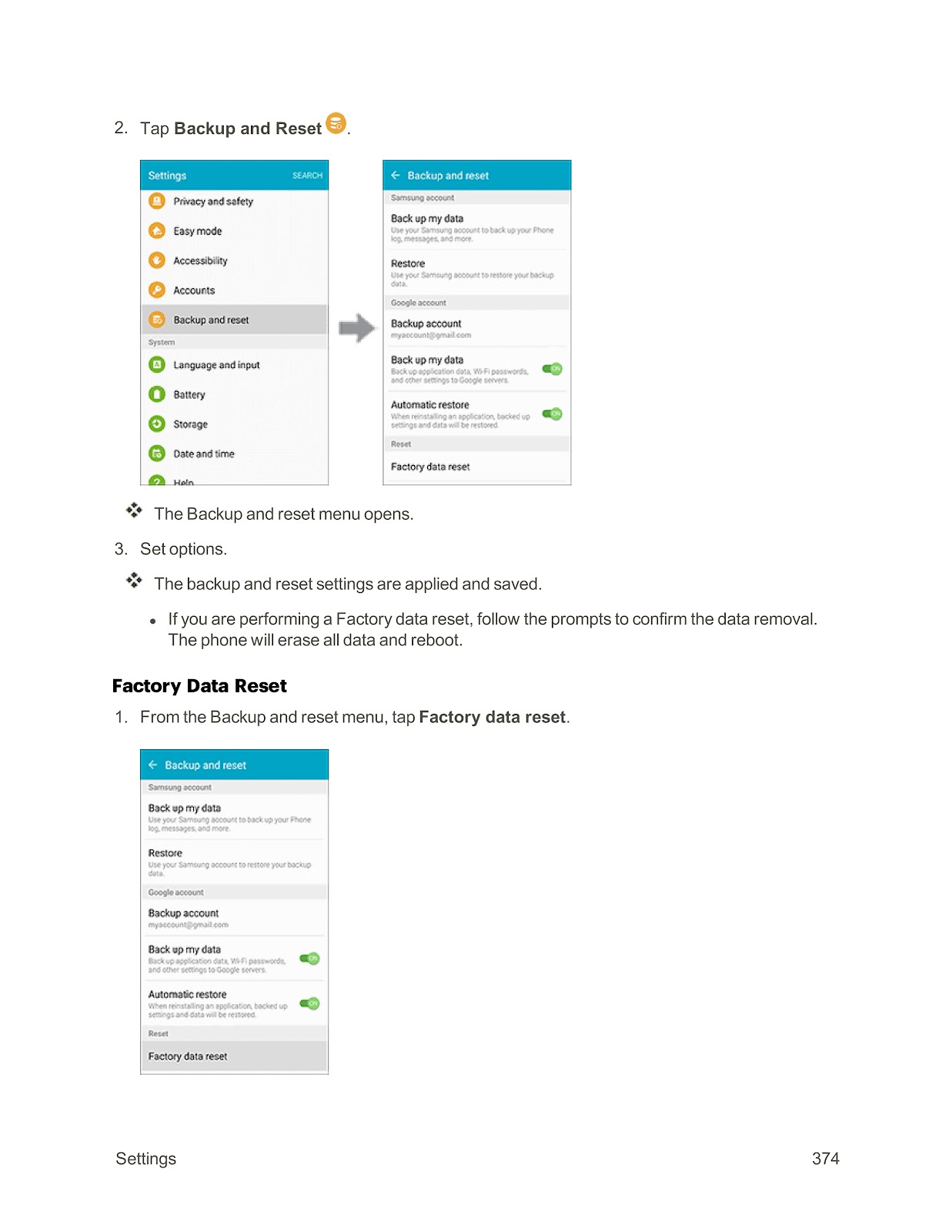
1. From home, tap Apps > Settings.
2. Tap Backup and reset.
3. Tap Factory data reset.
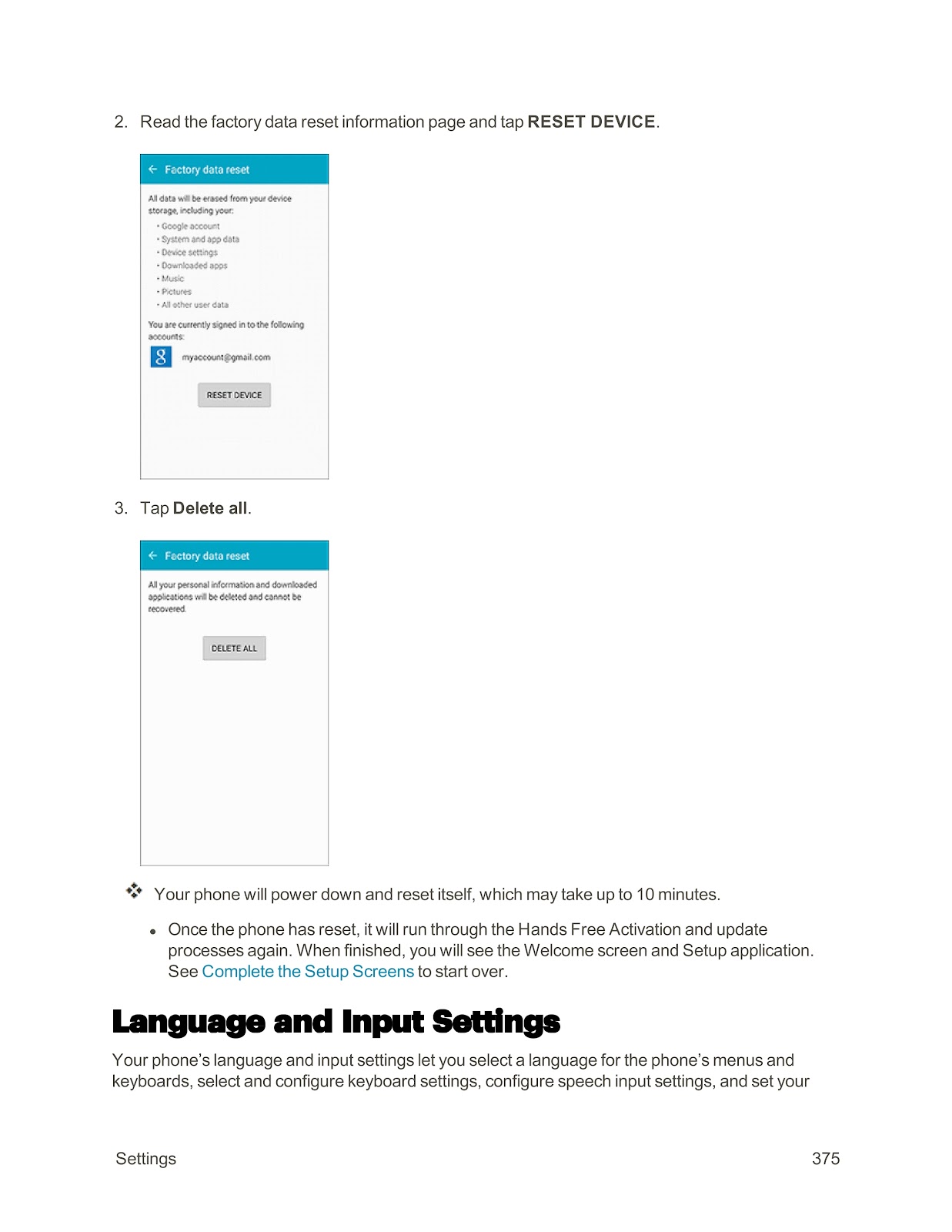
4. Read the information on the screen and tap RESET DEVICE.
5. Tap Delete all.
Your phone will power down and reset itself, which may take up to 10 minutes. When finished, it will run through the initial activation and setup screens again.
How to use the PDF below:
* Touchscreen: Swipe up/down with-in the PDF to scroll and pinch or spread with two fingers to zoom.
* Mouse: While your mouse is hovering over the PDF, use the mouse wheel to scroll and click on the – / + buttons at the bottom of the PDF to zoom.


CLICK HERE TO DOWNLOAD SPRINT SAMSUNG GALAXY S6 EDGE (01) PDF DOCUMENT