
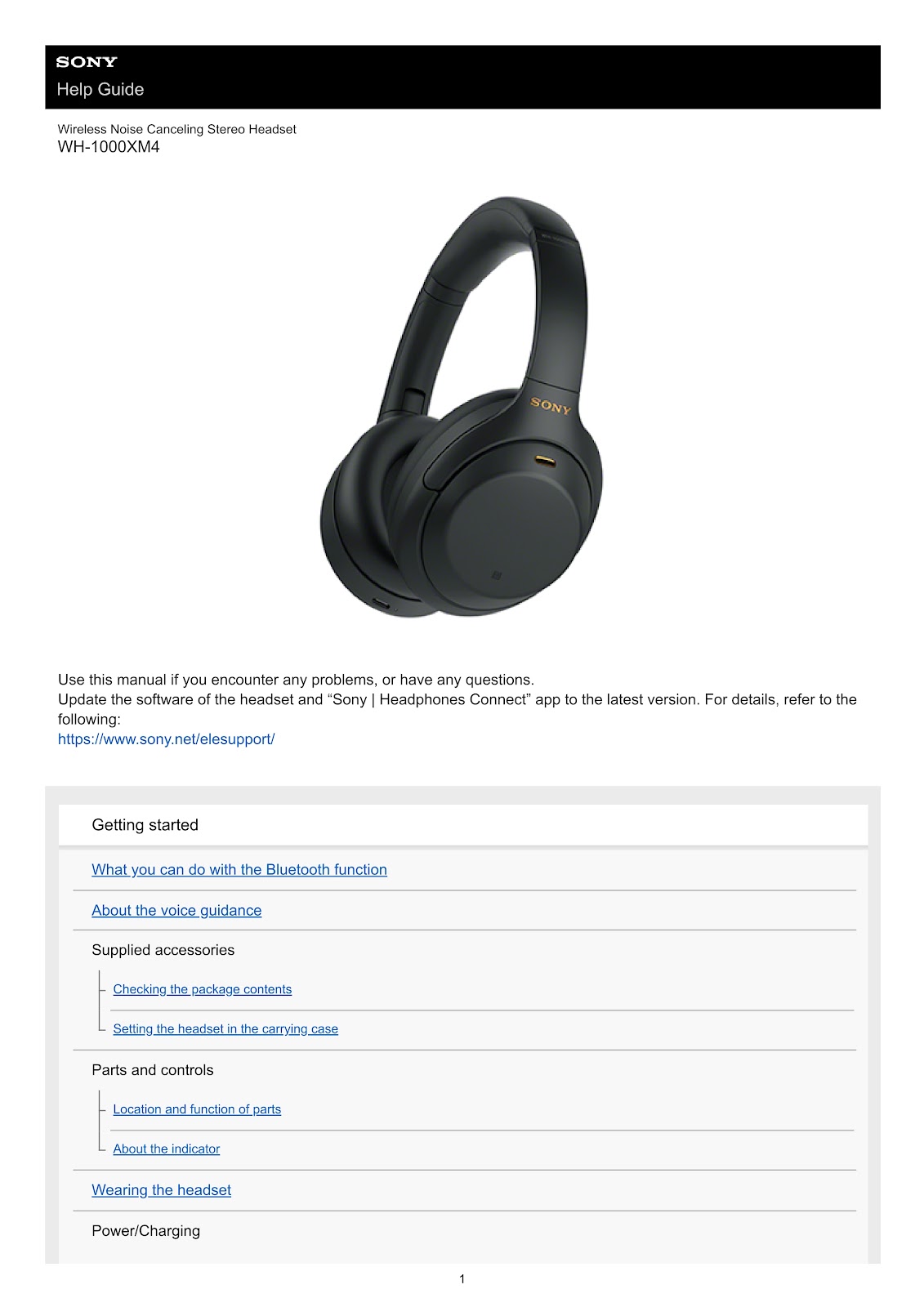
Free English SONY WH-1000XM4 (01) PDF document. Download the PDF, use the online viewer, or browse the FAQs for easy troubleshooting.
CLICK HERE TO DOWNLOAD SONY WH-1000XM4 (01) PDF DOCUMENT
If this is not the document you want for this product, click here to see if we have any other documents for this product.
What can I do with the Bluetooth function on the SONY WH-1000XM4?
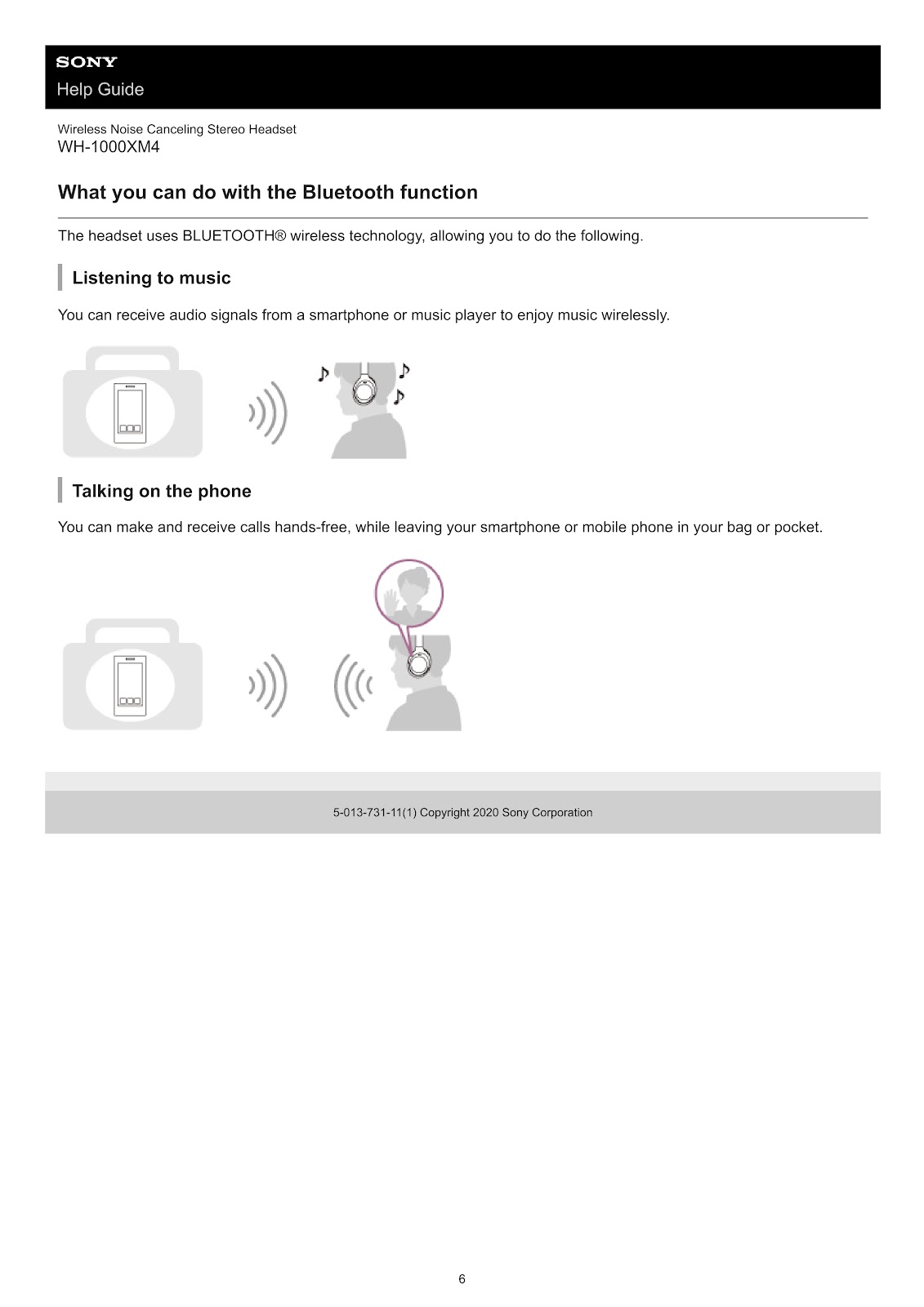
The SONY WH-1000XM4 headset uses BLUETOOTH® wireless technology, allowing you to do the following:
Listening to music: You can receive audio signals from a smartphone or music player to enjoy music wirelessly.
Talking on the phone: You can make and receive calls hands-free, while leaving your smartphone or mobile phone in your bag or pocket.
What voice guidance prompts will I hear from the SONY WH-1000XM4?
In the factory setting, you will hear the English voice guidance in the following situations via the SONY WH-1000XM4 headset. You can change the language and turn the guidance on/off using the “Sony | Headphones Connect” app.
Power & Battery:
• When the headset is turned on: “Power on”
• When the headset is turned off: “Power off”
• When informing the remaining battery charge: “Battery about XX %” (The “XX” value indicates the approximate remaining charge) / “Battery fully charged”
• When the remaining battery charge is low: “Low battery, please recharge headset”
• When automatically turning off due to low battery: “Please recharge headset. Power off”
Bluetooth Connectivity:
• When entering pairing mode: “Bluetooth pairing”
• When establishing a Bluetooth connection: “Bluetooth connected”
• When disconnecting a Bluetooth connection: “Bluetooth disconnected”
Multipoint Connection (when “Connect to 2 devices simultaneously” is on):
• For the first multipoint connection, when establishing a Bluetooth connection between the second device and the headset: “Bluetooth 2nd Device Connected”
• When establishing a Bluetooth connection between the first device and the headset: “Bluetooth Device1 Connected”
• When establishing a Bluetooth connection between the second device and the headset: “Bluetooth Device2 Connected”
• When disconnecting the Bluetooth connection between the first device and the headset: “Bluetooth Device1 Disconnected”
• When disconnecting the Bluetooth connection between the second device and the headset: “Bluetooth Device2 Disconnected”
• When connecting a third device, disconnecting the first, and switching: “Bluetooth Device1 Replaced”
• When connecting a third device, disconnecting the second, and switching: “Bluetooth Device2 Replaced”
Functions:
• When turning on the noise canceling function: “Noise canceling”
• When turning on the Ambient Sound Mode: “Ambient sound”
• When turning off the noise canceling function and Ambient Sound Mode: “Ambient Sound Control off”
• When the NC Optimizer starts: “Optimizer start”
• When the NC Optimizer finishes: “Optimizer finished”
• When Speak-to-Chat is enabled: “Speak-to-chat activated”
• When Speak-to-Chat is disabled: “Speak-to-chat deactivated”
Voice Assistant:
• When the Google Assistant is not available on the connected smartphone: “The Google Assistant is not connected”
• When the Google Assistant is not available during a software update: “The Google assistant is not available during update. Please wait a moment until the update completes.”
• When Amazon Alexa is not available on the connected smartphone: “Either your mobile device isn’t connected; or you need to open the Alexa App and try again”
What items are included in the package for the SONY WH-1000XM4?
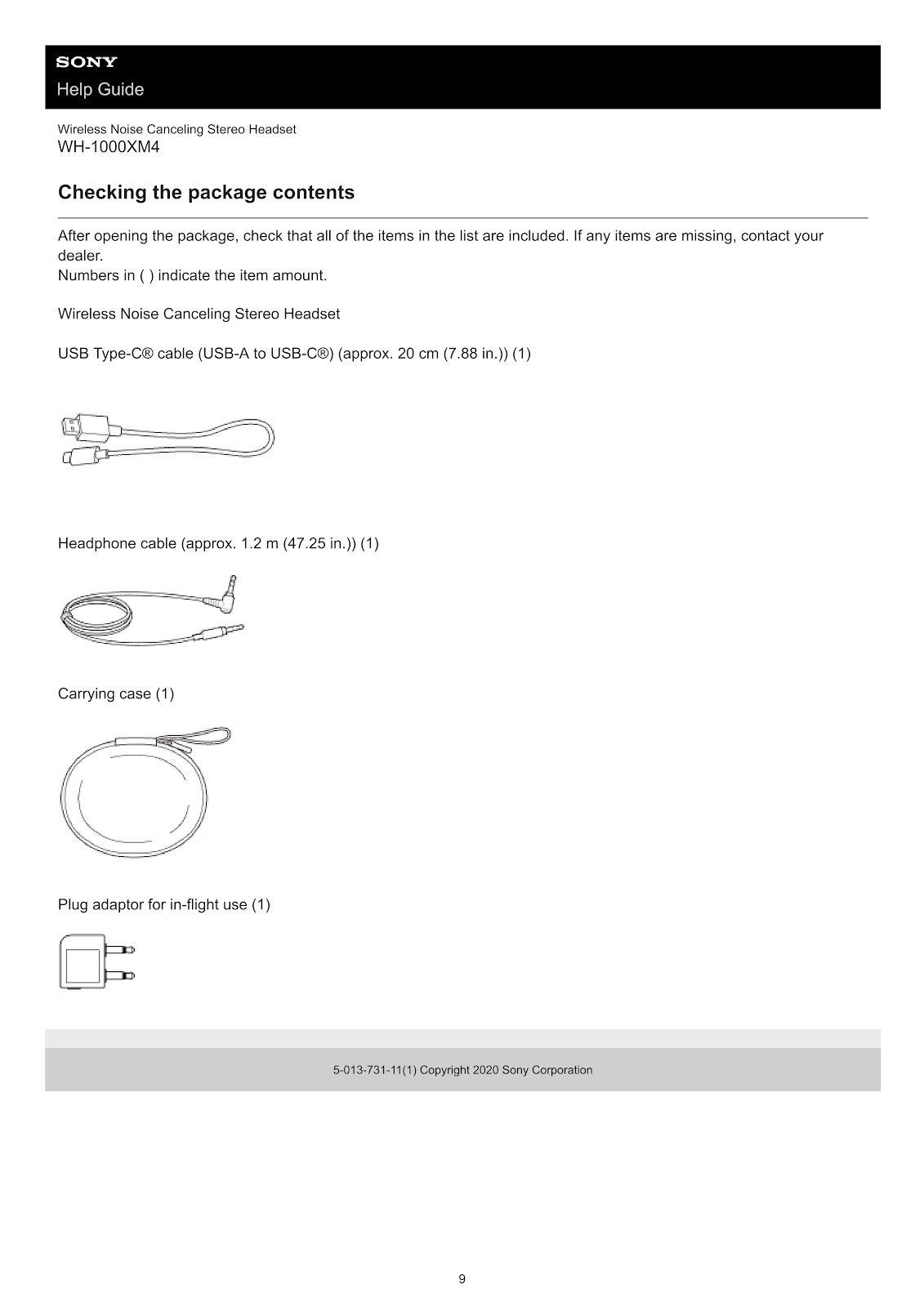
After opening the package, check that all of the following items are included. If any items are missing, contact your dealer.
• Wireless Noise Canceling Stereo Headset SONY WH-1000XM4
• USB Type-C® cable (USB-A to USB-C®) (approx. 20 cm (7.88 in.)) (1)
• Headphone cable (approx. 1.2 m (47.25 in.)) (1)
• Carrying case (1)
• Plug adaptor for in-flight use (1)
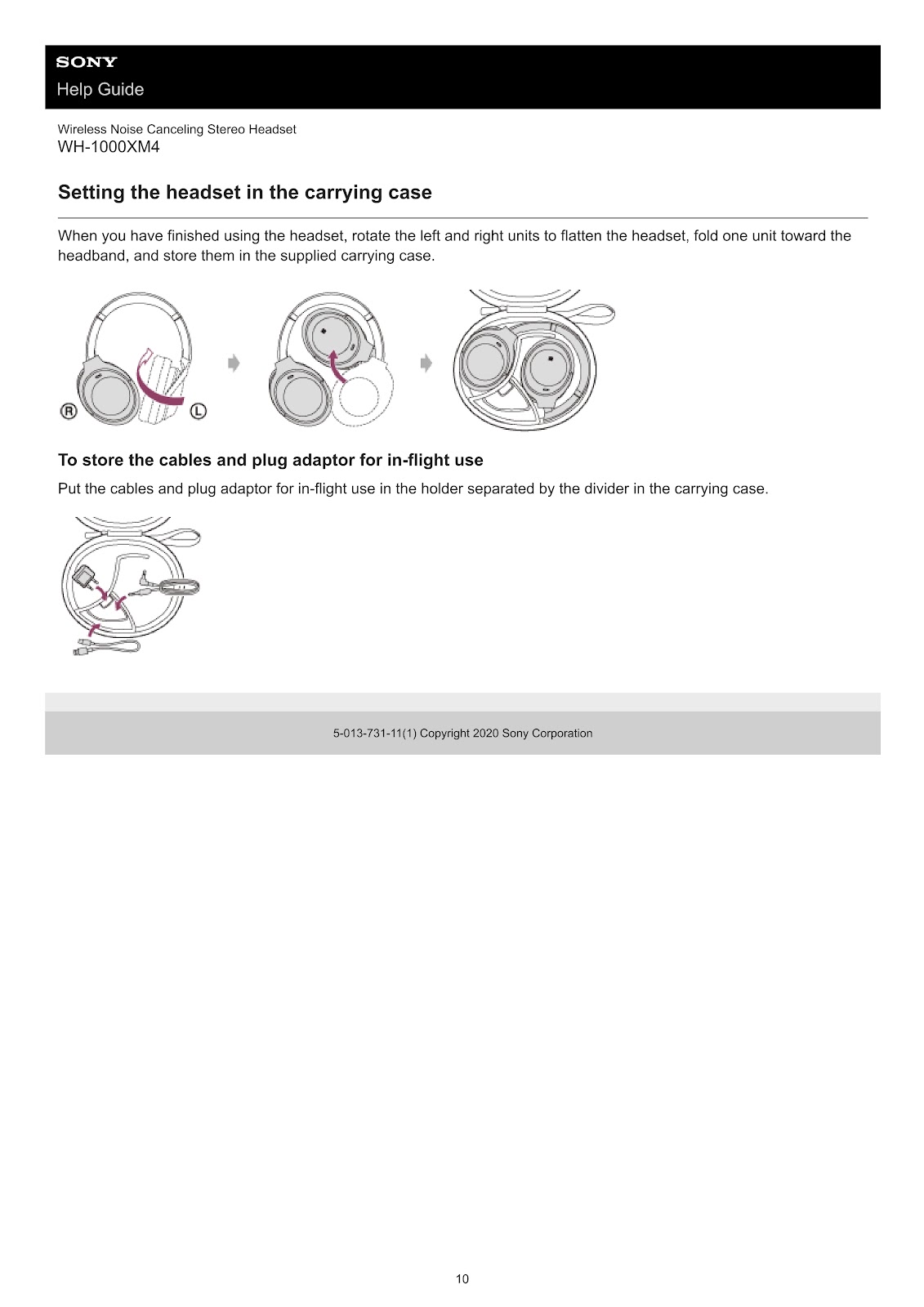
How do I store the SONY WH-1000XM4 headset in its carrying case?
Setting the headset in the carrying case:
When you have finished using the headset, rotate the left and right units to flatten the headset, fold one unit toward the headband, and store them in the supplied carrying case.
To store the cables and plug adaptor for in-flight use:
Put the cables and plug adaptor for in-flight use in the holder separated by the divider in the carrying case.
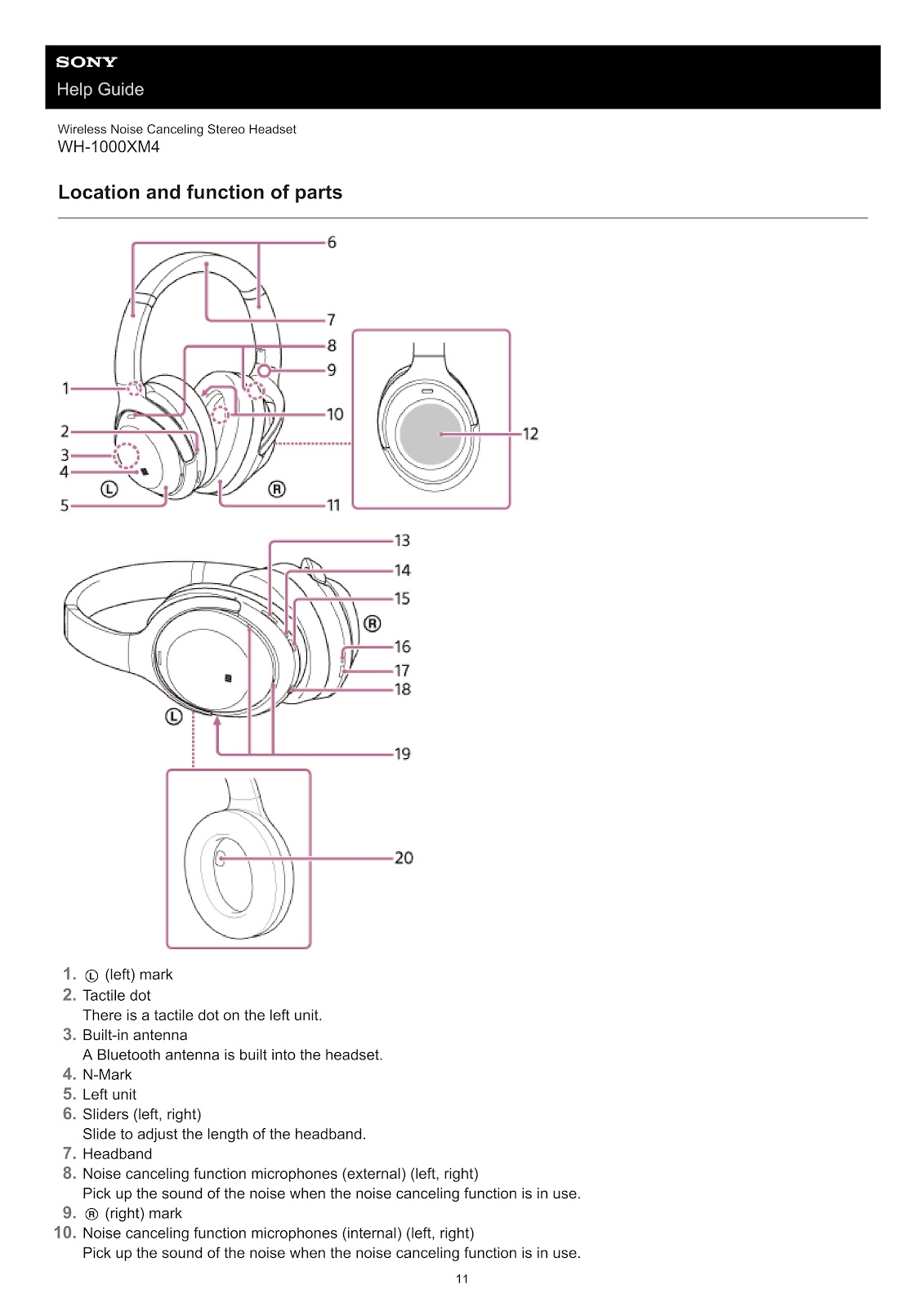
Where are the controls and parts located on the SONY WH-1000XM4?
Left Unit:
1. (left) mark
2. Tactile dot: Located on the left unit for identification by touch.
3. Built-in antenna: A Bluetooth antenna is built into the headset.
4. N-Mark: For NFC one-touch connection.
5. Left unit earcup.
Right Unit:
11. Right unit earcup.
12. Touch sensor control panel: Remotely controls music playback and other operations.
13. CUSTOM button: Switches the noise canceling function and Ambient Sound Mode, etc.
14. Indicator (red/blue): Indicates power or communication status.
15. (power) button.
16. Charging indicator (red): Lights up in red while charging.
17. USB Type-C port: For charging the headset.
18. Headphone cable input jack: For connecting a music player with the supplied cable.
19. Voice pickup microphones: Pick up your voice for calls or Speak-to-Chat mode.
20. Proximity sensor: Detects whether the headset is worn on the ears.
Headband and General:
6. Sliders (left, right): Slide to adjust the headband length.
7. Headband.
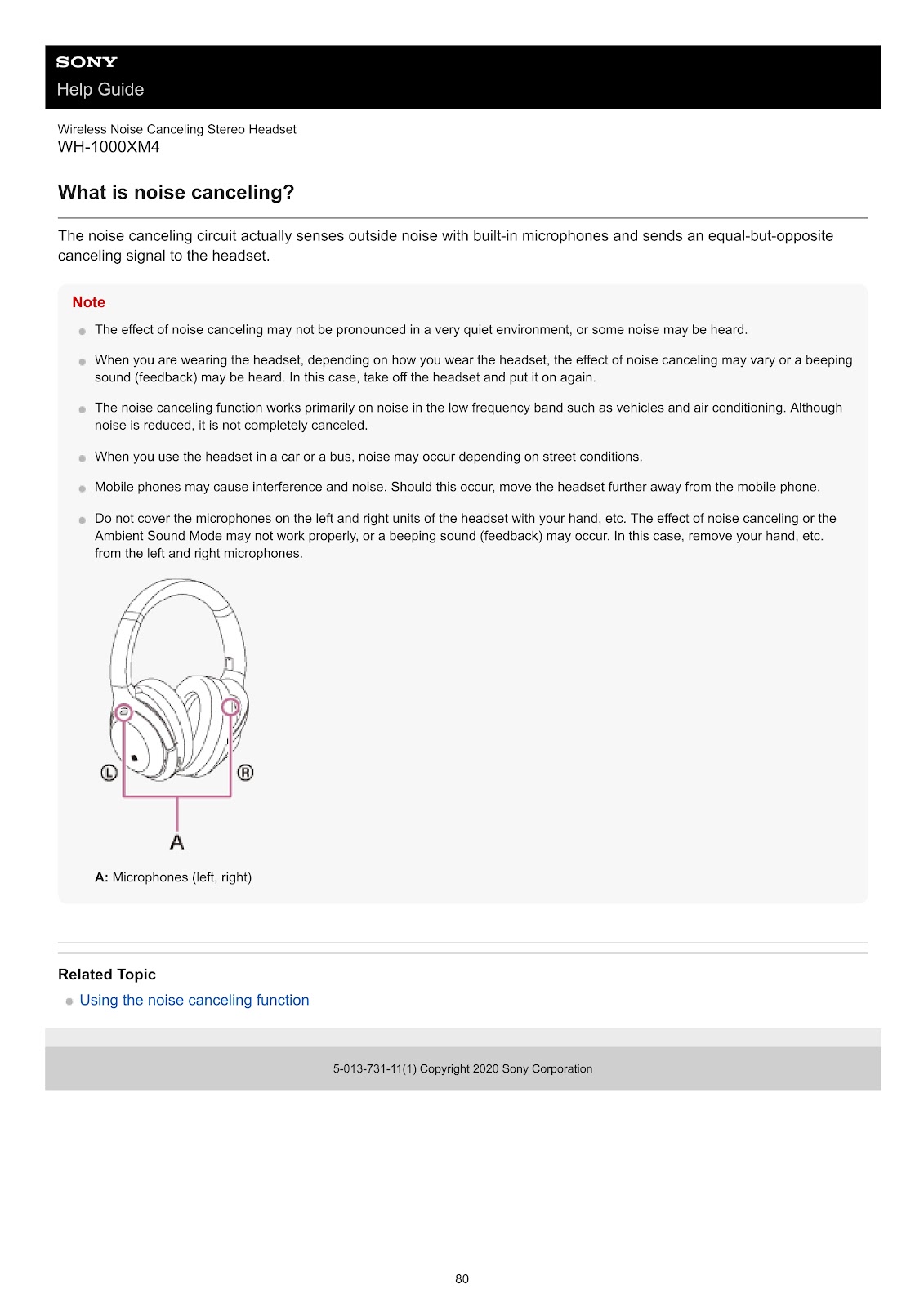
8. Noise canceling function microphones (external): Pick up external noise for noise cancellation.
9. (right) mark.
10. Noise canceling function microphones (internal): Pick up internal noise for noise cancellation.
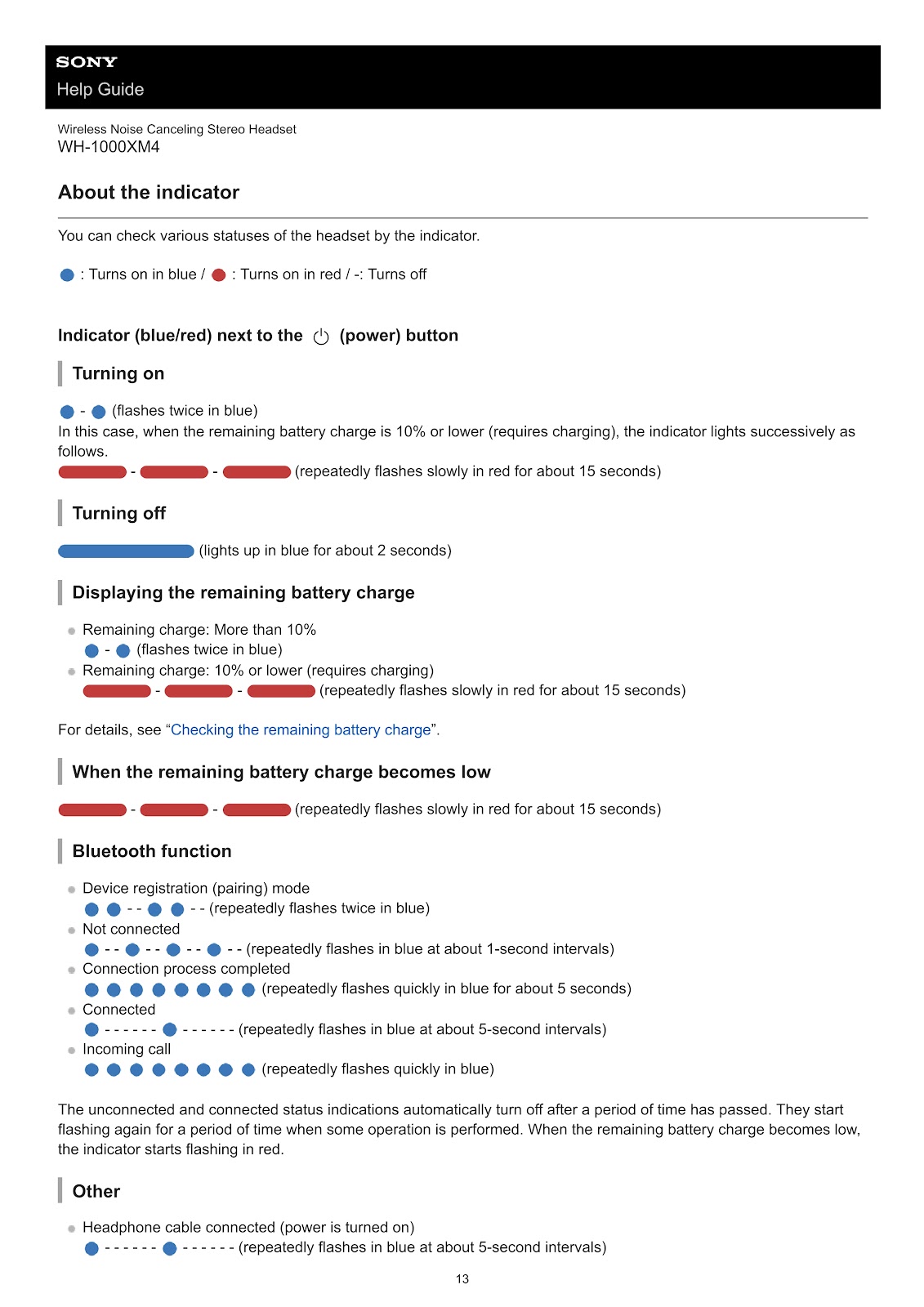
What do the indicator lights on the SONY WH-1000XM4 mean?
You can check the status of the SONY WH-1000XM4 headset by its indicator lights. (Blue: •, Red: •)
Indicator (blue/red) next to the (power) button:
• Turning on: • – (flashes twice in blue).
• Turning on (low battery): • – • (repeatedly flashes slowly in red for about 15 seconds).
• Turning off: • (lights up in blue for about 2 seconds).
• Remaining battery (more than 10%): • – (flashes twice in blue).
• Remaining battery (10% or lower): • – • (repeatedly flashes slowly in red for about 15 seconds).
• Bluetooth Pairing mode: • – • – • – • (repeatedly flashes twice in blue).
• Bluetooth Not connected: • – – – • – – – • (repeatedly flashes in blue at about 1-second intervals).
• Bluetooth Connection process completed: ••••• (repeatedly flashes quickly in blue for about 5 seconds).
• Bluetooth Connected: • – – – – • – – – – • (repeatedly flashes in blue at about 5-second intervals).
• Incoming call: ••••• (repeatedly flashes quickly in blue).
• Headphone cable connected (power on): • – – – – • – – – – • (repeatedly flashes in blue at about 5-second intervals).
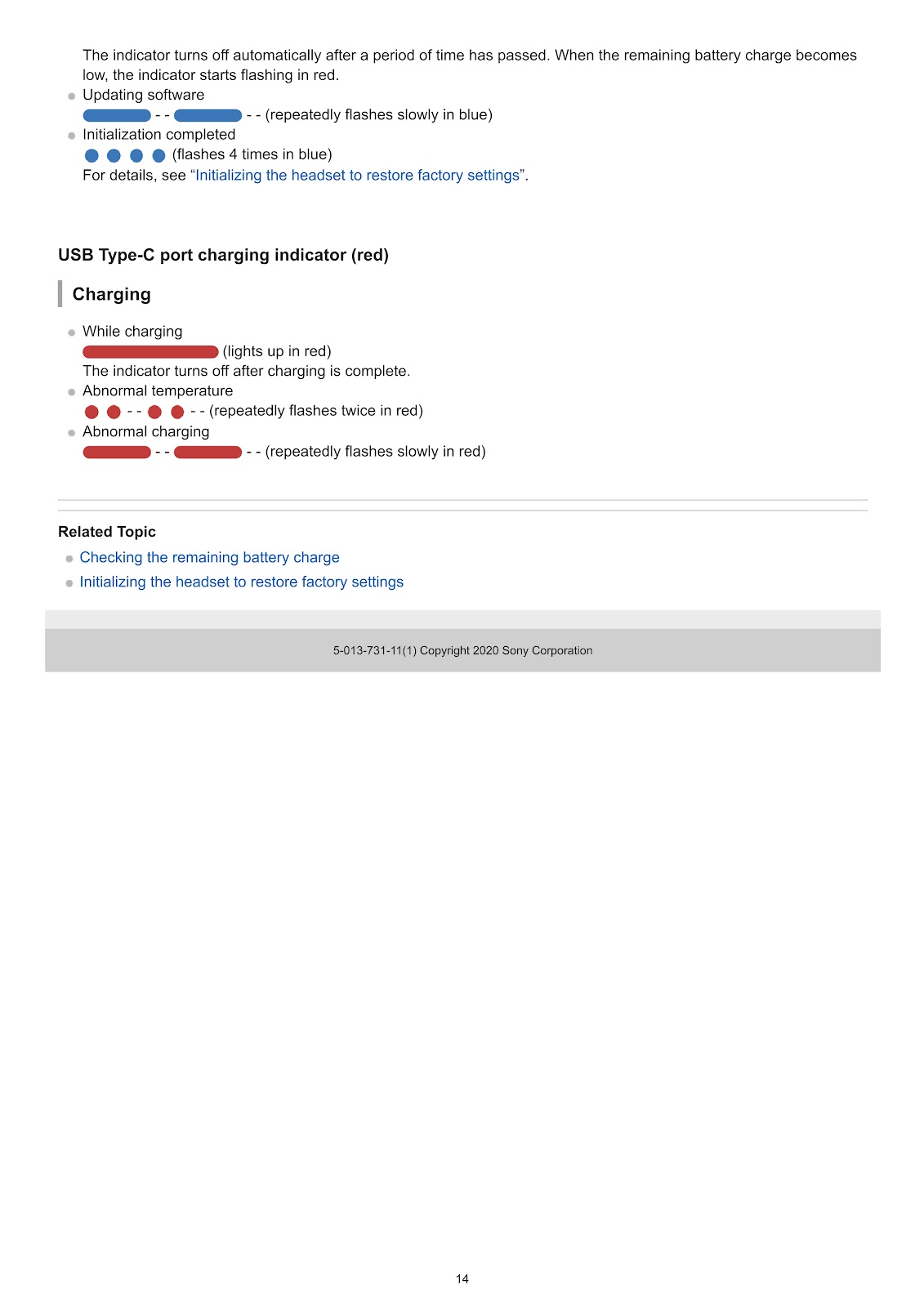
• Updating software: • – – • – – (repeatedly flashes slowly in blue).
• Initialization completed: • • • • (flashes 4 times in blue).
USB Type-C port charging indicator (red):
• While charging: • (lights up in red). Turns off when charging is complete.
• Abnormal temperature: • – • – (repeatedly flashes twice in red).
• Abnormal charging: • – – • – – (repeatedly flashes slowly in red).
How do I properly wear the SONY WH-1000XM4 headset?
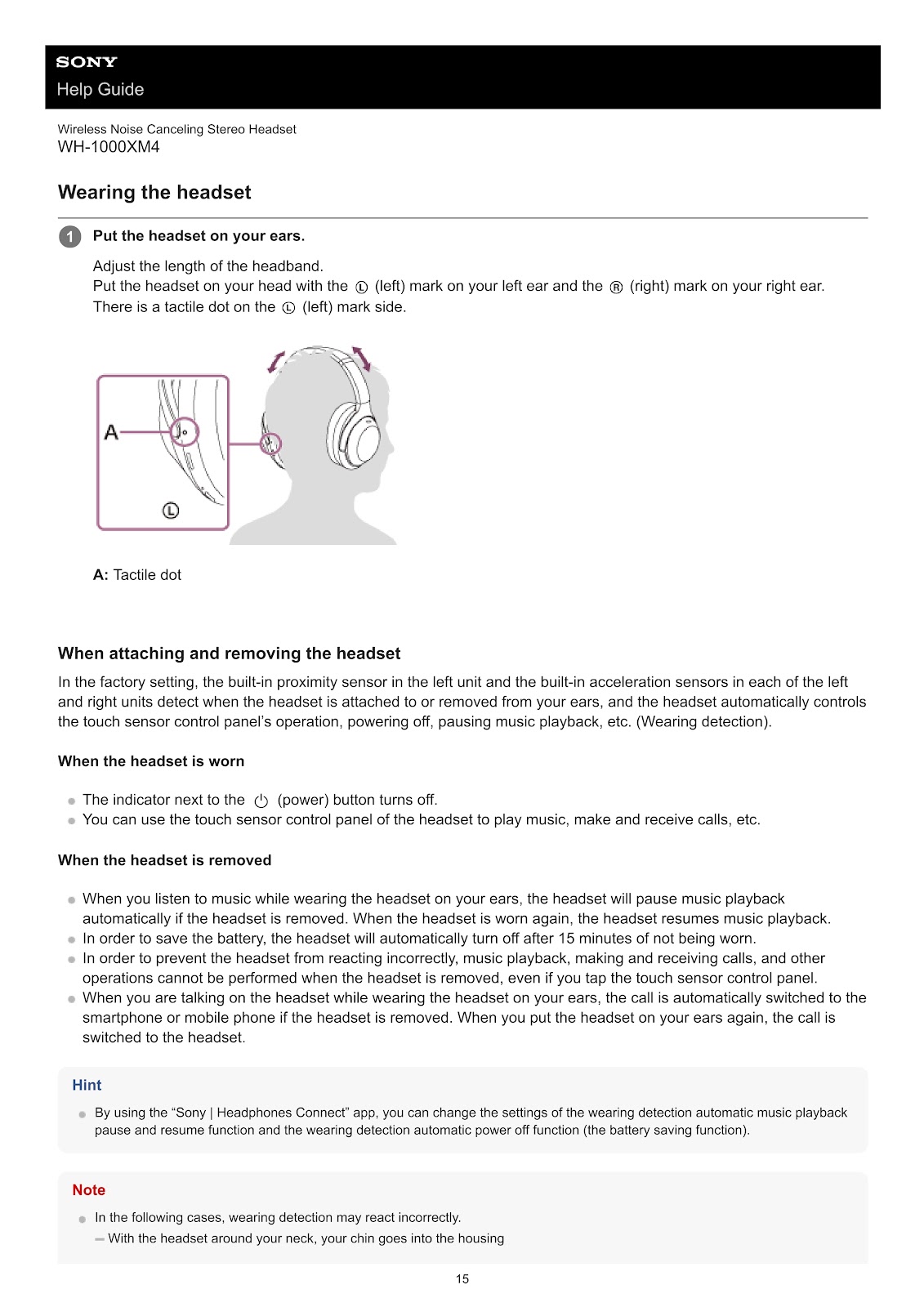
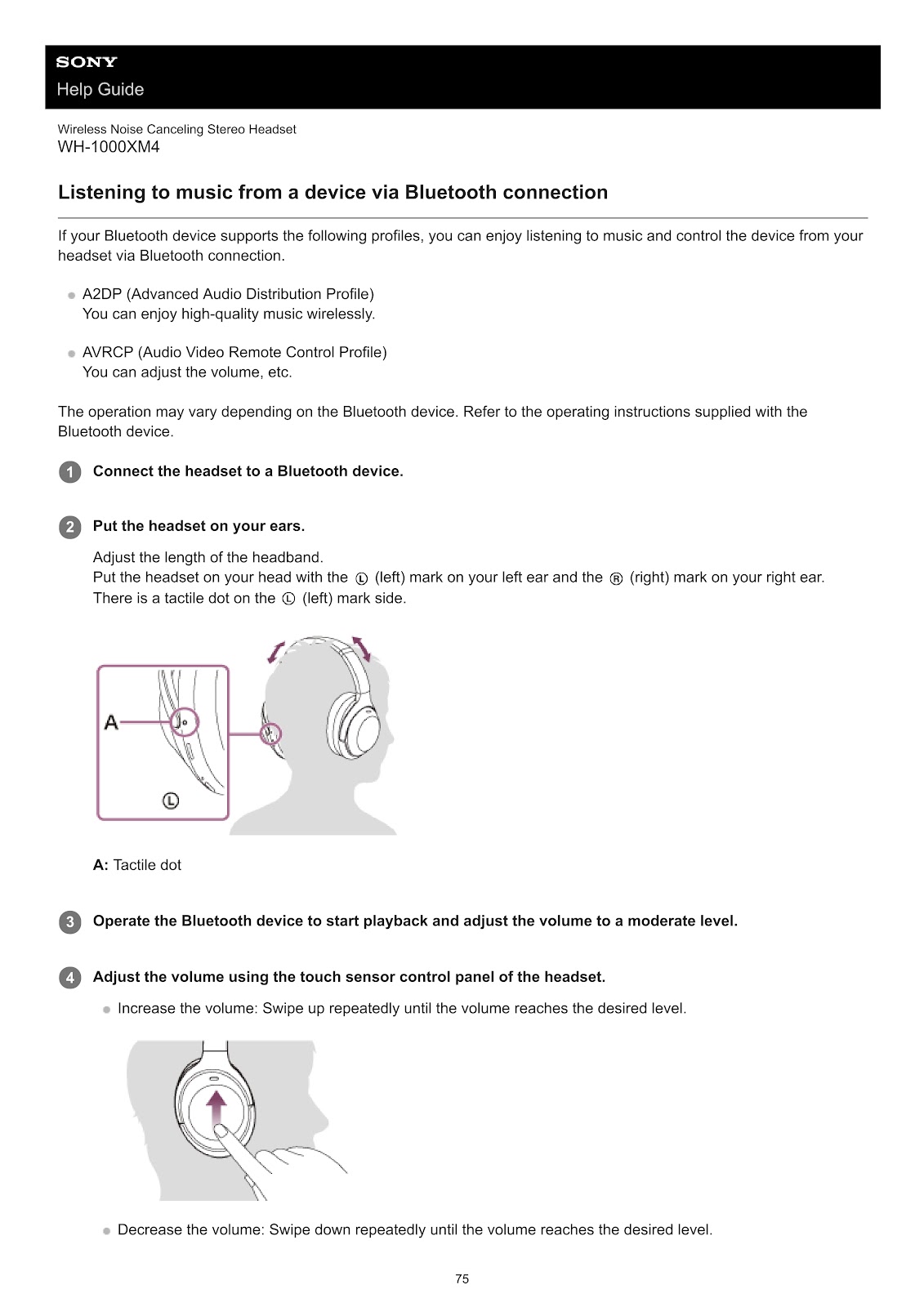
1. Put the headset on your ears.
2. Adjust the length of the headband.
3. Put the headset on your head with the (left) mark on your left ear and the (right) mark on your right ear. There is a tactile dot on the (left) mark side for easy identification.
How does the wearing detection feature work on the SONY WH-1000XM4?
The SONY WH-1000XM4 has a built-in proximity sensor and acceleration sensors that detect when the headset is attached to or removed from your ears. This feature automatically controls touch sensor operation, power, and music playback.
When the headset is worn:
• The indicator next to the (power) button turns off.
• You can use the touch sensor control panel to play music, make and receive calls, etc.
When the headset is removed:
• Music playback will pause automatically. When the headset is worn again, playback resumes.
• To save battery, the headset will automatically turn off after 15 minutes of not being worn.
• To prevent incorrect reactions, operations cannot be performed by tapping the touch sensor control panel when the headset is removed.
• If you are on a call, the call will automatically switch to your smartphone. When you put the headset on again, the call switches back to the headset.
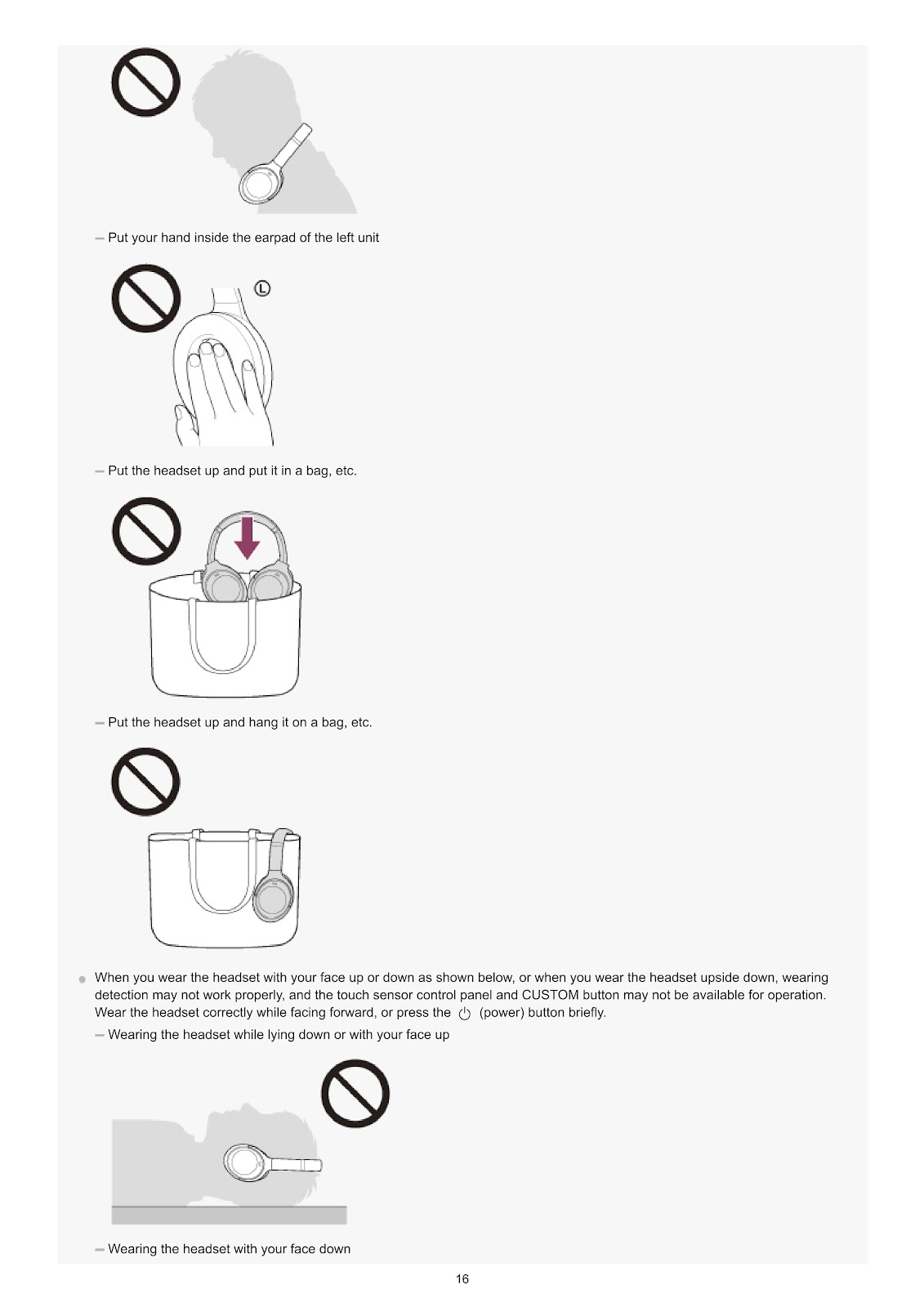
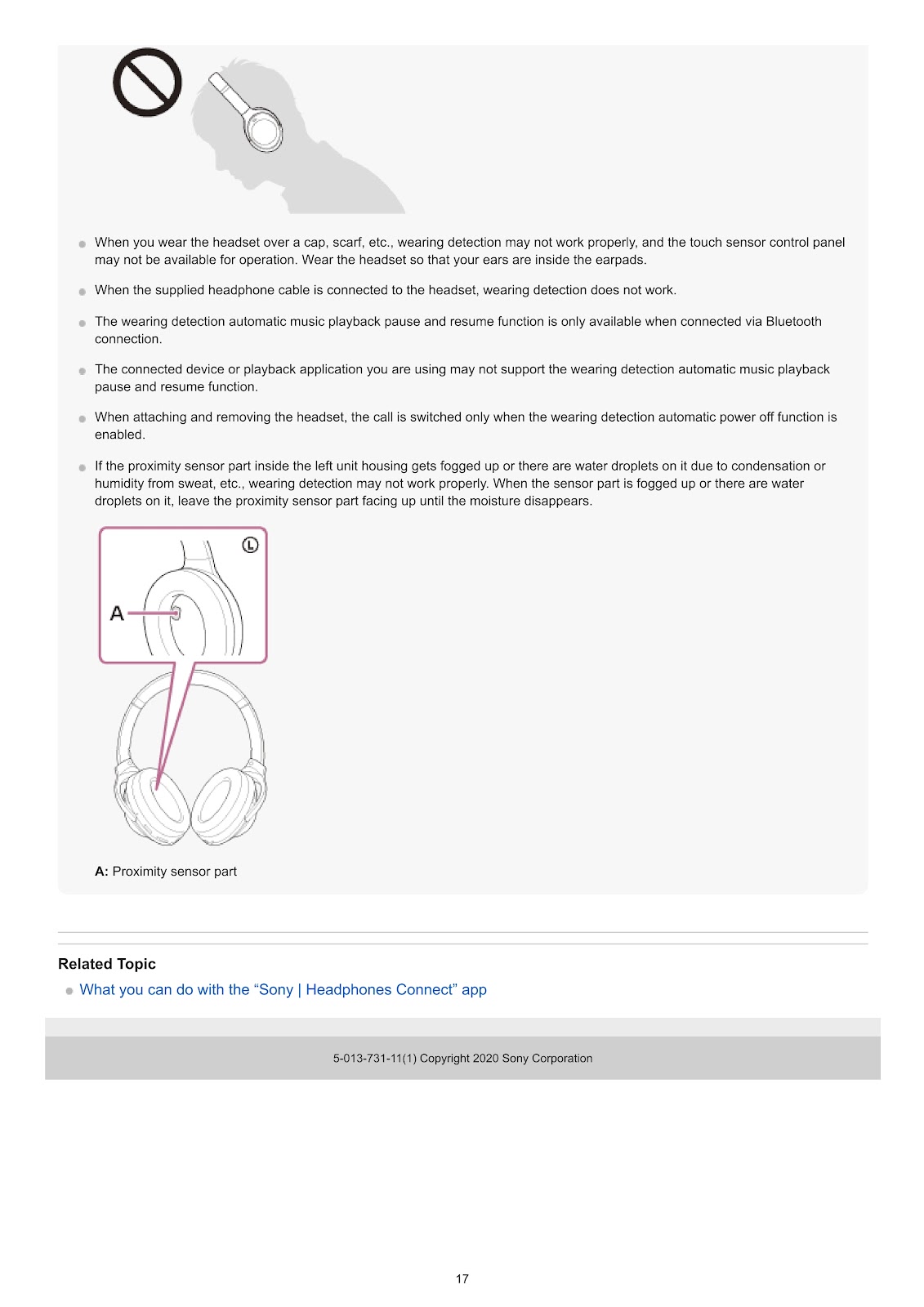
Note: The wearing detection may react incorrectly in certain situations, such as when your chin goes into the housing while wearing the headset around your neck, or when wearing the headset with your face up or down. If the proximity sensor gets fogged up, leave it facing up until the moisture disappears.
How do I charge the SONY WH-1000XM4 headset?
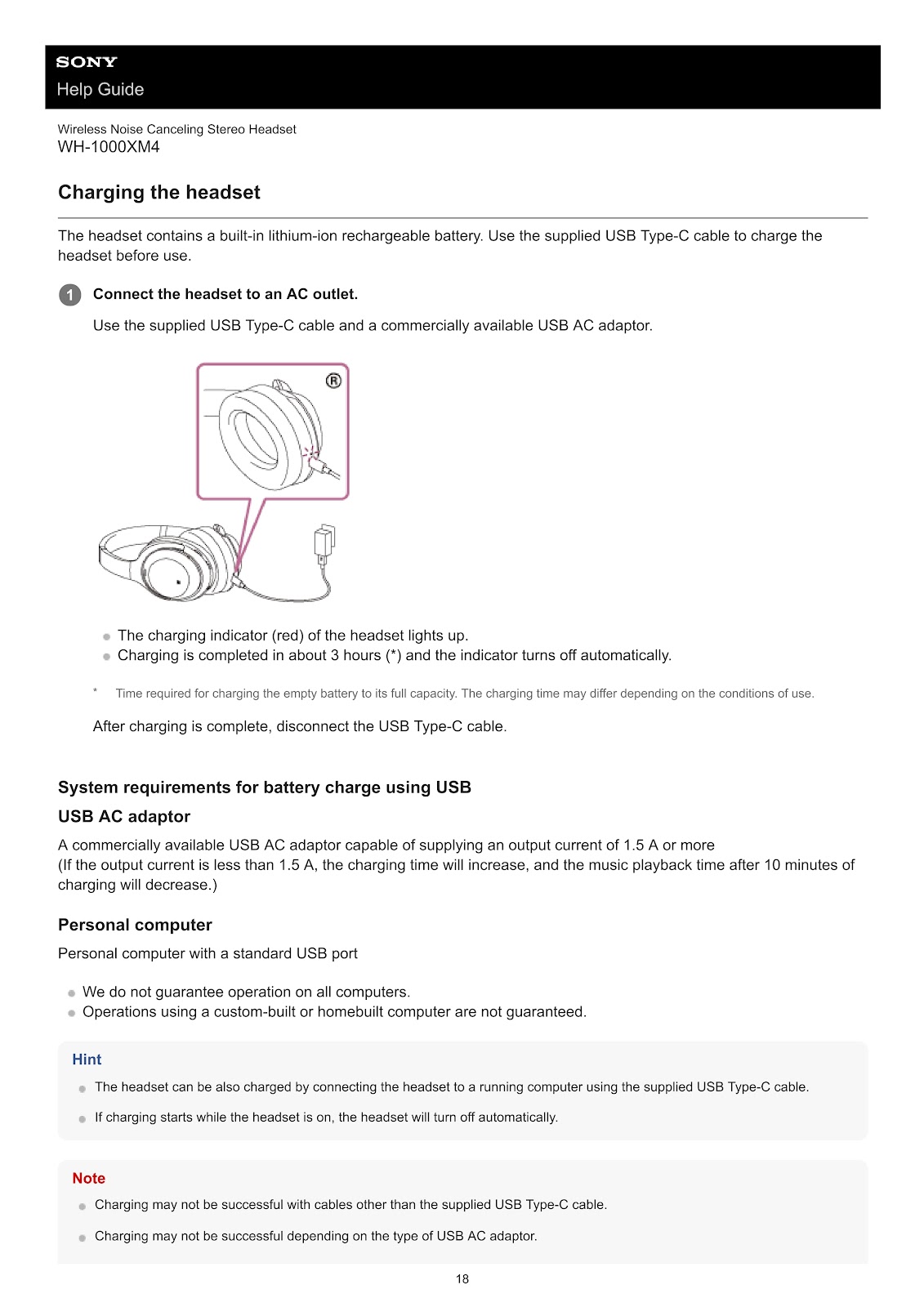
The headset contains a built-in lithium-ion rechargeable battery. Use the supplied USB Type-C cable to charge the headset before use.
1. Connect the headset to an AC outlet. Use the supplied USB Type-C cable and a commercially available USB AC adaptor.
• The charging indicator (red) of the headset lights up.
• Charging is completed in about 3 hours and the indicator turns off automatically.
• After charging is complete, disconnect the USB Type-C cable.
You can also charge the headset by connecting it to a running computer with a standard USB port using the supplied USB Type-C cable.
System requirements for battery charge using USB:
• USB AC adaptor: A commercially available USB AC adaptor capable of supplying an output current of 1.5 A or more.
• Personal computer: Personal computer with a standard USB port.
Note: If charging starts while the headset is on, the headset will turn off automatically. All operations are disabled while the headset is connected to an AC outlet or computer.
What are the available operating times for the SONY WH-1000XM4?
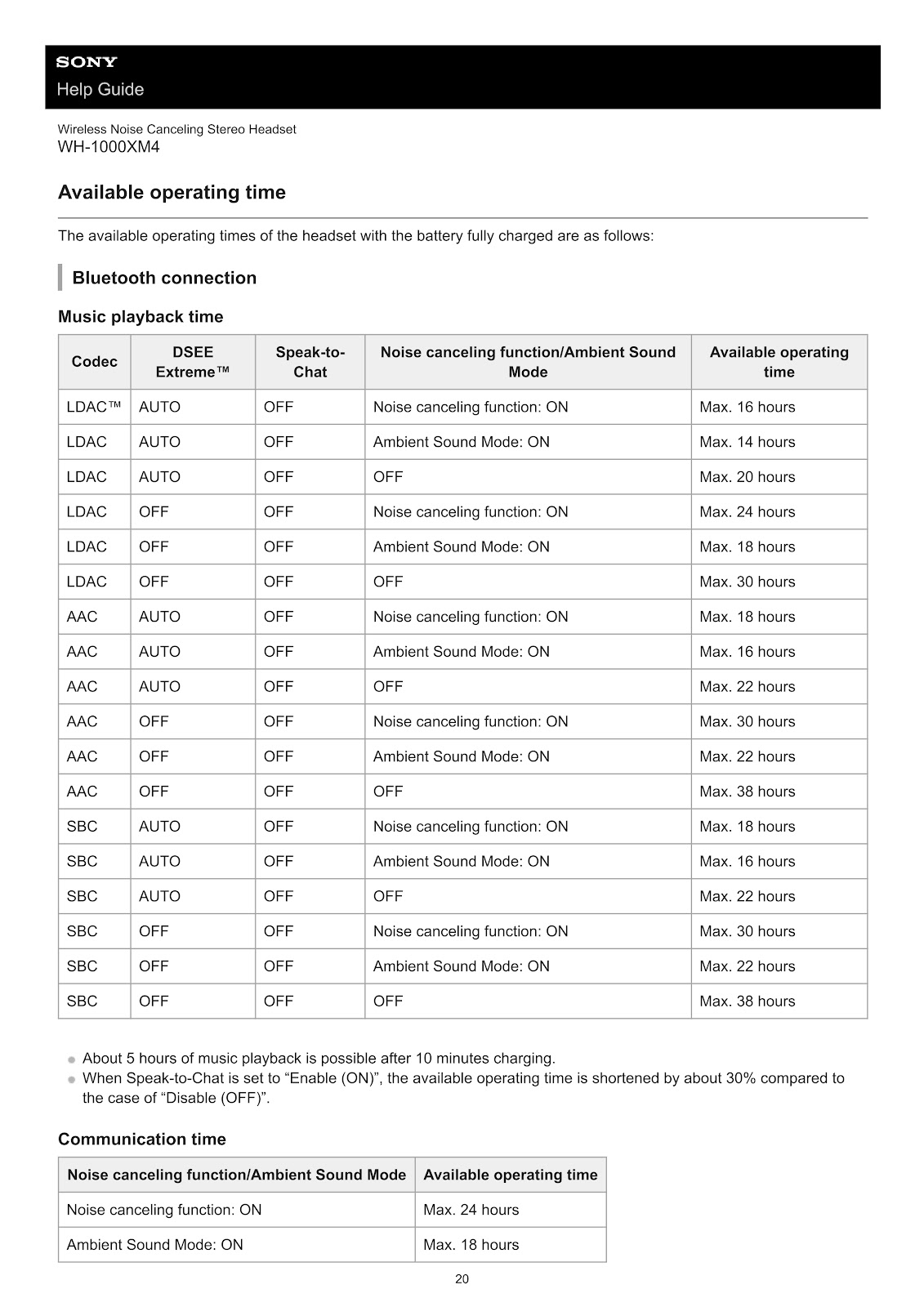
The available operating times of the SONY WH-1000XM4 with the battery fully charged are as follows. A quick 10-minute charge provides about 5 hours of music playback.
Music playback time (Bluetooth connection)
| Codec | DSEE Extreme™ | Speak-to-Chat | Noise canceling function/Ambient Sound Mode | Available operating time |
|---|---|---|---|---|
| LDAC™ | AUTO | OFF | Noise canceling function: ON | Max. 16 hours |
| LDAC™ | AUTO | OFF | Ambient Sound Mode: ON | Max. 14 hours |
| LDAC™ | AUTO | OFF | OFF | Max. 20 hours |
| LDAC™ | OFF | OFF | Noise canceling function: ON | Max. 24 hours |
| LDAC™ | OFF | OFF | Ambient Sound Mode: ON | Max. 18 hours |
| LDAC™ | OFF | OFF | OFF | Max. 30 hours |
| AAC | AUTO | OFF | Noise canceling function: ON | Max. 18 hours |
| AAC | AUTO | OFF | Ambient Sound Mode: ON | Max. 16 hours |
| AAC | AUTO | OFF | OFF | Max. 22 hours |
| AAC | OFF | OFF | Noise canceling function: ON | Max. 30 hours |
| AAC | OFF | OFF | Ambient Sound Mode: ON | Max. 22 hours |
| AAC | OFF | OFF | OFF | Max. 38 hours |
| SBC | AUTO | OFF | Noise canceling function: ON | Max. 18 hours |
| SBC | AUTO | OFF | Ambient Sound Mode: ON | Max. 16 hours |
| SBC | AUTO | OFF | OFF | Max. 22 hours |
| SBC | OFF | OFF | Noise canceling function: ON | Max. 30 hours |
| SBC | OFF | OFF | Ambient Sound Mode: ON | Max. 22 hours |
| SBC | OFF | OFF | OFF | Max. 38 hours |
Communication time
| Noise canceling function/Ambient Sound Mode | Available operating time |
|---|---|
| Noise canceling function: ON | Max. 24 hours |
| Ambient Sound Mode: ON | Max. 18 hours |
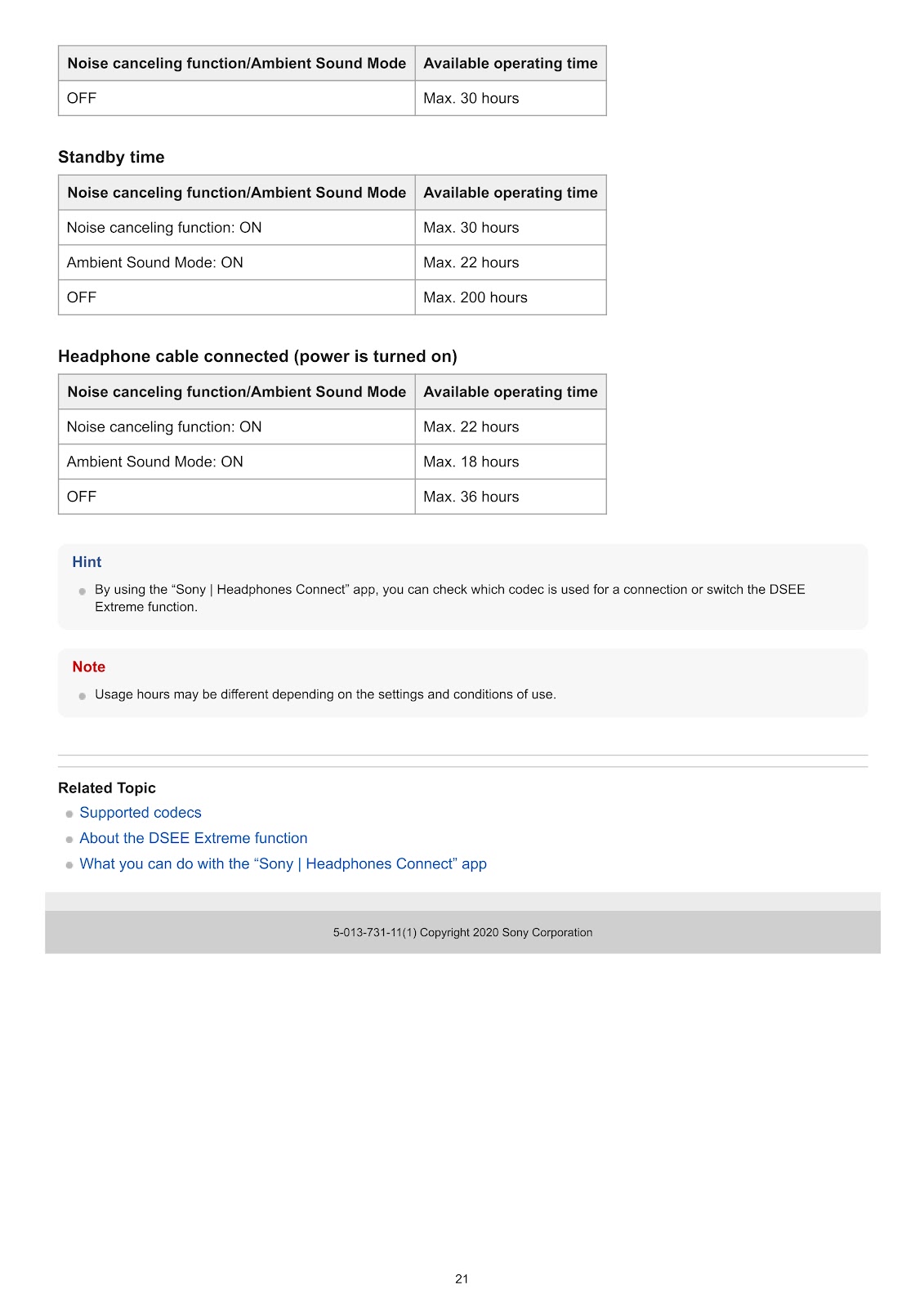
| OFF | Max. 30 hours |
Standby time
| Noise canceling function/Ambient Sound Mode | Available operating time |
|---|---|
| Noise canceling function: ON | Max. 30 hours |
| Ambient Sound Mode: ON | Max. 22 hours |
| OFF | Max. 200 hours |
Headphone cable connected (power is turned on)
| Noise canceling function/Ambient Sound Mode | Available operating time |
|---|---|
| Noise canceling function: ON | Max. 22 hours |
| Ambient Sound Mode: ON | Max. 18 hours |
| OFF | Max. 36 hours |
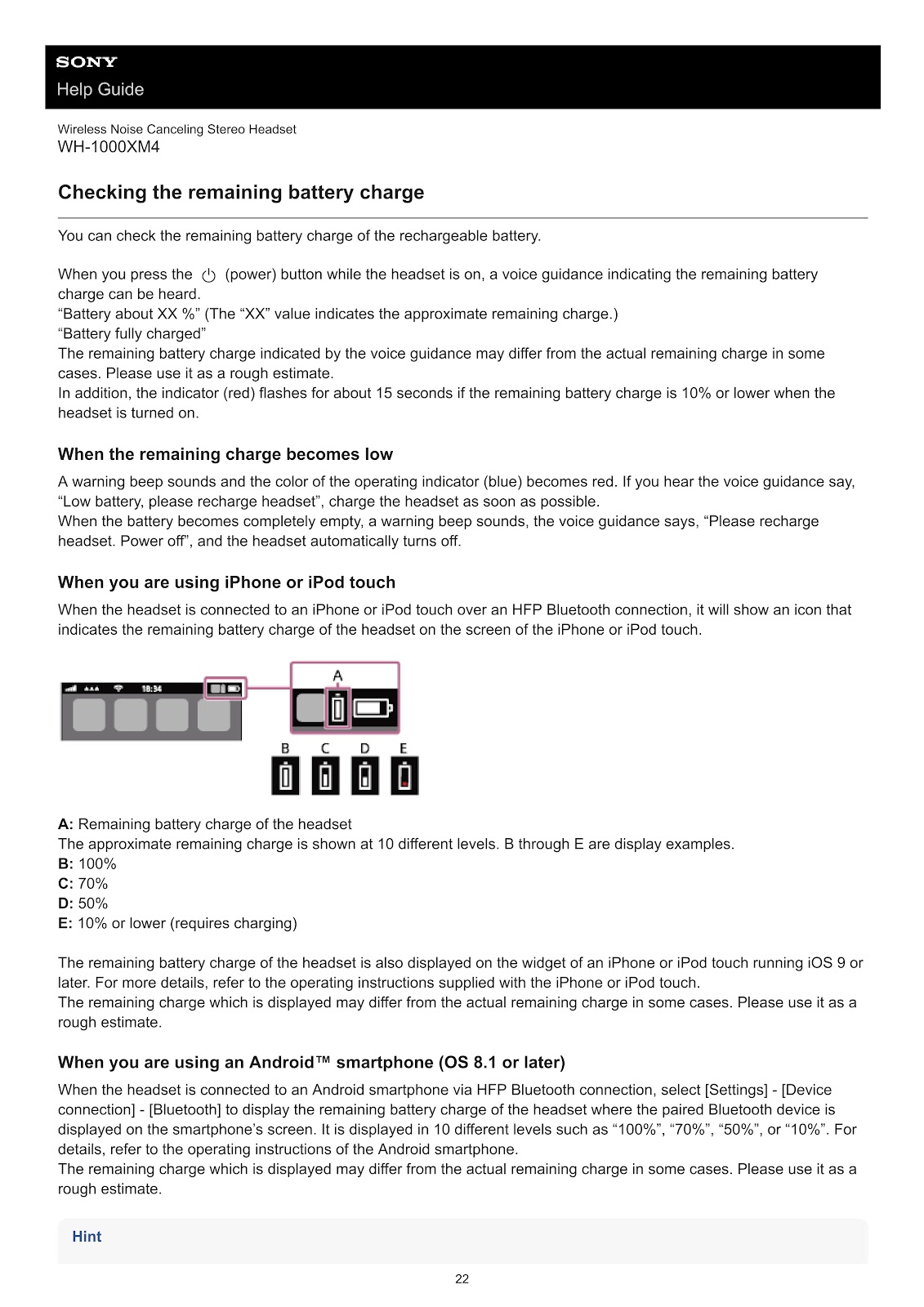
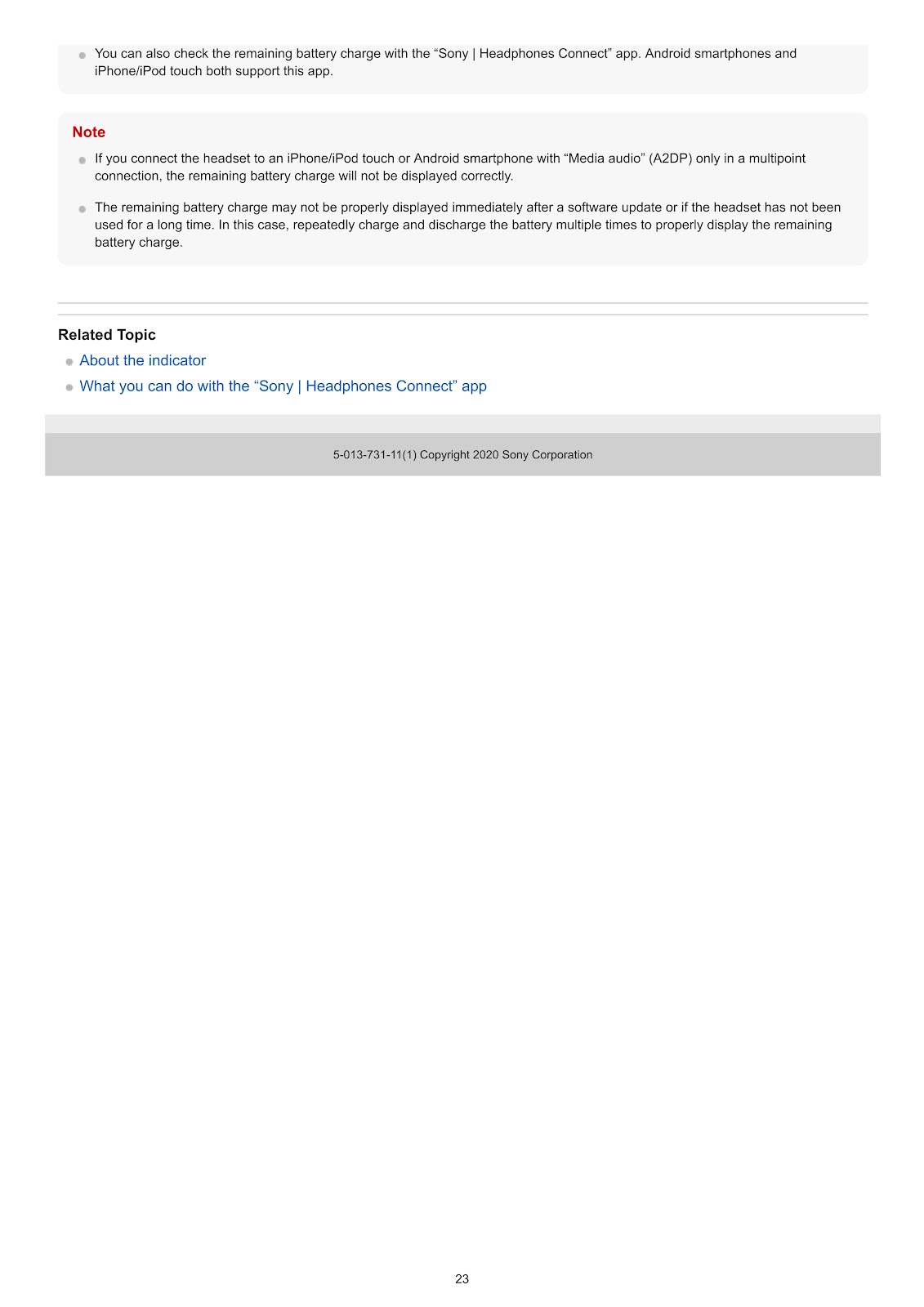
How do I check the remaining battery charge on the SONY WH-1000XM4?
You can check the remaining battery charge of the SONY WH-1000XM4 in several ways:
• Voice Guidance: Press the (power) button while the headset is on. A voice guidance will announce the approximate remaining battery charge (“Battery about XX %” or “Battery fully charged”).
• Indicator Light: When the battery charge is 10% or lower, the red indicator will flash for about 15 seconds when the headset is turned on.
• Warning Beep: When the charge becomes low, a warning beep sounds and the operating indicator (blue) turns red. The voice guidance will say, “Low battery, please recharge headset”. When the battery is empty, a warning beep sounds, the voice guidance says, “Please recharge headset. Power off”, and the headset automatically turns off.
• On iPhone or iPod touch: When connected via HFP Bluetooth, an icon indicating the headset’s remaining battery charge will appear on the screen.
• On Android™ smartphone (OS 8.1 or later): When connected via HFP Bluetooth, go to [Settings] – [Device connection] – [Bluetooth] to see the remaining battery charge displayed next to the SONY WH-1000XM4 in the list of paired devices.
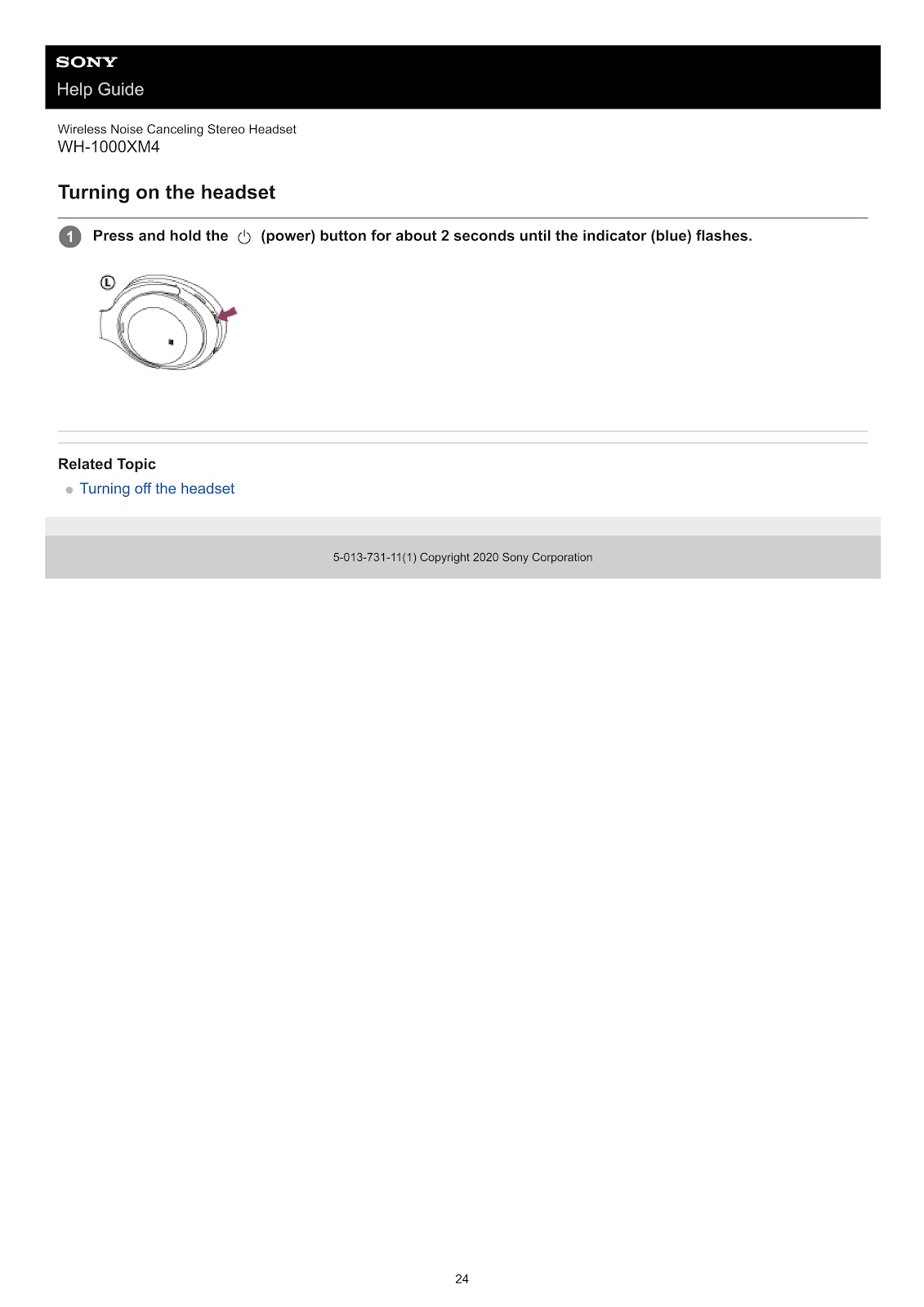
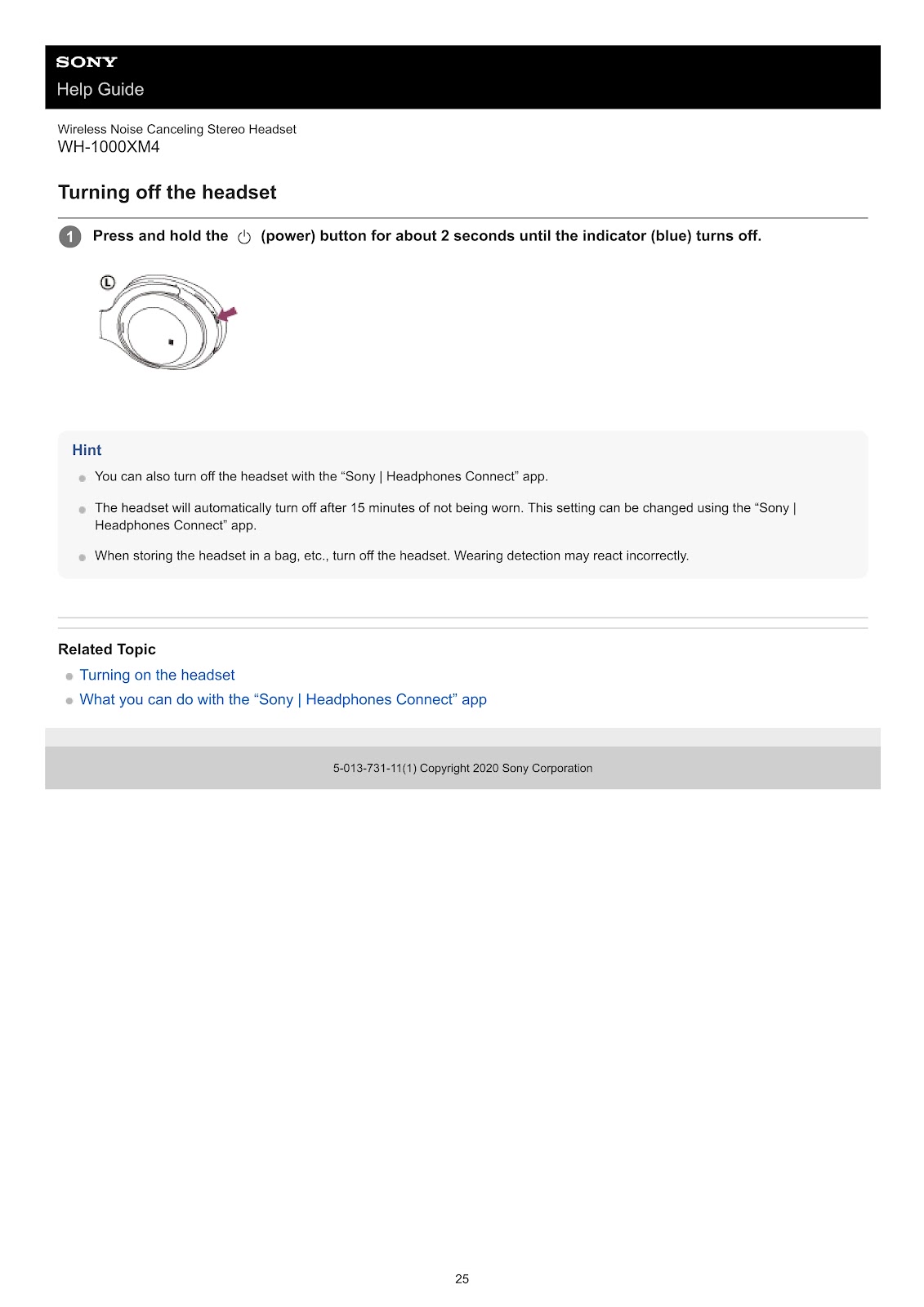
How do I turn the SONY WH-1000XM4 on or off?
To turn on the headset:
Press and hold the (power) button for about 2 seconds until the indicator (blue) flashes.
To turn off the headset:
Press and hold the (power) button for about 2 seconds until the indicator (blue) turns off.
The headset will also automatically turn off after 15 minutes of not being worn. This setting can be changed in the “Sony | Headphones Connect” app.
How do I pair and connect the SONY WH-1000XM4 with an Android smartphone?
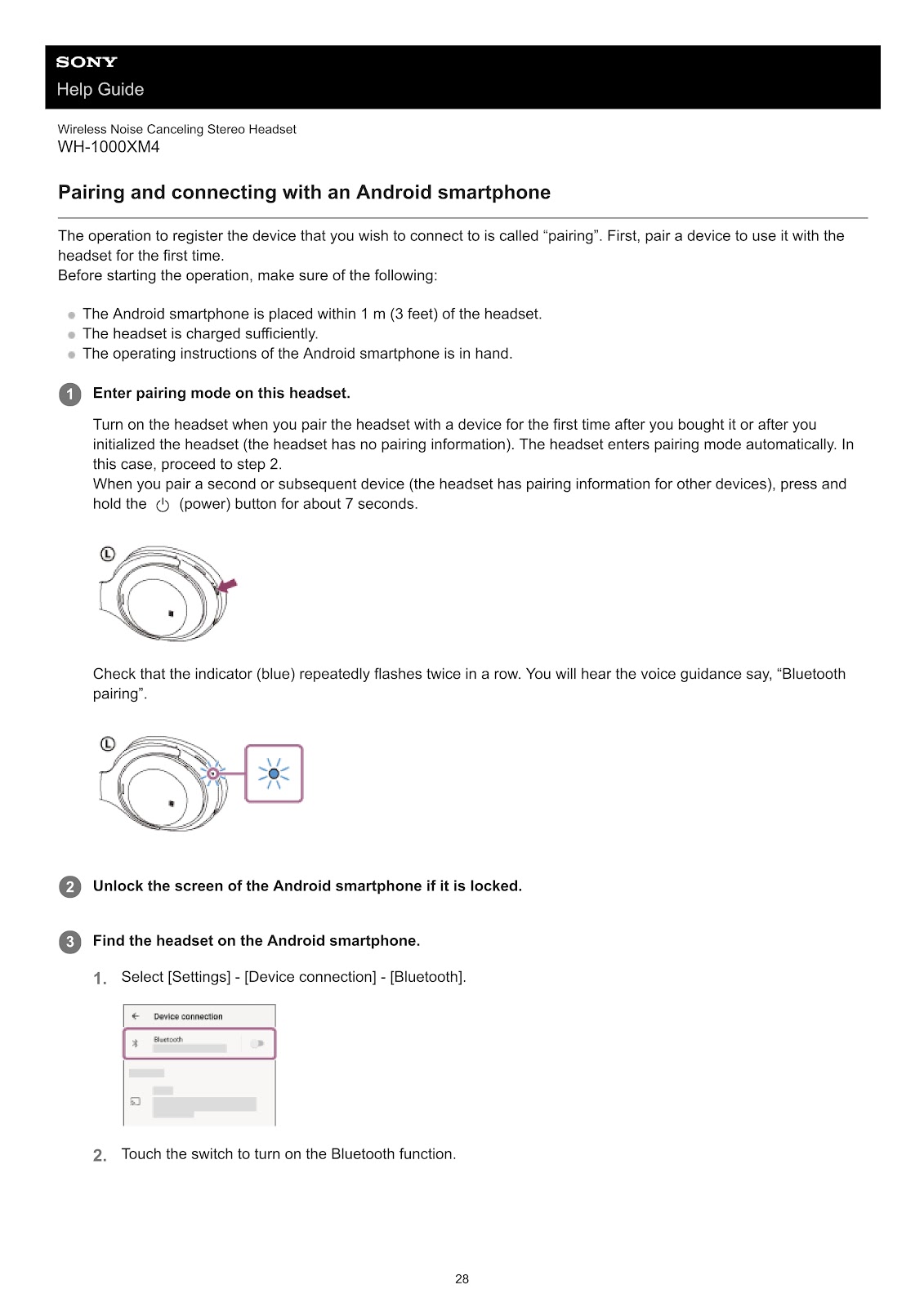
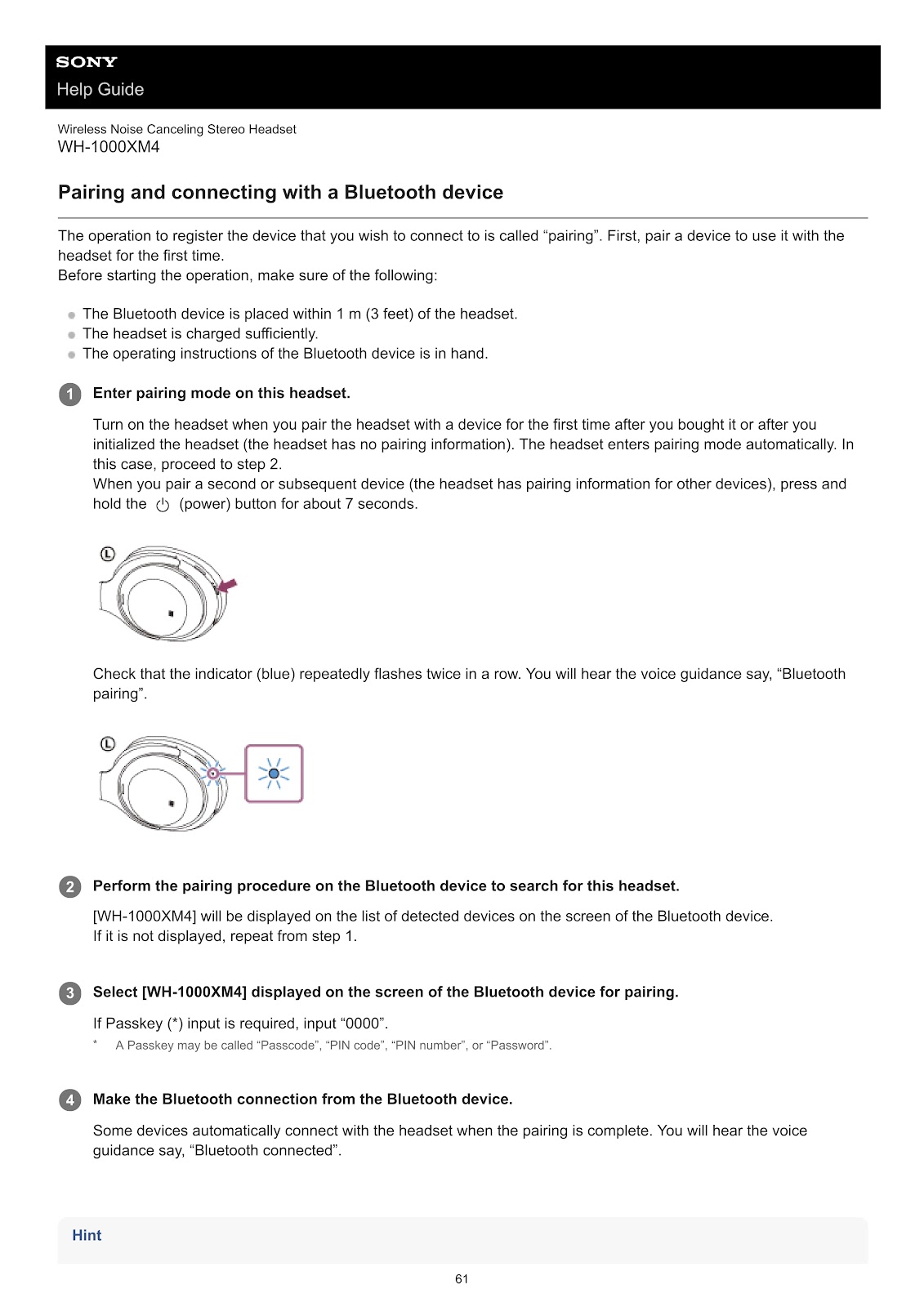
1. Enter pairing mode on the headset.
• If you are pairing for the first time after purchase or initialization, the headset enters pairing mode automatically when turned on.
• To pair a second or subsequent device, press and hold the (power) button for about 7 seconds with the headset turned off. The indicator will flash blue twice in a row, and you will hear the voice guidance say, “Bluetooth pairing”.
2. Unlock the screen of the Android smartphone.
3. Find the headset on the smartphone.
• Go to [Settings] – [Device connection] – [Bluetooth].
• Turn on the Bluetooth function.
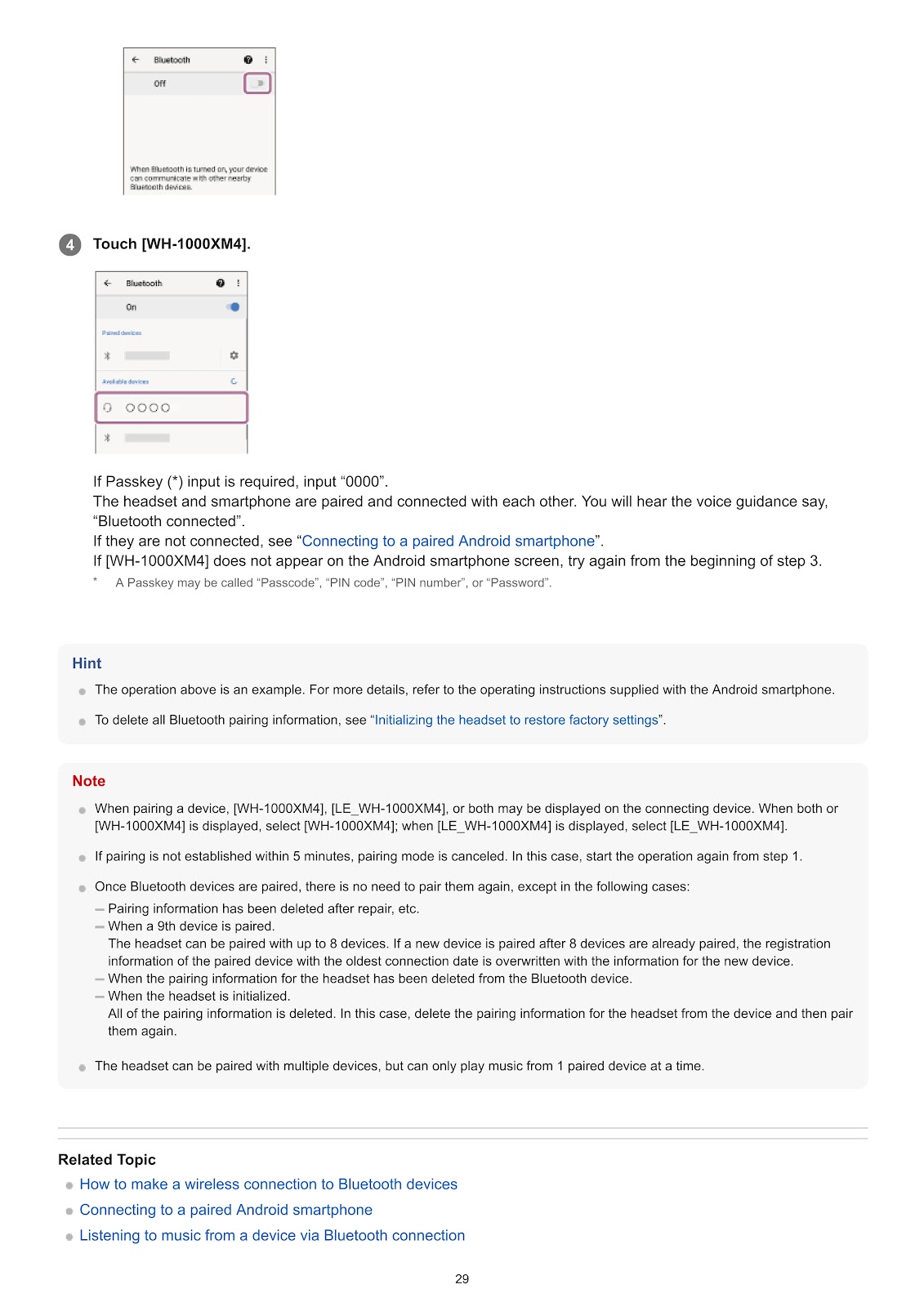
4. Touch [WH-1000XM4] from the list of available devices.
• If a Passkey is required, enter “0000”.
• The headset and smartphone will pair and connect. You will hear the voice guidance say, “Bluetooth connected”.
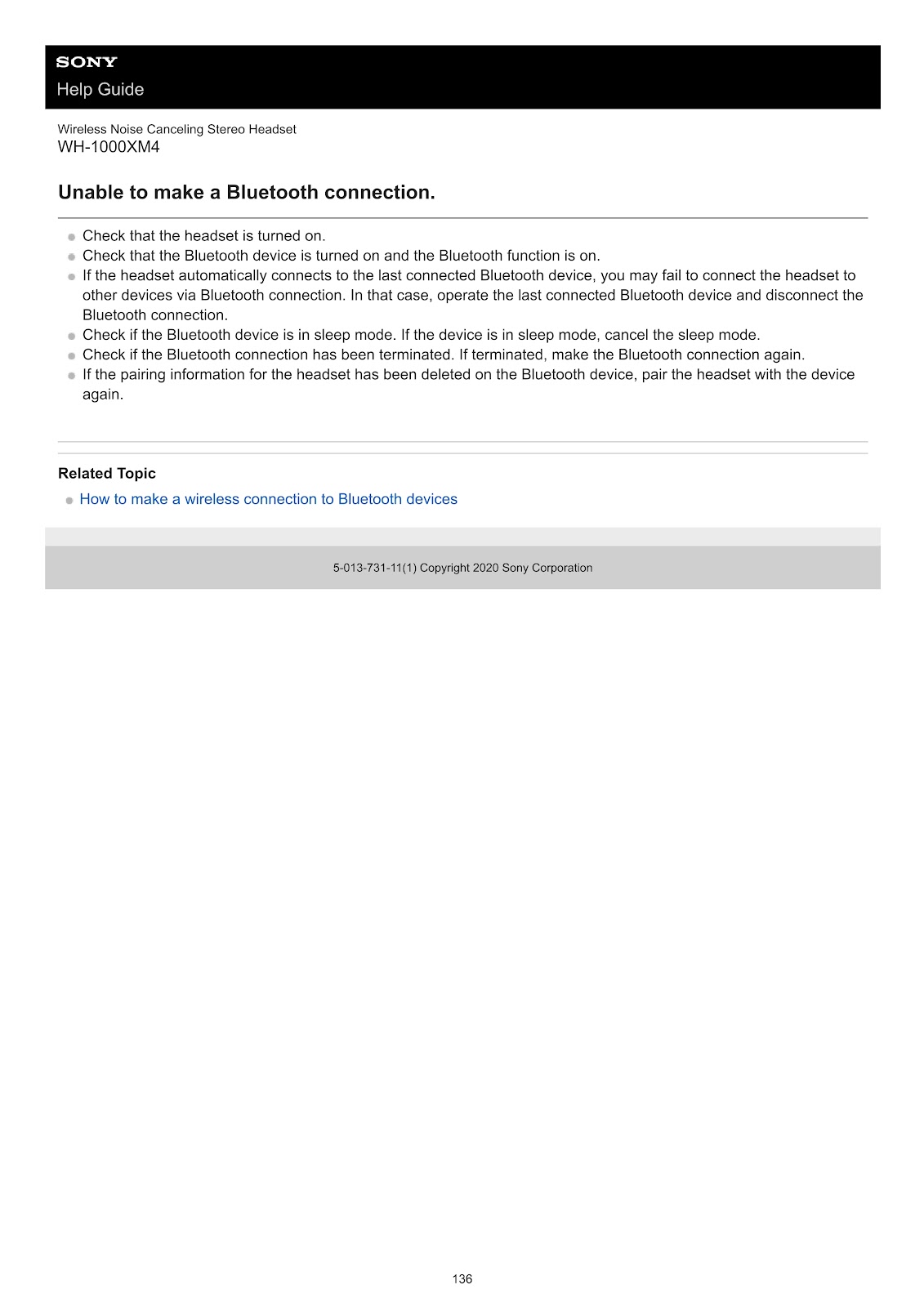
How do I connect the SONY WH-1000XM4 to a previously paired Android smartphone?
1. Unlock the screen of the Android smartphone.
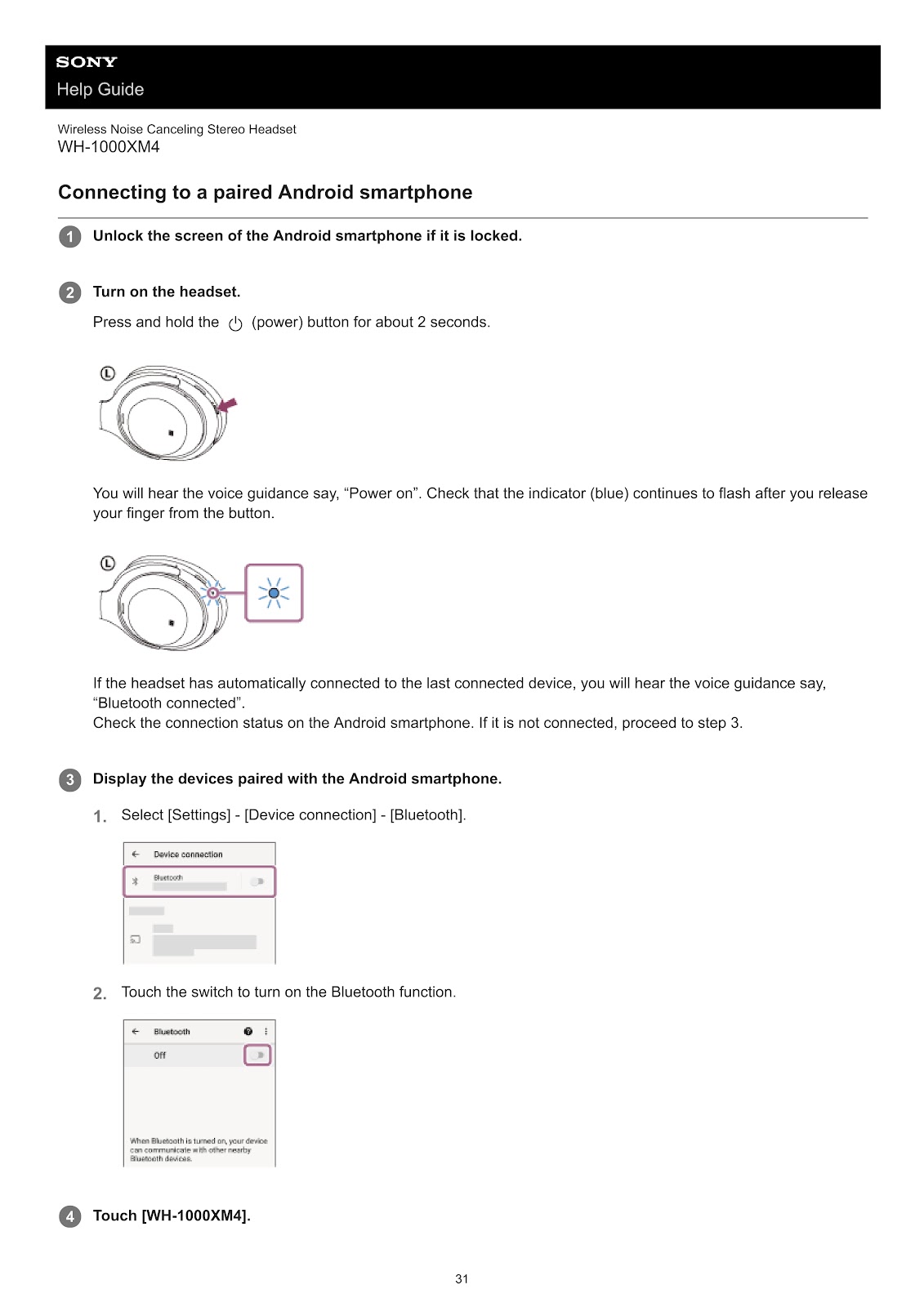
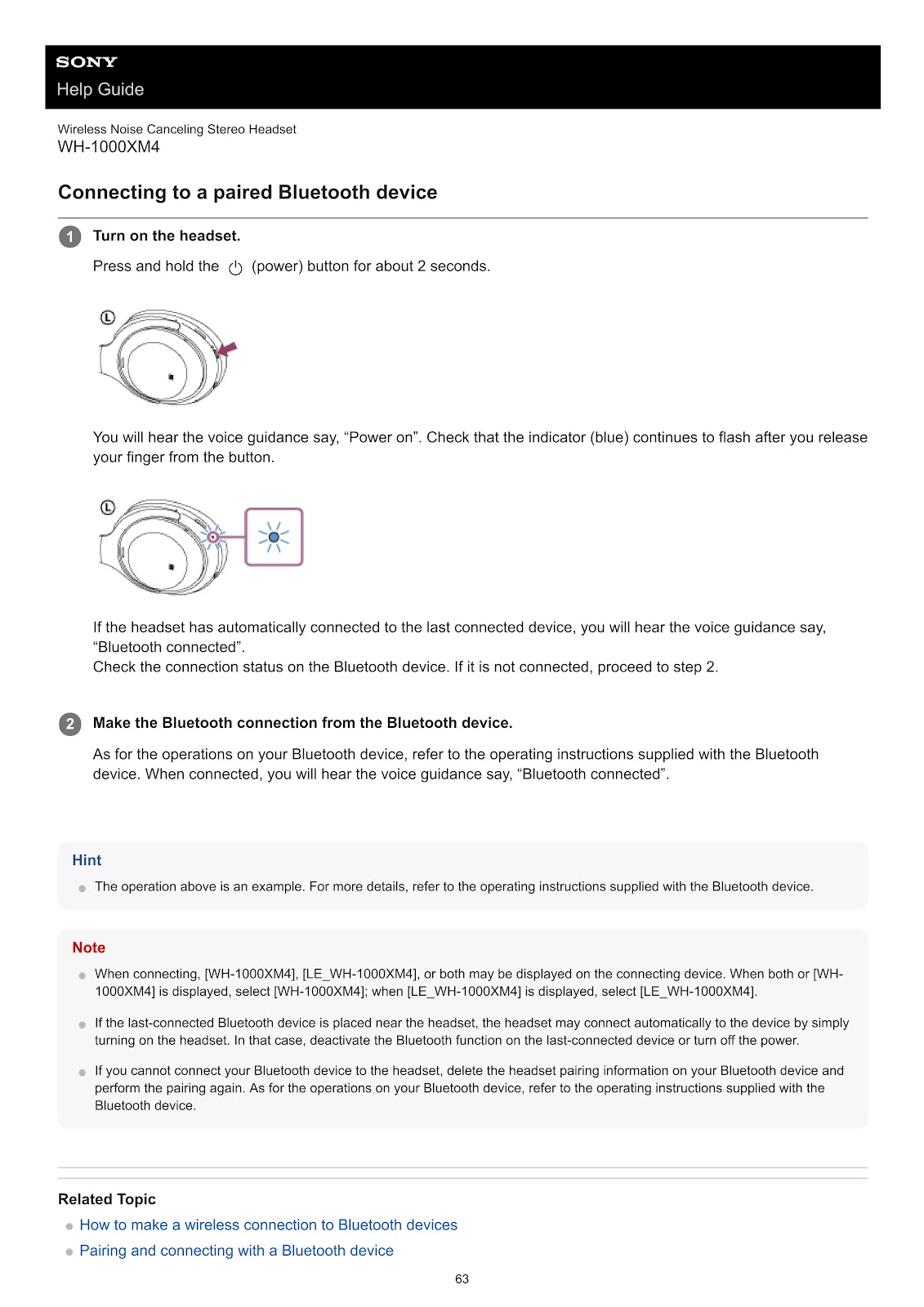
2. Turn on the headset by pressing the (power) button for about 2 seconds. The headset will automatically try to connect to the last connected device. If successful, you will hear “Bluetooth connected”.
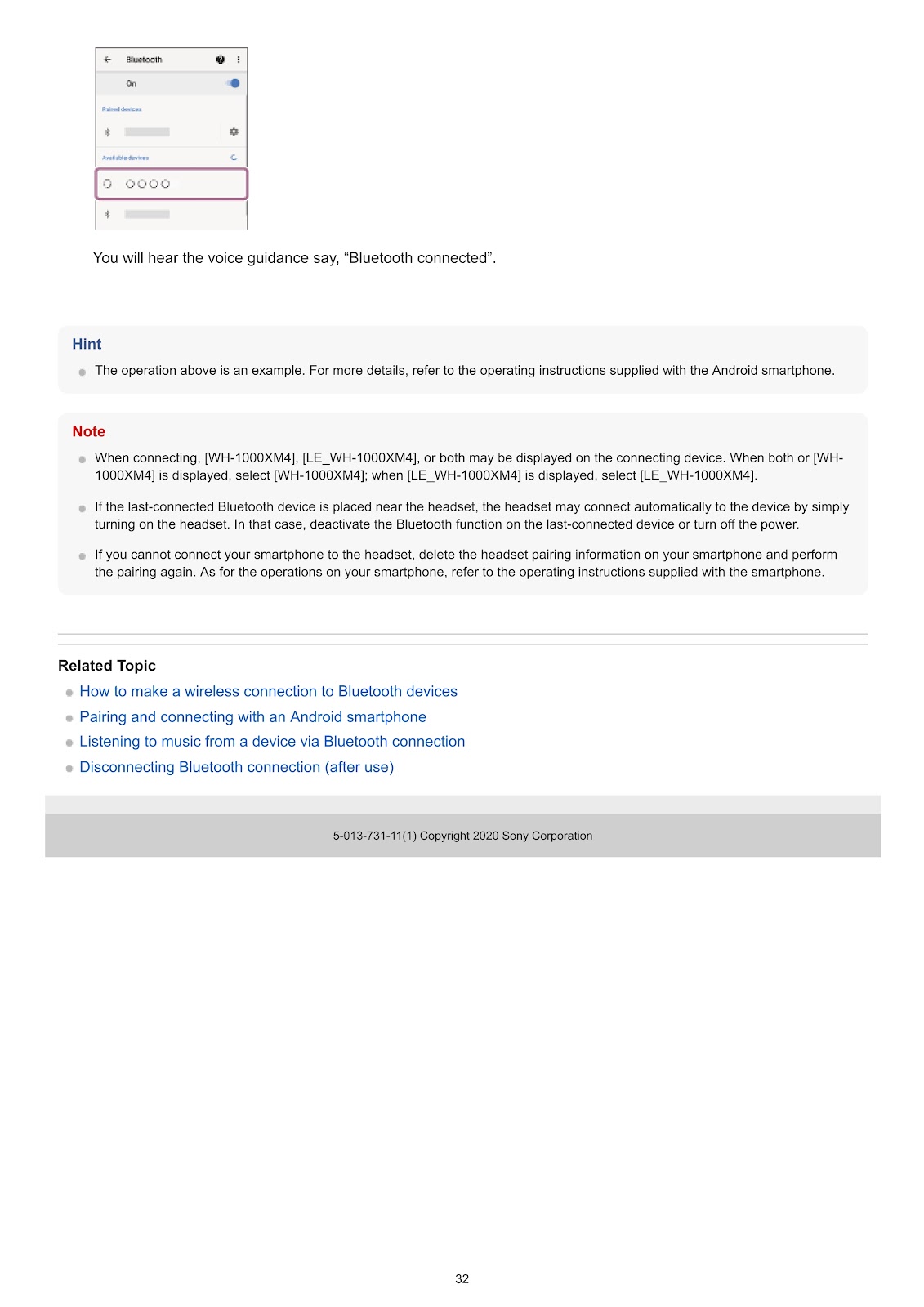
3. If it does not connect automatically, go to the smartphone’s Bluetooth settings: [Settings] – [Device connection] – [Bluetooth].
4. Touch [WH-1000XM4] from the list of paired devices to establish the connection.
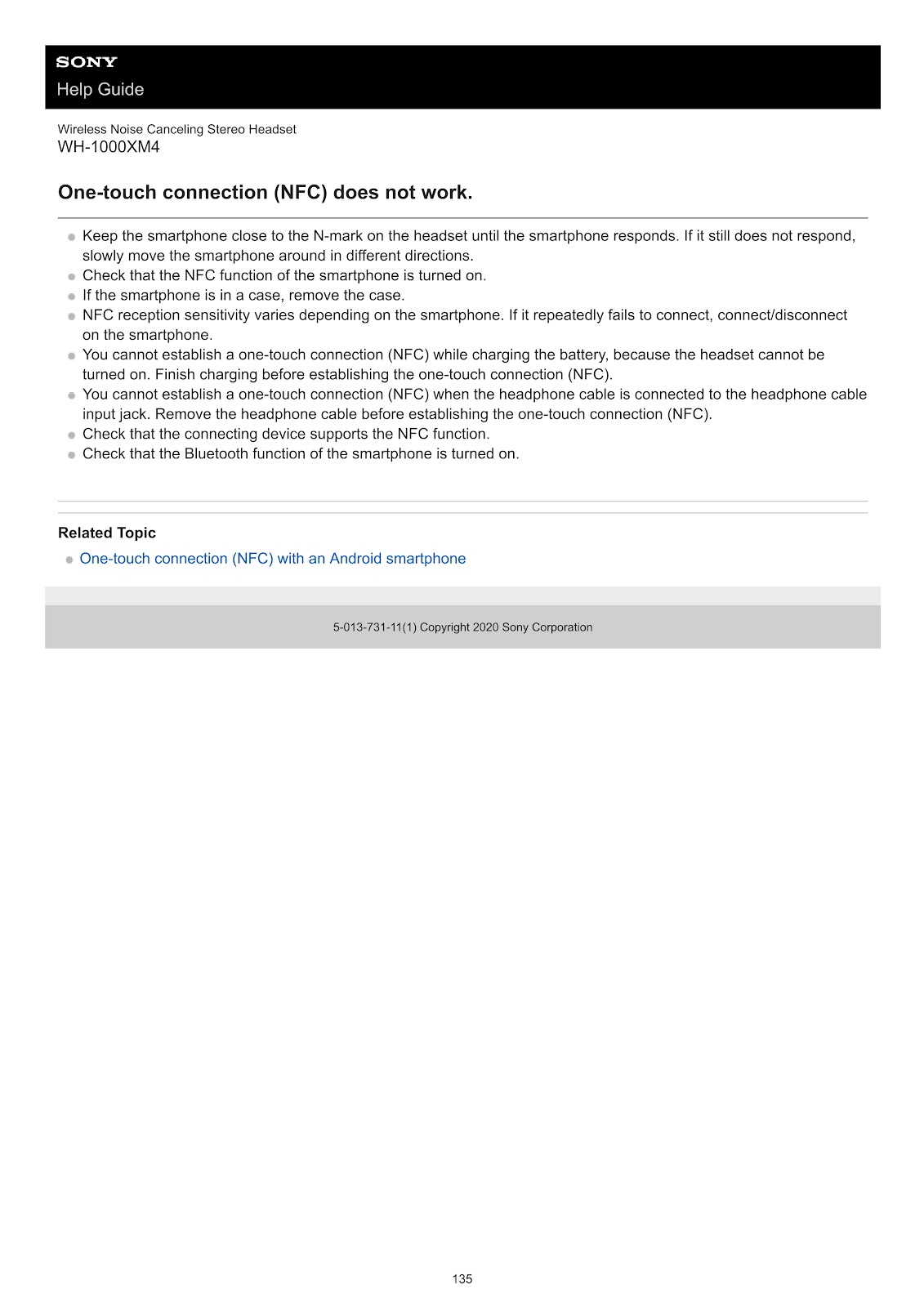
How do I use one-touch connection (NFC) with the SONY WH-1000XM4 and an Android smartphone?
This function works with NFC-compatible smartphones running Android 4.1 or later.
1. Unlock the screen of the smartphone.
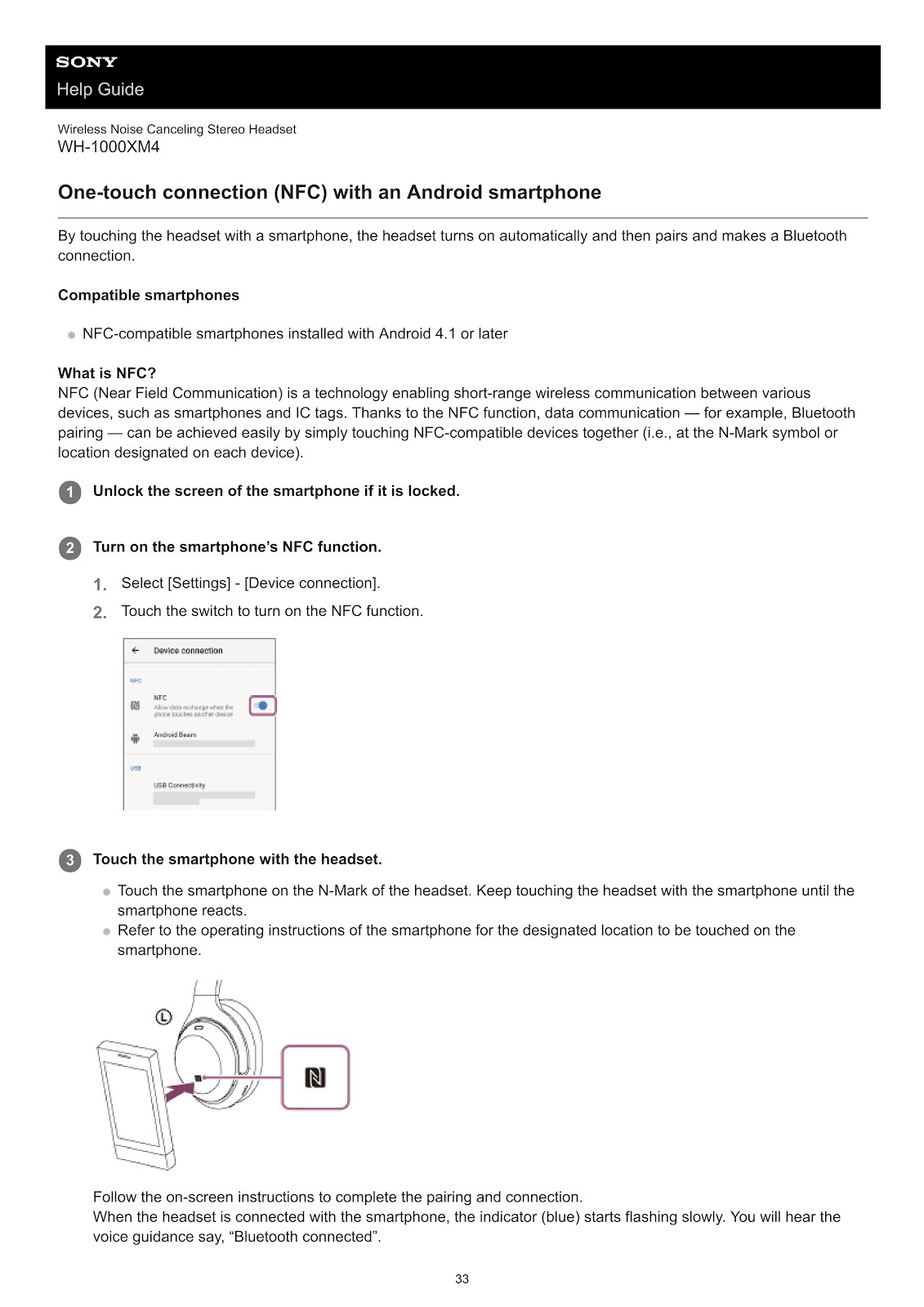
2. Turn on the smartphone’s NFC function, typically found under [Settings] – [Device connection].
3. Touch the smartphone to the N-Mark on the left earcup of the headset. Keep them in contact until the smartphone reacts.
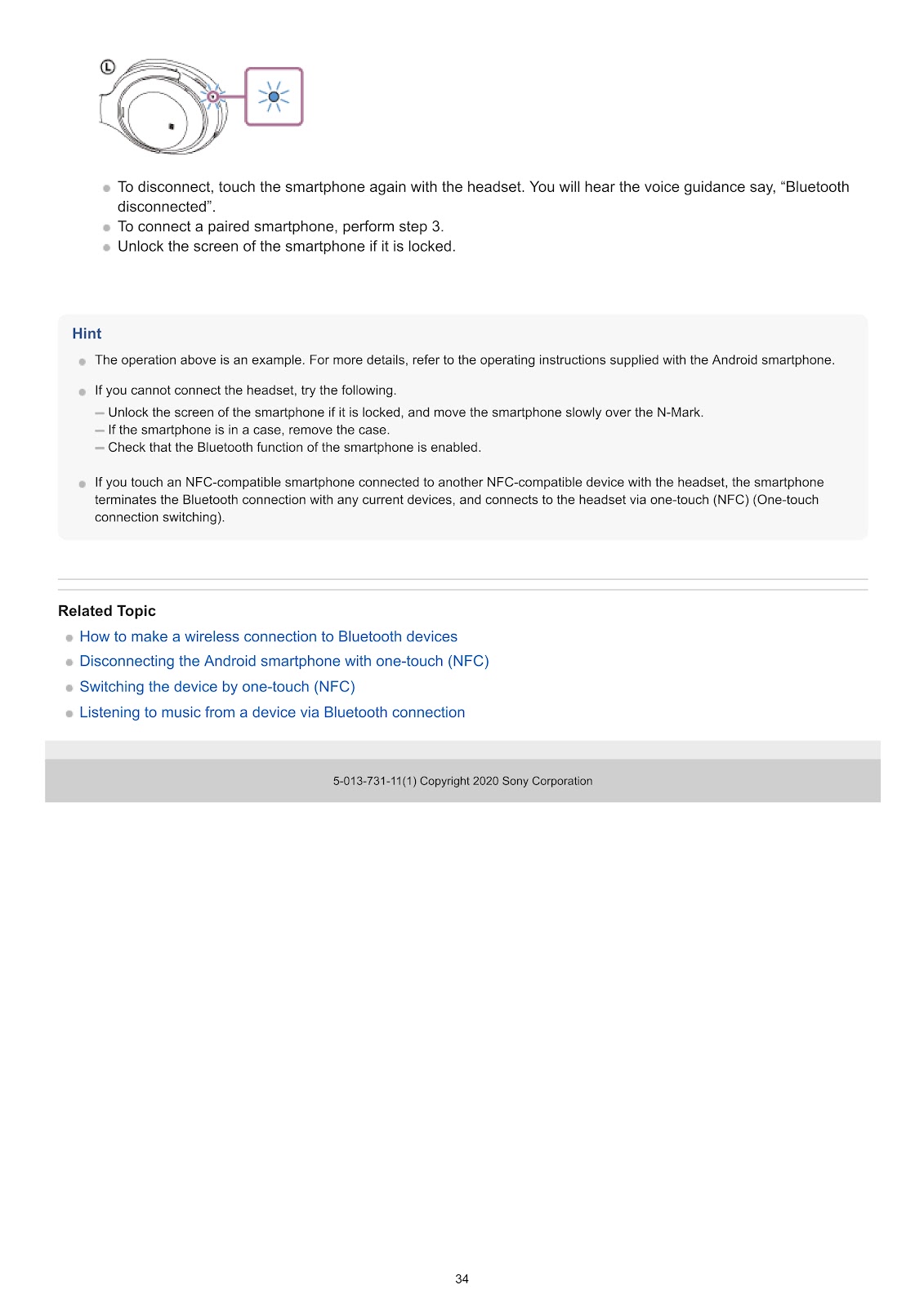
4. Follow the on-screen instructions to complete the pairing and connection. You will hear the voice guidance say, “Bluetooth connected”.
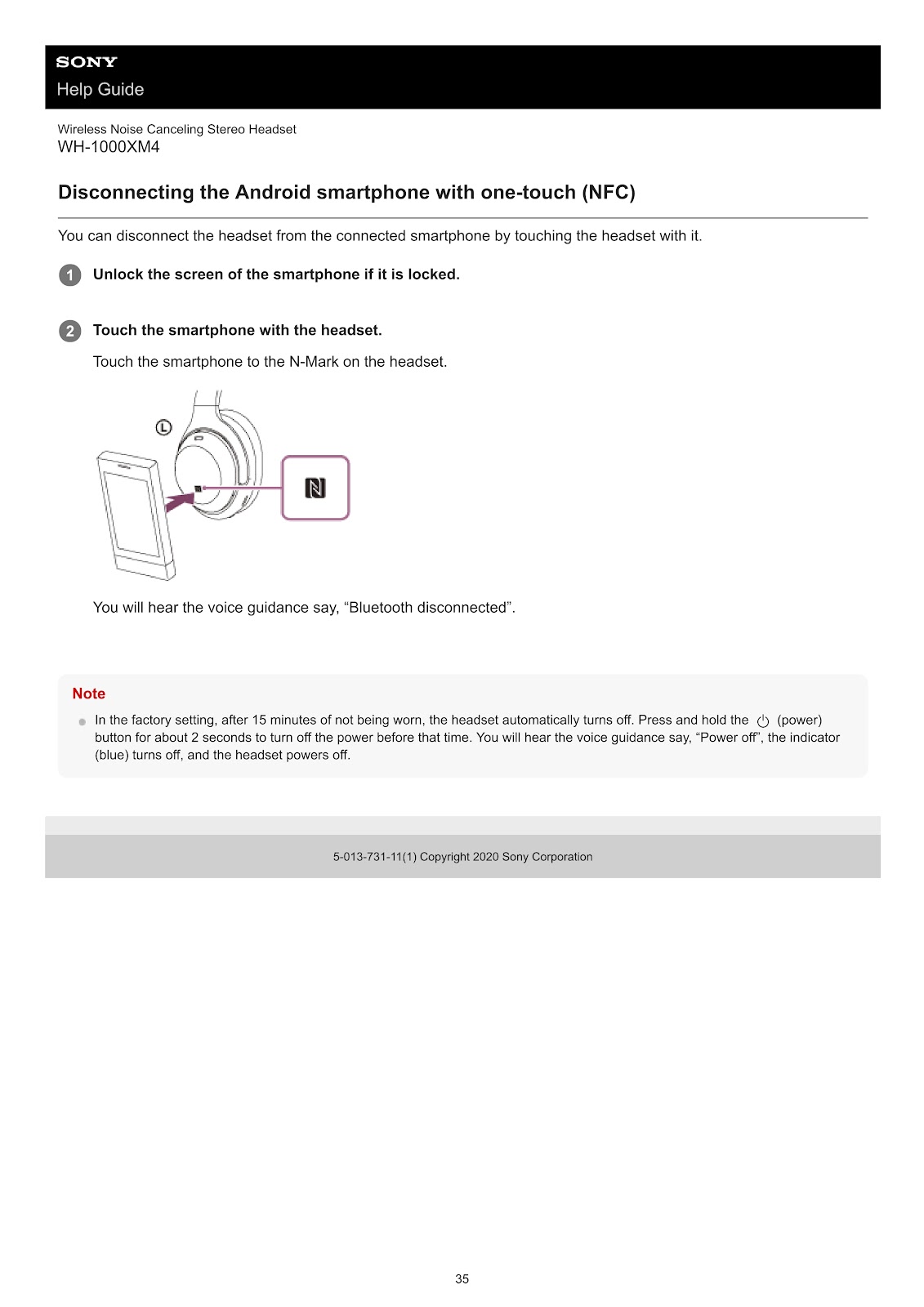
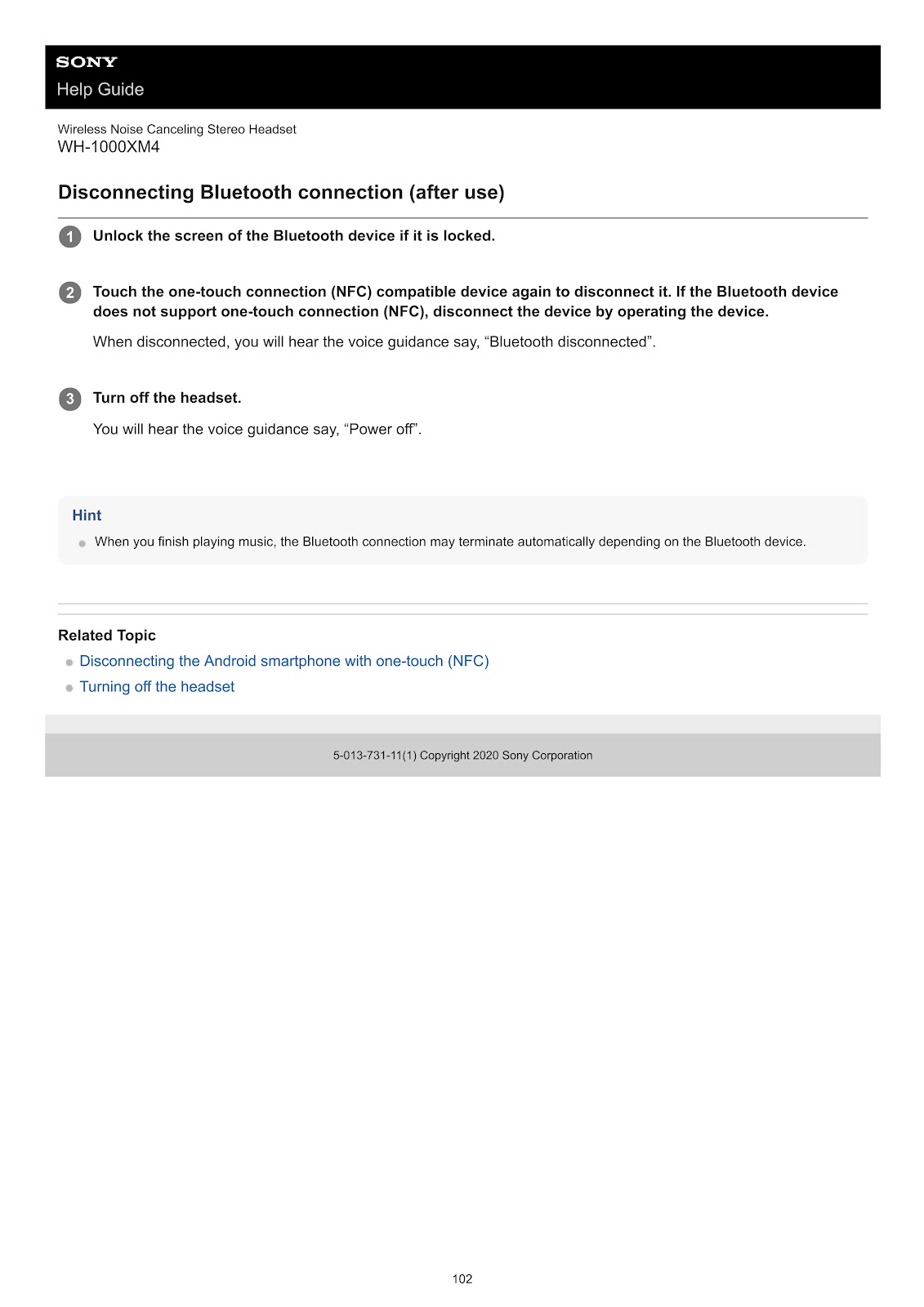
To disconnect, touch the smartphone to the N-Mark on the headset again. You will hear, “Bluetooth disconnected”.
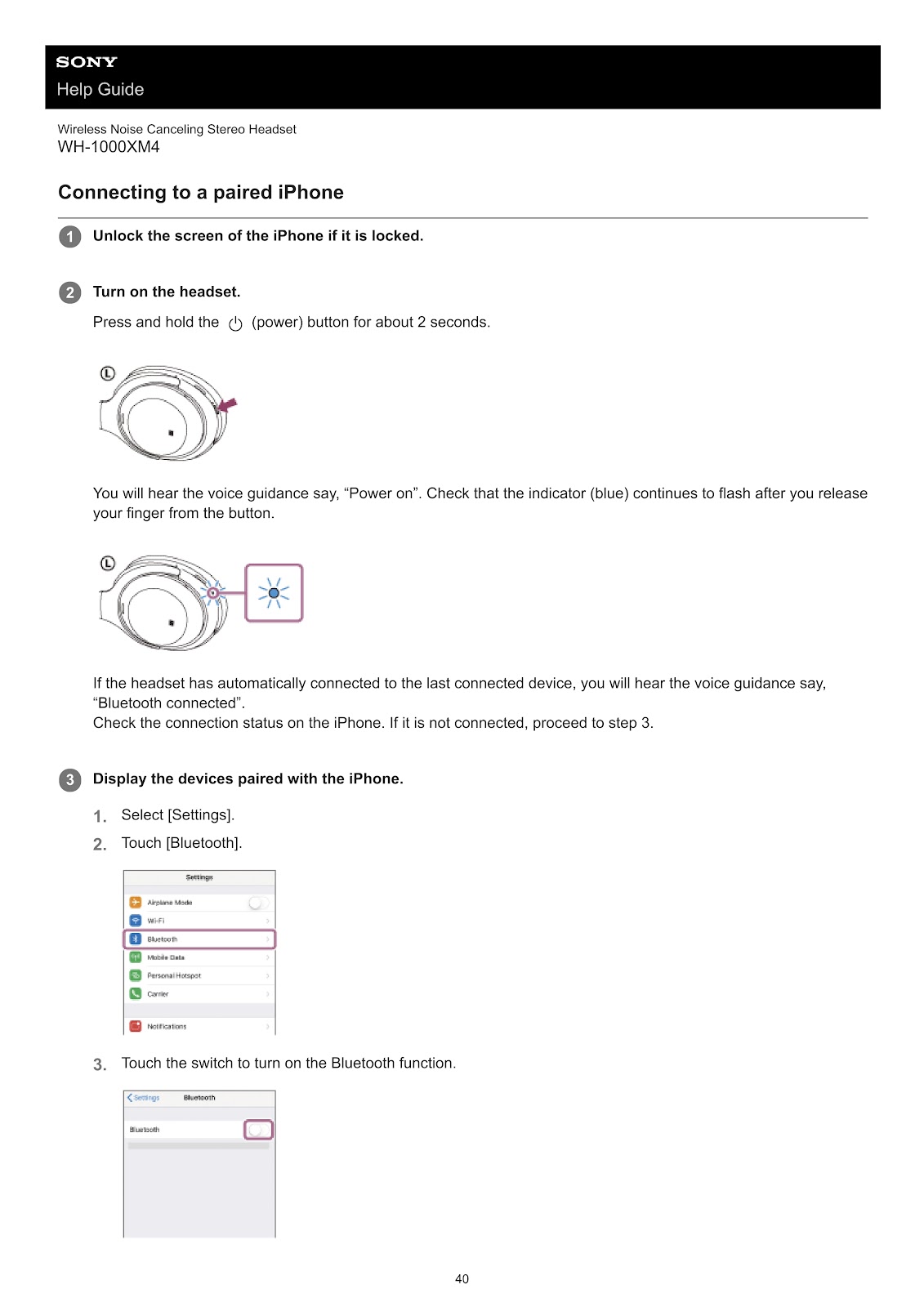
How do I pair and connect the SONY WH-1000XM4 with an iPhone?
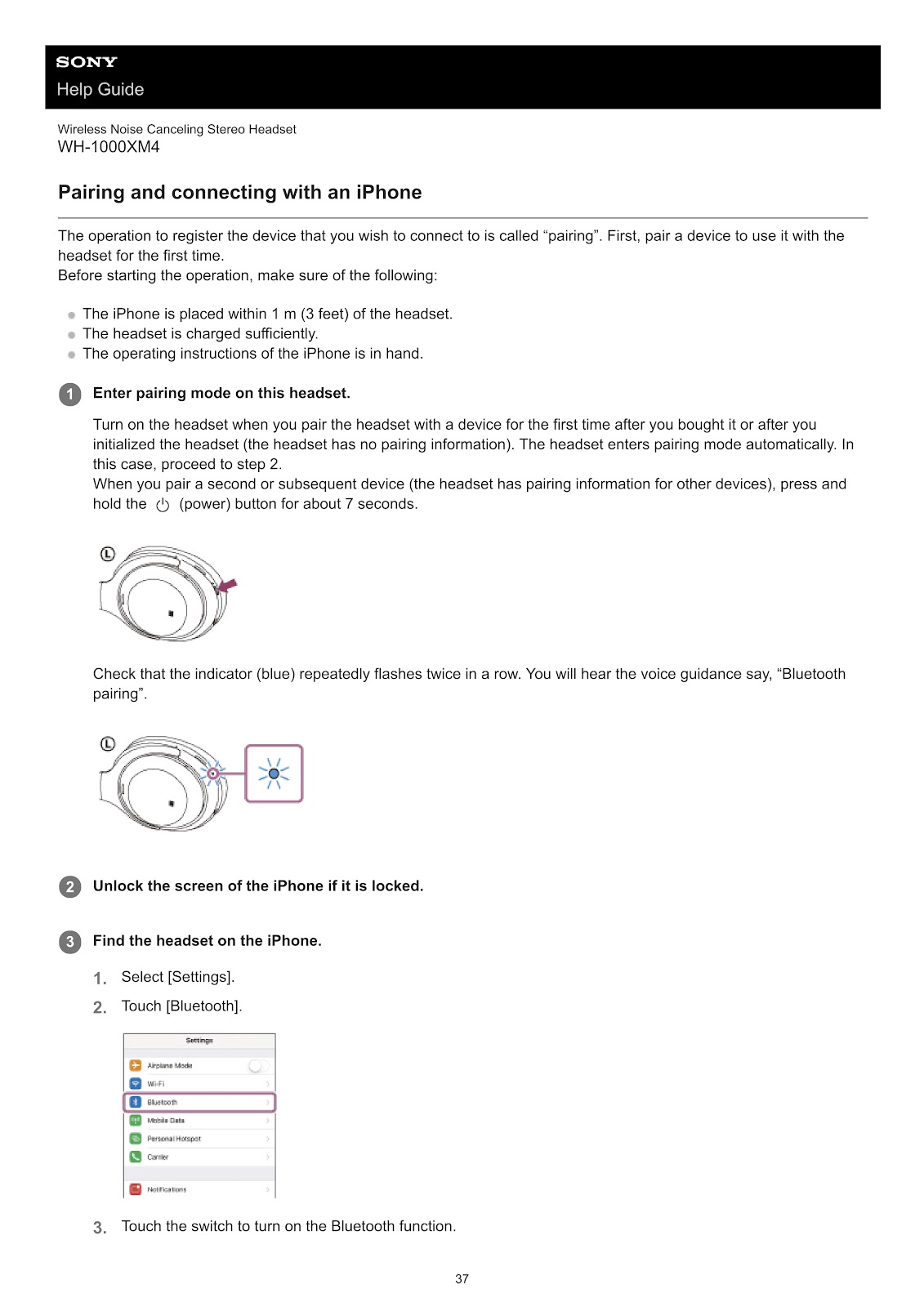
1. Enter pairing mode on the headset.
• If you are pairing for the first time, turn the headset on and it will enter pairing mode automatically.
• To pair another device, press and hold the (power) button for about 7 seconds with the headset off. The indicator will flash blue twice in a row, and you will hear “Bluetooth pairing”.
2. Unlock the screen of the iPhone.
3. Find the headset on the iPhone.
• Go to [Settings] and touch [Bluetooth].
• Turn on the Bluetooth function.
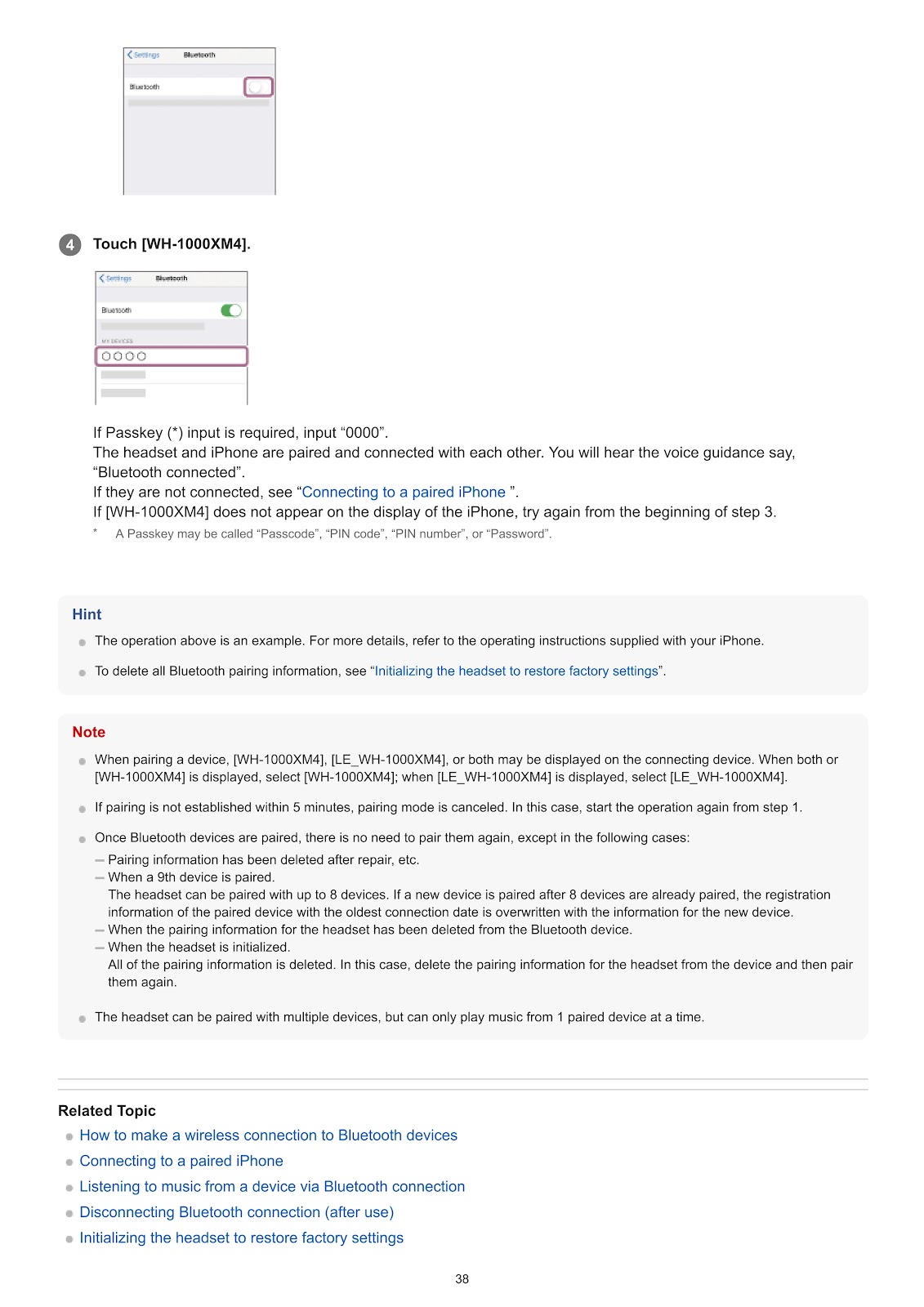
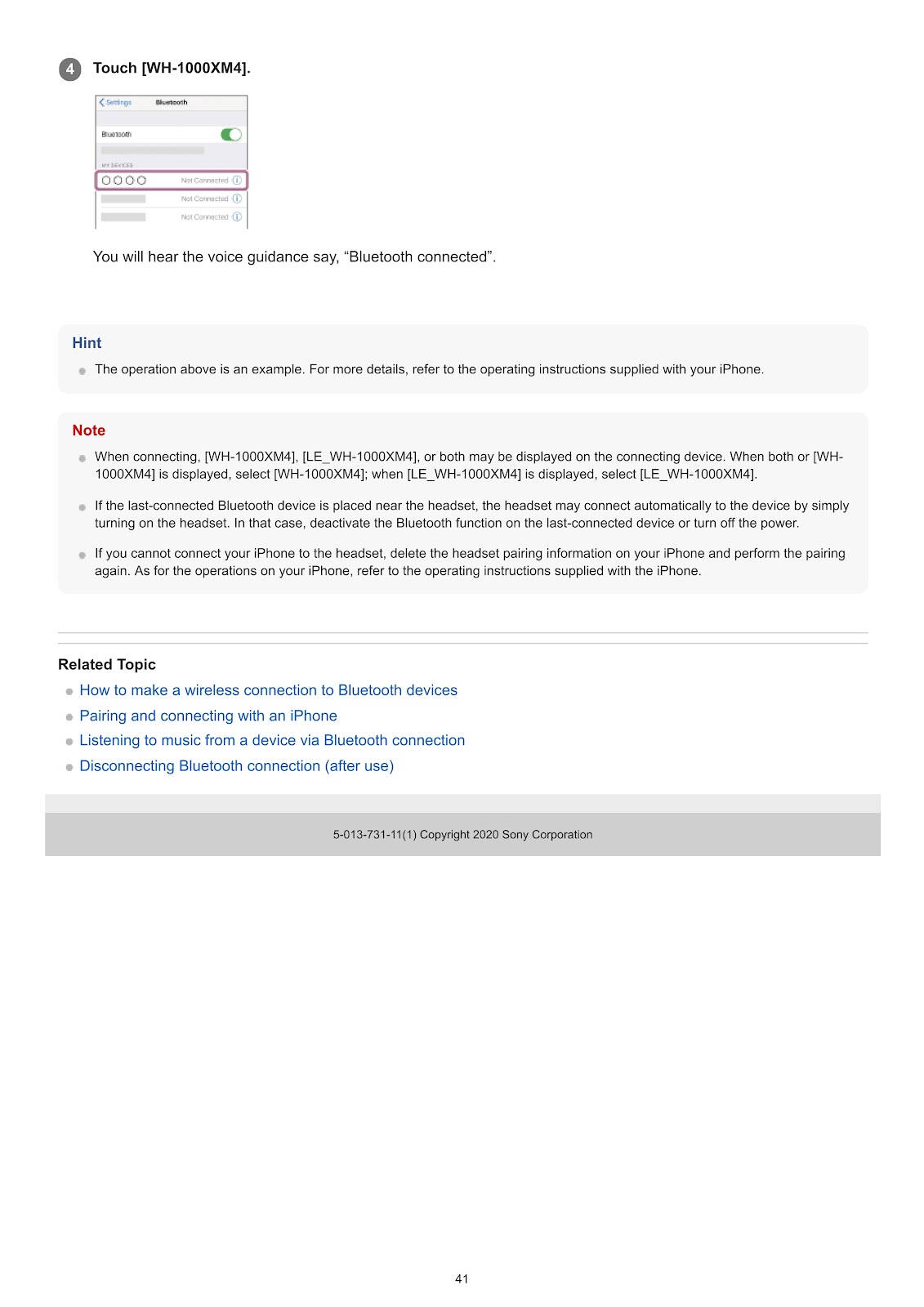
4. Touch [WH-1000XM4] from the list of devices.
• If a Passkey is required, enter “0000”.
• The headset and iPhone will pair and connect. You will hear “Bluetooth connected”.
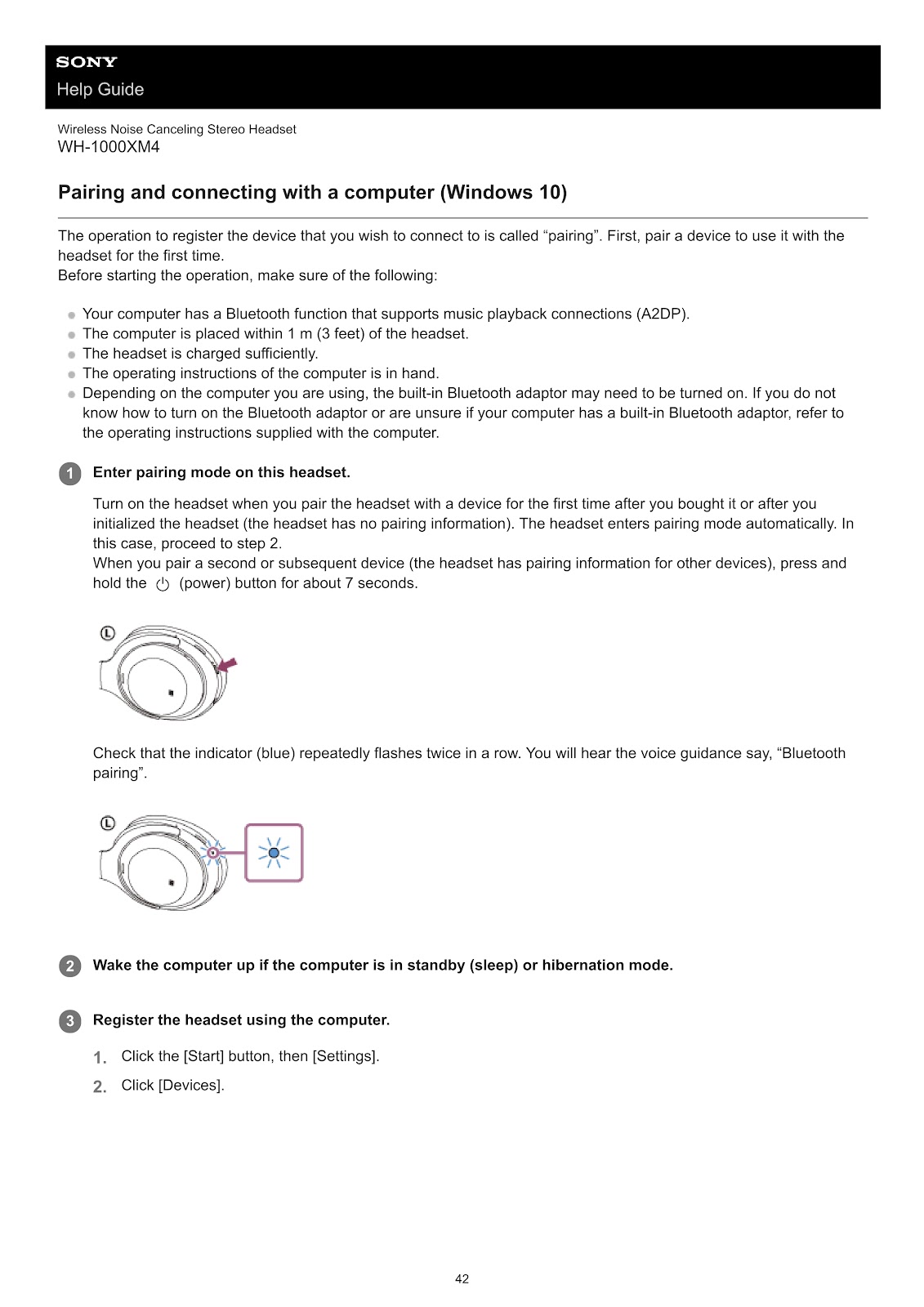
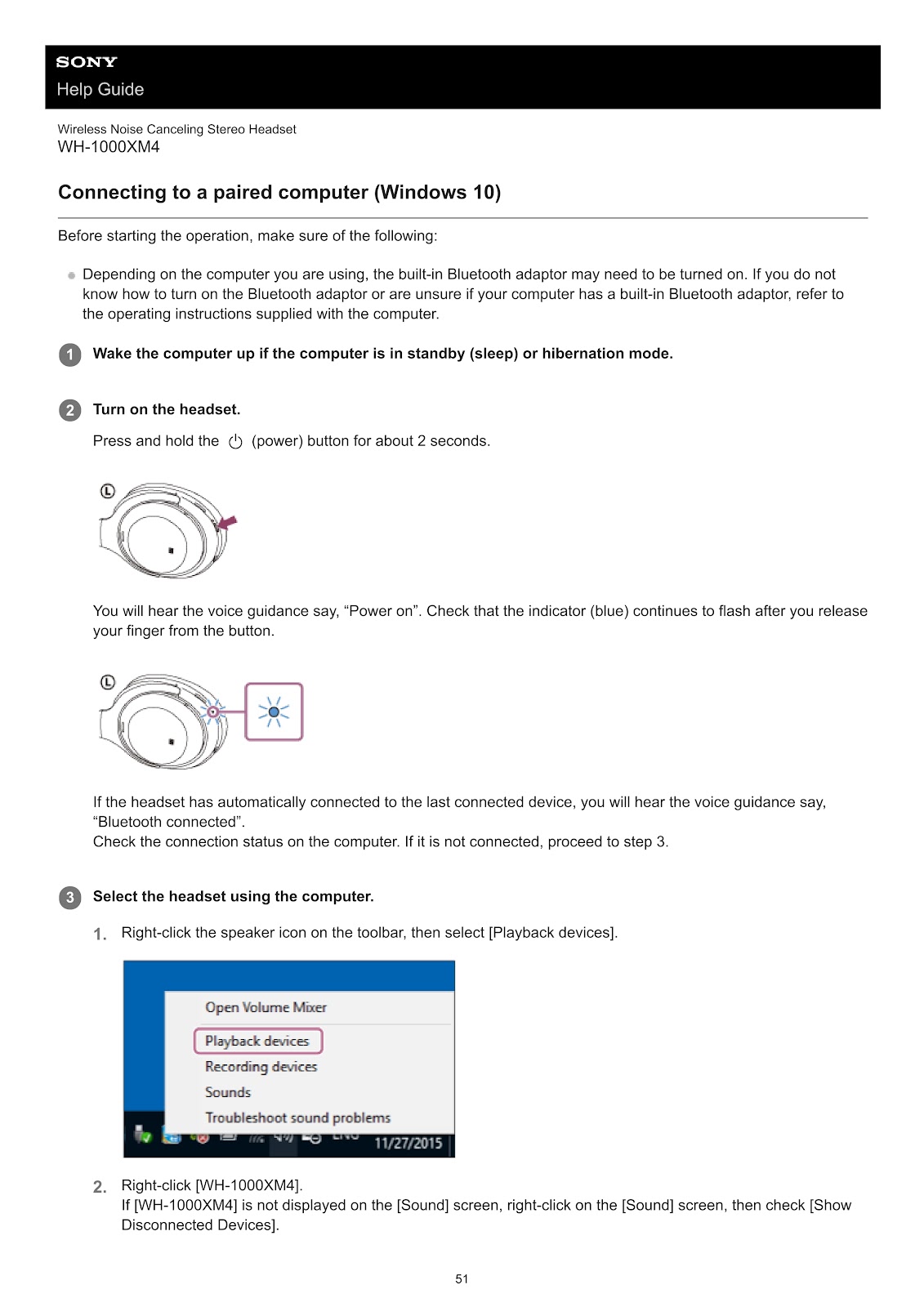
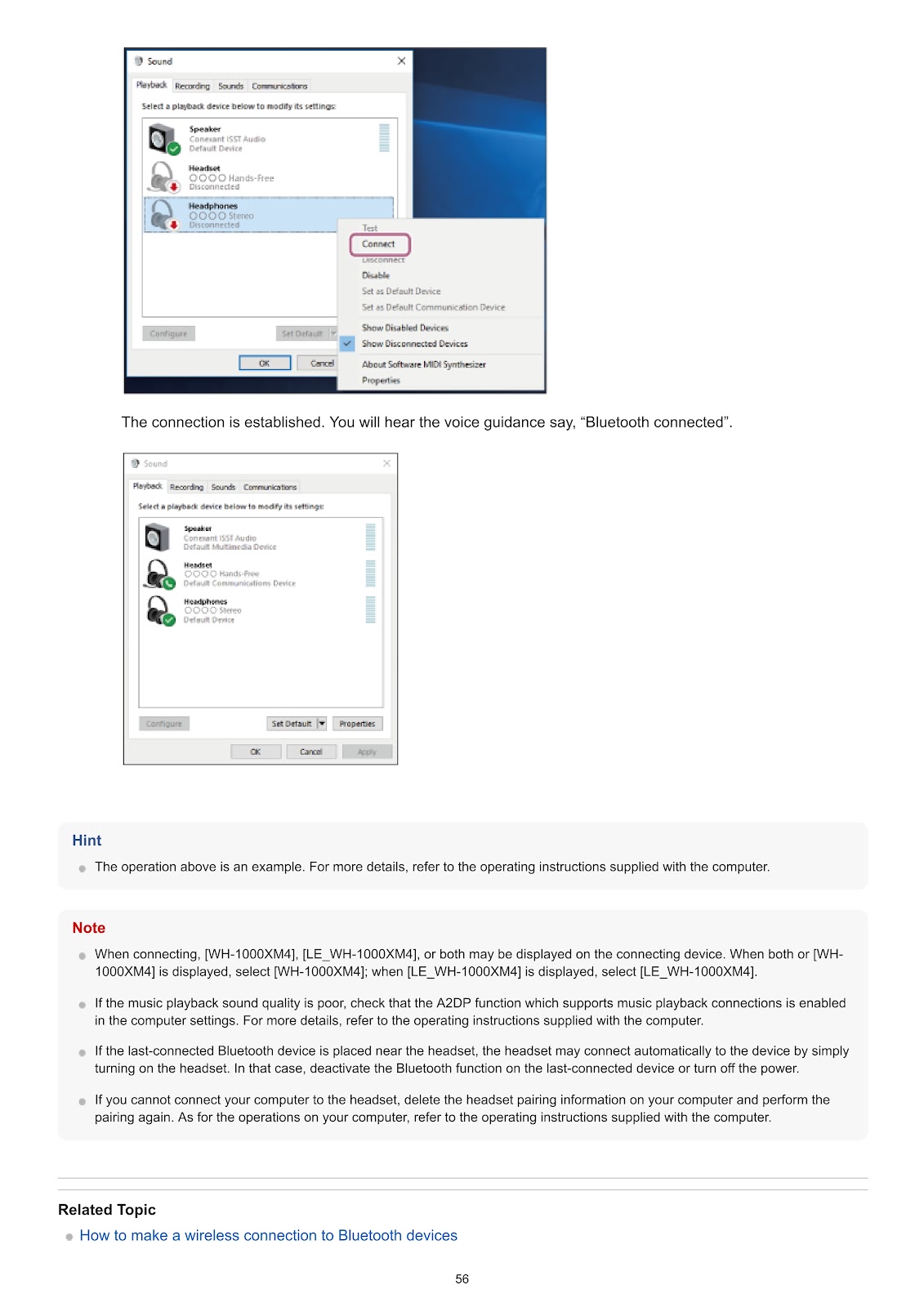
How do I pair and connect the SONY WH-1000XM4 with a Windows 10 computer?
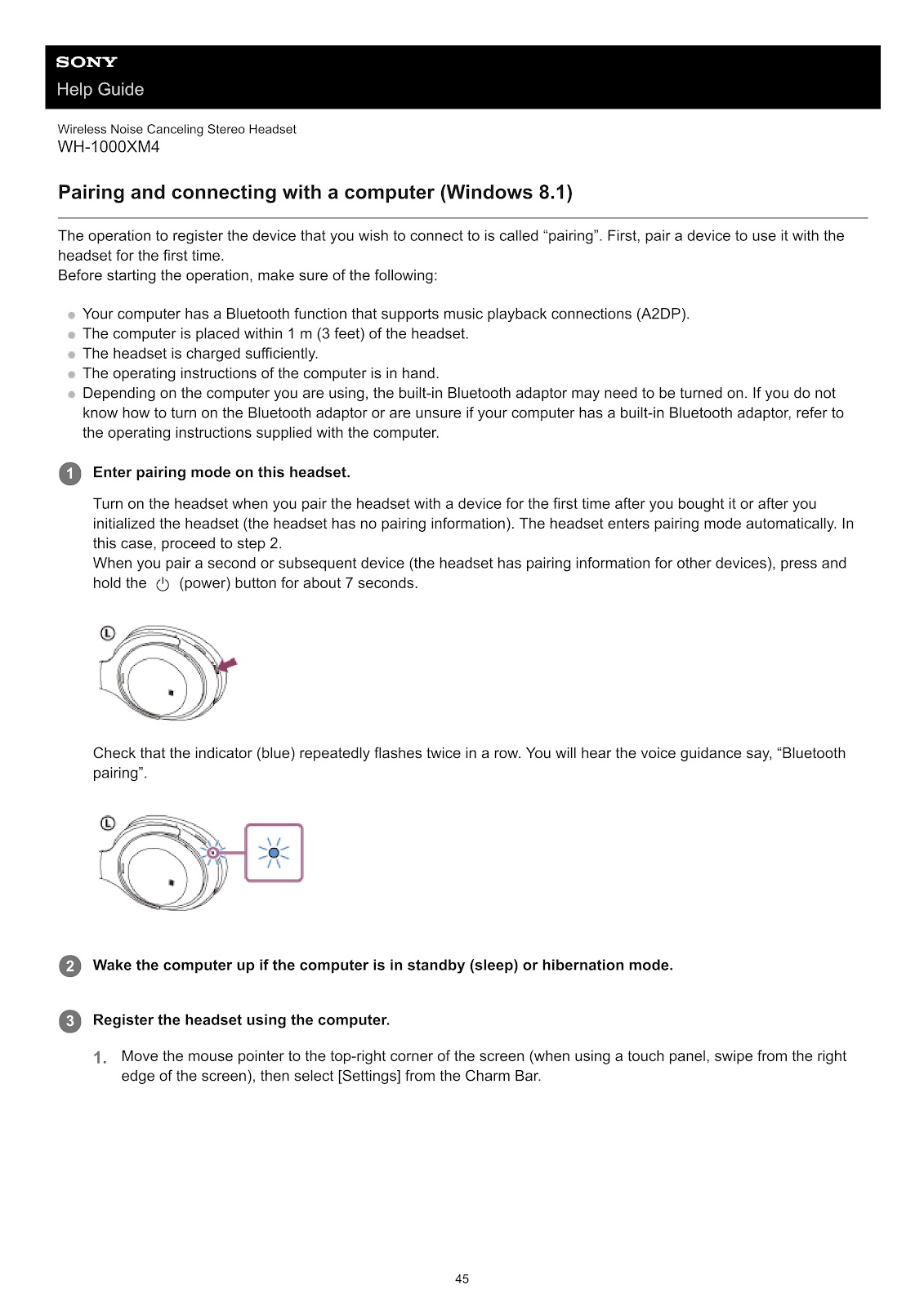
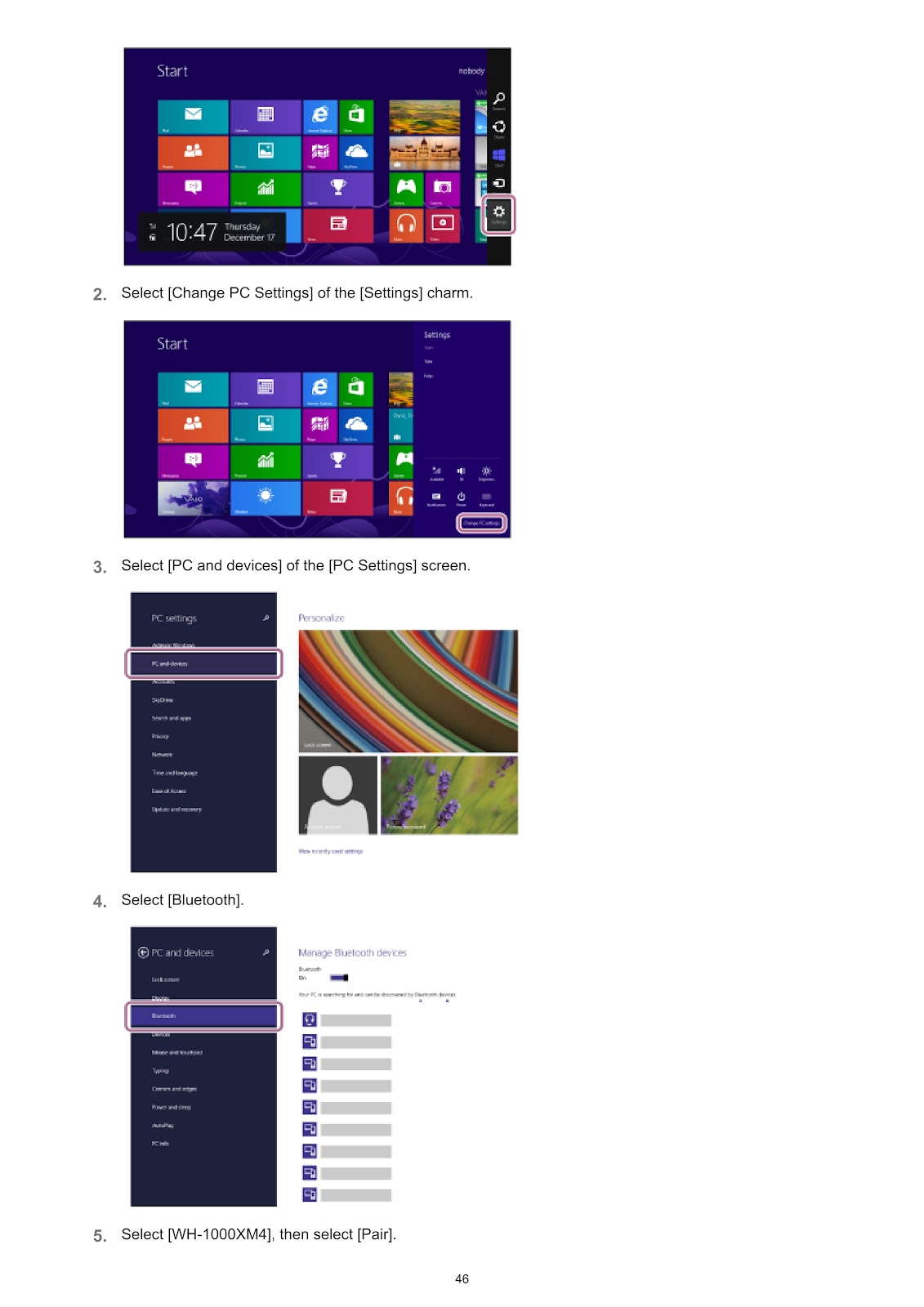
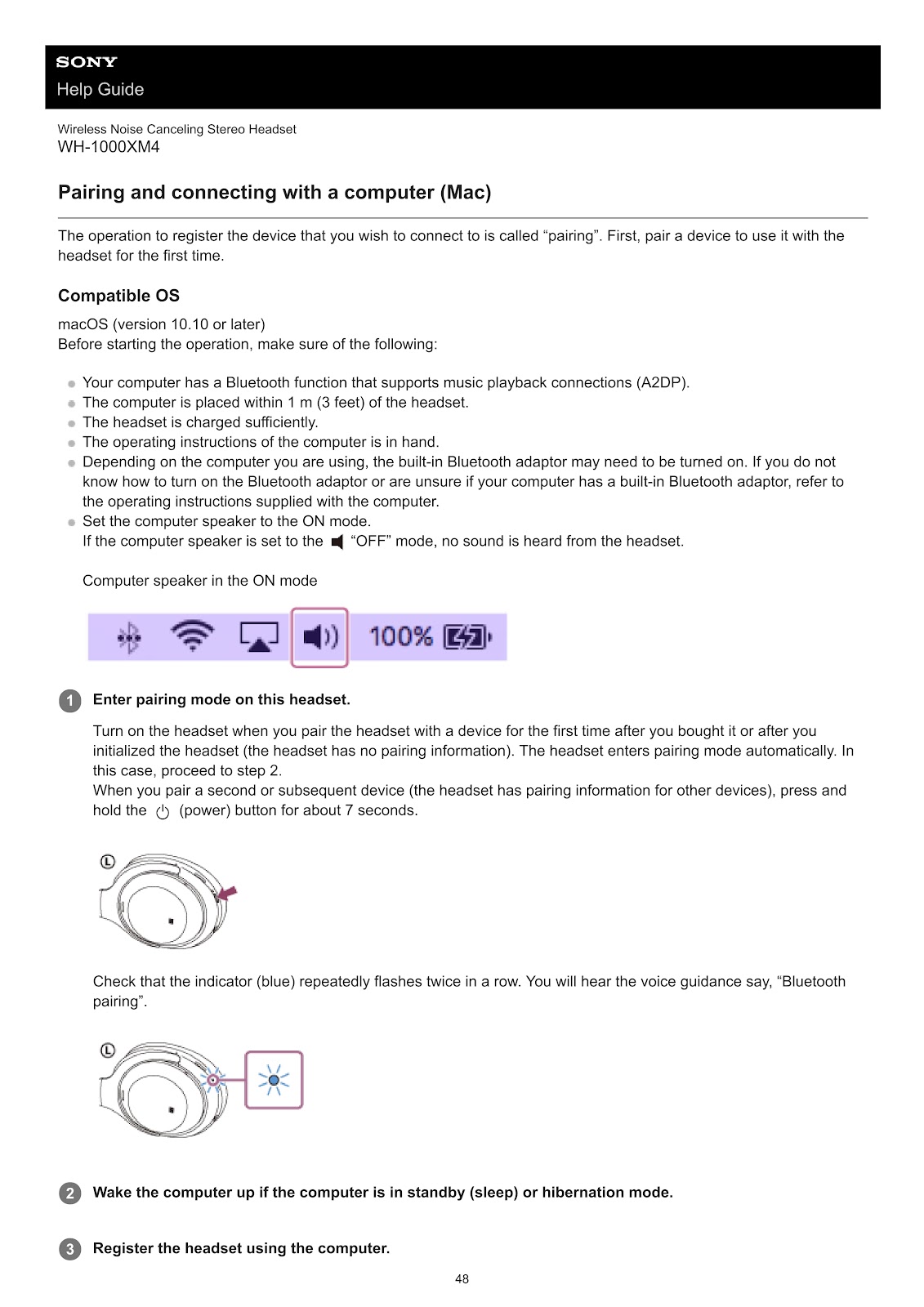
1. Enter pairing mode on the headset by pressing and holding the (power) button for about 7 seconds until the indicator flashes blue twice in a row.
2. Wake the computer if it is in sleep or hibernation mode.
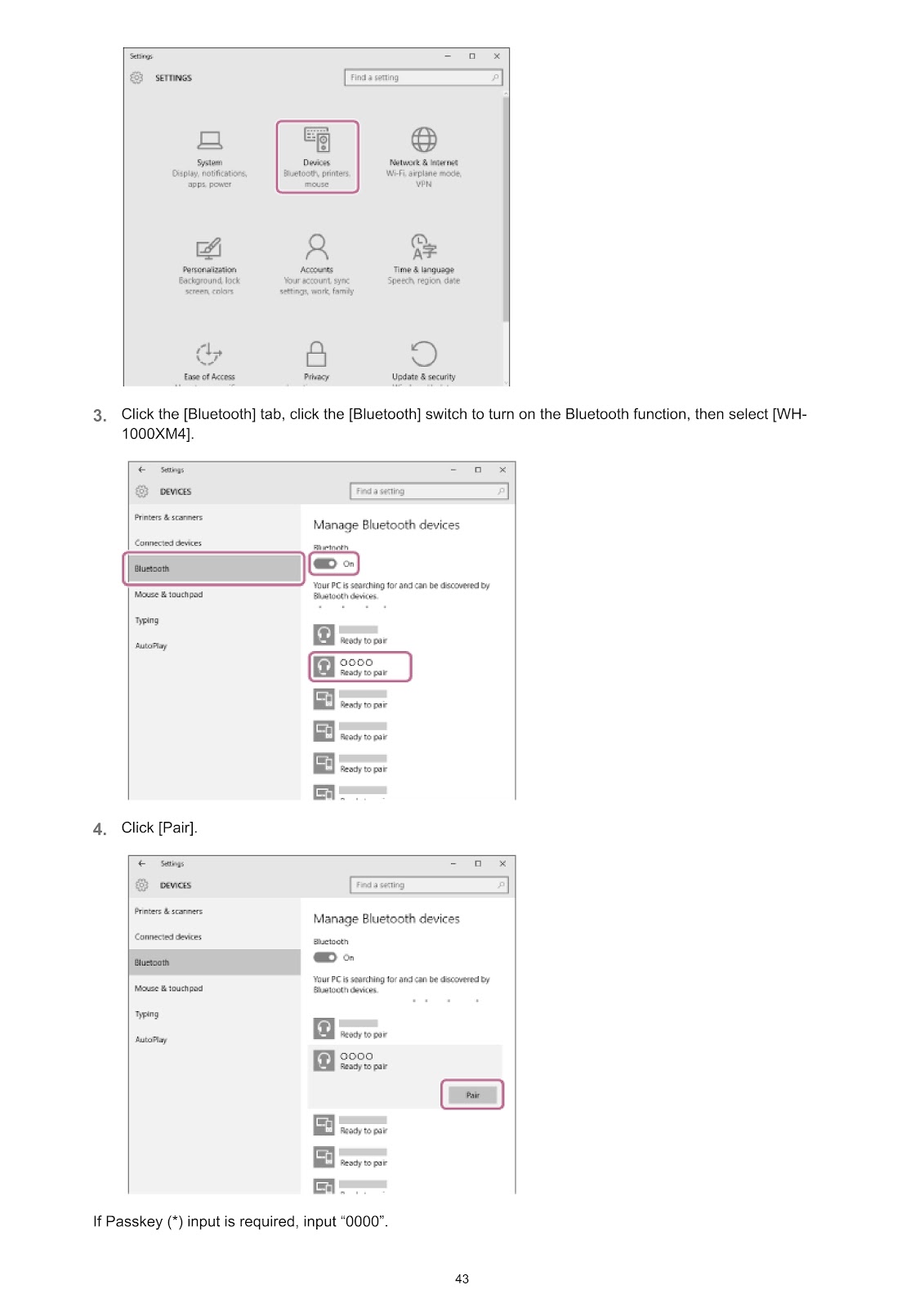
3. Register the headset on the computer.
• Click the [Start] button, then [Settings].
• Click [Devices].
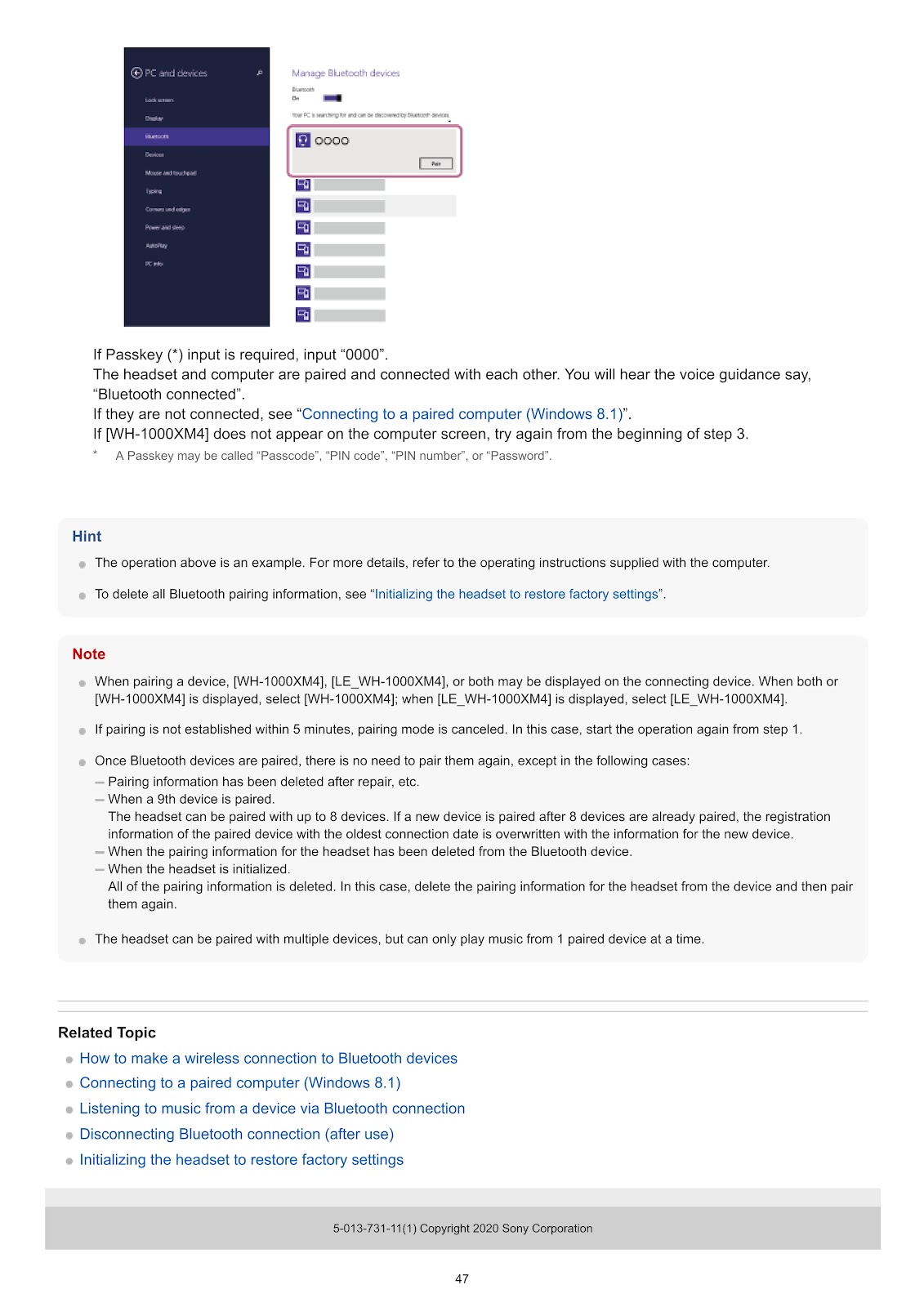
• Click the [Bluetooth] tab, click the [Bluetooth] switch to turn it on, then select [WH-1000XM4].
• Click [Pair].
• If Passkey input is required, enter “0000”.
The headset and computer will pair and connect. You will hear the voice guidance “Bluetooth connected”.
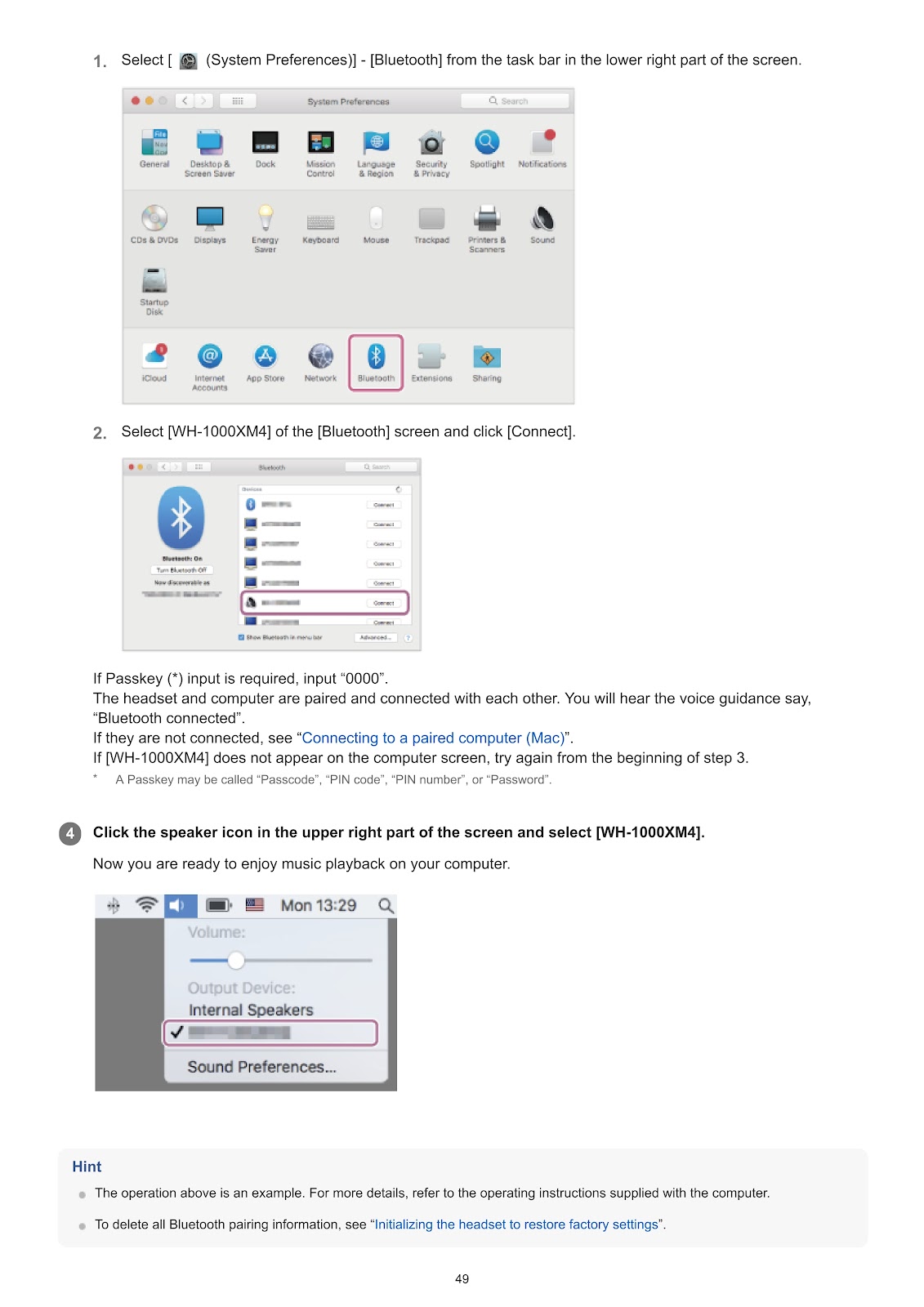
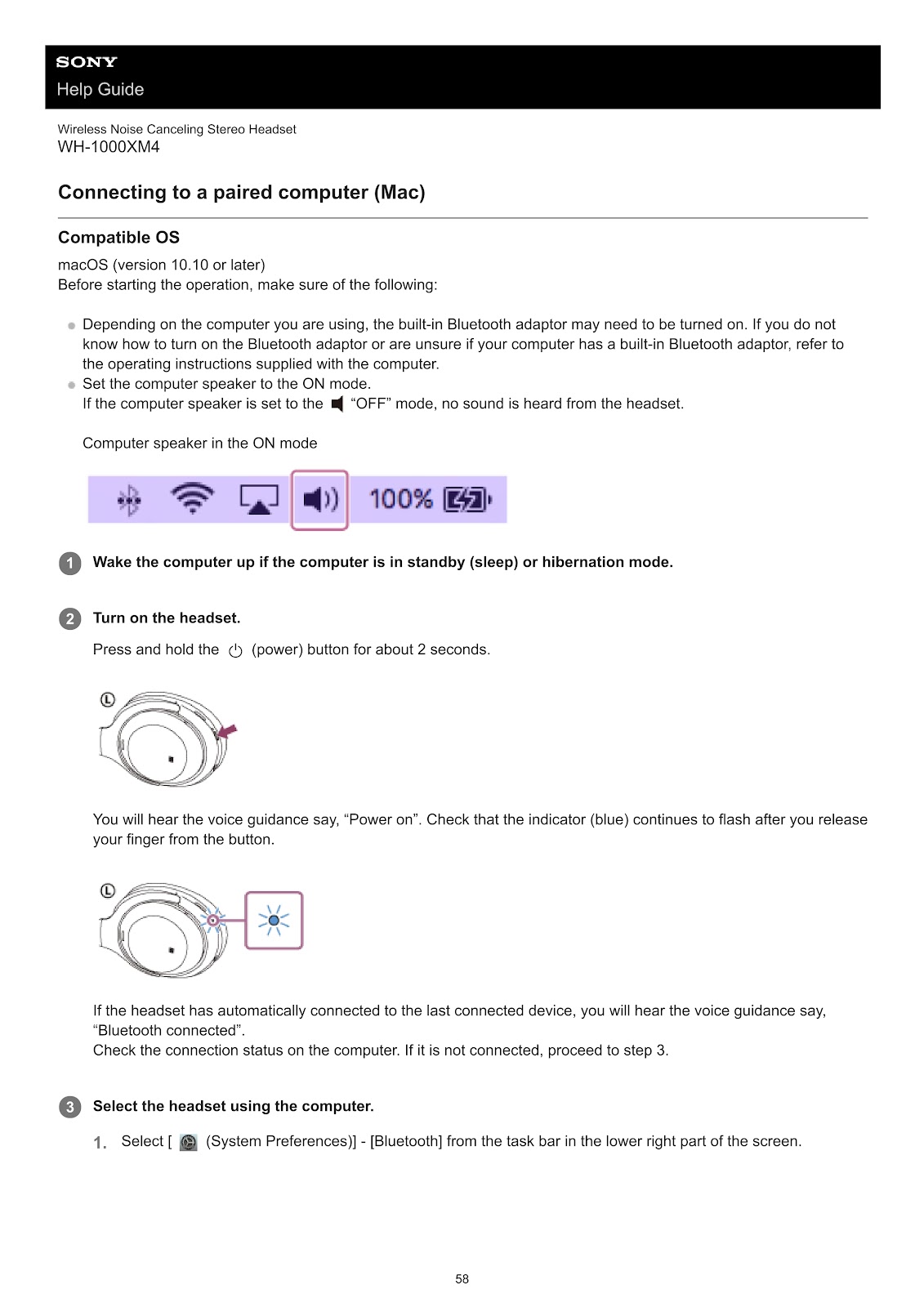
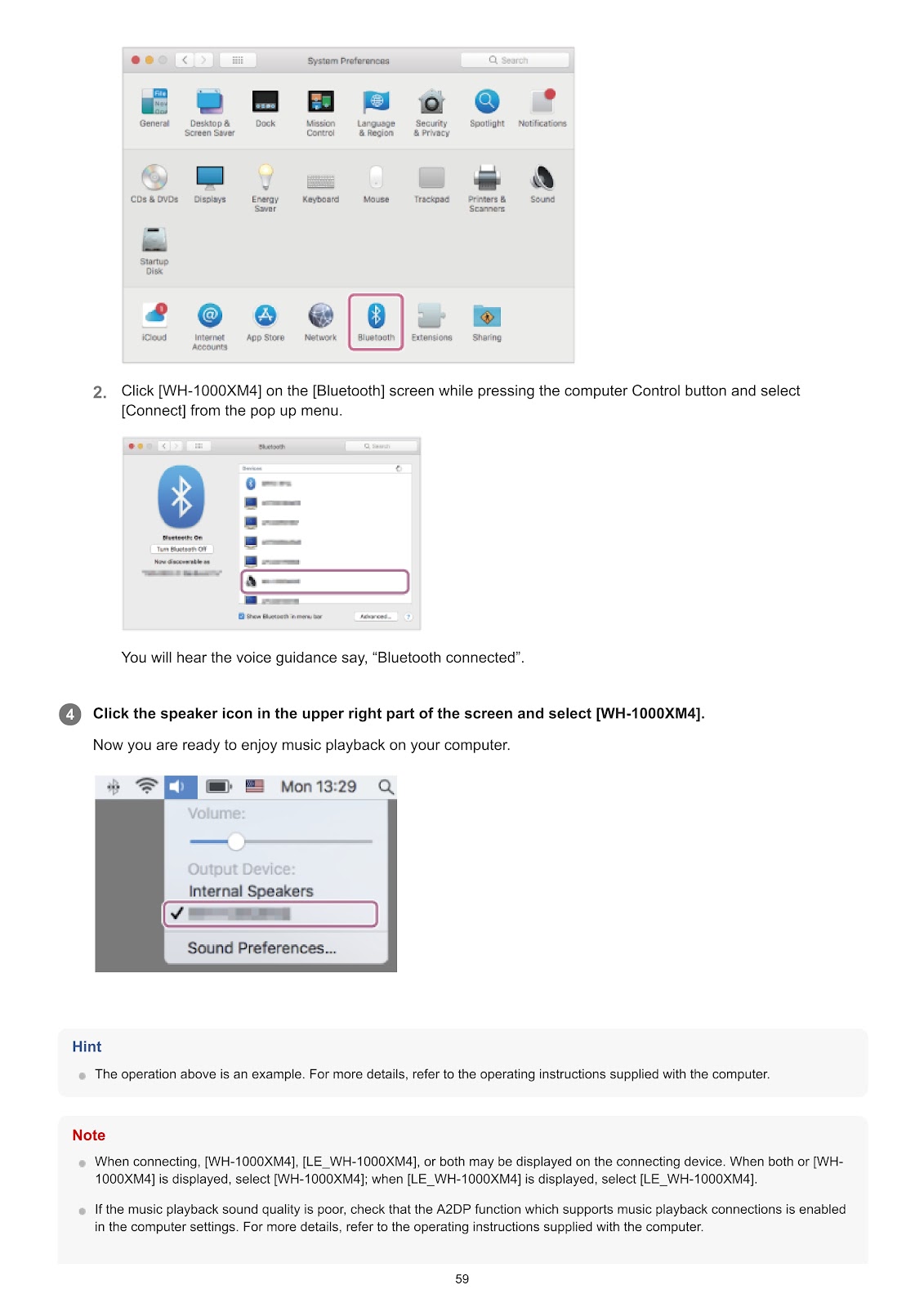
How do I pair and connect the SONY WH-1000XM4 with a Mac?
Before starting, ensure the computer speaker is in the ON mode, not muted.
1. Enter pairing mode on the headset by pressing and holding the (power) button for about 7 seconds until the indicator flashes blue twice in a row.
2. Wake the computer if it is in sleep or hibernation mode.
3. Register the headset on the computer.
• Select [System Preferences] – [Bluetooth] from the task bar.
• In the Bluetooth screen, select [WH-1000XM4] and click [Connect].
• If Passkey input is required, enter “0000”.
4. Click the speaker icon in the upper right part of the screen and select [WH-1000XM4] as the output device.
How does the multipoint connection work on the SONY WH-1000XM4?
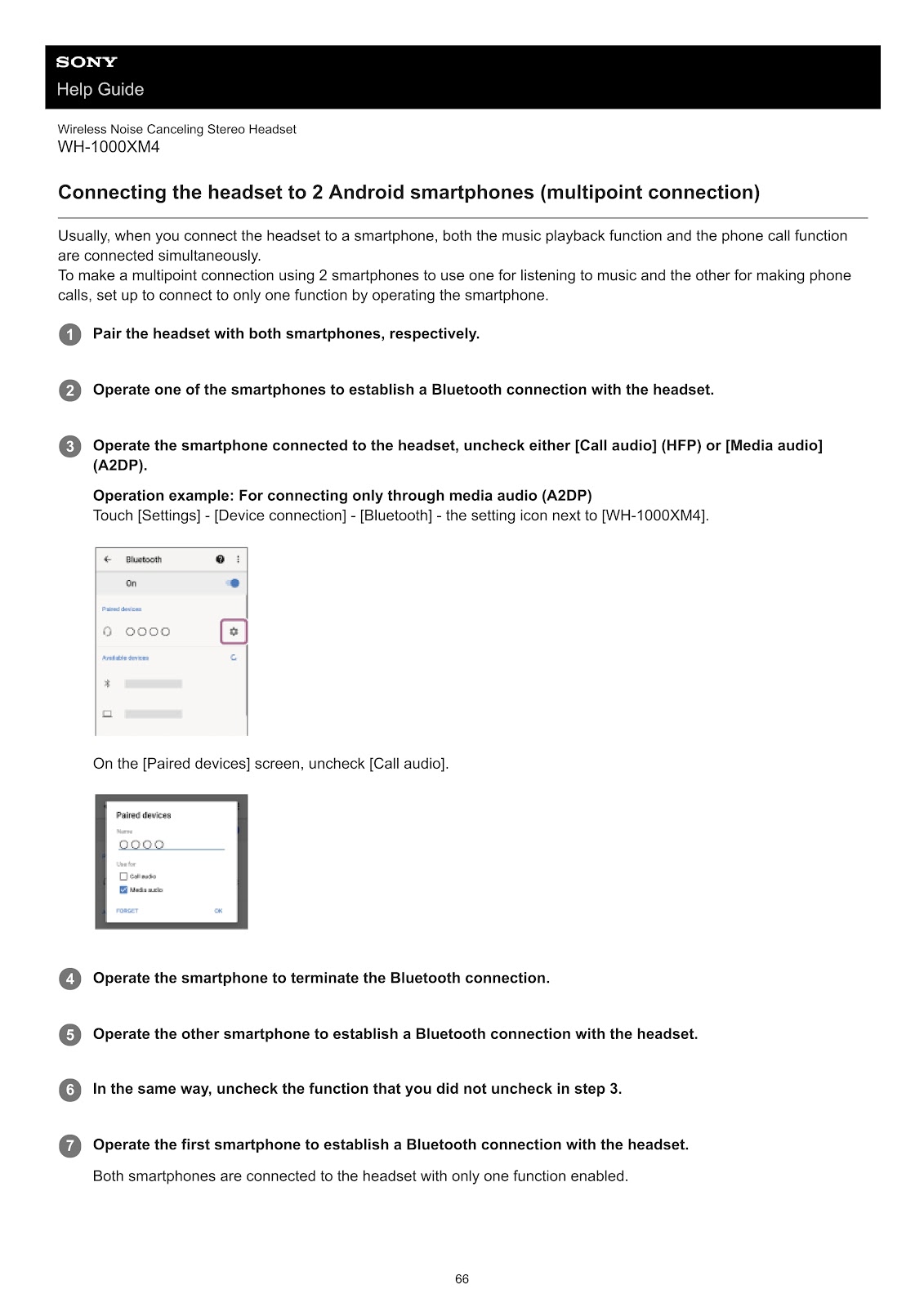
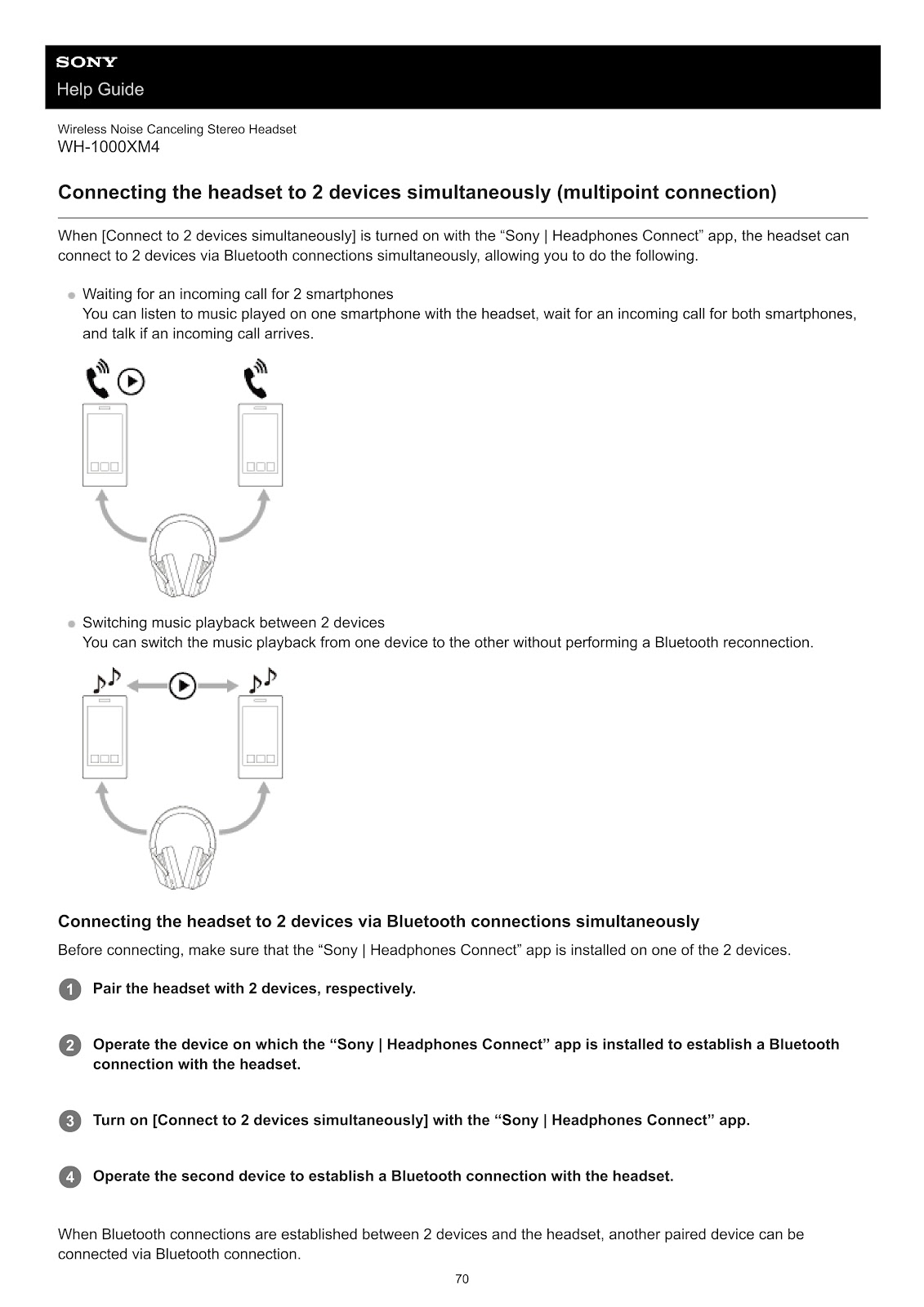
When [Connect to 2 devices simultaneously] is turned on with the “Sony | Headphones Connect” app, the SONY WH-1000XM4 can connect to 2 Bluetooth devices at the same time.
Features:
• Waiting for an incoming call for 2 smartphones: You can listen to music from one smartphone and still receive a call from either smartphone.
• Switching music playback between 2 devices: You can switch music playback from one device to another without performing a Bluetooth reconnection. To switch, stop playback on the current device and start playback on the other device.
How to set up:
1. Pair the headset with both devices.
2. Connect the headset to the device where the “Sony | Headphones Connect” app is installed.
3. Open the app and turn on [Connect to 2 devices simultaneously].
4. Operate the second device to establish a Bluetooth connection with the headset.
How do I use the SONY WH-1000XM4 with the supplied headphone cable?
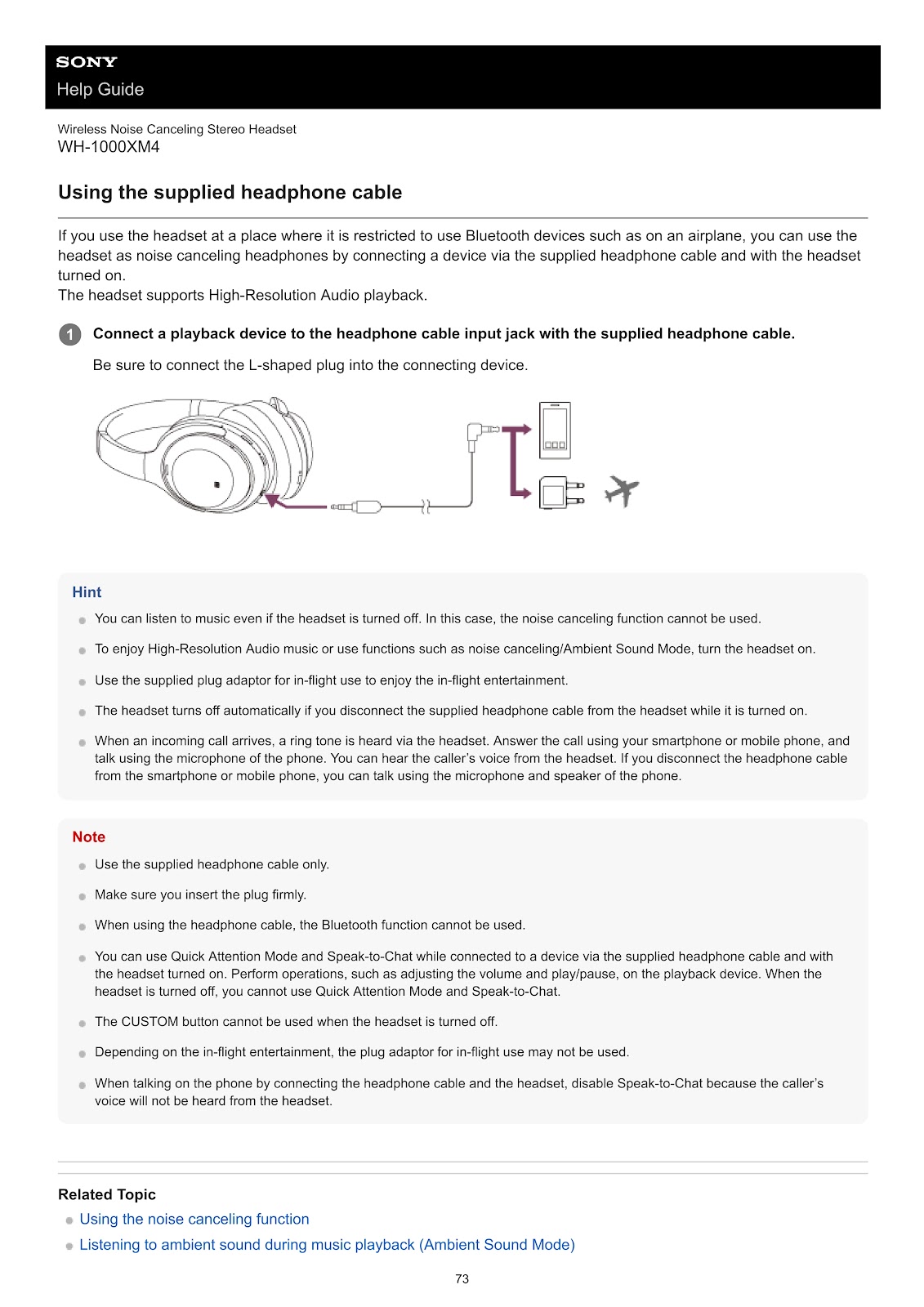
You can use the SONY WH-1000XM4 as wired headphones, which is useful in places where Bluetooth is restricted, like on an airplane.
1. Connect a playback device to the headphone cable input jack on the headset with the supplied headphone cable. Be sure to connect the L-shaped plug to the connecting device.
Notes on wired use:
• You can listen to music even if the headset is turned off. In this case, the noise canceling function cannot be used.
• To use noise canceling or Ambient Sound Mode, turn the headset on while the cable is connected.
• The Bluetooth function cannot be used when the headphone cable is connected.
• The headset turns off automatically if you disconnect the headphone cable while it is turned on.
• For in-flight entertainment, use the supplied plug adaptor.
How do I control audio playback with the touch sensor on the SONY WH-1000XM4?
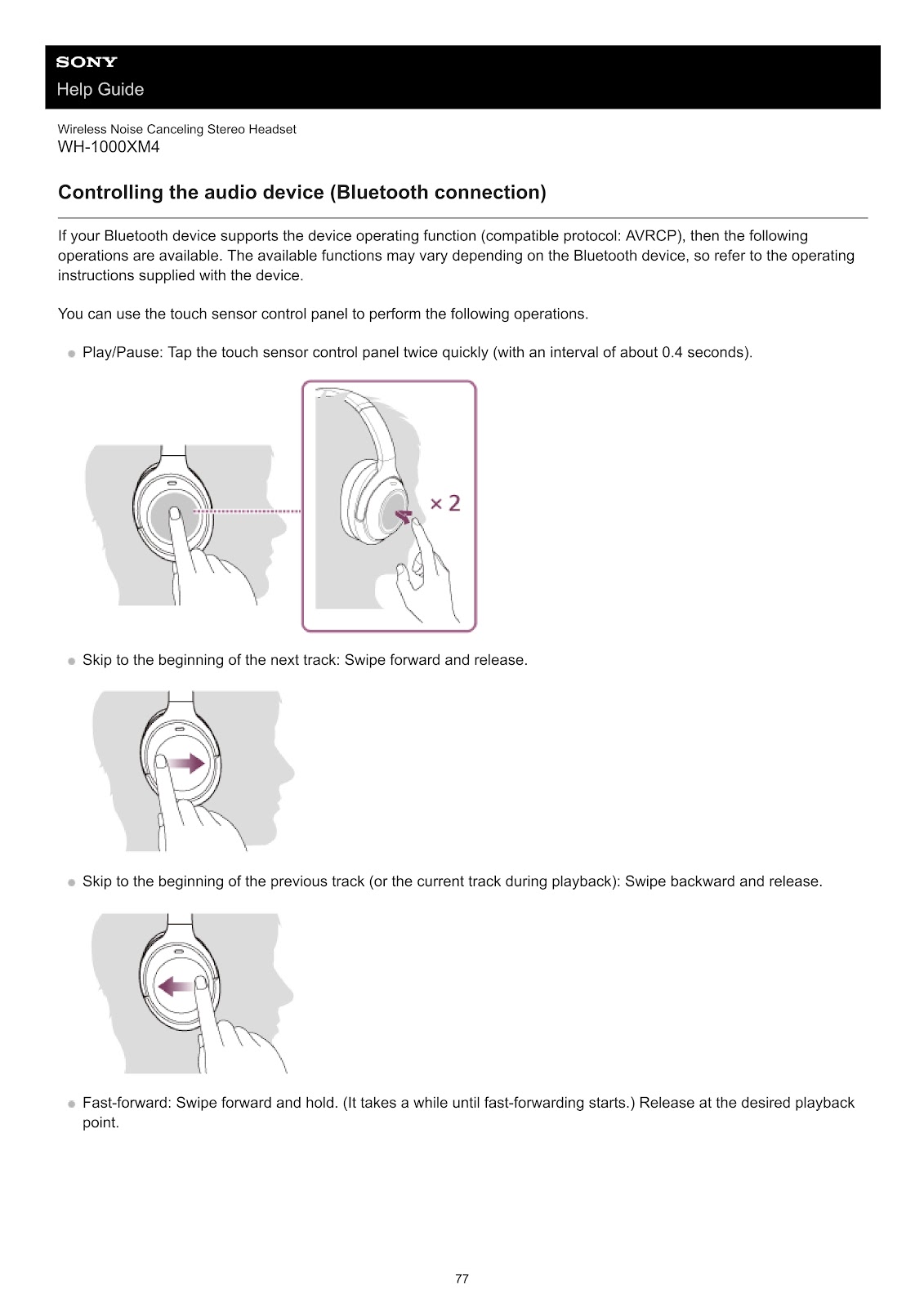
You can use the touch sensor control panel on the right earcup of the SONY WH-1000XM4 to control audio from a connected Bluetooth device that supports AVRCP.
• Play/Pause: Tap the touch sensor control panel twice quickly.
• Skip to the next track: Swipe forward and release.
• Skip to the beginning of the previous track: Swipe backward and release.
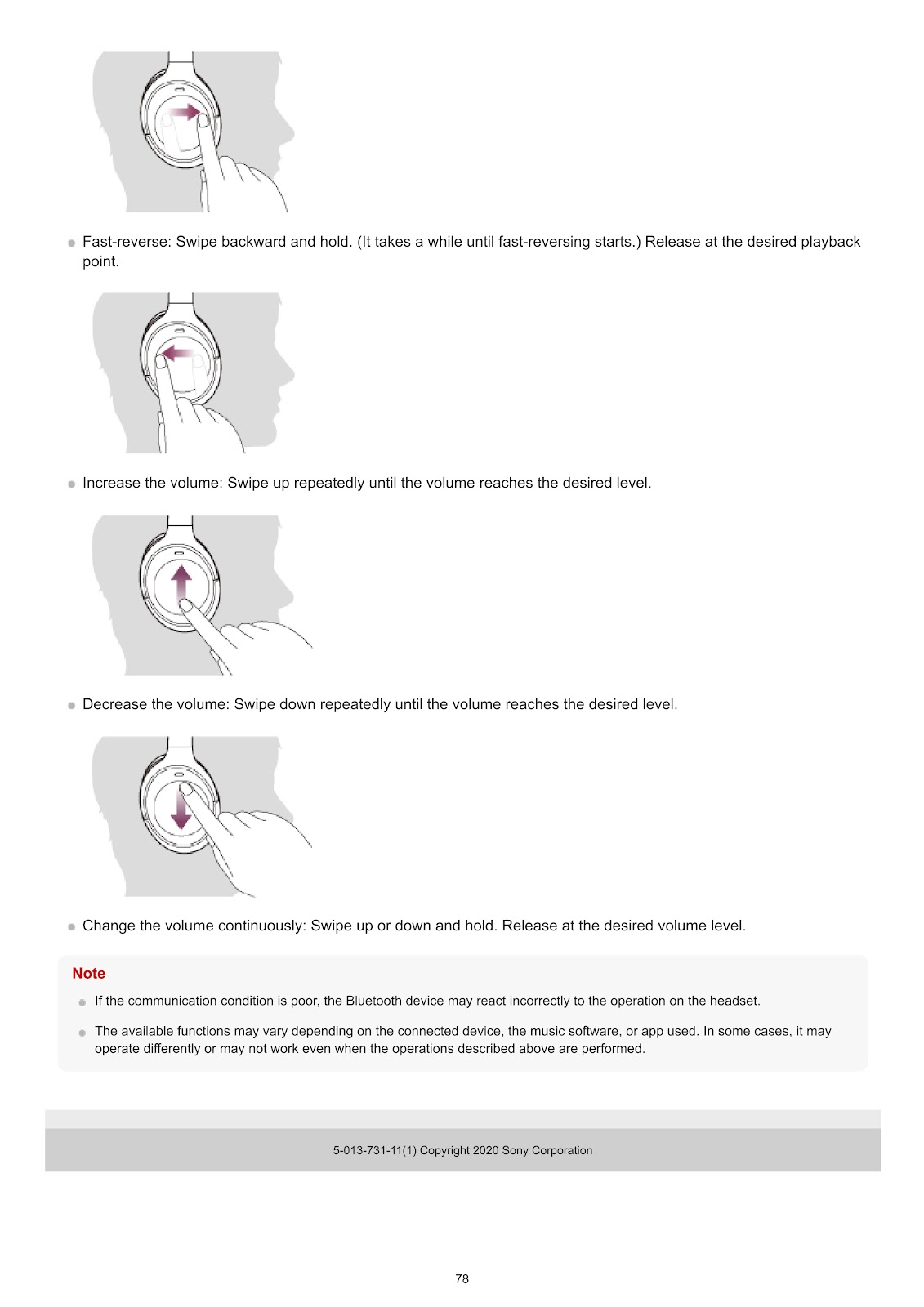
• Fast-forward: Swipe forward and hold. Release at the desired point.
• Fast-reverse: Swipe backward and hold. Release at the desired point.
• Increase the volume: Swipe up repeatedly.
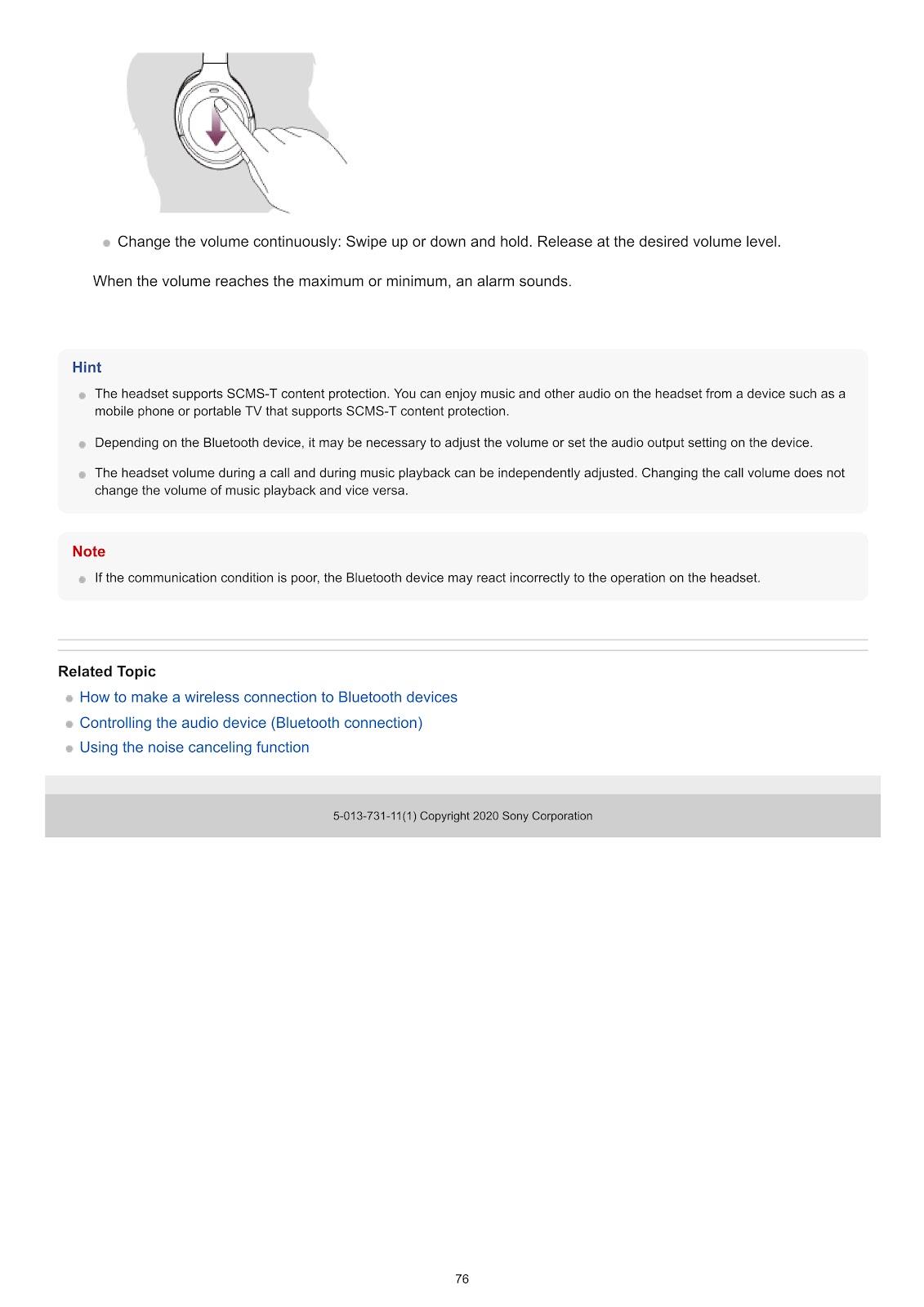
• Decrease the volume: Swipe down repeatedly.
• Change volume continuously: Swipe up or down and hold. Release at the desired level.
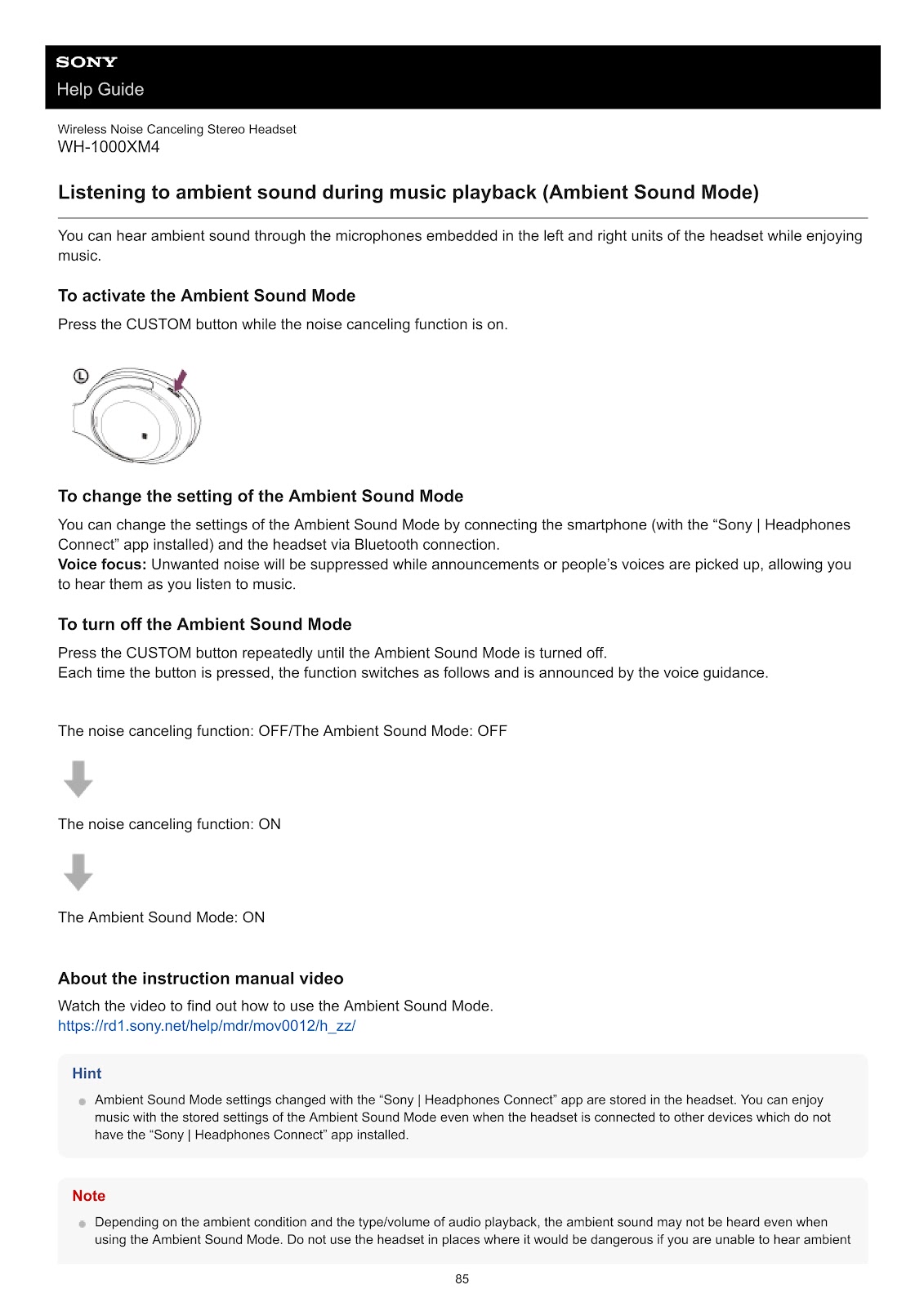
How do I use the noise canceling function on the SONY WH-1000XM4?
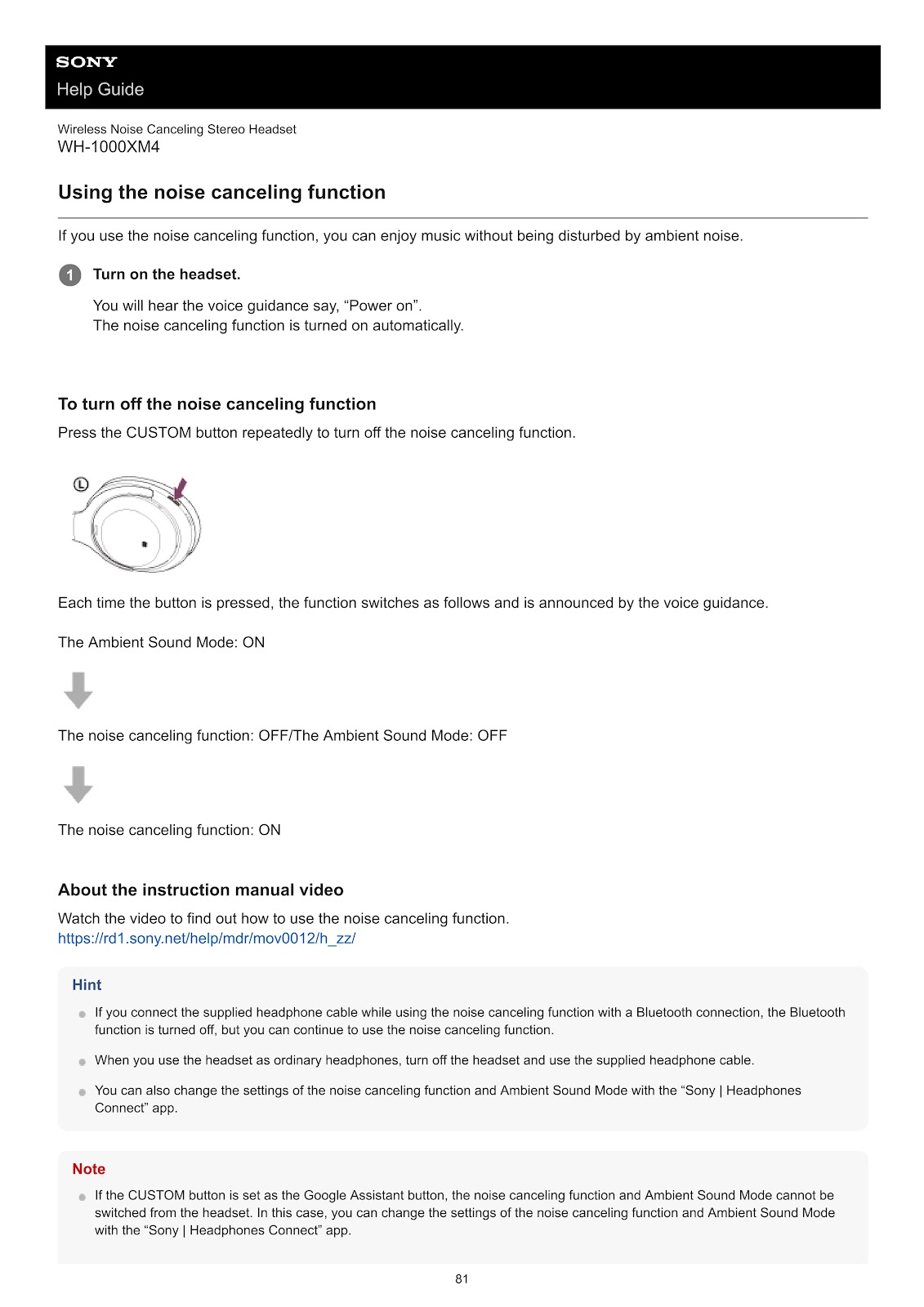
1. Turn on the headset. The noise canceling function is turned on automatically.
2. To switch between modes, press the CUSTOM button repeatedly. Each press cycles through the functions as follows, announced by the voice guidance:
• The Ambient Sound Mode: ON
• The noise canceling function: OFF / The Ambient Sound Mode: OFF
• The noise canceling function: ON
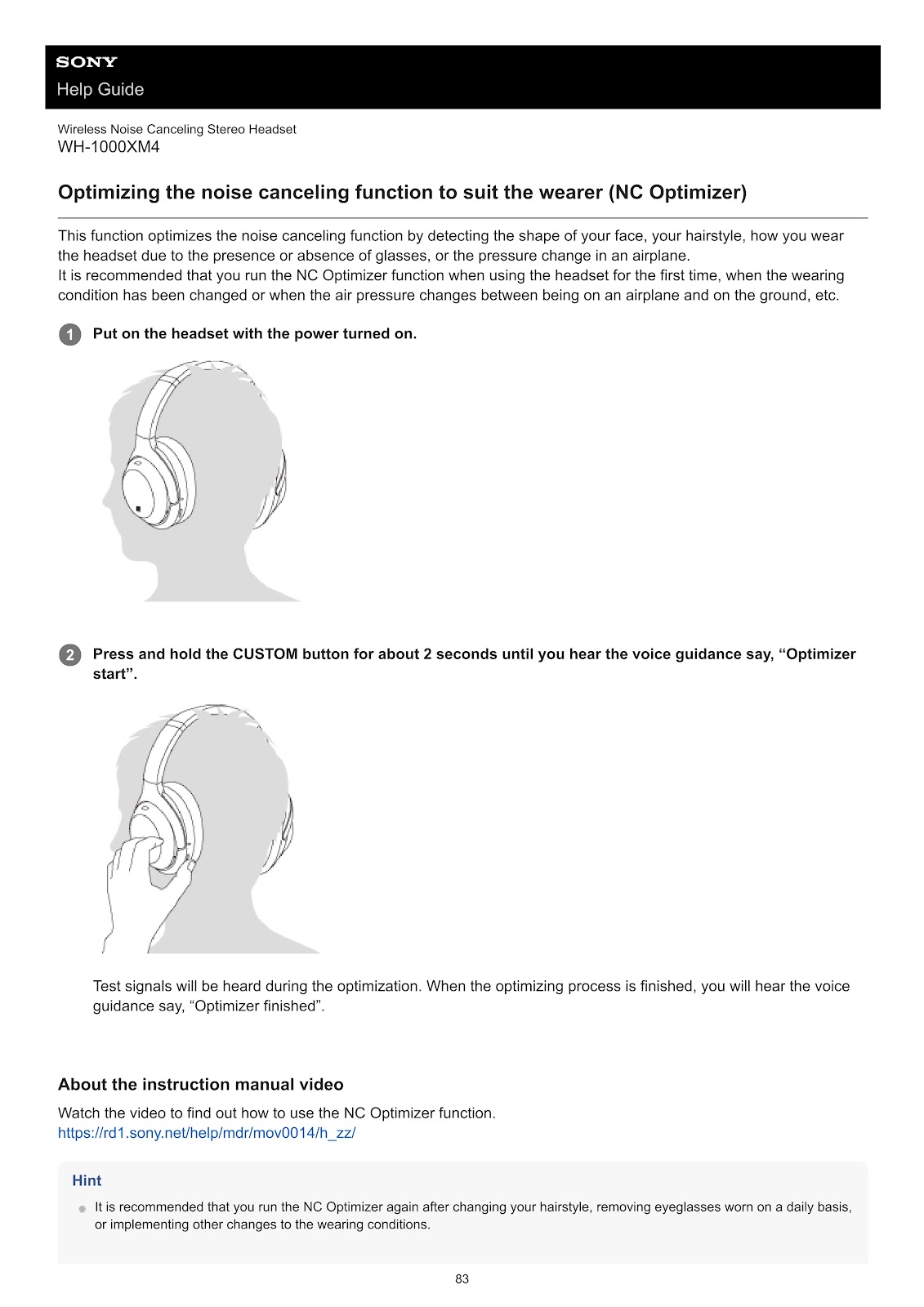
How do I use the NC Optimizer on the SONY WH-1000XM4?
This function optimizes noise canceling by detecting the shape of your face, your hairstyle, whether you are wearing glasses, and changes in air pressure (e.g., in an airplane).
1. Put on the headset with the power turned on.
2. Press and hold the CUSTOM button for about 2 seconds until you hear the voice guidance say, “Optimizer start”.
Test signals will be heard during the optimization. When the process is finished, you will hear the voice guidance say, “Optimizer finished”.
How do I use Ambient Sound Mode, Quick Attention Mode, and Speak-to-Chat on the SONY WH-1000XM4?
Ambient Sound Mode:
This mode allows you to hear ambient sound through the built-in microphones while listening to music. Press the CUSTOM button while noise canceling is on to activate it. You can change settings like “Voice focus” in the “Sony | Headphones Connect” app.
Quick Attention Mode:
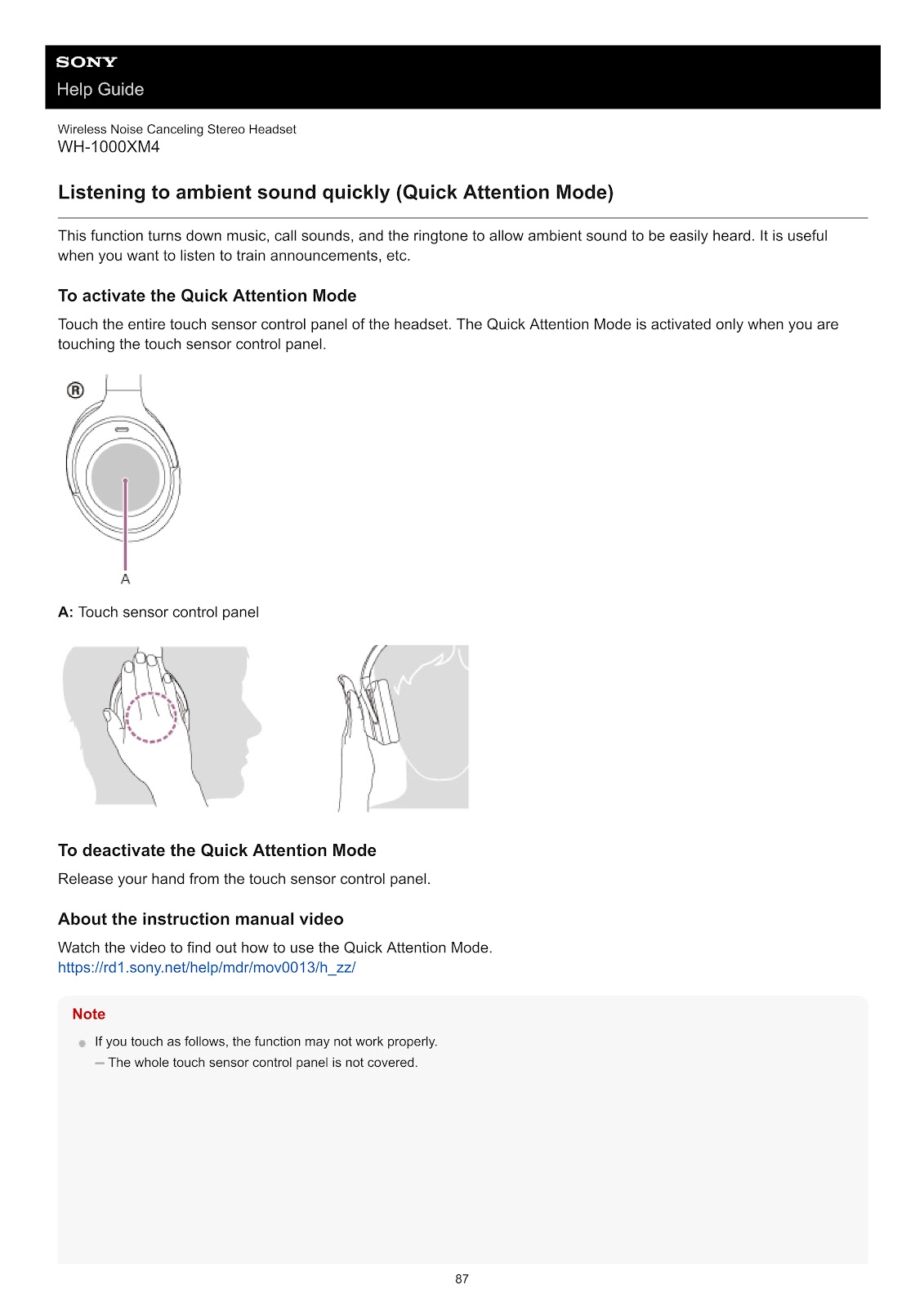
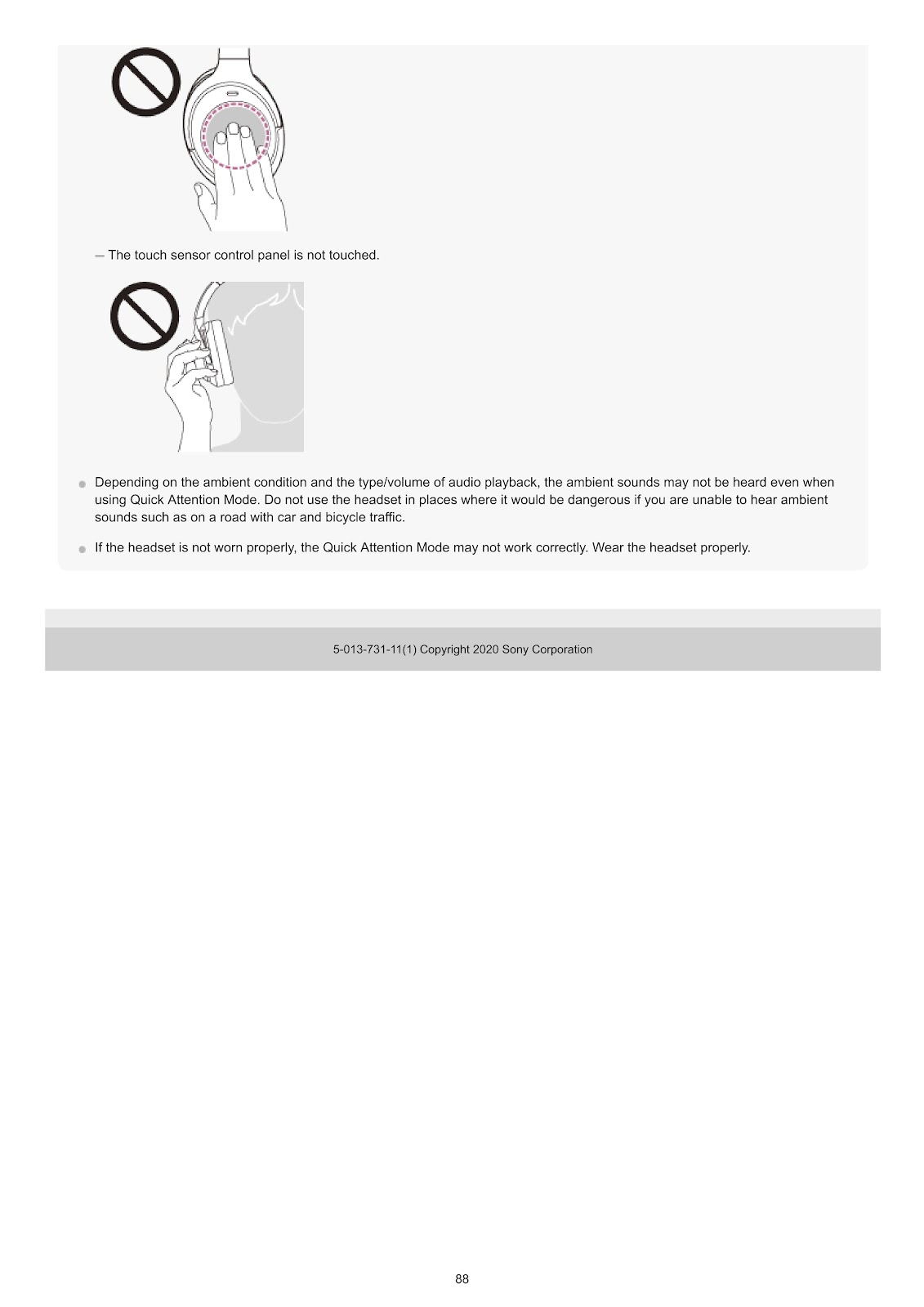
This function quickly turns down music, call sounds, and ringtones to let you hear ambient sound, useful for announcements. To activate, touch the entire touch sensor control panel on the right earcup. The mode is active only while you are touching the panel. Release your hand to deactivate it.
Speak-to-Chat:
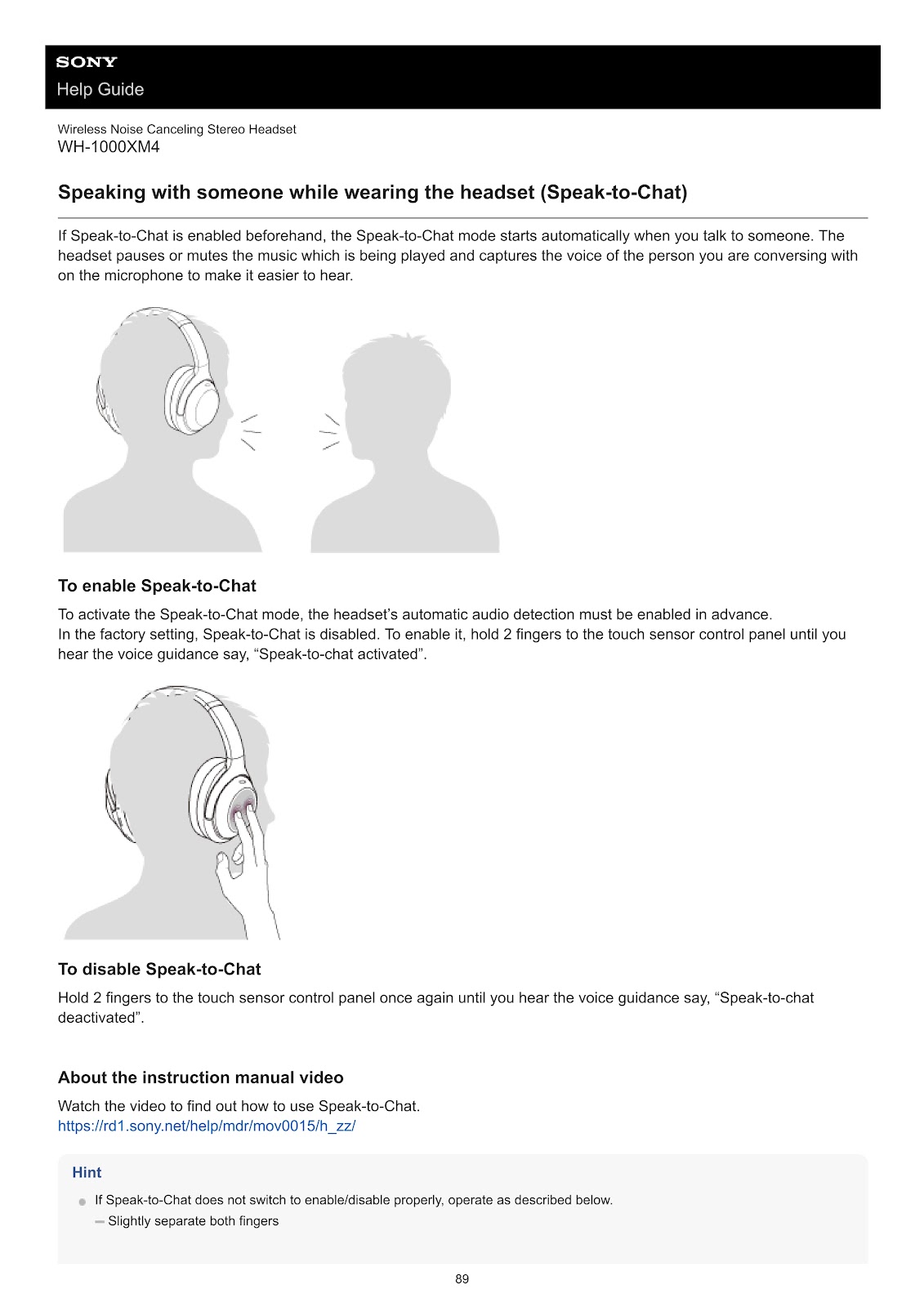
If enabled, this mode automatically starts when you talk to someone. The headset pauses or mutes music and captures the voice of the person you are conversing with. To enable or disable it, hold 2 fingers to the touch sensor control panel until you hear the voice guidance (“Speak-to-chat activated” or “Speak-to-chat deactivated”). The mode automatically ends about 30 seconds after you stop speaking.
How do I make and receive phone calls with the SONY WH-1000XM4?
Receiving a call:
When an incoming call arrives, you will hear a ring tone from the headset. Tap the touch sensor control panel twice quickly to receive the call.
Making a call:
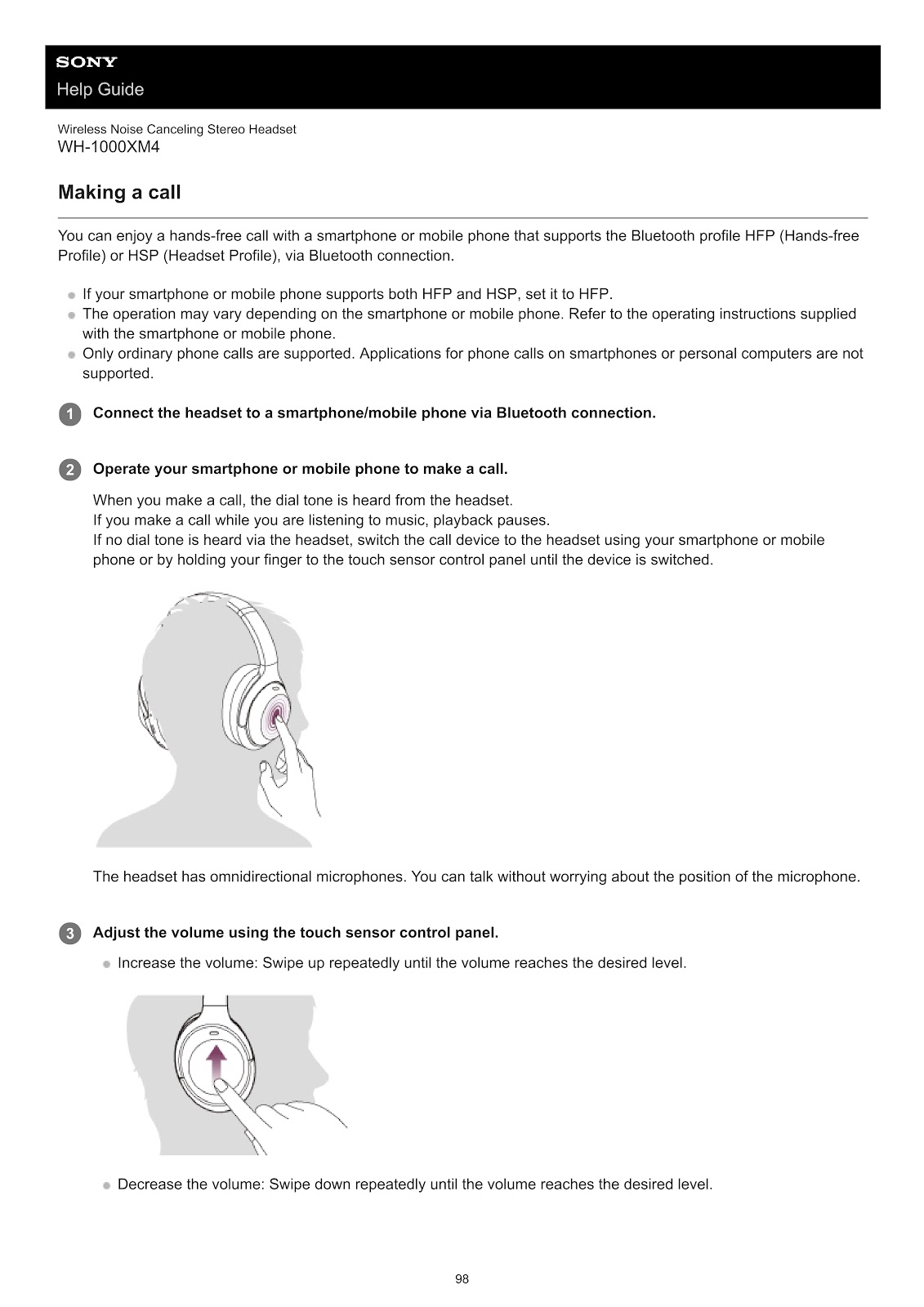
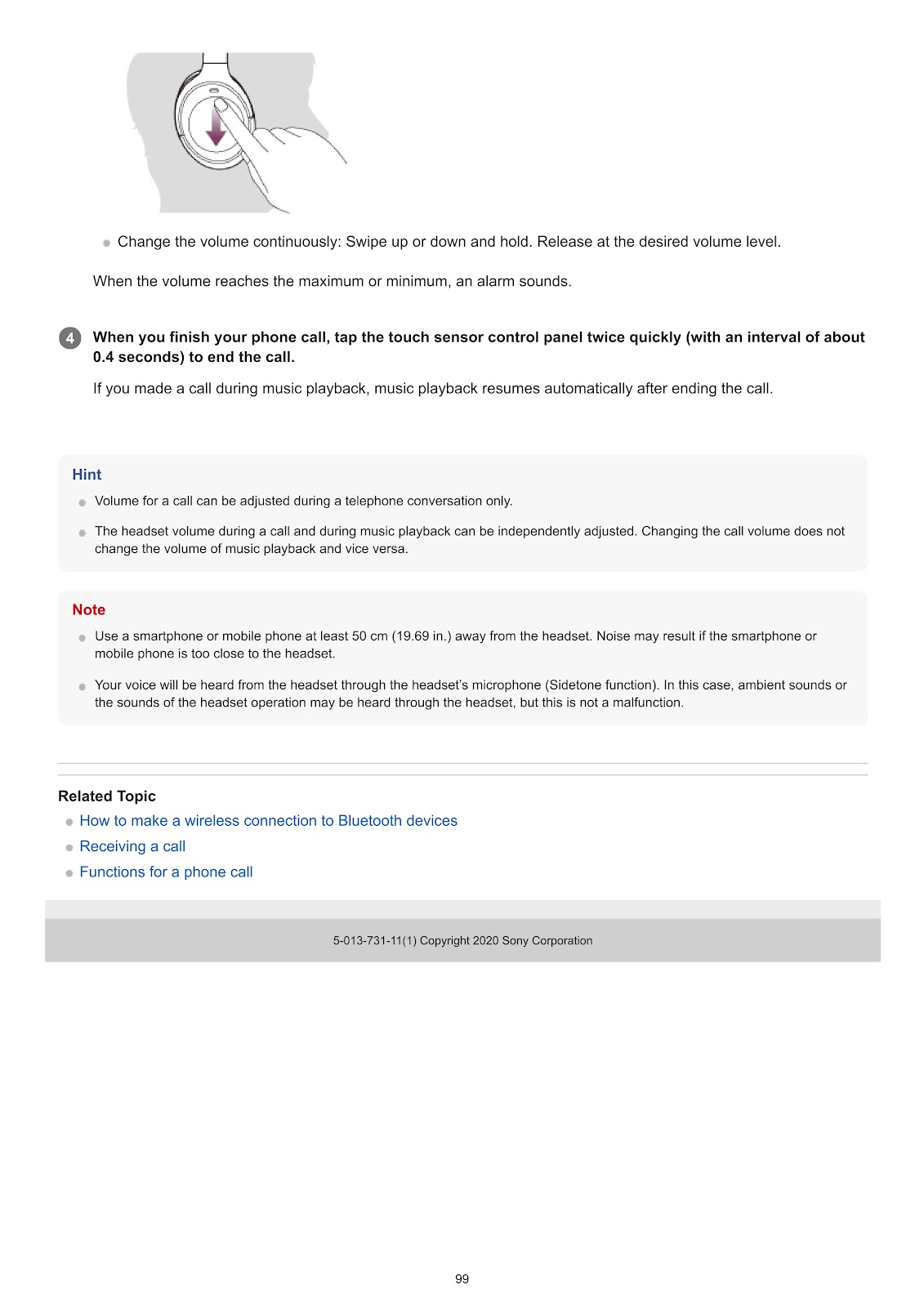
Operate your smartphone or mobile phone to make a call. The dial tone will be heard from the headset.
Ending a call:
Tap the touch sensor control panel twice quickly to end the call.
Other call functions (HFP Profile):
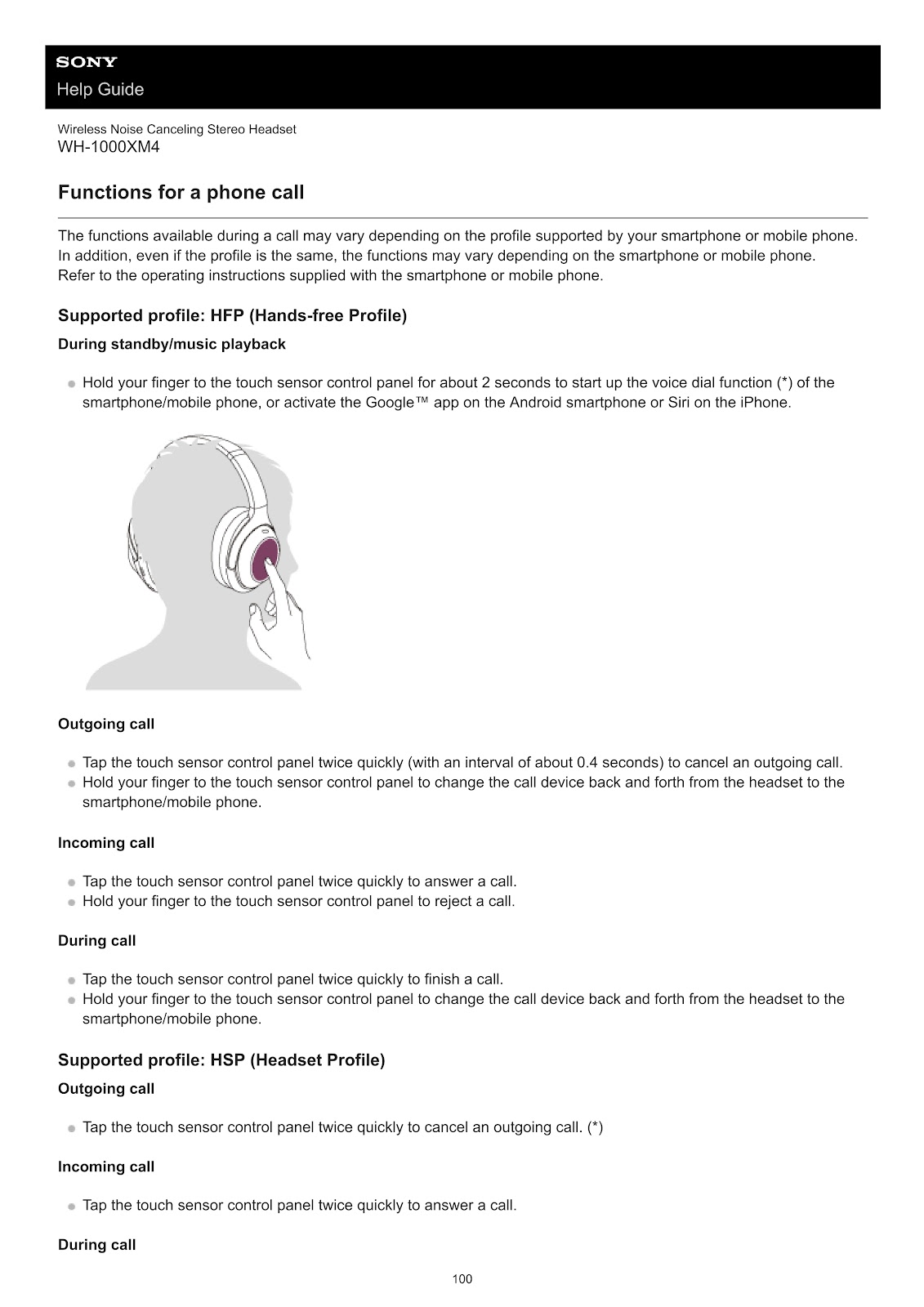
• Reject an incoming call: Hold your finger to the touch sensor control panel.
• Cancel an outgoing call: Tap the touch sensor control panel twice quickly.
• Switch call device between headset and phone: Hold your finger to the touch sensor control panel during a call.
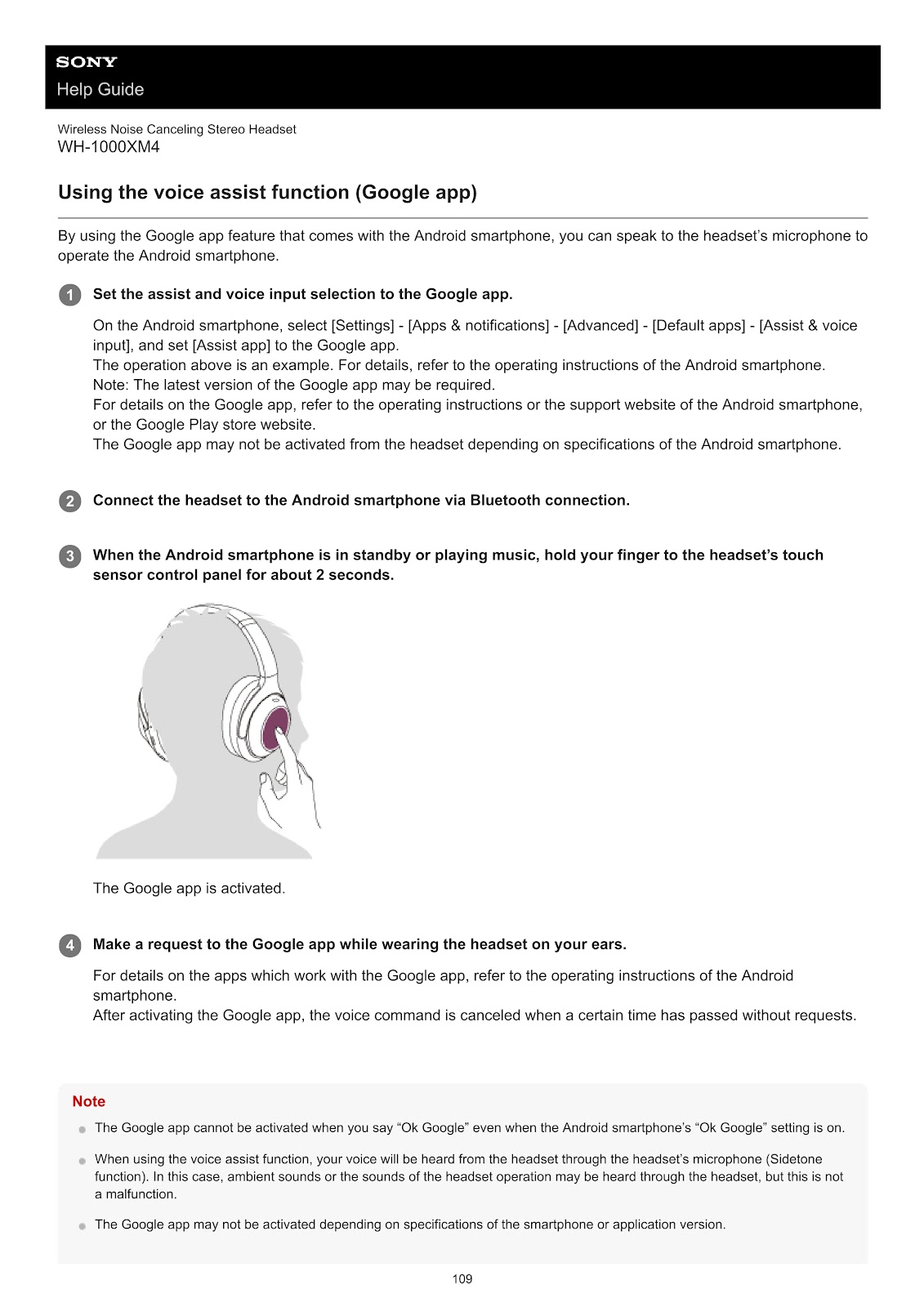
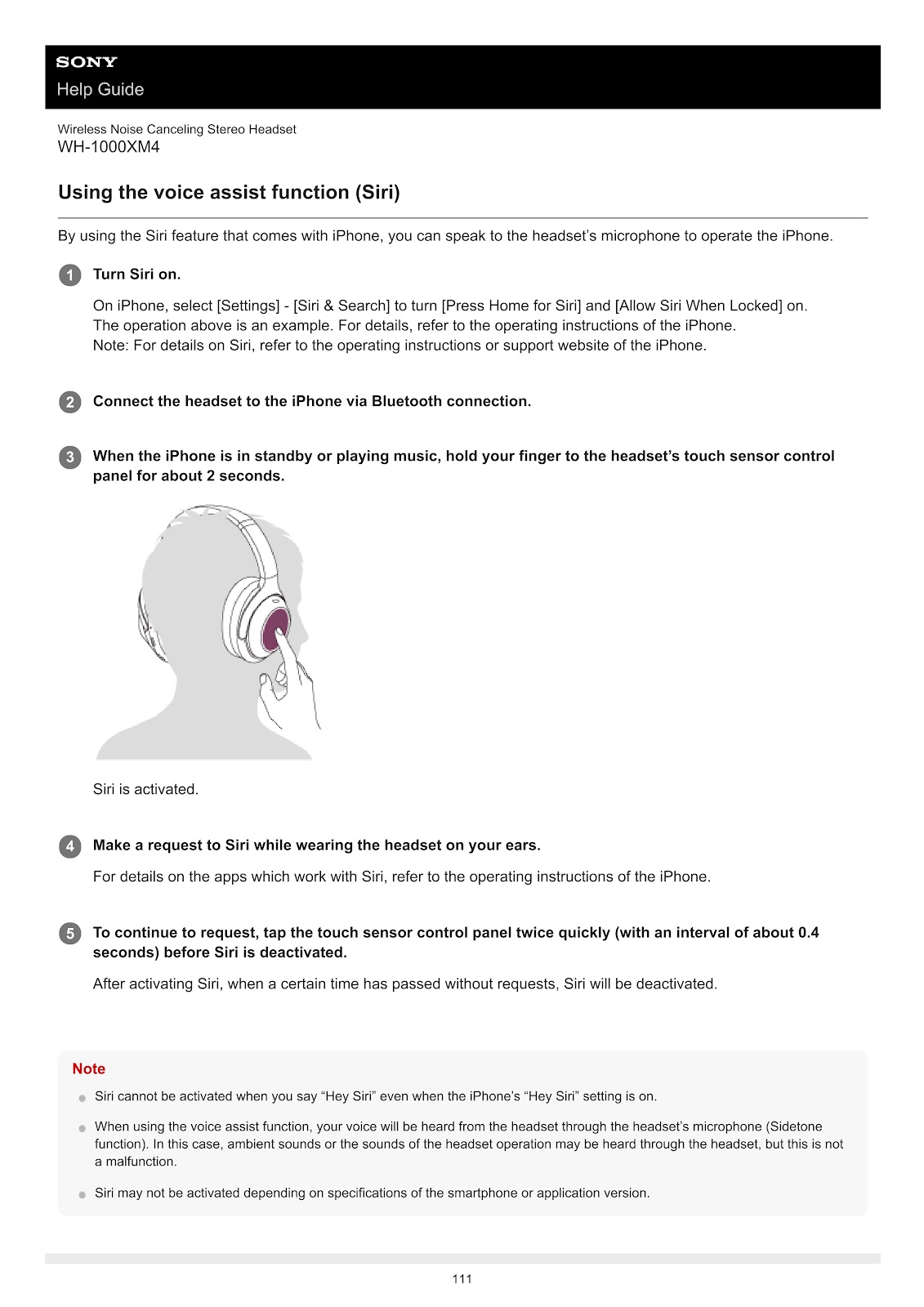
• Start voice dial / Activate Google™ app or Siri: During standby, hold your finger to the touch sensor control panel for about 2 seconds.
How do I use the voice assistant (Google Assistant, Amazon Alexa, Siri) with the SONY WH-1000XM4?
Using Google Assistant:
1. In the “Sony | Headphones Connect” app, set the CUSTOM button to the Google Assistant function.
2. The first time you use it, open the Google Assistant app on your phone to complete the initial setup.
3. Press the CUSTOM button to use the Google Assistant. Press and hold to input a voice command, press once to hear notifications, or press twice quickly to cancel.
Using Amazon Alexa:
1. Open the Amazon Alexa app on your smartphone.
2. Go to the menu, touch [Add Device], select [Headphones], and choose [WH-1000XM4] from the available devices to set it up.
3. After setup, the CUSTOM button will be set as the Amazon Alexa button. Press the button briefly to input a voice command.
Using Siri (iPhone) or Google app (Android):
1. Connect the headset to your smartphone via Bluetooth.
2. When your phone is in standby or playing music, hold your finger on the headset’s touch sensor control panel for about 2 seconds to activate Siri or the Google app.
3. Make a request while wearing the headset.
What can I do with the “Sony | Headphones Connect” app for the SONY WH-1000XM4?
When you connect your smartphone with the “Sony | Headphones Connect” app installed to the SONY WH-1000XM4 via Bluetooth, you can do the following:
• Easy pairing
• Display the remaining battery charge and Bluetooth connection codec
• Adjust the noise canceling function and Ambient Sound Mode (Adaptive Sound Control)
• Use NC Optimizer (Optimizing the noise canceling function)
• Enable/disable and set Speak-to-Chat
• Select and customize the Equalizer setting
• Set the Bluetooth connection mode (sound quality mode)
• Set the DSEE Extreme function
• Change the function of the CUSTOM button
• Turn off the headset
• Adjust playback volume and control music (play/pause, skip)
• Check connection status and settings
• Check and update the headset software
• Switch the voice guidance language and turn it on/off
• Switch the touch sensor control panel on/off
• Set the wearing detection automatic power off and music pause/resume functions
• Switch the multipoint connection on/off
How do I reset or initialize the SONY WH-1000XM4?
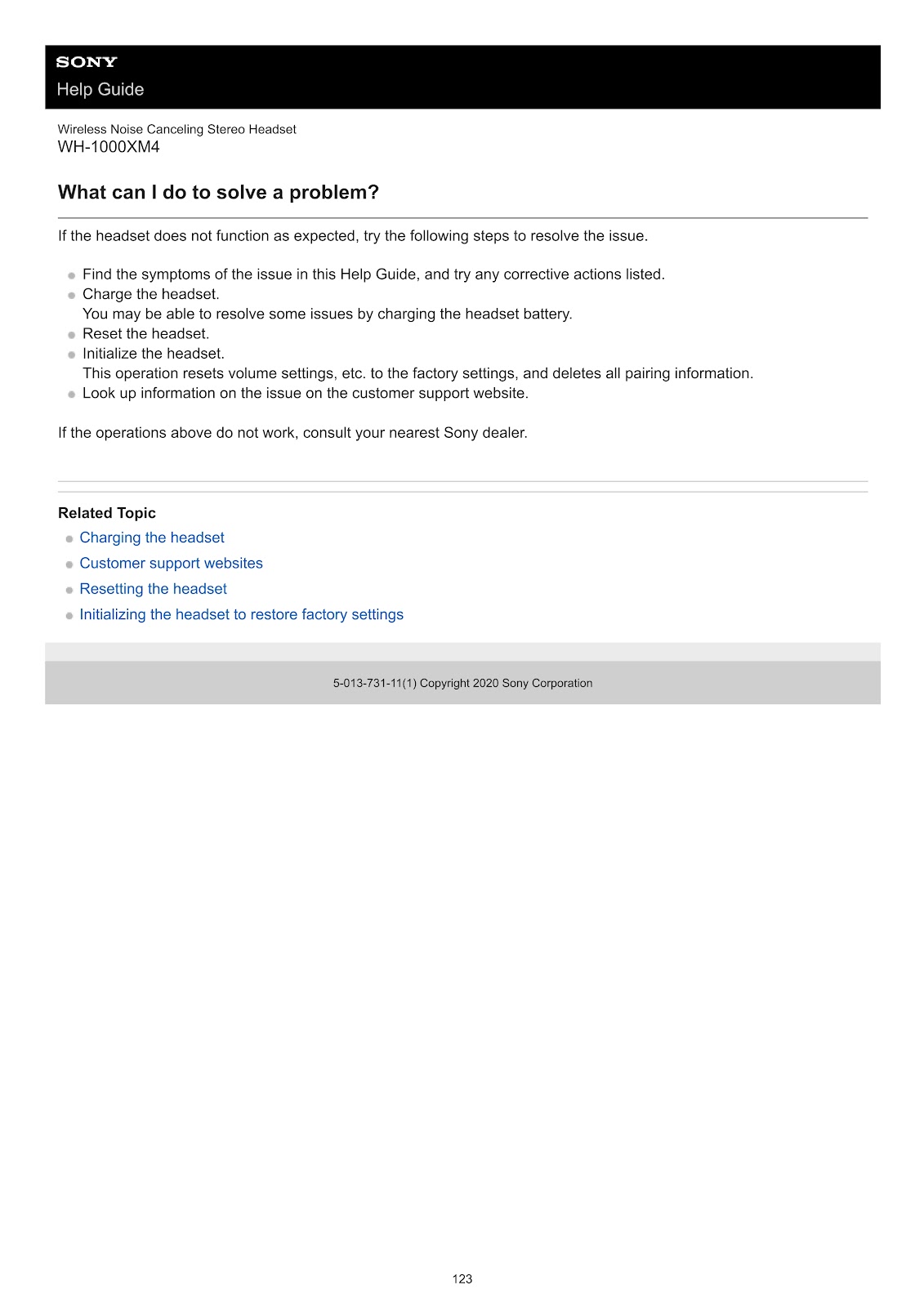
If the headset does not function as expected, try the following steps:
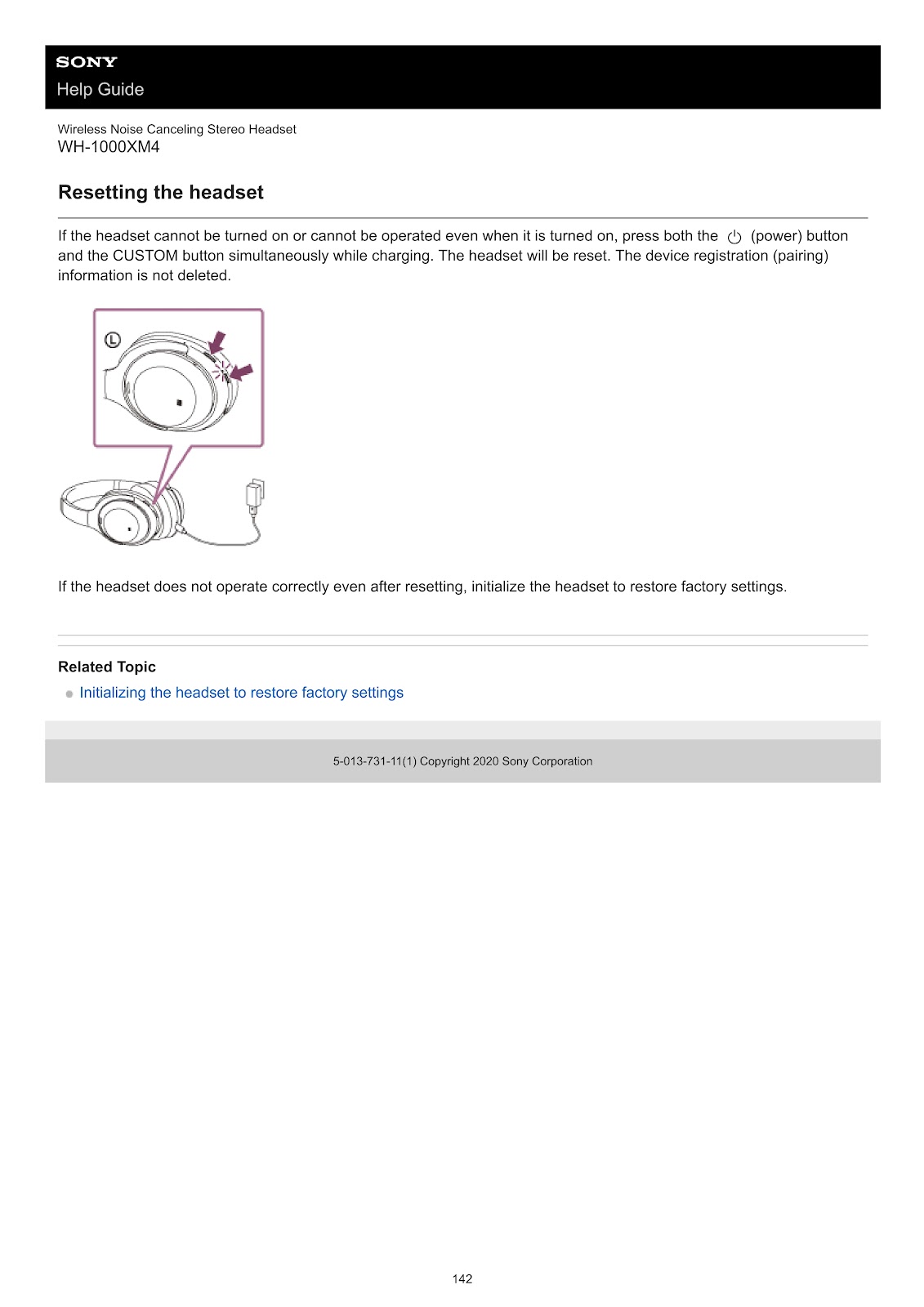
Resetting the headset:
If the headset cannot be turned on or operated, reset it. This operation does not delete pairing information.
1. Connect the headset to a power source using the USB Type-C cable to start charging.
2. Press both the (power) button and the CUSTOM button simultaneously while charging. The headset will be reset.
Initializing the headset (restoring factory settings):
If the headset does not operate correctly even after resetting, initialize it. This operation resets all settings to factory defaults and deletes all pairing information.
1. Disconnect the USB Type-C cable and turn the headset off.
2. Press and hold the (power) button and the CUSTOM button simultaneously for 7 seconds or more.
3. The indicator (blue) will flash 4 times, and the headset will be initialized.
4. After initializing, you will need to delete the pairing information for the headset from your device and pair them again.
The SONY WH-1000XM4 is unable to turn on. What should I do?
• Make sure the battery is fully charged.
• The headset cannot be turned on while it is charging. Remove the USB Type-C cable and then try to turn on the headset.
• Reset the headset.
My SONY WH-1000XM4 cannot be charged. What should I check?
• Be sure to use the supplied USB Type-C cable.
• Check that the USB Type-C cable is firmly connected to the headset and the USB AC adaptor or computer.
• Make sure that the USB AC adaptor is firmly connected to the AC outlet.
• Check that the computer is turned on and not in standby (sleep) or hibernation mode.
• If using Windows 8.1, update using Windows Update.
• Reset the headset.
There is no sound coming from my SONY WH-1000XM4. What is the solution?
• Check that both the headset and the connected device are turned on.
• Check that the headset and the transmitting Bluetooth device are connected via Bluetooth A2DP.
• Turn up the volume on both the headset and the connected device.
• Check that the connected device is playing back.
• If connecting to a computer, make sure the audio output setting of the computer is set for a Bluetooth device.
• Pair the headset and the Bluetooth device again.
• If using the headphone cable, check that it is connected firmly.
• Reset the headset.
• Charge the headset.
• Initialize the headset, and pair it with the device again.
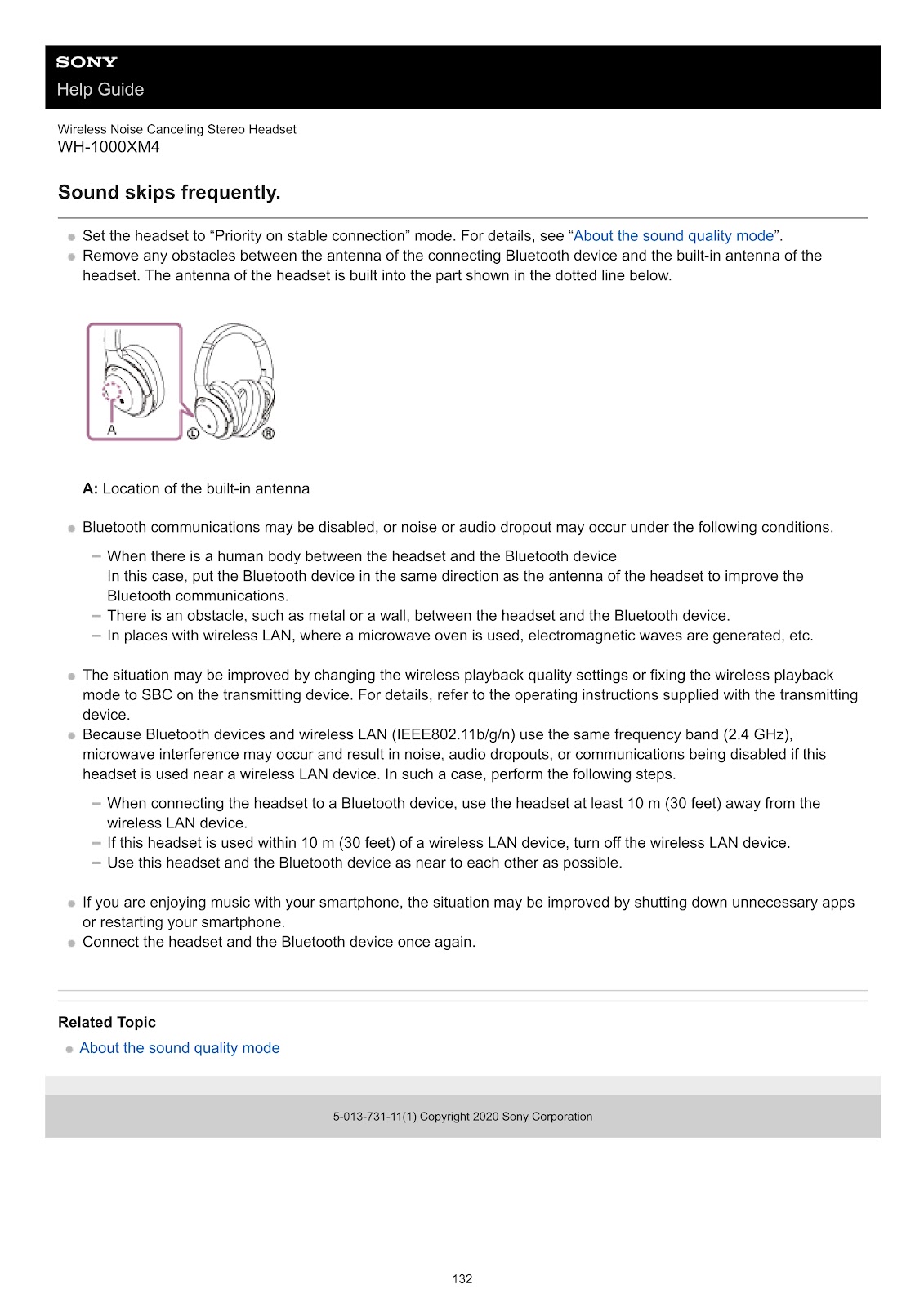
The sound skips frequently on my SONY WH-1000XM4. How can I fix this?
• Set the headset to “Priority on stable connection” mode using the “Sony | Headphones Connect” app.
• Remove any obstacles between the antenna of the connecting Bluetooth device and the built-in antenna of the headset. The headset’s antenna is located in the left earcup.
• Bluetooth communications may be disabled, or noise/dropout may occur if there is a human body, metal, or wall between the headset and the device, or if you are near a wireless LAN, microwave oven, or other sources of electromagnetic waves.
• If enjoying music with your smartphone, try shutting down unnecessary apps or restarting the smartphone.
• Connect the headset and the Bluetooth device once again.
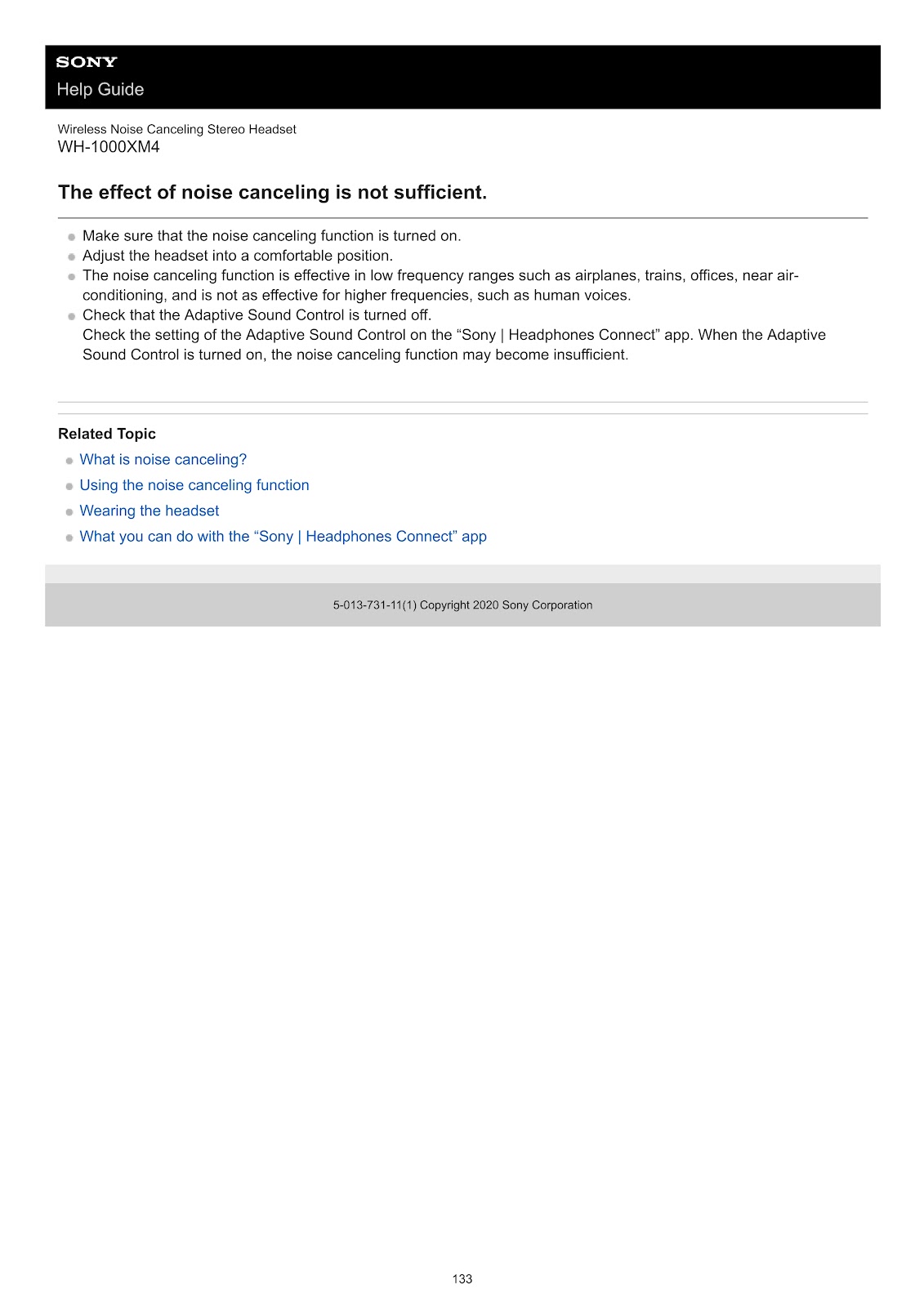
The effect of noise canceling on my SONY WH-1000XM4 is not sufficient. What should I do?
• Make sure that the noise canceling function is turned on.
• Adjust the headset to a comfortable position on your ears.
• The noise canceling function is most effective in low-frequency ranges (airplanes, trains, etc.) and is less effective for higher frequencies like human voices.
• Check the setting of the Adaptive Sound Control on the “Sony | Headphones Connect” app. When this is turned on, the noise canceling function may become insufficient depending on the environment.
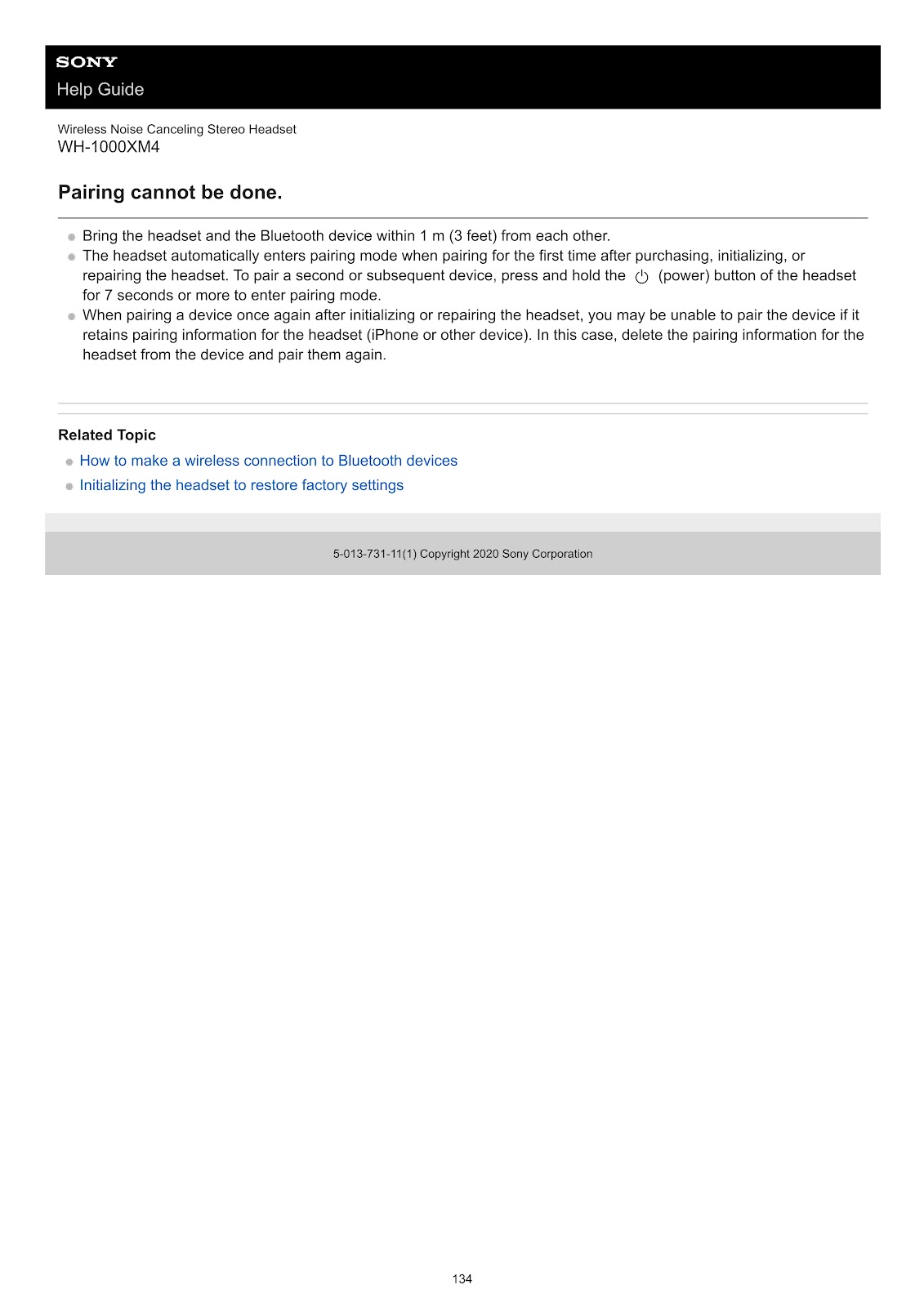
I cannot pair my SONY WH-1000XM4. What should I do?
• Bring the headset and the Bluetooth device within 1 m (3 feet) of each other.
• To pair a second or subsequent device, you must manually enter pairing mode by pressing and holding the (power) button on the headset for 7 seconds or more.
• If you are trying to pair a device again after initializing or repairing the headset, the device may still retain the old pairing information. In this case, delete the pairing information for the headset from the device and then pair them again.
I cannot hear a person on a call with my SONY WH-1000XM4. What is the cause?
• Check that both the headset and the connected device are turned on.
• Turn up the volume of both the connected device and the headset.
• Check the audio settings of the Bluetooth device to ensure sound is outputting from the headset during a call (HFP or HSP profile).
• Use the Bluetooth device to re-establish the connection.
• If you are listening to music, stop playback and tap the touch sensor control panel twice quickly to respond to the incoming call.
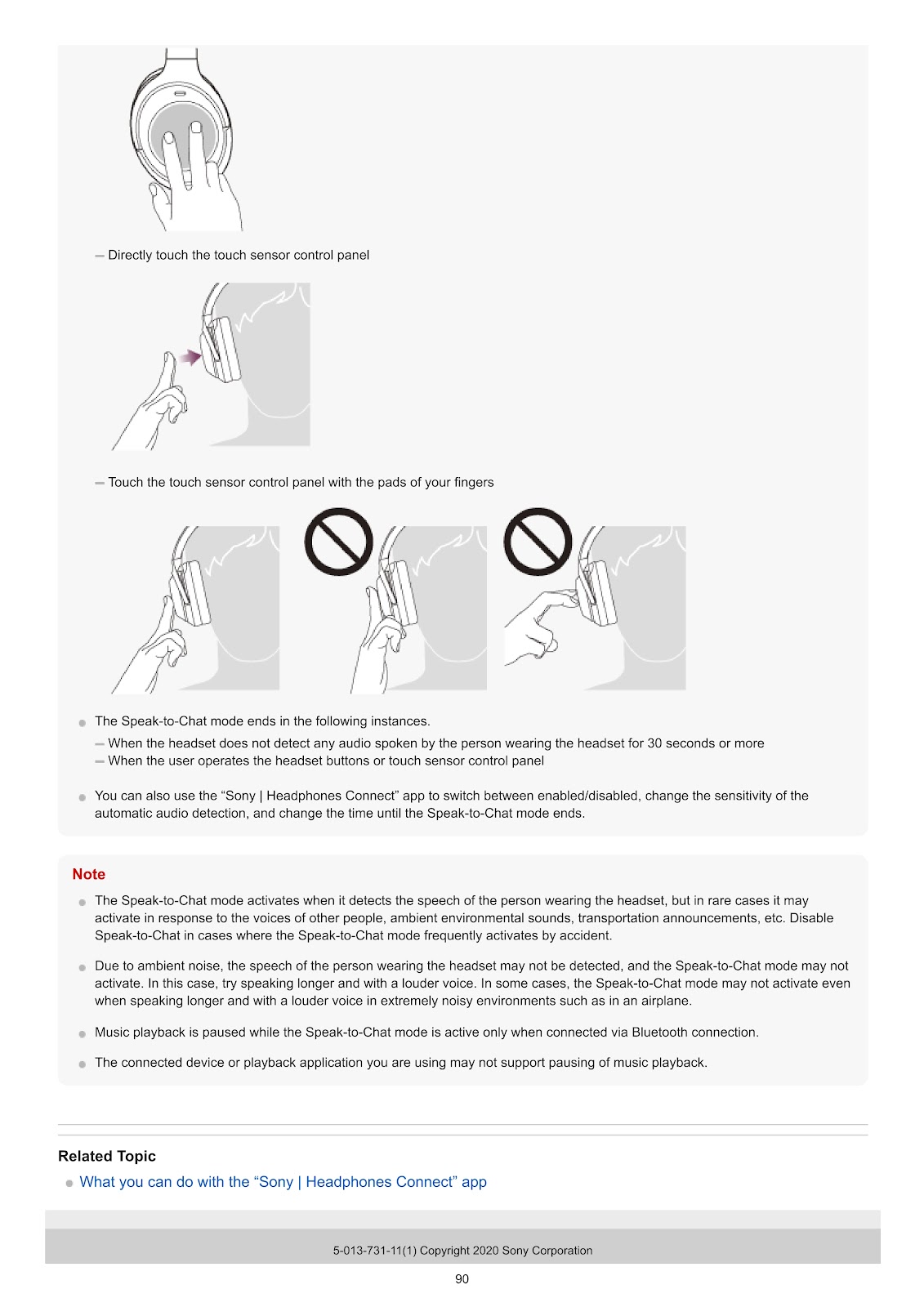
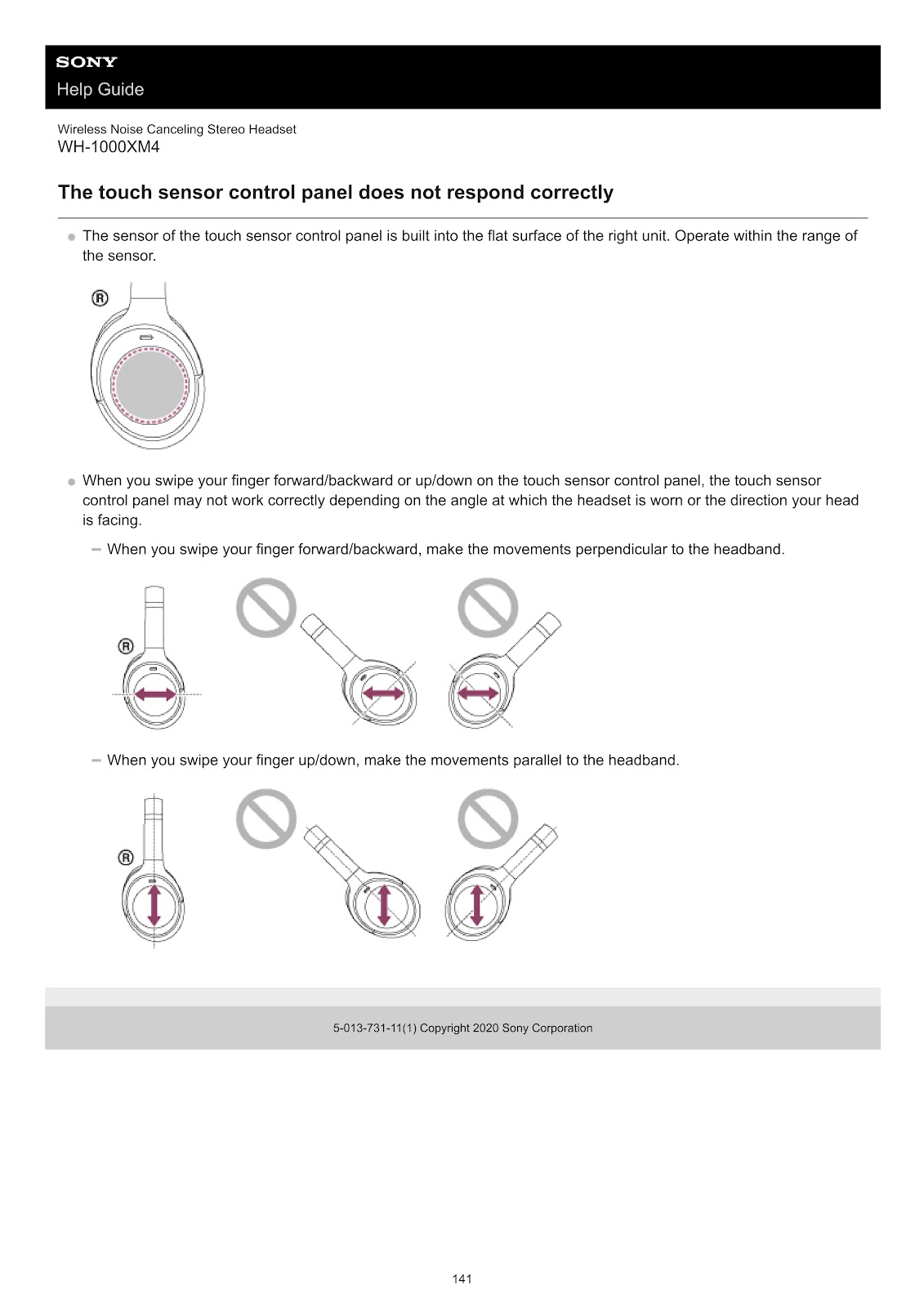
The touch sensor control panel on my SONY WH-1000XM4 does not respond correctly. How can I fix this?
The sensor is built into the flat surface of the right unit. Ensure you are operating within the range of the sensor.
• When swiping your finger forward/backward, make the movements perpendicular to the headband.
• When swiping your finger up/down, make the movements parallel to the headband.
The panel may not work correctly depending on the angle at which the headset is worn or the direction your head is facing.
How to use the PDF below:
* Touchscreen: Swipe up/down with-in the PDF to scroll and pinch or spread with two fingers to zoom.
* Mouse: While your mouse is hovering over the PDF, use the mouse wheel to scroll and click on the – / + buttons at the bottom of the PDF to zoom.






















CLICK HERE TO DOWNLOAD SONY WH-1000XM4 (01) PDF DOCUMENT