
Free English RYZE TELLO (01) PDF document. Download the PDF, use the online viewer, or browse the FAQs for easy troubleshooting.
CLICK HERE TO DOWNLOAD RYZE TELLO (01) PDF DOCUMENT
If this is not the document you want for this product, click here to see if we have any other documents for this product.
What should I do before the first flight of my RYZE TELLO drone?
Before using the RYZE TELLO drone, you should read the following documents:
1. Tello User Manual
2. Tello Quick Start Guide
3. Tello Disclaimer and Safety Guidelines
It is recommended that you watch all tutorial videos and read the Tello Disclaimer and Safety Guidelines before you fly. Prepare for your first flight by reviewing the Tello Quick Start Guide and refer to this Tello User Manual for more details.
How do I download the app for the RYZE TELLO drone?
Search for “Tello” on the App Store or Google Play or scan the QR code in the manual to download the latest version of the app. The Android version of the Tello app is compatible with Android v4.4 and later. The iOS version of the Tello app is compatible with iOS v9.0 and later.
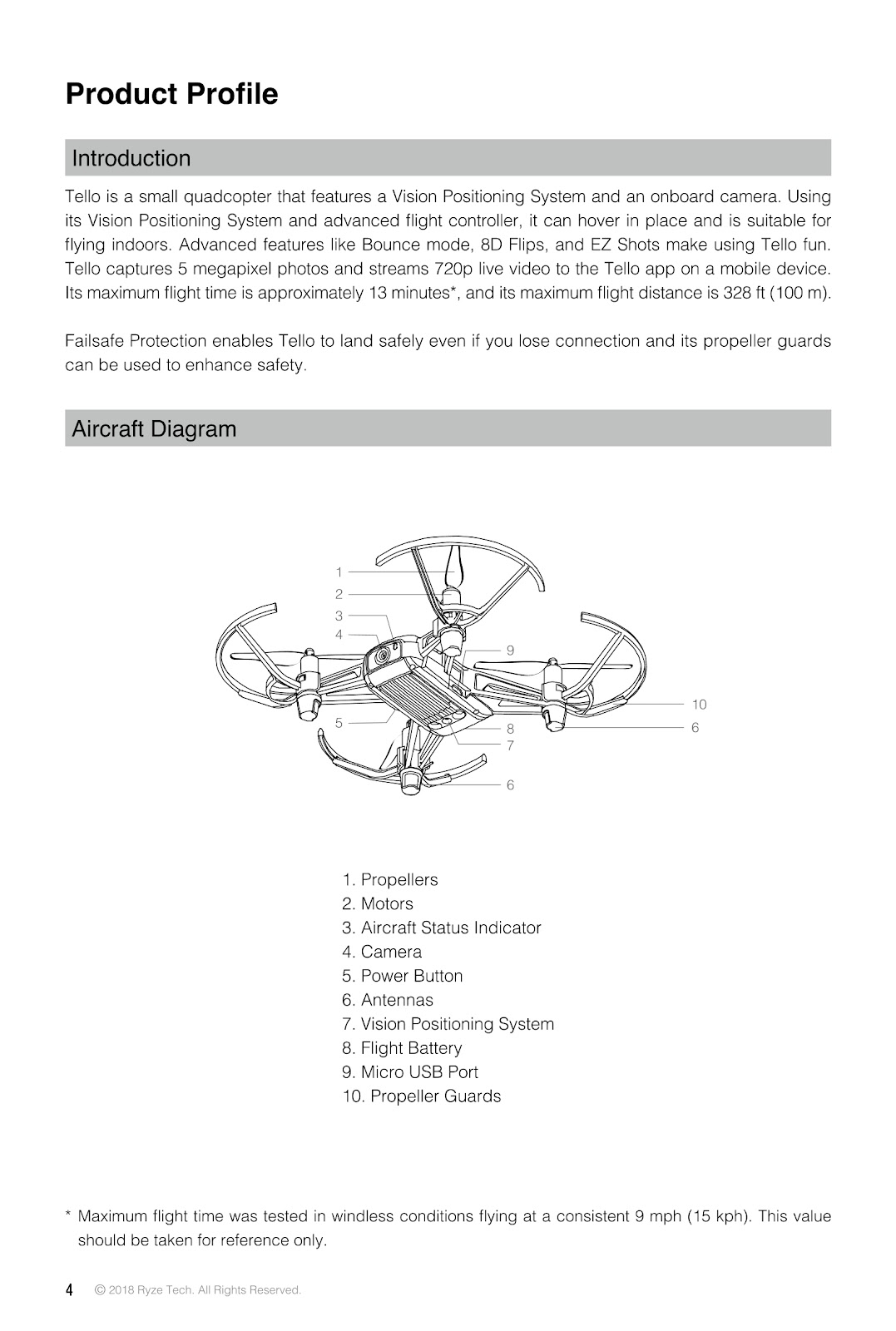
What are the main parts of the RYZE TELLO aircraft?
The main components of the RYZE TELLO are:
1. Propellers
2. Motors
3. Aircraft Status Indicator
4. Camera
5. Power Button
6. Antennas
7. Vision Positioning System
8. Flight Battery
9. Micro USB Port
10. Propeller Guards
How can I fly the RYZE TELLO drone manually?
The RYZE TELLO has two flight speeds that you can select when flying the aircraft manually:
Slow (default): The maximum flight attitude angle is 9° and the maximum flight speed is 8.9 mph (14.4 kph).
Fast: The maximum flight attitude angle is 25° and the maximum flight speed is 17.8 mph (28.8 kph).
When flying the Tello manually, the aircraft utilizes its Vision Positioning System to automatically stabilize itself. If the conditions are such that the Vision Positioning System is unavailable, the aircraft automatically changes to Attitude mode.
To switch from Slow to Fast, you must read and agree to the disclaimers and warnings that appear in the Tello app. The flight speed is selected in the settings screen in the Tello app.
What is Attitude (ATTI) mode on the RYZE TELLO drone?
The RYZE TELLO automatically changes to Attitude mode (ATTI mode) when the Vision Positioning System is unavailable. In Attitude mode, the aircraft is not able to position itself and is easily affected by its surroundings. Environmental factors such as wind can result in horizontal shifting, which may present hazards, especially when flying in confined spaces. When the aircraft enters Attitude mode, land in a safe place as soon as possible to avoid hazards.
The Aircraft Status Indicator blinks yellow slowly when the aircraft is in Attitude mode.
What do the different lights on the RYZE TELLO Aircraft Status Indicator mean?
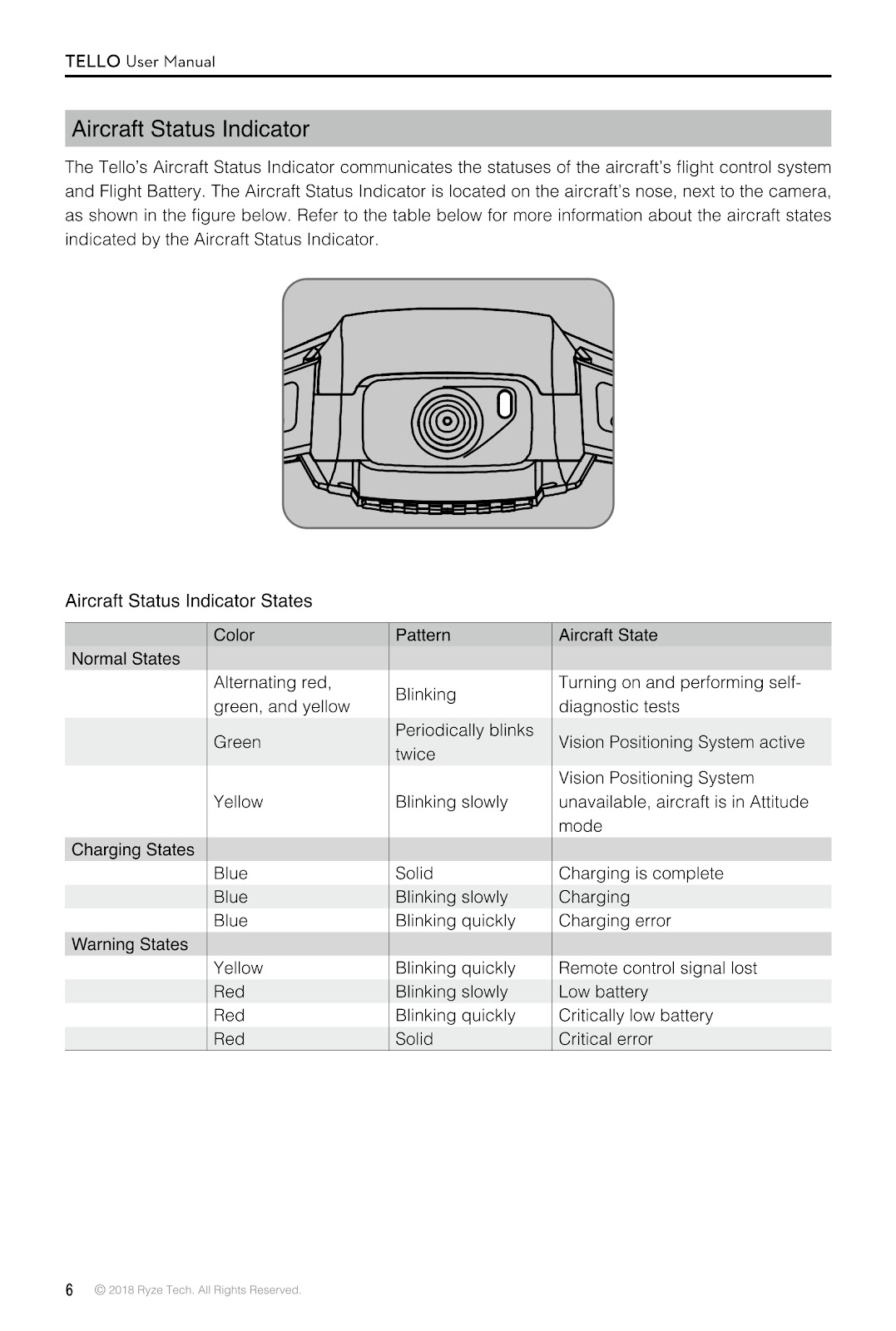
The Aircraft Status Indicator, located on the nose next to the camera, communicates the status of the flight control system and Flight Battery.
| State | Color | Pattern | Aircraft State |
|---|---|---|---|
| Normal States | Alternating red, green, and yellow | Blinking | Turning on and performing self-diagnostic tests |
| Green | Periodically blinks twice | Vision Positioning System active | |
| Yellow | Blinking slowly | Vision Positioning System unavailable, aircraft is in Attitude mode | |
| Charging States | Blue | Solid | Charging is complete |
| Blue | Blinking slowly | Charging | |
| Blue | Blinking quickly | Charging error | |
| Warning States | Yellow | Blinking quickly | Remote control signal lost |
| Red | Blinking slowly | Low battery | |
| Red | Blinking quickly | Critically low battery | |
| Red | Solid | Critical error |
How does the Vision Positioning System on the RYZE TELLO work and what are its limitations?
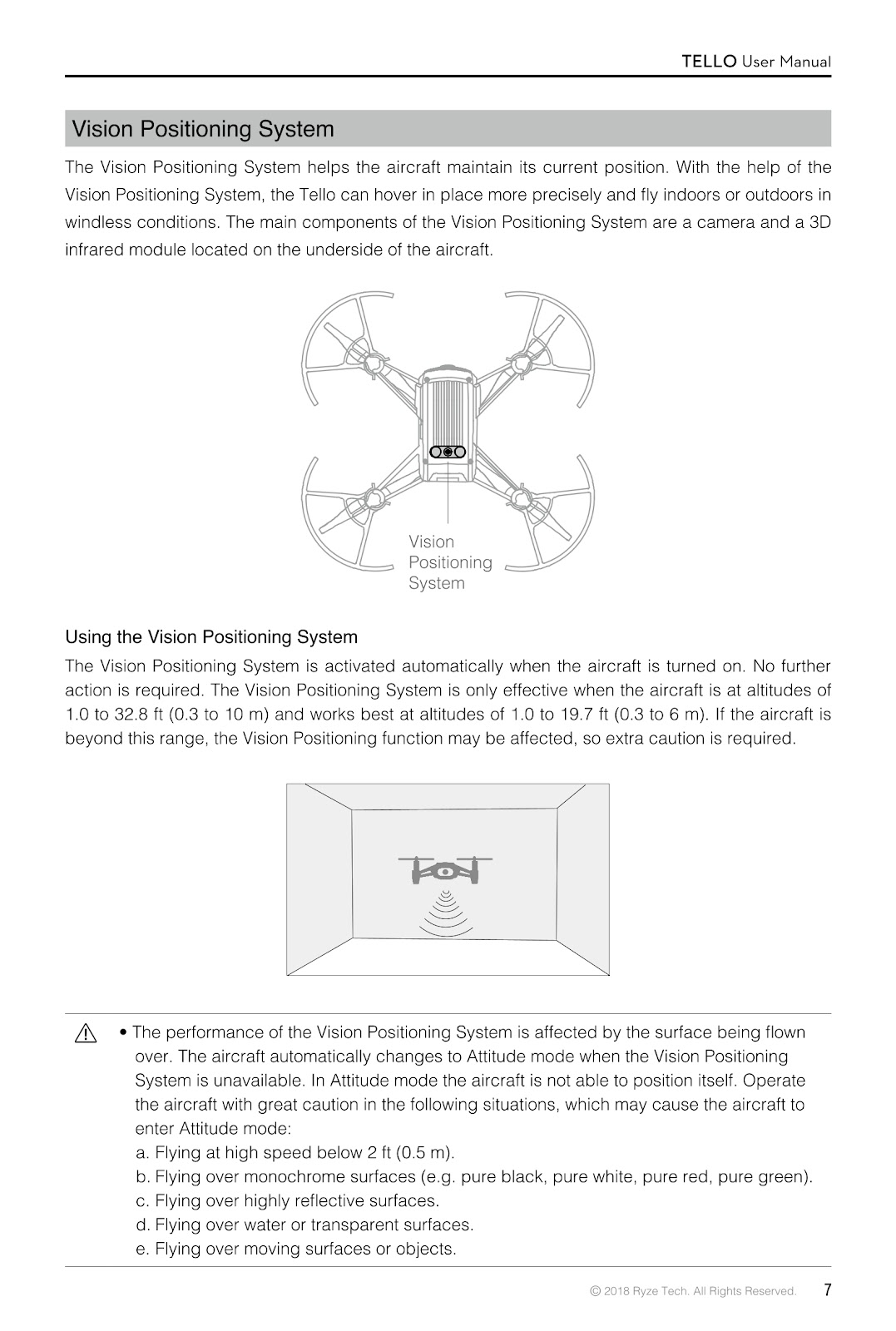
The Vision Positioning System helps the RYZE TELLO maintain its current position, allowing it to hover more precisely and fly indoors or outdoors in windless conditions. Its main components are a camera and a 3D infrared module on the underside of the aircraft. The system is activated automatically when the aircraft is turned on. It is effective at altitudes of 1.0 to 32.8 ft (0.3 to 10 m) and works best at altitudes of 1.0 to 19.7 ft (0.3 to 6 m).
The performance of the Vision Positioning System is affected by the surface being flown over. The aircraft will enter Attitude mode in the following situations:
a. Flying at high speed below 2 ft (0.5 m).
b. Flying over monochrome surfaces (e.g. pure black, pure white, pure red, pure green).
c. Flying over highly reflective surfaces.
d. Flying over water or transparent surfaces.
e. Flying over moving surfaces or objects.
f. Flying in an area where the lighting changes frequently or drastically.
g. Flying over extremely dark (< 10 lux) or bright (> 100,000 lux) surfaces or towards bright sources of light (e.g. towards sunlight).
h. Flying over surfaces without clear patterns or texture.
i. Flying over surfaces with identical repeating patterns or textures (e.g. tiling).
j. Flying over small and fine objects (e.g. tree branches or power lines).
k. Flying at speeds of over 11 mph (18 kph) at 3.5 ft (1 m) or lower.
Always keep the cameras and sensors clean. Dirt or other debris may adversely affect their effectiveness.
How do I use Bounce Mode on my RYZE TELLO drone?
In Bounce mode, the RYZE TELLO automatically flies up and down between 1.6 and 3.9 ft (0.5 and 1.2 m) above a flat surface. To use Bounce Mode, ensure the aircraft’s battery level is at least 50%.
1. Press the power button once to turn the aircraft on. Launch the Tello app and tap the takeoff icon.
2. Tap the Intelligent Flight Modes icon and then select Bounce mode. Read the information prompt and then select Start. The aircraft will start flying up and down.
3. Extend your arm and place your palm 1 ft (30 cm) or more below the aircraft, keeping your palm open. The aircraft will increase its altitude then continue flying up and down.
4. Tap the exit icon in the Tello app any time to exit Bounce mode.
Precautions:
Ensure there is sufficient space: a radius of at least 7 ft (2 m) horizontally and at least 10 ft (3 m) vertically.
Before use, ensure the Aircraft Status Indicator is periodically blinking green twice, indicating the Vision Positioning System is available.
Ensure your arm is extended and your palm is flat. DO NOT try to catch the aircraft. The distance between your palm and the aircraft should be at least 1 ft (30 cm).
Watch out for potential obstacles in your surrounding area.
Be prepared to take control of the aircraft by tapping the exit icon in the Tello app in case of an emergency.
Be extra cautious when flying in dark (< 300 lux) or bright (> 10,000 lux) environments.
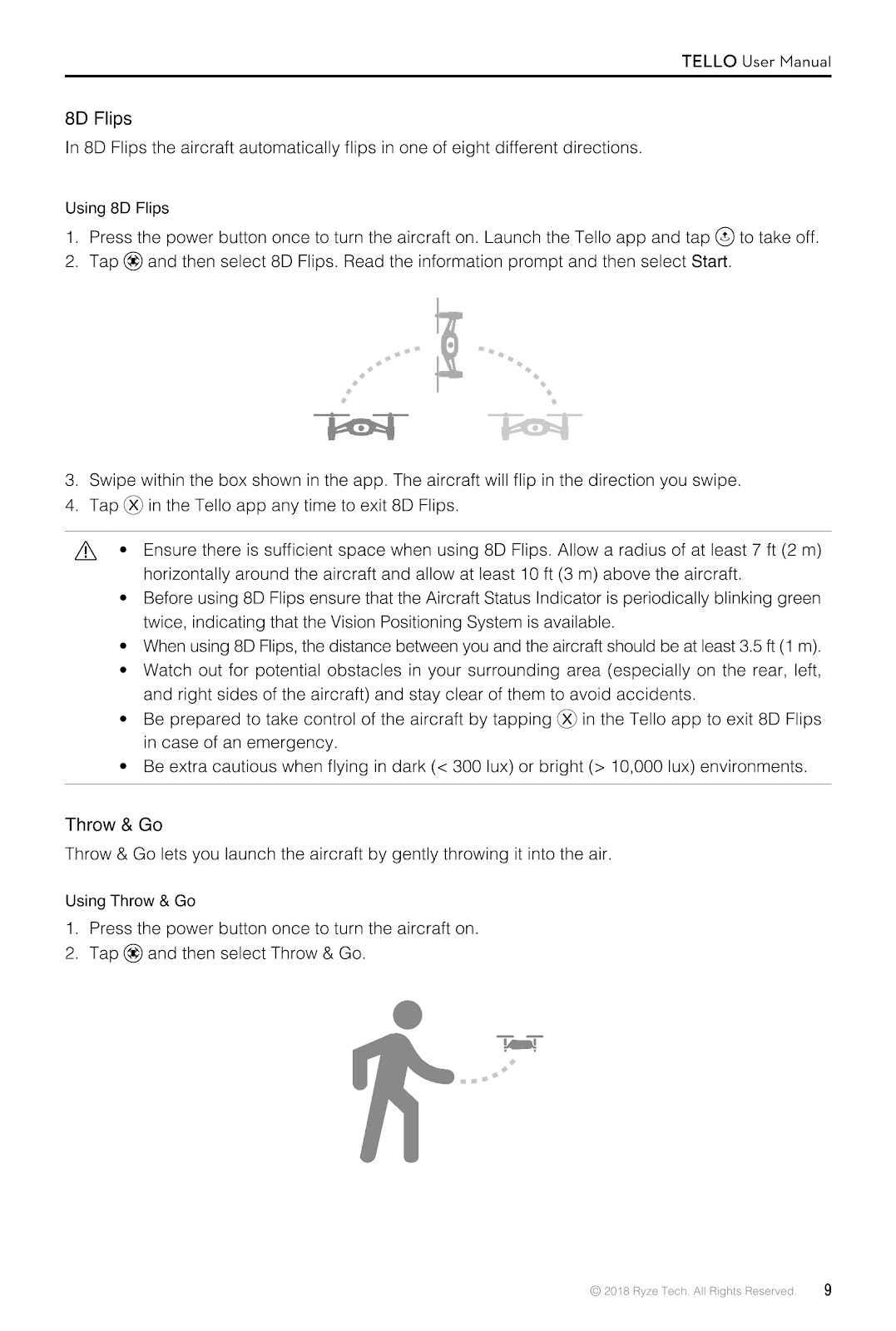
How do I use 8D Flips on my RYZE TELLO drone?
In 8D Flips, the RYZE TELLO automatically flips in one of eight different directions. To use this mode, ensure the battery is at least 50%.
1. Press the power button once to turn the aircraft on. Launch the Tello app and tap the takeoff icon.
2. Tap the Intelligent Flight Modes icon and then select 8D Flips. Read the information prompt and then select Start.
3. Swipe within the box shown in the app. The aircraft will flip in the direction you swipe.
4. Tap the exit icon in the Tello app any time to exit 8D Flips.
Precautions:
Ensure sufficient space: a radius of at least 7 ft (2 m) horizontally and at least 10 ft (3 m) vertically.
Before use, ensure the Aircraft Status Indicator is periodically blinking green twice, indicating the Vision Positioning System is available.
The distance between you and the aircraft should be at least 3.5 ft (1 m).
Watch out for potential obstacles in your surrounding area.
Be prepared to exit the mode in case of an emergency.
Be extra cautious when flying in dark (< 300 lux) or bright (> 10,000 lux) environments.
How do I use the Throw & Go feature on my RYZE TELLO drone?
Throw & Go lets you launch the RYZE TELLO by gently throwing it into the air. Ensure the battery is at least 50%.
1. Press the power button once to turn the aircraft on.
2. Tap the Intelligent Flight Modes icon and then select Throw & Go.
3. Place the aircraft in your palm.
4. Read the warning prompt and then tap to start. The propellers will start spinning slowly. Gently throw the aircraft upward and horizontally away from you, keeping the aircraft horizontal. The propellers will spin more quickly and the aircraft will automatically hover. The propellers will stop if you do not throw the aircraft within 5 seconds of them starting to spin slowly.
Precautions:
Only use Throw & Go in an open area clear of people, animals, and obstacles.
Throw & Go cannot be used after the aircraft has already taken off.
Be careful and keep your fingers away from the propellers even when they are spinning slowly.
Hold the aircraft horizontally. DO NOT throw the aircraft at a speed exceeding 6 ft/s (2 m/s). DO NOT throw it at an angle to the horizontal greater than 20° and DO NOT flip the aircraft as you throw it.
Ensure the Vision Positioning System is available (indicator blinking green twice).
Watch out for obstacles.
Be extra cautious when flying in dark (< 300 lux) or bright (> 10,000 lux) environments.
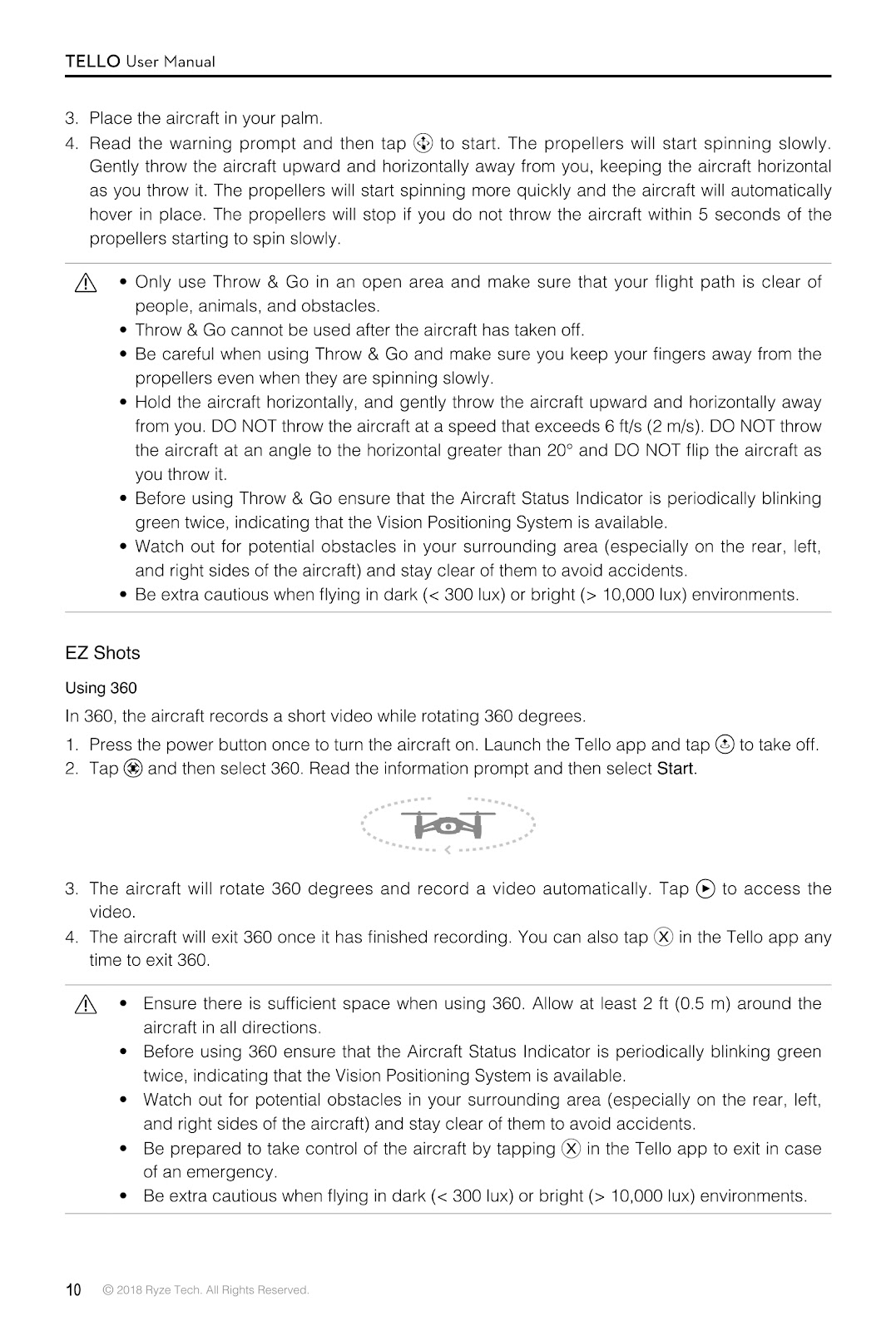
How do I use the 360 EZ Shot feature on my RYZE TELLO drone?
In 360 mode, the RYZE TELLO records a short video while rotating 360 degrees. Ensure the battery is at least 50%.
1. Press the power button once to turn the aircraft on. Launch the Tello app and tap the takeoff icon.
2. Tap the Intelligent Flight Modes icon and then select 360. Read the information prompt and then select Start.
3. The aircraft will rotate 360 degrees and record a video automatically. Tap the playback icon to access the video.
4. The aircraft will exit 360 mode once it has finished recording. You can also tap the exit icon in the Tello app at any time to exit 360.
Precautions:
Ensure there is sufficient space, with at least 2 ft (0.5 m) around the aircraft in all directions.
Ensure the Vision Positioning System is available (indicator blinking green twice).
Watch out for obstacles and be prepared to take control in an emergency.
Be extra cautious when flying in dark (< 300 lux) or bright (> 10,000 lux) environments.
How do I use the Circle EZ Shot feature on my RYZE TELLO drone?
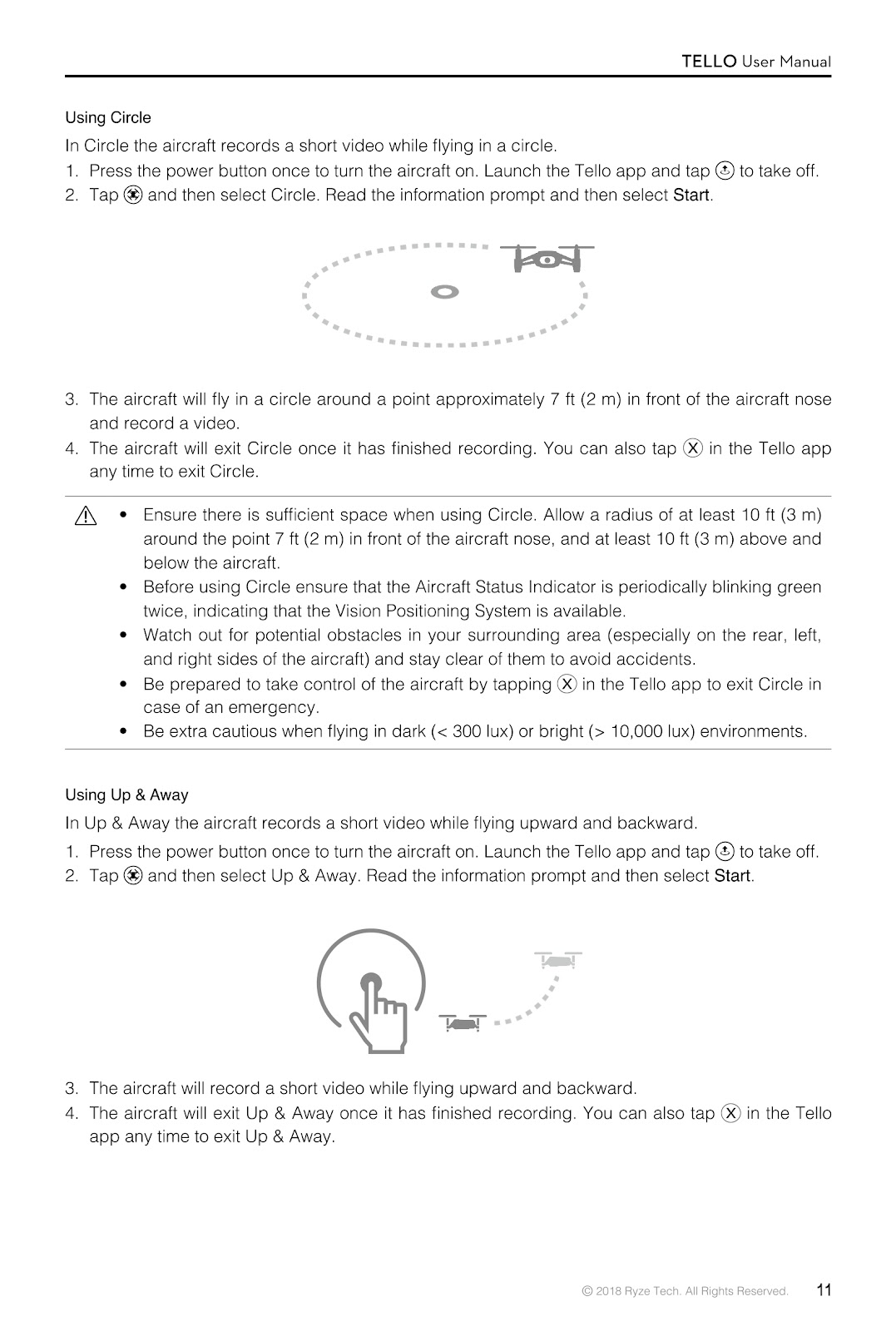
In Circle mode, the RYZE TELLO records a short video while flying in a circle. Ensure the battery is at least 50%.
1. Press the power button once to turn the aircraft on. Launch the Tello app and tap the takeoff icon.
2. Tap the Intelligent Flight Modes icon and then select Circle. Read the information prompt and then select Start.
3. The aircraft will fly in a circle around a point approximately 7 ft (2 m) in front of the aircraft’s nose and record a video.
4. The aircraft will exit Circle mode once it has finished recording. You can also tap the exit icon in the Tello app at any time to exit Circle.
Precautions:
Ensure sufficient space: a radius of at least 10 ft (3 m) around the point 7 ft (2 m) in front of the nose, and at least 10 ft (3 m) above and below the aircraft.
Ensure the Vision Positioning System is available (indicator blinking green twice).
Watch out for obstacles and be prepared to take control in an emergency.
Be extra cautious when flying in dark (< 300 lux) or bright (> 10,000 lux) environments.
How do I use the Up & Away EZ Shot feature on my RYZE TELLO drone?
In Up & Away mode, the RYZE TELLO records a short video while flying upward and backward. Ensure the battery is at least 50%.
1. Press the power button once to turn the aircraft on. Launch the Tello app and tap the takeoff icon.
2. Tap the Intelligent Flight Modes icon and then select Up & Away. Read the information prompt and then select Start.
3. The aircraft will record a short video while flying upward and backward.
4. The aircraft will exit Up & Away mode once it has finished recording. You can also tap the exit icon in the Tello app at any time to exit Up & Away.
Precautions:
Ensure sufficient space: at least 20 ft (6 m) behind and 3.5 ft (1 m) above the aircraft.
Ensure the Vision Positioning System is available (indicator blinking green twice).
Watch out for obstacles and be prepared to take control in an emergency.
Be extra cautious when flying in dark (< 300 lux) or bright (> 10,000 lux) environments.
How do I attach and detach the propellers on my RYZE TELLO drone?
Attaching the Propellers:
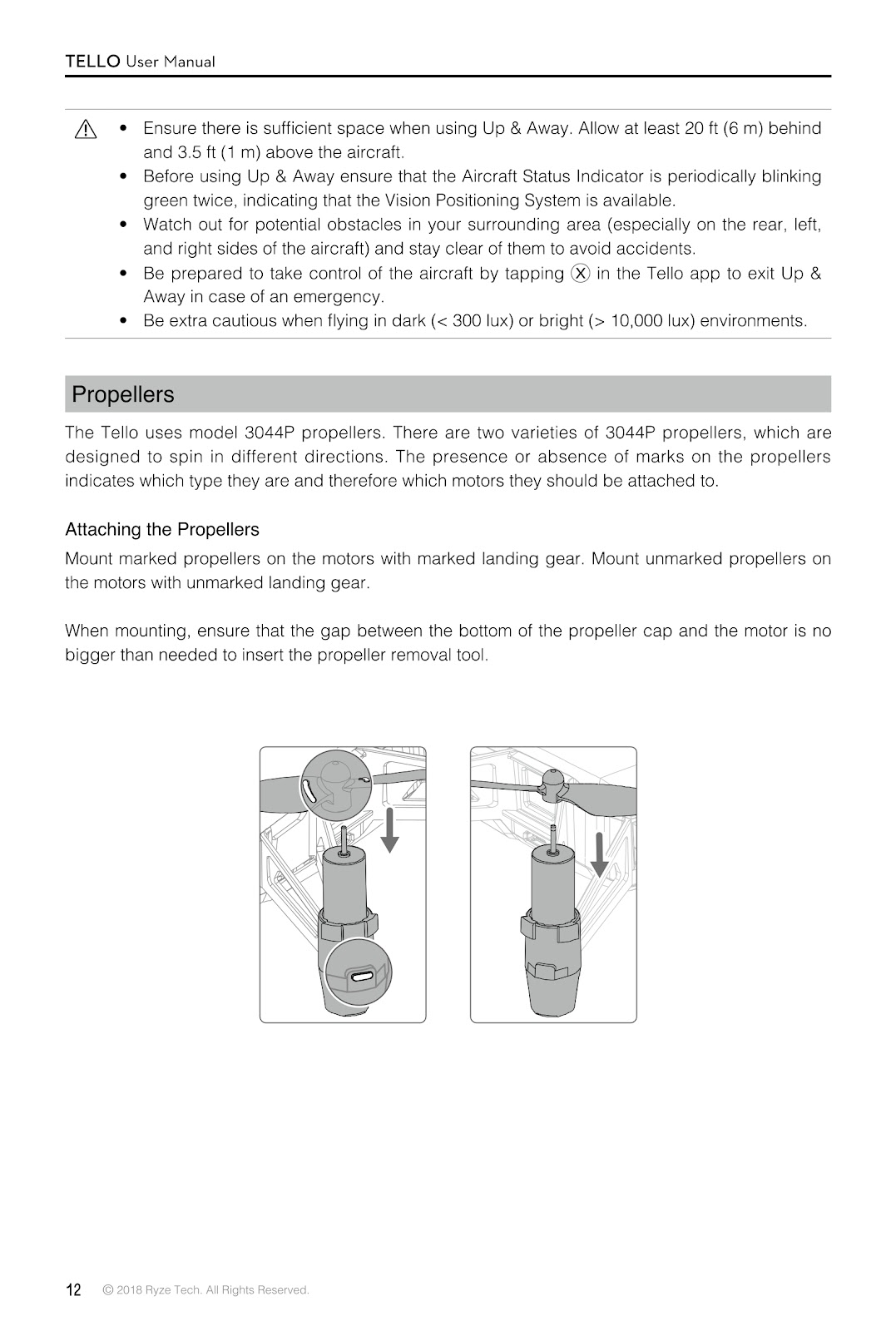
The RYZE TELLO uses two varieties of propellers designed to spin in different directions. The presence or absence of marks on the propellers indicates which motors they should be attached to.
Mount marked propellers on the motors with marked landing gear.
Mount unmarked propellers on the motors with unmarked landing gear.
When mounting, ensure the gap between the bottom of the propeller cap and the motor is no bigger than needed to insert the propeller removal tool.
Detaching the Propellers:
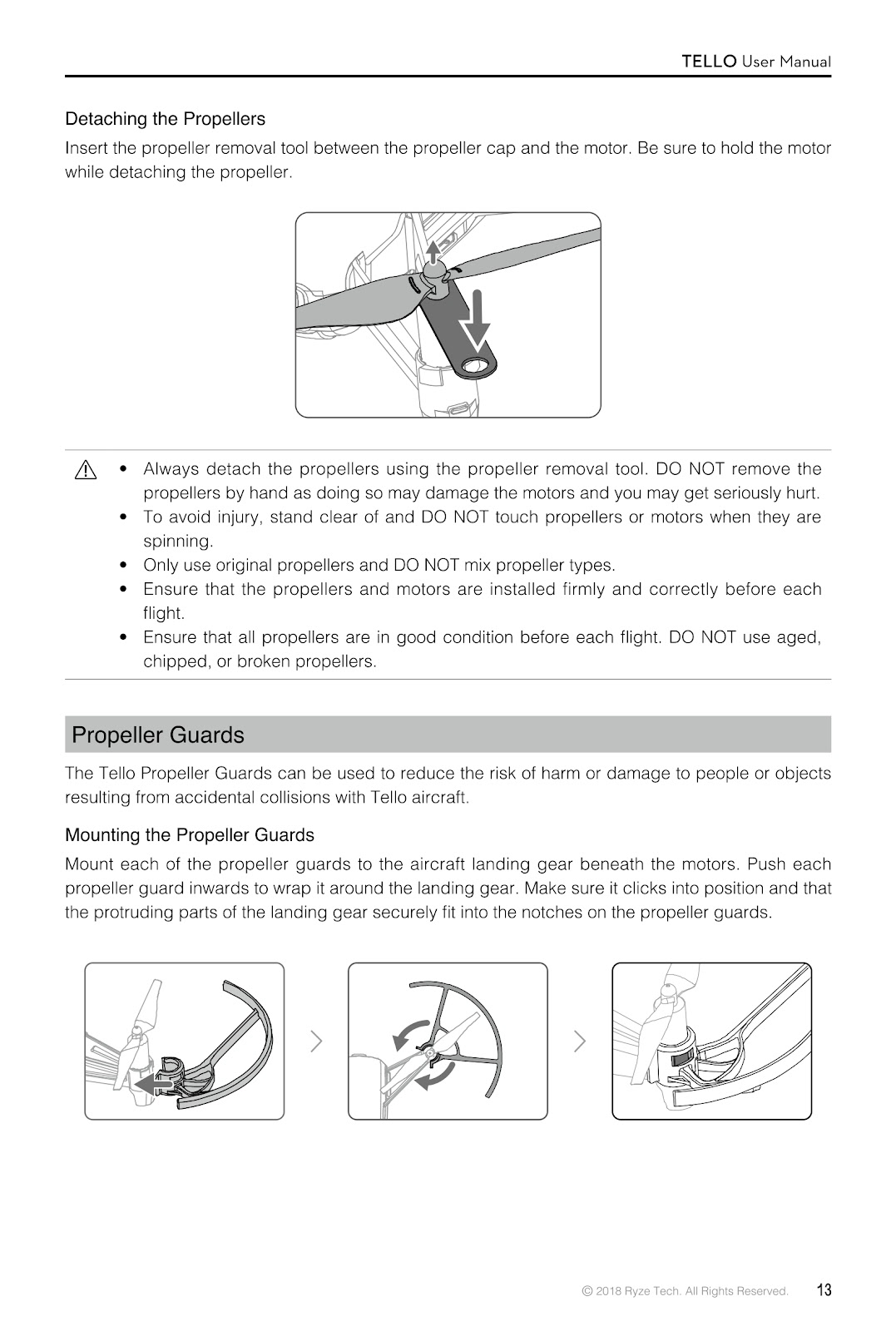
Insert the propeller removal tool between the propeller cap and the motor. Be sure to hold the motor while detaching the propeller.
Important Precautions:
Always detach the propellers using the propeller removal tool. DO NOT remove them by hand as this may damage the motors and cause injury.
To avoid injury, stand clear of and DO NOT touch propellers or motors when they are spinning.
Only use original propellers and DO NOT mix propeller types.
Ensure all propellers are in good condition before each flight. DO NOT use aged, chipped, or broken propellers.
How do I mount and detach the propeller guards on my RYZE TELLO drone?
Mounting the Propeller Guards:
Mount each of the propeller guards to the aircraft landing gear beneath the motors. Push each propeller guard inwards to wrap it around the landing gear. Make sure it clicks into position and that the protruding parts of the landing gear securely fit into the notches on the propeller guards.
Detaching the Propeller Guards:
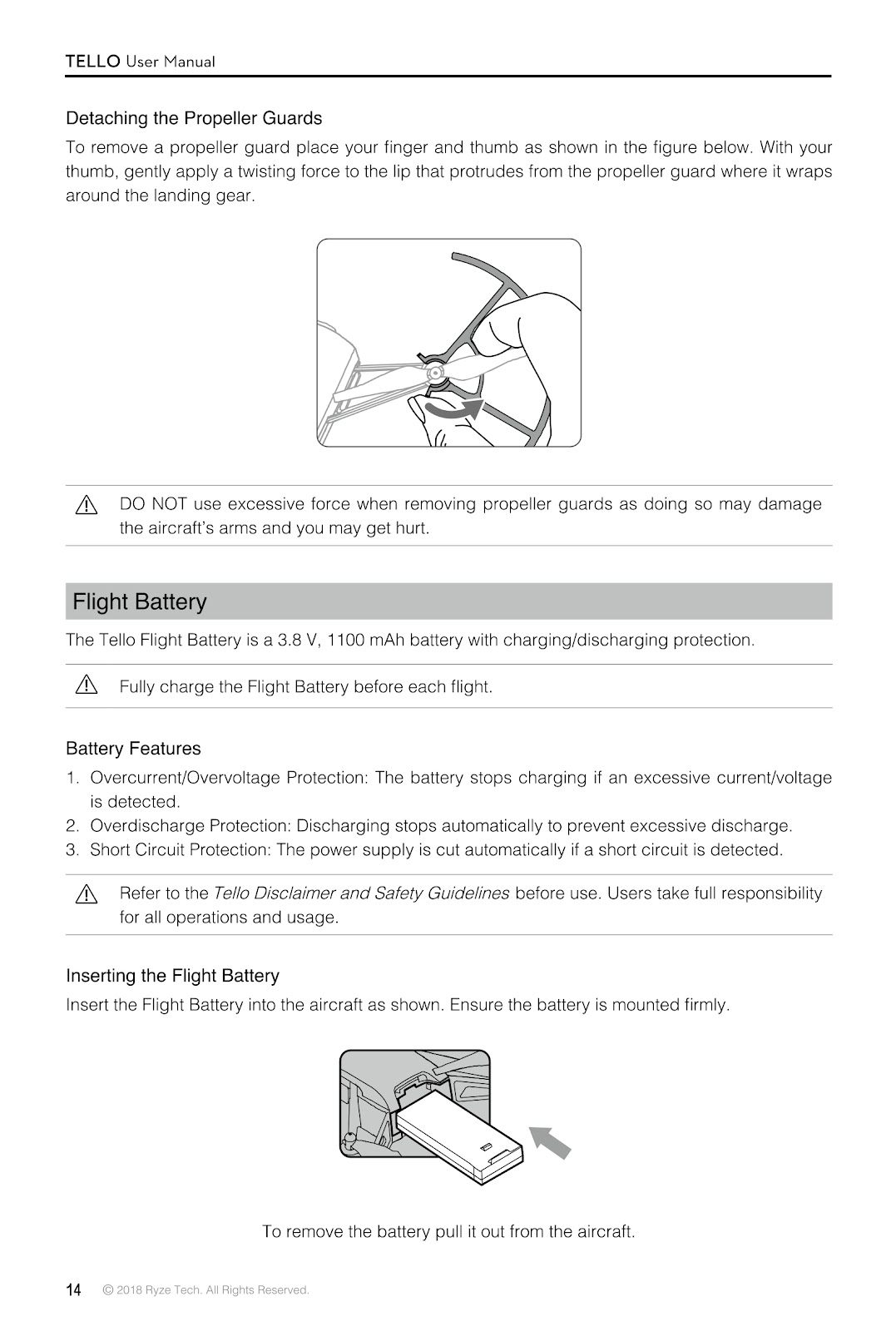
To remove a propeller guard, place your finger and thumb as shown in the manual’s diagram. With your thumb, gently apply a twisting force to the lip that protrudes from the propeller guard where it wraps around the landing gear. DO NOT use excessive force when removing propeller guards as doing so may damage the aircraft’s arms and you may get hurt.
How do I manage the flight battery for the RYZE TELLO drone?
Inserting the Battery:
Insert the Flight Battery into the aircraft as shown in the manual. Ensure the battery is mounted firmly.
Removing the Battery:
To remove the battery, pull it out from the aircraft.
Charging the Battery:
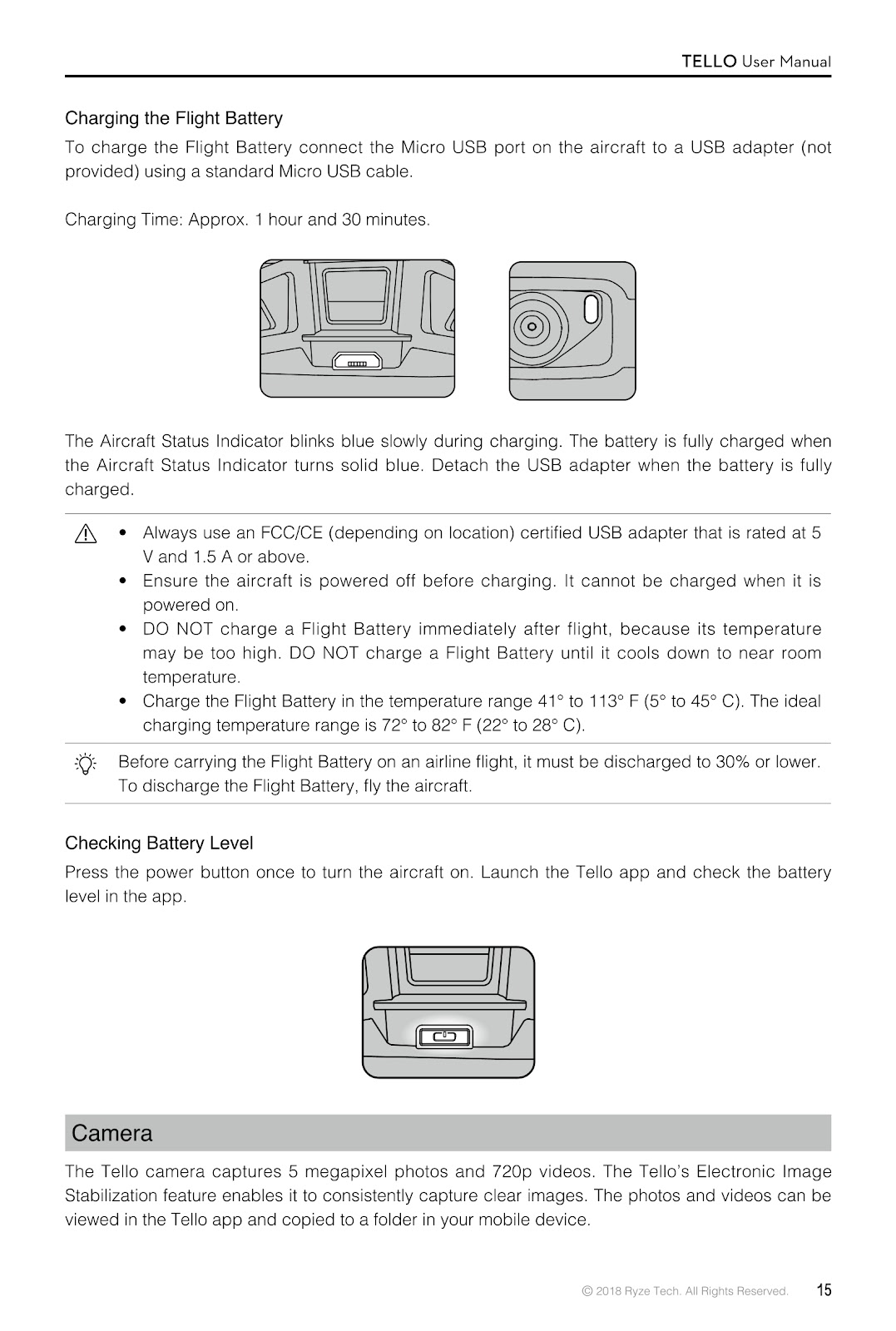
To charge the Flight Battery, connect the Micro USB port on the aircraft to a USB adapter (not provided) using a standard Micro USB cable. Charging time is approximately 1 hour and 30 minutes.
The Aircraft Status Indicator blinks blue slowly during charging and turns solid blue when fully charged.
Charging Precautions:
Always use an FCC/CE certified USB adapter rated at 5 V and 1.5 A or above.
Ensure the aircraft is powered off before charging. It cannot be charged when powered on.
DO NOT charge the battery immediately after flight, as its temperature may be too high. Let it cool down to near room temperature.
Charge the battery in a temperature range of 41° to 113° F (5° to 45° C).
Checking Battery Level:
Press the power button once to turn the aircraft on. Launch the Tello app and check the battery level in the app.
How do I connect the RYZE TELLO to my mobile device and what do the on-screen controls do?
Connecting to the Aircraft:
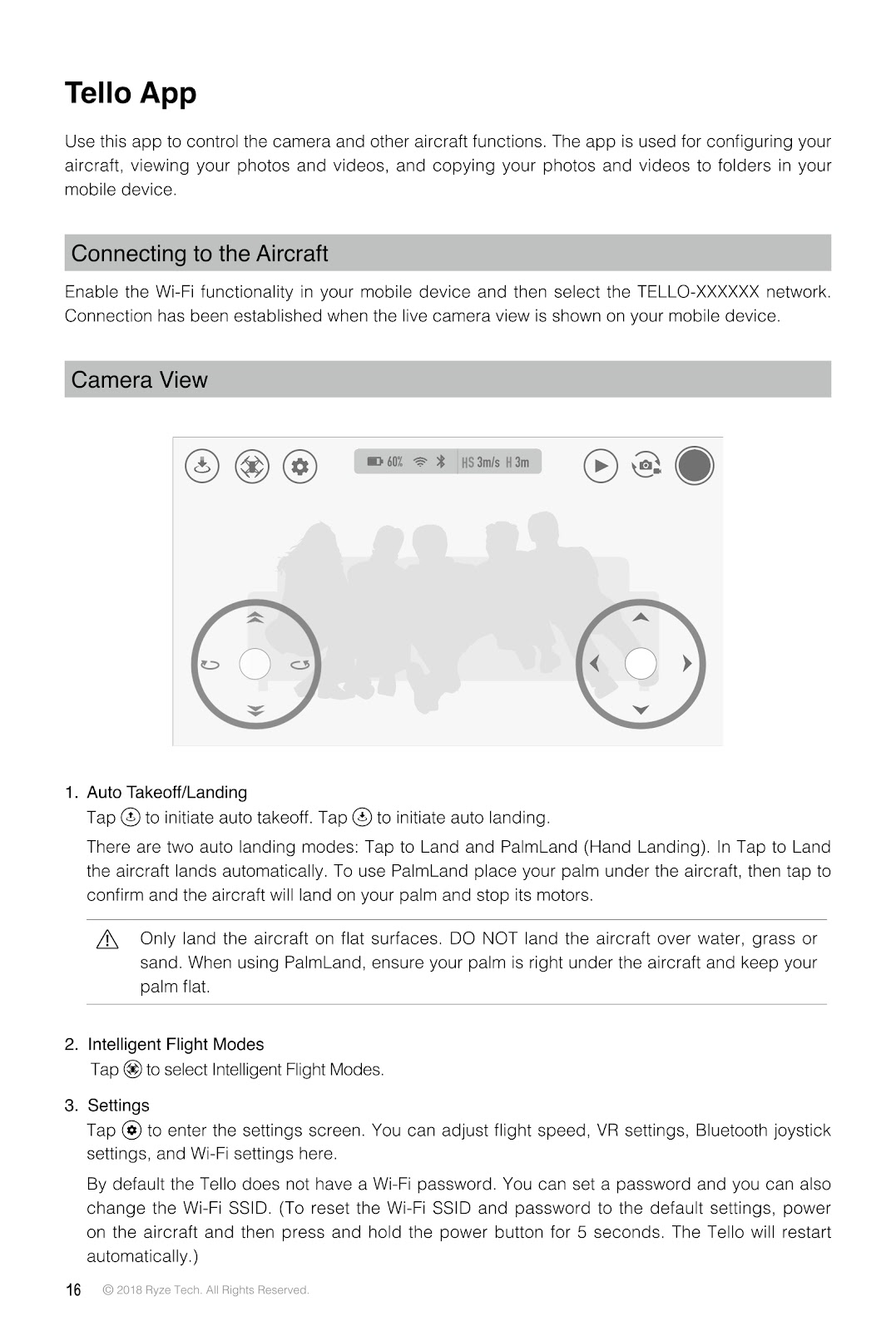
Enable the Wi-Fi functionality in your mobile device and then select the TELLO-XXXXXX network. The connection is established when the live camera view is shown on your mobile device.
Camera View Controls:
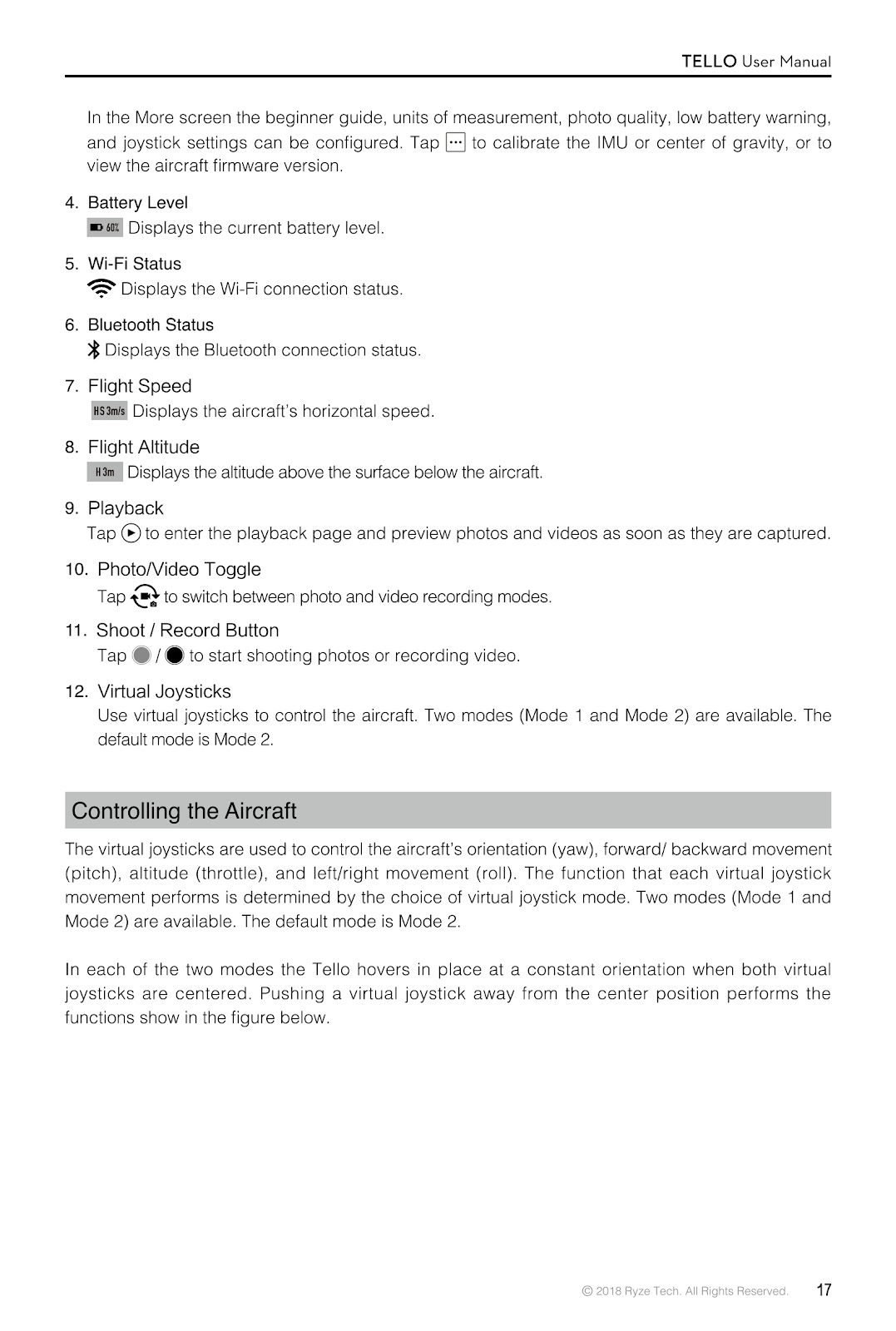
1. Auto Takeoff/Landing: Tap to initiate auto takeoff. Tap to initiate auto landing (Tap to Land or PalmLand).
2. Intelligent Flight Modes: Tap to select Intelligent Flight Modes.
3. Settings: Tap to adjust flight speed, VR settings, Bluetooth joystick settings, and Wi-Fi settings.
4. Battery Level: Displays the current battery level.
5. Wi-Fi Status: Displays the Wi-Fi connection status.
6. Bluetooth Status: Displays the Bluetooth connection status.
7. Flight Speed: Displays the aircraft’s horizontal speed.
8. Flight Altitude: Displays the altitude above the surface below the aircraft.
9. Playback: Tap to enter the playback page and preview photos and videos.
10. Photo/Video Toggle: Tap to switch between photo and video recording modes.
11. Shoot / Record Button: Tap to start shooting photos or recording video.
12. Virtual Joysticks: Use to control the aircraft. Two modes (Mode 1 and Mode 2) are available. The default is Mode 2.
How do the virtual joysticks control the RYZE TELLO drone?
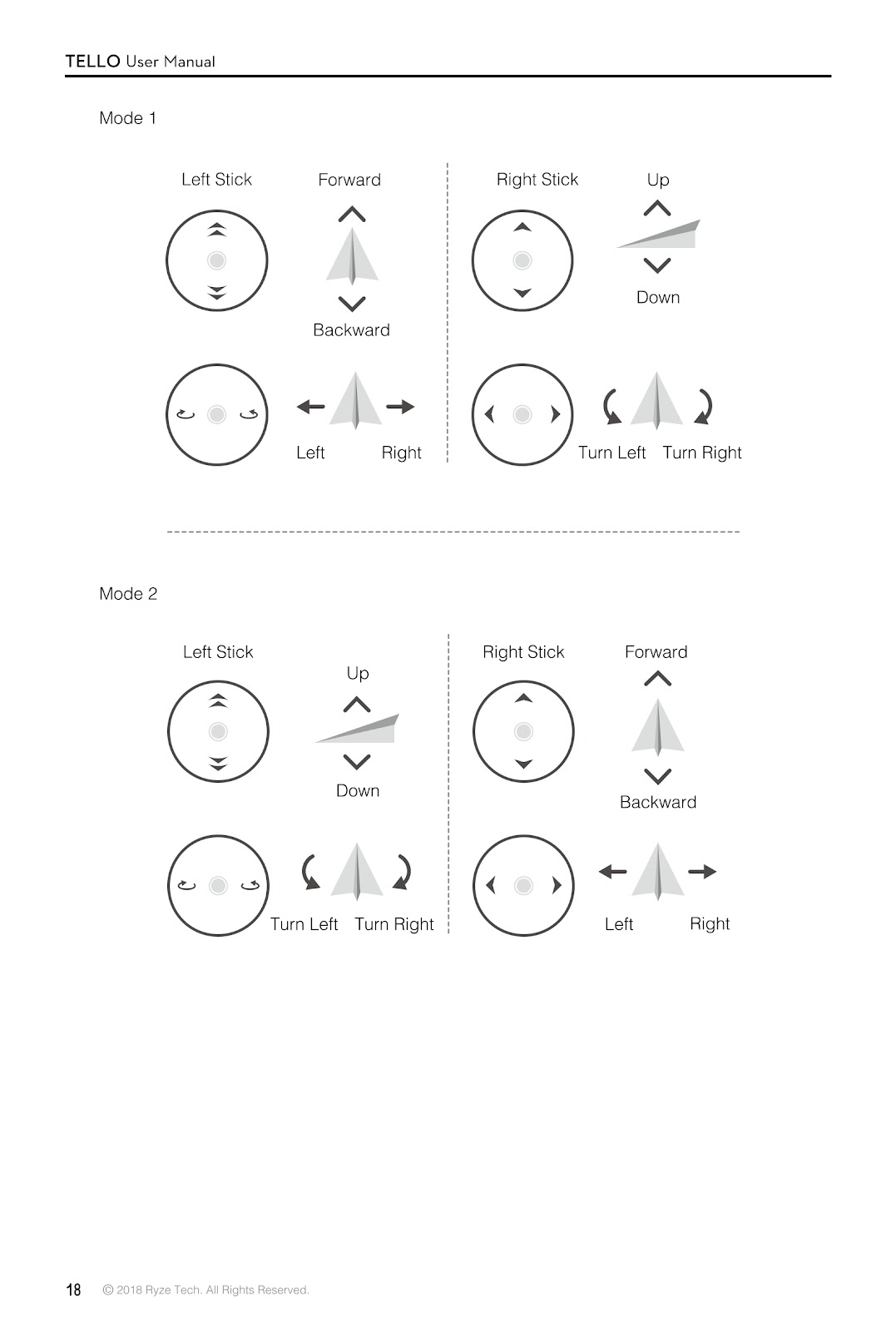
The virtual joysticks control the RYZE TELLO’s orientation (yaw), forward/backward movement (pitch), altitude (throttle), and left/right movement (roll). There are two modes available, with Mode 2 being the default.
Mode 1 Controls:
Left Stick: Push up/down for Forward/Backward. Push left/right for Left/Right movement (roll).
Right Stick: Push up/down for Up/Down altitude (throttle). Push left/right to Turn Left/Turn Right (yaw).
Mode 2 Controls (Default):
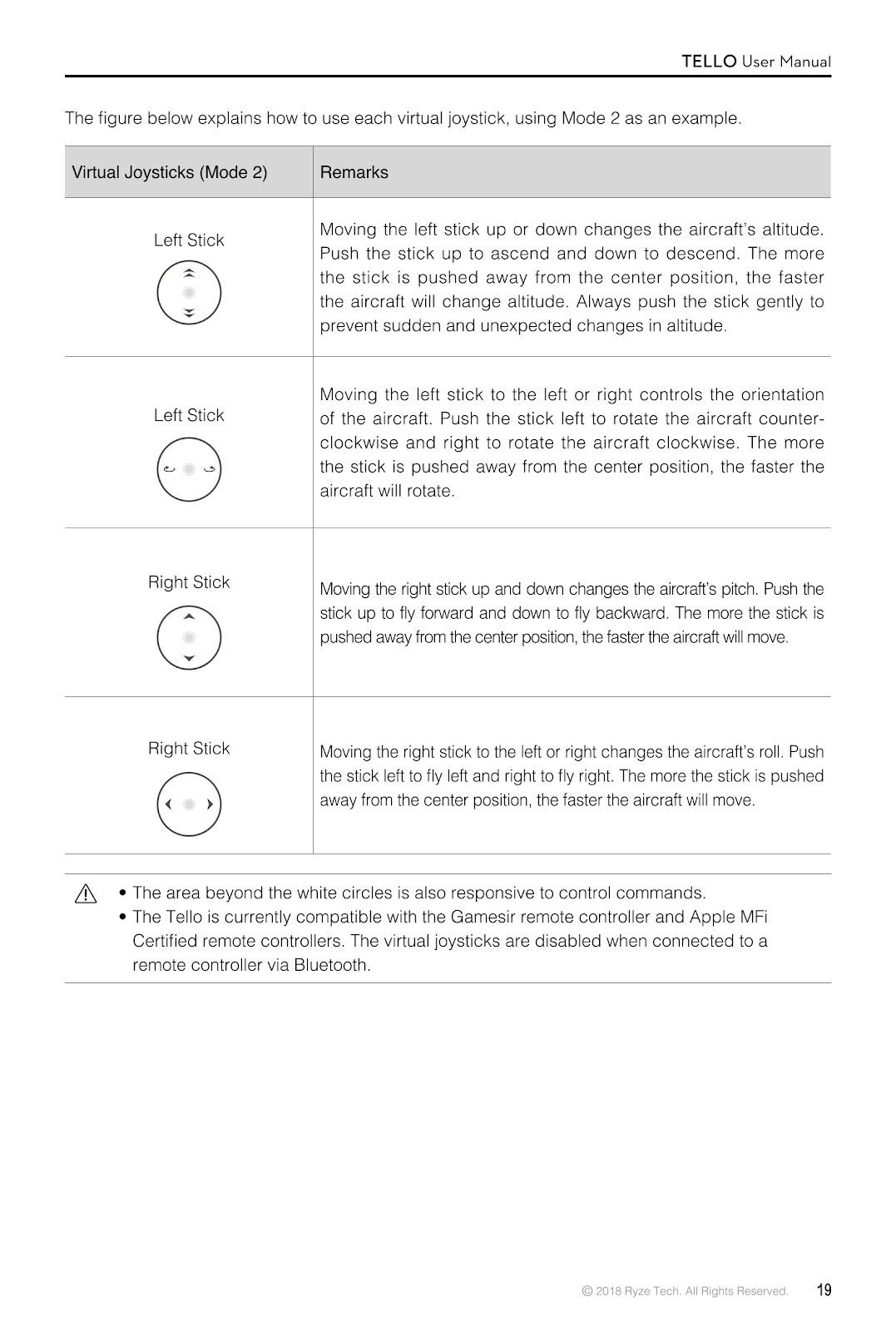
| Virtual Joystick (Mode 2) | Action |
|---|---|
| Left Stick (Up/Down) | Changes the aircraft’s altitude. Push up to ascend and down to descend. The more the stick is pushed from center, the faster the altitude changes. |
| Left Stick (Left/Right) | Controls the aircraft’s orientation. Push left to rotate counter-clockwise and right to rotate clockwise. The more the stick is pushed from center, the faster it rotates. |
| Right Stick (Up/Down) | Changes the aircraft’s pitch. Push up to fly forward and down to fly backward. The more the stick is pushed from center, the faster it moves. |
| Right Stick (Left/Right) | Changes the aircraft’s roll. Push left to fly left and right to fly right. The more the stick is pushed from center, the faster it moves. |
Note: The Tello is currently compatible with the Gamesir remote controller and Apple MFi Certified remote controllers. The virtual joysticks are disabled when connected to a remote controller via Bluetooth.
What are the flight environment requirements for the RYZE TELLO drone?
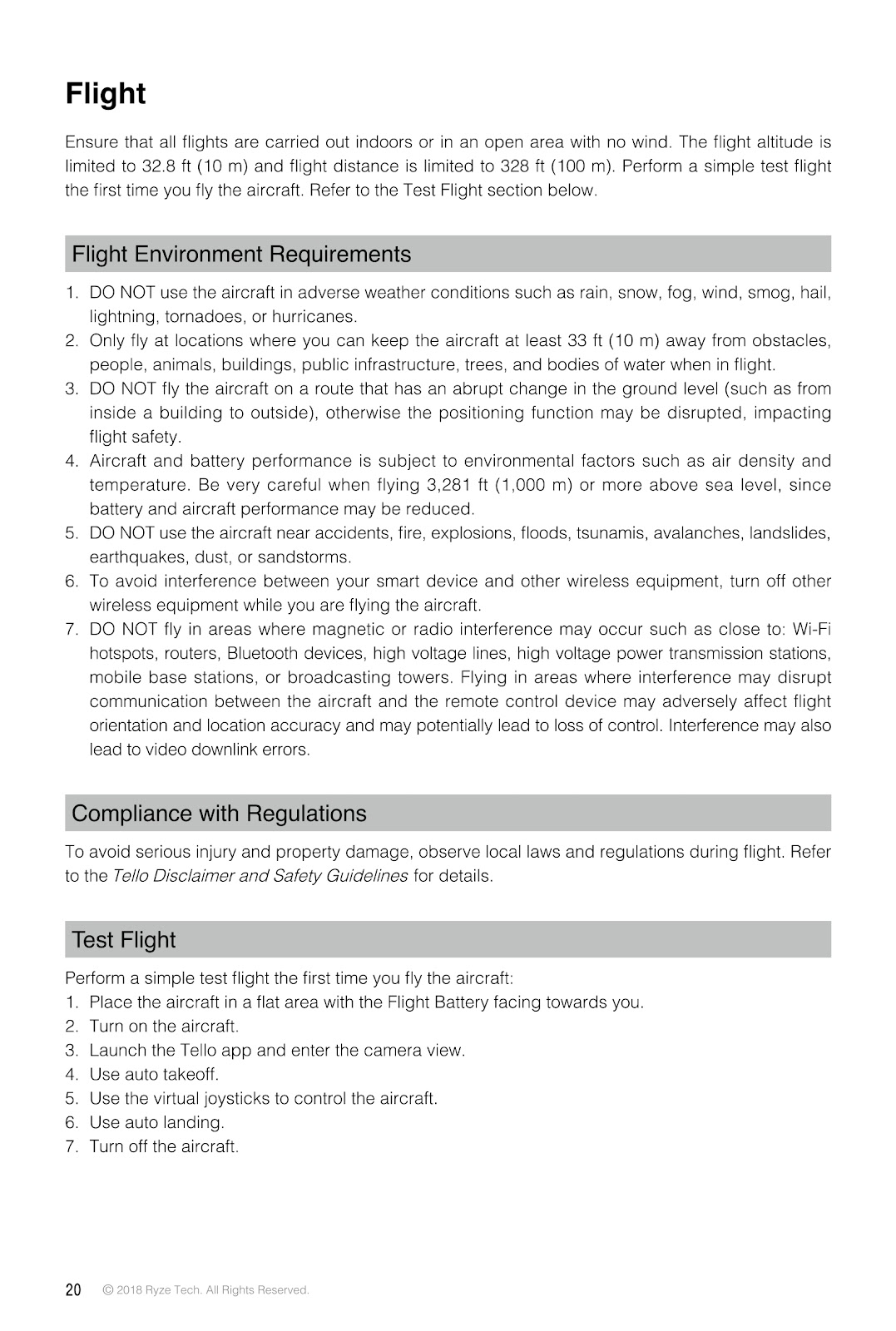
Ensure all flights are carried out indoors or in an open area with no wind. The flight altitude is limited to 32.8 ft (10 m) and flight distance is limited to 328 ft (100 m).
1. DO NOT use the aircraft in adverse weather conditions such as rain, snow, fog, wind, smog, hail, lightning, tornadoes, or hurricanes.
2. Only fly at locations where you can keep the aircraft at least 33 ft (10 m) away from obstacles, people, animals, buildings, public infrastructure, trees, and bodies of water when in flight.
3. DO NOT fly the aircraft on a route that has an abrupt change in the ground level (such as from inside a building to outside), otherwise the positioning function may be disrupted, impacting flight safety.
4. Be very careful when flying 3,281 ft (1,000 m) or more above sea level, since battery and aircraft performance may be reduced.
5. DO NOT use the aircraft near accidents, fire, explosions, floods, tsunamis, avalanches, landslides, earthquakes, dust, or sandstorms.
6. To avoid interference, turn off other wireless equipment while you are flying the aircraft.
7. DO NOT fly in areas where magnetic or radio interference may occur such as close to: Wi-Fi hotspots, routers, Bluetooth devices, high voltage lines, high voltage power transmission stations, mobile base stations, or broadcasting towers.
How do I perform a test flight with my RYZE TELLO drone?
Perform a simple test flight the first time you fly the RYZE TELLO:
1. Place the aircraft in a flat area with the Flight Battery facing towards you.
2. Turn on the aircraft.
3. Launch the Tello app and enter the camera view.
4. Use auto takeoff.
5. Use the virtual joysticks to control the aircraft.
6. Use auto landing.
7. Turn off the aircraft.
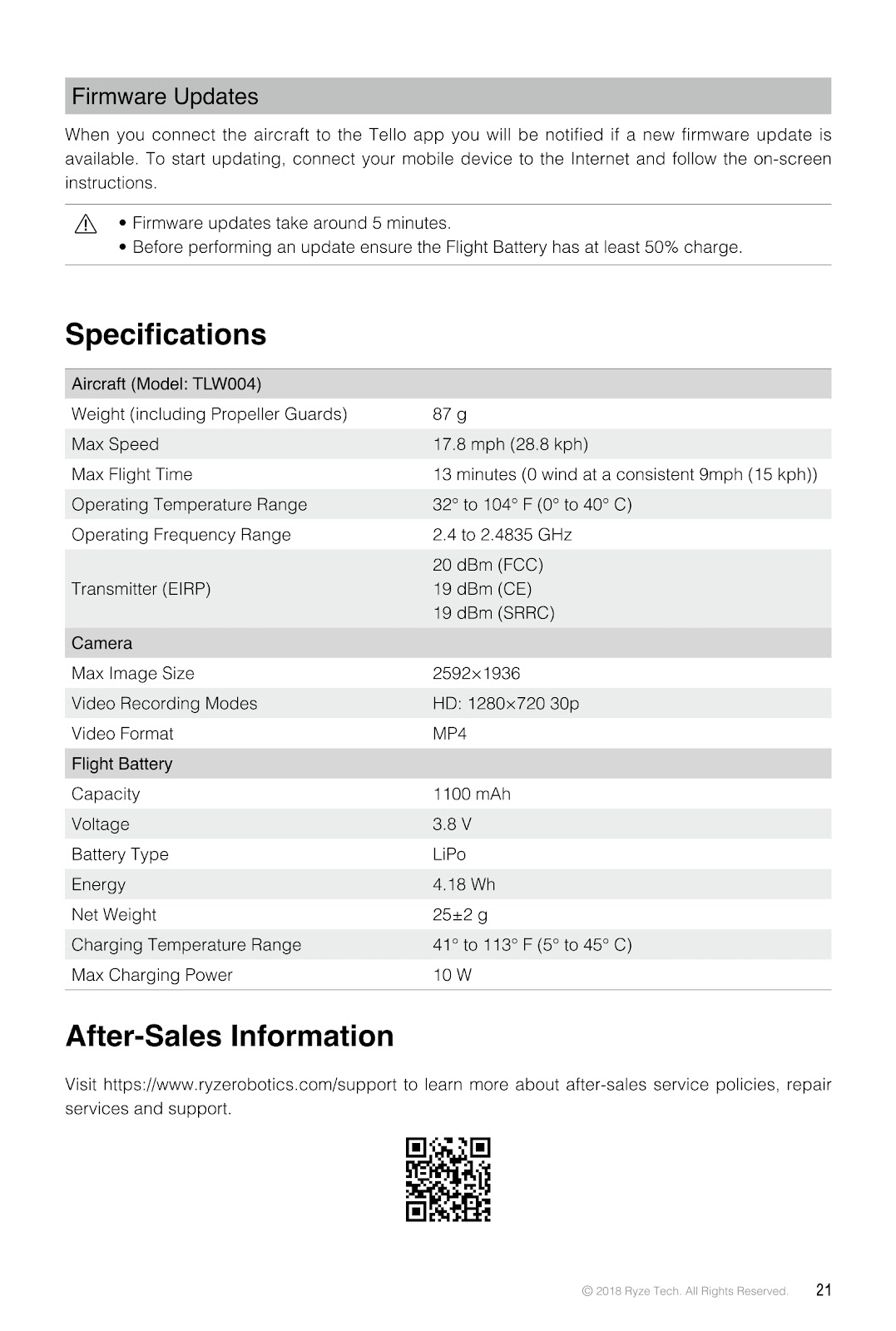
How do I update the firmware on my RYZE TELLO drone?
When you connect the aircraft to the Tello app, you will be notified if a new firmware update is available. To start updating, connect your mobile device to the Internet and follow the on-screen instructions.
Firmware updates take around 5 minutes.
Before performing an update, ensure the Flight Battery has at least 50% charge.
What are the specifications of the RYZE TELLO drone?
| Weight (including Propeller Guards) | 87 g |
| Max Speed | 17.8 mph (28.8 kph) |
| Max Flight Time | 13 minutes (0 wind at a consistent 9mph (15 kph)) |
| Operating Temperature Range | 32° to 104° F (0° to 40° C) |
| Operating Frequency Range | 2.4 to 2.4835 GHz |
| Transmitter (EIRP) | 20 dBm (FCC), 19 dBm (CE), 19 dBm (SRRC) |
| Max Image Size | 2592×1936 |
| Video Recording Modes | HD: 1280×720 30p |
| Video Format | MP4 |
| Capacity | 1100 mAh |
| Voltage | 3.8 V |
| Battery Type | LiPo |
| Energy | 4.18 Wh |
| Net Weight | 25±2 g |
| Charging Temperature Range | 41° to 113° F (5° to 45° C) |
| Max Charging Power | 10 W |
How to use the PDF below:
* Touchscreen: Swipe up/down with-in the PDF to scroll and pinch or spread with two fingers to zoom.
* Mouse: While your mouse is hovering over the PDF, use the mouse wheel to scroll and click on the – / + buttons at the bottom of the PDF to zoom.
CLICK HERE TO DOWNLOAD RYZE TELLO (01) PDF DOCUMENT