
Free English IRV TECHNOLOGIES IRV36 (01) PDF document. Download the PDF, use the online viewer, or browse the FAQs for easy troubleshooting.
CLICK HERE TO DOWNLOAD IRV TECHNOLOGIES IRV36 (01) PDF DOCUMENT
If this is not the document you want for this product, click here to see if we have any other documents for this product.
What should I do if my IRV TECHNOLOGIES IRV36 has no power?
Check and make sure whether the fuse is blown. If it is, replace the fuse with the proper value if necessary.
What can I do if there are errors on the LCD or no function when pressing a button on my IRV TECHNOLOGIES IRV36?
Turn off the unit and restart it again. If the problem persists, use the Factory Default Restart procedure.
How can I fix poor radio reception or static on my IRV TECHNOLOGIES IRV36?
There are several potential causes and solutions for poor radio reception:
• The antenna may not be the proper length. Make sure the antenna is fully extended.
• The antenna may be broken. Replace the antenna.
• The broadcast signal may be too weak.
• The antenna may be poorly grounded. Check and make sure the antenna is properly grounded at its mounting location.
How do I perform a Factory Default Restart on the IRV TECHNOLOGIES IRV36?
Press and hold the POWER button for 5 seconds. The unit will shut off. Restart the unit by pressing the ON button. Factory defaults will be reset with this type of restart.
NOTE: If any of the problems persist after the check list has been followed, the defaults will be reset with this type of restart.
What are the main features of the IRV TECHNOLOGIES IRV36?
Built-In AM/FM Tuner: 18 preset FM stations and 12 AM stations available to select.
Universal Serial Bus: 5V charging only, also charges many devices like iPod.
BT (Bluetooth): Contains BT technology for secure, wireless connections. It also enables handheld control of streaming music from a user’s wireless device playlist.
High Definition Input: 1 High Definition input and 1 High Definition output.
Audio Outputs: Supplies quality high power audio outputs to two different zones (Zone 1 and Zone 2) with standard stereo audio.
Additional Inputs/Outputs: The unit has 1 Video Input, 1 Video output, and 1 Audio input to allow users to enjoy entertainment from other sources such as Satellite Radio, VCR’s, Digital Cameras, Video Games for iPods and MP3 Players.
Clock: Press and hold the AUX button for 2 seconds to display the clock. Press and hold the AUX button for 6 seconds to set up the clock.
Near Field Communication: The unit has a near field communication label and can complete a quick BT pairing.
How do I get and use the control app for the IRV TECHNOLOGIES IRV36?
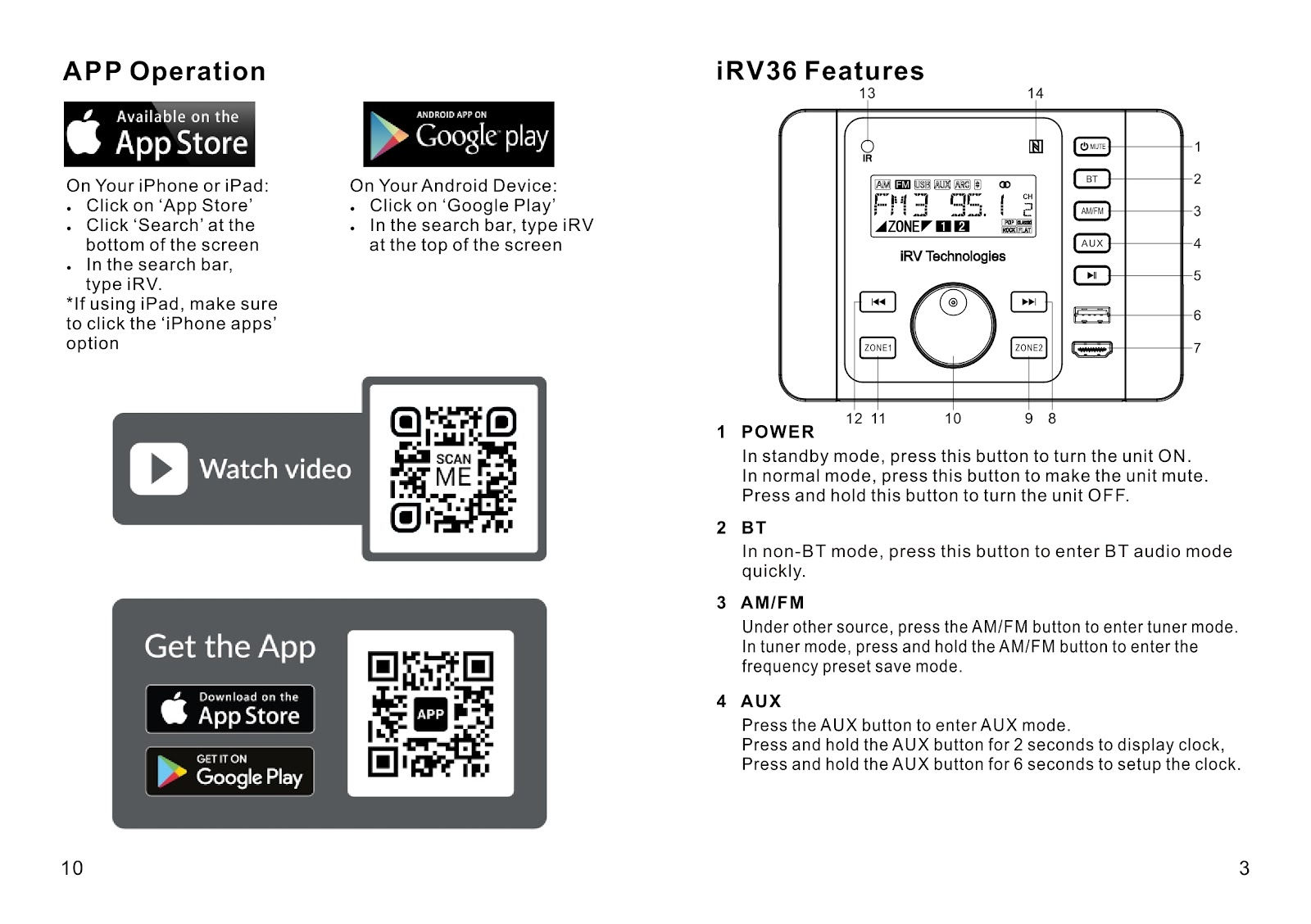
On Your iPhone or iPad:
• Click on ‘App Store’.
• Click ‘Search’ at the bottom of the screen.
• In the search bar, type iRV.
• If using an iPad, make sure to click the ‘iPhone apps’ option.
On Your Android Device:
• Click on ‘Google Play’.
• In the search bar, type iRV at the top of the screen.
How do the buttons on the main unit of the IRV TECHNOLOGIES IRV36 function?
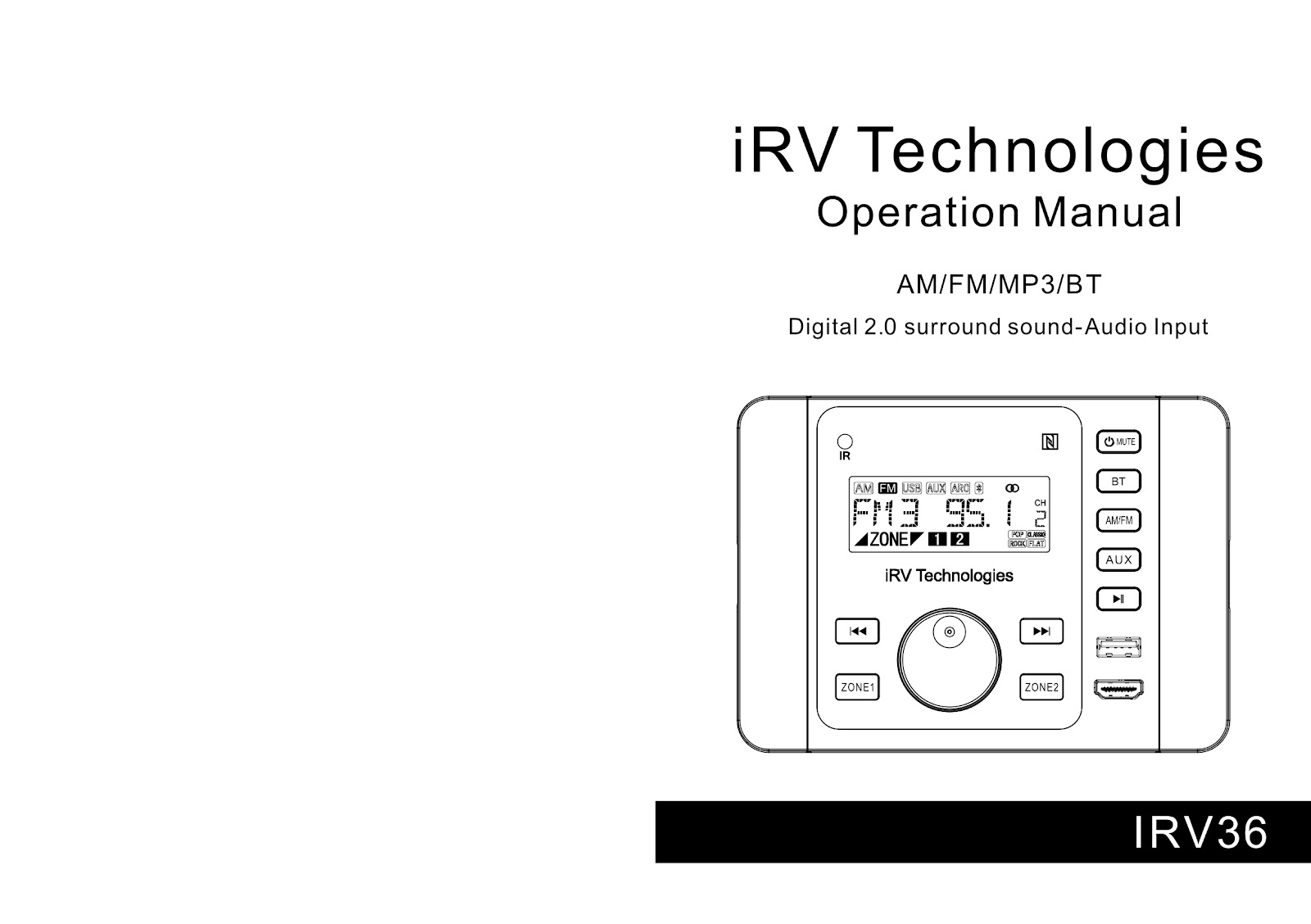
1. POWER: In standby mode, press this button to turn the unit ON. In normal mode, press this button to mute the unit. Press and hold this button to turn the unit OFF.
2. BT: In non-BT mode, press this button to enter BT audio mode quickly.
3. AM/FM: Under another source, press the AM/FM button to enter tuner mode. In tuner mode, press and hold the AM/FM button to enter the frequency preset save mode.
4. AUX: Press the AUX button to enter AUX mode. Press and hold the AUX button for 2 seconds to display the clock. Press and hold the AUX button for 6 seconds to set up the clock.
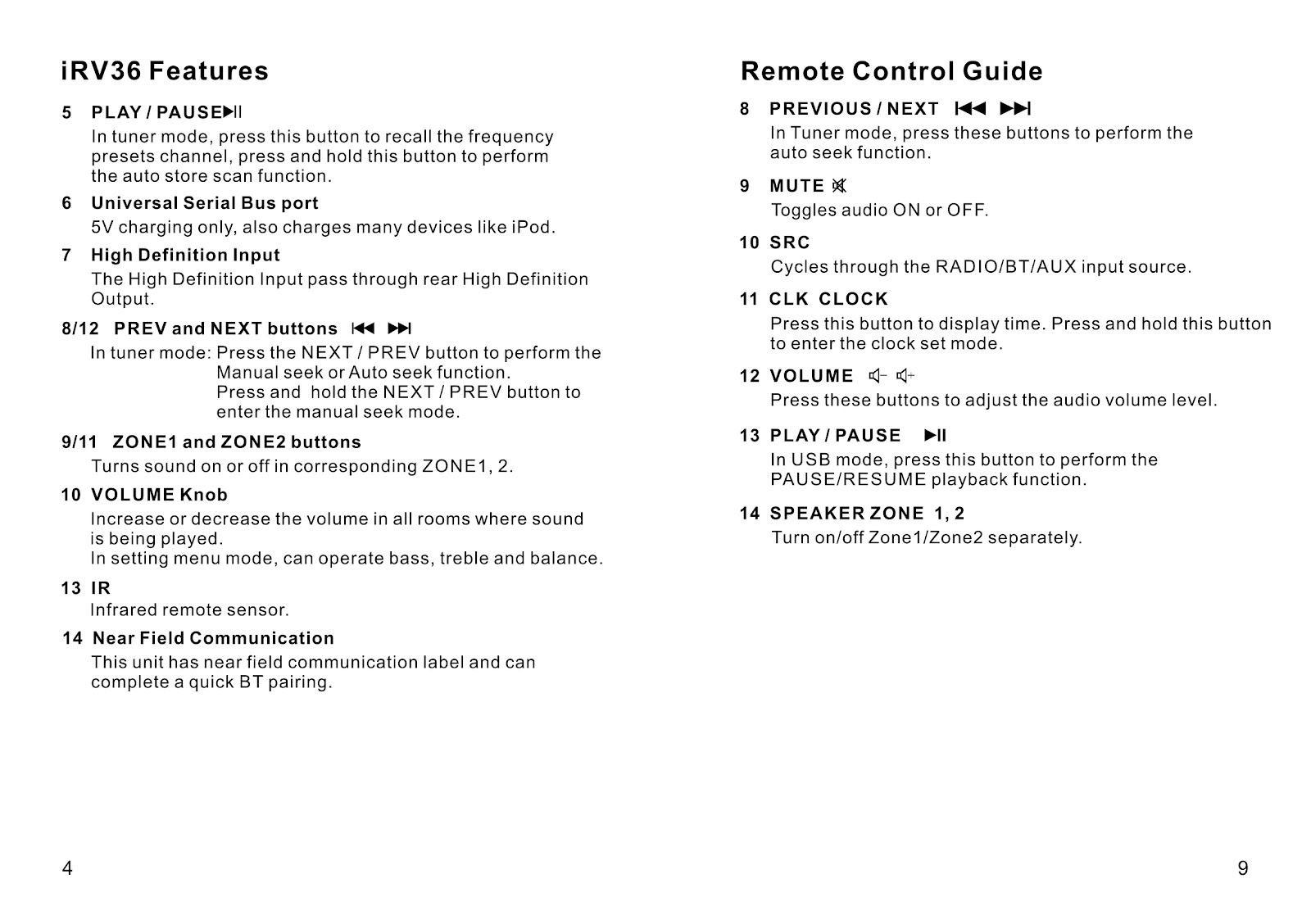
5. PLAY/PAUSE: In tuner mode, press this button to recall the frequency presets channel. Press and hold this button to perform the auto store scan function.
6. Universal Serial Bus port: 5V charging only, also charges many devices like iPod.
7. High Definition Input: The High Definition Input passes through to the rear High Definition Output.
8/12. PREV and NEXT buttons: In tuner mode, press the NEXT/PREV button to perform the Manual seek or Auto seek function. Press and hold the NEXT/PREV button to enter the manual seek mode.
9/11. ZONE1 and ZONE2 buttons: Turns sound on or off in the corresponding ZONE 1 or 2.
10. VOLUME Knob: Increase or decrease the volume in all rooms where sound is being played. In setting menu mode, it can operate bass, treble, and balance.
13. IR: Infrared remote sensor.
14. Near Field Communication: This unit has a near field communication label and can complete a quick BT pairing.
How do the buttons on the remote control for the IRV TECHNOLOGIES IRV36 work?
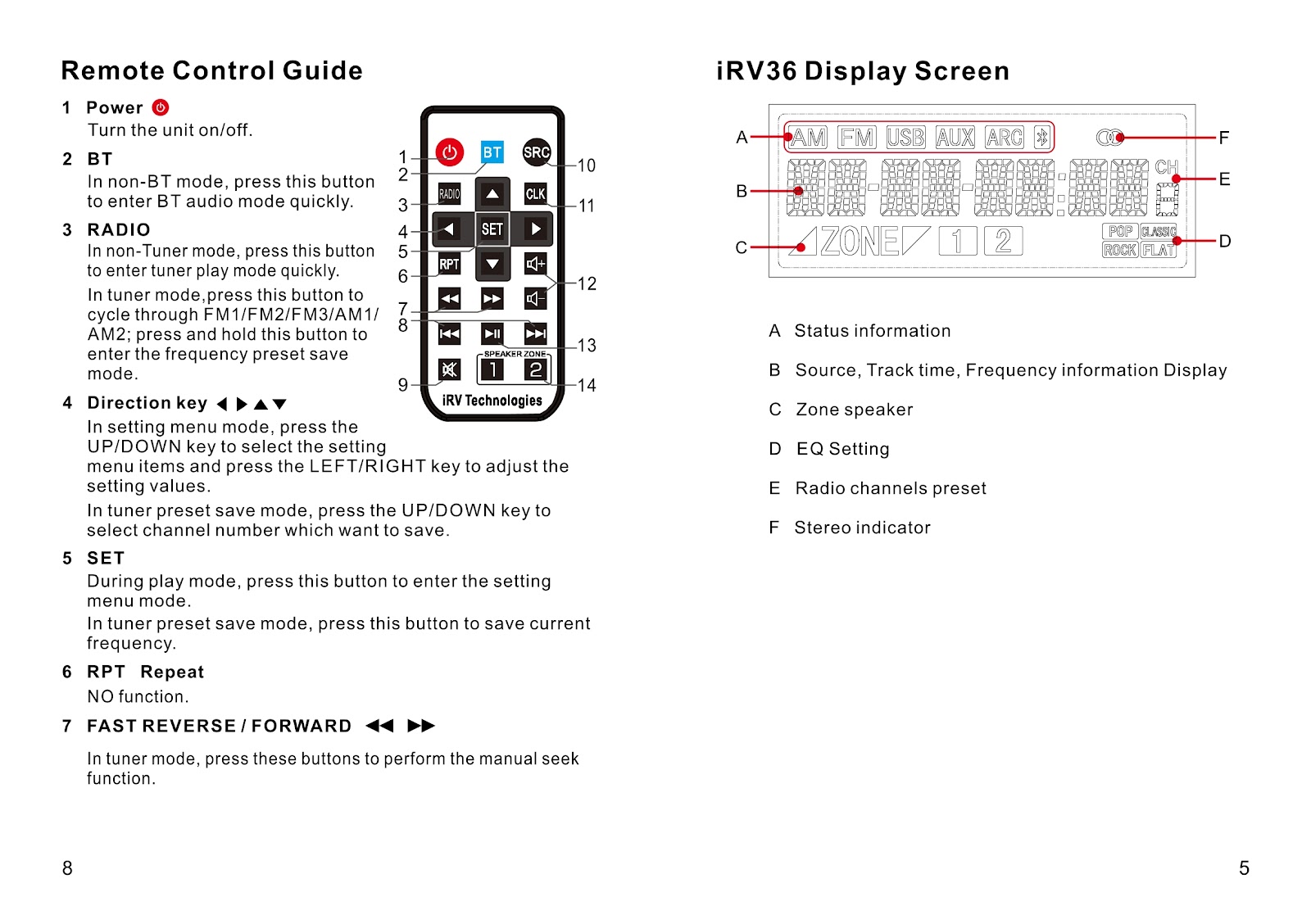
1. Power: Turn the unit on/off.
2. BT: In non-BT mode, press this button to enter BT audio mode quickly.
3. RADIO: In non-Tuner mode, press this button to enter tuner play mode quickly. In tuner mode, press this button to cycle through FM1/FM2/FM3/AM1/AM2; press and hold this button to enter the frequency preset save mode.
4. Direction key (Up/Down/Left/Right): In setting menu mode, press the UP/DOWN key to select the setting menu items and press the LEFT/RIGHT key to adjust the setting values. In tuner preset save mode, press the UP/DOWN key to select the channel number which you want to save.
5. SET: During play mode, press this button to enter the setting menu mode. In tuner preset save mode, press this button to save the current frequency.
6. RPT (Repeat): NO function.
7. FAST REVERSE / FORWARD: In tuner mode, press these buttons to perform the manual seek function.
8. PREVIOUS / NEXT: In Tuner mode, press these buttons to perform the auto seek function.
9. MUTE: Toggles audio ON or OFF.
10. SRC: Cycles through the RADIO/BT/AUX input source.
11. CLK (CLOCK): Press this button to display the time. Press and hold this button to enter the clock set mode.
12. VOLUME +/-: Press these buttons to adjust the audio volume level.
13. PLAY / PAUSE: In USB mode, press this button to perform the PAUSE/RESUME playback function.
14. SPEAKER ZONE 1, 2: Turn on/off Zone1/Zone2 separately.
What do the different parts of the display screen on the IRV TECHNOLOGIES IRV36 indicate?
A. Status information: Shows the current mode (AM, FM, USB, AUX, ARC).
B. Source, Track time, Frequency information Display: Displays the main information like the radio frequency (e.g., 95.1).
C. Zone speaker: Indicates which zones (1, 2) are active.
D. EQ Setting: Shows the current equalizer setting (POP, CLASSIC, ROCK, FLAT).
E. Radio channels preset: Shows the preset channel number (CH).
F. Stereo indicator: Indicates if a stereo signal is being received.
How do I operate the radio on the IRV TECHNOLOGIES IRV36?
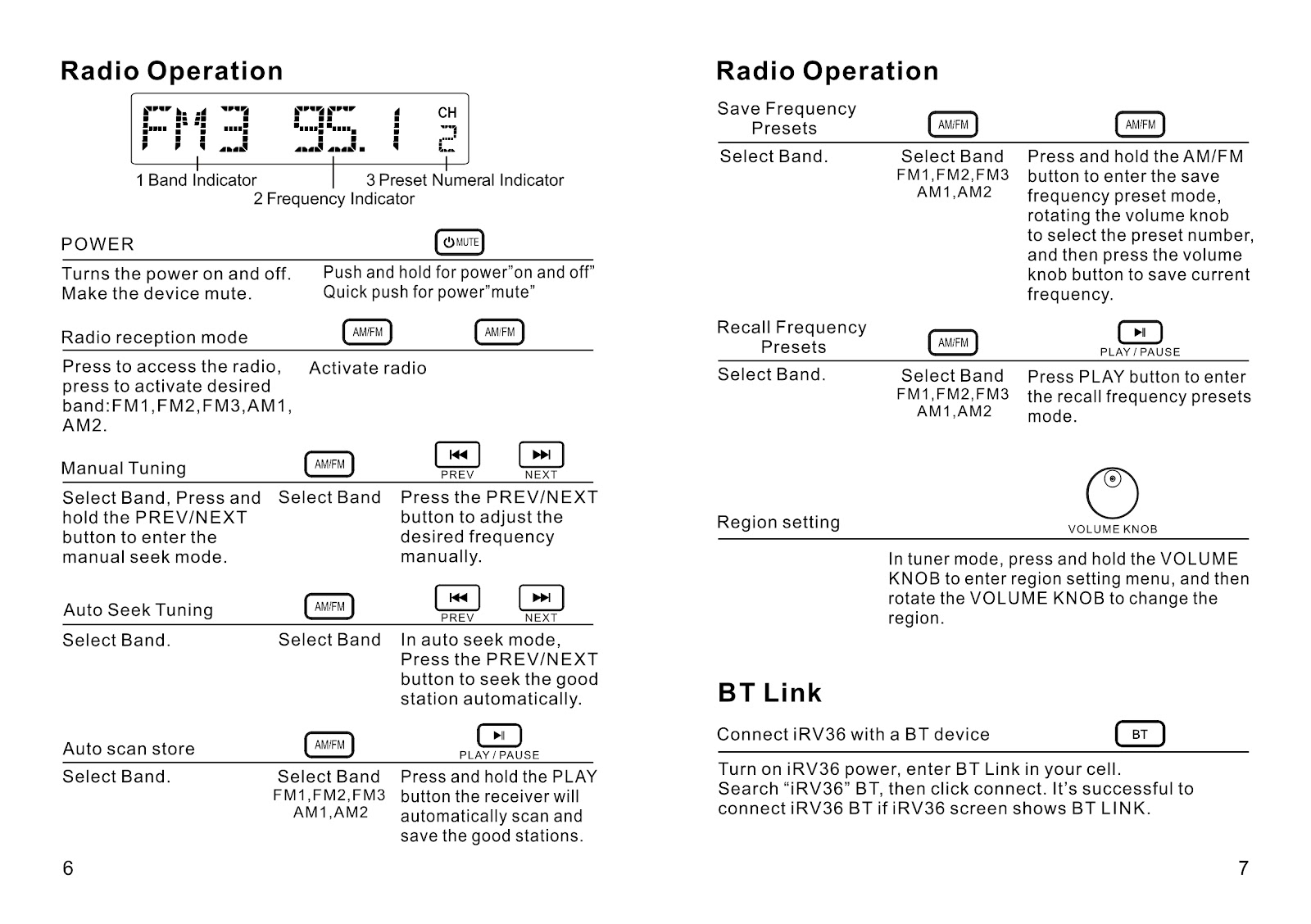
Power On/Off and Mute:
• Push and hold the MUTE button for power on and off.
• Quick push the MUTE button for power mute.
Radio Reception Mode:
• Press the AM/FM button to access the radio. Press it again to activate the desired band: FM1, FM2, FM3, AM1, AM2.
Manual Tuning:
• Select a band. Press and hold the PREV/NEXT button to enter manual seek mode. Then, press the PREV/NEXT button to adjust the desired frequency manually.
Auto Seek Tuning:
• Select a band. In auto seek mode, press the PREV/NEXT button to seek the next good station automatically.
Auto Scan and Store:
• Select a band (FM1, FM2, FM3, AM1, AM2). Press and hold the PLAY/PAUSE button. The receiver will automatically scan and save good stations.
Save Frequency Presets:
• Select a band. Press and hold the AM/FM button to enter the save frequency preset mode. Rotate the volume knob to select the preset number, and then press the volume knob button to save the current frequency.
Recall Frequency Presets:
• Select a band. Press the PLAY/PAUSE button to enter the recall frequency presets mode.
Region Setting:
• In tuner mode, press and hold the VOLUME KNOB to enter the region setting menu, and then rotate the VOLUME KNOB to change the region.
How do I connect a Bluetooth device to the IRV TECHNOLOGIES IRV36?
Turn on the iRV36 power. Enter BT Link mode in your cell phone or other Bluetooth device. Search for “IRV36” BT, then click connect. It’s successful when the iRV36 screen shows BT LINK.
What are the specifications for the IRV TECHNOLOGIES IRV36?
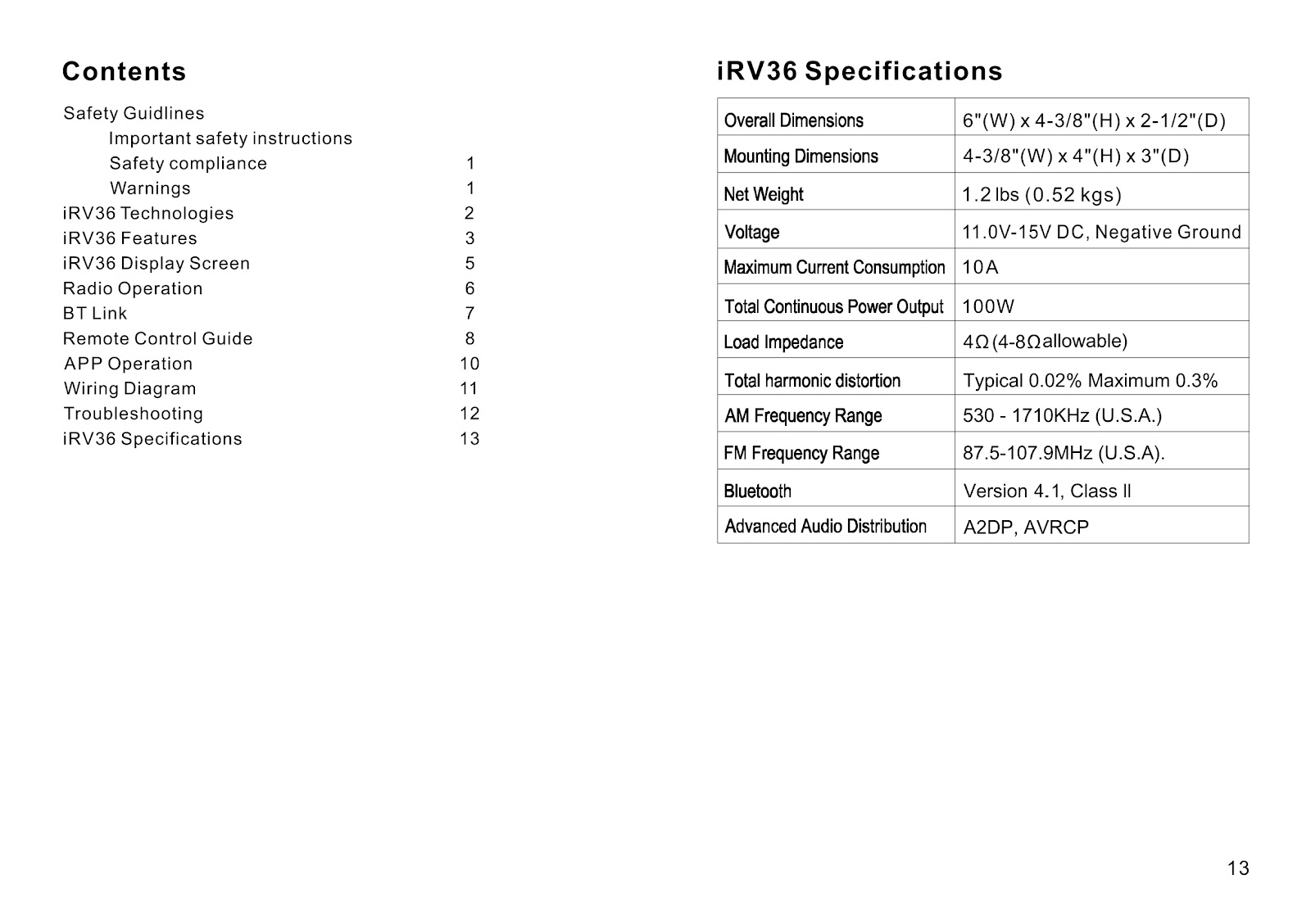
| Overall Dimensions | 6″(W) x 4-3/8″(H) x 2-1/2″(D) |
| Mounting Dimensions | 4-3/8″(W) x 4″(H) x 3″(D) |
| Net Weight | 1.2 lbs (0.52 kgs) |
| Voltage | 11.0V-15V DC, Negative Ground |
| Maximum Current Consumption | 10A |
| Total Continuous Power Output | 100W |
| Load Impedance | 4Ω (4-8Ω allowable) |
| Total harmonic distortion | Typical 0.02% Maximum 0.3% |
| AM Frequency Range | 530 – 1710KHz (U.S.A.) |
| FM Frequency Range | 87.5-107.9MHz (U.S.A). |
| Bluetooth | Version 4.1, Class II |
| Advanced Audio Distribution | A2DP, AVRCP |
What are the important safety warnings for the IRV TECHNOLOGIES IRV36?
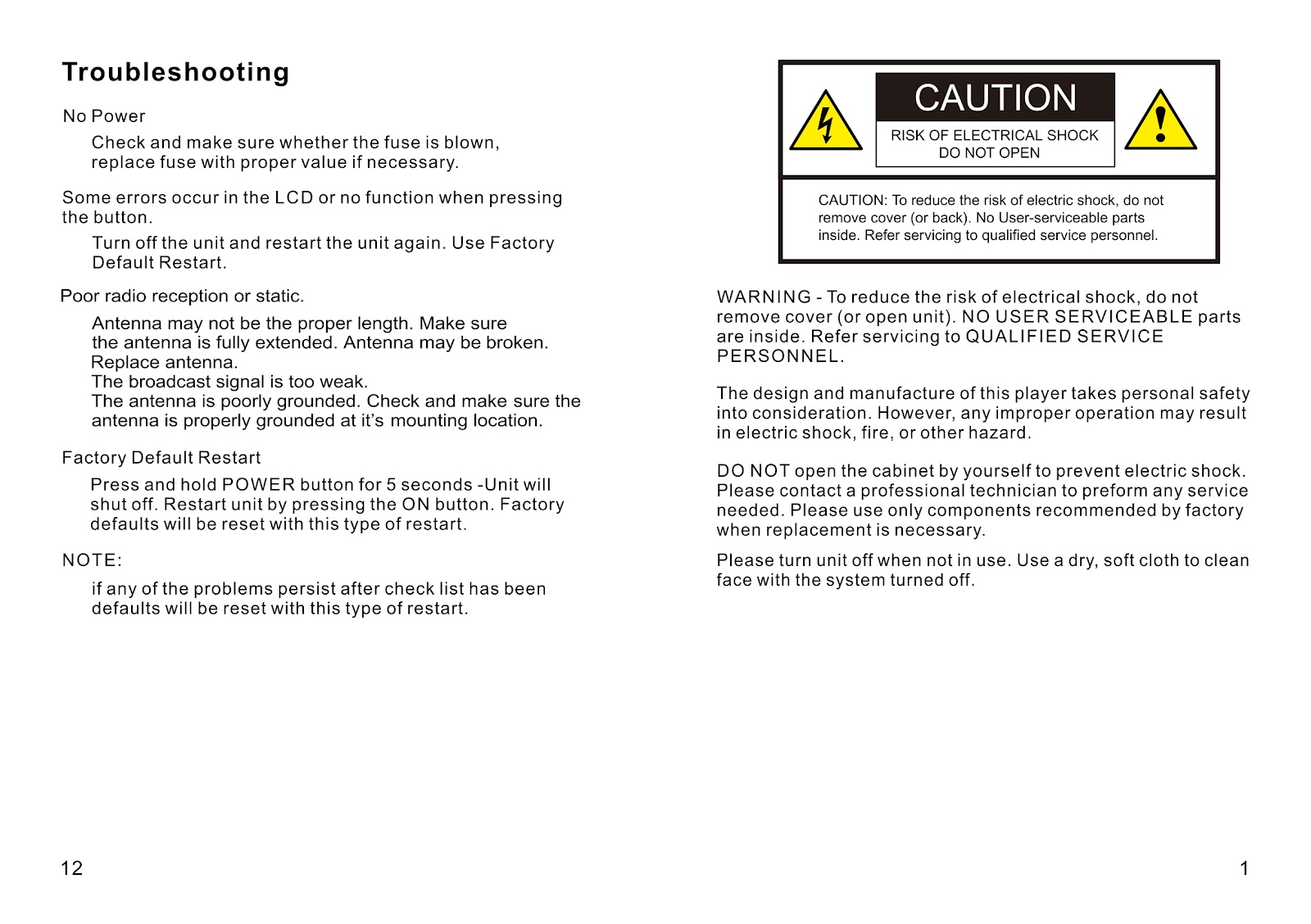
CAUTION: To reduce the risk of electric shock, do not remove cover (or back). No User-serviceable parts inside. Refer servicing to qualified service personnel.
WARNING: To reduce the risk of electrical shock, do not remove cover (or open unit). NO USER SERVICEABLE parts are inside. Refer servicing to QUALIFIED SERVICE PERSONNEL.
The design and manufacture of this player takes personal safety into consideration. However, any improper operation may result in electric shock, fire, or other hazard.
DO NOT open the cabinet by yourself to prevent electric shock. Please contact a professional technician to perform any service needed. Please use only components recommended by the factory when replacement is necessary.
Please turn the unit off when not in use. Use a dry, soft cloth to clean the face with the system turned off.
What is the wiring diagram for the IRV TECHNOLOGIES IRV36?
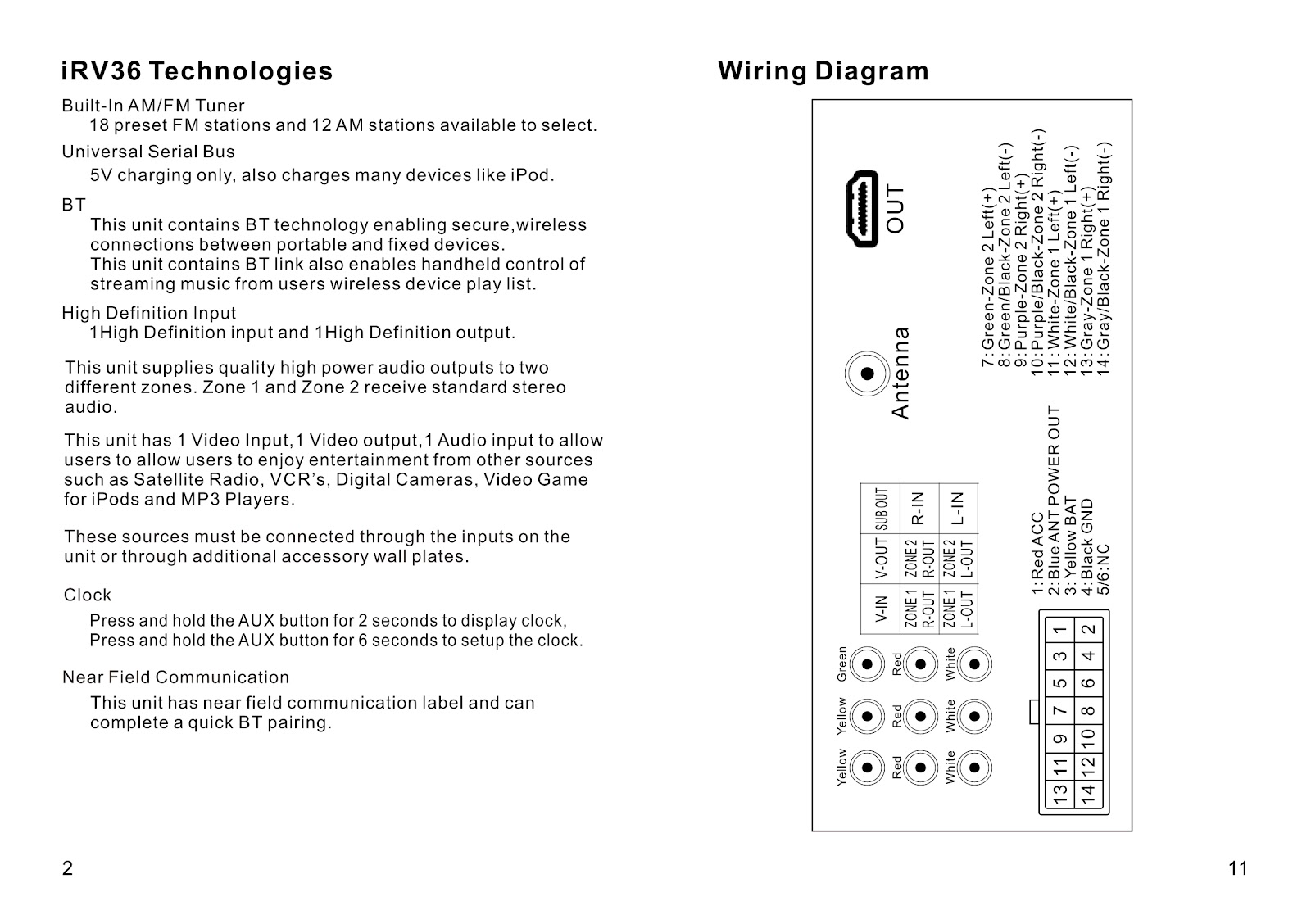
The main connector pinout is as follows:
1: Red – ACC
2: Blue – ANT POWER OUT
3: Yellow – BAT
4: Black – GND
5/6: NC (No Connection)
7: Green – Zone 2 Left (+)
8: Green/Black – Zone 2 Left (-)
9: Purple – Zone 2 Right (+)
10: Purple/Black – Zone 2 Right (-)
11: White – Zone 1 Left (+)
12: White/Black – Zone 1 Left (-)
13: Gray – Zone 1 Right (+)
14: Gray/Black – Zone 1 Right (-)
How to use the PDF below:
* Touchscreen: Swipe up/down with-in the PDF to scroll and pinch or spread with two fingers to zoom.
* Mouse: While your mouse is hovering over the PDF, use the mouse wheel to scroll and click on the – / + buttons at the bottom of the PDF to zoom.
CLICK HERE TO DOWNLOAD IRV TECHNOLOGIES IRV36 (01) PDF DOCUMENT