
Free English VELOCIFIRE TKL61WS (01) PDF document. Download the PDF, use the online viewer, or browse the FAQs for easy troubleshooting.
CLICK HERE TO DOWNLOAD VELOCIFIRE TKL61WS (01) PDF DOCUMENT
If this is not the document you want for this product, click here to see if we have any other documents for this product.
What should I do before using the VELOCIFIRE TKL61WS for the first time?
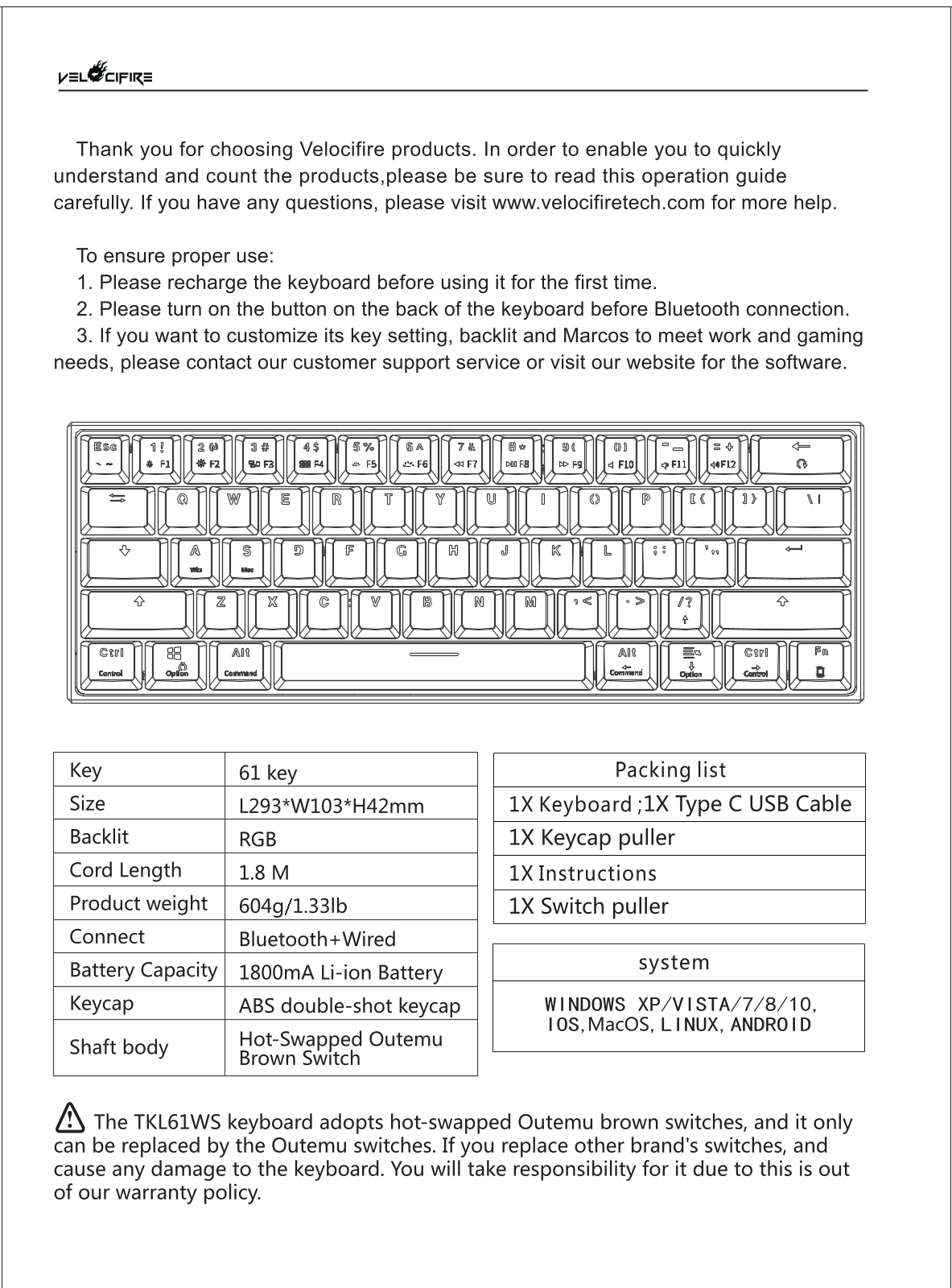
To ensure proper use of your VELOCIFIRE TKL61WS keyboard, please follow these initial steps:
1. Please recharge the keyboard before using it for the first time.
2. Please turn on the button on the back of the keyboard before attempting a Bluetooth connection.
What are the specifications of the VELOCIFIRE TKL61WS keyboard?
| Key | 61 key |
| Size | L293*W103*H42mm |
| Backlit | RGB |
| Cord Length | 1.8 M |
| Product weight | 604g/1.33lb |
| Connect | Bluetooth+Wired |
| Battery Capacity | 1800mA Li-ion Battery |
| Keycap | ABS double-shot keycap |
| Shaft body | Hot-Swapped Outemu Brown Switch |
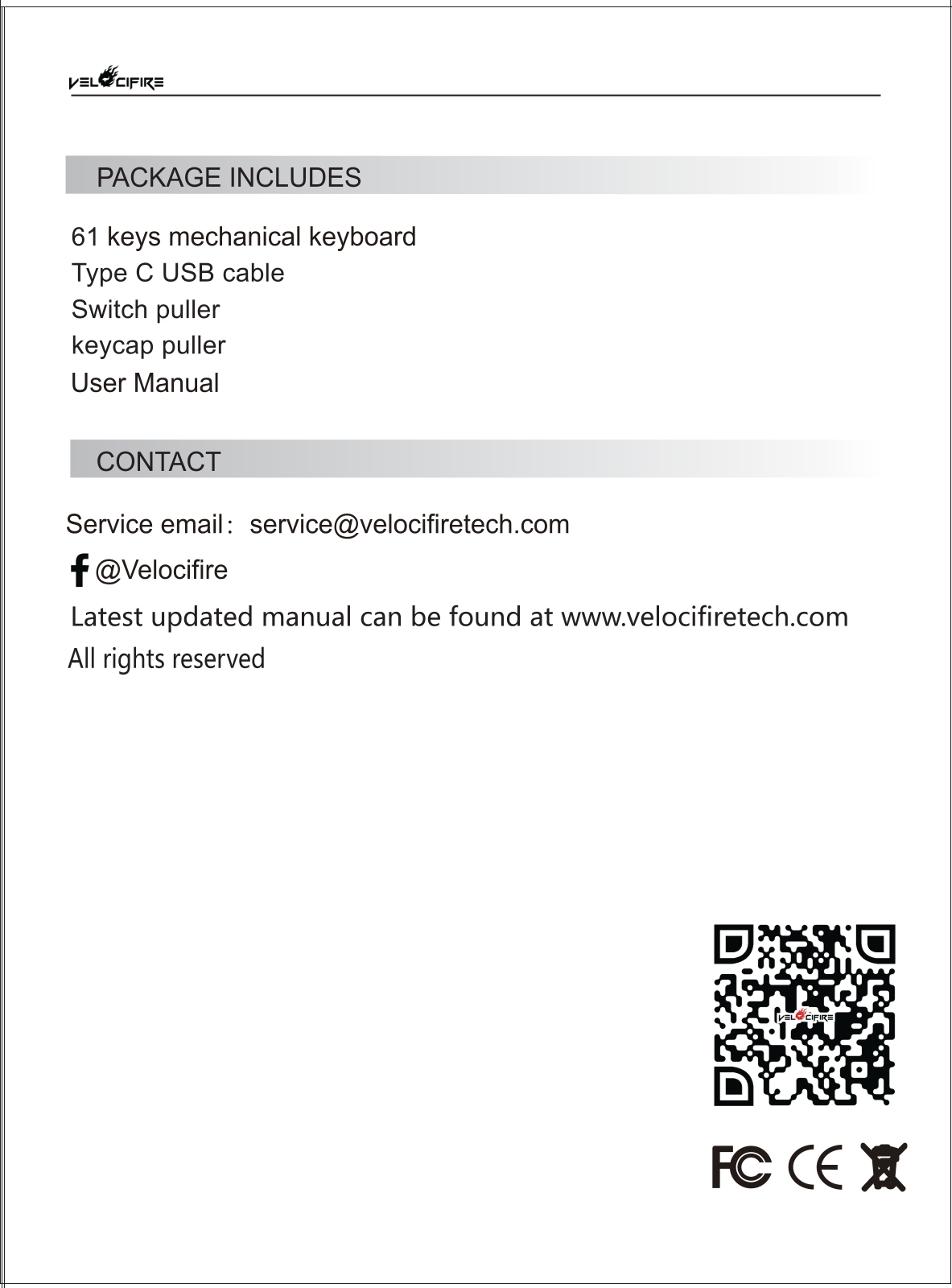
What is included in the package for the VELOCIFIRE TKL61WS?
The package for the VELOCIFIRE TKL61WS includes the following items:
1X 61 keys mechanical keyboard
1X Type C USB Cable
1X Switch puller
1X Keycap puller
1X User Manual
What operating systems are compatible with the VELOCIFIRE TKL61WS keyboard?
The VELOCIFIRE TKL61WS keyboard is compatible with WINDOWS XP/VISTA/7/8/10, IOS, MacOS, LINUX, and ANDROID.
How do I connect the VELOCIFIRE TKL61WS via Bluetooth?
Follow these steps to connect your VELOCIFIRE TKL61WS keyboard via Bluetooth:
1. Turn on the button on the back of the keyboard.
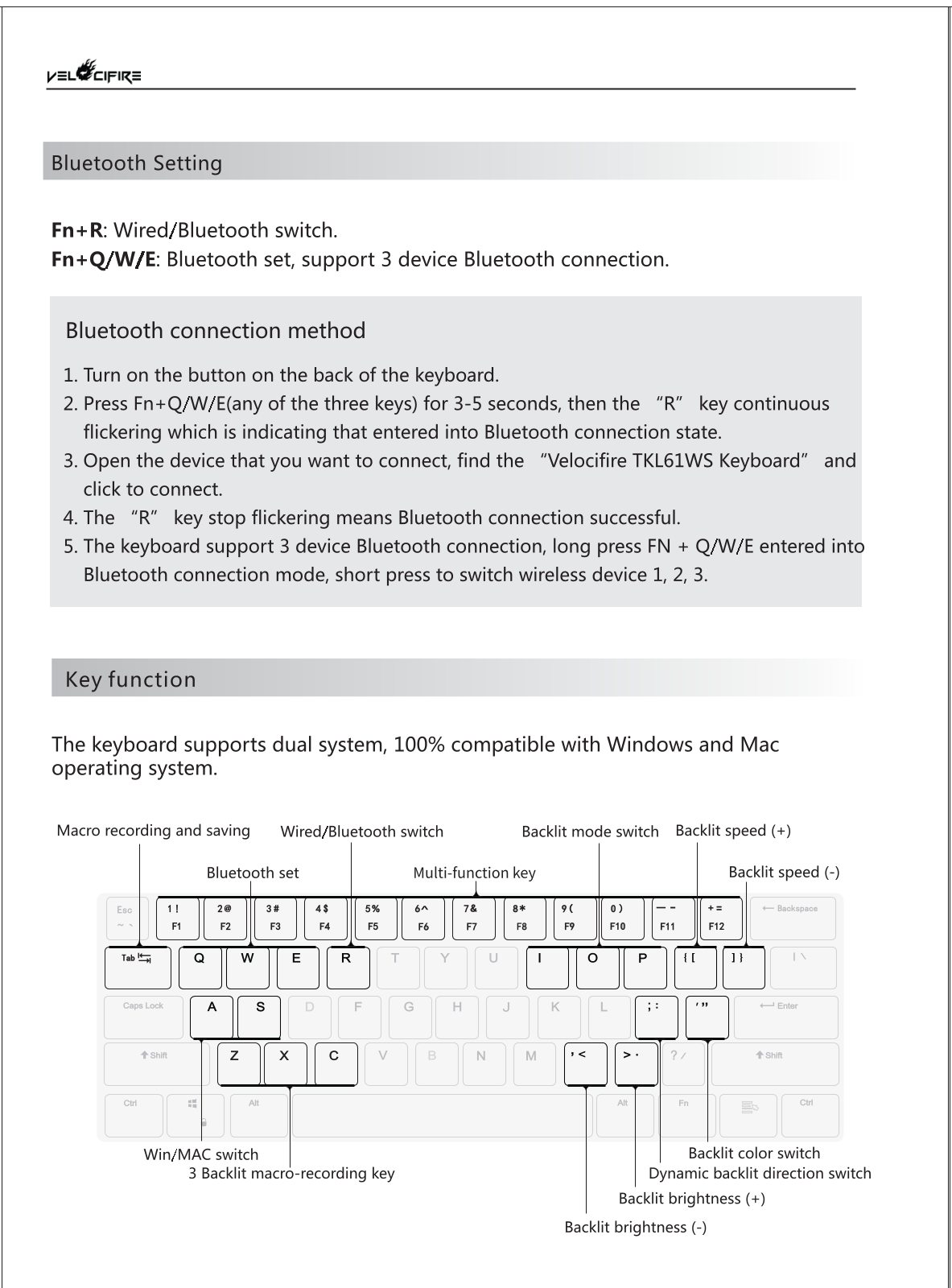
2. Press and hold Fn+Q, Fn+W, or Fn+E for 3-5 seconds. The “R” key will begin to flicker continuously, indicating the keyboard has entered Bluetooth connection state.
3. Open the Bluetooth settings on the device you want to connect to. Find “Velocifire TKL61WS Keyboard” in the list of available devices and click to connect.
4. The “R” key will stop flickering once the Bluetooth connection is successful.
The keyboard supports up to 3 Bluetooth device connections. To switch between paired devices, short press Fn + Q, W, or E to switch to wireless device 1, 2, or 3 respectively.
How do I manage the backlighting on my VELOCIFIRE TKL61WS keyboard?
You can control the various aspects of the RGB backlighting on your VELOCIFIRE TKL61WS using the following key combinations:
Switch Backlit Mode: Press Fn+I, Fn+O, or Fn+P. Each key cycles through 6 modes, for a total of 18 different backlit modes.
Increase Backlit Brightness: Press Fn+>.
Decrease Backlit Brightness: Press Fn+<.
Increase Backlit Speed: Press Fn+[{.
Decrease Backlit Speed: Press Fn+]}.
Switch Dynamic Backlit Direction: Press Fn+;:.
Switch Backlit Color: Press Fn+'”.
How do I create and save a custom backlit profile on the VELOCIFIRE TKL61WS?
The VELOCIFIRE TKL61WS allows you to record custom backlit profiles. Follow these steps:
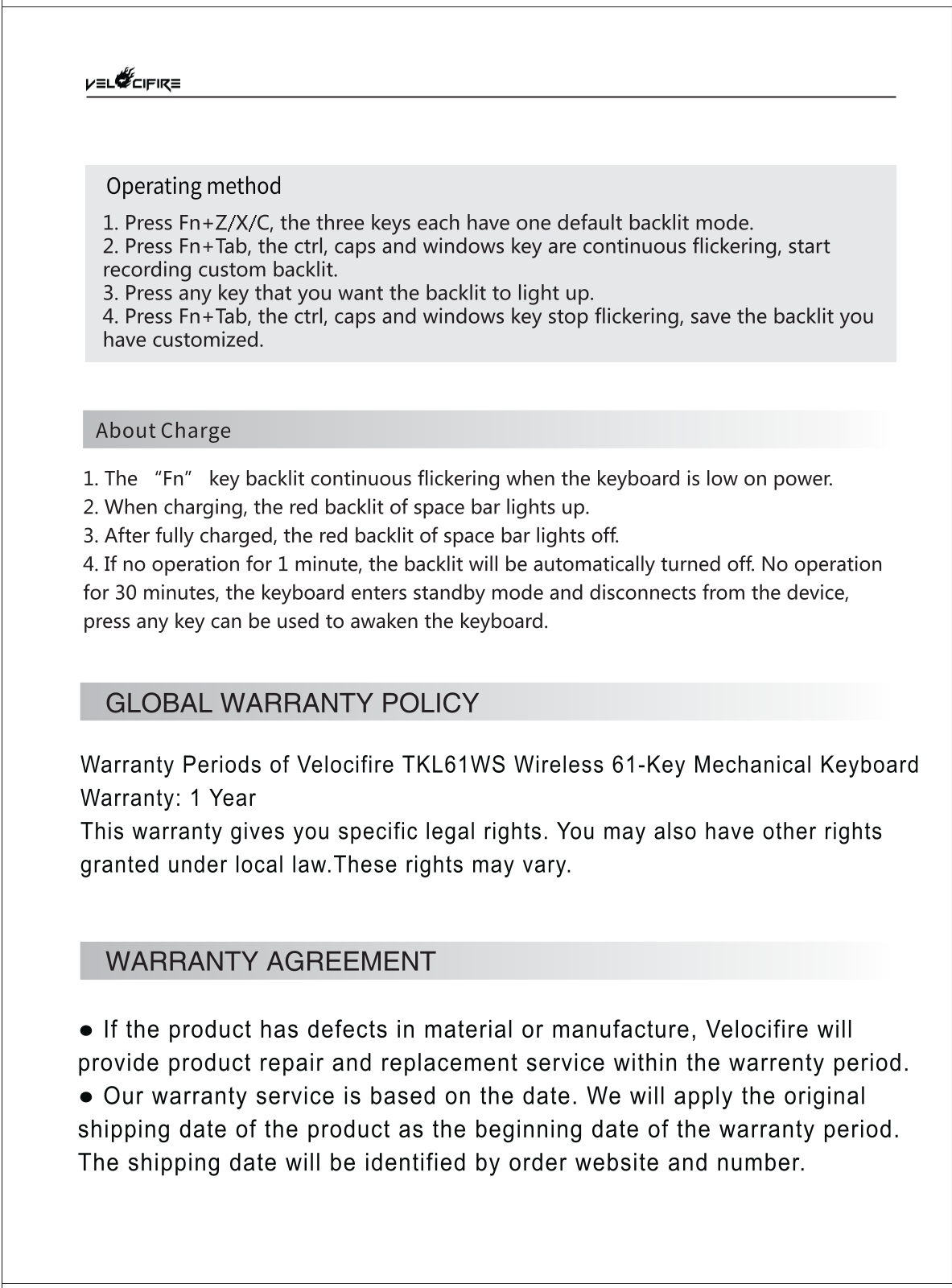
1. Press Fn+Z, Fn+X, or Fn+C to select one of the three custom profile slots. Each has one default backlit mode.
2. Press Fn+Tab to start recording. The Ctrl, Caps, and Windows keys will flicker continuously.
3. Press any key that you want to light up in your custom profile.
4. Press Fn+Tab again to save the profile. The flickering on the Ctrl, Caps, and Windows keys will stop, confirming that your custom backlit has been saved.
What are the main function key combinations for the VELOCIFIRE TKL61WS?
| Key Combination | Function |
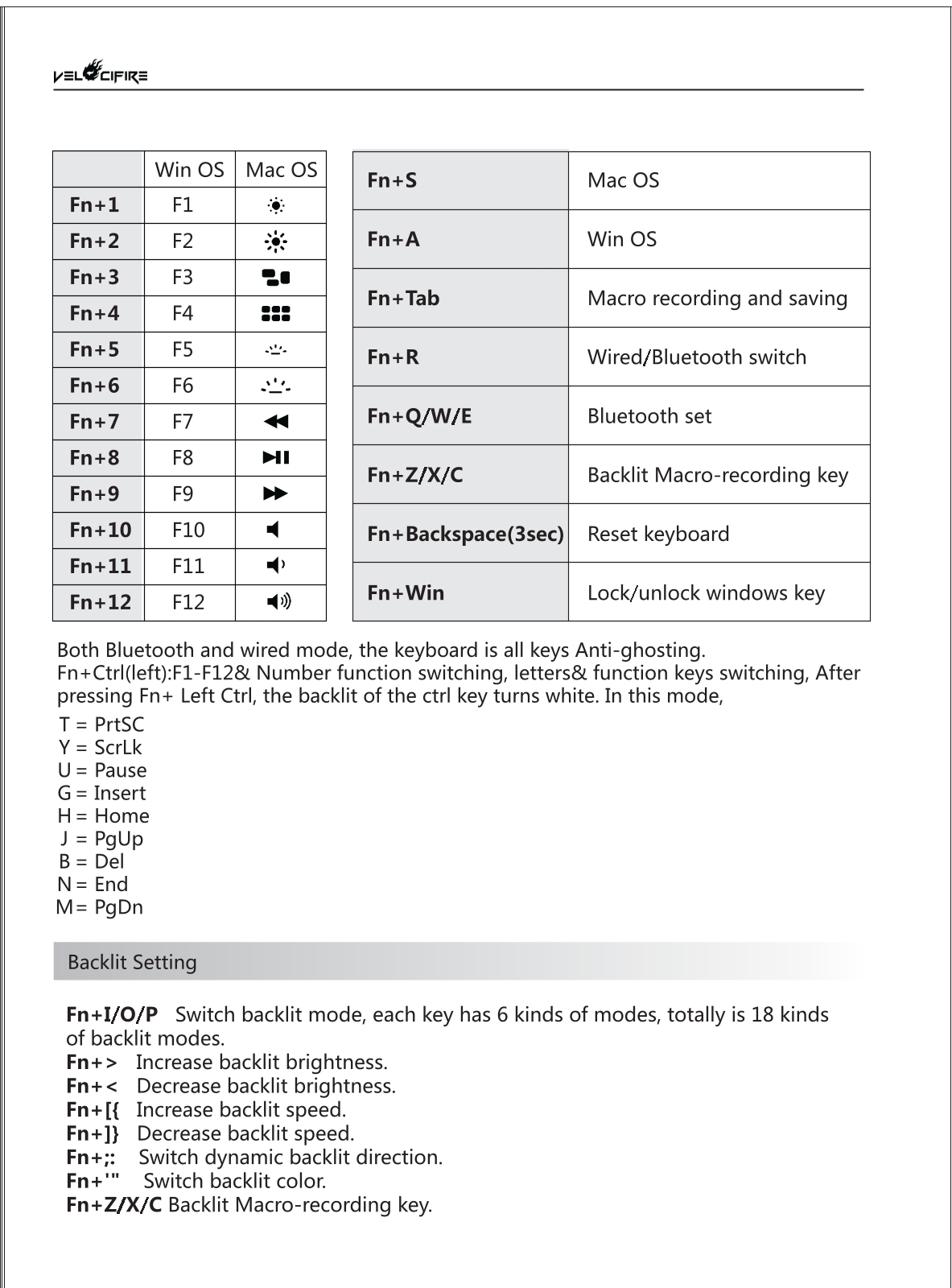
| Fn+R | Switch between Wired and Bluetooth mode |
| Fn+Q/W/E | Bluetooth Set (Long press for pairing, short press to switch devices) |
| Fn+S | Switch to Mac OS mode |
| Fn+A | Switch to Win OS mode |
| Fn+Tab | Macro recording and saving |
| Fn+Z/X/C | Backlit Macro-recording key |
| Fn+Backspace (hold 3 sec) | Reset keyboard |
| Fn+Win | Lock/unlock Windows key |
| Fn+1 | F1 |
| Fn+2 | F2 |
| Fn+3 | F3 |
| Fn+4 | F4 |
| Fn+5 | F5 |
| Fn+6 | F6 |
| Fn+7 | F7 (Previous Track in Mac OS) |
| Fn+8 | F8 (Play/Pause in Mac OS) |
| Fn+9 | F9 (Next Track in Mac OS) |
| Fn+10 | F10 (Mute in Mac OS) |
| Fn+11 | F11 (Volume Down in Mac OS) |
| Fn+12 | F12 (Volume Up in Mac OS) |
How do I use the extended function key mode on the VELOCIFIRE TKL61WS?
The VELOCIFIRE TKL61WS has an extended function mode that can be activated by pressing Fn + Left Ctrl. When this mode is active, the backlight of the Left Ctrl key turns white. This mode remaps several letter keys to additional functions and also switches between the number row and F1-F12 keys.
In this mode, the following keys are remapped:
T = PrtSc (Print Screen)
Y = ScrLk (Scroll Lock)
U = Pause
G = Insert
H = Home
J = PgUp (Page Up)
B = Del (Delete)
N = End
M = PgDn (Page Down)
Pressing Fn + Left Ctrl again will disable this mode.
How can I charge the VELOCIFIRE TKL61WS and what are the battery indicators?
Low Power Indicator: When the keyboard is low on power, the “Fn” key’s backlight will flicker continuously.
Charging Indicator: When charging via the Type C USB cable, the red backlight of the space bar will light up.
Fully Charged Indicator: After the keyboard is fully charged, the red backlight of the space bar will turn off.
The keyboard also features power-saving functions. If there is no operation for 1 minute, the backlight will automatically turn off. If there is no operation for 30 minutes, the keyboard will enter standby mode and disconnect from the device. Pressing any key will awaken the keyboard.
What do I need to know about the hot-swapped switches on the VELOCIFIRE TKL61WS?
The VELOCIFIRE TKL61WS keyboard adopts hot-swapped Outemu brown switches. It can only be replaced by other Outemu switches. If you replace them with other brands’ switches and cause any damage to the keyboard, you will take responsibility for it as this is out of the warranty policy.
Does the VELOCIFIRE TKL61WS keyboard have anti-ghosting?
Yes, in both Bluetooth and wired mode, the VELOCIFIRE TKL61WS keyboard features all-keys anti-ghosting.
How to use the PDF below:
* Touchscreen: Swipe up/down with-in the PDF to scroll and pinch or spread with two fingers to zoom.
* Mouse: While your mouse is hovering over the PDF, use the mouse wheel to scroll and click on the – / + buttons at the bottom of the PDF to zoom.

CLICK HERE TO DOWNLOAD VELOCIFIRE TKL61WS (01) PDF DOCUMENT